Google Drive ချန်နယ် ထည့်သွင်းခြင်း
ဦးစွာ လိုအပ်သည့်အရာများ
မစတင်မီ အောက်ပါအရာများကို ပြင်ဆင်ထားပါ။
| လိုအပ်ချက် | လိုအပ်ရသည့်အကြောင်းရင်း |
|---|---|
| Google အကောင့်တစ်ခု | Google Cloud သို့ access လုပ်ရန်နှင့် Google Drive ကို authorize လုပ်ရန် အသုံးပြုသည် |
| Google Cloud project တစ်ခု | Drive API ကို enable လုပ်ရန်နှင့် OAuth credential များဖန်တီးရန် အသုံးပြုသည် |
| OAuth 2.0 client တစ်ခု | ImgHost က Client ID၊ Client Secret နှင့် Refresh Token ရယူရန် အသုံးပြုသည် |
| သင်၏ ImgHost ဒိုမိန်း | OAuth redirect URI အတွက် အသုံးပြုသည်။ သင်လက်တွေ့အသုံးပြုသော ဒိုမိန်းနှင့် ကိုက်ညီရမည်။ |
ပြင်ဆင်မှု အဆင့်များ
အဆင့် 1: Google Drive API ကို Enable လုပ်ပါ
- Google Cloud Console ကိုဖွင့်ပါ။
- Project အသစ်တစ်ခုဖန်တီးပါ သို့မဟုတ် ရှိပြီးသား project တစ်ခုကိုရွေးပါ။
APIs & Servicesသို့သွားပါ။Enable APIs and Servicesကိုနှိပ်ပါ။Google Drive APIကိုရှာပါ။- ၎င်းကိုဖွင့်ပြီး enable ကိုနှိပ်ပါ။
အဆင့် 2: OAuth Consent Screen ကိုပြင်ဆင်ပါ
- Google Cloud တွင်
Google Auth Platformကိုဖွင့်ပါ။ - App name၊ support email နှင့် developer contact email ကဲ့သို့ အခြေခံ
Brandingအချက်အလက်များကို ဖြည့်ပါ။ Audienceကိုဖွင့်ပါ။- Self-hosted personal deployment အများစုအတွက်
Externalကိုရွေးပါ။ Externalကိုရွေးပါက authorize လုပ်လိုသော Google အကောင့်ကိုTest usersအောက်တွင် ထည့်ပါ။Data Accessကိုဖွင့်ပါ။- လိုအပ်သော Google Drive permission များကို ထည့်ပါ။
အဆင့် 3: OAuth 2.0 Client ဖန်တီးပါ
Google Auth Platformတွင်Clientsကိုဖွင့်ပါ။- Client အသစ်တစ်ခု ဖန်တီးပါ။
- Application type ကို
Web applicationဟု သတ်မှတ်ပါ။ - Client ကို မှတ်မိလွယ်သောအမည် ပေးပါ။
- Authorized JavaScript origins အတွက် သင်၏ ImgHost URL ကိုထည့်ပါ။ ဥပမာ-
text
https://img.example.com- Authorized redirect URIs အတွက် အောက်ပါကို ထည့်ပါ။
text
https://img.example.com/api/oauth/google/callback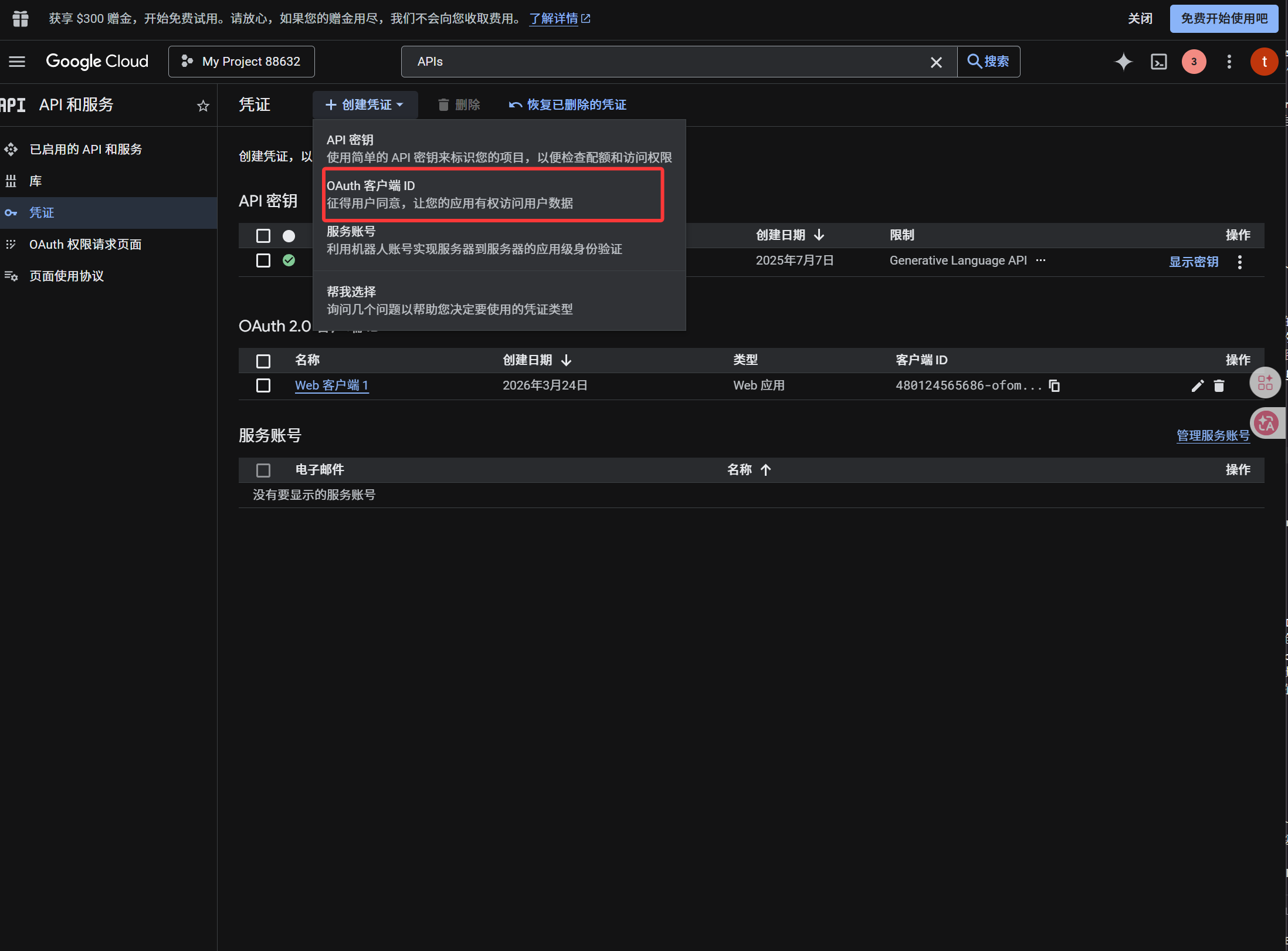
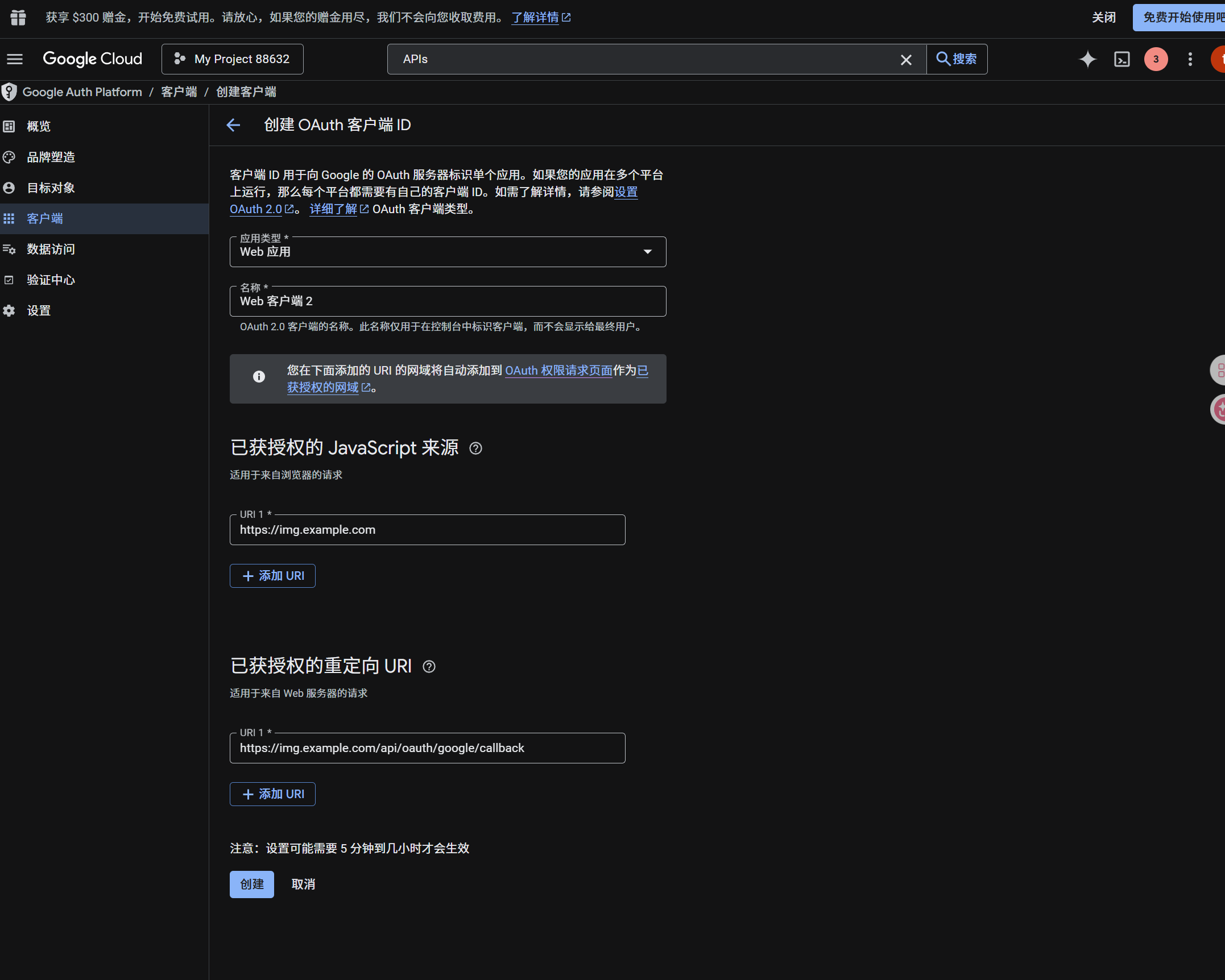
Client ဖန်တီးပြီးနောက် အောက်ပါတန်ဖိုးများကို ကူးယူပါ။
| ထုတ်ပေးသော တန်ဖိုး | ImgHost အကွက် |
|---|---|
| Client ID | Client ID |
| Client Secret | Client Secret |
အဆင့် 4: Google Drive Channel ကိုဖြည့်ပါ
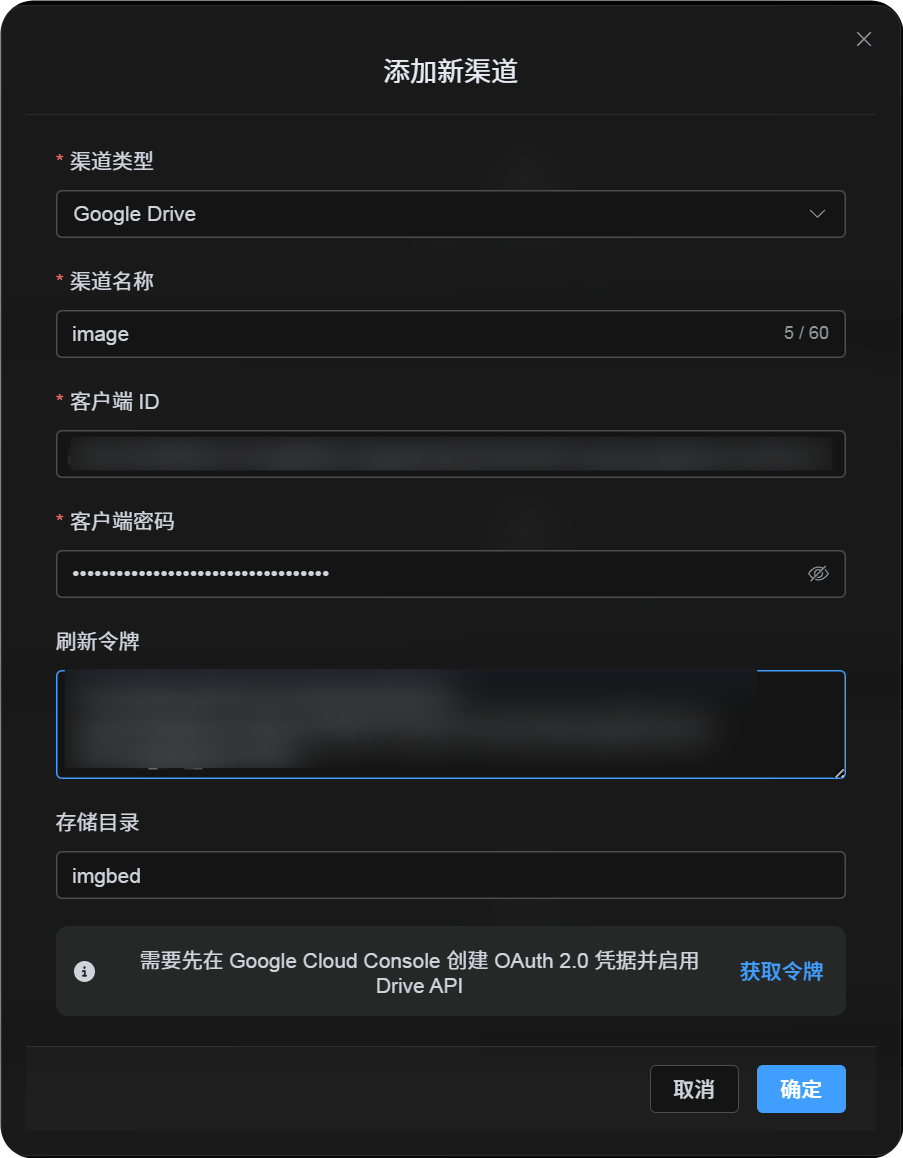
အပ်လုဒ် ဆက်တင်များ တွင် Google Drive ကိုရွေးပြီး အောက်ပါအတိုင်း ဖြည့်ပါ။
| ImgHost အကွက် | ထည့်ရန်အရာ |
|---|---|
| ချန်နယ်အမည် | သင်မှတ်မိနိုင်သောအမည်၊ ဥပမာ Main Google Drive |
| Client ID | Google Cloud မှ Client ID |
| Client Secret | Google Cloud မှ Client Secret |
| Refresh Token | ယခုအချိန်တွင် အလွတ်ထားပါ။ နောက်အဆင့်တွင် ရယူပါ။ |
| အမြစ် ဖိုင်တွဲ | ရွေးချယ်နိုင်သည်။ မူရင်း သည် imgbed ဖြစ်သည်။ |
အဆင့် 5: Refresh Token ရယူပါ
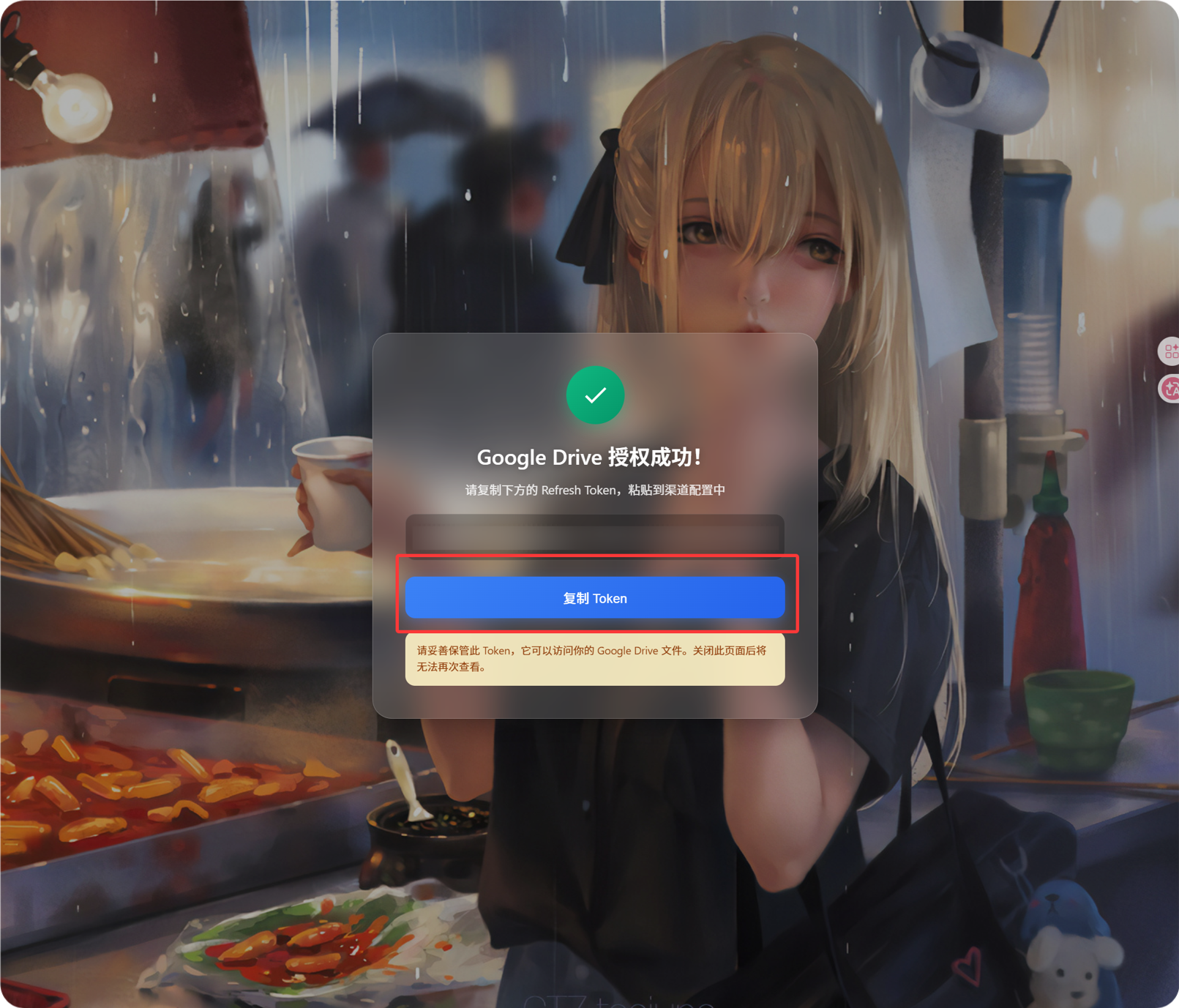
Get Tokenကိုနှိပ်ပါ။- ချိတ်ဆက်လိုသော Google အကောင့်ကိုရွေးပါ။
- Authorization prompt များကို ပြီးဆုံးအောင် လုပ်ပါ။
- Callback စာမျက်နှာတွင်
Refresh Tokenကိုပြမည်။ - ၎င်းကိုကူးယူပါ။
- ImgHost သို့ ပြန်သွားပြီး
Refresh Tokenအကွက်ထဲသို့ paste လုပ်ပါ။
နောက်ပိုင်းတွင် Google အကောင့်ပြောင်းပါက၊ OAuth client ပြောင်းပါက သို့မဟုတ် authorization အဟောင်း သက်တမ်းကုန်ပါက channel ကိုဖျက်ရန် မလိုအပ်ပါ။ Edit page ကိုဖွင့်ပြီး Reauthorize ကိုနှိပ်ပါ။
အဆင့် 6: Channel ကိုသိမ်းပါ
အကွက် အားလုံးဖြည့်ပြီးပါက channel ကိုသိမ်းပါ။
အမြန် Flow
text
Open Google Cloud
-> Create or select a project
-> Enable Google Drive API
-> Configure Google Auth Platform
-> If Audience is External, add your Google account to Test users
-> Create a Web application OAuth client
-> Use https://your-domain.com/api/oauth/google/callback as the redirect URI
-> Fill Client ID and Client Secret into ImgHost
-> Click Get Token
-> Sign in with Google and authorize
-> Copy the Refresh Token from the callback page
-> Paste it back into ImgHost and save
-> Upload a test image
ကိုးကားချက်များ
- Google OAuth Web Server Applications: https://developers.google.com/identity/protocols/oauth2/web-server
- Google Workspace OAuth Consent Configuration: https://developers.google.com/workspace/guides/configure-oauth-consent
- Google Drive API Auth Scopes: https://developers.google.com/workspace/drive/api/guides/api-specific-auth