Discord ချန်နယ် ထည့်သွင်းခြင်း
မစတင်မီ လိုအပ်သည့်အရာများ
| လိုအပ်ချက် | ရည်ရွယ်ချက် |
|---|---|
| Discord အကောင့် | server၊ channel နှင့် developer application ဖန်တီးရန် အသုံးပြုသည်။ |
| Discord server တစ်ခု | Bot သည် channel ကို access မလုပ်နိုင်မီ server ထဲသို့ ဝင်ထားရမည်။ |
| Text channel တစ်ခု | ပုံများနှင့် ဖိုင်များကို ဤ channel သို့ ပို့မည်။ |
| Discord Developer Portal | Application ဖန်တီးရန်၊ bot ဖန်တီးရန်နှင့် Bot Token ရယူရန် အသုံးပြုသည်။ |
ထည့်သွင်းမည့်နေရာ
- စနစ် ဆက်တင်များ ကိုဖွင့်ပါ။
- အပ်လုဒ် ဆက်တင်များ သို့သွားပါ။
- ညာဘက်အပေါ်ထောင့်ရှိ ချန်နယ် ထည့်ရန် ကိုနှိပ်ပါ။
Discordကိုရွေးပါ။
အကွက် ရည်ညွှန်းချက်
| အကွက် | လုပ်ဆောင်ချက် | လိုအပ်မှု |
|---|---|---|
| ချန်နယ်အမည် | ဤ channel အတွက် မှတ်မိလွယ်သောအမည်၊ ဥပမာ "Discord Primary"။ | လိုအပ်သည် |
| Bot Token | Discord bot token။ | လိုအပ်သည် |
| Channel ID | ပစ်မှတ် text channel ၏ ID။ | လိုအပ်သည် |
| Proxy URL (ရွေးချယ်နိုင်သည်) | Discord CDN access မတည်ငြိမ်သည့်အခါမှသာ အသုံးပြုပါ။ https:// ပါဝင်သော URL အပြည့်အစုံကို ထည့်ပါ။ | ရွေးချယ်နိုင်သည် |
ပြင်ဆင်မှု အဆင့်များ
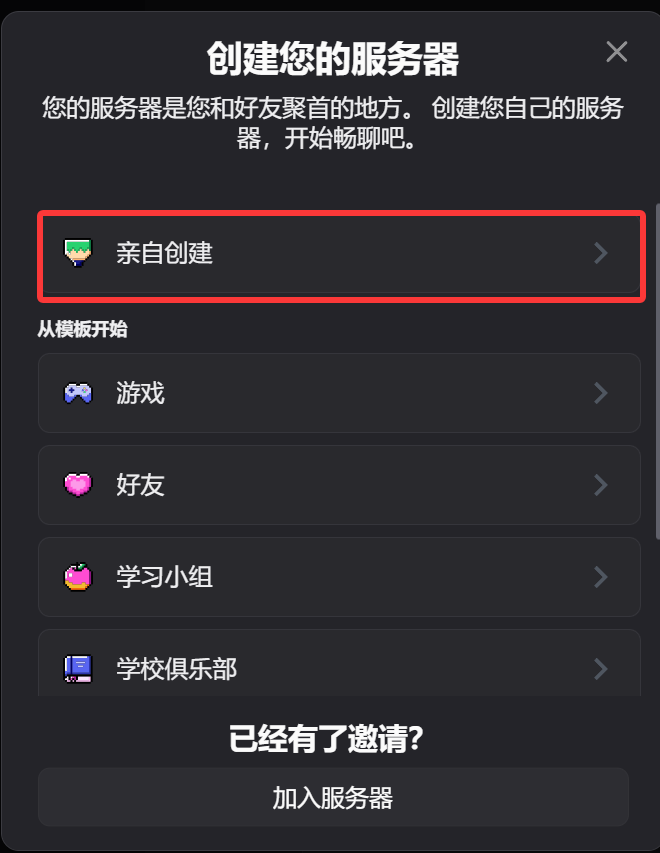
1. Discord Server နှင့် Text Channel ဖန်တီးပါ
- Discord ကိုဖွင့်ပါ။
- Server အသစ်တစ်ခုဖန်တီးပါ၊ သို့မဟုတ် သင်ပိုင်ဆိုင်ထားသော server တစ်ခုကို အသုံးပြုပါ။
- ထို server ထဲတွင် text channel တစ်ခု ဖန်တီးပါ။
2. Discord Developer Portal တွင် Bot ဖန်တီးပါ
- Discord Developer Portal ကိုဖွင့်ပါ:
https://discord.com/developers/applications New Applicationကိုနှိပ်ပါ။- Application name ထည့်ပြီး application ကိုဖန်တီးပါ။
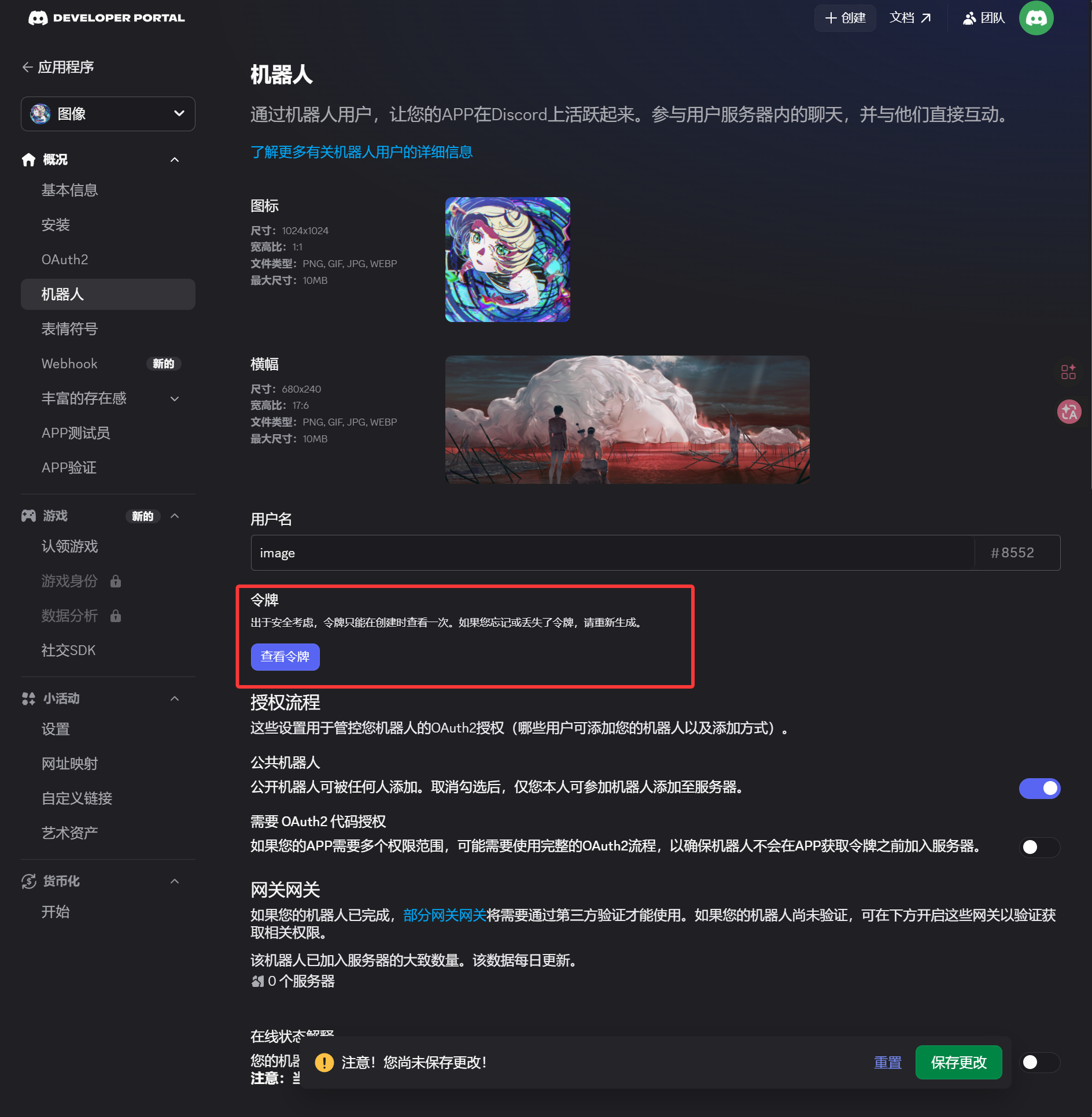
- ဘယ်ဘက် sidebar မှ
Botစာမျက်နှာကိုဖွင့်ပါ။ Botစာမျက်နှာတွင် token ကို generate သို့မဟုတ် reset လုပ်ပါ။- Token ကိုသိမ်းထားပါ။
ဤ token သည် ImgHost ထဲတွင် ထည့်ရမည့် Bot Token ဖြစ်သည်။
3. OAuth2 Invite Link ဖန်တီးပြီး Bot ကို Install လုပ်ပါ
- ဘယ်ဘက် sidebar မှ
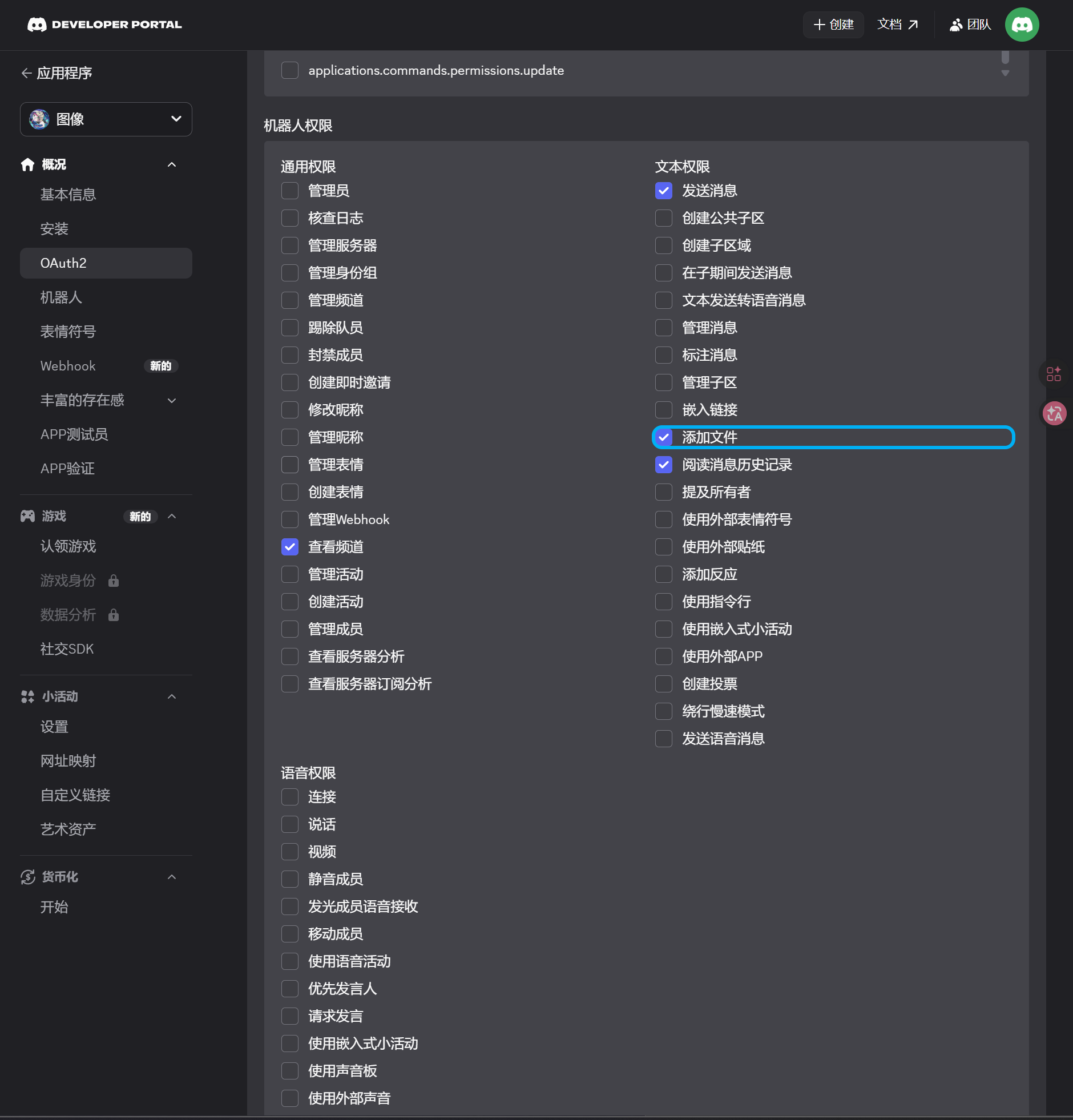
OAuth2စာမျက်နှာကိုဖွင့်ပါ။ - Scopes အောက်တွင်
botကိုရွေးပါ။ - Permission area တွင် အောက်ပါ permission များကို enable လုပ်ပါ။
| Permission | လိုအပ်မှု |
|---|---|
| View Channels | ဟုတ်သည် |
| Send Messages | ဟုတ်သည် |
| Attach Files | ဟုတ်သည် |
| Read Message History | ဟုတ်သည် |
- စာမျက်နှာအောက်ခြေတွင် integration type သည်
Guild Installဖြစ်ကြောင်း အတည်ပြုပါ။ - Generated URL ကိုကူးယူပါ။
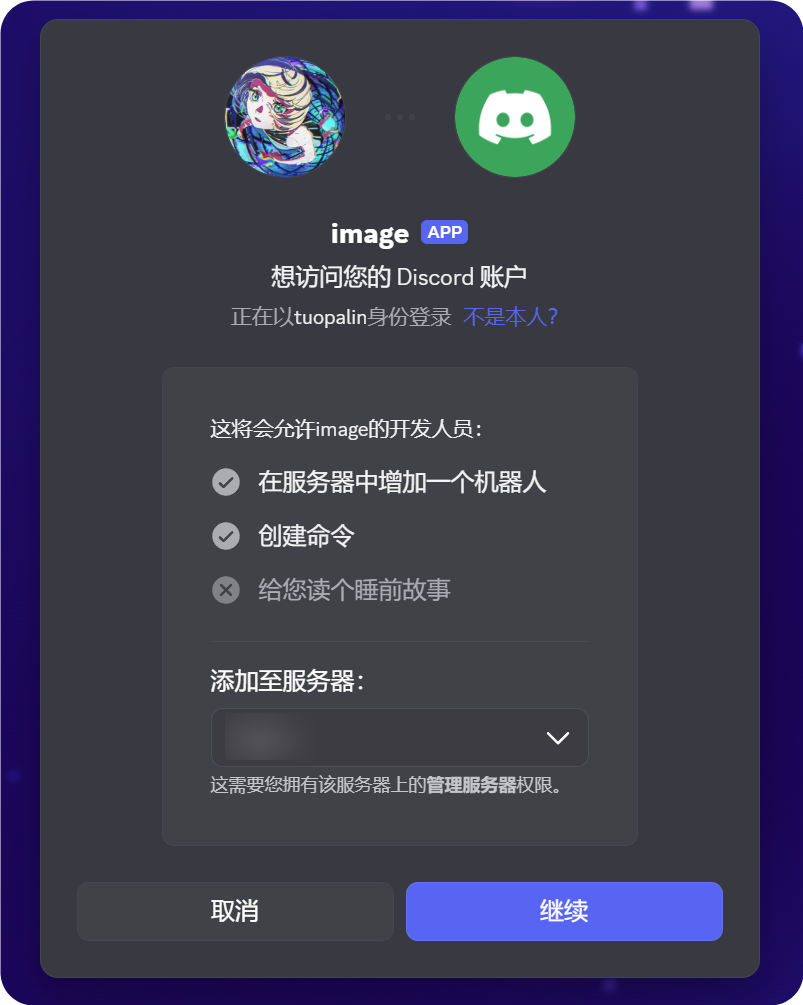
- ထို URL ကို browser တွင်ဖွင့်ပါ။
- ပစ်မှတ် server ကိုရွေးပါ။
- Authorization flow ကိုပြီးဆုံးအောင် ဆောင်ရွက်ပါ။
4. Developer Mode ကို Enable လုပ်ပြီး Channel ID ကိုကူးယူပါ
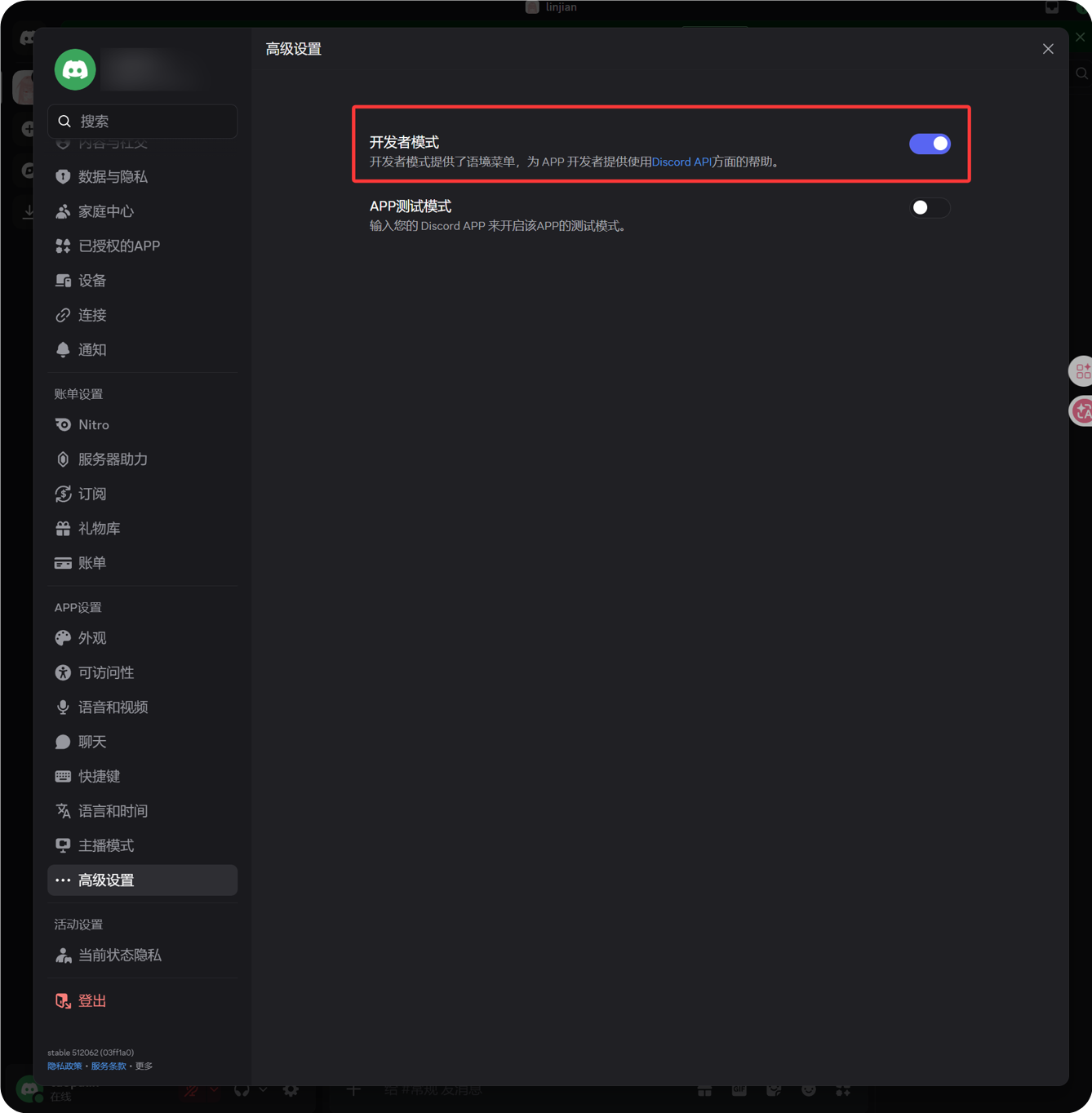
- Discord ၏ ဘယ်ဘက်အောက်ထောင့်တွင် သင်၏ avatar ဘေးရှိ gear icon ကိုနှိပ်ပါ။
- ဘယ်ဘက် sidebar မှ Advanced ကိုဖွင့်ပါ။
- Developer Mode ကို enable လုပ်ပါ။
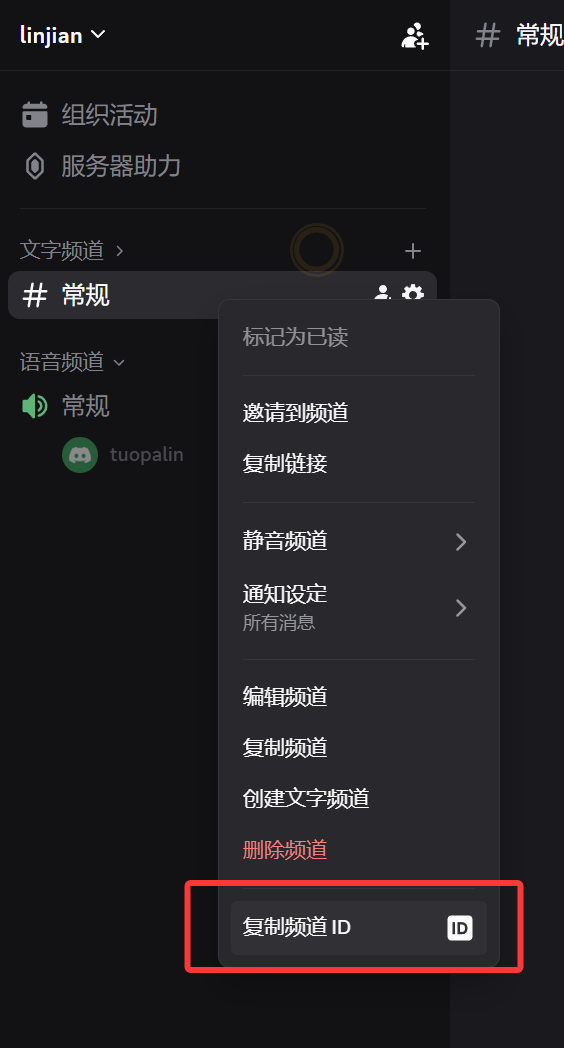
- ပစ်မှတ် text channel သို့ ပြန်သွားပါ။
- ချန်နယ်အမည် ကို right-click နှိပ်ပါ။
Copy Channel IDကိုနှိပ်ပါ။
ကူးယူထားသော နံပါတ်သည် ImgHost လိုအပ်သည့် Channel ID ဖြစ်သည်။
5. ImgHost တွင် Discord Channel ကိုဖြည့်ပါ
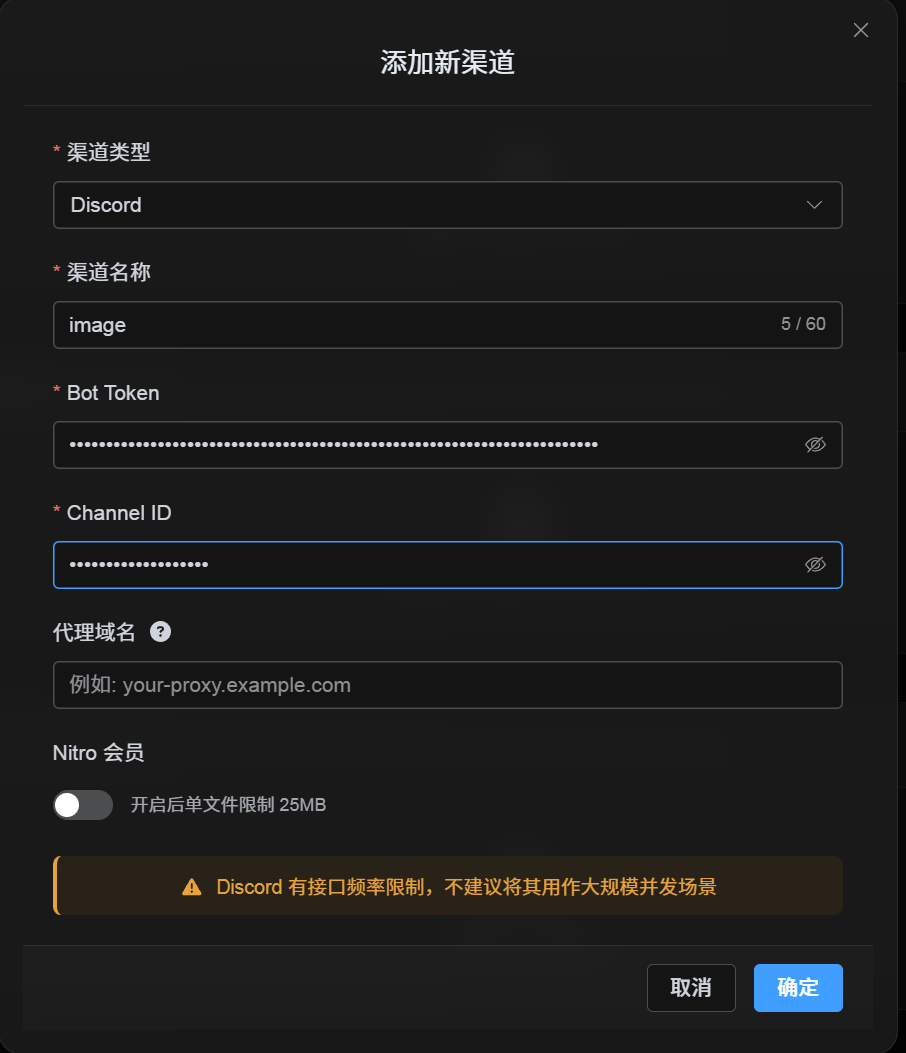
Channel configuration dialog သို့ ပြန်သွားပြီး အကွက်များကို အောက်ပါအတိုင်း ဖြည့်ပါ။
| UI အကွက် | တန်ဖိုး |
|---|---|
| ချန်နယ်အမည် | စိတ်ကြိုက် ချန်နယ်အမည်၊ ဥပမာ DiscordPrimary။ |
| Bot Token | Discord Developer Portal ၏ Bot စာမျက်နှာမှ သိမ်းထားသော token။ |
| Channel ID | Discord မှ သင်ကူးယူထားသော channel ID။ |
| Proxy URL (ရွေးချယ်နိုင်သည်) | လိုအပ်မှသာ ထည့်ပါ။ ဥပမာ https://your-proxy.example.com. |
ပြီးပါက Save ကိုနှိပ်ပါ။
အတည်ပြုနည်း
| စစ်ဆေးချက် | အတည်ပြုနည်း |
|---|---|
| ချန်နယ်ကတ် ပေါ်လာသည် | သိမ်းပြီးနောက် အပ်လုဒ် ဆက်တင်များ စာမျက်နှာတွင် Discord ချန်နယ်ကတ် ပေါ်လာသင့်သည်။ |
| Channel ကို enable လုပ်နိုင်သည် | Active switch သည် ဖွင့်ထားသည့်အခြေအနေတွင် ရှိသင့်သည်။ |
| Configuration သိမ်းထားသည် | Detail view တွင် Bot Token နှင့် Channel ID သိမ်းထားကြောင်း ပြသသင့်သည်။ |
| Upload အလုပ်လုပ်သည် | စမ်းသပ်ပုံတစ်ပုံကို အပ်လုဒ်လုပ်ပြီး ၎င်းသည် ပစ်မှတ် Discord text channel တွင် ပေါ်လာကြောင်း အတည်ပြုပါ။ |
အမြန် စစ်ဆေးစာရင်း
text
Create a Discord server
-> Create a text channel
-> Create a bot in the Discord Developer Portal
-> Save the Bot Token from the Bot page
-> In OAuth2, select bot, View Channels, Send Messages, Attach Files, and Read Message History
-> Copy the generated URL and authorize the bot for the target server
-> Make sure the target text channel grants the same permissions
-> Enable Developer Mode
-> Right-click the target text channel and copy the Channel ID
-> Enter the Bot Token and Channel ID in ImgHost
-> Save and upload a test image
ကိုးကားချက်များ
- Discord Developers Getting Started: https://docs.discord.com/developers/quick-start/getting-started
- Discord Help - Where can I find my User/Server/Message ID: https://support.discord.com/hc/en-us/articles/206346498-Where-can-I-find-my-User-Server-Message-ID