GitHub Releases ချန်နယ် ထည့်သွင်းခြင်း
မစတင်မီ လိုအပ်သည့်အရာများ
လိုအပ်သည့်အရာ သုံးခုသာရှိသည်။
| လိုအပ်ချက် | ရည်ရွယ်ချက် |
|---|---|
| GitHub အကောင့် | Access token ထုတ်ရန်နှင့် repository ကိုပိုင်ဆိုင်ရန် အသုံးပြုသည်။ |
| GitHub Access Token | ImgHost က GitHub API ကို access လုပ်ရန်၊ release များဖန်တီးရန်နှင့် ဖိုင်များအပ်လုဒ်လုပ်ရန် အသုံးပြုသည်။ |
| Repository အမည် | Repository အမည် သာ ထည့်နိုင်သည်။ ဥပမာ image။ |
ပြင်ဆင်မှု အဆင့်များ
အဆင့် 1: GitHub သို့ Sign in ဝင်ပြီး Access Token ဖန်တီးပါ
- GitHub သို့ sign in ဝင်ပါ။
- ညာဘက်အပေါ်ထောင့်ရှိ သင်၏ avatar ကိုနှိပ်ပြီး
Settingsကိုဖွင့်ပါ။ - ဘယ်ဘက် sidebar မှ
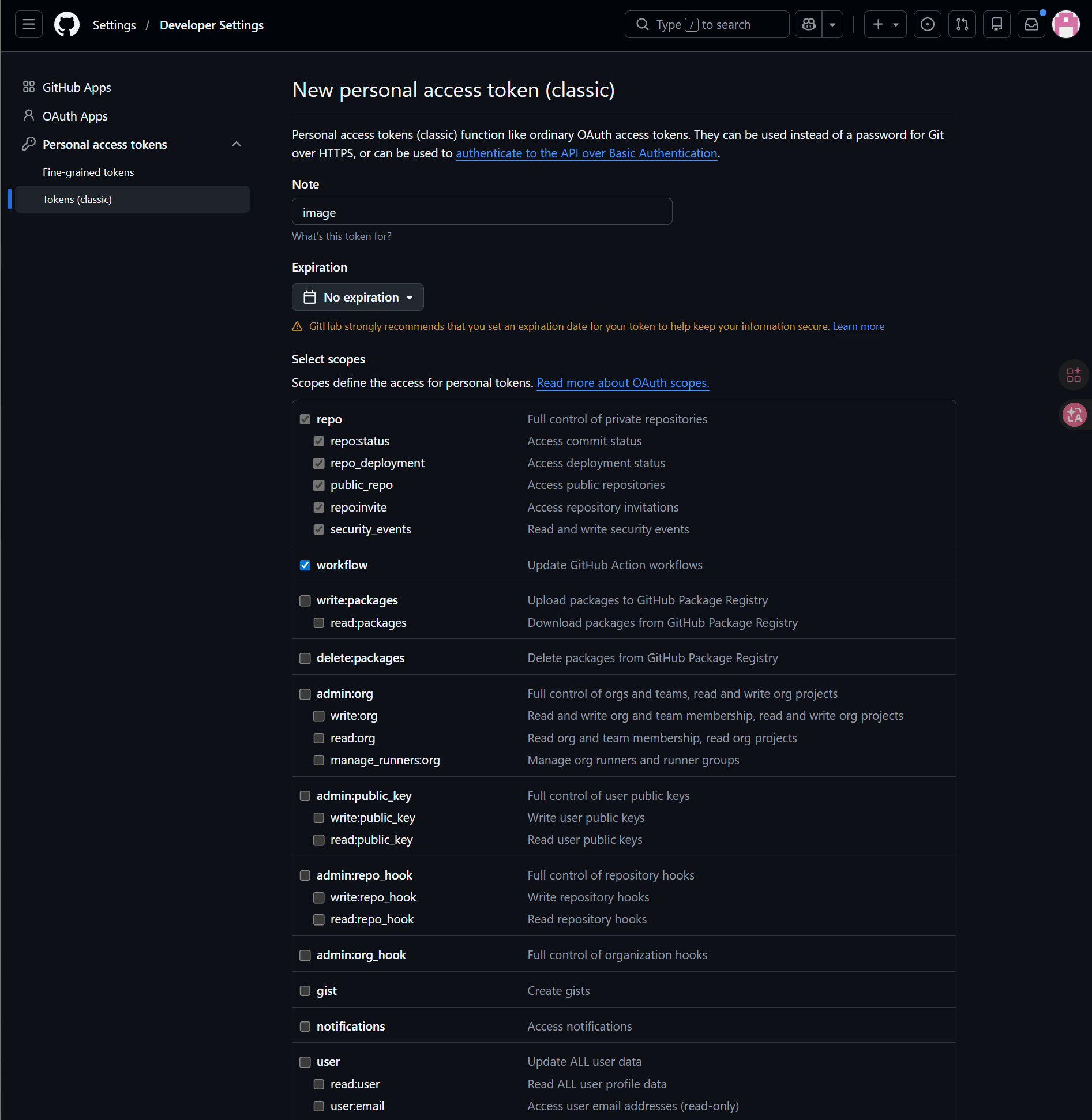
Developer settingsကိုဖွင့်ပါ။ Personal access tokensကိုဖွင့်ပါ။Tokens (classic)ကိုဖွင့်ပါ။Generate new token (classic)ကိုနှိပ်ပါ။- Token ကို မှတ်မိလွယ်သောအမည် ပေးပါ။
- ကိုယ်တိုင် maintenance လုပ်မည့်စီမံချက်အပေါ်မူတည်၍ expiration date ကိုရွေးပါ။
repoနှင့်workflowscope များကိုရွေးပါ။- Token ဖန်တီးပြီးသည်နှင့် ချက်ချင်းကူးယူပြီး သိမ်းထားပါ။
အဆင့် 2: ImgHost တွင် GitHub Releases Channel ကိုဖြည့်ပါ
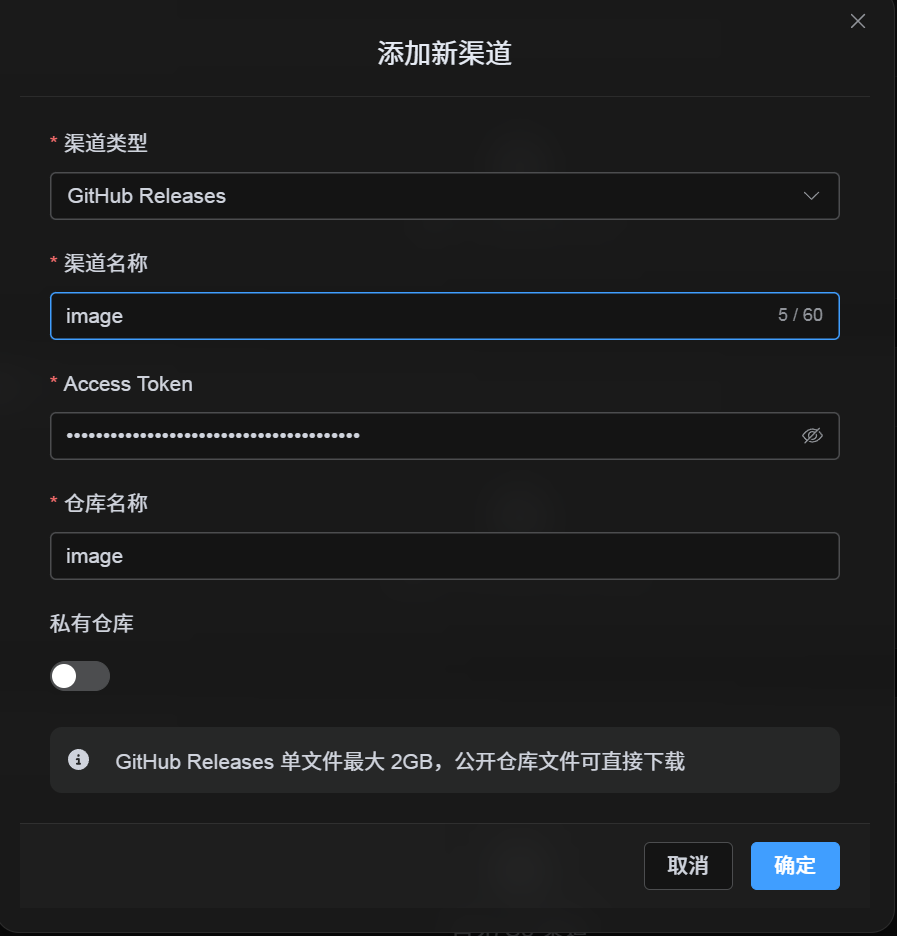
အပ်လုဒ် ဆက်တင်များ တွင် GitHub Releases ကိုရွေးပြီးနောက် အကွက်များကို အောက်ပါအတိုင်း ဖြည့်ပါ။
| UI အကွက် | ထည့်ရန်အရာ |
|---|---|
| ချန်နယ်အမည် | သင်ရွေးချယ်သောအမည်၊ ဥပမာ GitHubPrimary။ |
| Access Token | သင်ယခုဖန်တီးထားသော GitHub Personal Access Token။ |
| Repository အမည် | image ကဲ့သို့ short repo name သို့မဟုတ် username/image ကဲ့သို့ full path။ |
| ပုဂ္ဂလိက repository | သင်၏လိုအပ်ချက်အပေါ်မူတည်၍ ဖွင့်ပါ သို့မဟုတ် ပိတ်ပါ။ |
| မှတ်ချက် | ရွေးချယ်နိုင်သည်။ ဥပမာ Primary upload channel။ |
အဆင့် 3: Channel ကိုသိမ်းပါ
အကွက်များဖြည့်ပြီးနောက် Save ကိုနှိပ်ပါ။
စနစ်သည် အောက်ပါအသေးစိတ်များကို ဆောင်ရွက်ပေးမည်။
| စနစ်၏ လုပ်ဆောင်ပုံ | ဖော်ပြချက် |
|---|---|
| Short repository အမည် | ImgHost သည် လက်ရှိ GitHub အကောင့်ကိုသိရှိပြီး တန်ဖိုးကို full repository path အဖြစ် ချဲ့ထွင်သည်။ |
| Full repository path | ImgHost သည် username/repository path ကို ထည့်သွင်းထားသည့်အတိုင်း အတိအကျ အသုံးပြုသည်။ |
| Repository check | လက်ရှိ personal account path ကိုအသုံးပြုပါက repository မရှိသေးသည့်အခါ ImgHost က အလိုအလျောက်ဖန်တီးသည်။ Full path ကိုကိုယ်တိုင်ထည့်ပါက ImgHost သည် ထို path ကို တိုက်ရိုက်အသုံးပြုသည်။ |
| Public/private state | Repository visibility ကို လက်ရှိ switch အတိုင်း sync လုပ်သည်။ |
အမြန် စစ်ဆေးစာရင်း
GitHub Releases သည် အောက်ပါအတိုင်း အလုပ်လုပ်သည်။
text
Sign in to GitHub
-> Create an Access Token
-> Return to ImgHost and enter the token and repository name
-> Save
-> If only a repo name is entered, ImgHost adds the current username automatically
-> If username/repo is entered, ImgHost uses it as-is
-> Upload a test image