WebDAV Site Access
Security Settings ထဲရှိ WebDAV setting သည် သင့် ImgHost site ကို WebDAV အဆုံးမှတ် အဖြစ် ထုတ်ပြသည်။
ဖွင့်ပြီးနောက် Windows, macOS, mobile file managers သို့မဟုတ် WebDAV-compatible client မည်သည့်တစ်ခုကိုမဆို အသုံးပြု၍ ImgHost files များကို remote folder ကဲ့သို့ browse, upload, delete နှင့် manage လုပ်နိုင်သည်။
ဤအရာသည် site ၏ WebDAV access entry ဖြစ်သည်။ Upload Settings ထဲရှိ WebDAV storage channel နှင့် မတူပါ။ Upload channel သည် files များကို third-party WebDAV service ထဲတွင် သိမ်းဆည်းသည်။ ဤ setting သည် သင့် ImgHost site က clients များအတွက် WebDAV access ပေးနိုင်စေသည်။
သတ်မှတ်ရာနေရာ
စီမံခန့်ခွဲမှု ပန်နယ်ကို ဖွင့်ပြီး အောက်ပါနေရာသို့ သွားပါ။
text
System Settings -> Security Settings -> WebDAVရနိုင်သော သတ်မှတ်ချက်များ:
- ဖွင့်ရန်
- အသုံးပြုသူအမည်
- စကားဝှက်
- ပုံဖတ်ယူမှု မုဒ်
- မူလ channel
ဤ Feature ၏ လုပ်ဆောင်ချက်
WebDAV ဖွင့်ပြီးနောက် ImgHost သည် fixed access URL တစ်ခု ပေးသည်။
text
https://your-domain.com/davဤ URL ကို အသုံးပြု၍ သင့် ImgHost file directory သို့ ချိတ်ဆက်ပါ။
သင့်တော်သော အသုံးပြုမှုများ:
- ကွန်ပျူတာ file manager မှ ImgHost files များကို တိုက်ရိုက် browse လုပ်ခြင်း။
- ပုံများကို WebDAV folder ထဲသို့ ဆွဲထည့်၍ upload လုပ်ခြင်း။
- Local file manager မှ ImgHost folders များကို စီစဉ်ခြင်း။
- WebDAV-compatible software ဖြင့် ပုံများကို sync သို့မဟုတ် manage လုပ်ခြင်း။
- စီမံခန့်ခွဲမှု ပန်နယ် မဖွင့်ဘဲ ImgHost content ကို ဝင်ရောက်ခြင်း။
သတ်မှတ်ချက်များ
ဖွင့်ရန်
WebDAV အဆုံးမှတ် ကို ဖွင့်သည်။
ပိတ်ထားပါက clients များသည် WebDAV မှတစ်ဆင့် ချိတ်ဆက်နိုင်မည်မဟုတ်ပါ။
အသုံးပြုသူအမည်နှင့် စကားဝှက်
ဤအထောက်အထားများကို WebDAV clients များ ချိတ်ဆက်ရာတွင် အသုံးပြုသည်။
WebDAV အတွက် သီးသန့် အသုံးပြုသူအမည်နှင့် စကားဝှက်ကို အသုံးပြုပါ။ စီမံခန့်ခွဲသူ စကားဝှက် သို့မဟုတ် အပ်လုဒ် စကားဝှက်ကို ပြန်မသုံးပါနှင့်။
အသုံးပြုသူအမည် သို့မဟုတ် စကားဝှက် တစ်ခုခု ဗလာဖြစ်ပါက WebDAV clients များသည် မှန်ကန်စွာ ချိတ်ဆက်နိုင်မည်မဟုတ်ပါ။
ပုံဖတ်ယူမှု မုဒ်
ပုံဖတ်ယူမှု မုဒ်သည် WebDAV clients များ ပုံများကို ဖတ်ရာတွင် မည်သည့် image URL ကို ဦးစားပေးမည်ကို ဆုံးဖြတ်သည်။
ပုံမှန် ရွေးချယ်စရာများ:
| မုဒ် | ဖော်ပြချက် |
|---|---|
| စမတ်ဖတ်ယူမှု | ImgHost သည် context အပေါ် မူတည်၍ ရွေးသည်။ ပုံမှန်အသုံးပြုမှုအတွက် အကြံပြုသည်။ |
| မူရင်း | မူရင်းပုံများကို ဦးစားပေးသည်။ |
| ပုံသေး | ပုံသေးများ များကို ဦးစားပေးသည်။ မြန်ဆန်သော preview အတွက် အသုံးဝင်သည်။ |
မသေချာပါက စမတ်ဖတ်ယူမှု ကို ထားပါ။
မူလ Channel
မူလ channel ကို WebDAV uploads အတွက် အသုံးပြုသည်။
Windows သို့မဟုတ် အခြား client မှ WebDAV directory ထဲသို့ files များ copy လုပ်သောအခါ ImgHost သည် ရွေးထားသော default upload channel မှတစ်ဆင့် ၎င်းတို့ကို upload လုပ်သည်။
မူလ channel မရွေးထားပါက browsing လုပ်နိုင်သော်လည်း uploads မအောင်မြင်နိုင်ပါ။
Windows 11 တွင် WebDAV ဝင်ရောက်ခြင်း
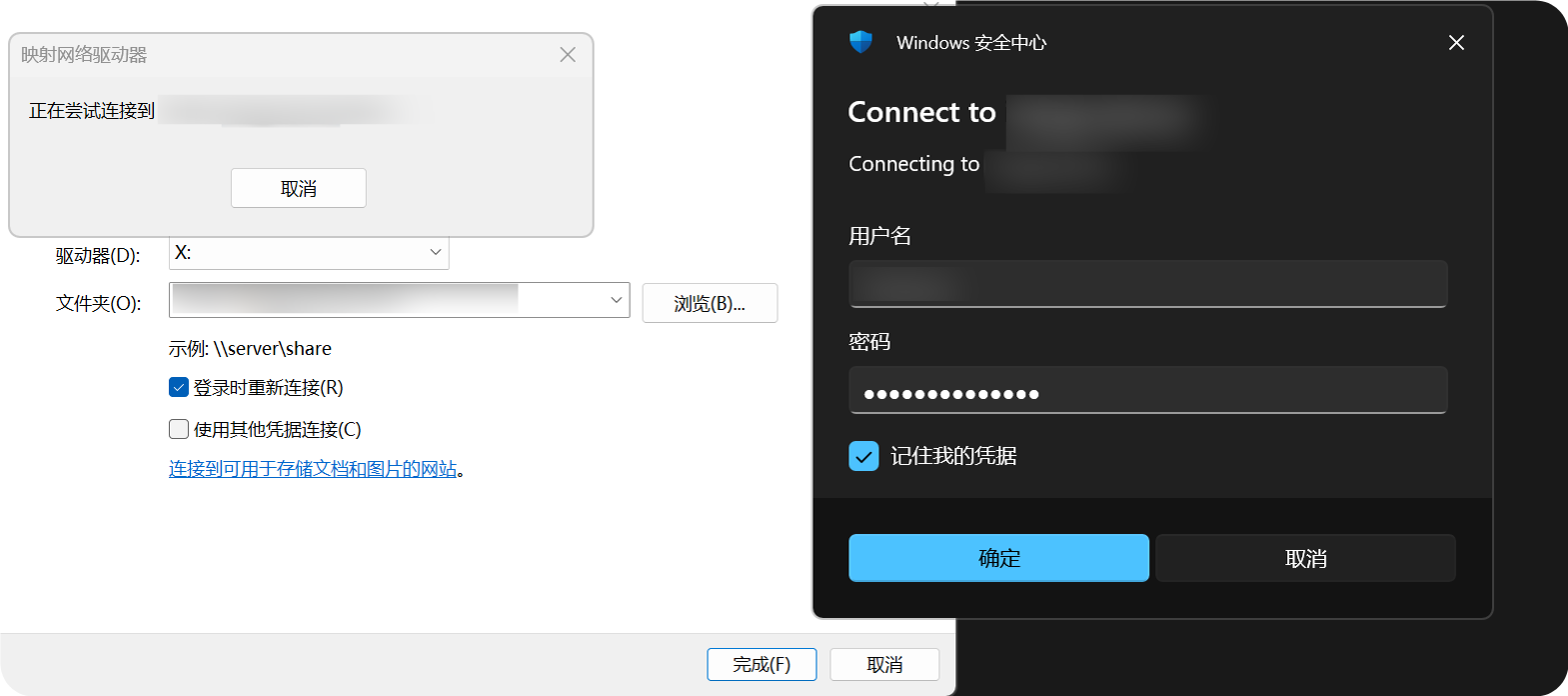
Windows 11 သည် WebDAV ကို network location အဖြစ် ထည့်နိုင်သည်။
ဤ PCကို ဖွင့်ပါ။ကွန်ရက်နေရာ ထည့်ရန်ကို ရွေးပါ။https://your-domain.com/davကို ထည့်ပါ။- တောင်းဆိုပါက WebDAV အသုံးပြုသူအမည်နှင့် စကားဝှက်ကို ထည့်ပါ။
- wizard ကို ပြီးဆုံးပါ။ ထို့နောက် WebDAV directory ကို ဖိုင်စူးစမ်းရေးကိရိယာတွင် ဖွင့်နိုင်သည်။
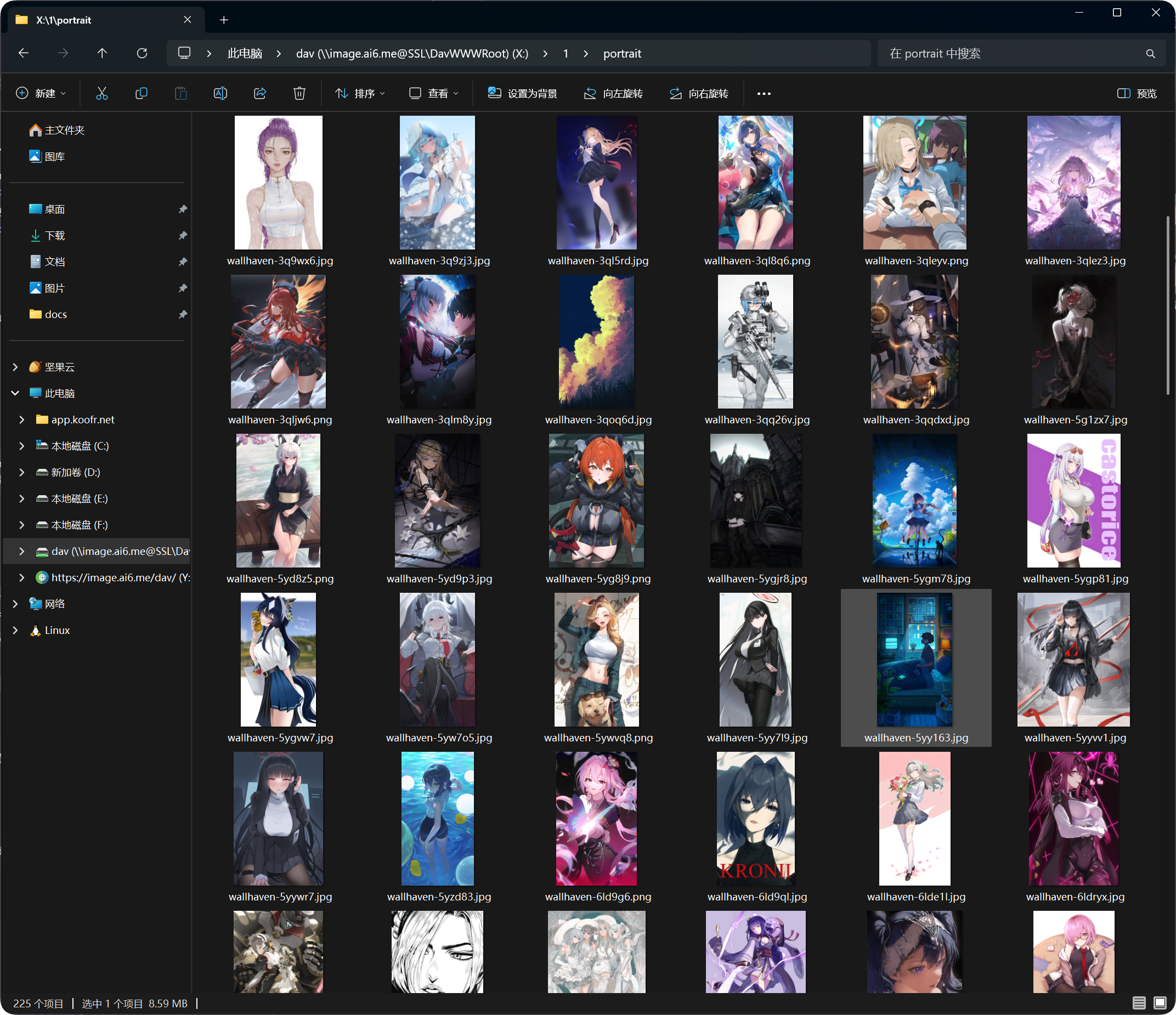
ထည့်ပြီးနောက် WebDAV directory သည် Windows ဖိုင်စူးစမ်းရေးကိရိယာတွင် ပေါ်လာသည်။ ပုံမှန် folder ကဲ့သို့ files များကို ဖွင့်၊ ကူးယူနှင့် စီမံနိုင်သည်။
ပံ့ပိုးထားသော လုပ်ဆောင်ချက်များ
WebDAV ချိတ်ဆက်မှု အောင်မြင်ပြီးနောက် ပုံမှန်အားဖြင့် အောက်ပါတို့ကို လုပ်နိုင်သည်။
- ဖိုင်များနှင့် folder များကို ကြည့်ခြင်း။
- ဖိုင်များ upload လုပ်ခြင်း။
- Folder များ ဖန်တီးခြင်း။
- ဖိုင် သို့မဟုတ် folder အမည်ပြောင်းခြင်း။
- ဖိုင်များ ရွှေ့ခြင်း။
- ဖိုင်များ ဖျက်ခြင်း။
WebDAV သည် နေ့စဉ် access နှင့် အသေးစား file management အတွက် သင့်တော်သည်။ ကြီးမားသော moves, bulk deletes သို့မဟုတ် ရှုပ်ထွေးသော organization အတွက် စီမံခန့်ခွဲမှု ပန်နယ်ကို အသုံးပြုပါ။
လော့ဂ်အင်ကိရိယာ စီမံခန့်ခွဲမှု
အောင်မြင်သော WebDAV ချိတ်ဆက်မှုများသည် လော့ဂ်အင်ကိရိယာ စီမံခန့်ခွဲမှုရှိ WebDAV tab တွင်လည်း ပေါ်လာသည်။
အဲဒီနေရာတွင် WebDAV clients များကို စစ်ဆေးနိုင်ပြီး လိုအပ်ပါက ကိရိယာဟောင်းများကို အော့ဖ်လိုင်း အတင်းလုပ်နိုင်သည်။
WebDAV အသုံးပြုသူအမည် သို့မဟုတ် စကားဝှက်ကို ပြောင်းလဲပါက client ဟောင်းများသည် ပြန်လော့ဂ်အင် ဝင်ရမည်။
FAQ
Windows က အသုံးပြုသူအမည်နှင့် စကားဝှက်ကို ထပ်ခါထပ်ခါ တောင်းနေသည်
စစ်ဆေးရန်:
- URL သည်
https://your-domain.com/davဖြစ်သည်။ - အသုံးပြုသူအမည်နှင့် စကားဝှက်သည် WebDAV settings နှင့် ကိုက်ညီသည်။
- WebDAV ဖွင့်ထားသည်။
- Site ကို HTTPS ဖြင့် ဝင်ရောက်နိုင်သည်။
Browsing အလုပ်လုပ်သော်လည်း Upload မအောင်မြင်ပါ
မူလ channel ကို စစ်ဆေးပါ။
WebDAV uploads များသည် default upload channel လိုအပ်သည်။ ၎င်း မရှိပါက၊ ပိတ်ထားပါက သို့မဟုတ် မှားယွင်းစွာ သတ်မှတ်ထားပါက uploads မအောင်မြင်နိုင်ပါ။
Access Speed မတည်ငြိမ်ပါ
WebDAV performance သည် client, network, file count နှင့် default upload channel ပေါ် မူတည်သည်။
Directory တစ်ခုတွင် files အများကြီးရှိပါက တစ် directory ထဲတွင် များစွာ မထားဘဲ folders များအဖြစ် စီစဉ်ပါ။
လုံခြုံရေး အကြံပြုချက်များ
- WebDAV access အတွက် HTTPS ကို အသုံးပြုပါ။
- ခိုင်မာသော စကားဝှက် သတ်မှတ်ပါ။
- WebDAV စကားဝှက်ကို မယုံကြည်ရသူများနှင့် မမျှဝေပါနှင့်။
- အသုံးမပြုသည့်အခါ WebDAV ကို ပိတ်ထားပါ။
- လော့ဂ်အင်ကိရိယာ စီမံခန့်ခွဲမှုတွင် အသုံးမပြုသော WebDAV devices များကို ပုံမှန် ရှင်းလင်းပါ။
WebDAV Upload File Size
WebDAV clients များသည် ဘရောက်ဇာ upload page ၏ large-file chunking flow ကို အသုံးမပြုပါ။ အောက်ပါ အကြံပြု ကန့်သတ်ချက်များထက် ကြီးသော ဖိုင်များအတွက် web upload page ကို အသုံးပြုပါ။
| မူလ Upload Channel | WebDAV အတွက် အကြံပြု တစ်ဖိုင် ကန့်သတ်ချက် |
|---|---|
| Telegram | 20 MB |
| Discord | 10 MB |
| Cloudflare R2 | 30 MB |
| S3 | 30 MB |
| GitHub Releases | 64 MB |
| GitLab Packages | 64 MB |
| Hugging Face | 20 MB |
| OneDrive | 30 MB |
| Google Drive | 30 MB |
| Dropbox | 30 MB |
| Yandex Disk | 30 MB |
| pCloud | 30 MB |
| WebDAV | 64 MB |