Cloudflare R2 ချန်နယ် ထည့်သွင်းခြင်း
အသင့်တော်ဆုံး အခြေအနေ
Cloudflare R2 ကို အောက်ပါအခြေအနေများတွင် အသုံးပြုပါ။
- သင်၏ ImgHost site ကို Cloudflare ပေါ်တွင် deploy လုပ်ထားပြီး၊ တူညီသော Cloudflare အကောင့်အောက်ရှိ R2 bucket တွင် ဖိုင်များကို သိမ်းလိုပါက။
- သီးခြား S3 endpoint၊ access key နှင့် secret key ကို ပြင်ဆင်မထားလိုပါက။
- ဖတ်ခြင်းနှင့် ရေးခြင်းများကို Worker သို့မဟုတ် Pages R2 binding မှတစ်ဆင့် အနည်းဆုံးပြင်ဆင်မှုဖြင့် ဆောင်ရွက်လိုပါက။
အတိုချုပ်ပြောရလျှင်-
R2 ချန်နယ်ကို ImgHost admin panel အတွင်းတွင် ကိုယ်တိုင်မဖန်တီးရပါ။ Cloudflare project တွင် R2 bucket ကို ဦးစွာ bind လုပ်ရပြီး binding variable name သည် img_r2 ဖြစ်ရမည်။
မစတင်မီ လိုအပ်သည့်အရာများ
- Cloudflare အကောင့်တစ်ခု။
- ရှိပြီးသား R2 bucket တစ်ခု။
- ImgHost deploy လုပ်ထားသော Cloudflare project ကို စီမံခန့်ခွဲနိုင်သည့် permission။
Cloudflare တွင် ပြင်ဆင်ခြင်း
1. R2 Bucket ဖန်တီးပါ
- Cloudflare Dashboard သို့ log in ဝင်ပါ။
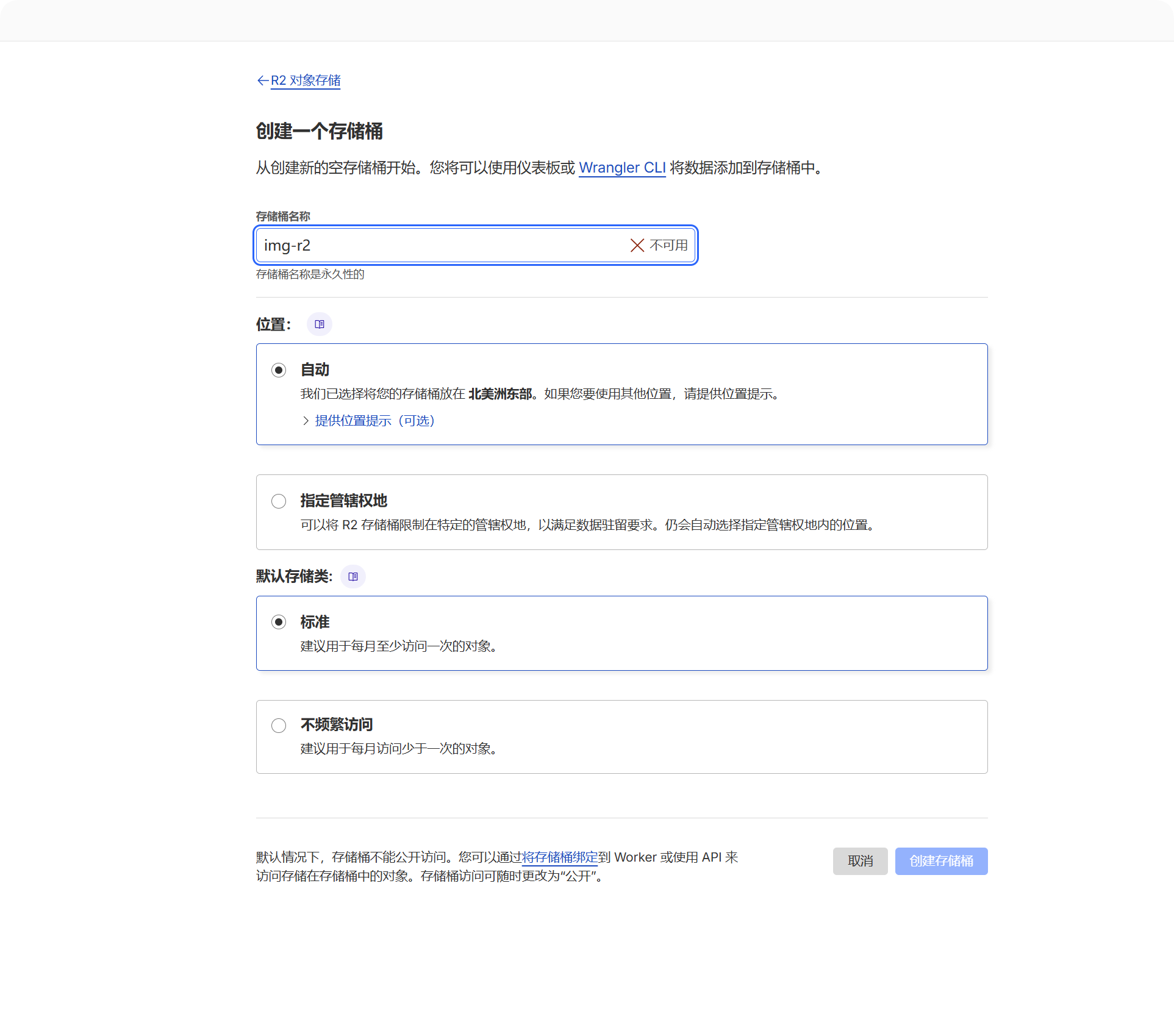
R2 Object Storageကိုဖွင့်ပါ။Create bucketကိုနှိပ်ပါ။- ဥပမာ
imgbedကဲ့သို့ bucket အမည်တစ်ခုကို ရွေးပါ။
ဤ bucket သည် အပ်လုဒ်လုပ်ထားသော ဖိုင်များ သိမ်းဆည်းမည့် နေရာဖြစ်သည်။
2. Bucket ကို ImgHost Project နှင့် Bind လုပ်ပါ
သင်၏ deployment အမျိုးအစားအပေါ်မူတည်၍ binding နေရာကို ရွေးပါ။
| Deployment အမျိုးအစား | Binding နေရာ |
|---|---|
| Pages | Current Pages project -> Settings -> Functions -> R2 bucket bindings |
| Worker | Current Worker -> Settings -> Bindings -> R2 bucket bindings |
Binding ထည့်သည့်အခါ အရေးကြီးသော အကွက်များမှာ အောက်ပါအတိုင်းဖြစ်သည်။
| အကွက် | တန်ဖိုး |
|---|---|
| Variable name | img_r2 |
| R2 bucket | သင်ဖန်တီးထားသော bucket ကိုရွေးပါ။ |
Variable name သည် အတိအကျ img_r2 ဖြစ်ရမည်။ R2 ဖိုင်များကို အပ်လုဒ်လုပ်ခြင်း၊ ဖတ်ခြင်းနှင့် ဖျက်ခြင်းအားလုံးသည် ဤ binding name ပေါ်တွင် မူတည်သည်။
3. Project ကို ထပ်မံ Deploy လုပ်ပါ
Binding ကို သိမ်းပြီးနောက် Worker သို့မဟုတ် Pages runtime က img_r2 ကို ဝင်ရောက်အသုံးပြုနိုင်စေရန် ImgHost ကို ထပ်မံ deploy လုပ်ပါ။
ImgHost တွင် တွေ့ရမည့်အရာများ
R2 binding အသုံးပြုနိုင်ပြီးနောက် အောက်ပါတို့ကို ဖွင့်ပါ။
- စနစ် ဆက်တင်များ။
- အပ်လုဒ် ဆက်တင်များ။
Cloudflare R2ချန်နယ်။
စနစ်သည် fixed channel တစ်ခုကို အလိုအလျောက် ဖန်တီးပေးမည်။
| အကွက် | သတ်မှတ်ထားသော တန်ဖိုး |
|---|---|
| ချန်နယ်အမည် | Cloudflare R2 |
| Channel type | cfr2 |
| Storage mode | binding |
| Configuration source | Environment binding |
ဤချန်နယ်သည် fixed binding channel ဖြစ်သည်။ ဖန်တီးရန် ချန်နယ် ထည့်ရန် ကိုနှိပ်ရန် မလိုအပ်သလို၊ ပုံမှန်ချန်နယ်များကဲ့သို့ ဖျက်၍မရပါ။
Admin Panel တွင် ပြင်နိုင်သော အကွက်များ
| အကွက် | လုပ်ဆောင်ချက် | လိုအပ်မှု |
|---|---|---|
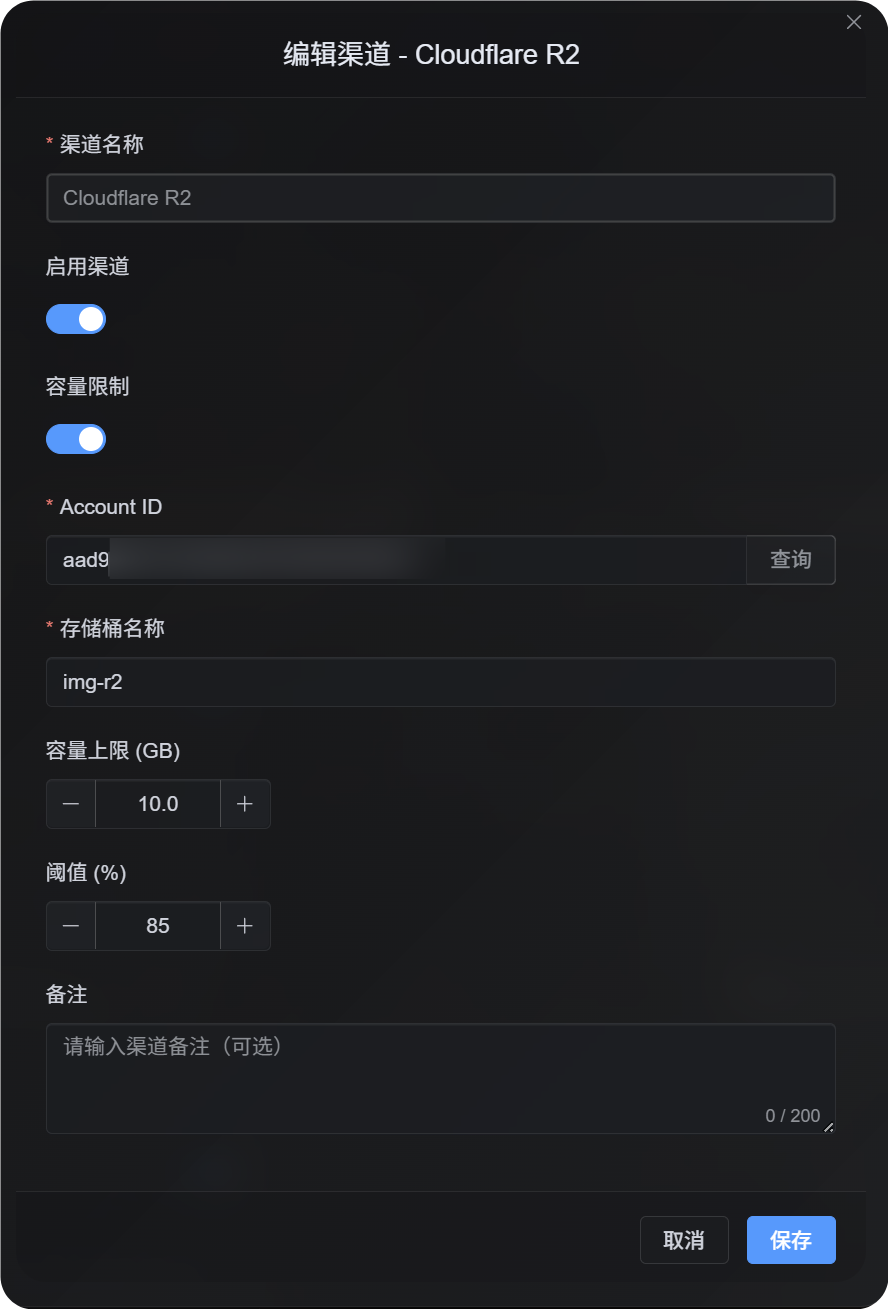
| Enable channel | R2 သည် အပ်လုဒ်ရွေးချယ်မှုတွင် ပါဝင်မပါဝင်ကို ထိန်းချုပ်သည်။ | ဟုတ်သည် |
| Account ID | quota limit ဖွင့်ထားပြီး official R2 usage ကို query လုပ်ရန် လိုအပ်သည့်အခါသာ အသုံးပြုသည်။ | quota limit ဖွင့်ထားပါက အကြံပြုသည် |
| Bucket name | quota limit ဖွင့်ထားပြီး official R2 usage ကို query လုပ်ရန် လိုအပ်သည့်အခါသာ အသုံးပြုသည်။ | quota limit ဖွင့်ထားပါက အကြံပြုသည် |
| Quota limit | ဤ R2 ချန်နယ်သည် capacity အပေါ်မူတည်သော အပ်လုဒ်ရွေးချယ်မှုတွင် ပါဝင်မပါဝင်ကို ထိန်းချုပ်သည်။ | မဟုတ်ပါ |
| Threshold | အသုံးပြုမှုသည် သတ်မှတ်ထားသော ရာခိုင်နှုန်းသို့ ရောက်ပြီးနောက် ဤချန်နယ်သို့ ရေးခြင်းကို ရပ်တန့်စေသည်။ | quota limit ဖွင့်ထားပါက လိုအပ်သည် |
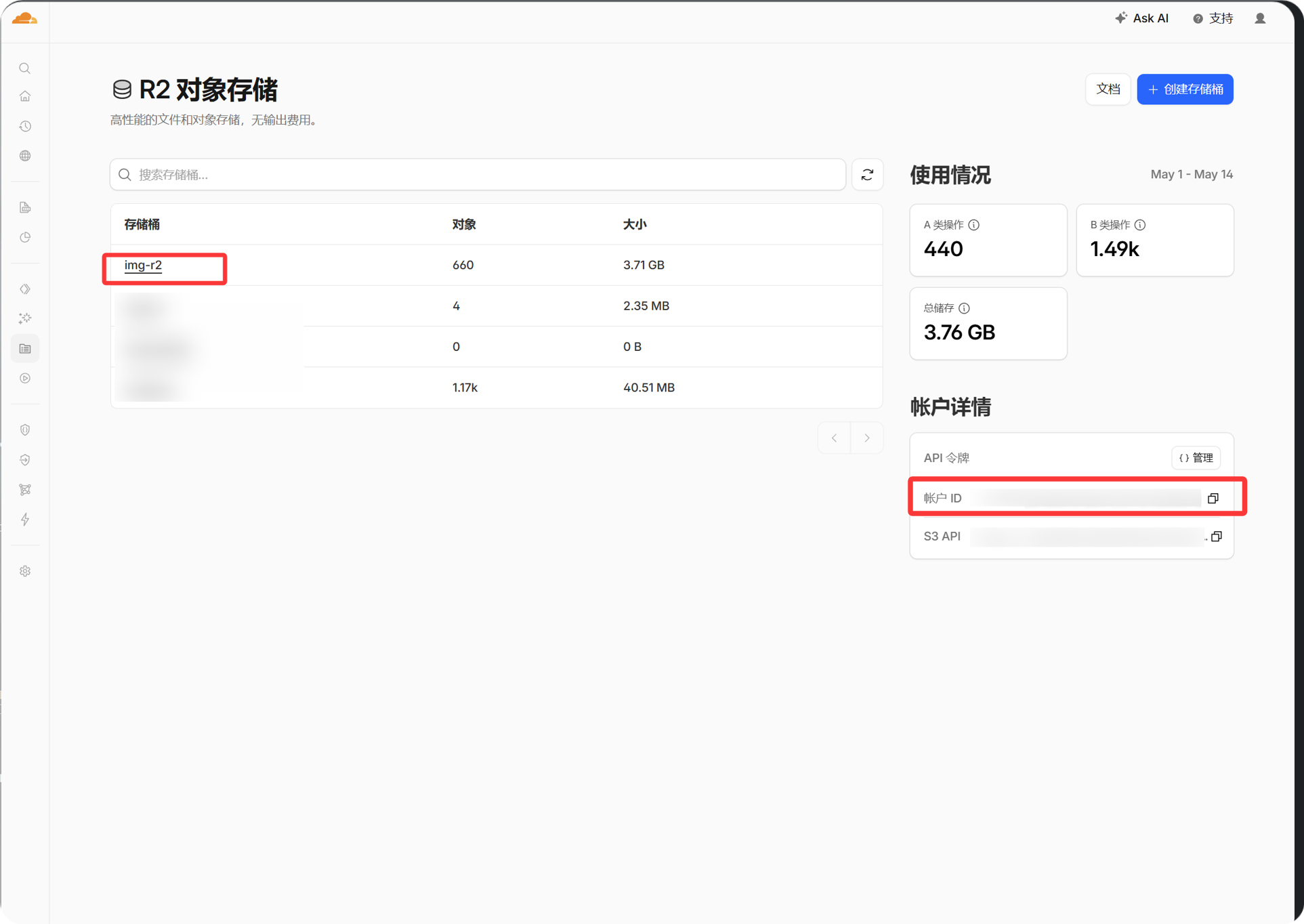
Account ID ကို Cloudflare dashboard ရှိ အကောင့်အချက်အလက် panel မှ ကူးယူနိုင်သည်။ ImgHost က R2 quota usage ကို query လုပ်ပြီး enforce လုပ်စေလိုသည့်အခါသာ ထည့်ပါ။
ပြင်ဆင်မှု အဆင့်များ
- Cloudflare တွင် R2 bucket တစ်ခု ဖန်တီးပါ။
- ImgHost project အတွက် Cloudflare settings ကိုဖွင့်ပါ။
- R2 bucket binding တစ်ခု ထည့်ပါ။
Variable nameကိုimg_r2ဟု သတ်မှတ်ပါ။- သင်ဖန်တီးထားသော R2 bucket ကိုရွေးပါ။
- Binding ကိုသိမ်းပြီး ImgHost ကို ထပ်မံ deploy လုပ်ပါ။
- ImgHost -> စနစ် ဆက်တင်များ -> အပ်လုဒ် ဆက်တင်များ သို့ ပြန်သွားပါ။
Cloudflare R2ချန်နယ် ပေါ်လာပြီး enable ဖြစ်ကြောင်း အတည်ပြုပါ။
R2 ကို capacity အပေါ်မူတည်သော အပ်လုဒ်ရွေးချယ်မှုတွင် ပါဝင်စေလိုပါက quota limit ကိုဖွင့်ပြီး၊ မသိမ်းမီ Account ID၊ bucket name၊ quota limit နှင့် threshold ကို ထည့်ပါ။
အတည်ပြုနည်း
- ဖြေရှင်းနည်းed
Cloudflare R2ချန်နယ်သည် အပ်လုဒ် ဆက်တင်များ တွင် ပေါ်လာသည်။ - ချန်နယ် card တွင် ၎င်းကို enable လုပ်ထားကြောင်း ပြသသည်။
- စမ်းသပ်ဖိုင်အသေးတစ်ခုကို အောင်မြင်စွာ အပ်လုဒ်လုပ်နိုင်ပြီး ပြန်ရသော link ကို ပုံမှန်ဖွင့်နိုင်သည်။
- ဖိုင်ဖွင့်ရာတွင်
R2 database binding is not configuredဟု ပြန်လာပါက runtime သည်img_r2binding ကို မရရှိသေးခြင်းဖြစ်သည်။ Cloudflare တွင် binding name ကို စစ်ဆေးပြီး project ကို ထပ်မံ deploy လုပ်ပါ။