WebDAV ချန်နယ် ထည့်သွင်းခြင်း
အသင့်တော်ဆုံး အခြေအနေ
အောက်ပါအခြေအနေများတွင် WebDAV ချန်နယ်ကို အသုံးပြုပါ။
- WebDAV endpoint ပေးနိုင်သော NAS၊ cloud drive သို့မဟုတ် object storage service ရှိပါက။
- အပ်လုဒ်လုပ်ထားသော ပုံများကို သင်၏ ကိုယ်ပိုင် WebDAV directory တွင် သိမ်းလိုပါက။
- Credential များကို frontend တွင် ရေရှည်ဖော်ပြမထားဘဲ D1
upload_channelstable ထဲတွင် သိမ်းလိုပါက။
မစတင်မီ လိုအပ်သည့်အရာများ
| လိုအပ်ချက် | ရည်ရွယ်ချက် |
|---|---|
| WebDAV Endpoint | Server-side WebDAV URL။ ဥပမာ https://nas.example.com/dav. |
| အသုံးပြုသူအမည် | WebDAV service သို့ sign in ဝင်ရန် အသုံးပြုသည်။ |
| စကားဝှက် | WebDAV service သို့ sign in ဝင်ရန် အသုံးပြုသည်။ |
| အတည်ပြုမုဒ် | မူရင်း သည် Basic ဖြစ်သည်။ Server ကလိုအပ်သည့်အခါမှသာ Digest သို့မဟုတ် auto negotiation ကိုသုံးပါ။ |
| သိုလှောင်မှု ဖိုင်တွဲ | ဖိုင်များ သိမ်းဆည်းရန် အသုံးပြုသော directory။ မူရင်း သည် imgbed ဖြစ်သည်။ |
ထည့်သွင်းမည့်နေရာ
- စနစ် ဆက်တင်များ ကိုဖွင့်ပါ။
- အပ်လုဒ် ဆက်တင်များ သို့သွားပါ။
- ညာဘက်အပေါ်ထောင့်ရှိ ချန်နယ် ထည့်ရန် ကိုနှိပ်ပါ။
WebDAVကိုရွေးပါ။
အကွက် ရည်ညွှန်းချက်
| အကွက် | လုပ်ဆောင်ချက် | လိုအပ်မှု |
|---|---|---|
| ချန်နယ်အမည် | ဤ WebDAV ချန်နယ်အတွက် မှတ်မိလွယ်သောအမည်၊ ဥပမာ koofr သို့မဟုတ် nas။ | ဟုတ်သည် |
| Endpoint | https:// ပါဝင်သော WebDAV endpoint အပြည့်အစုံ။ | ဟုတ်သည် |
| အသုံးပြုသူအမည် | WebDAV login အသုံးပြုသူအမည်။ | ဟုတ်သည် |
| စကားဝှက် | WebDAV login စကားဝှက်။ | ဟုတ်သည် |
| အတည်ပြုမုဒ် | ပုံမှန်အားဖြင့် Basic ဖြစ်သည်။ Server က digest authentication လိုအပ်ပါက Digest ကိုသုံးပါ။ | ဟုတ်သည် |
| သိုလှောင်မှု ဖိုင်တွဲ | ဖိုင်များ သိမ်းဆည်းမည့် directory။ မူရင်း သည် imgbed ဖြစ်သည်။ | မဟုတ်ပါ |
ဥပမာ: fie.nl.tab.digital
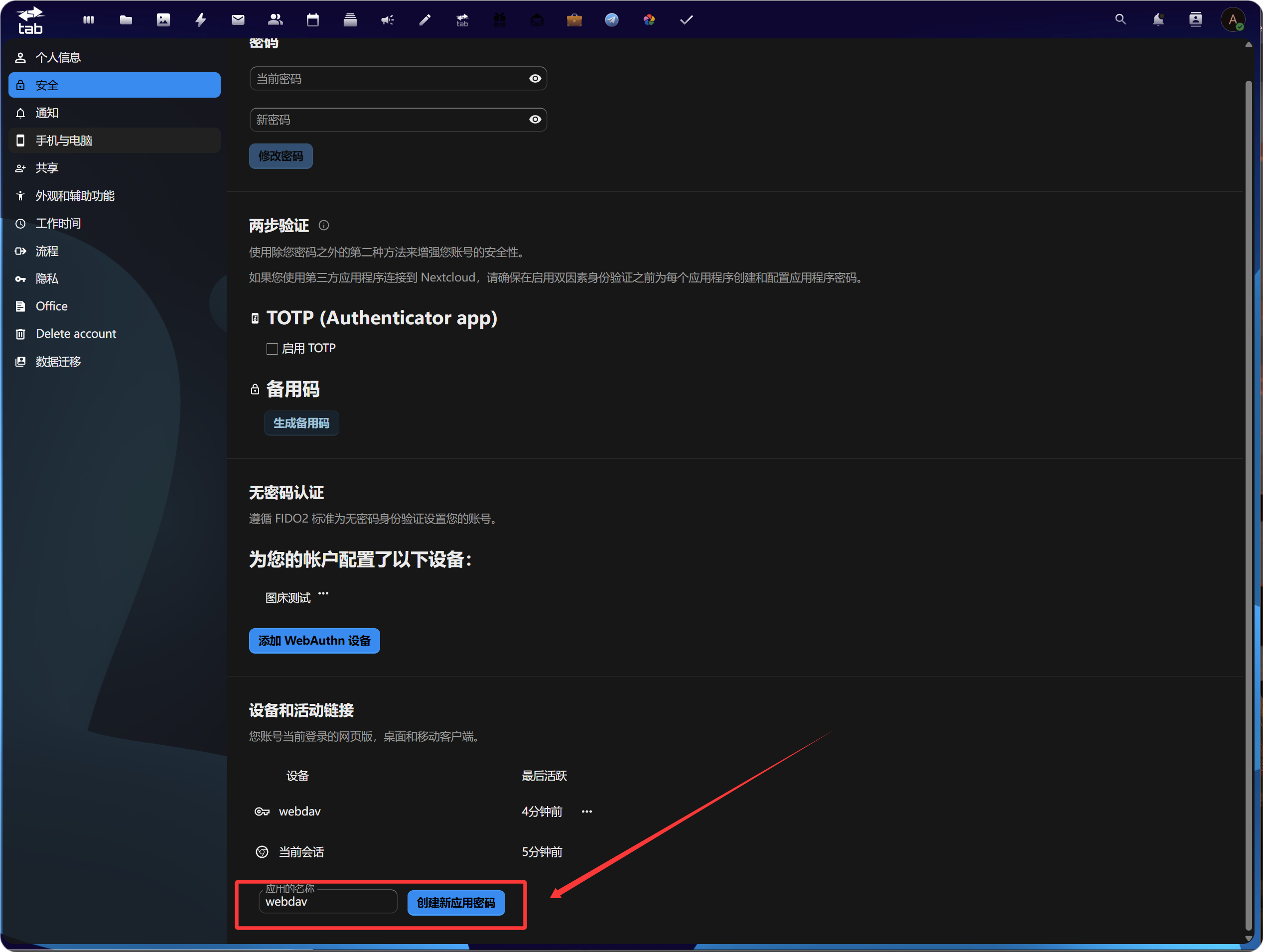
1. App စကားဝှက် ဖန်တီးပါ
သင်၏ account security settings ကိုဖွင့်ပါ။ Application စကားဝှက်s ကိုရှာပြီး app စကားဝှက် အသစ်တစ်ခု ဖန်တီးပါ။
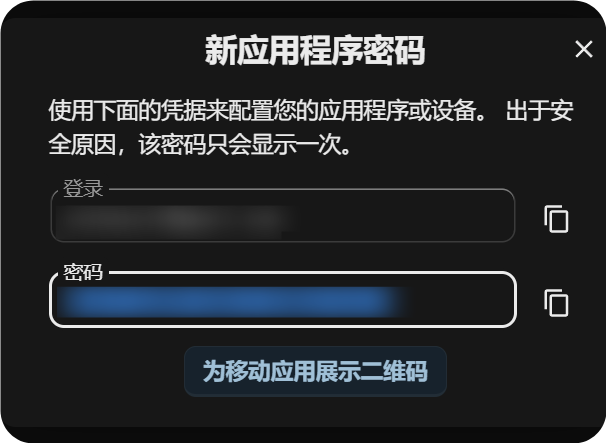
ဖန်တီးပြီးပါက app စကားဝှက် အသစ်ကို ကူးယူပြီး သိမ်းထားပါ။ ပုံမှန်အားဖြင့် တစ်ကြိမ်သာ ပြသသည်။
2. ImgHost တွင် WebDAV Configuration ကိုဖြည့်ပါ
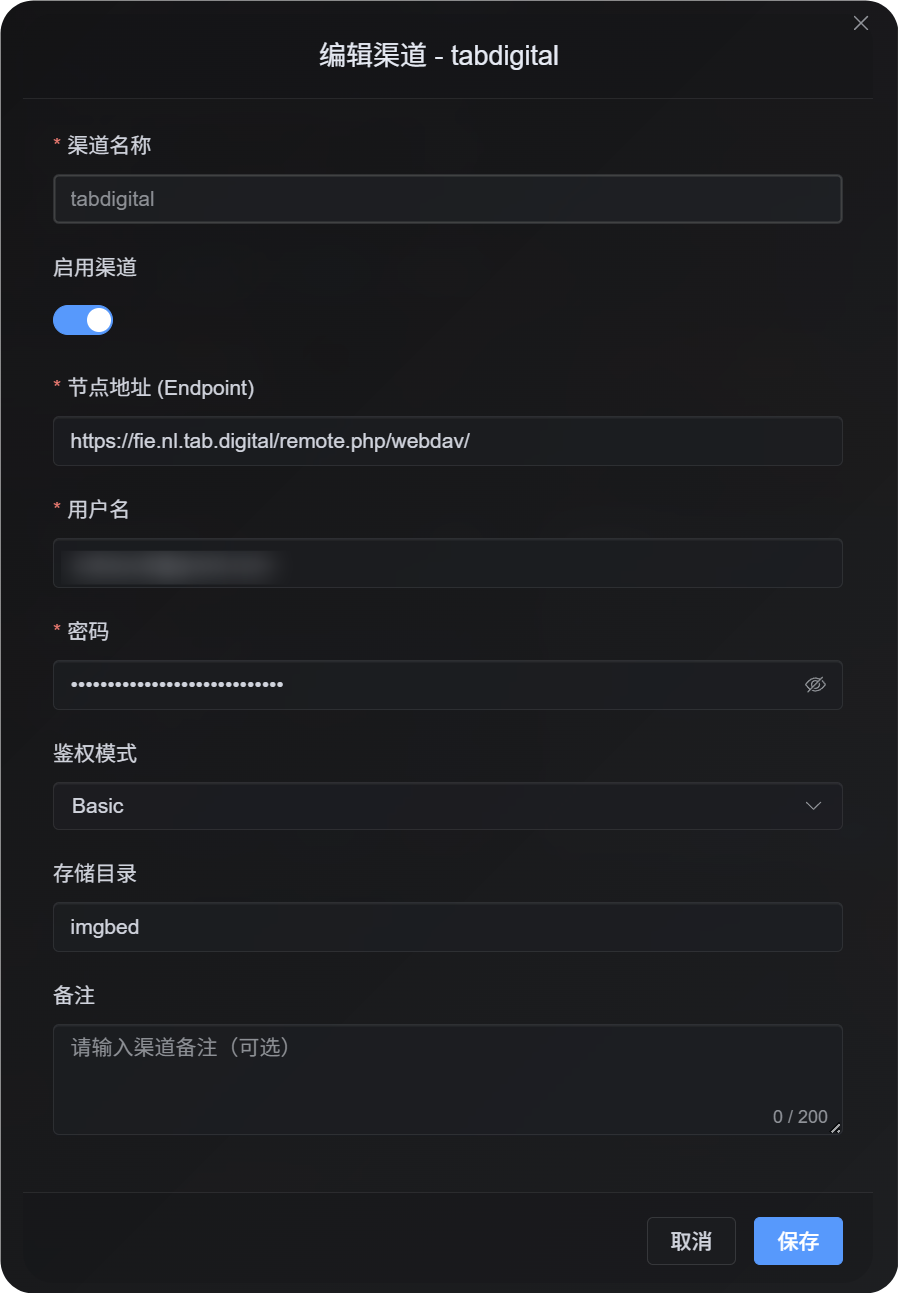
ImgHost သို့ ပြန်သွားပြီး WebDAV ချန်နယ်တစ်ခု ထည့်ပါ။
| UI အကွက် | တန်ဖိုး |
|---|---|
| Endpoint | https://fie.nl.tab.digital/ မှ ပေးသော WebDAV URL။ |
| အသုံးပြုသူအမည် | သင်၏ WebDAV အသုံးပြုသူအမည်။ |
| စကားဝှက် | သင်ယခု ဖန်တီးထားသော app စကားဝှက်။ |
| အတည်ပြုမုဒ် | အများစုတွင် Basic ဖြင့် စတင်ပါ။ |
| သိုလှောင်မှု ဖိုင်တွဲ | မူရင်း သည် imgbed ဖြစ်သည်။ Custom directory ကိုလည်း အသုံးပြုနိုင်သည်။ |
ဖိုင်ကြီး အပ်လုဒ် လုပ်ဆောင်ပုံ
WebDAV ချန်နယ်သည် ယခု session-based chunked upload အစစ်ကို အသုံးပြုသည်။
ဖိုင်အသေးများကို ဖိုင်တစ်ခုလုံးအဖြစ် အပ်လုဒ်လုပ်သည်။ 64 MiB ထက်ကြီးသော ဖိုင်များကို 10 MiB ခန့်ရှိသော chunk များအဖြစ် အလိုအလျောက် ခွဲပြီး remote chunk directory သို့ အပ်လုဒ်လုပ်သည်။
WebDAV service သည် partial update သို့မဟုတ် offset-based write ကို ပံ့ပိုးရန် မလိုအပ်ပါ။ ImgHost သည် remote server ပေါ်တွင် chunk များကို ဖိုင်ကြီးတစ်ခုအဖြစ် merge မလုပ်ပါ။ အစားထိုးအနေဖြင့် chunk manifest ကိုသိမ်းပြီး ဖိုင်တောင်းဆိုသည့်အခါ chunk များကို အစဉ်လိုက်ဖတ်သည်။
လက်တွေ့တွင်-
| ဖိုင်အရွယ်အစား | အပ်လုဒ်နည်းလမ်း | Remote storage layout |
|---|---|---|
| 64 MiB သို့မဟုတ် ထို့ထက်ငယ် | ပုံမှန် upload | ဖိုင်တစ်ခုလုံး |
| 64 MiB ထက်ကြီး | Real session chunked upload | Chunk file များစွာပါဝင်သော chunk directory |
Chunk directory သည် remote storage layout ကိုသာ သက်ရောက်စေသည်။ ImgHost တွင်ရှိသော file URL ကို မပြောင်းလဲစေပါ။ အသုံးပြုသူများသည် မူရင်း /file/... link မှတစ်ဆင့် ဖိုင်ကို ဆက်လက်ဝင်ရောက်သည်။
ပြင်ဆင်မှု အဆင့်များ
- အပ်လုဒ် ဆက်တင်များ ကိုဖွင့်ပါ။
- ချန်နယ် ထည့်ရန် ကိုနှိပ်ပါ။
WebDAVကိုရွေးပါ။- ဥပမာ
koofrကဲ့သို့ သင်မှတ်မိနိုင်သော ချန်နယ်အမည် ကိုထည့်ပါ။ - ဥပမာ
https://app.koofr.net/dav/Koofrကဲ့သို့ WebDAV endpoint ကိုထည့်ပါ။ - အသုံးပြုသူအမည် နှင့် စကားဝှက် ကိုထည့်ပါ။
- အတည်ပြုမုဒ်ကို မူရင်းအားဖြင့်
Basicအဖြစ်ထားပါ။ - သိုလှောင်မှု ဖိုင်တွဲ ကို
imgbedအဖြစ်ထားပါ၊ သို့မဟုတ် သင်၏ ကိုယ်ပိုင် directory သို့ပြောင်းပါ။ Saveကိုနှိပ်ပါ။- သိမ်းပြီးနောက် ချန်နယ်ကတ် ကိုစစ်ဆေးပါ၊ ရနိုင်ပါက capacity ကို query လုပ်ပါ၊ ထို့နောက် test file တစ်ခုကို အပ်လုဒ်လုပ်ပါ။
အတည်ပြုနည်း
| စစ်ဆေးချက် | အတည်ပြုနည်း |
|---|---|
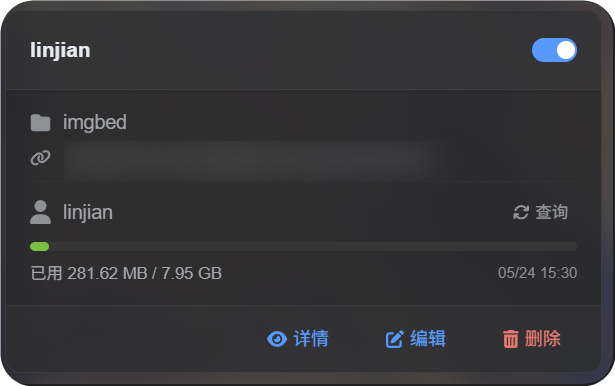
| ချန်နယ်ကတ် ပေါ်လာသည် | သိမ်းပြီးနောက် အပ်လုဒ် ဆက်တင်များ စာမျက်နှာတွင် WebDAV ချန်နယ်ကတ် ပေါ်လာသင့်သည်။ |
| Channel ကို enable လုပ်ထားသည် | Card ၏ ညာဘက်အပေါ်ထောင့်ရှိ switch သည် ဖွင့်ထားသည့်အခြေအနေတွင် ရှိသင့်သည်။ |
| Credential များ သိမ်းထားသည် | Detail view တွင် Endpoint၊ အသုံးပြုသူအမည်၊ အတည်ပြုမုဒ် နှင့် storage directory ကို ပြသသင့်သည်။ |
| ဖိုင်အသေး upload အလုပ်လုပ်သည် | စမ်းသပ်ပုံတစ်ပုံကို အပ်လုဒ်လုပ်ပြီး ဖိုင်သည် WebDAV directory တွင် ပေါ်လာကြောင်း အတည်ပြုပါ။ |
| ဖိုင်ကြီး rule အလုပ်လုပ်သည် | 64 MiB ထက်ကြီးသော ဖိုင်များသည် chunked upload ကိုအသုံးပြုပြီး remote chunk directory ကိုဖန်တီးသည်။ |
| Capacity query အလုပ်လုပ်သည် | Server က capacity information ကို ပံ့ပိုးပါက query တွင် used capacity နှင့် total capacity ကို ပြသမည်။ |
FAQ
WebDAV ဖိုင်ကြီးများသည် chunk directory ကို ဘာကြောင့် ဖန်တီးသနည်း။
ဤသည်မှာ ဖိုင်ကြီးများအတွက် လက်ရှိ storage method ဖြစ်သည်။
64 MiB ထက်ကြီးသော ဖိုင်များကို remote file ကြီးတစ်ခုအဖြစ် merge မလုပ်ပါ။ ၎င်းတို့ကို chunk directory အဖြစ် သိမ်းသည်။ ImgHost သည် chunk manifest ကိုမှတ်တမ်းတင်ပြီး chunk များကို အစဉ်လိုက်ဖတ်ခြင်းဖြင့် အကြောင်းအရာတစ်ခုလုံးကို ပြန်ပေးသည်။
ဖိုင်ကြီး upload မအောင်မြင်ပါက ဘာကို အရင်စစ်သင့်သနည်း။
Endpoint၊ အသုံးပြုသူအမည်၊ စကားဝှက် နှင့် storage directory ကို ဦးစွာစစ်ဆေးပါ။ ထို့နောက် WebDAV service သည် directory ဖန်တီးခြင်း၊ file writing နှင့် file reading ကို ခွင့်ပြုကြောင်း အတည်ပြုပါ။
Capacity query မအောင်မြင်သော်လည်း ဖိုင်အသေး upload အလုပ်လုပ်ပါက server သည် capacity reporting ကို မပံ့ပိုးခြင်း သို့မဟုတ် ကန့်သတ်ထားခြင်းသာ ဖြစ်နိုင်သည်။ ထိုအရာသည် upload မရနိုင်ကြောင်း မဆိုလိုပါ။
ဘယ် အတည်ပြုမုဒ် ကို အသုံးပြုသင့်သနည်း။
Basic ဖြင့် စတင်ပါ။
Server က digest authentication ကို အတိအကျလိုအပ်ပါက Digest ကိုသုံးပါ။
မသေချာပါက automatic negotiation ကိုသုံးပါ။
အမြန် စစ်ဆေးစာရင်း
text
Prepare WebDAV endpoint, username, and password
-> Open Upload Settings
-> Add Channel
-> Select WebDAV
-> Enter Endpoint / username / password
-> Keep authentication mode as Basic by default
-> Keep storage directory as imgbed by default
-> Save
-> Query capacity
-> Upload a test file