S3 ချန်နယ် ထည့်သွင်းခြင်း
အသင့်တော်ဆုံး အခြေအနေ
အောက်ပါအခြေအနေများတွင် S3 ချန်နယ်ကို အသုံးပြုပါ။
- Cloudflare R2၊ Backblaze B2၊ MinIO၊ AWS S3 သို့မဟုတ် အခြား S3-compatible object storage service တစ်ခုခုနှင့် ချိတ်ဆက်လိုပါက။
Endpoint၊ Access Key နှင့် Secret Key ပါဝင်သော standard S3 configuration model ကို အသုံးပြုလိုပါက။- Native Cloudflare R2 binding channel ကို မသုံးလိုပါက သို့မဟုတ် သင်၏ storage provider သည် Cloudflare R2 မဟုတ်ပါက။
မစတင်မီ လိုအပ်သည့်အရာများ
| လိုအပ်ချက် | ရည်ရွယ်ချက် |
|---|---|
| S3 Endpoint | object storage service ၏ S3 API endpoint။ |
| Bucket name | ဖိုင်များ သိမ်းဆည်းမည့် bucket။ |
| Region | Storage region။ Cloudflare R2 အတွက် ပုံမှန်အားဖြင့် auto ဖြစ်သည်။ |
| Access Key ID | S3 access key ID။ |
| Secret Access Key | S3 secret access key။ |
| CDN domain | ဖိုင်ဝင်ရောက်မှုအတွက် ရွေးချယ်နိုင်သော custom domain။ |
S3 API မှတစ်ဆင့် Cloudflare R2 ကို အသုံးပြုသည့် ဥပမာ။
text
Endpoint: https://your-account-id.r2.cloudflarestorage.com
Bucket: your-r2-bucket-name
Region: auto
Access Key ID: copied from the Cloudflare R2 API token
Secret Access Key: copied from the Cloudflare R2 API token
ထည့်သွင်းမည့်နေရာ
- စနစ် ဆက်တင်များ ကိုဖွင့်ပါ။
- အပ်လုဒ် ဆက်တင်များ သို့သွားပါ။
- ညာဘက်အပေါ်ထောင့်ရှိ ချန်နယ် ထည့်ရန် ကိုနှိပ်ပါ။
S3ကိုရွေးပါ။
အကွက် ရည်ညွှန်းချက်
| အကွက် | လုပ်ဆောင်ချက် | လိုအပ်မှု |
|---|---|---|
| ချန်နယ်အမည် | ဤ S3 ချန်နယ်အတွက် မှတ်မိလွယ်သောအမည်၊ ဥပမာ s3test သို့မဟုတ် R2-S3။ | ဟုတ်သည် |
| Enable channel | ဤချန်နယ်သည် အပ်လုဒ်ရွေးချယ်မှုတွင် ပါဝင်မပါဝင်ကို ထိန်းချုပ်သည်။ | အကြံပြုသည် |
| Endpoint | https:// ပါဝင်သော S3 service endpoint အပြည့်အစုံ။ | ဟုတ်သည် |
| Custom CDN domain | ရွေးချယ်နိုင်သည်။ သတ်မှတ်ထားပါက generated file link များသည် ဤ domain ကို ဦးစားပေးအသုံးပြုမည်။ | မဟုတ်ပါ |
| Bucket name | s3test သို့မဟုတ် img-r2 ကဲ့သို့ bucket name။ | ဟုတ်သည် |
| Bucket region | Region။ Cloudflare R2 အတွက် ပုံမှန်အားဖြင့် auto ဖြစ်သည်။ | ဟုတ်သည် |
| Access Key ID | S3 access key ID။ | ဟုတ်သည် |
| Secret Access Key | S3 secret access key။ | ဟုတ်သည် |
| Path-style access | Compatibility switch။ မူရင်း အားဖြင့် ပိတ်ထားသည်။ MinIO၊ OpenList သို့မဟုတ် self-hosted S3 service အချို့တွင် လိုအပ်နိုင်သည်။ | မဟုတ်ပါ |
| Quota limit | ဤ S3 ချန်နယ်သည် capacity အပေါ်မူတည်သော အပ်လုဒ်ရွေးချယ်မှုတွင် ပါဝင်မပါဝင်ကို ထိန်းချုပ်သည်။ | မဟုတ်ပါ |
| Capacity limit | quota limit ဖွင့်ပြီးနောက် လိုအပ်သည်။ ဥပမာ 10 GB။ | quota limit ဖွင့်ထားပါက လိုအပ်သည် |
| Threshold | အသုံးပြုမှုသည် ဤရာခိုင်နှုန်းသို့ ရောက်လျှင် ရေးခြင်းကို ရပ်တန့်စေသည်။ ဥပမာ 90%။ | quota limit ဖွင့်ထားပါက လိုအပ်သည် |
| မှတ်ချက် | ကိုယ်ပိုင် maintenance အတွက် မှတ်ချက်များ။ | မဟုတ်ပါ |
Cloudflare R2 S3 API Key များ ဖန်တီးခြင်း
- Cloudflare Dashboard ကိုဖွင့်ပါ။
R2 Object Storageသို့သွားပါ။Manage R2 API Tokensသို့မဟုတ် API token management entry ကိုရှာပါ။
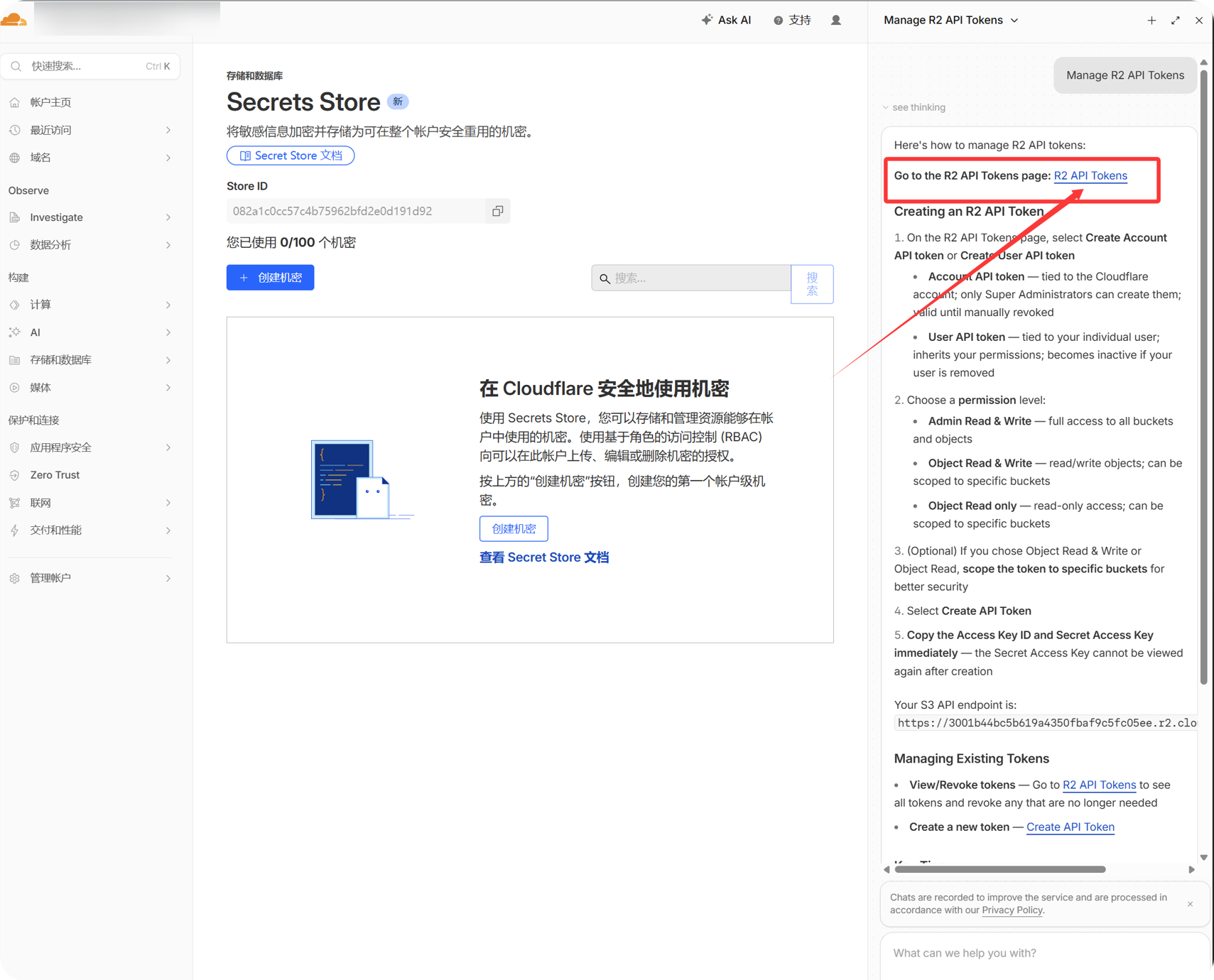
- Target bucket ကို access လုပ်နိုင်သော R2 API token တစ်ခု ဖန်တီးပါ။
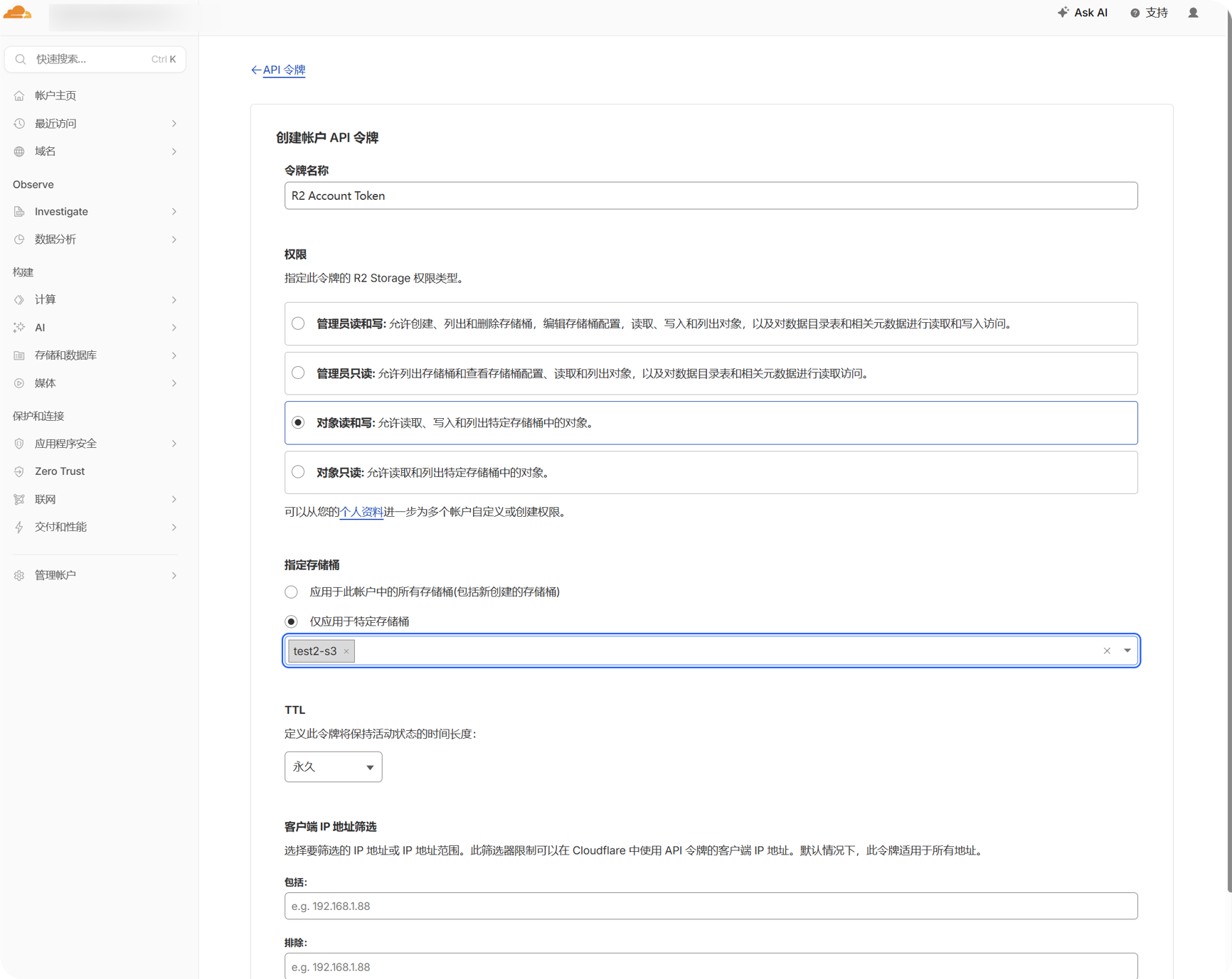
- Generated
Access Key IDနှင့်Secret Access Keyကို ကူးယူပါ။
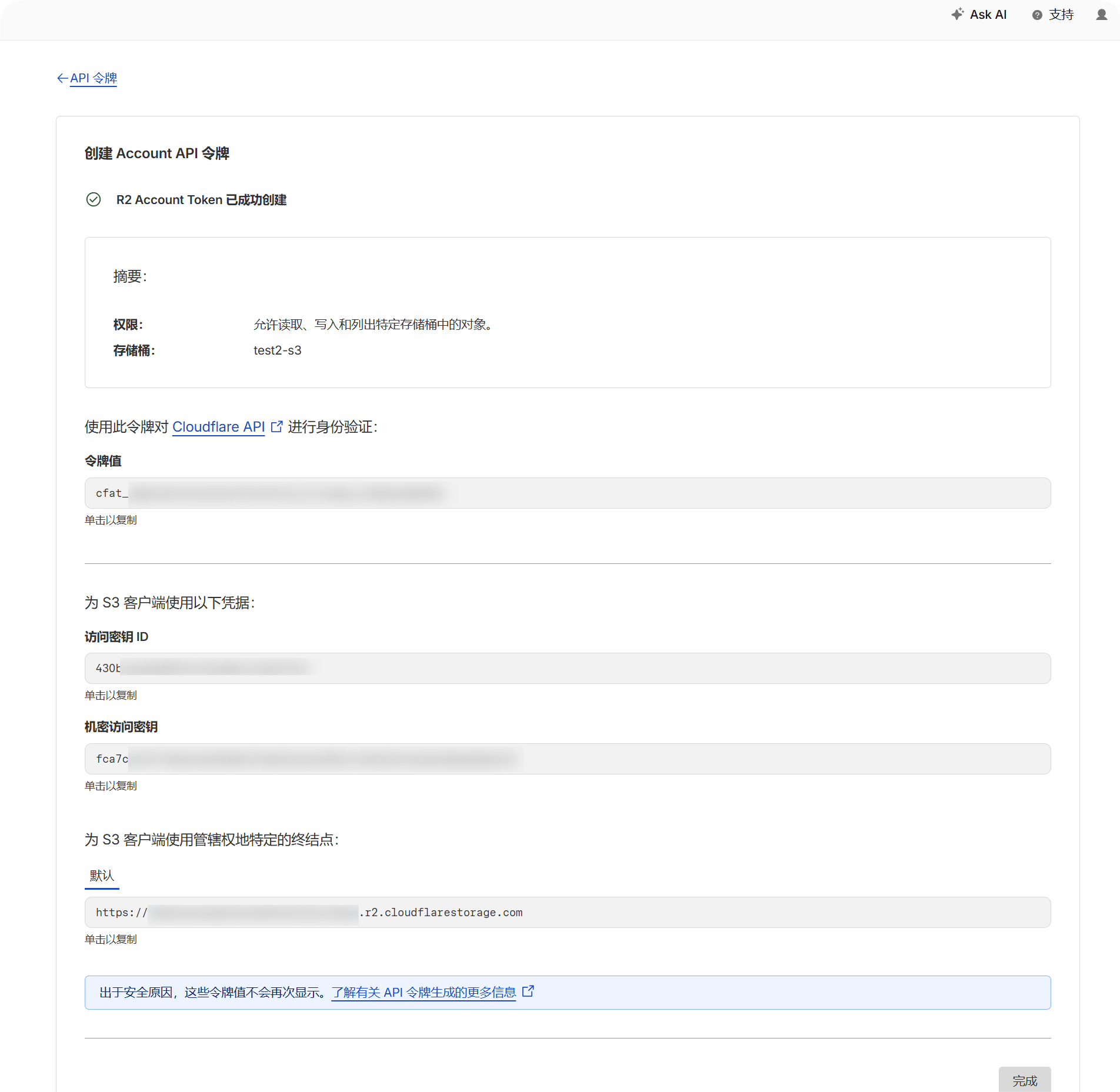
- R2 bucket စာမျက်နှာသို့ ပြန်သွားပြီး bucket name ကို အတည်ပြုပါ။
- အကောင့်အတွက် S3 API endpoint ကို မှတ်သားပါ။ ပုံမှန်အားဖြင့် အောက်ပါပုံစံမျိုးဖြစ်သည်။
text
https://your-account-id.r2.cloudflarestorage.comပြင်ဆင်မှု အဆင့်များ
- အပ်လုဒ် ဆက်တင်များ ကိုဖွင့်ပါ။
- ချန်နယ် ထည့်ရန် ကိုနှိပ်ပါ။
S3ကိုရွေးပါ။- ဥပမာ
s3testကဲ့သို့ သင်မှတ်မိနိုင်သော ချန်နယ်အမည် ကိုထည့်ပါ။ Endpointတွင် S3 API endpoint ကိုထည့်ပါ။- Custom CDN သုံးပါက
Custom CDN domainတွင် ထည့်ပါ။ မသုံးပါက အလွတ်ထားပါ။ - Bucket name ကိုထည့်ပါ။
- Region ကိုထည့်ပါ။ Cloudflare R2 ဥပမာအတွက်
autoကိုအသုံးပြုပါ။ - Access Key ID နှင့် Secret Access Key ကိုထည့်ပါ။
- Provider က အတိအကျလိုအပ်ကြောင်း မဖော်ပြထားလျှင် path-style access ကို ပိတ်ထားပါ။
- Capacity control လိုအပ်ပါက quota limit ကိုဖွင့်ပြီး capacity limit နှင့် threshold ကိုထည့်ပါ။
Saveကိုနှိပ်ပါ။
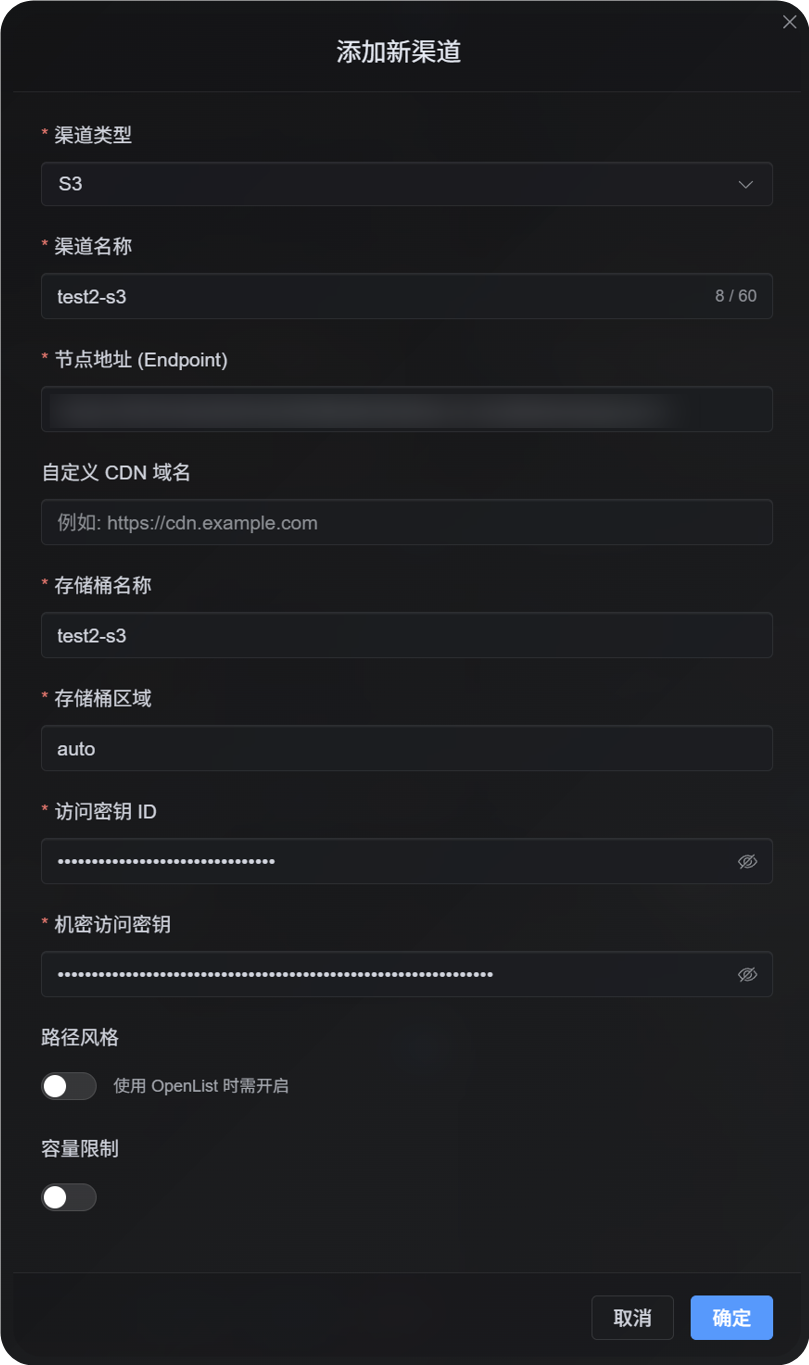
အတည်ပြုနည်း
| စစ်ဆေးချက် | အတည်ပြုနည်း |
|---|---|
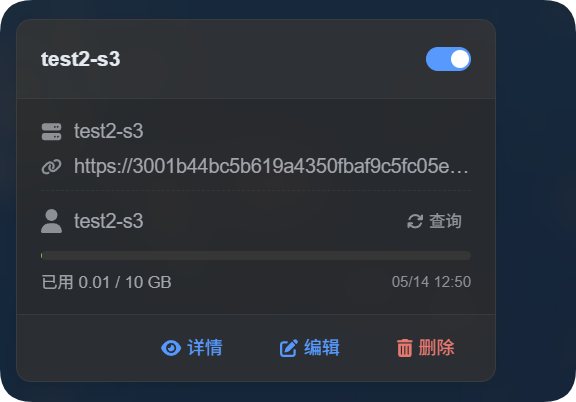
| ချန်နယ်ကတ် ပေါ်လာသည် | သိမ်းပြီးနောက် အပ်လုဒ် ဆက်တင်များ စာမျက်နှာတွင် S3 ချန်နယ်ကတ် ပေါ်လာသင့်သည်။ |
| Channel ကို enable လုပ်ထားသည် | Card ၏ ညာဘက်အပေါ်ထောင့်ရှိ switch သည် ဖွင့်ထားသည့်အခြေအနေတွင် ရှိသင့်သည်။ |
| အဓိက အကွက်များ သိမ်းထားသည် | Detail view တွင် Endpoint၊ Bucket၊ Region၊ path-style access နှင့် ဆက်စပ် အကွက်များ ပြသသင့်သည်။ |
| Upload အလုပ်လုပ်သည် | စမ်းသပ်ပုံတစ်ပုံကို အပ်လုဒ်လုပ်ပြီး object သည် target bucket တွင် ပေါ်လာကြောင်း အတည်ပြုပါ။ |
| Link ဖွင့်နိုင်သည် | Upload ပြီးနောက် ပြန်လာသော image link ကို ပုံမှန်ဖွင့်နိုင်သင့်သည်။ |
| Capacity display အလုပ်လုပ်သည် | quota limit ဖွင့်ထားပါက card တွင် used capacity နှင့် configured limit ကို ပြသသင့်သည်။ |
S3 capacity statistics ကို provider bucket ကို real time query လုပ်ခြင်းဖြင့် မတွက်ချက်ပါ။ ImgHost ၏ local file records မှ တွက်ချက်သည်။ S3 configuration ကို သိမ်းပြီးနောက် စနစ်သည် လက်ရှိ D1 records မှ quota ledger ကို ပြန်လည်တွက်ချက်သည်။
FAQ
path-style access ကို enable လုပ်သင့်ပါသလား။
ပုံမှန်အားဖြင့် မလိုအပ်ပါ။
သင်၏ S3-compatible provider သည် virtual-hosted-style URL များကို မပံ့ပိုးပါက သို့မဟုတ် provider documentation က path-style access လိုအပ်ကြောင်း အတိအကျဖော်ပြထားပါကသာ enable လုပ်ပါ။ MinIO၊ self-hosted S3 နှင့် OpenList-compatible endpoint အချို့တွင် လိုအပ်နိုင်သည်။
CDN domain ကို ဘာအတွက်သုံးသနည်း။
Bucket ရှေ့တွင် CDN သို့မဟုတ် custom access domain တစ်ခု ထားရှိပါက ၎င်းကို ဤနေရာတွင် ထည့်ပါ။
ပြင်ဆင်ပြီးနောက် generated file link များသည် ဤ domain ကို ဦးစားပေးအသုံးပြုမည်။ CDN မသုံးပါက အလွတ်ထားပါ။
အပ်လုဒ် ဘာကြောင့် မအောင်မြင်သနည်း။
အောက်ပါအချက်များကို ဦးစွာစစ်ဆေးပါ။
- Endpoint တွင်
https://ပါဝင်သော URL အပြည့်အစုံ ပါရှိသည်။ - Bucket name မှန်ကန်သည်။
- Region သည် provider လိုအပ်ချက်နှင့် ကိုက်ညီသည်။
- Access Key ID နှင့် Secret Access Key ကို အပြည့်အစုံ ကူးယူထားသည်။
- Key တွင် target bucket အတွက် write permission ရှိသည်။
- Provider သည် path-style access မလိုအပ်ပါ၊ သို့မဟုတ် လိုအပ်ပါက path-style access ကို enable လုပ်ထားသည်။
အမြန် စစ်ဆေးစာရင်း
text
Prepare S3 Endpoint, Bucket, Region, Access Key, and Secret Key
-> Open Upload Settings
-> Add Channel
-> Select S3
-> Enter Endpoint / Bucket / Region / Access Key / Secret Key
-> Enter a CDN domain if needed
-> Leave path-style access off by default
-> Enable quota limit if needed
-> Save
-> Upload a test image and check the result