S3 चैनल जोड़ना
कब उपयुक्त है
S3 चैनल का उपयोग करें जब:
- आप किसी भी S3-संगत ऑब्जेक्ट स्टोरेज सेवा को जोड़ना चाहते हैं, जैसे Cloudflare R2, Backblaze B2, MinIO, AWS S3 या कोई अन्य संगत प्रदाता।
- आप मानक S3 कॉन्फ़िगरेशन मॉडल पसंद करते हैं:
Endpoint, एक्सेस कुंजी और गोपनीय कुंजी। - आप Cloudflare R2 के मूल बाइंडिंग चैनल का उपयोग नहीं करना चाहते, या आपका स्टोरेज प्रदाता Cloudflare R2 नहीं है।
शुरू करने से पहले क्या चाहिए
| आवश्यकता | उद्देश्य |
|---|---|
| S3 एंडपॉइंट | ऑब्जेक्ट स्टोरेज सेवा का S3 API एंडपॉइंट। |
| बकेट नाम | वह बकेट जहाँ फ़ाइलें सहेजी जाएँगी। |
| क्षेत्र | स्टोरेज क्षेत्र। Cloudflare R2 के लिए यह आम तौर पर auto होता है। |
| Access Key ID | S3 एक्सेस कुंजी ID। |
| Secret Access Key | S3 गोपनीय एक्सेस कुंजी। |
| CDN डोमेन | फ़ाइलों तक पहुँच के लिए वैकल्पिक कस्टम डोमेन। |
S3 API के माध्यम से Cloudflare R2 का उदाहरण:
text
Endpoint: https://your-account-id.r2.cloudflarestorage.com
Bucket: your-r2-bucket-name
Region: auto
Access Key ID: copied from the Cloudflare R2 API token
Secret Access Key: copied from the Cloudflare R2 API token
कहाँ जोड़ें
- सिस्टम सेटिंग्स खोलें।
- अपलोड सेटिंग्स पर जाएँ।
- ऊपर दाएँ कोने में चैनल जोड़ें पर क्लिक करें।
S3चुनें।
फ़ील्ड संदर्भ
| फ़ील्ड | कार्य | आवश्यक |
|---|---|---|
| चैनल नाम | इस S3 चैनल का पहचानने योग्य नाम, जैसे s3test या R2-S3। | हाँ |
| चैनल सक्षम करें | तय करता है कि यह चैनल अपलोड चयन में शामिल होगा या नहीं। | सुझाया गया |
| Endpoint | https:// सहित पूरा S3 सेवा एंडपॉइंट। | हाँ |
| कस्टम CDN डोमेन | वैकल्पिक। सेट होने पर जनरेट किए गए फ़ाइल लिंक इस डोमेन को प्राथमिकता देते हैं। | नहीं |
| बकेट नाम | बकेट नाम, जैसे s3test या img-r2। | हाँ |
| बकेट क्षेत्र | क्षेत्र। Cloudflare R2 के लिए यह आम तौर पर auto होता है। | हाँ |
| Access Key ID | S3 एक्सेस कुंजी ID। | हाँ |
| Secret Access Key | S3 गोपनीय एक्सेस कुंजी। | हाँ |
| path-style एक्सेस | संगतता स्विच। डिफ़ॉल्ट रूप से बंद। कुछ MinIO, OpenList या स्वयं-होस्टेड S3 सेवाओं को इसकी आवश्यकता हो सकती है। | नहीं |
| कोटा सीमा | तय करती है कि यह S3 चैनल क्षमता के आधार पर अपलोड चयन में शामिल होगा या नहीं। | नहीं |
| क्षमता सीमा | कोटा सीमा सक्षम होने के बाद आवश्यक, उदाहरण के लिए 10 GB। | कोटा सीमा सक्षम हो तो आवश्यक |
| थ्रेशोल्ड | उपयोग इस प्रतिशत तक पहुँचने पर लिखना रोकता है, उदाहरण के लिए 90%। | कोटा सीमा सक्षम हो तो आवश्यक |
| टिप्पणी | अपने रखरखाव के लिए नोट्स। | नहीं |
Cloudflare R2 के लिए S3 API कुंजियाँ बनाना
- Cloudflare Dashboard खोलें।
R2 Object Storageपर जाएँ।Manage R2 API Tokensया API टोकन प्रबंधन प्रविष्टि खोजें।
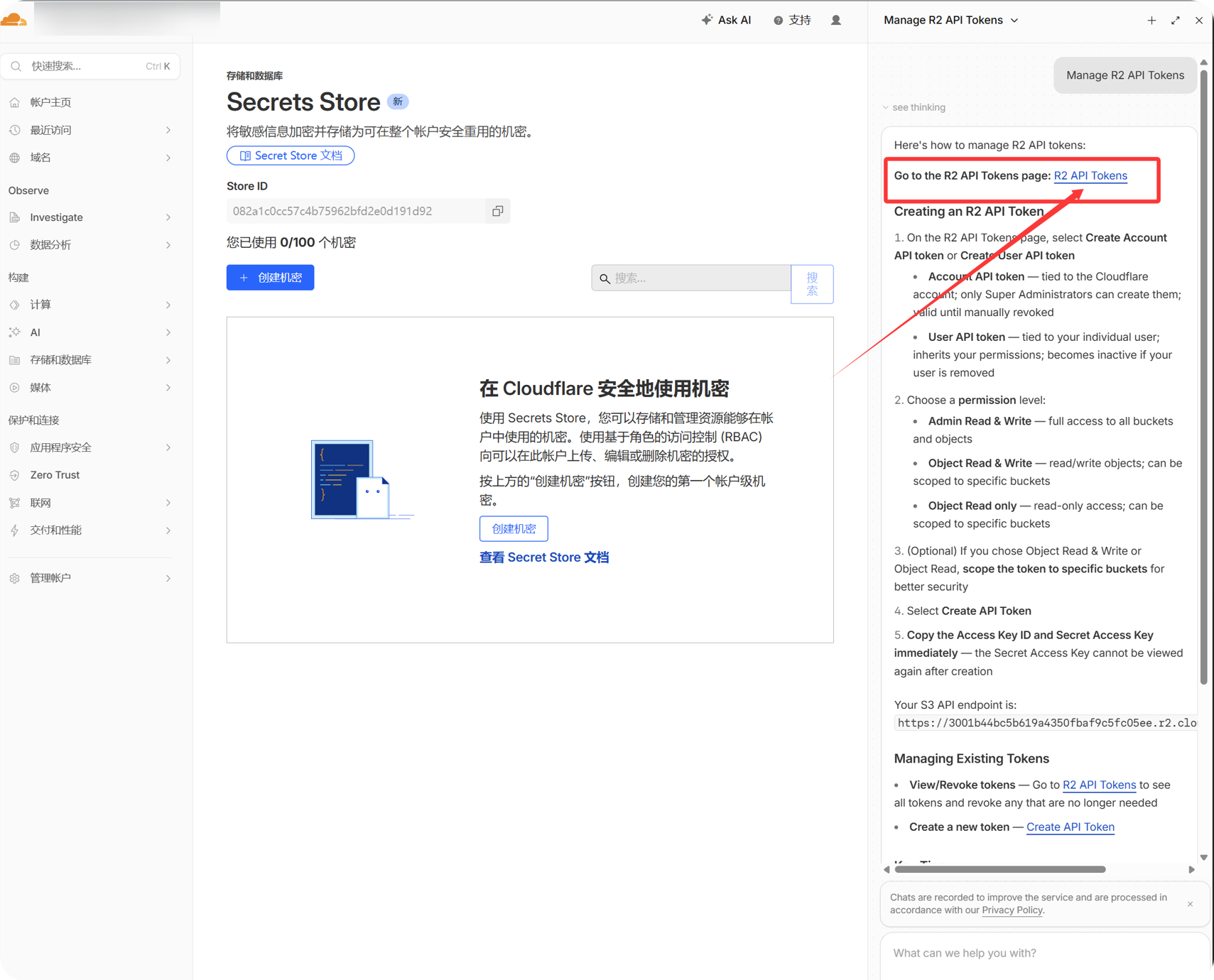
- ऐसा R2 API टोकन बनाएँ जो लक्षित बकेट तक पहुँच सके।
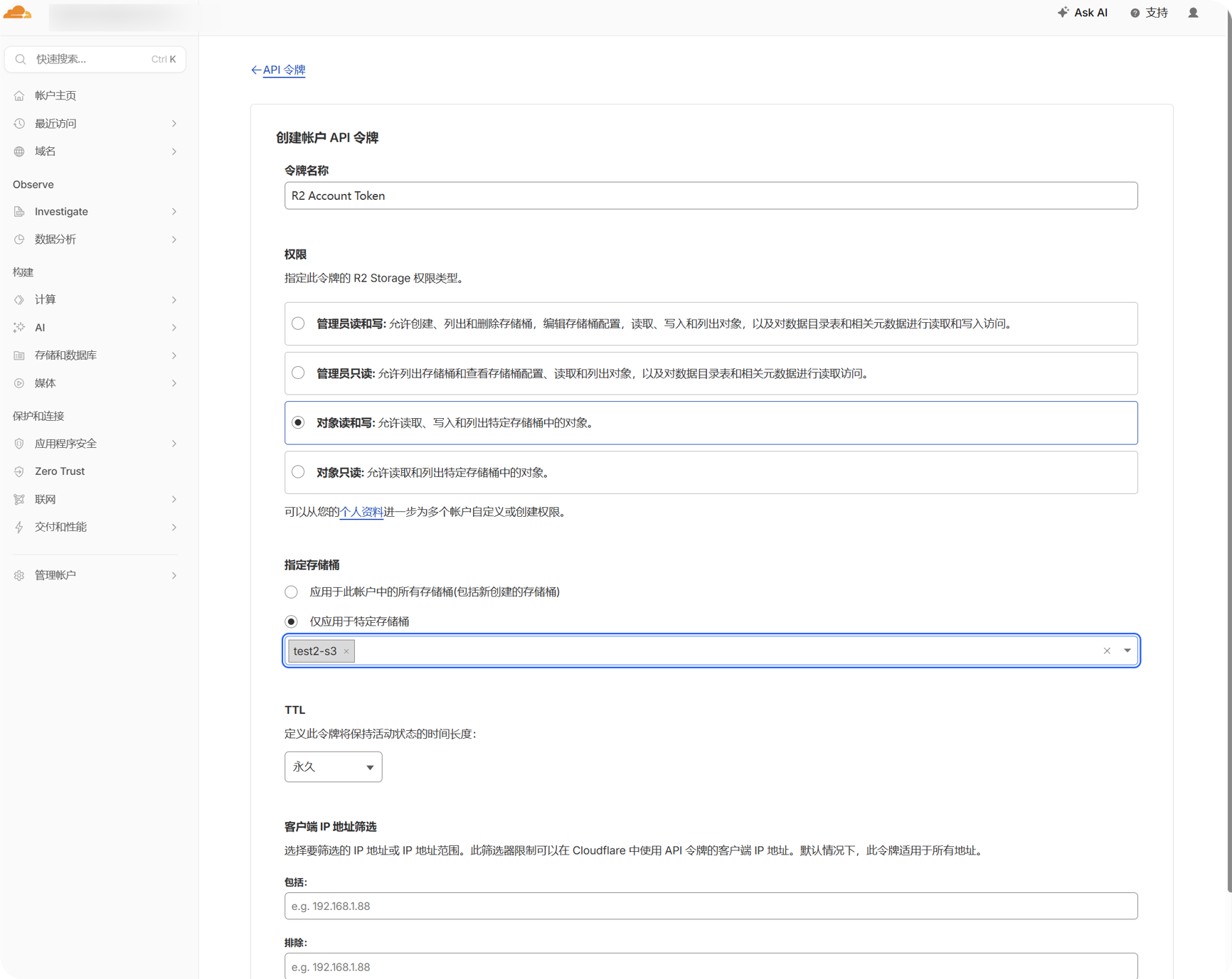
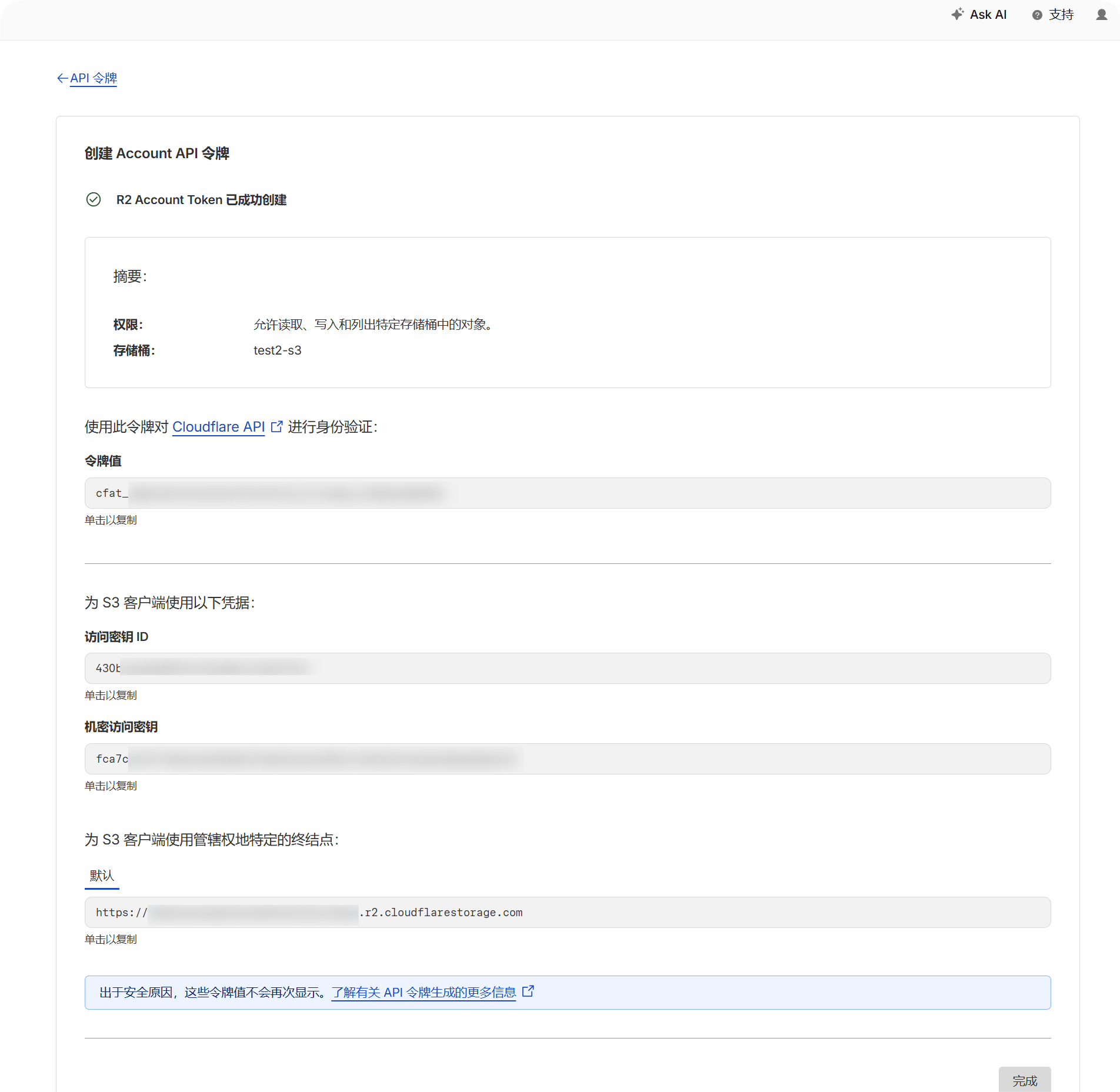
- बनाए गए
Access Key IDऔरSecret Access Keyमानों को कॉपी करें।
- R2 बकेट पेज पर लौटें और बकेट नाम की पुष्टि करें।
- खाते का S3 API एंडपॉइंट नोट करें। यह आम तौर पर ऐसा दिखता है:
text
https://your-account-id.r2.cloudflarestorage.comकॉन्फ़िगरेशन चरण
- अपलोड सेटिंग्स खोलें।
- चैनल जोड़ें पर क्लिक करें।
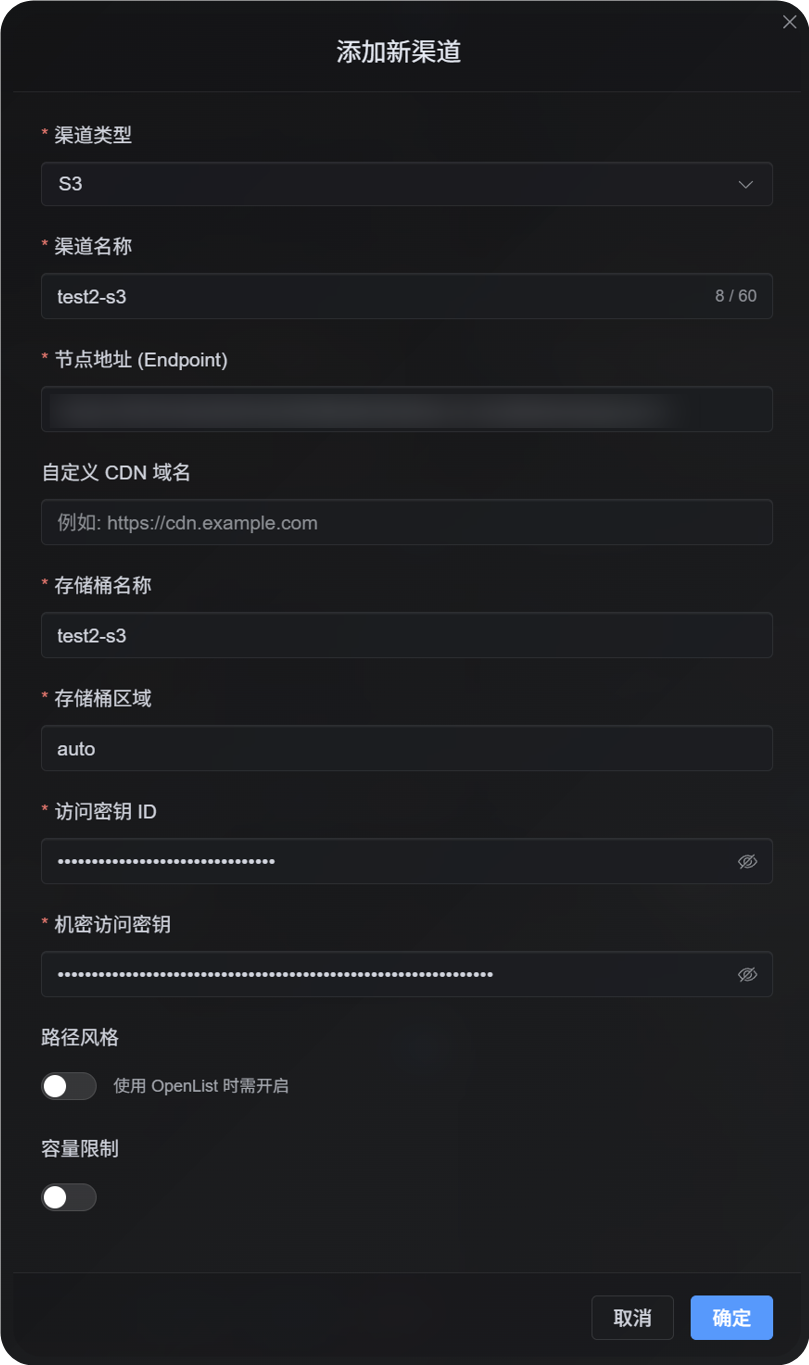
S3चुनें।- पहचानने योग्य चैनल नाम दर्ज करें, उदाहरण के लिए
s3test। - S3 API एंडपॉइंट को
Endpointमें दर्ज करें। - यदि आप कस्टम CDN उपयोग करते हैं, तो उसे कस्टम CDN डोमेन फ़ील्ड में दर्ज करें; अन्यथा फ़ील्ड खाली छोड़ दें।
- बकेट नाम दर्ज करें।
- क्षेत्र दर्ज करें। Cloudflare R2 उदाहरण के लिए
autoउपयोग करें। - Access Key ID और Secret Access Key दर्ज करें।
- path-style एक्सेस बंद रखें, जब तक आपका प्रदाता स्पष्ट रूप से इसकी माँग न करे।
- यदि क्षमता नियंत्रण चाहिए, तो कोटा सीमा सक्षम करें और क्षमता सीमा तथा थ्रेशोल्ड दर्ज करें।
- सहेजें पर क्लिक करें।
सत्यापन
| जाँच | जाँचने का तरीका |
|---|---|
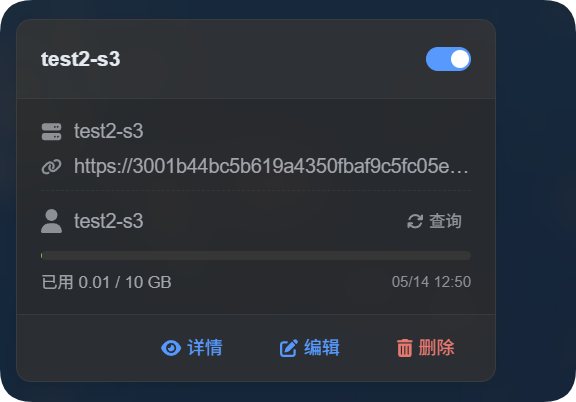
| चैनल कार्ड दिखाई देता है | सहेजने के बाद अपलोड सेटिंग्स पेज पर S3 चैनल कार्ड दिखना चाहिए। |
| चैनल सक्षम है | कार्ड के ऊपर दाएँ का स्विच सक्षम रहना चाहिए। |
| मुख्य फ़ील्ड सहेजे गए हैं | विवरण दृश्य में Endpoint, Bucket, Region, path-style एक्सेस और संबंधित फ़ील्ड दिखने चाहिए। |
| अपलोड काम करता है | परीक्षण छवि अपलोड करें और पुष्टि करें कि ऑब्जेक्ट लक्षित बकेट में बना है। |
| लिंक खुलता है | अपलोड के बाद लौटाया गया छवि लिंक सामान्य रूप से खुलना चाहिए। |
| क्षमता प्रदर्शन काम करता है | यदि कोटा सीमा सक्षम है, तो कार्ड उपयोग की गई क्षमता और कॉन्फ़िगर की गई सीमा दिखाए। |
S3 क्षमता आँकड़े ImgHost के स्थानीय फ़ाइल रिकॉर्ड से गणना किए जाते हैं, प्रदाता के बकेट को वास्तविक समय में पूछकर नहीं। S3 कॉन्फ़िगरेशन सहेजने के बाद सिस्टम वर्तमान D1 रिकॉर्ड से कोटा लेजर फिर से गणना करता है।
FAQ
क्या path-style एक्सेस सक्षम करना चाहिए?
आम तौर पर नहीं।
इसे केवल तब सक्षम करें जब आपका S3-संगत प्रदाता virtual-hosted-style URL का समर्थन नहीं करता, या प्रदाता का दस्तावेज़ स्पष्ट रूप से path-style एक्सेस माँगता है। कुछ MinIO, स्वयं-होस्टेड S3 और OpenList-संगत एंडपॉइंट में इसकी आवश्यकता हो सकती है।
CDN डोमेन किसलिए है?
यदि आपने बकेट के आगे CDN या कस्टम एक्सेस डोमेन लगाया है, तो उसे यहाँ दर्ज करें।
सेट करने के बाद जनरेट किए गए फ़ाइल लिंक इस डोमेन को प्राथमिकता देंगे। यदि CDN उपयोग नहीं करते, तो फ़ील्ड खाली छोड़ दें।
अपलोड क्यों विफल होता है?
पहले ये जाँचें:
- Endpoint में
https://सहित पूरा URL हो। - बकेट नाम सही हो।
- Region प्रदाता की आवश्यकता से मेल खाता हो।
- Access Key ID और Secret Access Key पूरी तरह कॉपी किए गए हों।
- कुंजी के पास लक्षित बकेट में लिखने की अनुमति हो।
- प्रदाता path-style एक्सेस नहीं माँगता, या यदि माँगता है तो path-style एक्सेस सक्षम हो।
त्वरित सूची
text
Prepare S3 Endpoint, Bucket, Region, Access Key, and Secret Key
-> Open Upload Settings
-> Add Channel
-> Select S3
-> Enter Endpoint / Bucket / Region / Access Key / Secret Key
-> Enter a CDN domain if needed
-> Leave path-style access off by default
-> Enable quota limit if needed
-> Save
-> Upload a test image and check the result