GitHub Releases चैनल जोड़ना
शुरू करने से पहले क्या चाहिए
आपको केवल तीन चीज़ें चाहिए:
| आवश्यकता | उद्देश्य |
|---|---|
| GitHub खाता | एक्सेस टोकन बनाने और रिपॉज़िटरी का मालिक होने के लिए। |
| GitHub एक्सेस टोकन | ImgHost को GitHub API तक पहुँचने, रिलीज़ बनाने और फ़ाइलें अपलोड करने के लिए। |
| रिपॉज़िटरी नाम | आप केवल रिपॉज़िटरी नाम दर्ज कर सकते हैं, जैसे image। |
कॉन्फ़िगरेशन चरण
चरण 1: GitHub में साइन इन करें और एक्सेस टोकन बनाएँ
- GitHub में साइन इन करें।
- ऊपर दाएँ अपने अवतार पर क्लिक करें और
Settingsखोलें। - बाएँ साइडबार से
Developer settingsखोलें। Personal access tokensखोलें।Tokens (classic)खोलें।Generate new token (classic)पर क्लिक करें।- टोकन को पहचानने योग्य नाम दें।
- अपनी रखरखाव पसंद के अनुसार समाप्ति तिथि चुनें।
repoऔरworkflowस्कोप चुनें।- टोकन बनते ही उसे कॉपी और सहेजें।
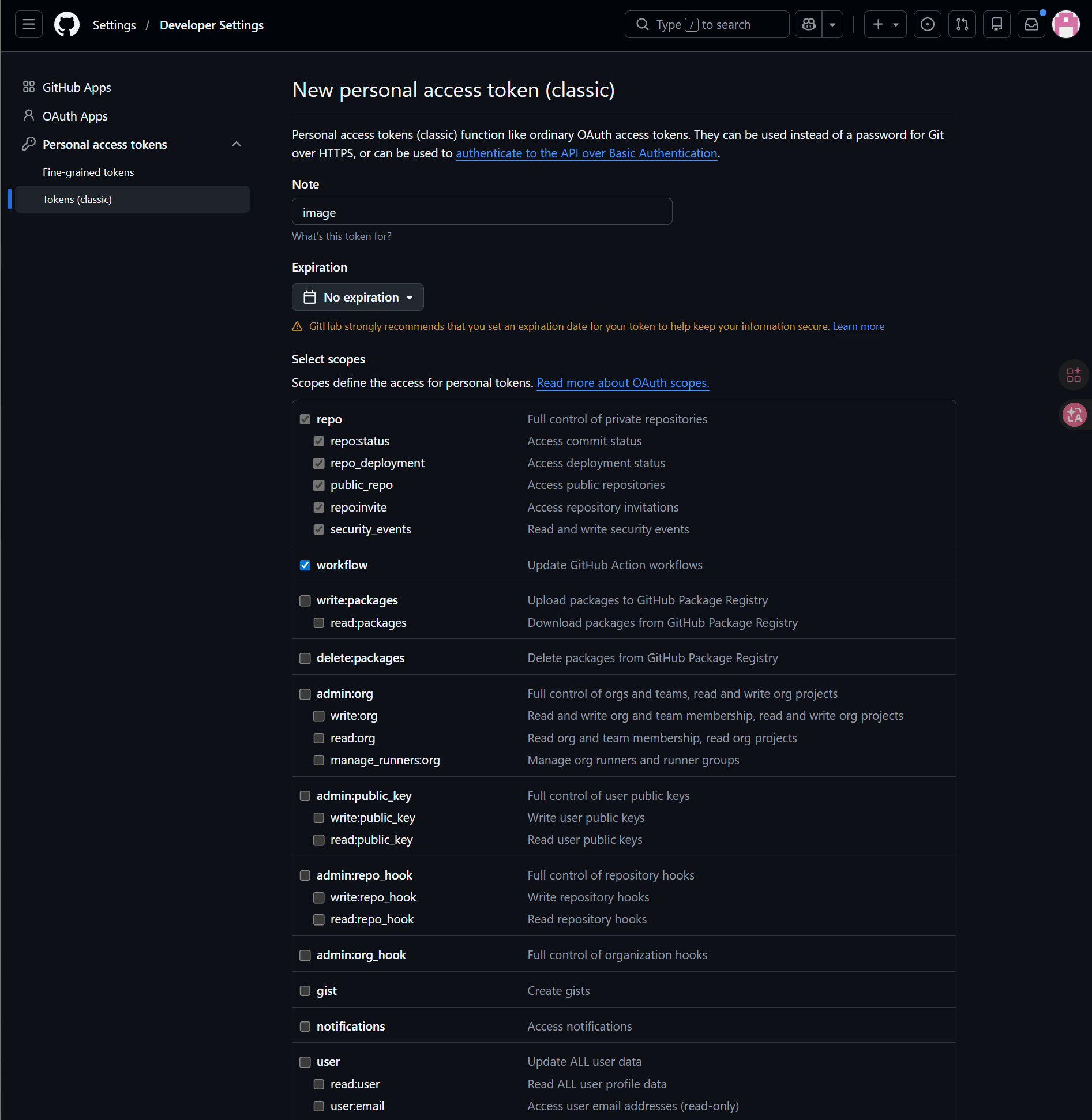
चरण 2: ImgHost में GitHub Releases चैनल भरें
अपलोड सेटिंग्स में GitHub Releases चुनने के बाद फ़ील्ड इस तरह भरें:
| UI फ़ील्ड | क्या दर्ज करें |
|---|---|
| चैनल नाम | आपका चुना हुआ नाम, जैसे GitHubPrimary। |
| एक्सेस टोकन | अभी बनाया गया GitHub व्यक्तिगत एक्सेस टोकन। |
| रिपॉज़िटरी नाम | छोटा रिपॉज़िटरी नाम जैसे image, या पूरा पथ जैसे username/image। |
| निजी रिपॉज़िटरी | आवश्यकता के अनुसार सक्षम या अक्षम करें। |
| टिप्पणी | वैकल्पिक, जैसे Primary upload channel। |
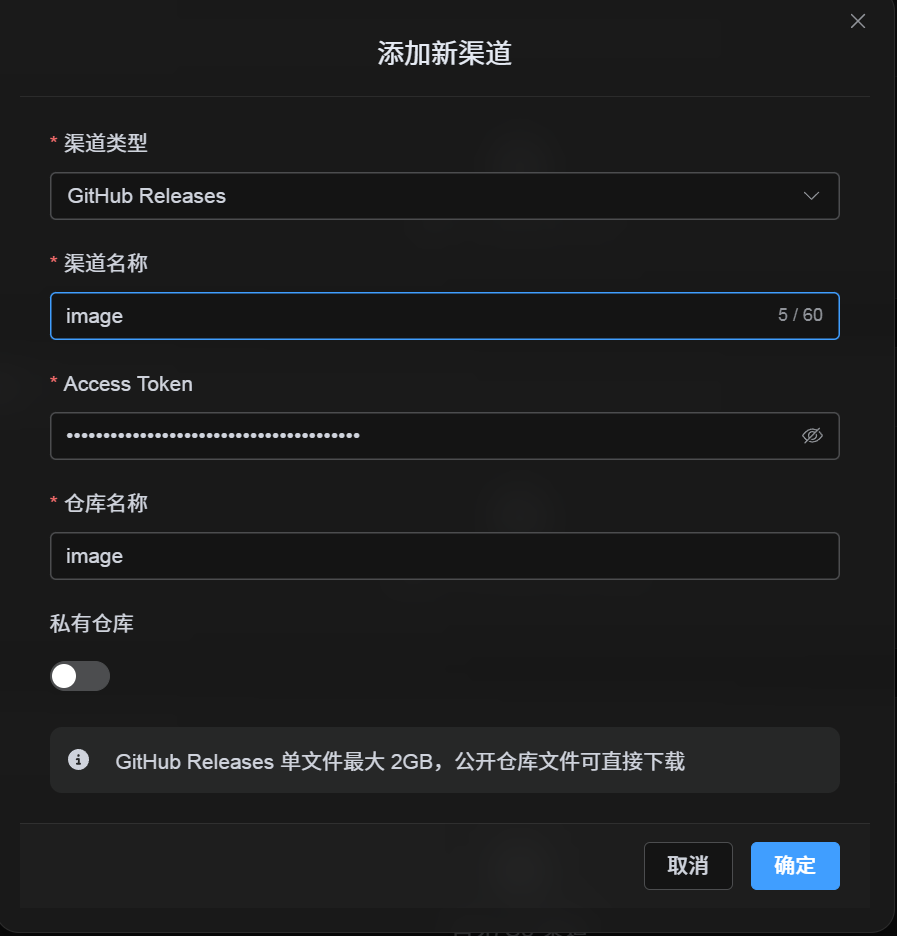
चरण 3: चैनल सहेजें
फ़ील्ड भरने के बाद सहेजें पर क्लिक करें।
सिस्टम ये विवरण संभालता है:
| सिस्टम व्यवहार | विवरण |
|---|---|
| छोटा रिपॉज़िटरी नाम | ImgHost वर्तमान GitHub खाते को पहचानता है और मान को पूरे रिपॉज़िटरी पथ में बदलता है। |
| पूरा रिपॉज़िटरी पथ | ImgHost username/repository पथ को ठीक वैसे ही उपयोग करता है जैसे दर्ज किया गया है। |
| रिपॉज़िटरी जाँच | यदि आप वर्तमान व्यक्तिगत खाते का पथ उपयोग करते हैं, तो रिपॉज़िटरी न होने पर ImgHost उसे अपने आप बनाता है। यदि पूरा पथ मैन्युअल रूप से दर्ज करें, तो ImgHost उसी पथ का सीधे उपयोग करता है। |
| सार्वजनिक/निजी स्थिति | रिपॉज़िटरी दृश्यता वर्तमान स्विच के अनुसार सिंक्रनाइज़ होती है। |
त्वरित सूची
GitHub Releases इस तरह काम करता है:
text
Sign in to GitHub
-> Create an Access Token
-> Return to ImgHost and enter the token and repository name
-> Save
-> If only a repo name is entered, ImgHost adds the current username automatically
-> If username/repo is entered, ImgHost uses it as-is
-> Upload a test image