Google Drive चैनल जोड़ना
पहले क्या चाहिए
शुरू करने से पहले ये चीज़ें तैयार रखें:
| आवश्यकता | क्यों चाहिए |
|---|---|
| Google खाता | Google Cloud तक पहुँचने और Google Drive को अधिकृत करने के लिए |
| Google Cloud प्रोजेक्ट | Drive API सक्षम करने और OAuth क्रेडेंशियल बनाने के लिए |
| OAuth 2.0 क्लाइंट | ImgHost इससे Client ID, Client Secret और Refresh Token प्राप्त करता है |
| आपका ImgHost डोमेन | OAuth redirect URI के रूप में। यह आपके वास्तविक उपयोग वाले डोमेन से मेल खाना चाहिए। |
कॉन्फ़िगरेशन चरण
चरण 1: Google Drive API सक्षम करें
- Google Cloud Console खोलें।
- नया प्रोजेक्ट बनाएँ या मौजूदा प्रोजेक्ट चुनें।
APIs & Servicesपर जाएँ।Enable APIs and Servicesपर क्लिक करें।Google Drive APIखोजें।- इसे खोलें और सक्षम करें पर क्लिक करें।
चरण 2: OAuth consent screen कॉन्फ़िगर करें
- Google Cloud में
Google Auth Platformखोलें। Brandingकी मूल जानकारी पूरी करें, जैसे ऐप्लिकेशन नाम, सहायता ईमेल और डेवलपर संपर्क ईमेल।Audienceखोलें।- अधिकांश व्यक्तिगत स्वयं-होस्टेड डिप्लॉयमेंट के लिए
Externalचुनें। - यदि
Externalचुनते हैं, तो जिस Google खाते को अधिकृत करना है उसेTest usersमें जोड़ें। Data Accessखोलें।- आवश्यक Google Drive अनुमतियाँ जोड़ें।
चरण 3: OAuth 2.0 क्लाइंट बनाएँ
Google Auth PlatformमेंClientsखोलें।- नया क्लाइंट बनाएँ।
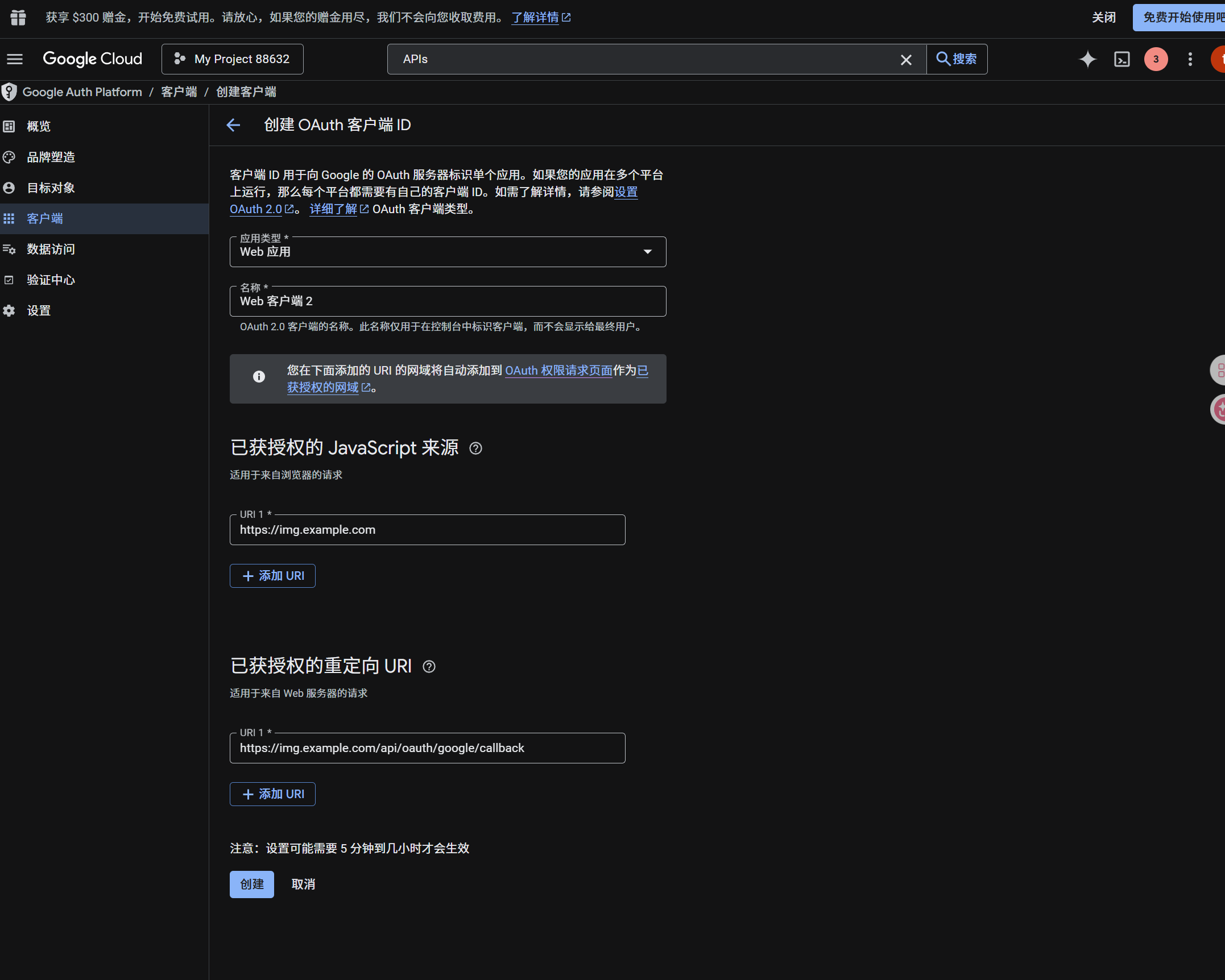
- ऐप्लिकेशन प्रकार
Web applicationरखें। - क्लाइंट को पहचानने योग्य नाम दें।
- authorized JavaScript origins में ImgHost URL दर्ज करें, उदाहरण के लिए:
text
https://img.example.com- authorized redirect URIs में दर्ज करें:
text
https://img.example.com/api/oauth/google/callback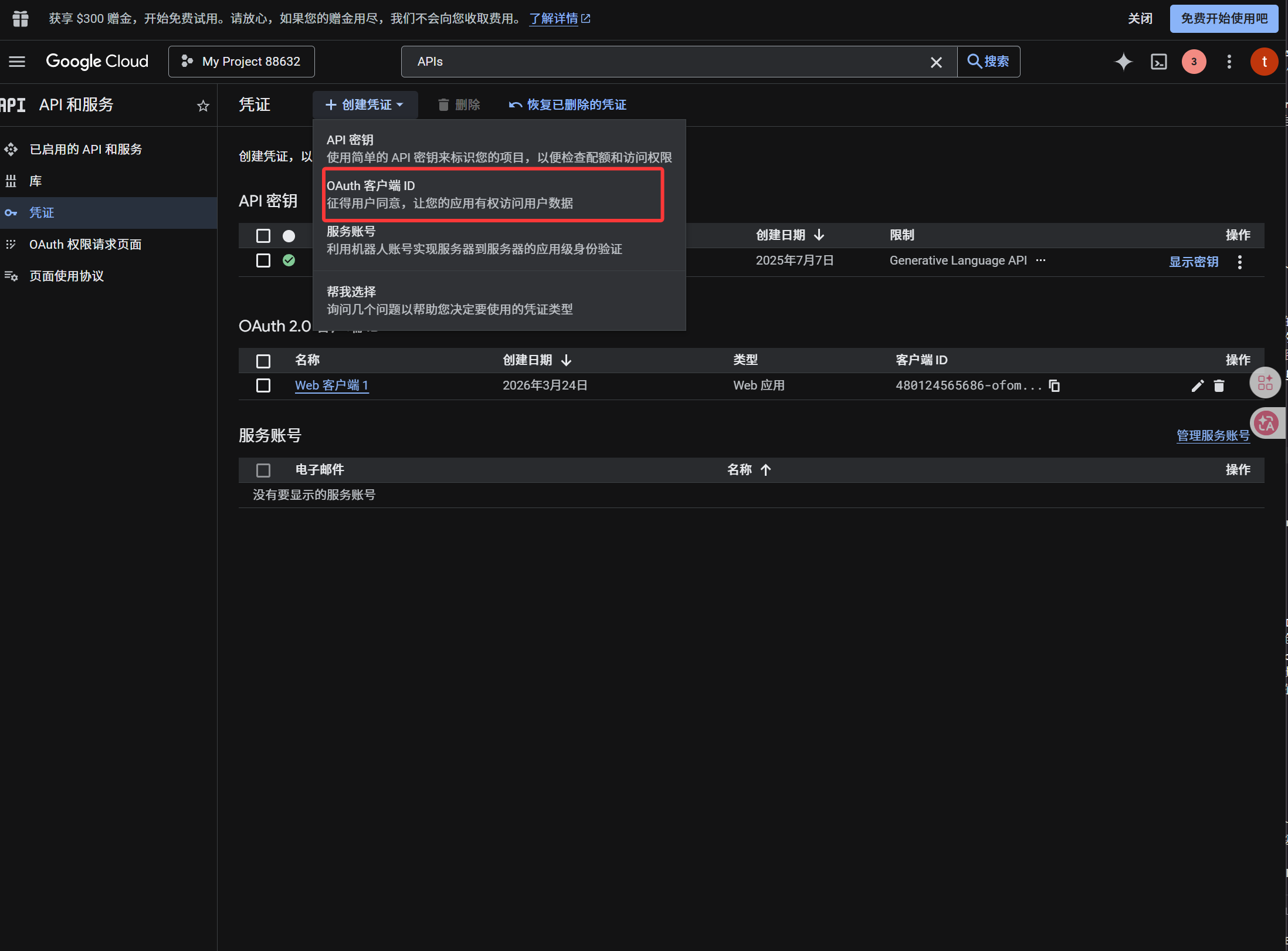
क्लाइंट बनने के बाद ये मान कॉपी करें:
| बनाया गया मान | ImgHost फ़ील्ड |
|---|---|
| Client ID | Client ID |
| Client Secret | Client Secret |
चरण 4: Google Drive चैनल भरें
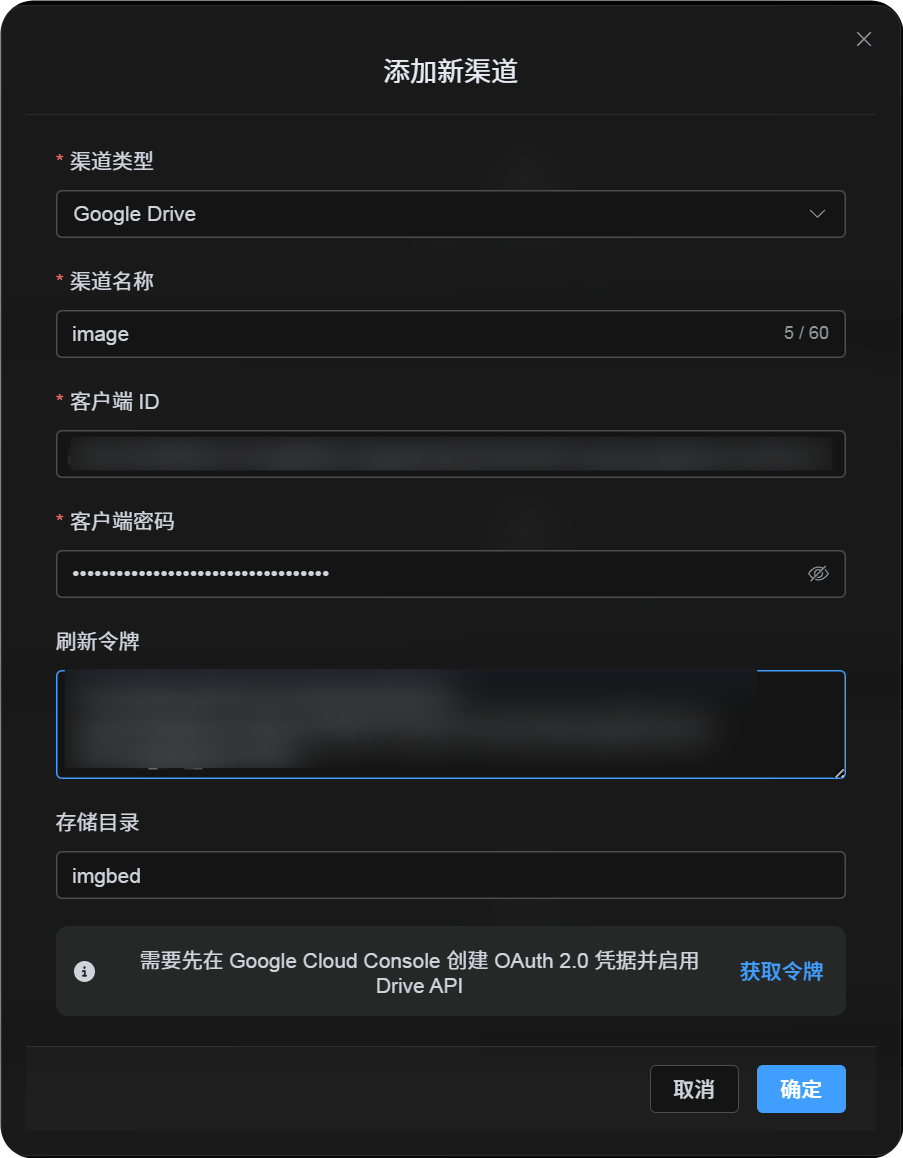
अपलोड सेटिंग्स में Google Drive चुनें और भरें:
| ImgHost फ़ील्ड | क्या दर्ज करें |
|---|---|
| चैनल नाम | पहचानने योग्य नाम, जैसे Main Google Drive |
| Client ID | Google Cloud का Client ID |
| Client Secret | Google Cloud का Client Secret |
| Refresh Token | अभी खाली छोड़ें। इसे अगले चरण में प्राप्त करेंगे। |
| रूट डायरेक्टरी | वैकल्पिक। डिफ़ॉल्ट imgbed है। |
चरण 5: Refresh Token प्राप्त करें
Get Tokenपर क्लिक करें।- जोड़ने वाला Google खाता चुनें।
- अधिकरण अनुरोध पूरे करें।
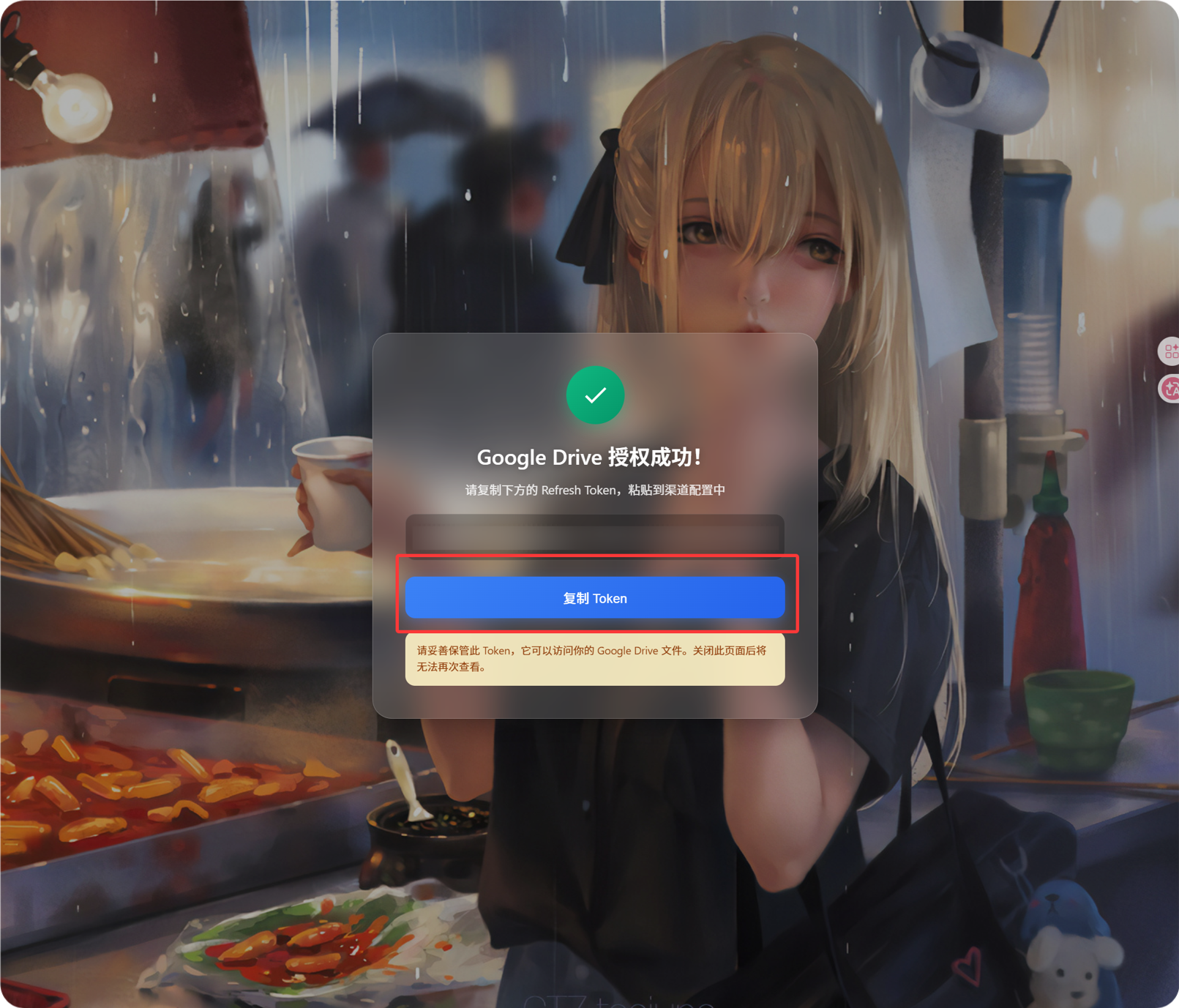
- कॉलबैक पेज
Refresh Tokenदिखाएगा। - इसे कॉपी करें।
- ImgHost में लौटकर
Refresh Tokenफ़ील्ड में पेस्ट करें।
यदि बाद में Google खाता बदलें, OAuth क्लाइंट बदलें या पिछला अधिकरण समाप्त हो जाए, तो चैनल हटाने की आवश्यकता नहीं है। संपादन पेज खोलें और Reauthorize पर क्लिक करें।
चरण 6: चैनल सहेजें
सभी फ़ील्ड भरने के बाद चैनल सहेजें।
त्वरित प्रवाह
text
Open Google Cloud
-> Create or select a project
-> Enable Google Drive API
-> Configure Google Auth Platform
-> If Audience is External, add your Google account to Test users
-> Create a Web application OAuth client
-> Use https://your-domain.com/api/oauth/google/callback as the redirect URI
-> Fill Client ID and Client Secret into ImgHost
-> Click Get Token
-> Sign in with Google and authorize
-> Copy the Refresh Token from the callback page
-> Paste it back into ImgHost and save
-> Upload a test image
संदर्भ
- Google OAuth वेब सर्वर ऐप्लिकेशन: https://developers.google.com/identity/protocols/oauth2/web-server
- Google Workspace OAuth consent कॉन्फ़िगरेशन: https://developers.google.com/workspace/guides/configure-oauth-consent
- Google Drive API प्रमाणीकरण स्कोप: https://developers.google.com/workspace/drive/api/guides/api-specific-auth