เพิ่มช่องทาง Google Drive
สิ่งที่ต้องเตรียมก่อน
ก่อนเริ่ม ให้เตรียมสิ่งเหล่านี้:
| ข้อกำหนด | ทำไมต้องใช้ |
|---|---|
| Google account | ใช้เข้าถึง Google Cloud และ authorize Google Drive |
| Google Cloud project | ใช้ enable Drive API และสร้าง OAuth credentials |
| OAuth 2.0 client | ImgHost ใช้รับ Client ID, Client Secret และ Refresh Token |
| ImgHost domain ของคุณ | ใช้เป็น OAuth redirect URI ต้องตรงกับ domain ที่ใช้งานจริง |
ขั้นตอนตั้งค่า
ขั้นตอนที่ 1: Enable Google Drive API
- เปิด Google Cloud Console
- สร้าง project ใหม่หรือเลือก project ที่มีอยู่แล้ว
- ไปที่
APIs & Services - คลิก
Enable APIs and Services - ค้นหา
Google Drive API - เปิดแล้วคลิก enable
ขั้นตอนที่ 2: Configure OAuth Consent Screen
- ใน Google Cloud เปิด
Google Auth Platform - กรอกข้อมูลพื้นฐานใน
Brandingเช่น app name, support email และ developer contact email - เปิด
Audience - สำหรับ self-hosted personal deployments ส่วนใหญ่ ให้เลือก
External - ถ้าเลือก
Externalให้เพิ่ม Google account ที่ต้องการ authorize ในTest users - เปิด
Data Access - เพิ่ม Google Drive permissions ที่ต้องใช้
ขั้นตอนที่ 3: สร้าง OAuth 2.0 Client
- ใน
Google Auth PlatformเปิดClients - สร้าง client ใหม่
- ตั้ง application type เป็น
Web application - ตั้งชื่อ client ให้จำง่าย
- สำหรับ authorized JavaScript origins ให้ใส่ ImgHost URL เช่น:
text
https://img.example.com- สำหรับ authorized redirect URIs ให้ใส่:
text
https://img.example.com/api/oauth/google/callback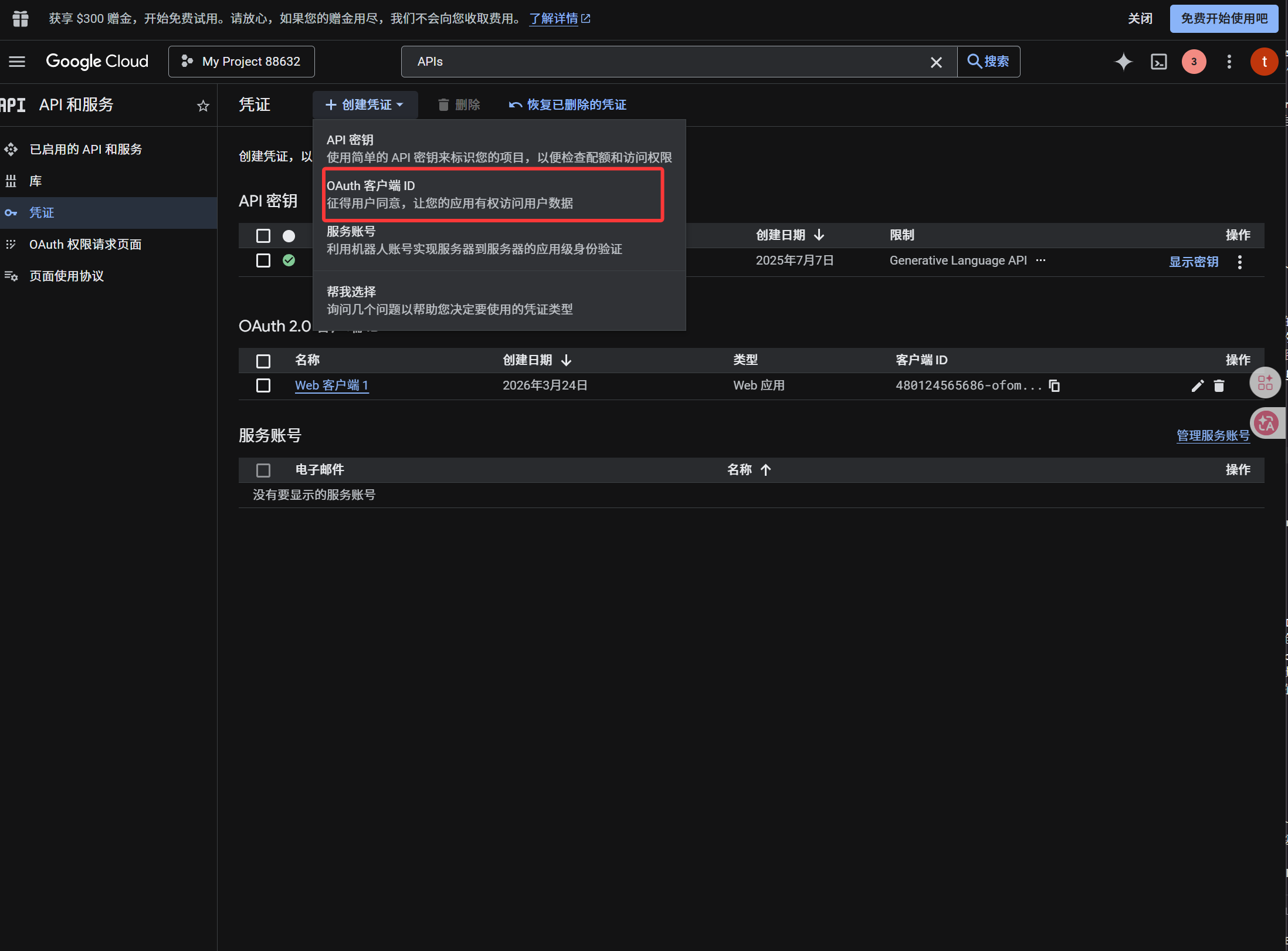
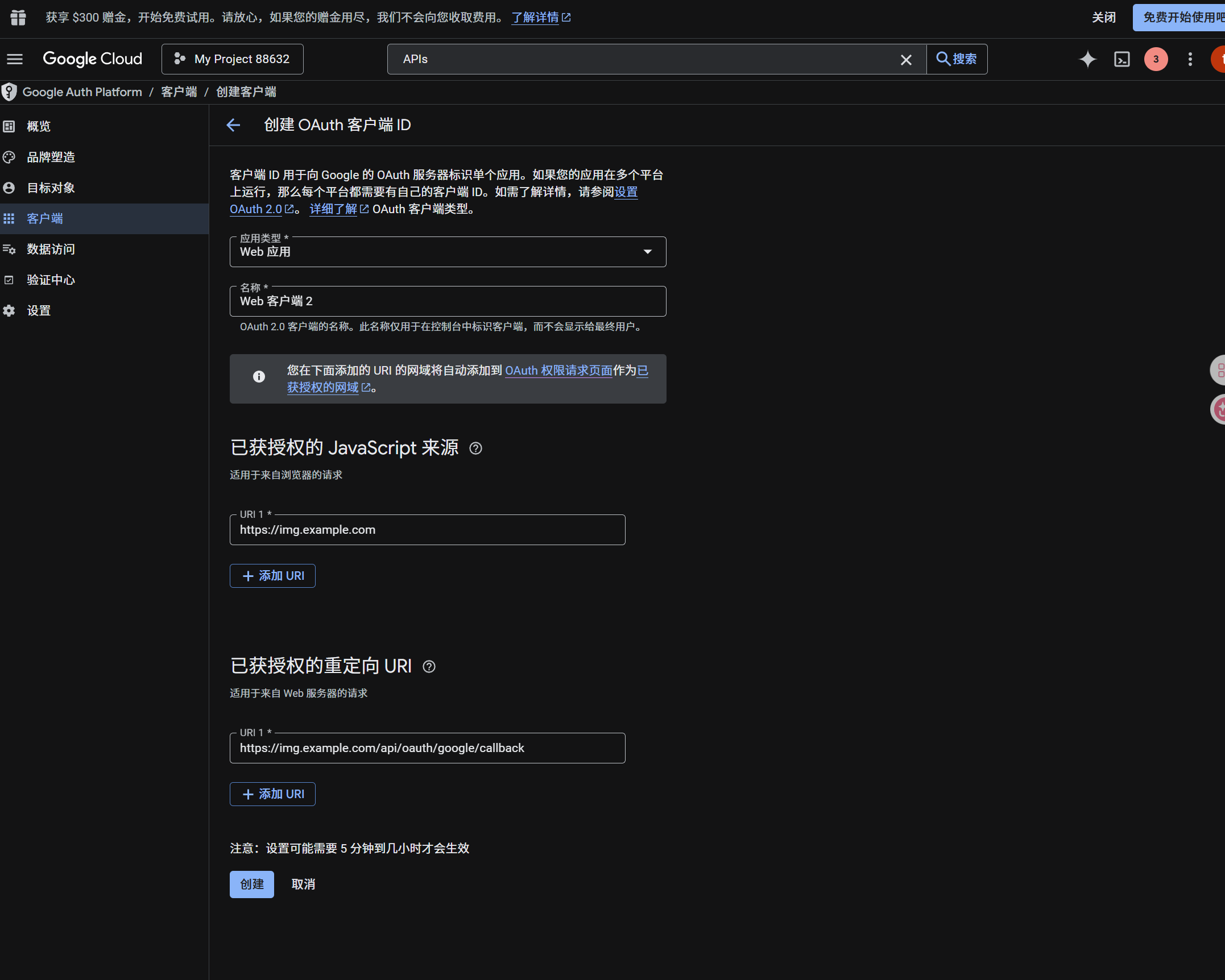
หลังสร้าง client แล้ว ให้คัดลอกค่าเหล่านี้:
| ค่าที่สร้างขึ้น | ฟิลด์ ImgHost |
|---|---|
| Client ID | Client ID |
| Client Secret | Client Secret |
ขั้นตอนที่ 4: ใส่ช่องทาง Google Drive
ใน Upload Settings เลือก Google Drive แล้วกรอก:
| ฟิลด์ ImgHost | ใส่อะไร |
|---|---|
| Channel name | ชื่อที่จำง่าย เช่น Main Google Drive |
| Client ID | Client ID จาก Google Cloud |
| Client Secret | Client Secret จาก Google Cloud |
| Refresh Token | เว้นว่างไว้ก่อน รับในขั้นตอนถัดไป |
| Root directory | ไม่บังคับ ค่าเริ่มต้นคือ imgbed |
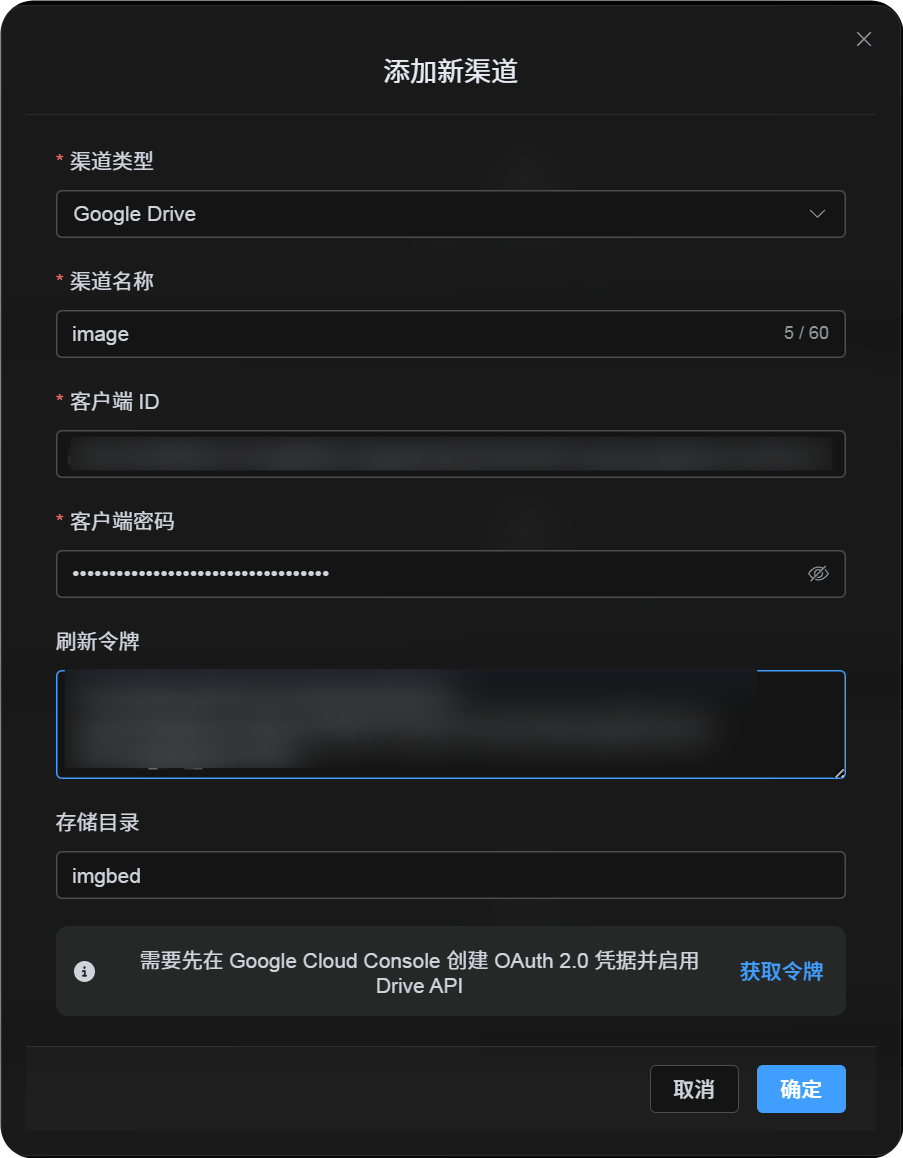
ขั้นตอนที่ 5: รับ Refresh Token
- คลิก
Get Token - เลือก Google account ที่ต้องการเชื่อมต่อ
- ทำ authorization prompts ให้เสร็จ
- หน้า callback จะแสดง
Refresh Token - คัดลอก token นั้น
- กลับไปที่ ImgHost แล้ววางในฟิลด์
Refresh Token
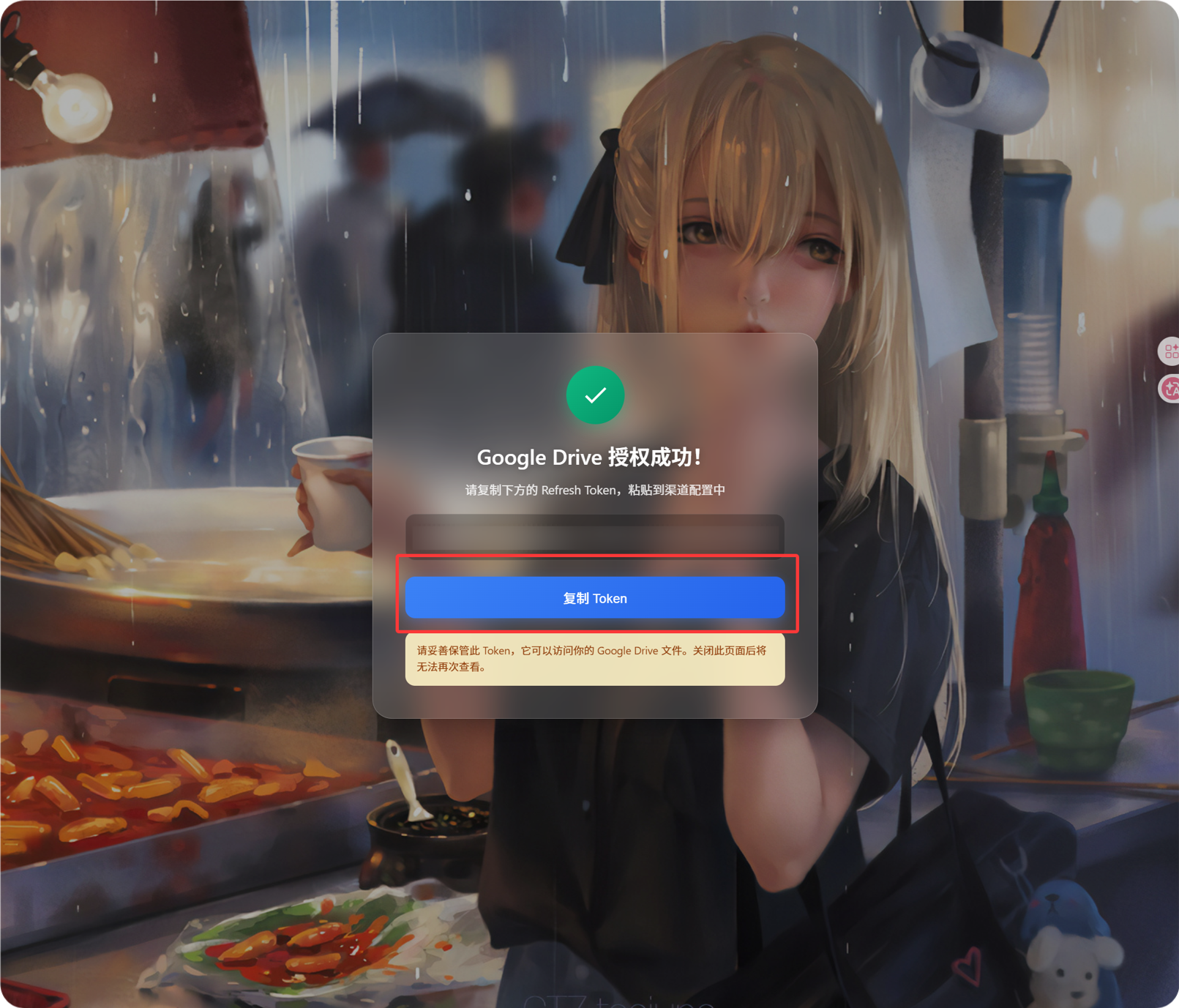
ถ้าภายหลังเปลี่ยน Google account, เปลี่ยน OAuth client หรือ authorization เก่าหมดอายุ ไม่จำเป็นต้องลบช่องทาง ให้เปิดหน้าแก้ไขแล้วคลิก Reauthorize
ขั้นตอนที่ 6: บันทึกช่องทาง
เมื่อกรอกครบทุกฟิลด์แล้วให้บันทึกช่องทาง
ลำดับขั้นตอนด่วน
text
Open Google Cloud
-> Create or select a project
-> Enable Google Drive API
-> Configure Google Auth Platform
-> If Audience is External, add your Google account to Test users
-> Create a Web application OAuth client
-> Use https://your-domain.com/api/oauth/google/callback as the redirect URI
-> Fill Client ID and Client Secret into ImgHost
-> Click Get Token
-> Sign in with Google and authorize
-> Copy the Refresh Token from the callback page
-> Paste it back into ImgHost and save
-> Upload a test image
เอกสารอ้างอิง
- Google OAuth Web Server Applications: https://developers.google.com/identity/protocols/oauth2/web-server
- การกำหนดค่า OAuth Consent ของ Google Workspace: https://developers.google.com/workspace/guides/configure-oauth-consent
- Auth Scopes ของ Google Drive API: https://developers.google.com/workspace/drive/api/guides/api-specific-auth