เพิ่มช่องทาง Discord
สิ่งที่ต้องเตรียมก่อนเริ่ม
| ข้อกำหนด | วัตถุประสงค์ |
|---|---|
| Discord account | ใช้สร้าง server, channel และ developer application |
| Discord server | Bot ต้องอยู่ใน server ก่อนจึงจะเข้าถึง channel ได้ |
| Text channel | รูปภาพและไฟล์จะถูกส่งไปยัง channel นี้ |
| Discord Developer Portal | ใช้สร้าง application, สร้าง bot และรับ Bot Token |
เพิ่มได้จากที่ไหน
- เปิดการตั้งค่าระบบ
- ไปที่การตั้งค่าการอัปโหลด
- คลิกเพิ่มช่องทางที่มุมขวาบน
- เลือก
Discord
รายละเอียดฟิลด์
| ฟิลด์ | ใช้ทำอะไร | จำเป็น |
|---|---|---|
| Channel name | ชื่อที่จำง่ายสำหรับ channel นี้ เช่น "Discord Primary" | จำเป็น |
| Bot Token | Discord bot token | จำเป็น |
| Channel ID | ID ของ target text channel | จำเป็น |
| Proxy URL (ไม่บังคับ) | ใช้เฉพาะเมื่อการเข้าถึง Discord CDN ไม่เสถียร ใส่ URL แบบเต็มรวม https:// | ไม่บังคับ |
ขั้นตอนตั้งค่า
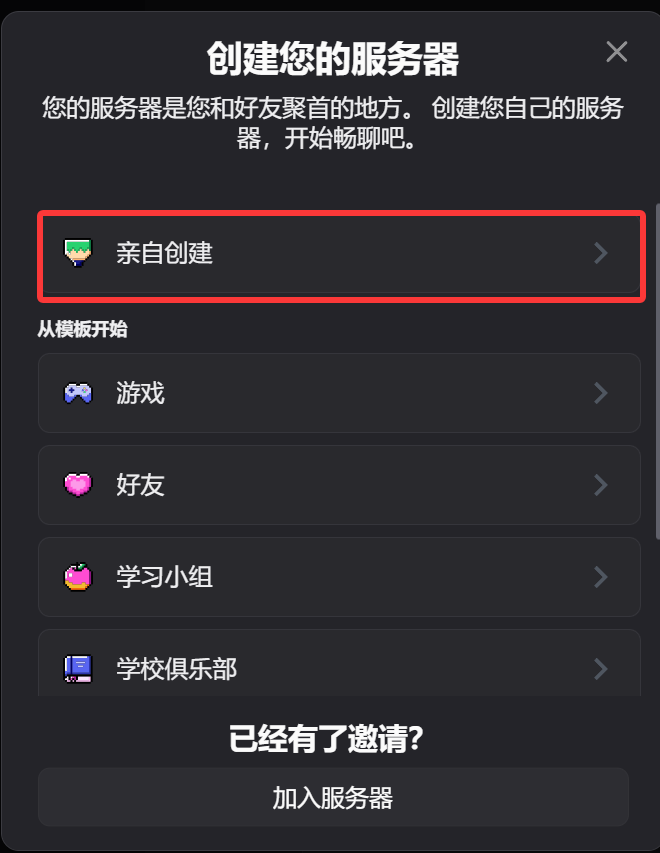
1. สร้าง Discord Server และ Text Channel
- เปิด Discord
- สร้าง server ใหม่ หรือใช้ server ที่คุณเป็นเจ้าของอยู่แล้ว
- สร้าง text channel ใน server นั้น
2. สร้าง Bot ใน Discord Developer Portal
- เปิด Discord Developer Portal:
https://discord.com/developers/applications - คลิก
New Application - ใส่ชื่อ application แล้วสร้าง
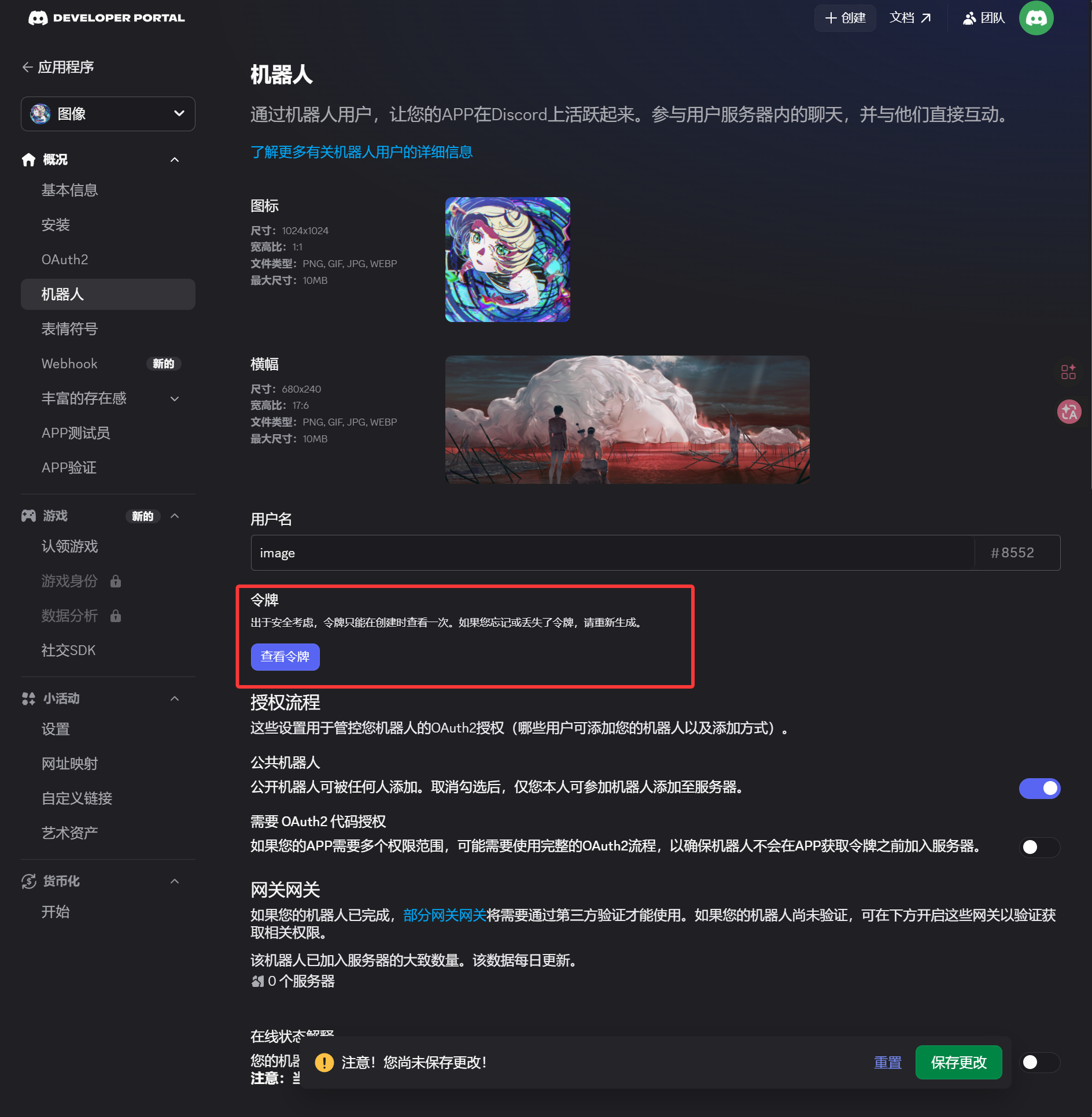
- เปิดหน้า
Botจากแถบด้านซ้าย - สร้างหรือ reset token ในหน้า
Bot - บันทึก token ไว้
Token นี้คือ Bot Token ที่ต้องใส่ใน ImgHost
3. สร้าง OAuth2 Invite Link และ Install Bot
- เปิดหน้า
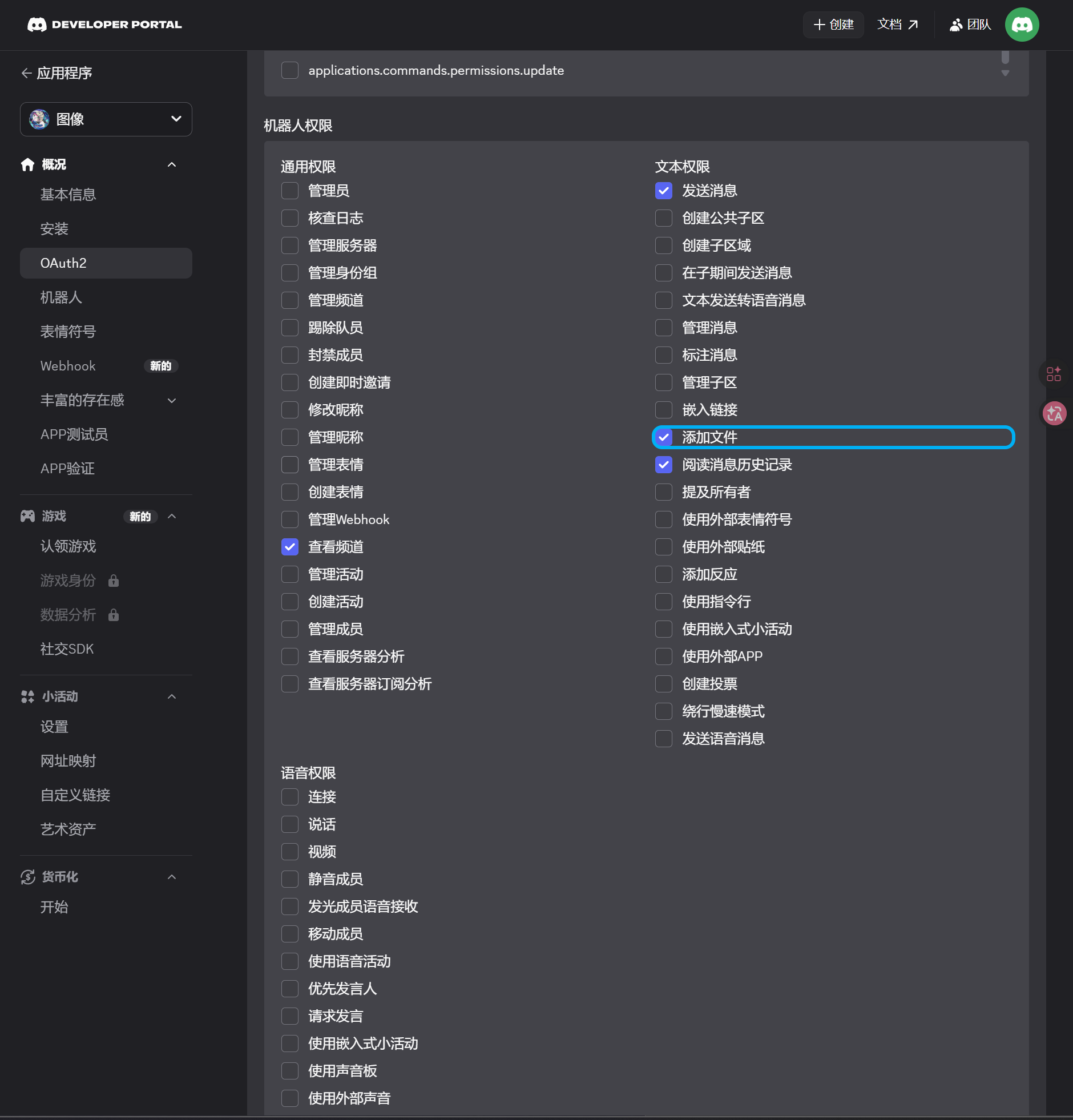
OAuth2จากแถบด้านซ้าย - ใน scopes ให้เลือก
bot - ในพื้นที่ permission ให้ enable permissions เหล่านี้:
| Permission | จำเป็น |
|---|---|
| View Channels | ใช่ |
| Send Messages | ใช่ |
| Attach Files | ใช่ |
| Read Message History | ใช่ |
- ด้านล่างของหน้า ให้ยืนยันว่า integration type เป็น
Guild Install - คัดลอก URL ที่สร้างขึ้น
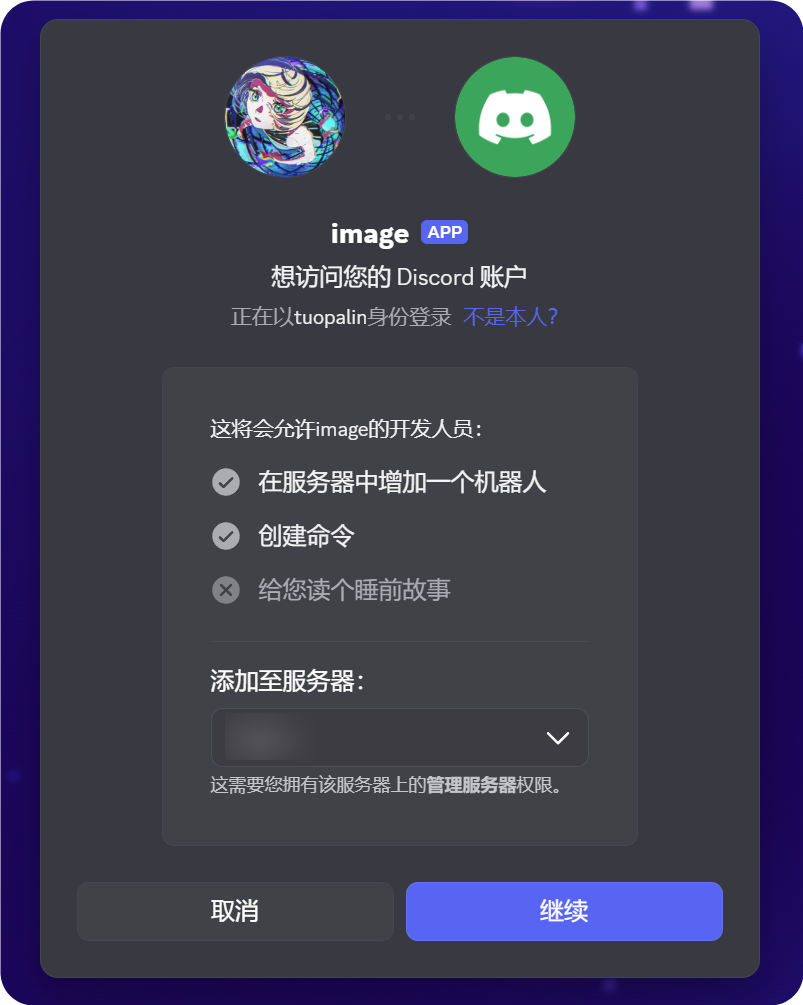
- เปิด URL นั้นใน browser
- เลือก target server
- ทำ authorization flow ให้เสร็จ
4. Enable Developer Mode และคัดลอก Channel ID
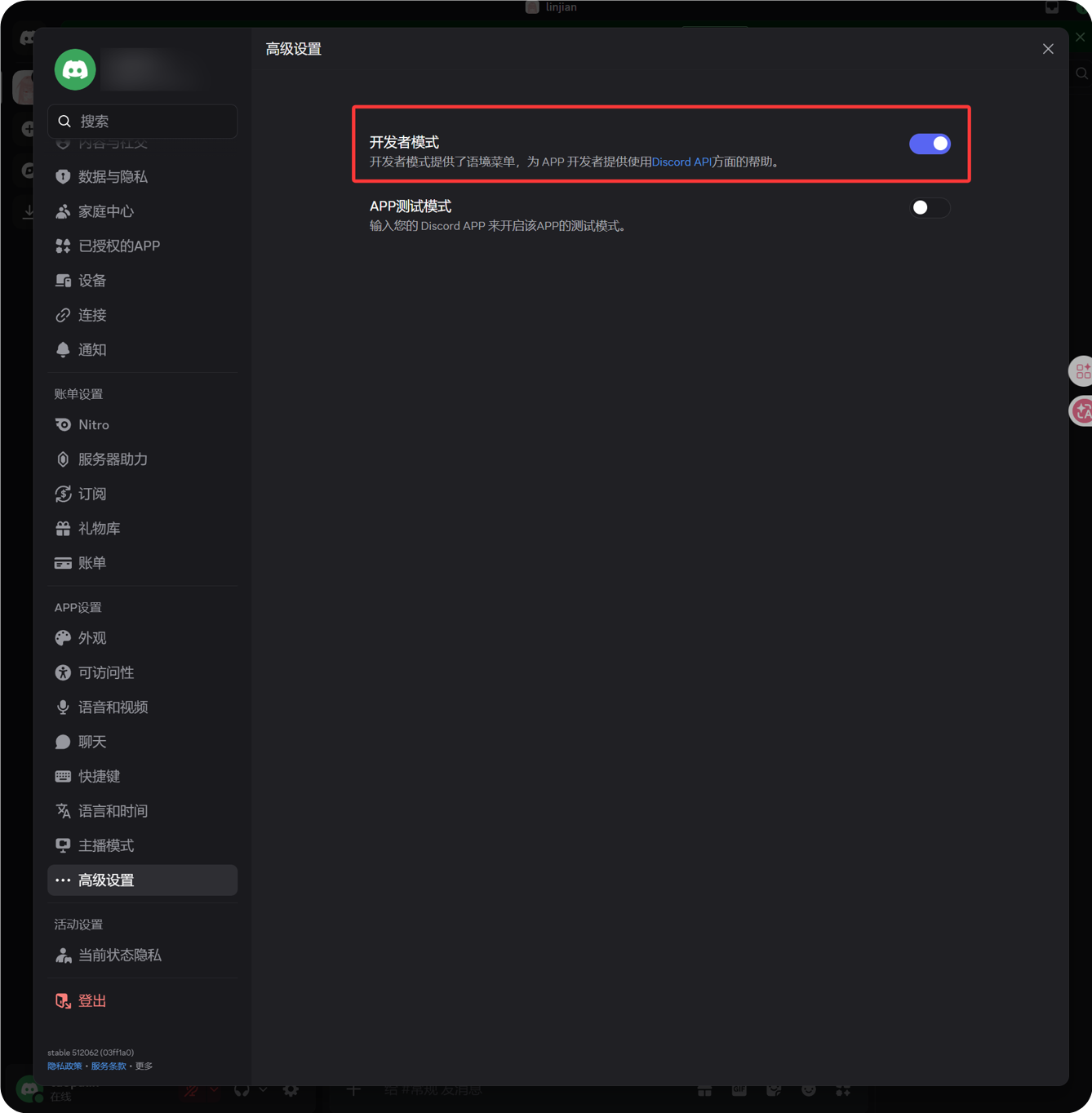
- คลิกไอคอนรูปเฟืองข้าง avatar มุมซ้ายล่างของ Discord
- เปิด Advanced จากแถบด้านซ้าย
- เปิด Developer Mode
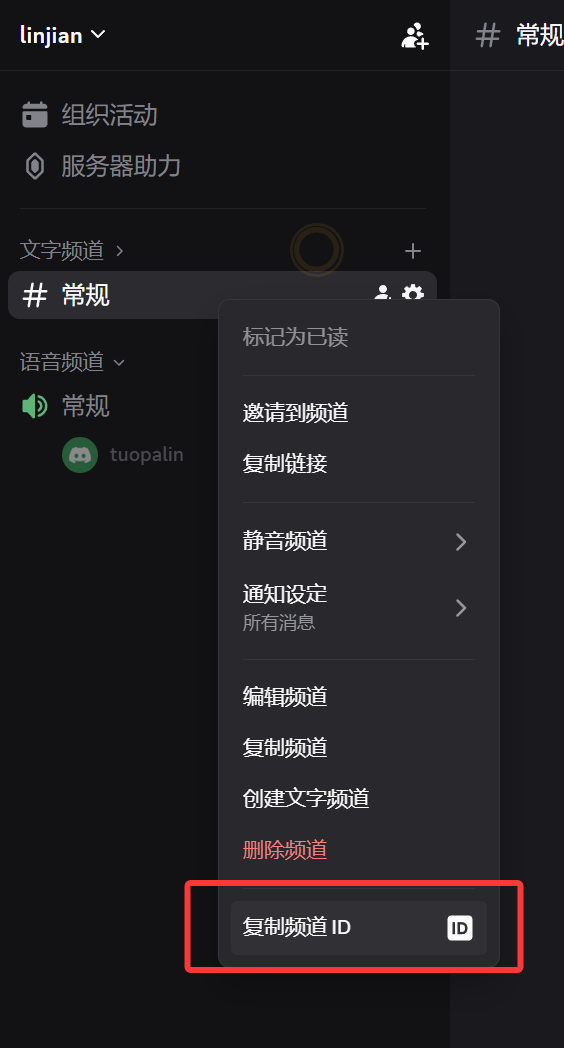
- กลับไปที่ target text channel
- คลิกขวาที่ชื่อ channel
- คลิกคัดลอก Channel ID
เลขที่คัดลอกได้คือ Channel ID ที่ ImgHost ต้องใช้
5. ใส่ช่องทาง Discord ใน ImgHost
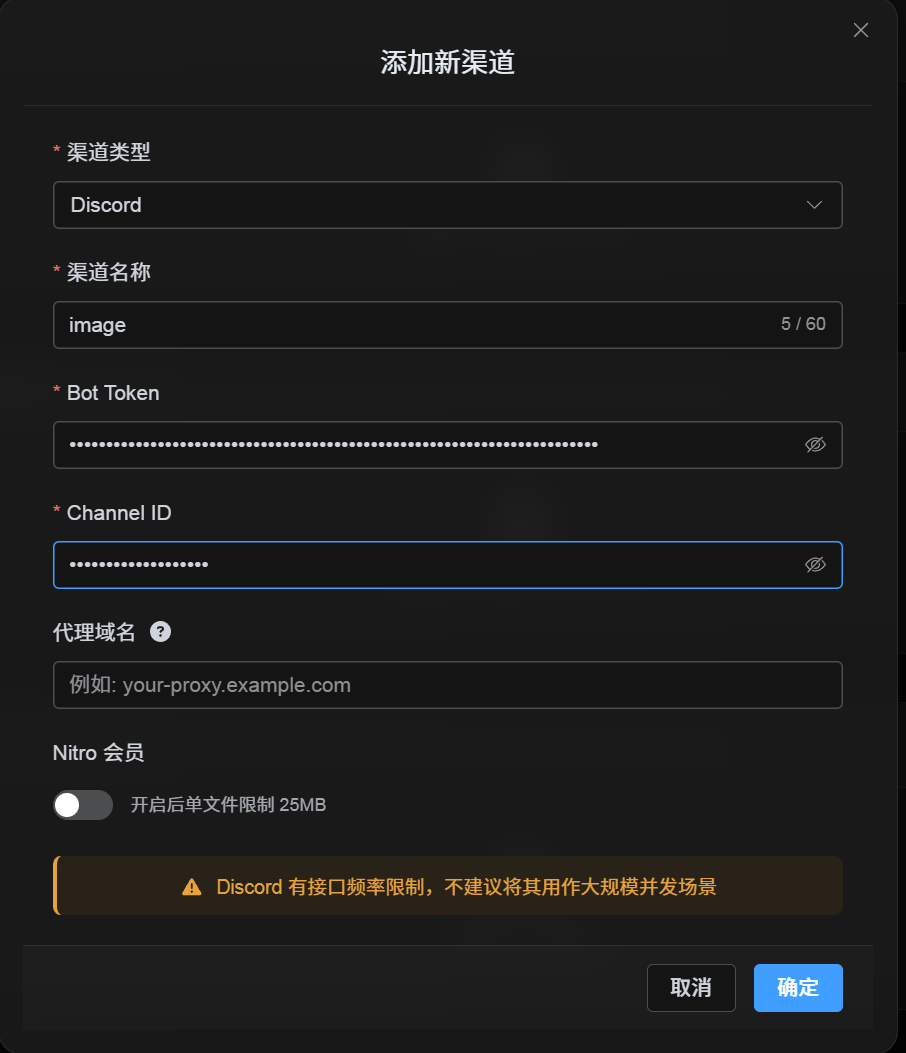
กลับไปที่กล่องกำหนดค่า channel แล้วกรอกดังนี้:
| ฟิลด์ UI | ค่า |
|---|---|
| Channel name | ชื่อ channel แบบกำหนดเอง เช่น DiscordPrimary |
| Bot Token | Token ที่บันทึกจากหน้า Bot ใน Discord Developer Portal |
| Channel ID | Channel ID ที่คัดลอกจาก Discord |
| Proxy URL (ไม่บังคับ) | ใส่เฉพาะเมื่อจำเป็น เช่น https://your-proxy.example.com |
กรอกครบแล้วคลิก Save
วิธีตรวจสอบ
| รายการตรวจสอบ | วิธีตรวจสอบ |
|---|---|
| เห็นการ์ดช่องทาง | หลังบันทึก หน้า Upload Settings ควรแสดงการ์ดช่องทาง Discord |
| เปิดใช้งานช่องทางได้ | Active switch ควรอยู่ on |
| บันทึกการกำหนดค่าแล้ว | Detail view ควรแสดงว่า Bot Token และ Channel ID ถูกบันทึกแล้ว |
| การอัปโหลดใช้งานได้ | อัปโหลดรูปทดสอบแล้วตรวจว่าไปปรากฏใน target Discord text channel |
รายการตรวจสอบด่วน
text
Create a Discord server
-> Create a text channel
-> Create a bot in the Discord Developer Portal
-> Save the Bot Token from the Bot page
-> In OAuth2, select bot, View Channels, Send Messages, Attach Files, and Read Message History
-> Copy the generated URL and authorize the bot for the target server
-> Make sure the target text channel grants the same permissions
-> Enable Developer Mode
-> Right-click the target text channel and copy the Channel ID
-> Enter the Bot Token and Channel ID in ImgHost
-> Save and upload a test image
เอกสารอ้างอิง
- คู่มือเริ่มต้น Discord Developers: https://docs.discord.com/developers/quick-start/getting-started
- ความช่วยเหลือ Discord - จะหา User/Server/Message ID ได้จากที่ไหน: https://support.discord.com/hc/en-us/articles/206346498-Where-can-I-find-my-User-Server-Message-ID