การระบุตำแหน่งจาก IP และการจัดการผู้ใช้
การระบุตำแหน่งจาก IP แปลงที่อยู่ IP ในบันทึกผู้อัปโหลด อุปกรณ์ที่เข้าสู่ระบบ และบันทึกลักษณะใกล้เคียงให้เป็นตำแหน่งโดยประมาณ
หลังตั้งค่าแล้ว แผงผู้ดูแลจะแสดงแหล่งที่มาของการอัปโหลดและการเข้าถึงได้ชัดเจนขึ้น การจัดการผู้ใช้ยังช่วยให้คุณบล็อกหรือคืนสิทธิ์การอัปโหลดให้ที่อยู่ IP ที่น่าสงสัยได้
ตั้งค่าที่ไหน
เปิด:
text
System Settings -> Other Settings -> IP Geolocation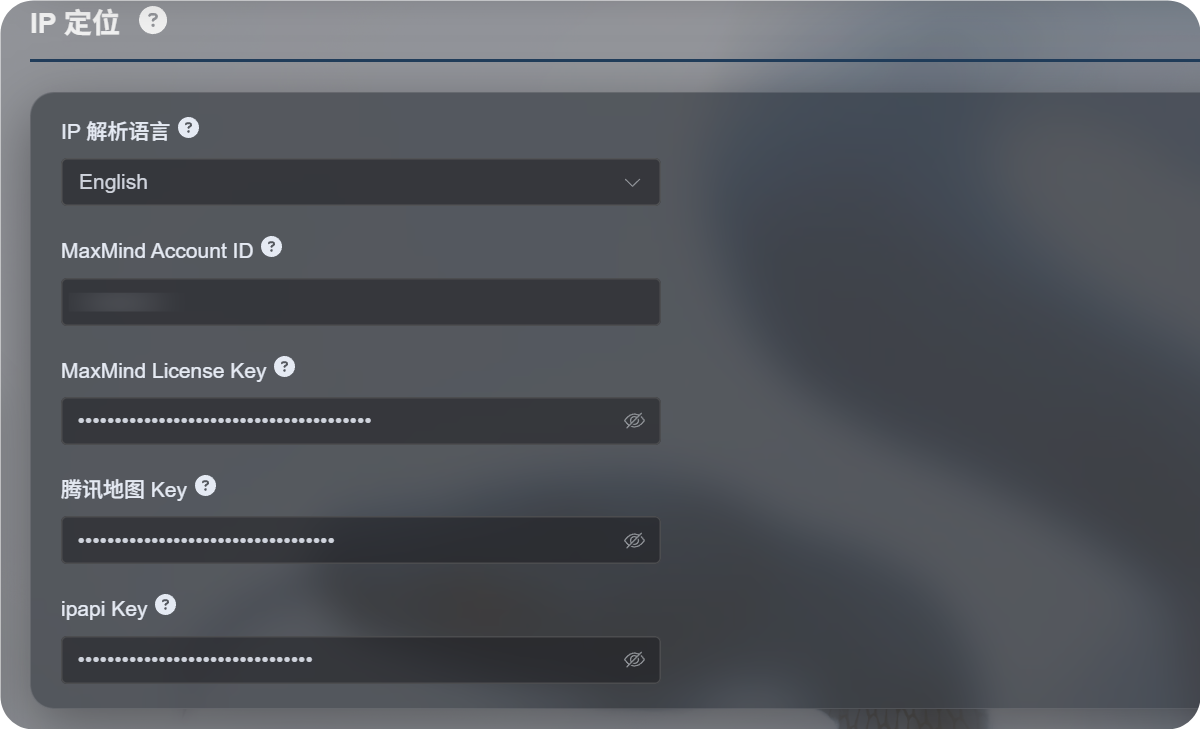
การตั้งค่าที่มี
กระบวนการระบุตำแหน่งจาก IP แบบใหม่รองรับหลายแหล่งข้อมูล แทนที่จะพึ่งพาบริการแผนที่เพียงรายเดียว
| การตั้งค่า | จุดประสงค์ |
|---|---|
| ภาษาของการระบุตำแหน่งจาก IP | เลือกภาษาที่ใช้แสดง เช่น อังกฤษ จีนตัวย่อ ญี่ปุ่น ฝรั่งเศส และภาษาอื่นๆ |
| MaxMind Account ID | ID บัญชี MaxMind สำหรับ MaxMind GeoLite Web Service |
| MaxMind License Key | License Key ของ MaxMind |
| Tencent Map Key | คีย์ของ Tencent Location Service เหมาะสำหรับที่อยู่ภาษาจีนและ IP ในจีนแผ่นดินใหญ่ |
| ipapi Key | คีย์ของ APILayer ipapi รองรับการระบุตำแหน่งจาก IP หลายภาษา |
กรอกเฉพาะบริการที่คุณต้องใช้ ไม่จำเป็นต้องตั้งค่าทุกช่อง
หากไม่ได้ระบุคีย์ใดๆ ImgHost จะยังพยายามใช้แหล่งข้อมูลฟรีในตัว แต่ความเสถียร การรองรับภาษา และความแม่นยำอาจต่ำกว่าบริการที่คุณตั้งค่าเอง
ตัวเลือกที่แนะนำ
หากคุณต้องการที่อยู่ภาษาจีนเป็นหลัก:
- ตั้งค่าภาษาของการระบุตำแหน่งจาก IP เป็นจีนตัวย่อ
- ตั้งค่า Tencent Map Key
- เพิ่ม MaxMind หรือ ipapi เป็นแหล่งสำรองได้หากต้องการ
หากคุณต้องการที่อยู่ภาษาอังกฤษหรือหลายภาษาเป็นหลัก:
- เลือกภาษาที่ต้องการ
- ตั้งค่า MaxMind Account ID และ License Key
- เพิ่ม ipapi Key หากต้องการผลลัพธ์หลายภาษาที่ดีกว่า
การตั้งค่า MaxMind
MaxMind ต้องใช้:
text
MaxMind Account ID
MaxMind License Key
ค้นหา ID บัญชีในแดชบอร์ด MaxMind และสร้าง License Key จากหน้า License Keys
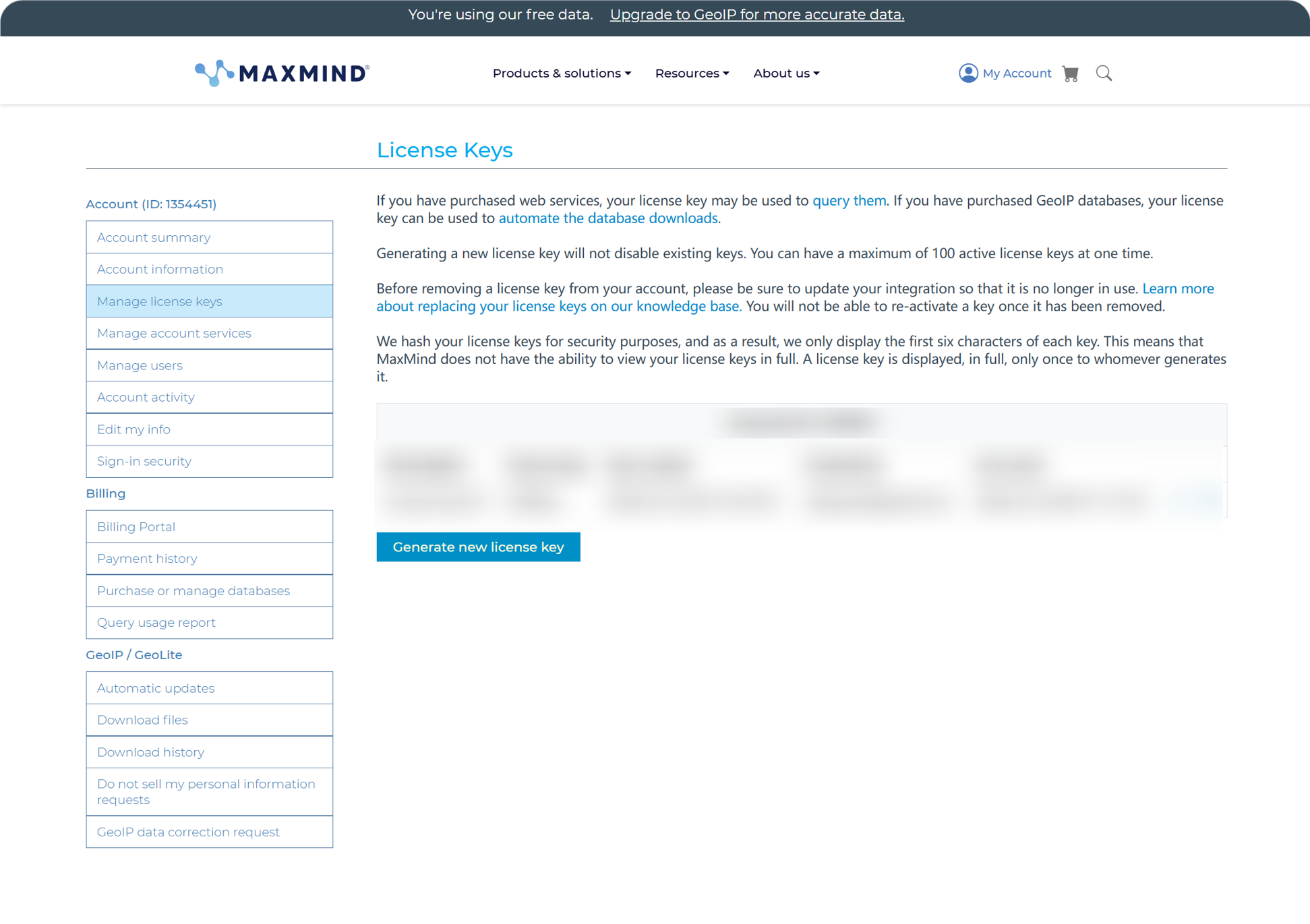
หลังสร้างแล้ว ให้วาง Account ID และ License Key ลงใน ImgHost แล้วบันทึก
แผนฟรีของ MaxMind เหมาะกับการใช้งานทั่วไป แต่มีขีดจำกัดคำขอ หากใช้เกินโควตา ImgHost จะลองใช้แหล่งข้อมูลอื่นที่มีต่อไป
การตั้งค่า ipapi
ipapi ใช้ APILayer API Key
เปิดคอนโซล ipapi แล้วคัดลอก API Key ที่แสดงอยู่
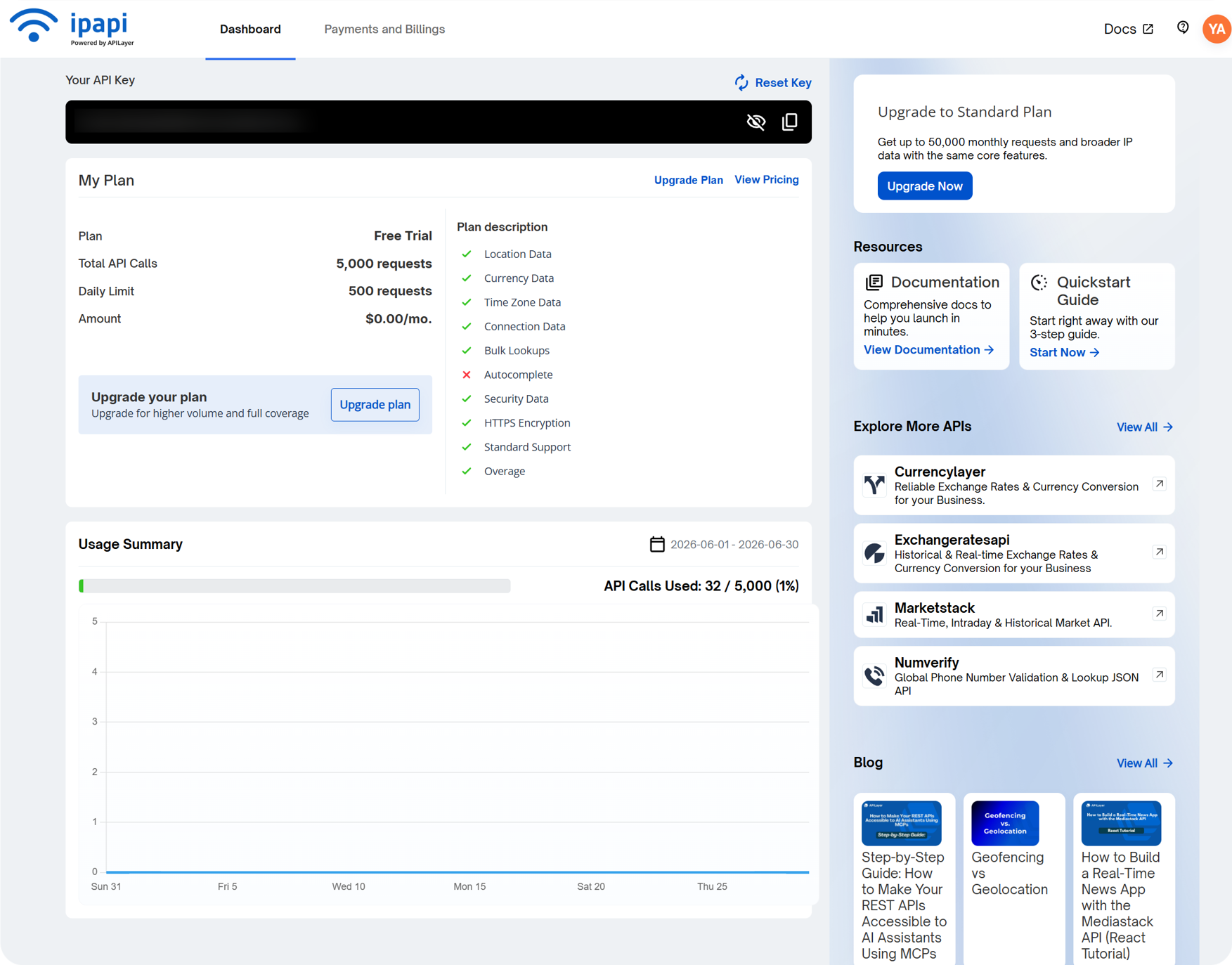
วางลงในช่อง ipapi Key ใน ImgHost แล้วบันทึก
ipapi รองรับการระบุตำแหน่งจาก IP หลายภาษา และมีประโยชน์เมื่อคุณต้องการให้ที่อยู่แสดงด้วยภาษาที่เลือก แผนฟรีก็มีขีดจำกัดคำขอเช่นกัน หากโควตาหมด ImgHost จะลองใช้แหล่งข้อมูลอื่นที่มีต่อไป
การตั้งค่า Tencent Map Key
Tencent Map Key มีประโยชน์สำหรับที่อยู่ภาษาจีน โดยเฉพาะ IP ในจีนแผ่นดินใหญ่
เมื่อสร้างคีย์ใน Tencent Location Service ให้เปิดใช้:
text
WebServiceAPIหลังสร้างแล้ว ให้วางคีย์ลงใน Tencent Map Key แล้วบันทึก
หากคุณต้องการตำแหน่ง IP ภาษาจีนพื้นฐานเท่านั้น Tencent Map Key ก็เพียงพอสำหรับเริ่มต้น
สิ่งที่ควรตรวจในผู้จัดการผู้ใช้
การจัดการผู้ใช้เปิดได้จากด้านบนของแผงผู้ดูแล
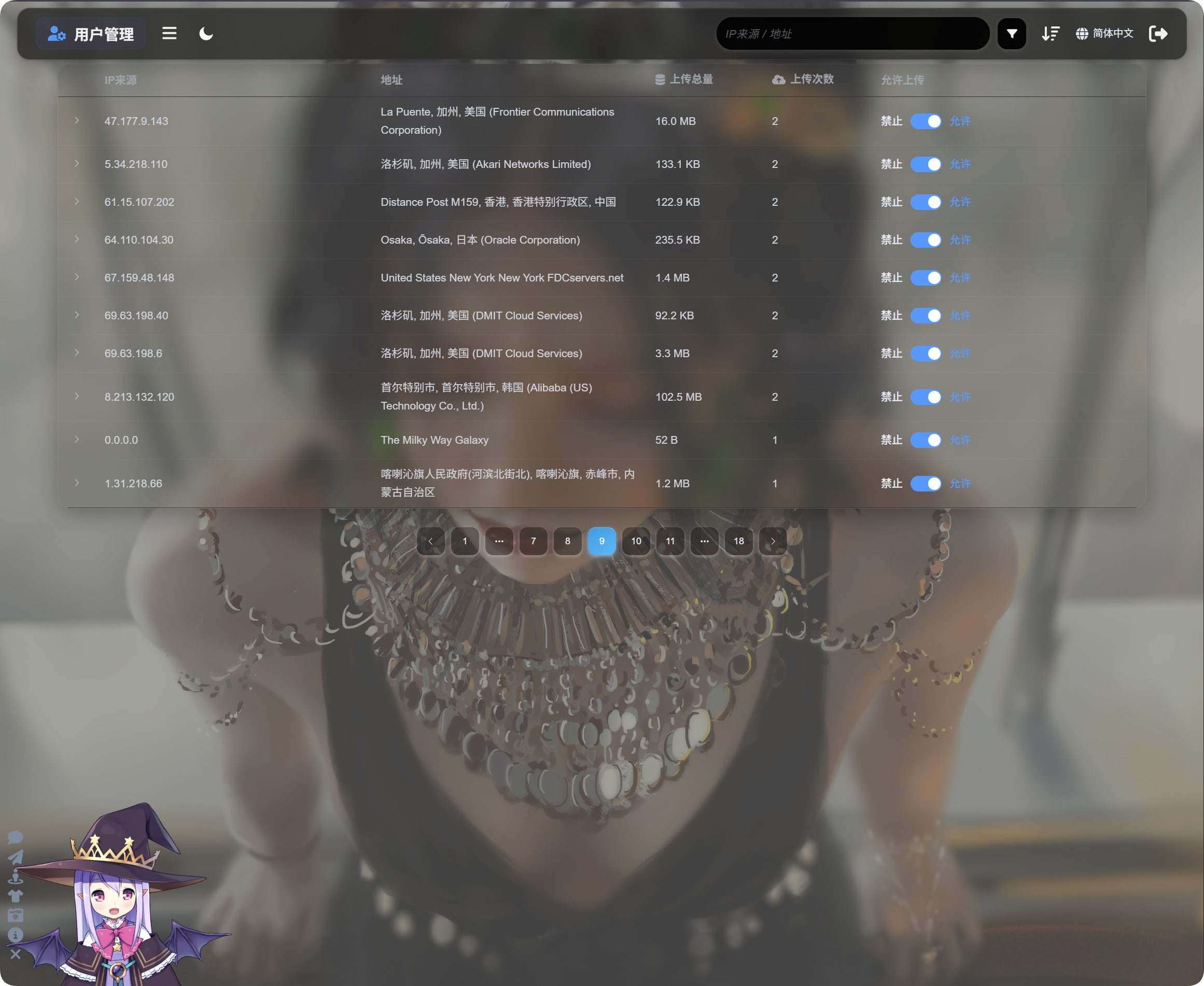
การจัดการผู้ใช้แสดงกิจกรรมอัปโหลดตาม IP:
| ช่อง | คำอธิบาย |
|---|---|
| แหล่งที่มาของ IP | IP ต้นทางของผู้อัปโหลด |
| ที่อยู่ | ตำแหน่งโดยประมาณที่ระบุจาก IP |
| ขนาดอัปโหลดรวม | ขนาดไฟล์รวมที่ IP นี้อัปโหลด |
| จำนวนอัปโหลด | จำนวนการอัปโหลดจาก IP นี้ |
| อนุญาตให้อัปโหลด | เปิดหมายถึงอนุญาตให้อัปโหลด ปิดหมายถึงบล็อกการอัปโหลด |
คลิกลูกศรด้านซ้ายเพื่อขยายรายการไฟล์ที่อัปโหลดจาก IP นั้น
รายการไฟล์จะแสดงชื่อไฟล์ ตัวอย่าง ขนาดไฟล์ ผลการตรวจสอบ สถานะไฟล์ และเวลาอัปโหลด เมื่อการอัปโหลดดูน่าสงสัย ให้ขยาย IP ก่อน ตรวจสอบไฟล์ แล้วค่อยตัดสินใจว่าจะบล็อกการอัปโหลดต่อไปหรือไม่
หาก IP น่าสงสัย ให้ปิด Upload allowed การอัปโหลดในอนาคตจาก IP นั้นจะถูกบล็อก
ค้นหา จัดเรียง และตัวกรองขั้นสูง
ที่ด้านบนของการจัดการผู้ใช้ สามารถค้นหาตามแหล่งที่มาของ IP หรือที่อยู่ได้
จัดเรียงตามเวลา จำนวนอัปโหลด หรือขนาดอัปโหลดรวม เพื่อค้นหาผู้อัปโหลดล่าสุด ผู้อัปโหลดบ่อย หรือ IP ที่ใช้พื้นที่สูง
หากต้องการตรวจสอบลึกขึ้น ให้เปิดตัวกรองขั้นสูง
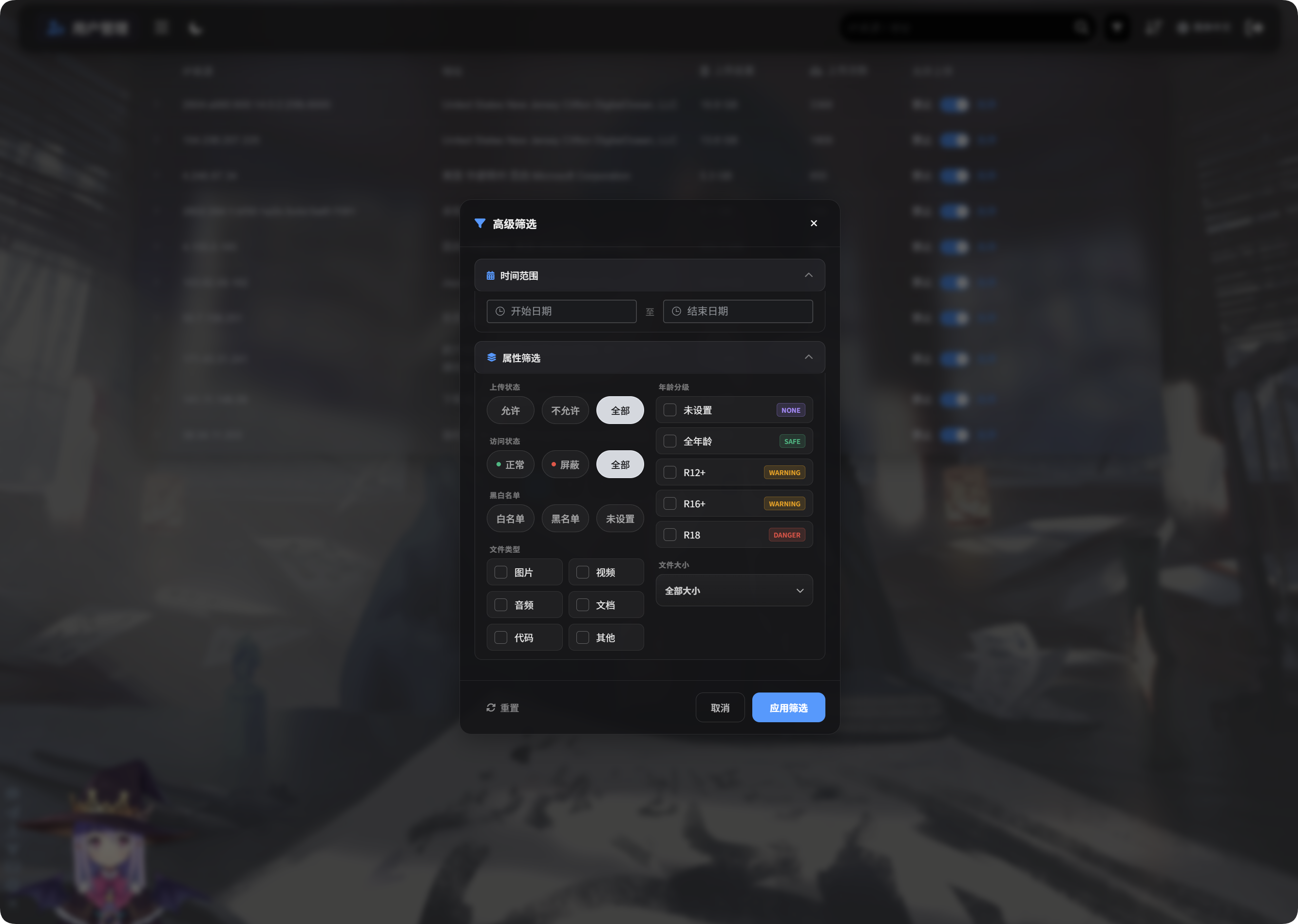
ตัวกรองขั้นสูงรองรับ:
| ตัวกรอง | การใช้งาน |
|---|---|
| ช่วงเวลา | แสดง IP ที่อัปโหลดไฟล์ในช่วงเวลาที่เลือก |
| สถานะการเข้าถึง | กรองตามสถานะปกติ ถูกบล็อก และสถานะใกล้เคียง |
| รายการอนุญาต/บล็อก | กรองตามรายการอนุญาต รายการบล็อก หรือยังไม่ได้ตั้งค่า |
| ประเภทไฟล์ | แสดง IP ที่อัปโหลดรูปภาพ วิดีโอ เสียง เอกสาร โค้ด หรือไฟล์อื่น |
| ขนาดไฟล์ | กรองตามช่วงขนาดไฟล์ที่อัปโหลด |
| ระดับอายุ | กรองตามยังไม่ได้ตั้งค่า, General, R12+, R16+, R18 และระดับใกล้เคียง |
| สถานะไฟล์ | กรองตามสถานะไฟล์ปัจจุบันเพื่อตรวจสอบไฟล์ผิดปกติ |
คลิก Apply Filters เพื่อใช้ตัวกรอง ใช้ Reset เพื่อกลับไปยังข้อมูลทั้งหมด
มุมมองมือถือ
บนมือถือ การจัดการผู้ใช้จะเปลี่ยนเป็นเลย์เอาต์แบบการ์ด
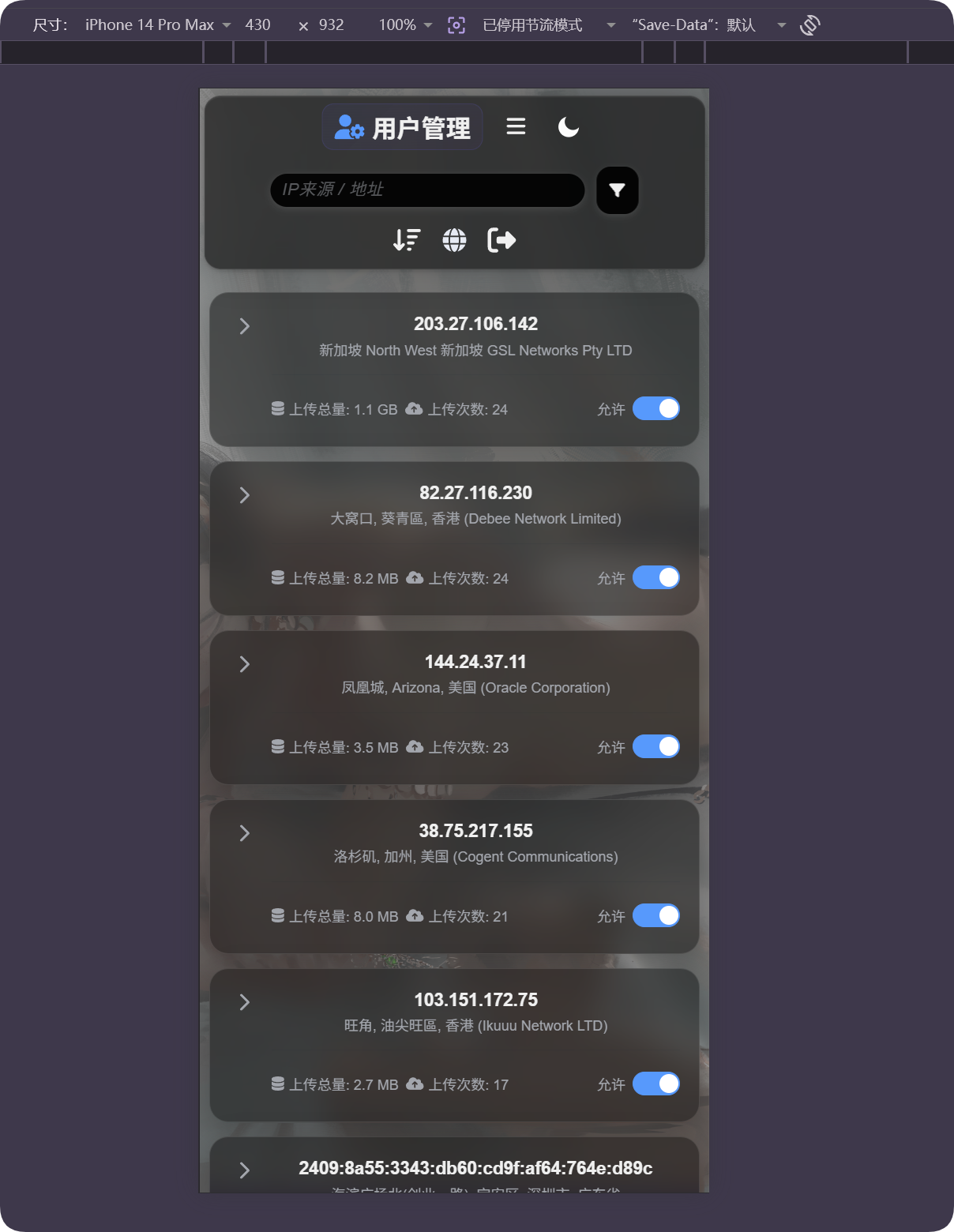
แต่ละการ์ดจะแสดง IP ที่อยู่ ขนาดอัปโหลดรวม จำนวนอัปโหลด และสวิตช์อนุญาตให้อัปโหลด คุณสามารถจัดการผู้ใช้ได้โดยไม่ต้องเลื่อนตารางในแนวนอน
หากตำแหน่งดูไม่ถูกต้อง
การระบุตำแหน่งจาก IP เป็นค่าประมาณ ไม่ใช่ที่อยู่ถนนที่แม่นยำ
หากผู้ใช้อยู่หลังพร็อกซี ศูนย์ข้อมูล เซิร์ฟเวอร์คลาวด์ หรือเครือข่ายข้ามประเทศ ตำแหน่งที่แสดงอาจแตกต่างจากตำแหน่งจริง
ใช้ฟีเจอร์นี้เพื่อเข้าใจแหล่งที่มาโดยคร่าวๆ ค้นหาการอัปโหลดผิดปกติ และช่วยตัดสินใจบล็อก อย่านำไปใช้เป็นการติดตามที่แม่นยำ
กรณีทั่วไป
| กรณี | ความหมาย |
|---|---|
| ที่อยู่ว่าง | IP อาจยังไม่ถูกแก้ตำแหน่ง หรือแหล่งข้อมูลปัจจุบันอาจใช้งานไม่ได้ชั่วคราว |
| ภาษาของที่อยู่ไม่ถูกต้อง | ตรวจสอบภาษาของการระบุตำแหน่งจาก IP และดูว่ามีแหล่งข้อมูลที่รองรับภาษานั้นตั้งค่าไว้หรือไม่ |
| ที่อยู่แสดงเป็นศูนย์ข้อมูล | พร็อกซี เซิร์ฟเวอร์คลาวด์ และครอว์เลอร์จำนวนมากจะแสดงเป็นที่อยู่ของศูนย์ข้อมูลหรือ ISP |
| จำนวนอัปโหลดสูง | ตรวจสอบ IP นี้อย่างระมัดระวัง และบล็อกการอัปโหลดหากจำเป็น |
| ขนาดอัปโหลดรวมสูง | จัดเรียงหรือกรอง ขยาย IP แล้วตรวจสอบไฟล์ที่เกี่ยวข้อง |
| ต้องการคืนค่าหลังบล็อก | เปิด Upload allowed กลับมา |
ขั้นตอนแบบย่อ
text
Open IP Geolocation in Other Settings
-> Choose IP geolocation language
-> Fill MaxMind, Tencent Map, or ipapi credentials as needed
-> Save settings
-> Open User Management
-> Review IP source, address, total upload size, and upload count
-> Use search, sort, or advanced filters to find abnormal IPs
-> Allow or block uploads as needed