OCR
OCR ดึงข้อความจากรูปภาพ สแกน และภาพหน้าจอของเอกสาร
หลังรู้จำแล้ว คุณสามารถคัดลอกผลลัพธ์ ส่งออกเป็น Markdown, PDF หรือ Word หรือรวมหลายรูปแบบเป็นแพ็กเกจเพื่อดาวน์โหลดได้
OCR ทำอะไรได้บ้าง
| ฟีเจอร์ | คำอธิบาย |
|---|---|
| รู้จำข้อความในรูปภาพ | ดึงข้อความจากรูปภาพ ภาพหน้าจอ และสแกน |
| รู้จำเลย์เอาต์เอกสาร | เหมาะกับตาราง สูตร ตราประทับ และเลย์เอาต์ที่ผสมข้อความกับรูปภาพ |
| หลายบริการ | รองรับ Baidu PaddleOCR, Microsoft Azure Vision และ Google Vision |
| คัดลอกผลลัพธ์ | คัดลอกข้อความที่รู้จำได้หลังประมวลผล |
| ส่งออกไฟล์ | ส่งออก Markdown, PDF และ Word |
| รวมเป็นแพ็กเกจแบบชุด | หลังรู้จำหลายไฟล์แล้ว สามารถดาวน์โหลดผลลัพธ์เป็นแพ็กเกจ |
ตั้งค่าบริการ OCR ก่อน
เปิด:
text
System Settings -> Other Settings -> OCR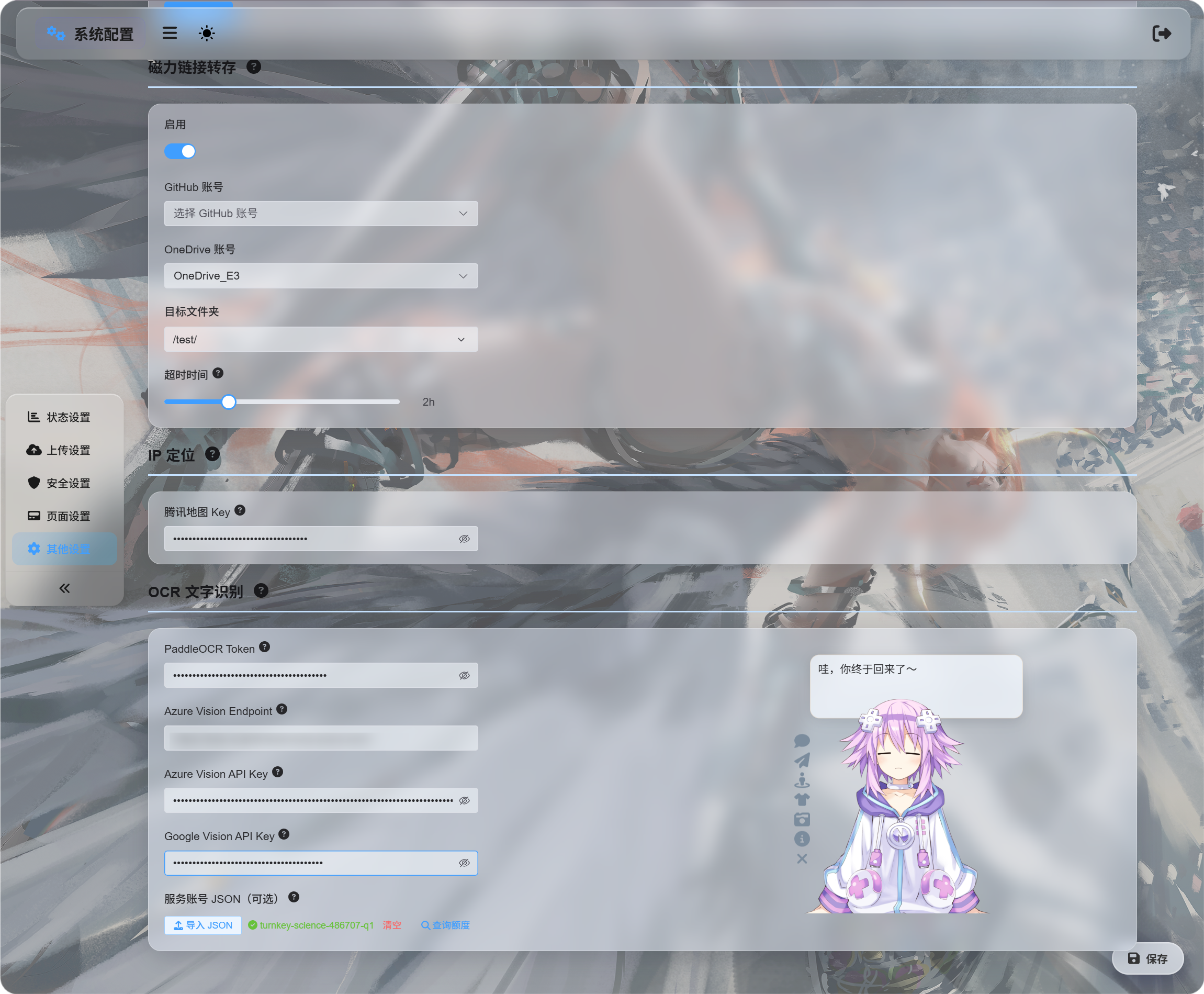
กรอกข้อมูลรับรองสำหรับบริการที่ต้องการใช้:
| บริการ | สิ่งที่ต้องกรอก | เหมาะที่สุดสำหรับ |
|---|---|---|
| Baidu PaddleOCR | PaddleOCR Token | ตัวเลือกแรกที่แนะนำ เหมาะกับเอกสาร รูปภาพ ตาราง และเลย์เอาต์ผสม |
| Microsoft Azure Vision | Azure Vision Endpoint และ Azure Vision API Key | มีประโยชน์หากคุณใช้บริการคลาวด์ของ Microsoft อยู่แล้ว |
| Google Vision | Google Vision API Key โดยบัญชีบริการ JSON ใช้เฉพาะสำหรับตรวจสอบโควตา | มีประโยชน์หากคุณใช้บริการ Google Cloud |
บันทึกหลังกรอกข้อมูลรับรองแล้ว
สำหรับการทดสอบครั้งแรก คุณตั้งค่าเพียงบริการเดียวก็ได้ ไม่จำเป็นต้องตั้งค่าทั้งสามบริการ
การตั้งค่า Google Vision
การตั้งค่า Google มีสองส่วน:
| เป้าหมาย | ข้อกำหนด |
|---|---|
| ใช้ OCR | เปิดใช้ Cloud Vision API แล้วสร้าง API Key |
| ตรวจสอบการใช้งาน | สร้างบัญชีบริการ ให้สิทธิ์ Monitoring Viewer แล้วดาวน์โหลดบัญชีบริการ JSON |
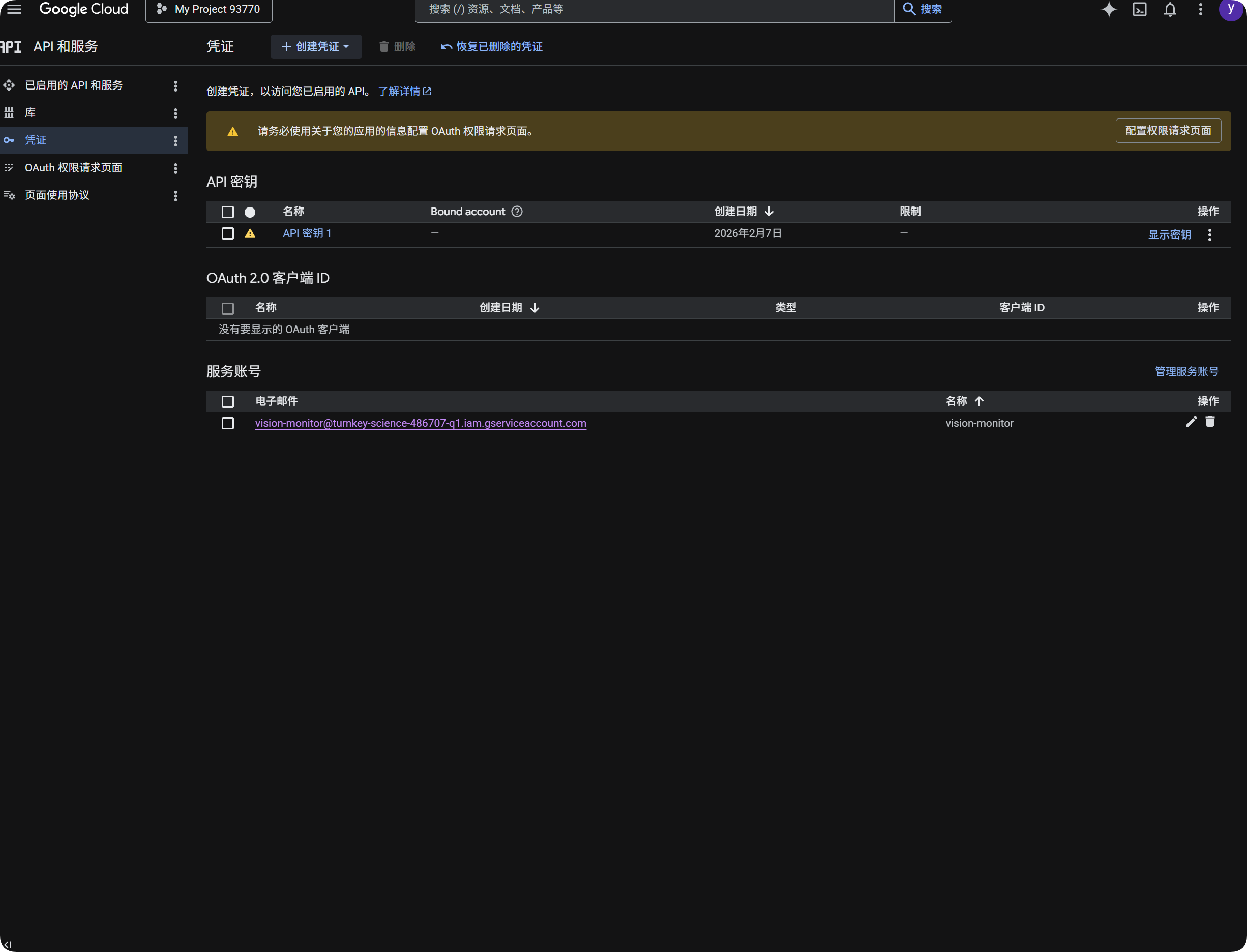
ใช้ Google สำหรับ OCR
- เปิด Google Cloud Console
- ไปที่
APIs & Services - เปิด
Libraryค้นหาCloud Vision APIแล้วเปิดใช้ - กลับไปที่
Credentials - สร้าง
API Key - เปิด API Key แล้วคัดลอก
- วางลงใน
Google Vision API Keyใน ImgHost - บันทึก
จากนั้นคุณสามารถเลือก Google Vision ในกล่องโต้ตอบ OCR ได้
ตรวจสอบการใช้งาน Google
การตรวจสอบโควตาไม่จำเป็นต่อการรู้จำ
ใช้เพื่อแสดงโดยประมาณว่ามีการเรียก Google Vision ไปกี่ครั้งในช่วง 30 วันที่ผ่านมา
- ใน Google Cloud Console เปิด
IAM & Admin - เปิด
Service Accounts - สร้างบัญชีบริการ เช่น
vision-monitor - ให้บทบาท
Monitoring Viewer - เปิดรายละเอียดบัญชีบริการแล้วสร้างคีย์
- เลือก
JSON - ดาวน์โหลดไฟล์ JSON ที่สร้างขึ้น
- กลับไปที่ ImgHost แล้วนำเข้าไว้ใต้บัญชีบริการ
JSON(ไม่บังคับ) - เมื่อนำเข้าสำเร็จแล้ว คลิกตรวจสอบโควตา
หลังนำเข้า ImgHost จะแสดงชื่อโปรเจกต์ที่เป็นเจ้าของบัญชีบริการ เมื่อตรวจสอบการใช้งาน ImgHost จะอ่านข้อมูลการตรวจสอบของ Google และแสดงจำนวนการเรียกในเดือนนี้
สรุป:
| รายการ | จุดประสงค์ |
|---|---|
Google Vision API Key | ใช้ทำการรู้จำ OCR |
บัญชีบริการ JSON | ตรวจสอบจำนวนการเรียก Google Vision ที่ใช้ไป |
บทบาท Monitoring Viewer | อนุญาตให้บัญชีบริการอ่านข้อมูลการใช้งาน |
รับ Baidu PaddleOCR Token
Baidu PaddleOCR ต้องใช้โทเค็นการเข้าถึง
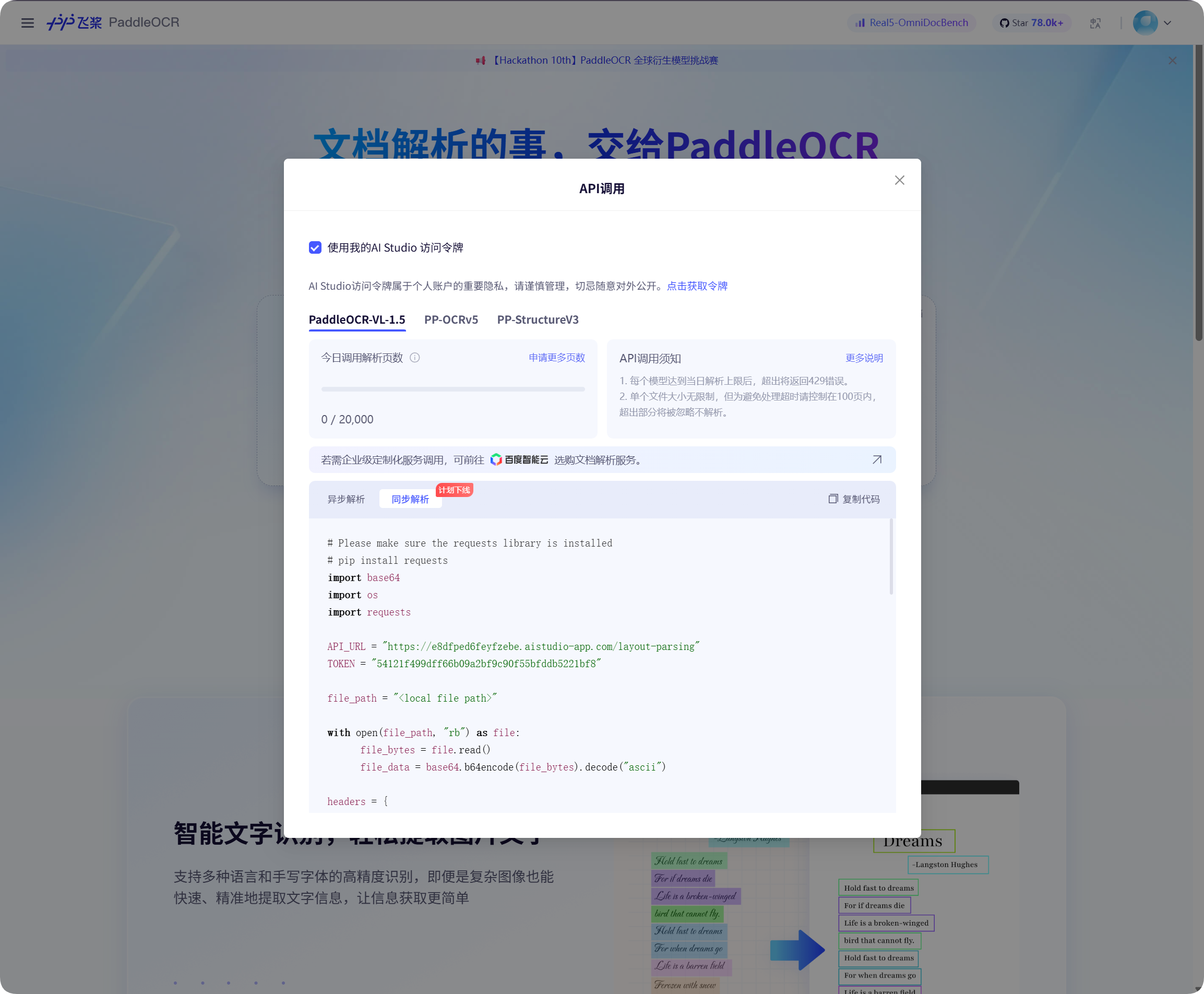
เปิดหน้าต่างเรียก API ในหน้า Baidu PaddleOCR คลิกเพื่อรับโทเค็นแล้วคัดลอก
กลับไปที่ ImgHost วางลงใน PaddleOCR Token แล้วบันทึก
เริ่มรู้จำ
ในตัวจัดการไฟล์ เลือกรูปภาพหรือภาพหน้าจอของเอกสาร แล้วคลิก OCR
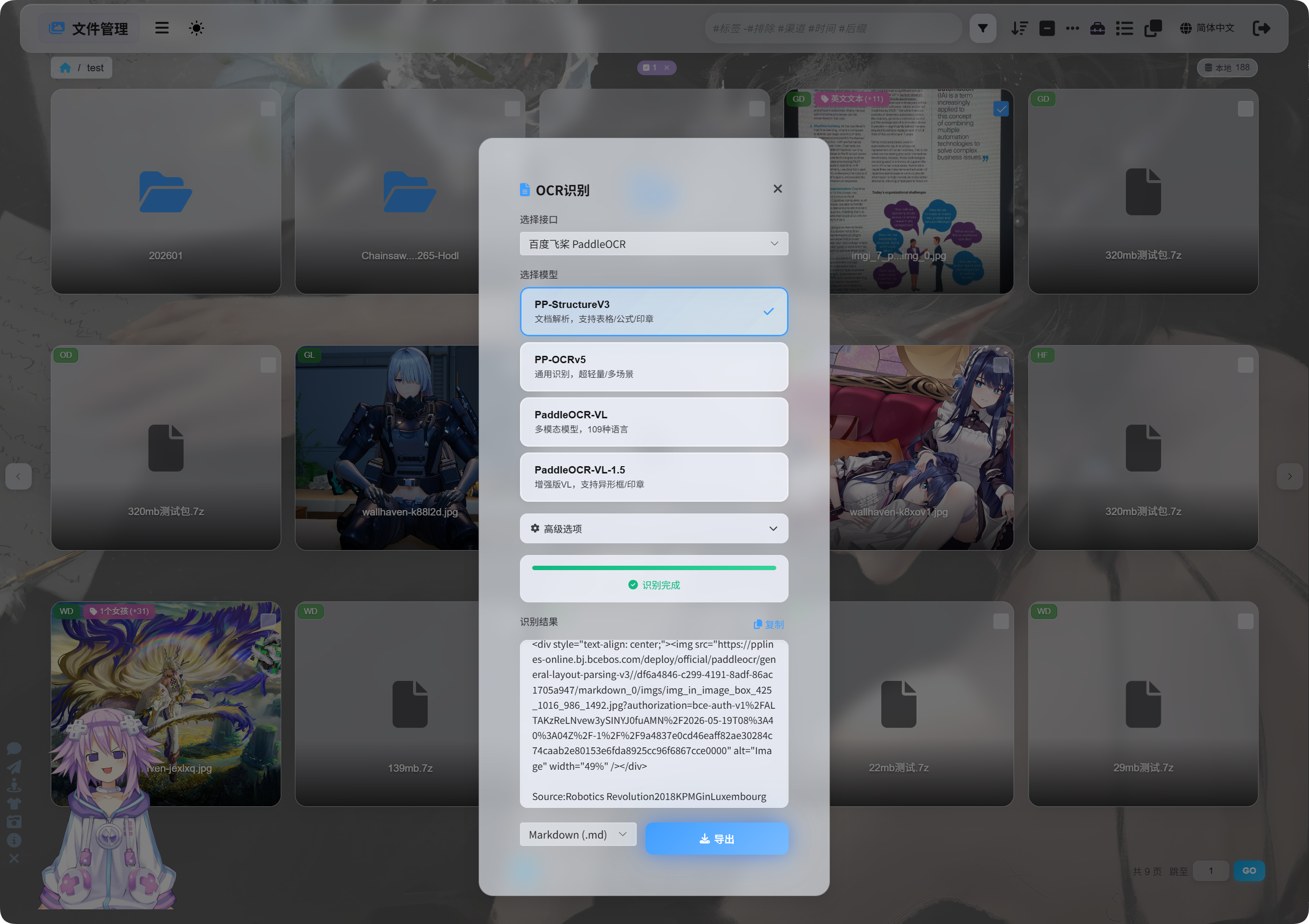
ในกล่องโต้ตอบ เลือกบริการและโมเดลรู้จำ
ตัวเลือกโมเดล PaddleOCR ที่พบบ่อย:
| โมเดล | เหมาะที่สุดสำหรับ |
|---|---|
PP-StructureV3 | ค่าเริ่มต้นที่แนะนำ เหมาะกับเอกสาร ตาราง สูตร ตราประทับ และเลย์เอาต์ผสม |
PP-OCRv5 | รูปภาพธรรมดา ข้อความทั่วไป และการรู้จำแบบเบา |
PaddleOCR-VL | หลายภาษา รูปภาพซับซ้อน และเนื้อหาลักษณะคล้ายแผนภูมิ |
PaddleOCR-VL-1.5 | หน้าเอกสารที่ซับซ้อนมากขึ้นและการกู้คืนเลย์เอาต์ |
หากไม่แน่ใจ ให้เริ่มด้วย PP-StructureV3
ตัวเลือกขั้นสูง
| ตัวเลือก | คำอธิบาย |
|---|---|
| แก้แนวภาพ | ใช้เมื่อรูปภาพหมุนหรือเอียง |
| ปรับเอกสารให้แบน | ใช้กับเอกสารที่ถ่ายภาพแล้วมีความโค้งหรือเอียง |
| ตรวจจับเลย์เอาต์ | ใช้เมื่อคุณต้องการรักษาโครงสร้างหัวข้อ ย่อหน้า ตาราง และรูปภาพ |
| รู้จำแผนภูมิ | ใช้เมื่อรูปภาพมีแผนภูมิหรือโครงสร้างซับซ้อน |
ปรับ Markdown ให้อ่านง่าย | ทำให้ Markdown ที่ส่งออกอ่านง่ายขึ้น |
สำหรับภาพหน้าจอทั่วไป ให้เปิดตัวเลือกให้น้อยที่สุด สำหรับสแกนเอกสาร ให้เปิดตัวเลือกที่เกี่ยวกับเอกสารมากขึ้น
ดูผลลัพธ์
หลังรู้จำเสร็จ กล่องโต้ตอบจะแสดงผลลัพธ์
คุณสามารถคัดลอกโดยตรงหรือเลือกชนิดไฟล์ส่งออกได้
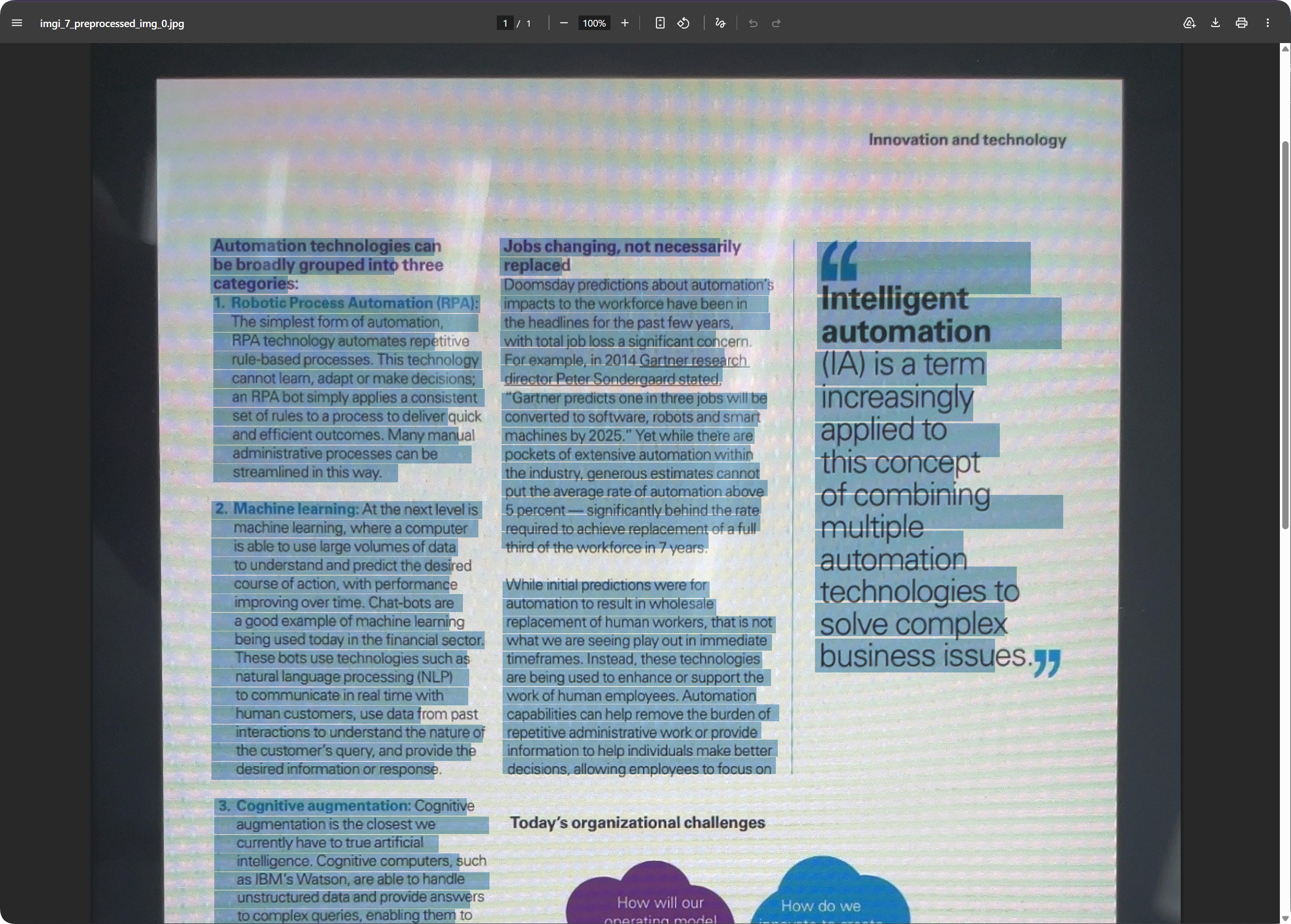
สำหรับหน้าเอกสาร PDF ที่ส่งออกสามารถรักษาหน้าตาเอกสารไว้พร้อมทำให้ค้นหาข้อความได้ เหมาะสำหรับจัดเก็บไฟล์สแกนและค้นหาเนื้อหาในภายหลัง
เลือกรูปแบบส่งออก
| รูปแบบ | เหมาะที่สุดสำหรับ |
|---|---|
Markdown (.md) | บันทึกย่อ ระบบเอกสาร และการแก้ไขภายหลัง |
PDF (.pdf) | รักษาหน้าตาเอกสารและผลลัพธ์ของเอกสารสแกน |
Word (.docx) | แก้เลย์เอาต์ต่อ แก้ข้อความ และส่งต่อให้ผู้อื่น |
| ส่งออกทั้งหมด | บันทึกหลายรูปแบบและรูปภาพต้นฉบับ เหมาะกับเอกสารสำคัญ |
หากต้องการเฉพาะข้อความ ให้ส่งออก Markdown
หากต้องการรักษาหน้าตาเอกสาร ให้ใช้ PDF หรือ Word
ผลลัพธ์ Word
เอกสาร Word ที่ส่งออกสามารถเปิดและแก้ไขด้วยซอฟต์แวร์สำนักงานได้
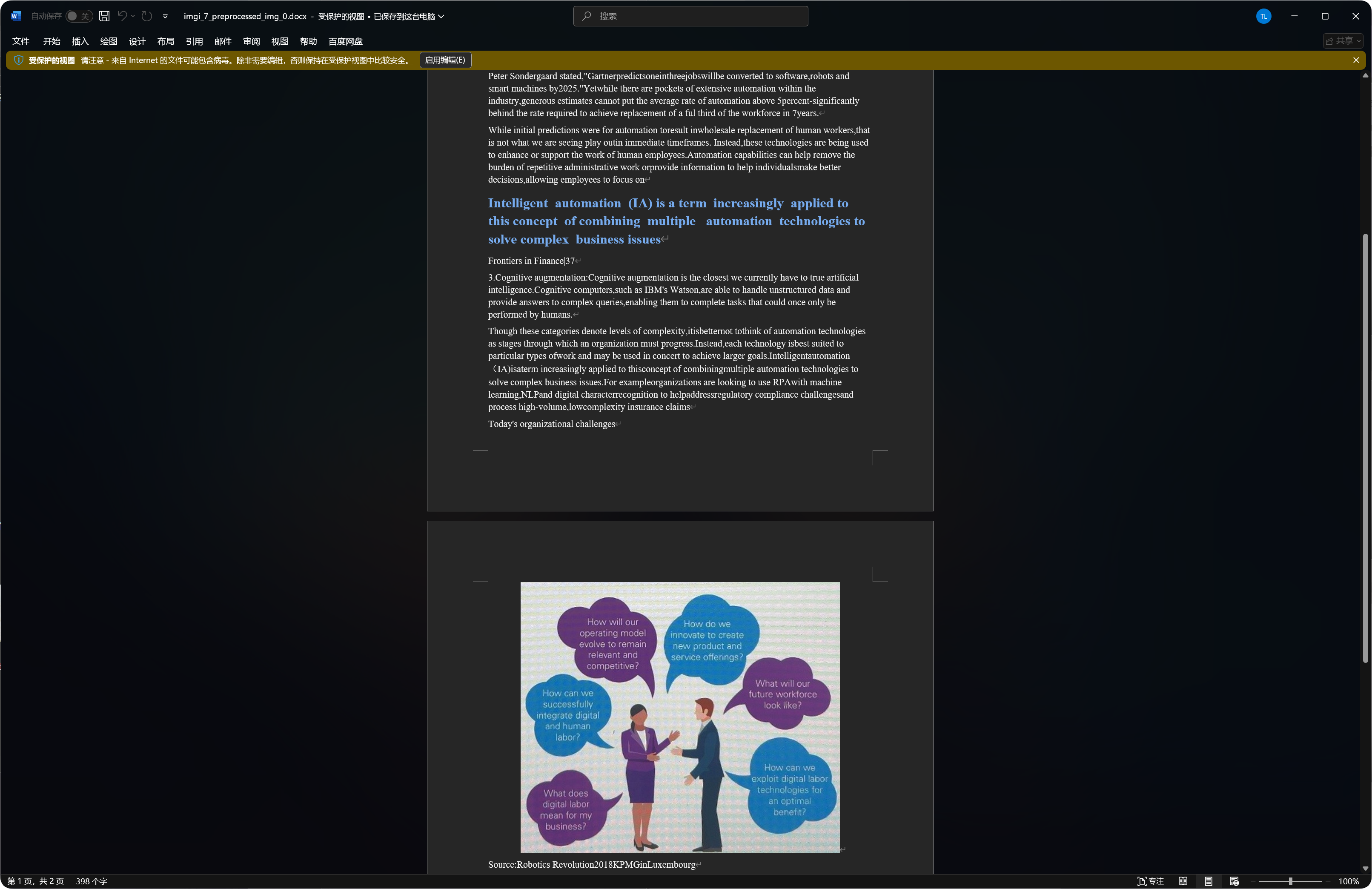
เอกสารบางรายการอาจมีรูปภาพที่รู้จำได้ หัวข้อ และย่อหน้าอยู่ในผลลัพธ์ Word
คุณภาพการรู้จำขึ้นอยู่กับความชัดของรูปภาพต้นฉบับ การเลือกโมเดล และความซับซ้อนของเอกสาร
ประเภทไฟล์ที่เหมาะกับ OCR
| ประเภทไฟล์ | คำแนะนำ |
|---|---|
| ภาพหน้าจอชัดเจน | รู้จำโดยตรง |
| สแกน | แนะนำ PP-StructureV3 |
| เอกสารถ่ายภาพ | เปิดแก้แนวภาพและปรับเอกสารให้แบน |
| ตาราง สูตร ตราประทับ | แนะนำโมเดลเชิงโครงสร้าง |
| รูปภาพข้อความสั้นธรรมดา | PP-OCRv5 มักเพียงพอ |
รูปภาพที่ชัดกว่าและข้อความตรงกว่ามักให้ผลลัพธ์ดีกว่า
กรณีทั่วไป
| กรณี | ความหมาย |
|---|---|
| รู้จำไม่สำเร็จ | ตรวจสอบว่าโทเค็นหรือคีย์ของบริการถูกบันทึกแล้ว |
| รู้จำช้า | เอกสารซับซ้อนและรูปภาพขนาดใหญ่ใช้เวลานานกว่า |
| ตารางไม่ครบ | ลองใช้โมเดลเชิงโครงสร้าง |
| ข้อความมีข้อผิดพลาด | ภาพเบลอ แสงสะท้อน และความเอียงเพิ่มข้อผิดพลาดในการรู้จำ ลองใช้รูปภาพที่ชัดกว่า |
| ผลลัพธ์ Word มีรูปภาพจำนวนมาก | โมเดลเชิงโครงสร้างอาจเก็บรูปภาพที่รู้จำได้บางส่วนไว้ เป็นเรื่องปกติ |
ตรวจสอบโควตา Google ไม่สำเร็จ
ตรวจสอบ:
- นำเข้าบัญชีบริการ
JSONแล้ว - บัญชีบริการมีบทบาท
Monitoring Viewer - เปิดใช้
Cloud Vision APIสำหรับโปรเจกต์แล้ว
หากต้องการเฉพาะ OCR และไม่ต้องการตรวจสอบการใช้งาน คุณสามารถข้าม JSON ของบัญชีบริการและกรอกเฉพาะ Google Vision API Key
ขั้นตอนแบบย่อ
text
Open System Settings
-> Open Other Settings
-> Fill OCR service credentials
-> Save
-> Return to File Management
-> Select a file and click OCR
-> Choose a model
-> Wait for recognition
-> Copy results or export Markdown / PDF / Word