เพิ่มช่องทาง Telegram
สิ่งที่ต้องเตรียมก่อนเริ่ม
| ข้อกำหนด | วัตถุประสงค์ |
|---|---|
| Telegram account | ใช้สร้าง bot และ storage channel |
@BotFather | ใช้สร้าง Telegram bot |
| Telegram channel | ปลายทางสุดท้ายสำหรับเก็บไฟล์ |
@userinfobot | ใช้ดู Chat ID ของ channel |
เพิ่มได้จากที่ไหน
- เปิดการตั้งค่าระบบ
- ไปที่การตั้งค่าการอัปโหลด
- คลิกเพิ่มช่องทางที่มุมขวาบน
- เลือก
Telegram
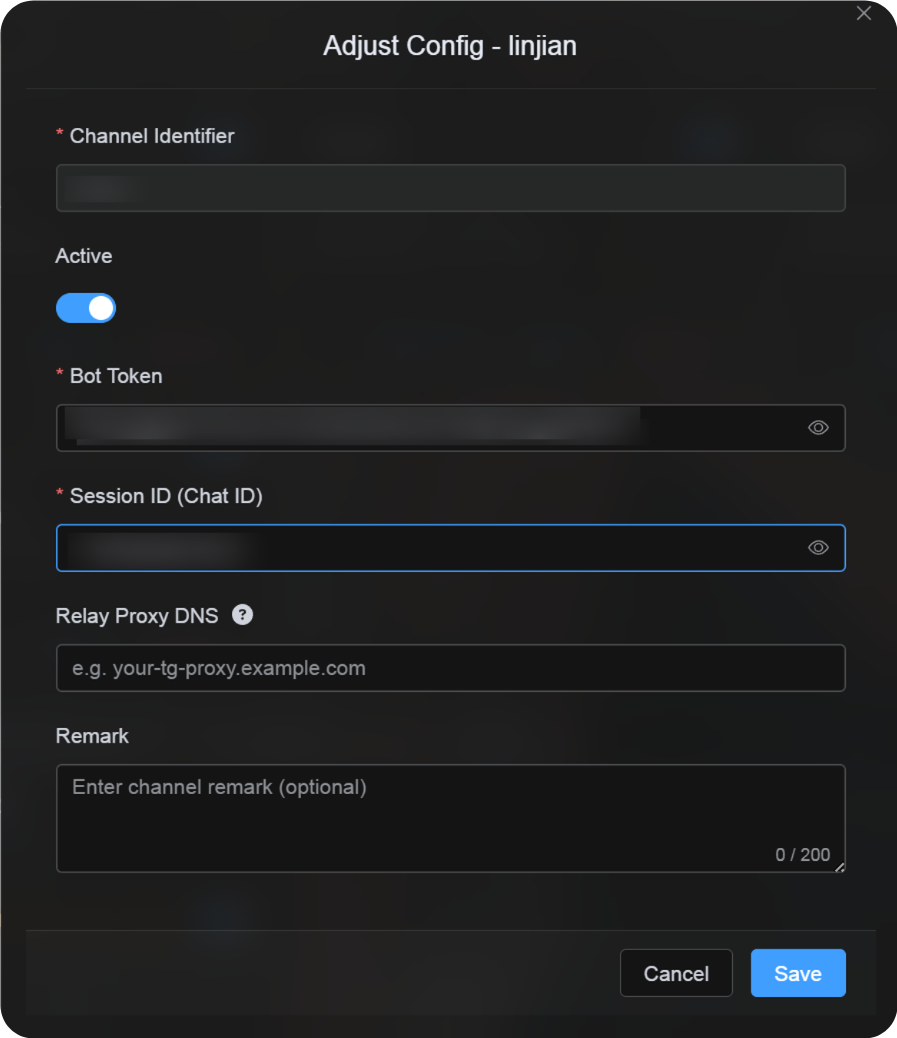
รายละเอียดฟิลด์
| ฟิลด์ | ใช้ทำอะไร | จำเป็น |
|---|---|---|
| Channel name | ชื่อที่จำง่ายสำหรับ channel นี้ เช่น "Telegram Primary" | จำเป็น |
| Active | เปิดหรือปิด channel นี้ | แนะนำ |
| Bot Token | Token ของ Telegram bot | จำเป็น |
| Session ID (Chat ID) | ID ของ Telegram channel | จำเป็น |
| Relay Proxy URL (ไม่บังคับ) | ใช้เฉพาะเมื่อเข้าถึง Telegram ไม่เสถียร ใส่ proxy URL แบบเต็มรวม https:// | ไม่บังคับ |
| Remark | หมายเหตุสำหรับดูแลในภายหลัง | ไม่บังคับ |
ขั้นตอนตั้งค่า
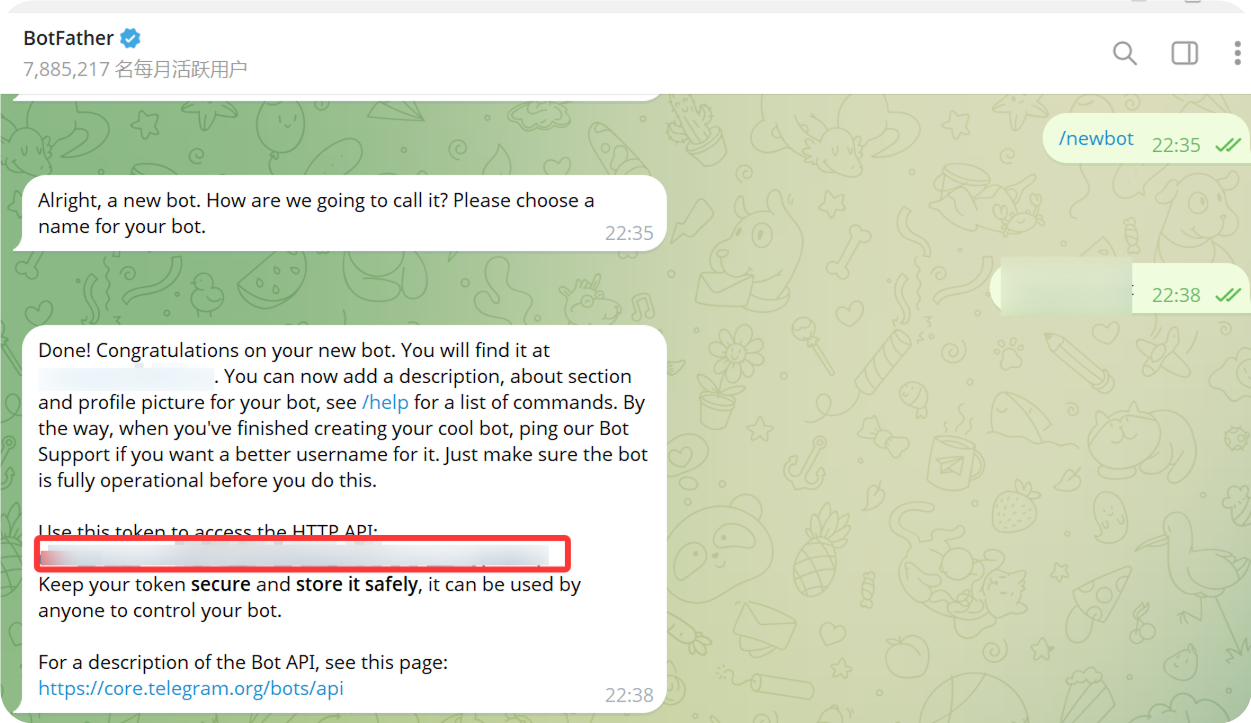
1. สร้าง Telegram Bot
- เปิด Telegram แล้วค้นหา
@BotFather - เปิด chat แล้วคลิก
Start - ส่ง
/newbot - ทำตาม prompt เพื่อใส่ bot display name
- ทำตาม prompt เพื่อใส่ bot username โดยปกติ username ต้องลงท้ายด้วย
bot - เมื่อสร้าง bot แล้ว
@BotFatherจะส่ง bot token กลับมา
Token นี้คือค่า Bot Token ที่ต้องใส่ใน ImgHost
2. สร้าง Channel
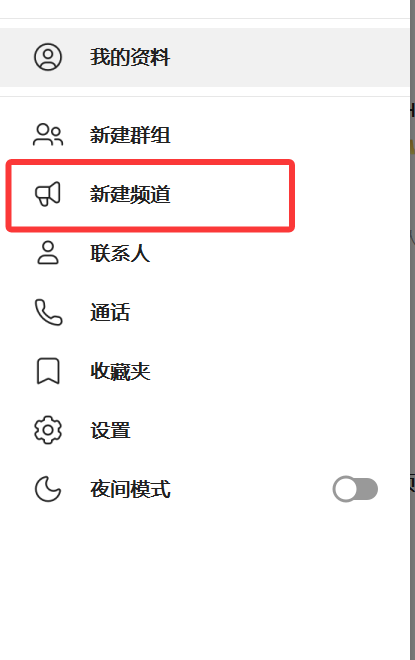
- ใน Telegram ให้คลิก New Channel
- ใส่ channel name
- สร้าง channel ให้เสร็จ
ใช้ได้ทั้ง public และ private channel
3. เพิ่ม Bot เข้า Channel
- เปิด channel ที่เพิ่งสร้าง
- เปิด channel settings
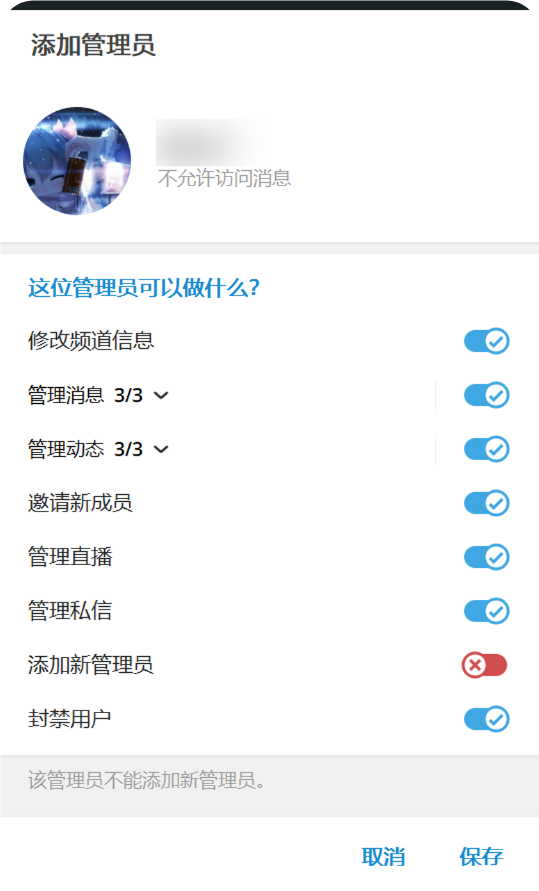
- เพิ่ม member หรือ administrator
- ค้นหา bot username ที่สร้างไว้
- เพิ่ม bot เข้า channel
เพื่อให้อัปโหลดได้เสถียรที่สุด แนะนำให้ให้สิทธิ์ bot เป็น administrator
4. รับ Channel ID ด้วย User Info - Get ID - IDbot
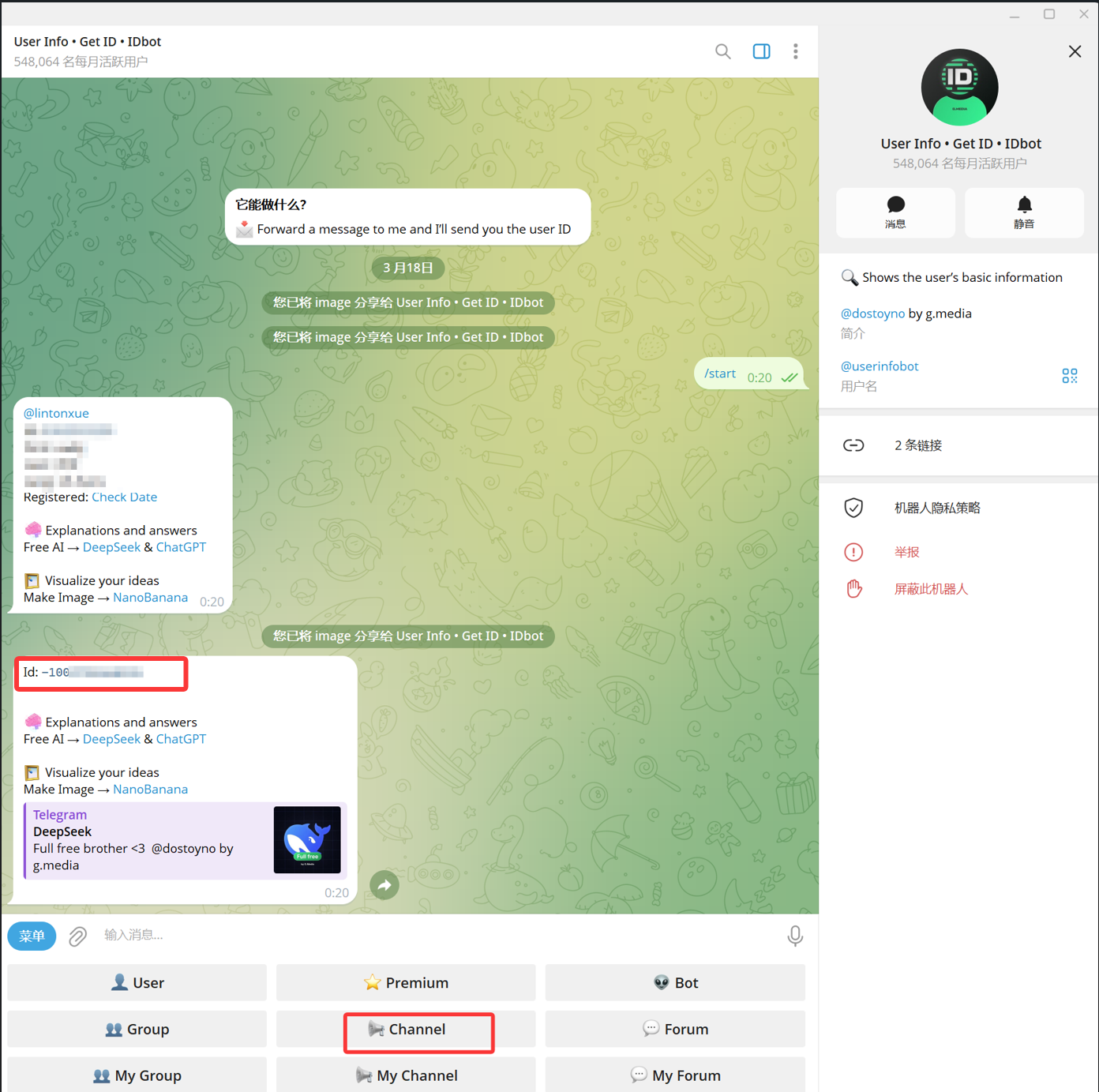
- ค้นหา
@userinfobotใน Telegram ชื่อที่แสดงมักเป็นUser Info - Get ID - IDbot - เปิด chat แล้วคลิก
Start - เลือก
Channelจากตัวเลือกที่ bot ให้มา - ใน message picker ให้เลือก target channel แล้วส่งไปที่
@userinfobot - เมื่อ
@userinfobotส่งผลลัพธ์กลับมา ให้คัดลอกเลขที่แสดงเป็นId: -100...
เลขที่ขึ้นต้นด้วย -100 คือ Session ID (Chat ID) ที่ ImgHost ต้องใช้
5. ใส่ช่องทาง Telegram ใน ImgHost
กลับไปที่กล่องกำหนดค่า channel แล้วกรอกดังนี้:
| ฟิลด์ UI | ค่า |
|---|---|
| Channel Identifier | ชื่อ channel ที่ตั้งเอง เช่น TelegramPrimary |
| Active | แนะนำ |
| Bot Token | Bot token จาก @BotFather |
| Session ID (Chat ID) | เลข -100... ที่ได้จาก @userinfobot |
| Relay Proxy URL (ไม่บังคับ) | ใส่เฉพาะเมื่อจำเป็น เช่น https://your-tg-proxy.example.com |
| Remark | หมายเหตุเพิ่มเติม |
กรอกครบแล้วคลิก Save
วิธีตรวจสอบ
| รายการตรวจสอบ | วิธีตรวจสอบ |
|---|---|
| เห็นการ์ดช่องทาง | หลังบันทึก หน้า Upload Settings ควรแสดงการ์ดช่องทาง Telegram |
| เปิดใช้งานช่องทางได้ | Active switch ควรอยู่ในสถานะ on |
| บันทึกการกำหนดค่าแล้ว | Detail view ควรแสดงว่า Bot Token และ Chat ID ถูกบันทึกแล้ว |
| การอัปโหลดใช้งานได้ | อัปโหลดรูปทดสอบแล้วตรวจสอบว่าไปปรากฏใน Telegram channel เป้าหมาย |
รายการตรวจสอบด่วน
text
Create a bot with @BotFather
-> Save the Bot Token
-> Create a Telegram channel
-> Add the bot to the channel and grant administrator permissions
-> Search for @userinfobot and choose Channel
-> Forward any message from the channel to @userinfobot
-> Copy the returned Id: -100...
-> Enter the Bot Token and Chat ID in ImgHost
-> Save and upload a test image
เอกสารอ้างอิง
- Telegram bots: https://core.telegram.org/bots
- Telegram Bot API: https://core.telegram.org/bots/api