Telegram चैनल जोड़ना
शुरू करने से पहले क्या चाहिए
| आवश्यकता | उद्देश्य |
|---|---|
| Telegram खाता | बॉट और स्टोरेज चैनल बनाने के लिए। |
@BotFather | Telegram बॉट बनाने के लिए। |
| Telegram चैनल | फ़ाइलों का अंतिम स्टोरेज गंतव्य। |
@userinfobot | चैनल का Chat ID पूछने के लिए। |
कहाँ जोड़ें
- सिस्टम सेटिंग्स खोलें।
- अपलोड सेटिंग्स पर जाएँ।
- ऊपर दाएँ कोने में चैनल जोड़ें पर क्लिक करें।
Telegramचुनें।
फ़ील्ड संदर्भ
| फ़ील्ड | कार्य | आवश्यक |
|---|---|---|
| चैनल नाम | इस चैनल का पहचानने योग्य नाम, जैसे Telegram Primary। | आवश्यक |
| सक्रिय | इस चैनल को सक्षम या अक्षम करता है। | सुझाया गया |
| Bot Token | आपके Telegram बॉट का टोकन। | आवश्यक |
| Session ID (Chat ID) | Telegram चैनल का ID। | आवश्यक |
| रिले प्रॉक्सी URL (वैकल्पिक) | केवल तब उपयोग करें जब Telegram एक्सेस अस्थिर हो। https:// सहित पूरा प्रॉक्सी URL दर्ज करें। | वैकल्पिक |
| टिप्पणी | आगे के रखरखाव के लिए नोट्स। | वैकल्पिक |
कॉन्फ़िगरेशन चरण
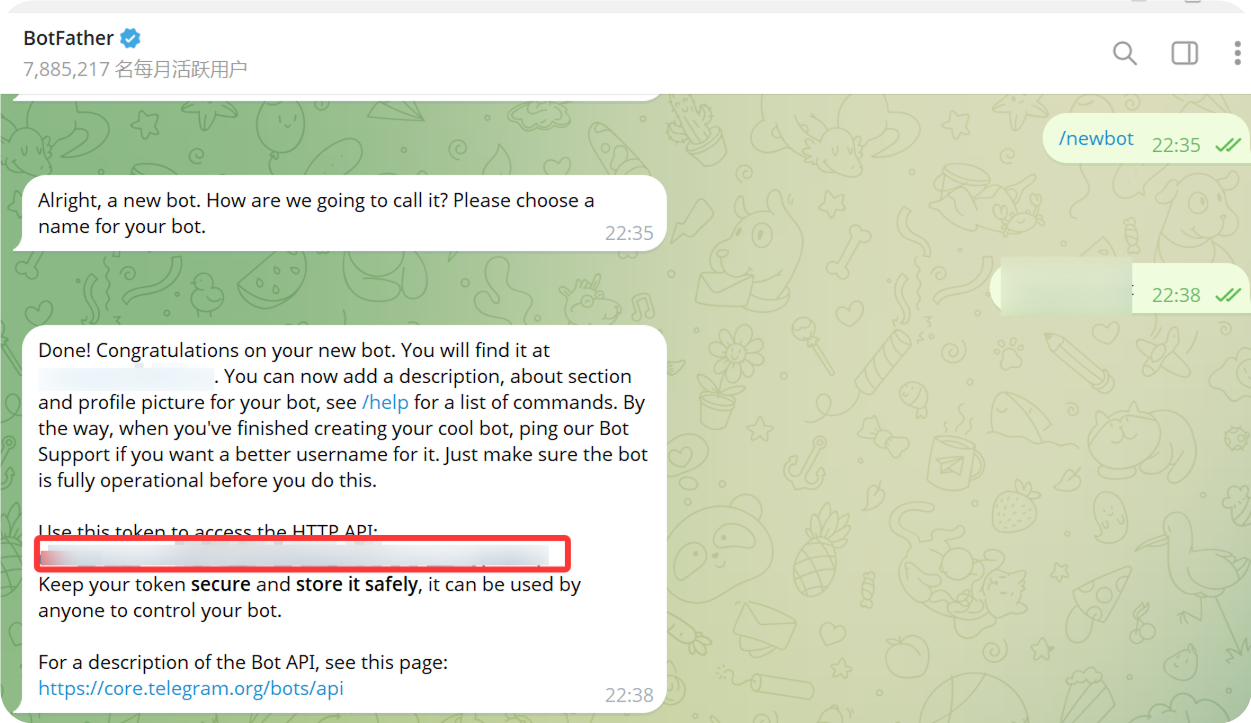
1. Telegram बॉट बनाएँ
- Telegram खोलें और
@BotFatherखोजें। - बातचीत खोलें और
Startपर क्लिक करें। /newbotभेजें।- निर्देशों के अनुसार बॉट का प्रदर्शित नाम दर्ज करें।
- निर्देशों के अनुसार बॉट का उपयोगकर्ता नाम दर्ज करें। आम तौर पर इसका अंत
botसे होना चाहिए। - बॉट बन जाने के बाद
@BotFatherबॉट टोकन लौटाएगा।
यही टोकन ImgHost में Bot Token के रूप में दर्ज करना है।
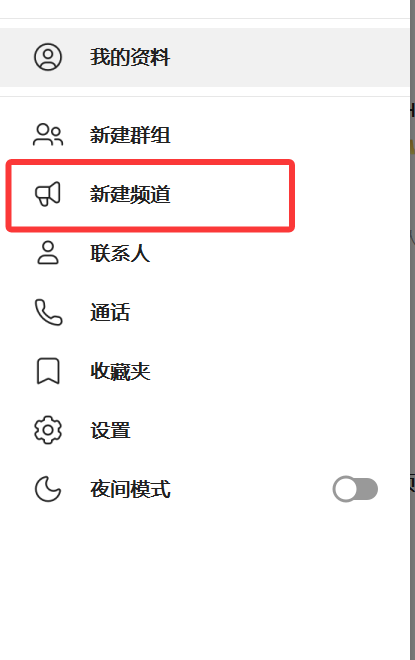
2. चैनल बनाएँ
- Telegram में नया चैनल पर क्लिक करें।
- चैनल नाम दर्ज करें।
- चैनल बनाना पूरा करें।
सार्वजनिक और निजी दोनों चैनल उपयोग किए जा सकते हैं।
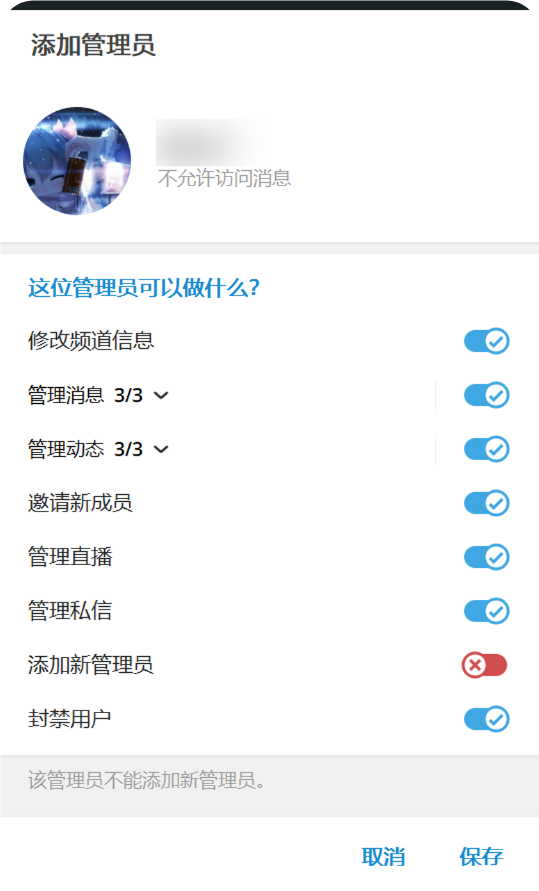
3. बॉट को चैनल में जोड़ें
- अभी बनाया गया चैनल खोलें।
- चैनल सेटिंग्स खोलें।
- सदस्य या व्यवस्थापक जोड़ें।
- बनाए गए बॉट उपयोगकर्ता नाम को खोजें।
- बॉट को चैनल में जोड़ें।
अधिक भरोसेमंद अपलोड के लिए बॉट को व्यवस्थापक अनुमति दें।
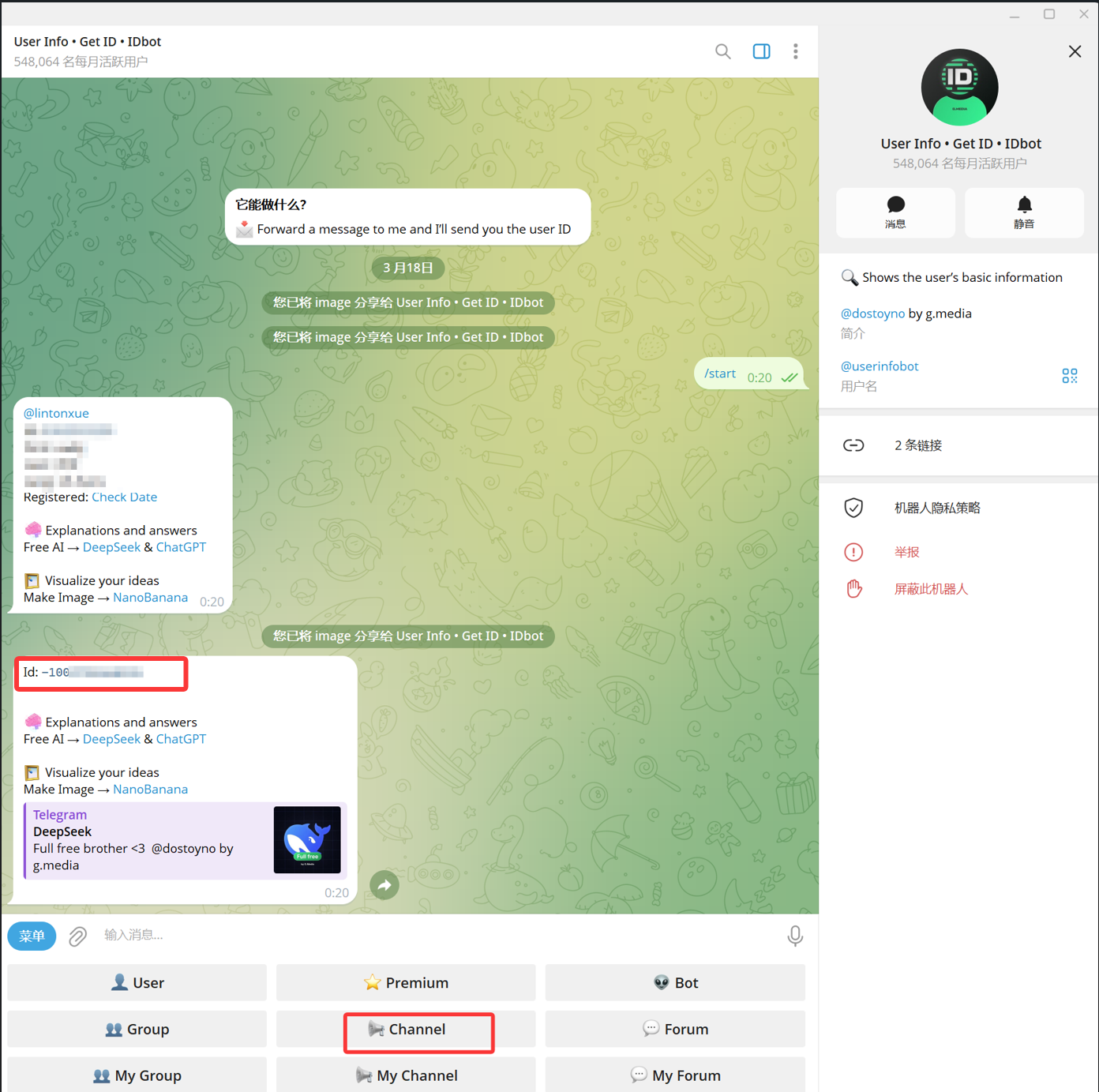
4. User Info - Get ID - IDbot से Channel ID प्राप्त करें
- Telegram में
@userinfobotखोजें। इसका प्रदर्शित नाम आम तौर परUser Info - Get ID - IDbotहोता है। - बातचीत खोलें और
Startपर क्लिक करें। - बॉट के विकल्पों में से
Channelचुनें। - संदेश चयनकर्ता में लक्षित चैनल चुनें और उसे
@userinfobotको भेजें। - जब
@userinfobotपरिणाम लौटाए, तोId: -100...के रूप में दिखने वाला नंबर कॉपी करें।
-100 से शुरू होने वाला नंबर ImgHost के लिए आवश्यक Session ID (Chat ID) है।
5. ImgHost में Telegram चैनल भरें
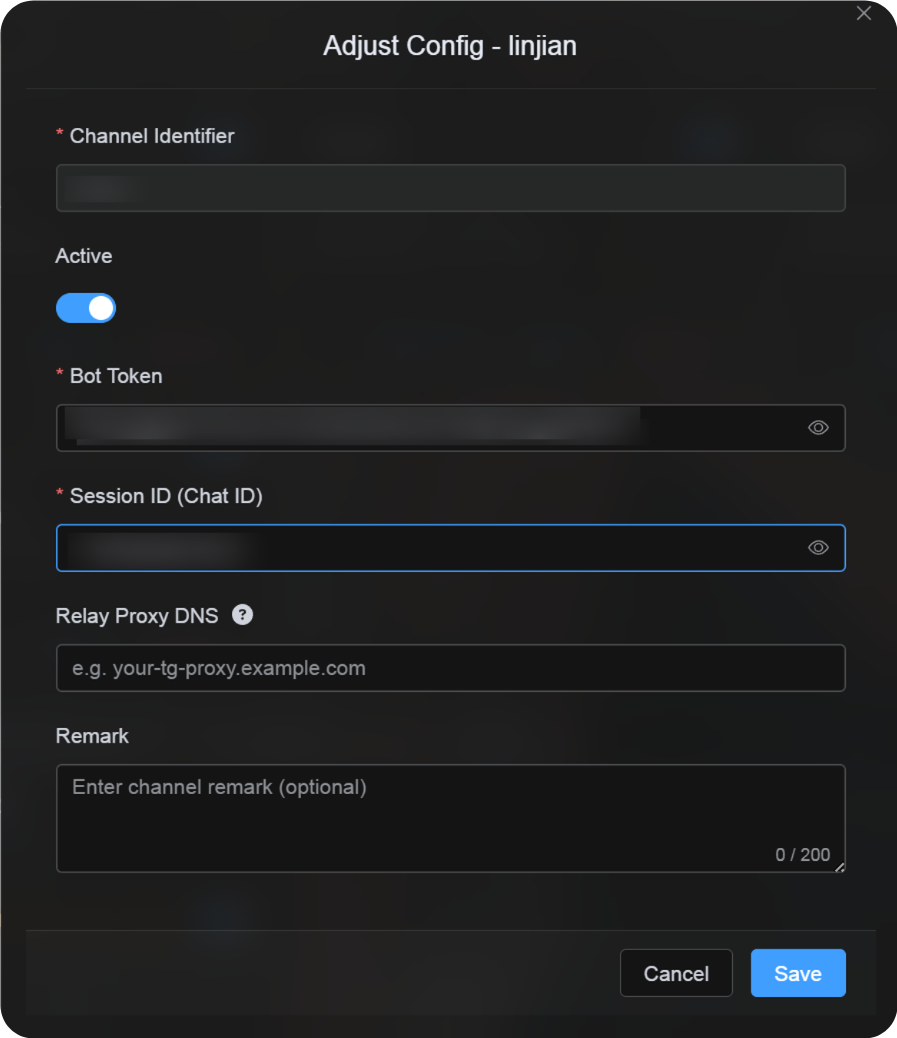
चैनल कॉन्फ़िगरेशन संवाद पर लौटें और फ़ील्ड इस तरह भरें:
| UI फ़ील्ड | मान |
|---|---|
| चैनल पहचानकर्ता | कस्टम चैनल नाम, जैसे TelegramPrimary। |
| सक्रिय | सुझाया गया। |
| Bot Token | @BotFather से मिला बॉट टोकन। |
| Session ID (Chat ID) | @userinfobot द्वारा लौटाया गया -100... नंबर। |
| रिले प्रॉक्सी URL (वैकल्पिक) | केवल आवश्यकता होने पर, जैसे https://your-tg-proxy.example.com. |
| टिप्पणी | वैकल्पिक नोट्स। |
पूरा होने पर सहेजें पर क्लिक करें।
सत्यापन
| जाँच | जाँचने का तरीका |
|---|---|
| चैनल कार्ड दिखाई देता है | सहेजने के बाद अपलोड सेटिंग्स पेज पर Telegram चैनल कार्ड दिखना चाहिए। |
| चैनल सक्षम हो सकता है | Active स्विच सक्षम रहना चाहिए। |
| कॉन्फ़िगरेशन सहेजा गया है | विवरण दृश्य में Bot Token और Chat ID सहेजे हुए दिखने चाहिए। |
| अपलोड काम करता है | परीक्षण छवि अपलोड करें और पुष्टि करें कि वह लक्षित Telegram चैनल में दिखाई देती है। |
त्वरित सूची
text
Create a bot with @BotFather
-> Save the Bot Token
-> Create a Telegram channel
-> Add the bot to the channel and grant administrator permissions
-> Search for @userinfobot and choose Channel
-> Forward any message from the channel to @userinfobot
-> Copy the returned Id: -100...
-> Enter the Bot Token and Chat ID in ImgHost
-> Save and upload a test image
संदर्भ
- Telegram बॉट: https://core.telegram.org/bots
- Telegram Bot API: https://core.telegram.org/bots/api