OCR
OCR छवियों, स्कैन और दस्तावेज़ स्क्रीनशॉट से टेक्स्ट निकालता है।
पहचान पूरी होने के बाद, आप परिणाम कॉपी कर सकते हैं, उसे Markdown, PDF या Word के रूप में निर्यात कर सकते हैं, या कई फ़ॉर्मैट को एक साथ पैक करके डाउनलोड कर सकते हैं।
OCR क्या कर सकता है
| सुविधा | विवरण |
|---|---|
| छवि टेक्स्ट पहचान | छवियों, स्क्रीनशॉट और स्कैन से टेक्स्ट निकालता है। |
| दस्तावेज़ लेआउट पहचान | तालिकाओं, सूत्रों, मुहरों और मिश्रित टेक्स्ट-छवि लेआउट के लिए बेहतर। |
| कई सेवाएँ | Baidu PaddleOCR, Microsoft Azure Vision और Google Vision का समर्थन करता है। |
| परिणाम कॉपी करना | प्रसंस्करण के बाद पहचाने गए टेक्स्ट को कॉपी करें। |
| फ़ाइल निर्यात | Markdown, PDF और Word निर्यात करें। |
| बैच पैकेजिंग | कई फ़ाइलों की पहचान के बाद परिणामों को पैकेज के रूप में डाउनलोड करें। |
पहले OCR सेवाएँ कॉन्फ़िगर करें
खोलें:
text
System Settings -> Other Settings -> OCR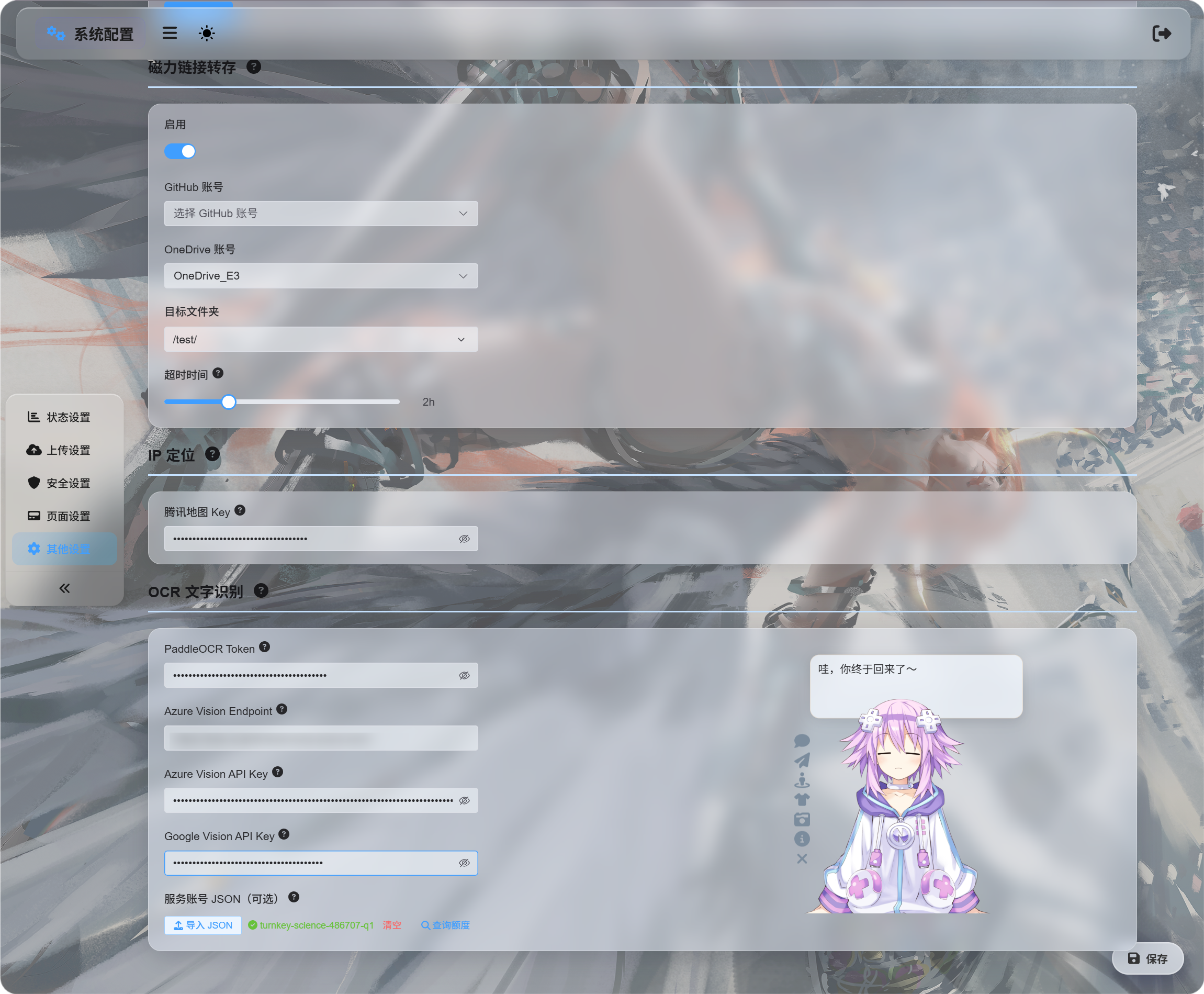
जिन सेवाओं का उपयोग करना चाहते हैं, उनके क्रेडेंशियल भरें:
| सेवा | क्या दर्ज करें | किसके लिए उपयुक्त |
|---|---|---|
| Baidu PaddleOCR | PaddleOCR Token | पहला अनुशंसित विकल्प। दस्तावेज़ों, छवियों, तालिकाओं और मिश्रित लेआउट के लिए अच्छा। |
| Microsoft Azure Vision | Azure Vision Endpoint और Azure Vision API Key | यदि आप पहले से Microsoft क्लाउड सेवाओं का उपयोग करते हैं, तो उपयोगी। |
| Google Vision | Google Vision API Key। सेवा खाता JSON केवल कोटा क्वेरी के लिए उपयोग होता है। | यदि आप Google Cloud सेवाओं का उपयोग करते हैं, तो उपयोगी। |
क्रेडेंशियल भरने के बाद सहेजें।
प्रारंभिक परीक्षण के लिए केवल एक सेवा कॉन्फ़िगर की जा सकती है। तीनों की आवश्यकता नहीं है।
Google Vision सेटअप
Google सेटअप के दो भाग हैं:
| लक्ष्य | आवश्यकता |
|---|---|
| OCR का उपयोग | Cloud Vision API सक्षम करें, फिर API Key बनाएँ। |
| उपयोग क्वेरी | सेवा खाता बनाएँ, उसे Monitoring Viewer दें, फिर सेवा खाता JSON डाउनलोड करें। |
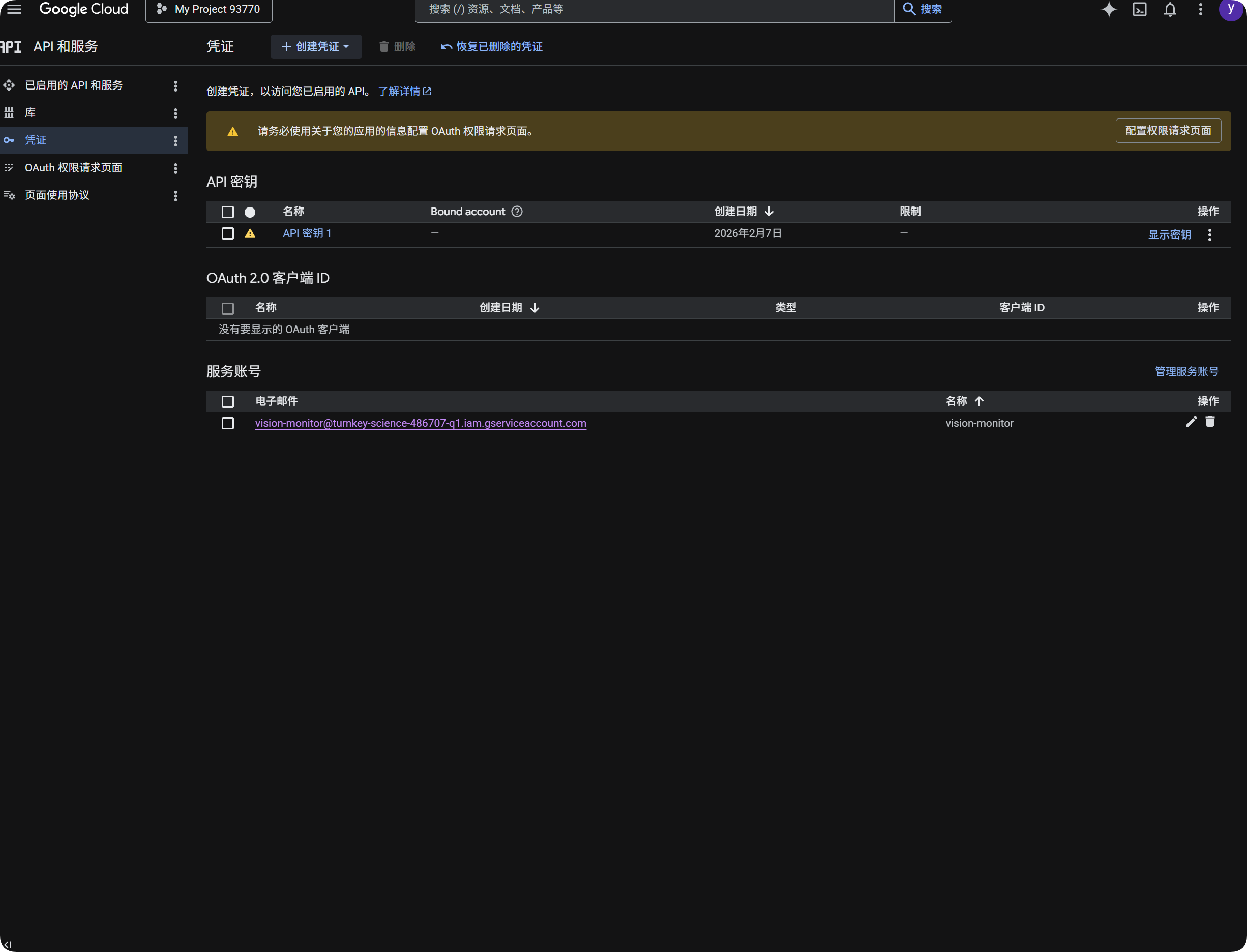
OCR के लिए Google का उपयोग
- Google Cloud Console खोलें।
APIs & Servicesपर जाएँ।Libraryखोलें,Cloud Vision APIखोजें और उसे सक्षम करें।Credentialsपर लौटें।- एक
API Keyबनाएँ। - API Key खोलें और उसे कॉपी करें।
- उसे ImgHost में
Google Vision API Keyमें पेस्ट करें। - सहेजें।
इसके बाद आप OCR संवाद में Google Vision चुन सकते हैं।
Google उपयोग क्वेरी
कोटा क्वेरी पहचान के लिए आवश्यक नहीं है।
यह केवल लगभग दिखाती है कि पिछले 30 दिनों में कितनी Google Vision कॉल उपयोग हुई हैं।
- Google Cloud Console में
IAM & Adminखोलें। Service Accountsखोलें।- एक सेवा खाता बनाएँ, जैसे
vision-monitor। - उसे
Monitoring Viewerभूमिका दें। - सेवा खाते का विवरण खोलें और कुंजी बनाएँ।
JSONचुनें।- जनरेट की गई JSON फ़ाइल डाउनलोड करें।
- ImgHost पर लौटें और इसे सेवा खाता
JSONके अंतर्गत आयात करें (वैकल्पिक)। - आयात सफल होने के बाद कोटा क्वेरी पर क्लिक करें।
आयात के बाद ImgHost उस प्रोजेक्ट का नाम दिखाता है जिससे सेवा खाता संबंधित है। उपयोग क्वेरी करते समय ImgHost Google मॉनिटरिंग डेटा पढ़ता है और इस महीने की कॉल संख्या दिखाता है।
संक्षेप में:
| आइटम | उद्देश्य |
|---|---|
Google Vision API Key | OCR पहचान करता है। |
सेवा खाता JSON | यह क्वेरी करता है कि कितनी Google Vision कॉल उपयोग हुईं। |
Monitoring Viewer भूमिका | सेवा खाते को उपयोग डेटा पढ़ने की अनुमति देती है। |
Baidu PaddleOCR Token प्राप्त करना
Baidu PaddleOCR को एक्सेस टोकन चाहिए।
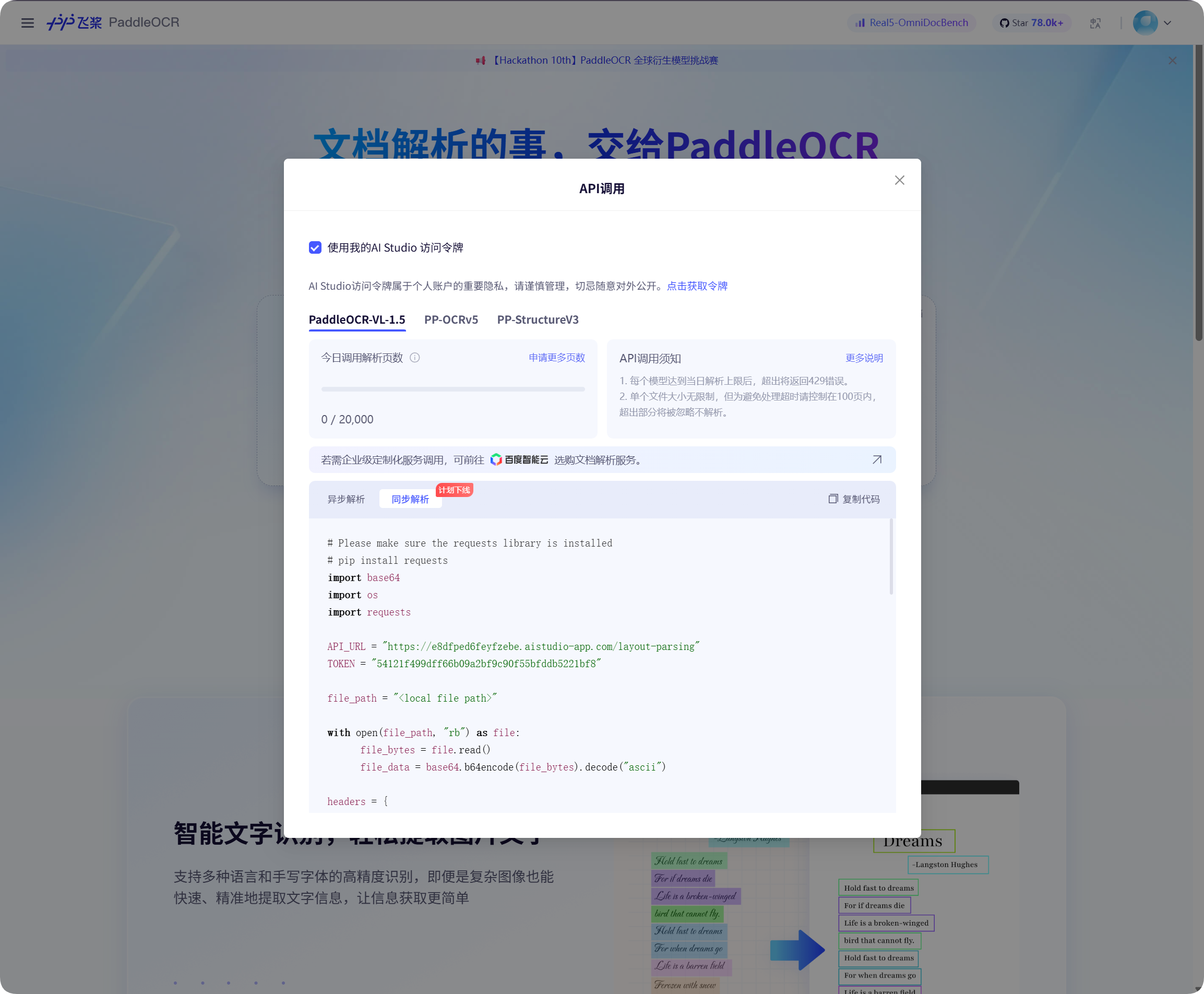
Baidu PaddleOCR पेज पर API कॉल विंडो खोलें, टोकन प्राप्त करने के लिए क्लिक करें, फिर उसे कॉपी करें।
ImgHost पर लौटें, उसे PaddleOCR Token में पेस्ट करें और सहेजें।
पहचान शुरू करना
फ़ाइल प्रबंधन में कोई छवि या दस्तावेज़ स्क्रीनशॉट चुनें और OCR पर क्लिक करें।
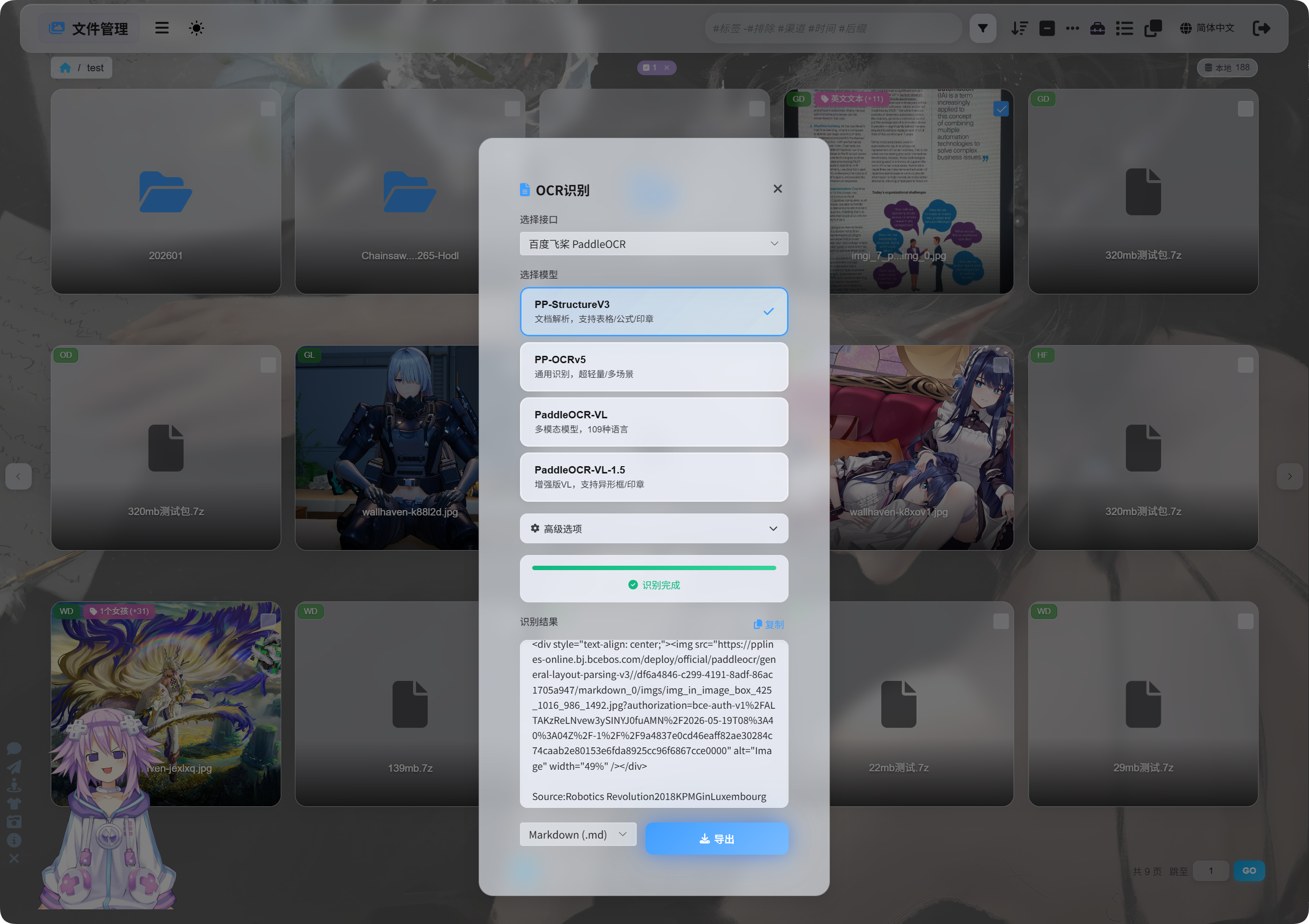
संवाद में पहचान सेवा और मॉडल चुनें।
सामान्य PaddleOCR मॉडल विकल्प:
| मॉडल | किसके लिए उपयुक्त |
|---|---|
PP-StructureV3 | अनुशंसित डिफ़ॉल्ट। दस्तावेज़ों, तालिकाओं, सूत्रों, मुहरों और मिश्रित लेआउट के लिए अच्छा। |
PP-OCRv5 | सरल छवियाँ, सामान्य टेक्स्ट और हल्की पहचान। |
PaddleOCR-VL | बहुभाषी, जटिल छवियाँ और चार्ट जैसी सामग्री। |
PaddleOCR-VL-1.5 | अधिक जटिल दस्तावेज़ पेज और लेआउट पुनर्प्राप्ति। |
यदि आप सुनिश्चित नहीं हैं, तो PP-StructureV3 से शुरू करें।
उन्नत विकल्प
| विकल्प | विवरण |
|---|---|
| अभिविन्यास सुधार | जब छवि घुमी हुई या तिरछी हो, तब उपयोग करें। |
| दस्तावेज़ समतलीकरण | वक्रता या झुकाव वाले फ़ोटोग्राफ़ किए गए दस्तावेज़ों के लिए उपयोग करें। |
| लेआउट पहचान | जब आप शीर्षक, अनुच्छेद, तालिकाएँ और छवि संरचना सुरक्षित रखना चाहते हों, तब उपयोग करें। |
| चार्ट पहचान | जब छवि में चार्ट या जटिल संरचनाएँ हों, तब उपयोग करें। |
Markdown को सुंदर बनाना | निर्यात किए गए Markdown को पढ़ने में आसान बनाता है। |
सामान्य स्क्रीनशॉट के लिए विकल्प कम रखें। दस्तावेज़ स्कैन के लिए दस्तावेज़-संबंधित विकल्प अधिक सक्षम करें।
परिणाम देखना
पहचान पूरी होने के बाद संवाद परिणाम दिखाता है।
आप उसे सीधे कॉपी कर सकते हैं या निर्यात फ़ॉर्मैट चुन सकते हैं।
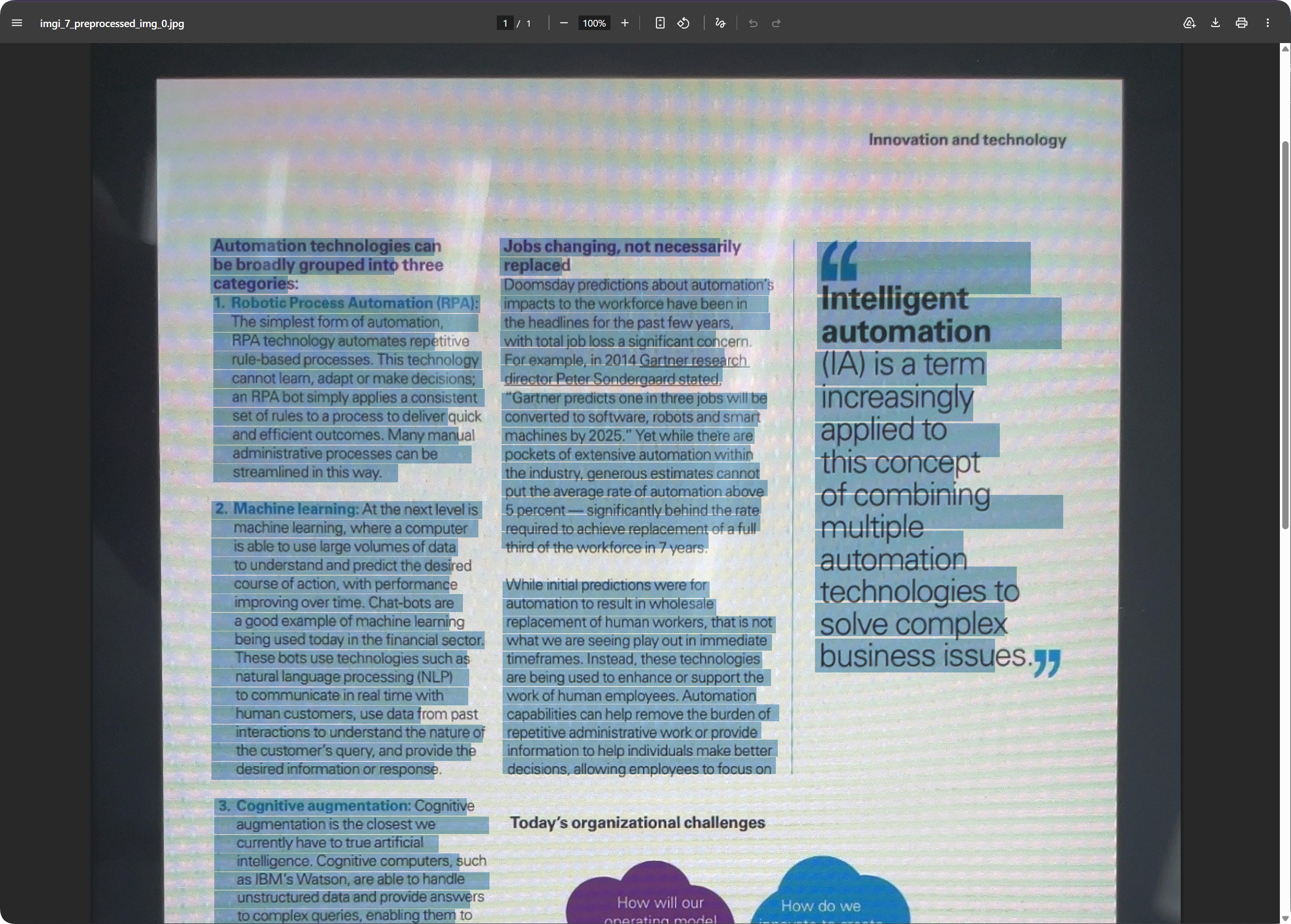
दस्तावेज़ पेजों के लिए निर्यात किया गया PDF पेज का रूप सुरक्षित रख सकता है और टेक्स्ट को खोज योग्य बनाए रखता है। यह स्कैन संग्रहित करने और बाद में सामग्री ढूँढने के लिए उपयोगी है।
निर्यात फ़ॉर्मैट चुनना
| फ़ॉर्मैट | किसके लिए उपयुक्त |
|---|---|
Markdown (.md) | नोट्स, दस्तावेज़ीकरण प्रणालियाँ और बाद में संपादन। |
PDF (.pdf) | पेज का रूप और स्कैन किए गए दस्तावेज़ परिणाम सुरक्षित रखना। |
Word (.docx) | लेआउट संपादन जारी रखना, टेक्स्ट संशोधन और दूसरों को सौंपना। |
| सब निर्यात करें | कई फ़ॉर्मैट और मूल छवि सहेजता है, महत्वपूर्ण संग्रह के लिए उपयुक्त। |
यदि आपको केवल टेक्स्ट चाहिए, तो Markdown निर्यात करें।
यदि आपको पेज का रूप चाहिए, तो PDF या Word उपयोग करें।
Word आउटपुट
निर्यात किए गए Word दस्तावेज़ों को ऑफिस सॉफ़्टवेयर में खोला और संपादित किया जा सकता है।
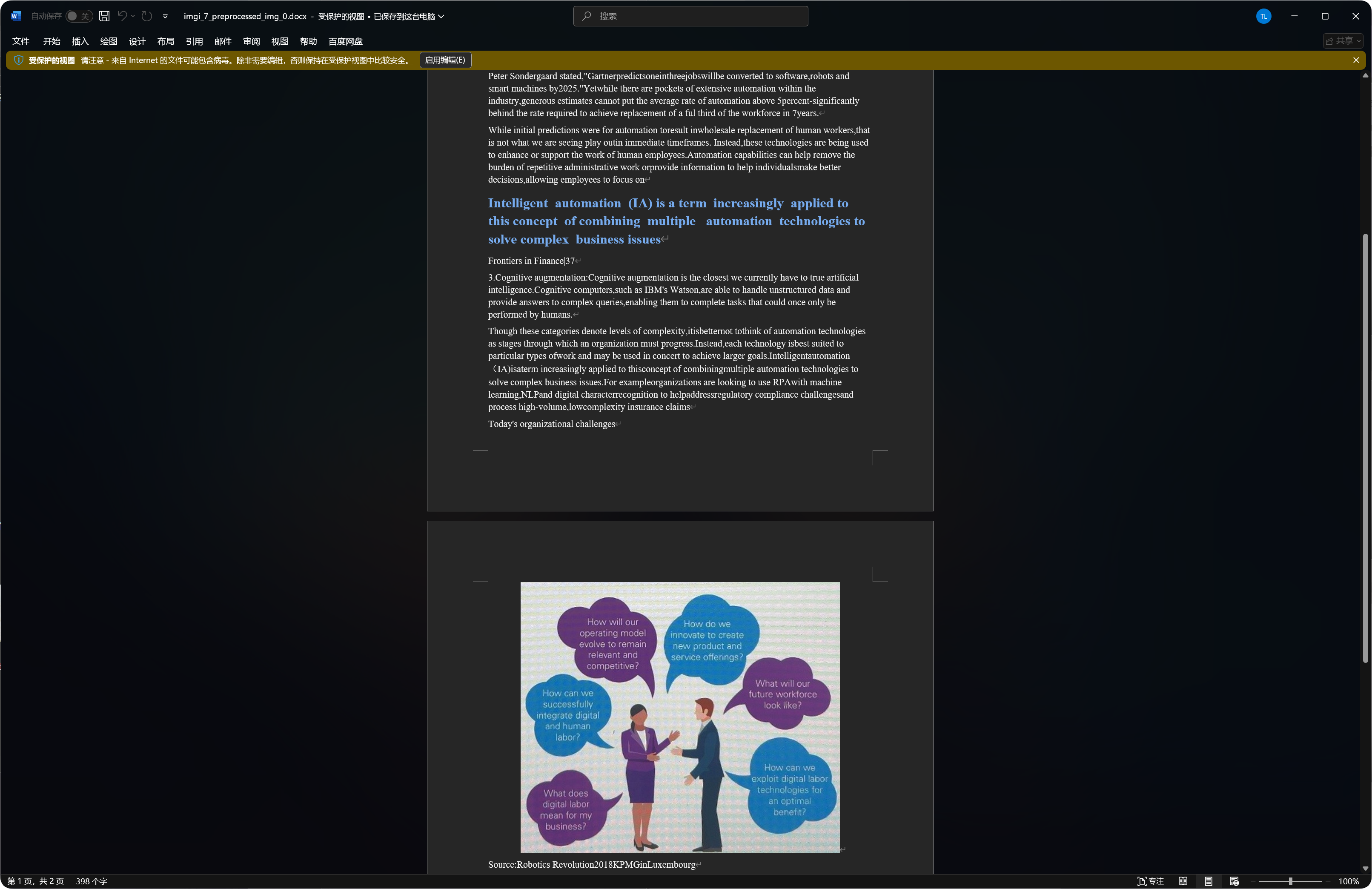
कुछ दस्तावेज़ Word आउटपुट में पहचानी गई छवियाँ, शीर्षक और अनुच्छेद शामिल करते हैं।
पहचान की गुणवत्ता मूल छवि की स्पष्टता, मॉडल चयन और दस्तावेज़ की जटिलता पर निर्भर करती है।
OCR के लिए सर्वोत्तम फ़ाइल प्रकार
| फ़ाइल प्रकार | अनुशंसा |
|---|---|
| स्पष्ट स्क्रीनशॉट | सीधे पहचानें। |
| स्कैन | PP-StructureV3 को प्राथमिकता दें। |
| फ़ोटोग्राफ़ किए गए दस्तावेज़ | अभिविन्यास सुधार और दस्तावेज़ समतलीकरण सक्षम करें। |
| तालिकाएँ, सूत्र, मुहरें | संरचित मॉडल को प्राथमिकता दें। |
| छोटे सामान्य टेक्स्ट वाली सरल छवियाँ | PP-OCRv5 आमतौर पर पर्याप्त है। |
अधिक स्पष्ट छवियाँ और अधिक सीधे टेक्स्ट आमतौर पर बेहतर परिणाम देते हैं।
सामान्य स्थितियाँ
| स्थिति | अर्थ |
|---|---|
| पहचान विफल होती है | जाँचें कि सेवा टोकन या कुंजी सहेजी गई है। |
| पहचान धीमी है | जटिल दस्तावेज़ और बड़ी छवियाँ अधिक समय लेती हैं। |
| तालिका अधूरी है | संरचित मॉडल आज़माएँ। |
| टेक्स्ट में गलतियाँ हैं | धुंधलापन, चमक और तिरछापन पहचान त्रुटियाँ बढ़ाते हैं। अधिक स्पष्ट छवि आज़माएँ। |
| Word आउटपुट में बहुत-सी छवियाँ हैं | संरचित मॉडल कुछ पहचानी गई छवियों को सुरक्षित रख सकते हैं। यह सामान्य है। |
Google कोटा क्वेरी विफल होती है
जाँचें:
- सेवा खाता
JSONआयात किया गया है। - सेवा खाते के पास
Monitoring Viewerभूमिका है। - प्रोजेक्ट के लिए
Cloud Vision APIसक्षम है।
यदि आपको केवल OCR चाहिए और उपयोग क्वेरी नहीं चाहिए, तो सेवा खाता JSON को अनदेखा कर सकते हैं और केवल Google Vision API Key भर सकते हैं।
त्वरित प्रवाह
text
Open System Settings
-> Open Other Settings
-> Fill OCR service credentials
-> Save
-> Return to File Management
-> Select a file and click OCR
-> Choose a model
-> Wait for recognition
-> Copy results or export Markdown / PDF / Word