OCR
OCR သည် ရုပ်ပုံများ၊ စကန်ဖိုင်များနှင့် စာရွက်စာတမ်းစခရင်ရှော့များထဲမှ စာသားကို ထုတ်ယူပေးသည်။
အသိအမှတ်ပြုပြီးနောက် ရလဒ်ကို ကူးယူနိုင်သည်။ ထို့အပြင် Markdown၊ PDF သို့မဟုတ် Word အဖြစ် တင်ပို့နိုင်ပြီး ပုံစံအများအပြားကို တစ်စုတစ်စည်းတည်း စုထုပ်၍ ဒေါင်းလုဒ်လုပ်နိုင်သည်။
OCR က ဘာလုပ်နိုင်သလဲ
| လုပ်ဆောင်ချက် | ဖော်ပြချက် |
|---|---|
| ရုပ်ပုံစာသားအသိအမှတ်ပြုခြင်း | ရုပ်ပုံများ၊ စခရင်ရှော့များနှင့် စကန်ဖိုင်များထဲမှ စာသားကို ထုတ်ယူသည်။ |
| စာရွက်စာတမ်းအပြင်အဆင် အသိအမှတ်ပြုခြင်း | ဇယားများ၊ ဖော်မြူလာများ၊ တံဆိပ်တုံးများနှင့် စာသား-ရုပ်ပုံ ရောနှောအပြင်အဆင်များအတွက် ပိုသင့်တော်သည်။ |
| ဝန်ဆောင်မှုအများအပြား | Baidu PaddleOCR၊ Microsoft Azure Vision နှင့် Google Vision ကို ထောက်ပံ့သည်။ |
| ရလဒ်ကူးယူခြင်း | လုပ်ငန်းစဉ်ပြီးဆုံးပြီးနောက် အသိအမှတ်ပြုထားသော စာသားကို ကူးယူနိုင်သည်။ |
| ဖိုင်တင်ပို့ခြင်း | Markdown၊ PDF နှင့် Word အဖြစ် တင်ပို့နိုင်သည်။ |
| အစုလိုက် စုထုပ်ခြင်း | ဖိုင်အများအပြားကို အသိအမှတ်ပြုပြီးနောက် ရလဒ်များကို တစ်ထုပ်တည်းအဖြစ် ဒေါင်းလုဒ်လုပ်နိုင်သည်။ |
OCR ဝန်ဆောင်မှုများကို ဦးစွာပြင်ဆင်ပါ
အောက်ပါနေရာကို ဖွင့်ပါ။
text
System Settings -> Other Settings -> OCR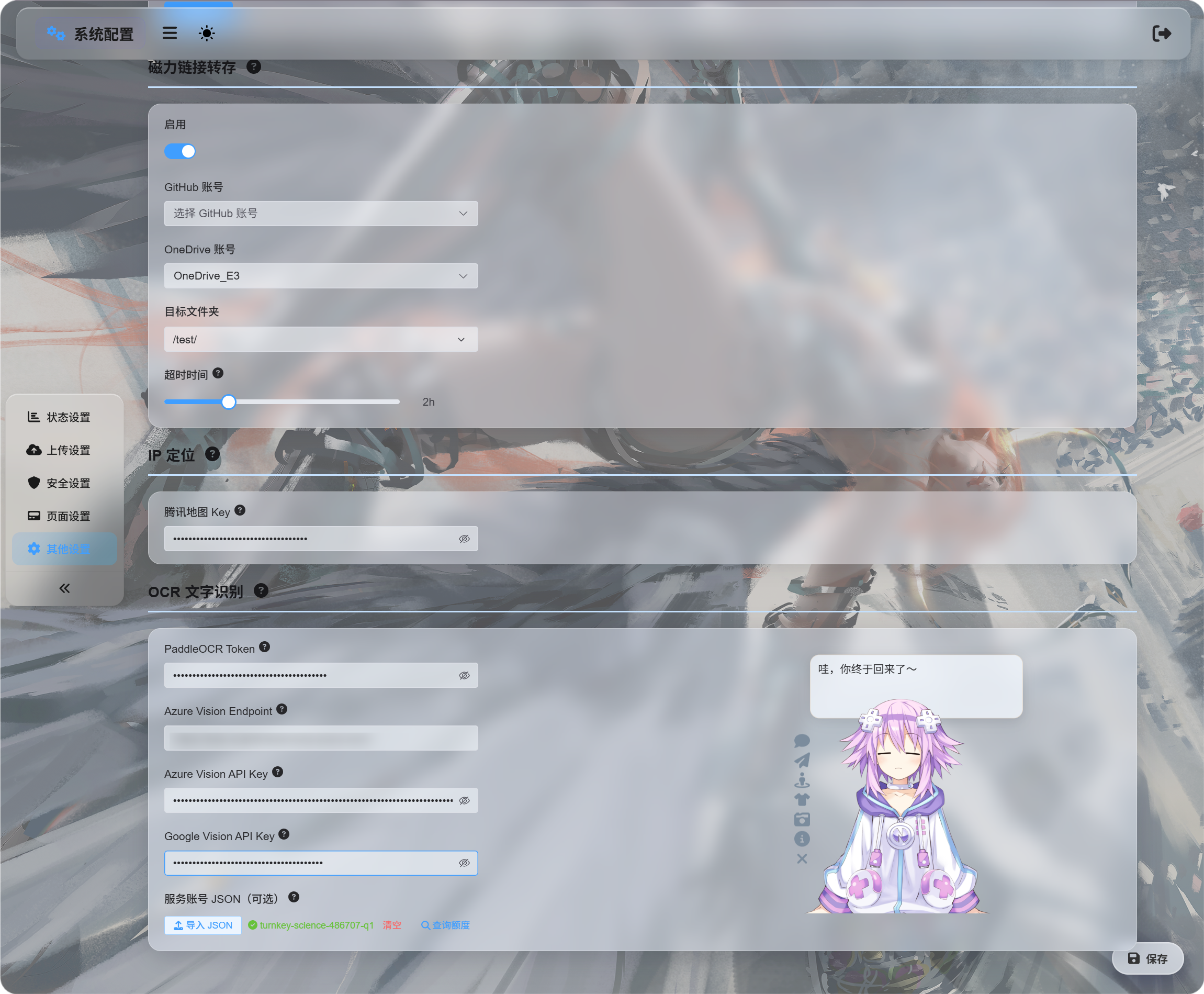
အသုံးပြုလိုသော ဝန်ဆောင်မှုများအတွက် အထောက်အထားအချက်အလက်များကို ဖြည့်ပါ။
| ဝန်ဆောင်မှု | ဖြည့်ရမည့်အရာ | သင့်တော်သောအခြေအနေ |
|---|---|---|
| Baidu PaddleOCR | PaddleOCR Token | ပထမဆုံးရွေးချယ်ရန် အကြံပြုသည်။ စာရွက်စာတမ်းများ၊ ရုပ်ပုံများ၊ ဇယားများနှင့် ရောနှောအပြင်အဆင်များအတွက် ကောင်းမွန်သည်။ |
| Microsoft Azure Vision | Azure Vision Endpoint နှင့် Azure Vision API Key | Microsoft cloud ဝန်ဆောင်မှုများကို အသုံးပြုနေပြီးသားဖြစ်ပါက အသုံးဝင်သည်။ |
| Google Vision | Google Vision API Key။ ဝန်ဆောင်မှုအကောင့် JSON ကို ခွဲတမ်းစစ်ဆေးရန်အတွက်သာ အသုံးပြုသည်။ | Google Cloud ဝန်ဆောင်မှုများကို အသုံးပြုပါက အသုံးဝင်သည်။ |
အထောက်အထားအချက်အလက်များ ဖြည့်ပြီးနောက် သိမ်းပါ။
ပထမဆုံးစမ်းသပ်ရန် ဝန်ဆောင်မှုတစ်ခုတည်းကိုသာ သတ်မှတ်နိုင်သည်။ သုံးခုလုံး မလိုအပ်ပါ။
Google Vision သတ်မှတ်ခြင်း
Google သတ်မှတ်ခြင်းတွင် အပိုင်းနှစ်ခုရှိသည်။
| ရည်ရွယ်ချက် | လိုအပ်ချက် |
|---|---|
| OCR အသုံးပြုရန် | Cloud Vision API ကို ဖွင့်ပြီး API Key တစ်ခု ဖန်တီးပါ။ |
| အသုံးပြုမှုပမာဏ စစ်ဆေးရန် | ဝန်ဆောင်မှုအကောင့်တစ်ခု ဖန်တီးပြီး Monitoring Viewer အခန်းကဏ္ဍ ပေးပါ။ ထို့နောက် ဝန်ဆောင်မှုအကောင့် JSON ကို ဒေါင်းလုဒ်လုပ်ပါ။ |
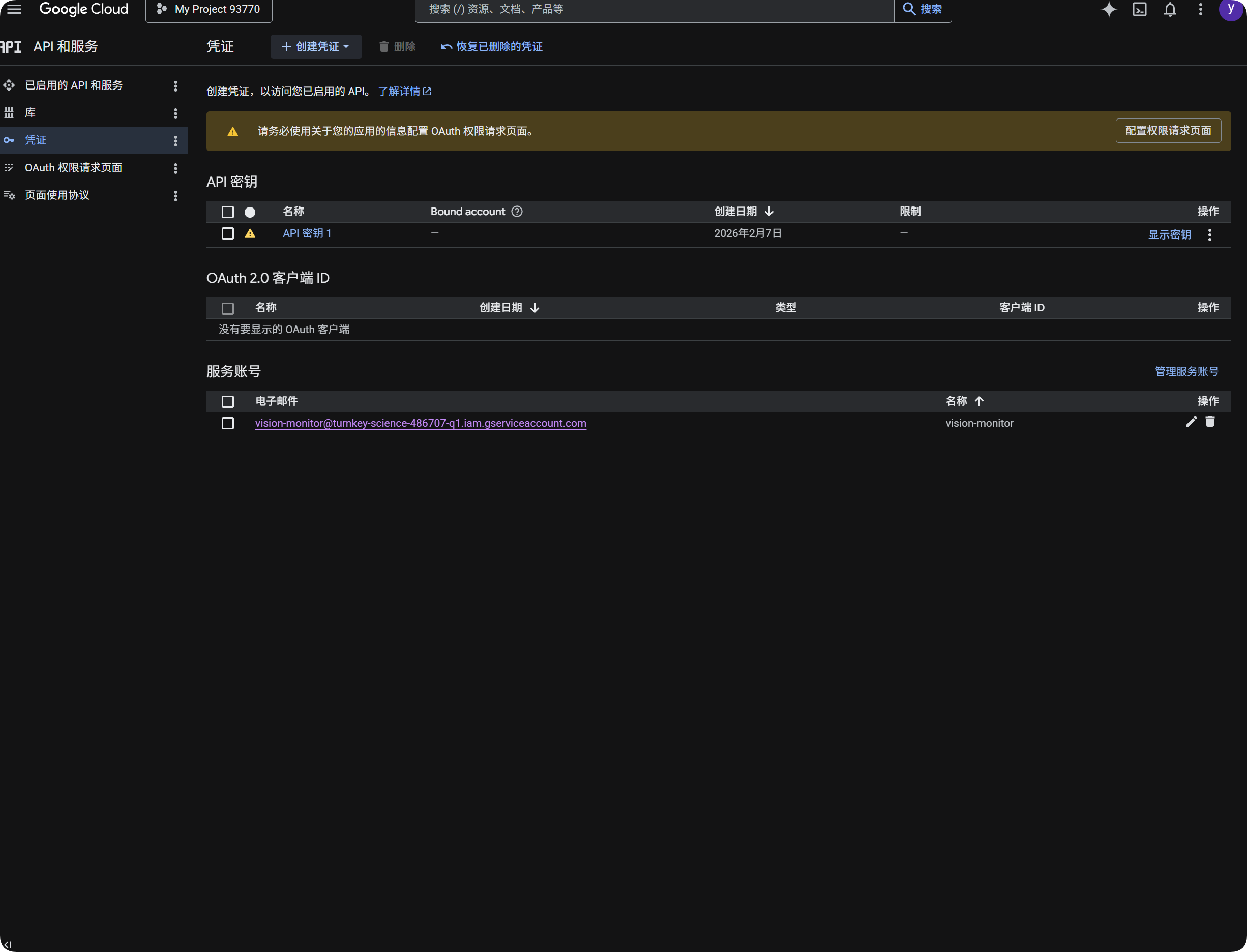
Google ကို OCR အတွက် အသုံးပြုခြင်း
- Google Cloud Console ကို ဖွင့်ပါ။
APIs & Servicesသို့ သွားပါ။Libraryကို ဖွင့်ပြီးCloud Vision APIကို ရှာဖွေ၍ ဖွင့်ပါ။Credentialsသို့ ပြန်သွားပါ။API Keyတစ်ခု ဖန်တီးပါ။- API Key ကို ဖွင့်ပြီး ကူးယူပါ။
- ImgHost ရှိ
Google Vision API Keyထဲသို့ ကူးထည့်ပါ။ - သိမ်းပါ။
ထို့နောက် OCR ဒိုင်ယာလော့ဂ်တွင် Google Vision ကို ရွေးချယ်နိုင်သည်။
Google အသုံးပြုမှုပမာဏ စစ်ဆေးခြင်း
ခွဲတမ်းစစ်ဆေးမှုသည် အသိအမှတ်ပြုလုပ်ငန်းအတွက် မလိုအပ်ပါ။
၎င်းသည် ပြီးခဲ့သော 30 ရက်အတွင်း Google Vision ခေါ်ဆိုမှု မည်မျှ အသုံးပြုထားသည်ကို အကြမ်းဖျင်းပြသရန်သာ ဖြစ်သည်။
- Google Cloud Console တွင်
IAM & Adminကို ဖွင့်ပါ။ Service Accountsကို ဖွင့်ပါ။vision-monitorကဲ့သို့သော ဝန်ဆောင်မှုအကောင့်တစ်ခု ဖန်တီးပါ။- ၎င်းကို
Monitoring Viewerအခန်းကဏ္ဍ ပေးပါ။ - ဝန်ဆောင်မှုအကောင့်အသေးစိတ် စာမျက်နှာကို ဖွင့်ပြီး ကီးတစ်ခု ဖန်တီးပါ။
JSONကို ရွေးပါ။- ထုတ်ပေးထားသော JSON ဖိုင်ကို ဒေါင်းလုဒ်လုပ်ပါ။
- ImgHost သို့ ပြန်သွားပြီး ဝန်ဆောင်မှုအကောင့်
JSONအောက်တွင် ထည့်သွင်းပါ (ရွေးချယ်နိုင်သည်)။ - ထည့်သွင်းမှု အောင်မြင်ပြီးနောက် ခွဲတမ်းစစ်ဆေးမှုကို နှိပ်ပါ။
ထည့်သွင်းပြီးနောက် ImgHost သည် ဝန်ဆောင်မှုအကောင့် ပိုင်ဆိုင်သော ပရောဂျက်အမည်ကို ပြသမည်။ အသုံးပြုမှုပမာဏကို စစ်ဆေးသည့်အခါ ImgHost သည် Google စောင့်ကြည့်ဒေတာကို ဖတ်ပြီး ယခုလ၏ ခေါ်ဆိုမှုအရေအတွက်ကို ပြသမည်။
အကျဉ်းချုပ်မှာ အောက်ပါအတိုင်းဖြစ်သည်။
| အကြောင်းအရာ | ရည်ရွယ်ချက် |
|---|---|
Google Vision API Key | OCR အသိအမှတ်ပြုလုပ်ငန်းကို ဆောင်ရွက်သည်။ |
ဝန်ဆောင်မှုအကောင့် JSON | Google Vision ခေါ်ဆိုမှု မည်မျှ အသုံးပြုထားသည်ကို စစ်ဆေးသည်။ |
Monitoring Viewer အခန်းကဏ္ဍ | ဝန်ဆောင်မှုအကောင့်ကို အသုံးပြုမှုဒေတာ ဖတ်ခွင့်ပေးသည်။ |
Baidu PaddleOCR Token ရယူခြင်း
Baidu PaddleOCR သည် ဝင်ရောက်ခွင့်တိုကင် လိုအပ်သည်။
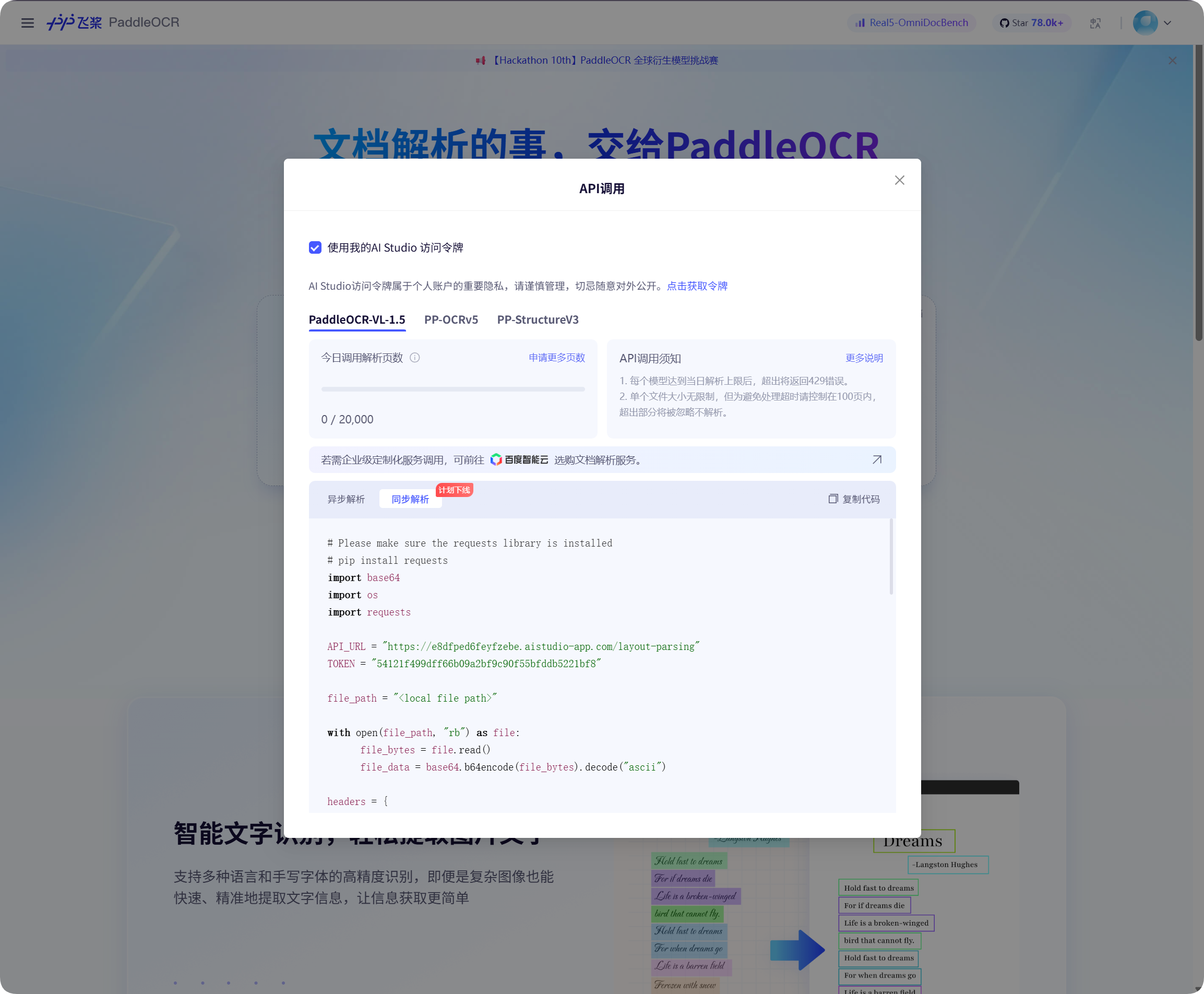
Baidu PaddleOCR စာမျက်နှာရှိ API ခေါ်ဆိုမှုဝင်းဒိုးကို ဖွင့်ပါ။ တိုကင်ရယူရန် နှိပ်ပြီး ၎င်းကို ကူးယူပါ။
ImgHost သို့ ပြန်သွားပြီး PaddleOCR Token ထဲသို့ ကူးထည့်ကာ သိမ်းပါ။
အသိအမှတ်ပြုလုပ်ငန်း စတင်ခြင်း
ဖိုင်စီမံခန့်ခွဲမှုတွင် ရုပ်ပုံတစ်ခု သို့မဟုတ် စာရွက်စာတမ်းစခရင်ရှော့တစ်ခုကို ရွေးပြီး OCR ကို နှိပ်ပါ။
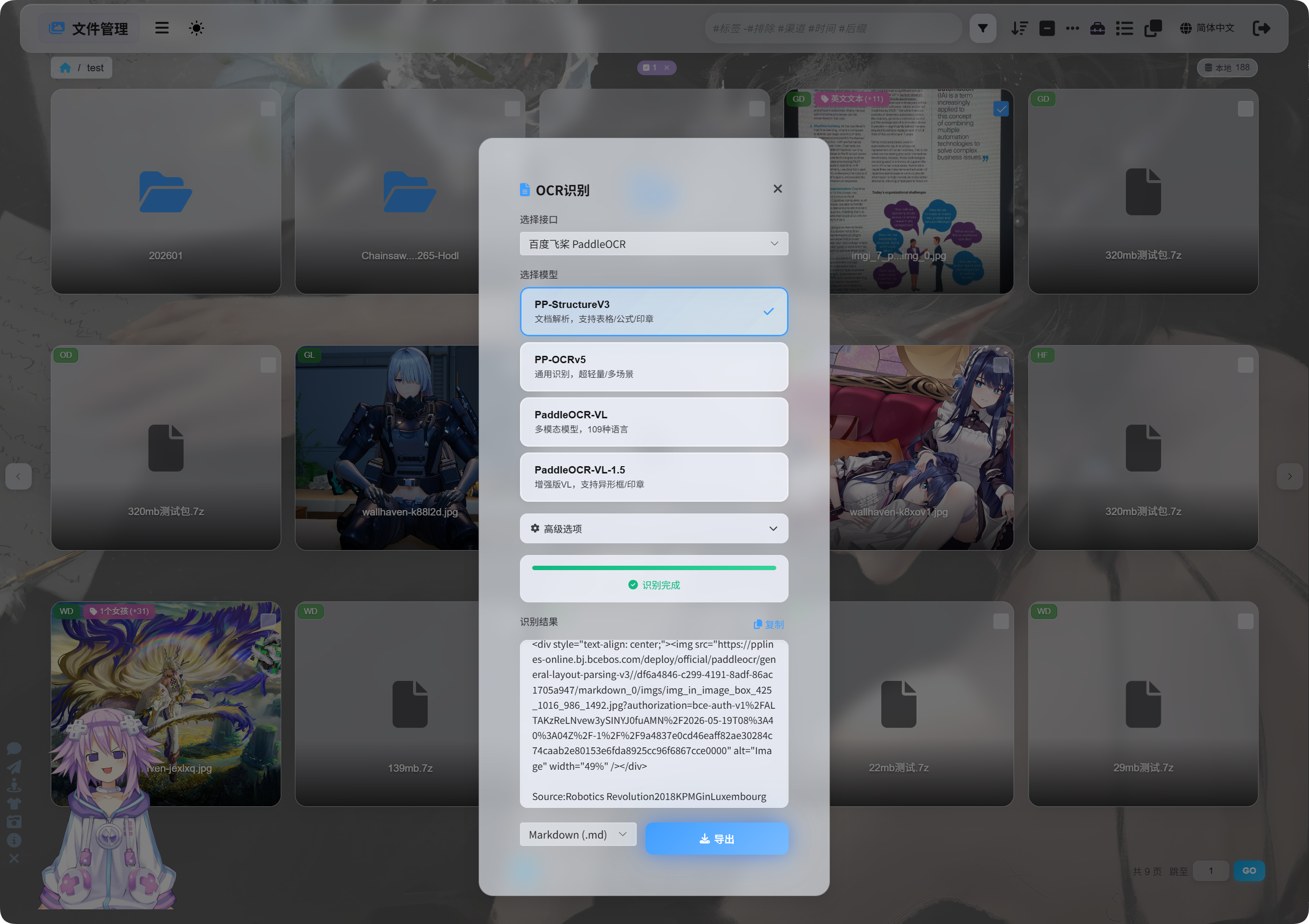
ဒိုင်ယာလော့ဂ်ထဲတွင် အသိအမှတ်ပြုဝန်ဆောင်မှုနှင့် မော်ဒယ်ကို ရွေးပါ။
အသုံးများသော PaddleOCR မော်ဒယ်ရွေးချယ်မှုများမှာ အောက်ပါအတိုင်းဖြစ်သည်။
| မော်ဒယ် | သင့်တော်သောအခြေအနေ |
|---|---|
PP-StructureV3 | အကြံပြုထားသော မူလရွေးချယ်မှုဖြစ်သည်။ စာရွက်စာတမ်းများ၊ ဇယားများ၊ ဖော်မြူလာများ၊ တံဆိပ်တုံးများနှင့် ရောနှောအပြင်အဆင်များအတွက် ကောင်းမွန်သည်။ |
PP-OCRv5 | ရိုးရှင်းသော ရုပ်ပုံများ၊ သာမန်စာသားနှင့် ပေါ့ပါးသော အသိအမှတ်ပြုလုပ်ငန်းများအတွက် သင့်တော်သည်။ |
PaddleOCR-VL | ဘာသာစကားအများအပြား၊ ရှုပ်ထွေးသော ရုပ်ပုံများနှင့် ဇယားပုံစံပါဝင်သော အကြောင်းအရာများအတွက် သင့်တော်သည်။ |
PaddleOCR-VL-1.5 | ပိုမိုရှုပ်ထွေးသော စာရွက်စာတမ်းစာမျက်နှာများနှင့် အပြင်အဆင်ပြန်လည်ဖော်ထုတ်ခြင်းအတွက် သင့်တော်သည်။ |
မသေချာပါက PP-StructureV3 ဖြင့် စတင်ပါ။
အဆင့်မြင့်ရွေးချယ်စရာများ
| ရွေးချယ်စရာ | ဖော်ပြချက် |
|---|---|
| ဦးတည်ချက်ပြင်ဆင်ခြင်း | ရုပ်ပုံသည် လှည့်နေခြင်း သို့မဟုတ် စောင်းနေခြင်းရှိပါက အသုံးပြုပါ။ |
| စာရွက်စာတမ်းပြားစေခြင်း | ဓာတ်ပုံရိုက်ထားသော စာရွက်စာတမ်းတွင် ကွေးခြင်း သို့မဟုတ် စောင်းခြင်းရှိပါက အသုံးပြုပါ။ |
| အပြင်အဆင်ရှာဖွေခြင်း | ခေါင်းစဉ်များ၊ စာပိုဒ်များ၊ ဇယားများနှင့် ရုပ်ပုံဖွဲ့စည်းပုံကို ထိန်းသိမ်းလိုပါက အသုံးပြုပါ။ |
| ဇယား/ဂရပ် အသိအမှတ်ပြုခြင်း | ရုပ်ပုံထဲတွင် ဇယား၊ ဂရပ် သို့မဟုတ် ရှုပ်ထွေးသော ဖွဲ့စည်းပုံများ ပါဝင်ပါက အသုံးပြုပါ။ |
Markdown လှပအောင်ပြုလုပ်ခြင်း | တင်ပို့ထားသော Markdown ကို ပိုမိုဖတ်ရလွယ်စေသည်။ |
သာမန်စခရင်ရှော့များအတွက် ရွေးချယ်စရာများကို အနည်းဆုံးထားပါ။ စာရွက်စာတမ်းစကန်များအတွက် စာရွက်စာတမ်းနှင့်သက်ဆိုင်သော ရွေးချယ်စရာများကို ပိုမိုဖွင့်ပါ။
ရလဒ်များကြည့်ခြင်း
အသိအမှတ်ပြုလုပ်ငန်းပြီးဆုံးသည့်အခါ ဒိုင်ယာလော့ဂ်ထဲတွင် ရလဒ်ကို ပြသမည်။
ရလဒ်ကို တိုက်ရိုက်ကူးယူနိုင်သည် သို့မဟုတ် တင်ပို့မည့်ပုံစံများကို ရွေးနိုင်သည်။
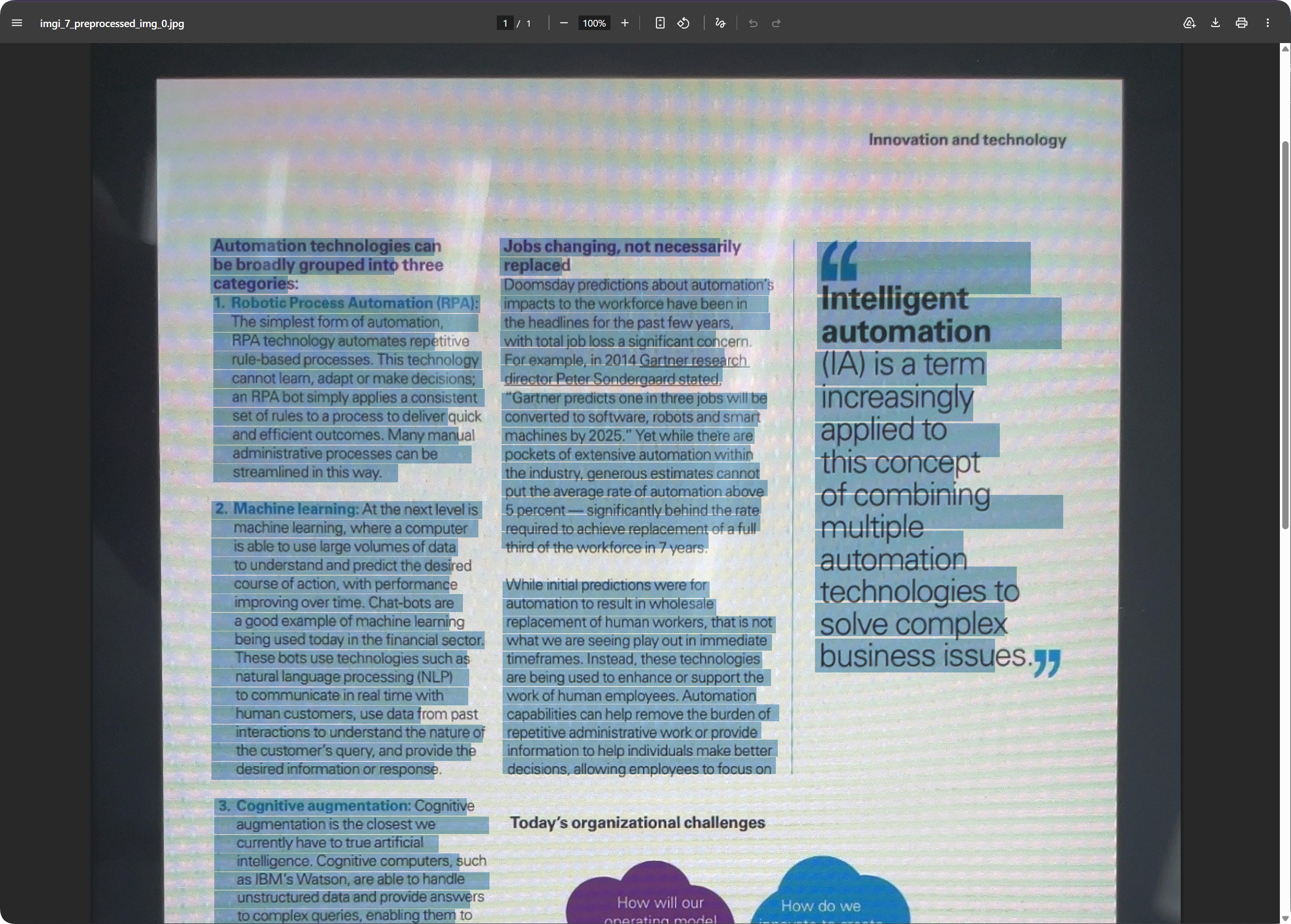
စာရွက်စာတမ်းစာမျက်နှာများအတွက် တင်ပို့ထားသော PDF သည် စာမျက်နှာအပြင်အဆင်ကို ထိန်းသိမ်းနိုင်ပြီး စာသားကိုလည်း ရှာဖွေနိုင်စေသည်။ ဤနည်းလမ်းသည် စကန်ဖိုင်များကို သိမ်းဆည်းရန်နှင့် နောက်ပိုင်းတွင် အကြောင်းအရာရှာရန် အသုံးဝင်သည်။
တင်ပို့မည့်ပုံစံ ရွေးချယ်ခြင်း
| ပုံစံ | သင့်တော်သောအခြေအနေ |
|---|---|
Markdown (.md) | မှတ်စုများ၊ စာရွက်စာတမ်းစနစ်များနှင့် နောက်ပိုင်းတည်းဖြတ်မှုအတွက် သင့်တော်သည်။ |
PDF (.pdf) | စာမျက်နှာအပြင်အဆင်နှင့် စကန်စာရွက်စာတမ်းရလဒ်များကို ထိန်းသိမ်းရန် သင့်တော်သည်။ |
Word (.docx) | အပြင်အဆင်ဆက်လက်တည်းဖြတ်ခြင်း၊ စာသားပြင်ဆင်ခြင်းနှင့် အခြားသူများထံ လွှဲပြောင်းပေးခြင်းအတွက် သင့်တော်သည်။ |
| အားလုံးတင်ပို့ခြင်း | ပုံစံအများအပြားနှင့် မူရင်းရုပ်ပုံကို သိမ်းဆည်းပေးသည်။ အရေးကြီးသော မှတ်တမ်းသိမ်းဆည်းမှုများအတွက် သင့်တော်သည်။ |
စာသားသာ လိုအပ်ပါက Markdown ကို တင်ပို့ပါ။
စာမျက်နှာအပြင်အဆင် လိုအပ်ပါက PDF သို့မဟုတ် Word ကို အသုံးပြုပါ။
Word ရလဒ်
တင်ပို့ထားသော Word စာရွက်စာတမ်းများကို ရုံးသုံးဆော့ဖ်ဝဲဖြင့် ဖွင့်ပြီး တည်းဖြတ်နိုင်သည်။
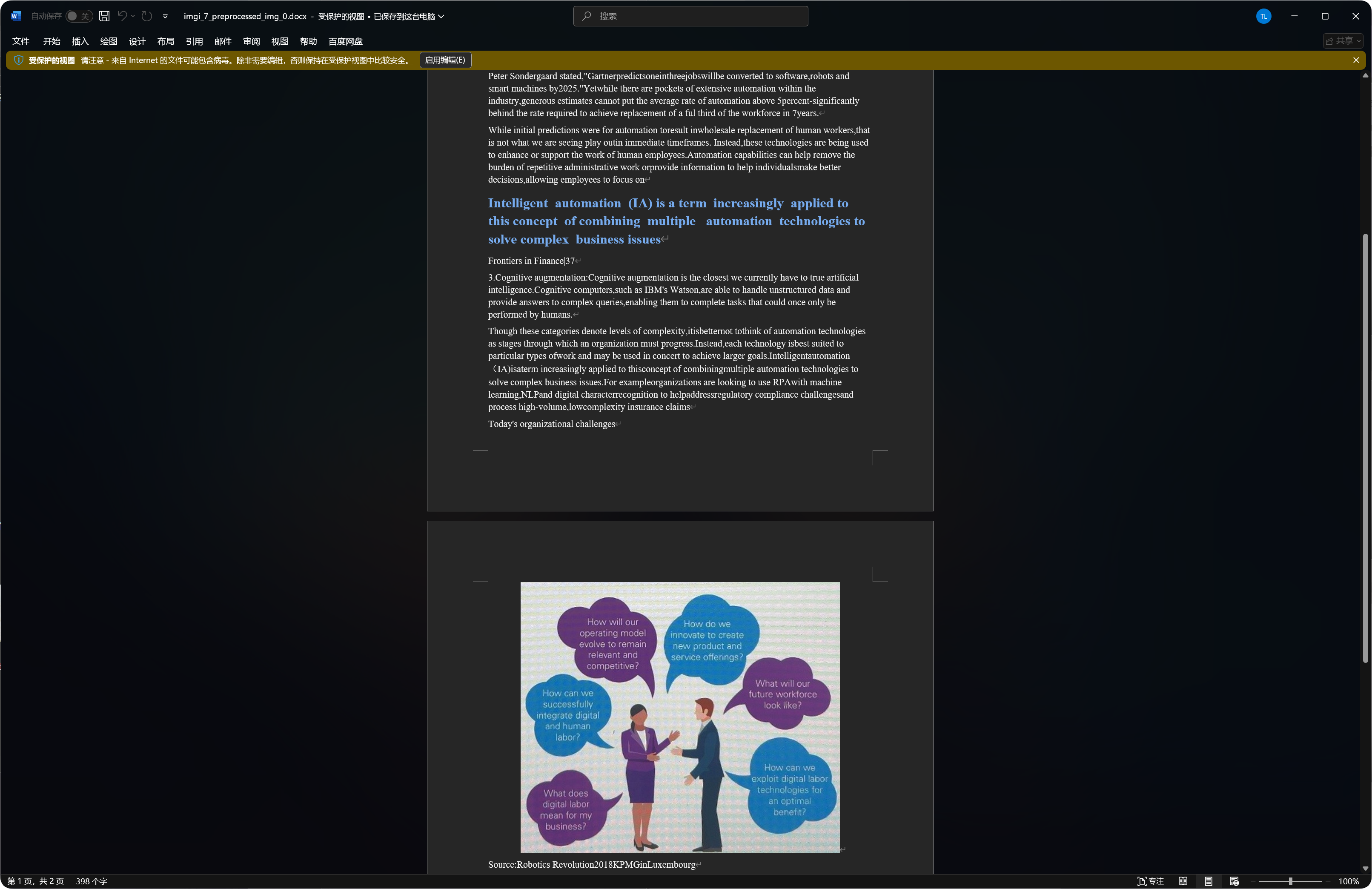
အချို့သော စာရွက်စာတမ်းများတွင် အသိအမှတ်ပြုထားသော ရုပ်ပုံများ၊ ခေါင်းစဉ်များနှင့် စာပိုဒ်များကို Word ရလဒ်ထဲတွင် ထည့်သွင်းနိုင်သည်။
အသိအမှတ်ပြုအရည်အသွေးသည် မူရင်းရုပ်ပုံ၏ ကြည်လင်ပြတ်သားမှု၊ မော်ဒယ်ရွေးချယ်မှုနှင့် စာရွက်စာတမ်းရှုပ်ထွေးမှုတို့အပေါ် မူတည်သည်။
OCR အတွက် သင့်တော်သော ဖိုင်အမျိုးအစားများ
| ဖိုင်အမျိုးအစား | အကြံပြုချက် |
|---|---|
| ကြည်လင်သော စခရင်ရှော့များ | တိုက်ရိုက် အသိအမှတ်ပြုပါ။ |
| စကန်ဖိုင်များ | PP-StructureV3 ကို ဦးစားပေးအသုံးပြုပါ။ |
| ဓာတ်ပုံရိုက်ထားသော စာရွက်စာတမ်းများ | ဦးတည်ချက်ပြင်ဆင်ခြင်းနှင့် စာရွက်စာတမ်းပြားစေခြင်းကို ဖွင့်ပါ။ |
| ဇယားများ၊ ဖော်မြူလာများ၊ တံဆိပ်တုံးများ | ဖွဲ့စည်းပုံအခြေပြု မော်ဒယ်များကို ဦးစားပေးအသုံးပြုပါ။ |
| ရိုးရှင်းပြီး တိုသောစာသားပါ ရုပ်ပုံများ | PP-OCRv5 သည် များသောအားဖြင့် လုံလောက်သည်။ |
ရုပ်ပုံ ပိုကြည်လင်ပြီး စာသား ပိုတန်းတည့်ပါက ရလဒ်များသည် ပုံမှန်အားဖြင့် ပိုကောင်းသည်။
တွေ့ရလေ့ရှိသော အခြေအနေများ
| အခြေအနေ | ဖော်ပြချက် |
|---|---|
| အသိအမှတ်ပြုခြင်း မအောင်မြင်ပါ | သက်ဆိုင်ရာ ဝန်ဆောင်မှုတိုကင် သို့မဟုတ် ကီးကို သိမ်းထားကြောင်း စစ်ဆေးပါ။ |
| အသိအမှတ်ပြုခြင်း နှေးနေသည် | ရှုပ်ထွေးသော စာရွက်စာတမ်းများနှင့် ရုပ်ပုံကြီးများသည် အချိန်ပိုယူသည်။ |
| ဇယား မပြည့်စုံပါ | ဖွဲ့စည်းပုံအခြေပြု မော်ဒယ်တစ်ခုဖြင့် စမ်းကြည့်ပါ။ |
| စာသားတွင် အမှားများရှိသည် | ဝါးနေခြင်း၊ အလင်းပြန်ခြင်းနှင့် စောင်းနေခြင်းတို့က အသိအမှတ်ပြုအမှားများကို တိုးစေသည်။ ပိုကြည်လင်သော ရုပ်ပုံဖြင့် စမ်းပါ။ |
| Word ရလဒ်တွင် ရုပ်ပုံများများ ပါနေသည် | ဖွဲ့စည်းပုံအခြေပြု မော်ဒယ်များသည် အသိအမှတ်ပြုထားသော ရုပ်ပုံအချို့ကို ထိန်းသိမ်းနိုင်သည်။ ၎င်းသည် ပုံမှန်ဖြစ်သည်။ |
Google ခွဲတမ်းစစ်ဆေးမှု မအောင်မြင်ပါ
အောက်ပါတို့ကို စစ်ဆေးပါ။
- ဝန်ဆောင်မှုအကောင့်
JSONကို ထည့်သွင်းထားပါသလား။ - ဝန်ဆောင်မှုအကောင့်တွင်
Monitoring Viewerအခန်းကဏ္ဍ ရှိပါသလား။ - ပရောဂျက်အတွက်
Cloud Vision APIကို ဖွင့်ထားပါသလား။
OCR သာ လိုအပ်ပြီး အသုံးပြုမှုပမာဏ စစ်ဆေးရန် မလိုအပ်ပါက ဝန်ဆောင်မှုအကောင့် JSON ကို လျစ်လျူရှုနိုင်ပြီး Google Vision API Key ကိုသာ ဖြည့်နိုင်သည်။
အမြန်လုပ်ငန်းစဉ်
text
Open System Settings
-> Open Other Settings
-> Fill OCR service credentials
-> Save
-> Return to File Management
-> Select a file and click OCR
-> Choose a model
-> Wait for recognition
-> Copy results or export Markdown / PDF / Word