OneDrive ချန်နယ် ထည့်သွင်းခြင်း
ဦးစွာ လိုအပ်သည့်အရာများ
| လိုအပ်ချက် | လိုအပ်ရသည့်အကြောင်းရင်း |
|---|---|
| Microsoft အကောင့်တစ်ခု | Microsoft admin page များကို access လုပ်ရန်နှင့် OneDrive ကို authorize လုပ်ရန် အသုံးပြုသည် |
| သင်၏ ImgHost ဒိုမိန်း | OAuth callback URL အတွက် အသုံးပြုသည် |
| App registration တစ်ခု | Client ID နှင့် Client Secret ထုတ်လုပ်ရန် အသုံးပြုသည် |
| OneDrive အကောင့်တစ်ခု | လက်တွေ့ဖိုင်သိုလှောင်ရာနေရာအဖြစ် အသုံးပြုသည် |
ပြင်ဆင်မှု အဆင့်များ
အဆင့် 1: Microsoft Entra ID ကိုဖွင့်ပါ
portal.azure.comကိုဖွင့်ပါ။- အပေါ်ဘက်တွင်
Microsoft Entra IDကိုရှာပါ။ - Target page ကို dropdown တွင် မပြပါက အောက်ပါကိုရွေးပါ။
text
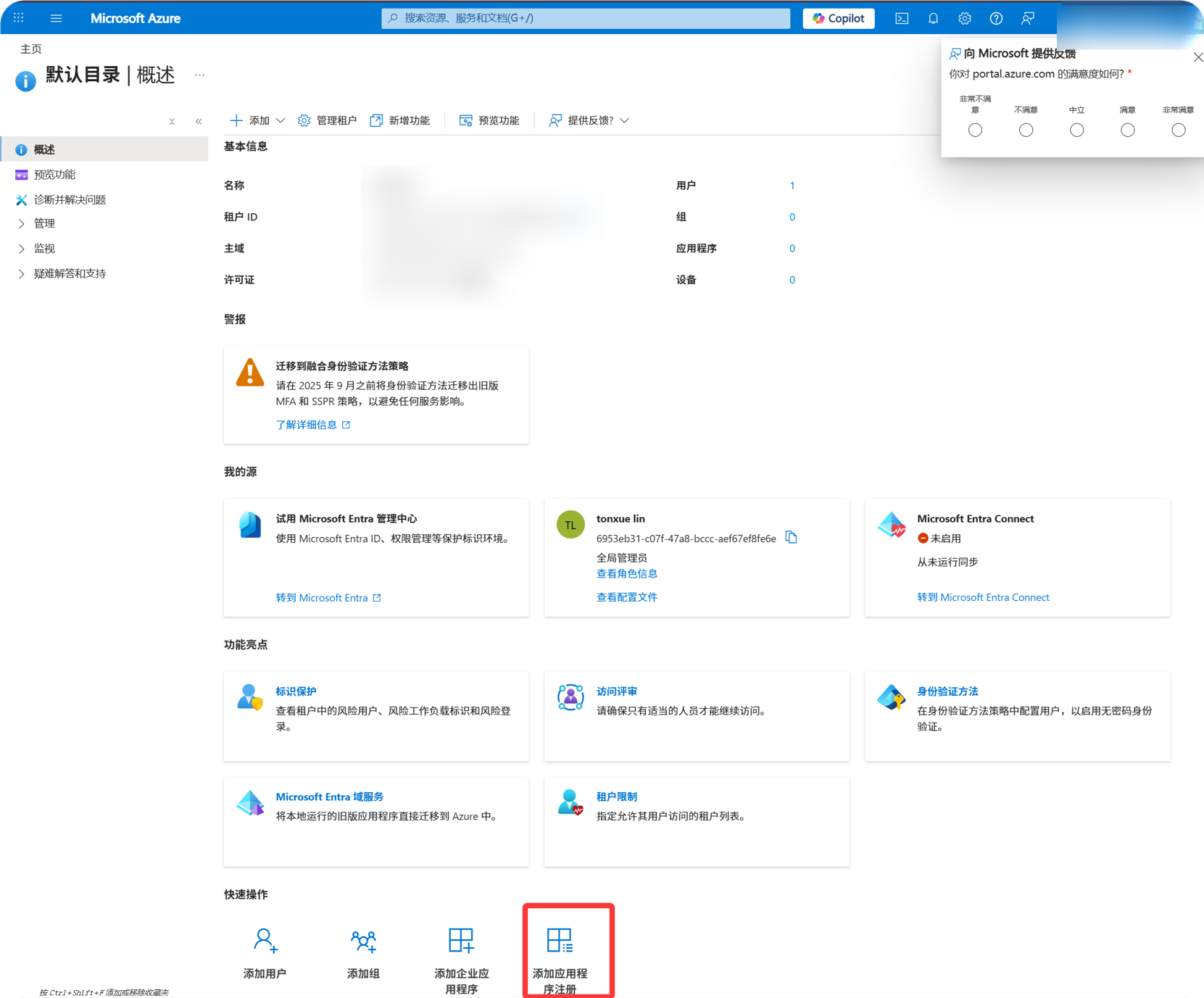
Continue searching in Microsoft Entra IDMicrosoft Entra IDကိုဖွင့်ပါ။App registrationsကိုဖွင့်ပါ။New registrationကိုနှိပ်ပါ။
အဆင့် 2: App ကို Register လုပ်ပါ
New registration စာမျက်နှာတွင် အောက်ပါအတိုင်း ဖြည့်ပါ။
| အကွက် | ထည့်ရန်အရာ |
|---|---|
| Name | မှတ်မိလွယ်သောအမည်၊ ဥပမာ imgbed-onedrive |
| Supported account types | အောက်ပါဇယားအပေါ်မူတည်၍ ရွေးပါ |
| Redirect URI type | Web |
| Redirect URI | https://your-domain.com/api/oauth/onedrive/callback |
Account type ရွေးချယ်မှုလမ်းညွှန်-
| သင်၏အခြေအနေ | Supported Account Types |
|---|---|
| Personal OneDrive သာ | Personal Microsoft account option ကိုရွေးပါ။ |
| Personal account နှင့် work/school account နှစ်မျိုးလုံး | Personal နှင့် organizational account နှစ်မျိုးလုံးကို ပံ့ပိုးသော option ကိုရွေးပါ။ |
| Company သို့မဟုတ် school OneDrive သာ | Organizational account option ကိုရွေးပါ။ |
Form ဖြည့်ပြီးနောက် register ကိုနှိပ်ပါ။
အဆင့် 3: App Information ကိုကူးယူပါ
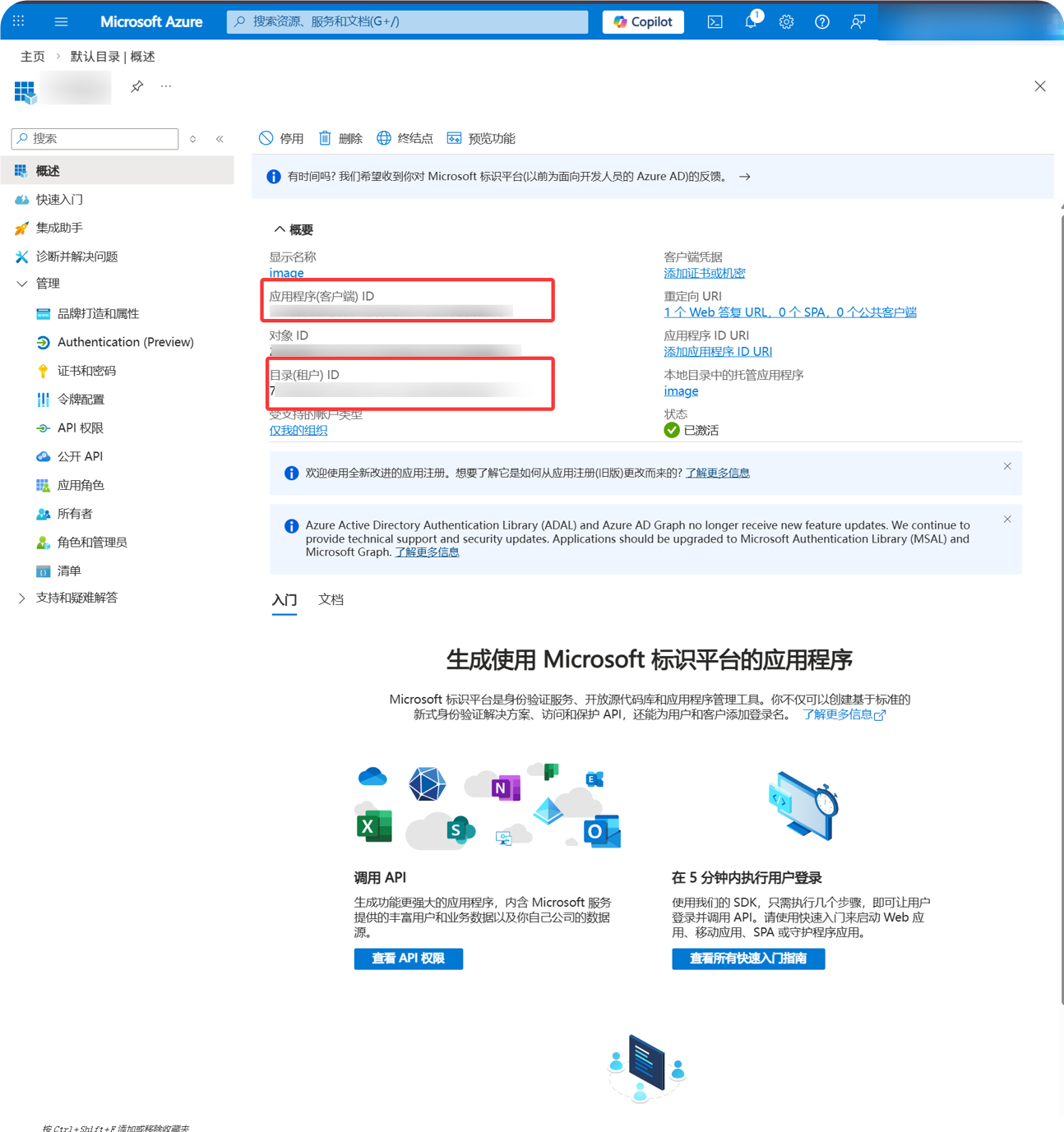
App ဖန်တီးပြီးနောက် overview page မှ အောက်ပါတန်ဖိုးများကို ကူးယူပါ။
| Microsoft အကွက် | ImgHost အကွက် |
|---|---|
Application (client) ID | Client ID |
Directory (tenant) ID | Organizational account များအတွက် Tenant ID |
အဆင့် 4: Client Secret ဖန်တီးပါ
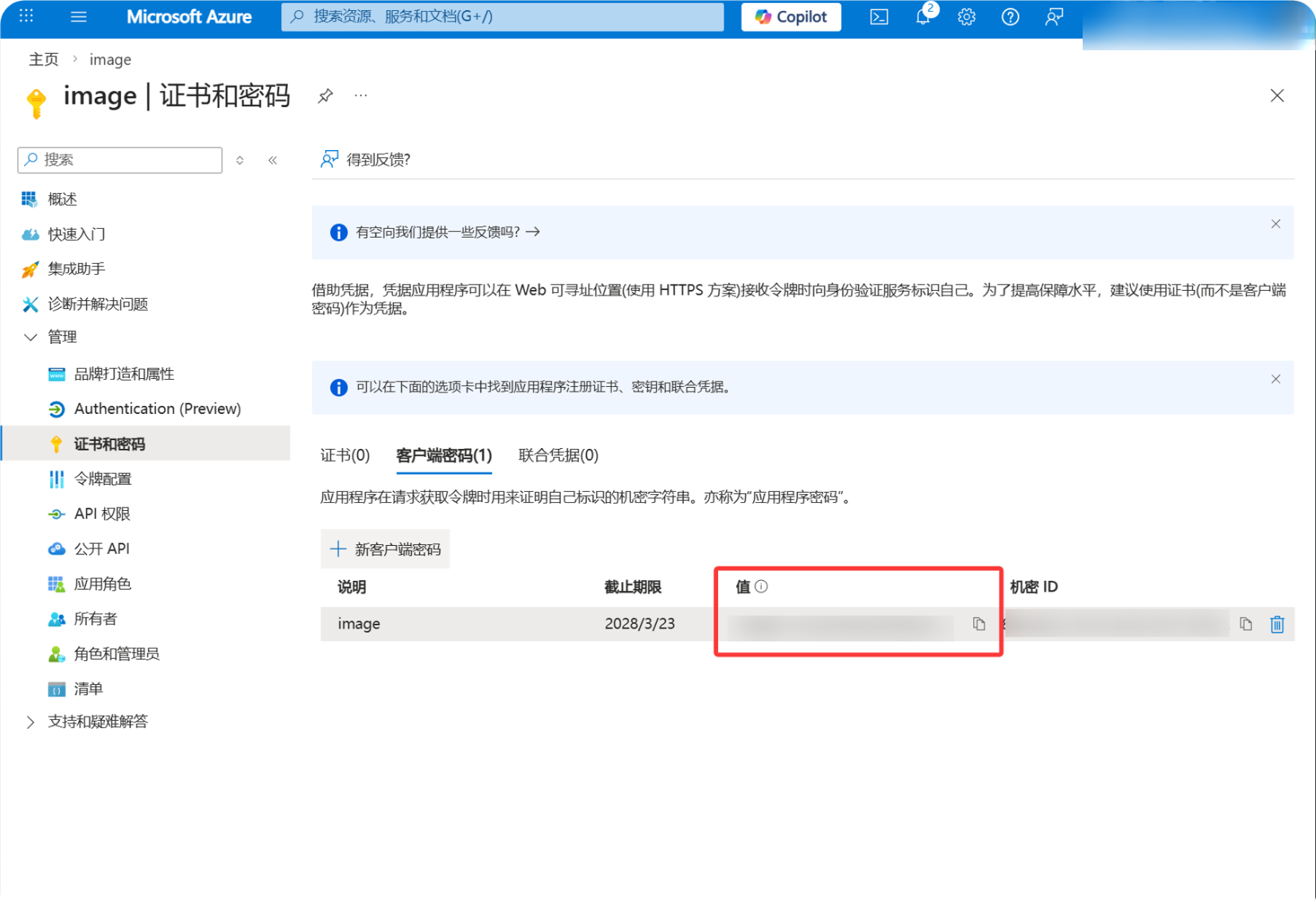
Certificates & secretsကိုဖွင့်ပါ။New client secretကိုနှိပ်ပါ။- သင်နှစ်သက်သည့် description တစ်ခုကို ထည့်ပါ။
- Expiration period ကိုရွေးပါ။
- ဖန်တီးပြီးသည်နှင့်
Valueကို ချက်ချင်း ကူးယူပါ။
အဆင့် 5: API Permission များ ထည့်ပါ
API permissionsကိုဖွင့်ပါ။Add a permissionကိုနှိပ်ပါ။Microsoft Graphကိုရွေးပါ။Delegated permissionsကိုရွေးပါ။- အောက်ပါ permission များကို ထည့်ပါ။
| Permission | ရည်ရွယ်ချက် |
|---|---|
Files.ReadWrite.All | ဖိုင်များကို အပ်လုဒ်လုပ်ခြင်း၊ folder များဖန်တီးခြင်းနှင့် ဖိုင်များဖျက်ခြင်း |
offline_access | ImgHost ကို Refresh Token ရယူခွင့်ပြုသည် |
User.Read | Account နှင့် quota information ကိုဖတ်သည် |
အဆင့် 6: OneDrive Channel ကိုဖြည့်ပါ
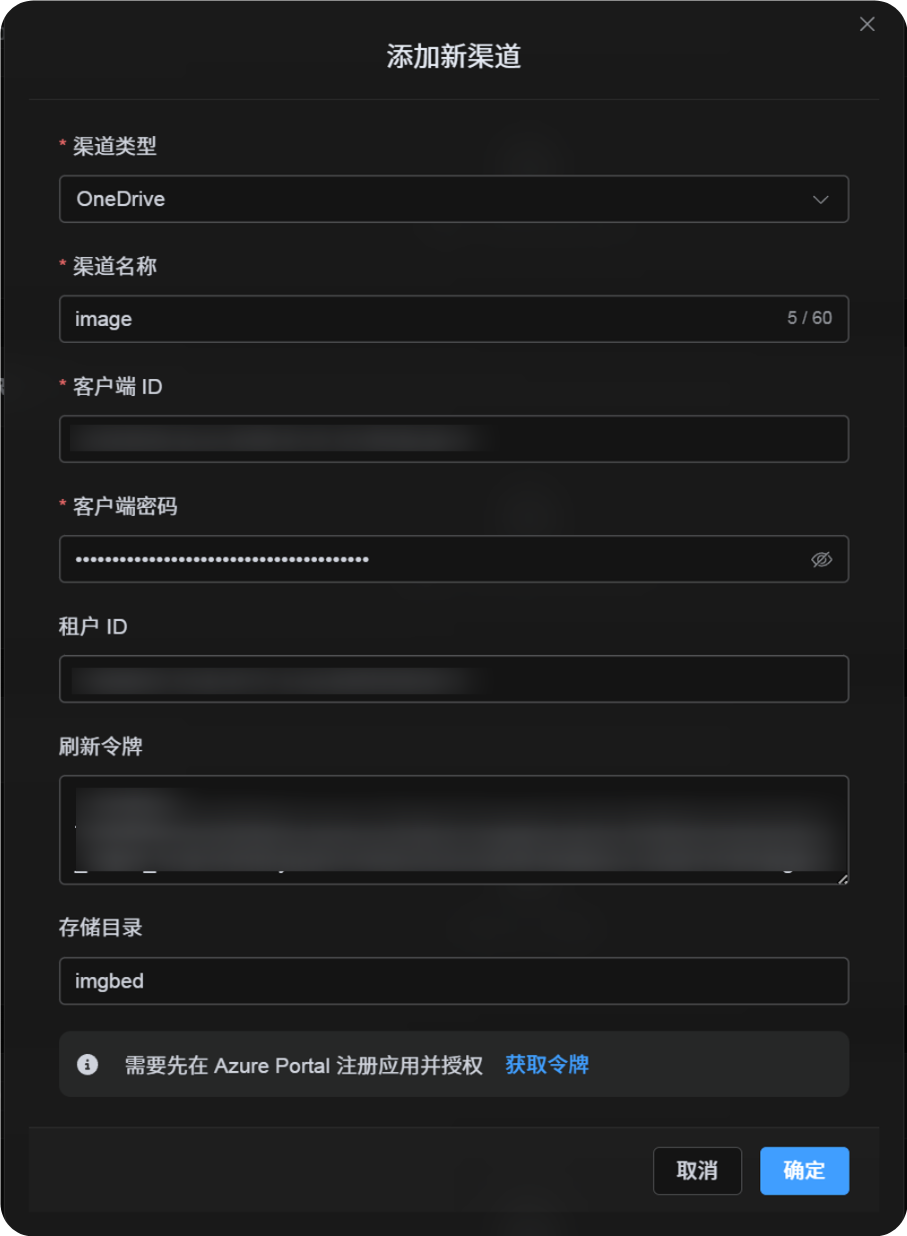
အပ်လုဒ် ဆက်တင်များ တွင် OneDrive ကိုရွေးပြီး အောက်ပါအတိုင်း ဖြည့်ပါ။
| ImgHost အကွက် | ထည့်ရန်အရာ |
|---|---|
| ချန်နယ်အမည် | မှတ်မိလွယ်သောအမည်၊ ဥပမာ Main OneDrive |
| Client ID | Microsoft Application (client) ID |
| Client Secret | သင်ကူးယူထားသော Client Secret Value |
| Tenant ID | အောက်ပါဇယားကို အသုံးပြုပါ |
| Refresh Token | ယခုအချိန်တွင် အလွတ်ထားပါ |
| အမြစ် ဖိုင်တွဲ | ရွေးချယ်နိုင်သည်။ မူရင်း သည် imgbed ဖြစ်သည်။ |
| Note | ရွေးချယ်နိုင်သည် |
Tenant ID ဖြည့်နည်း-
| သင်ရွေးထားသော Account Type | ImgHost Tenant ID |
|---|---|
| Personal accounts | consumers |
| Personal + organizational accounts | common |
| Current organization only | Directory (tenant) ID |
အဆင့် 7: Refresh Token ရယူပါ
- ImgHost တွင်
Get Tokenကိုနှိပ်ပါ။ - ချိတ်ဆက်လိုသော Microsoft အကောင့်သို့ sign in ဝင်ပါ။
- Authorization prompt ကို approve လုပ်ပါ။
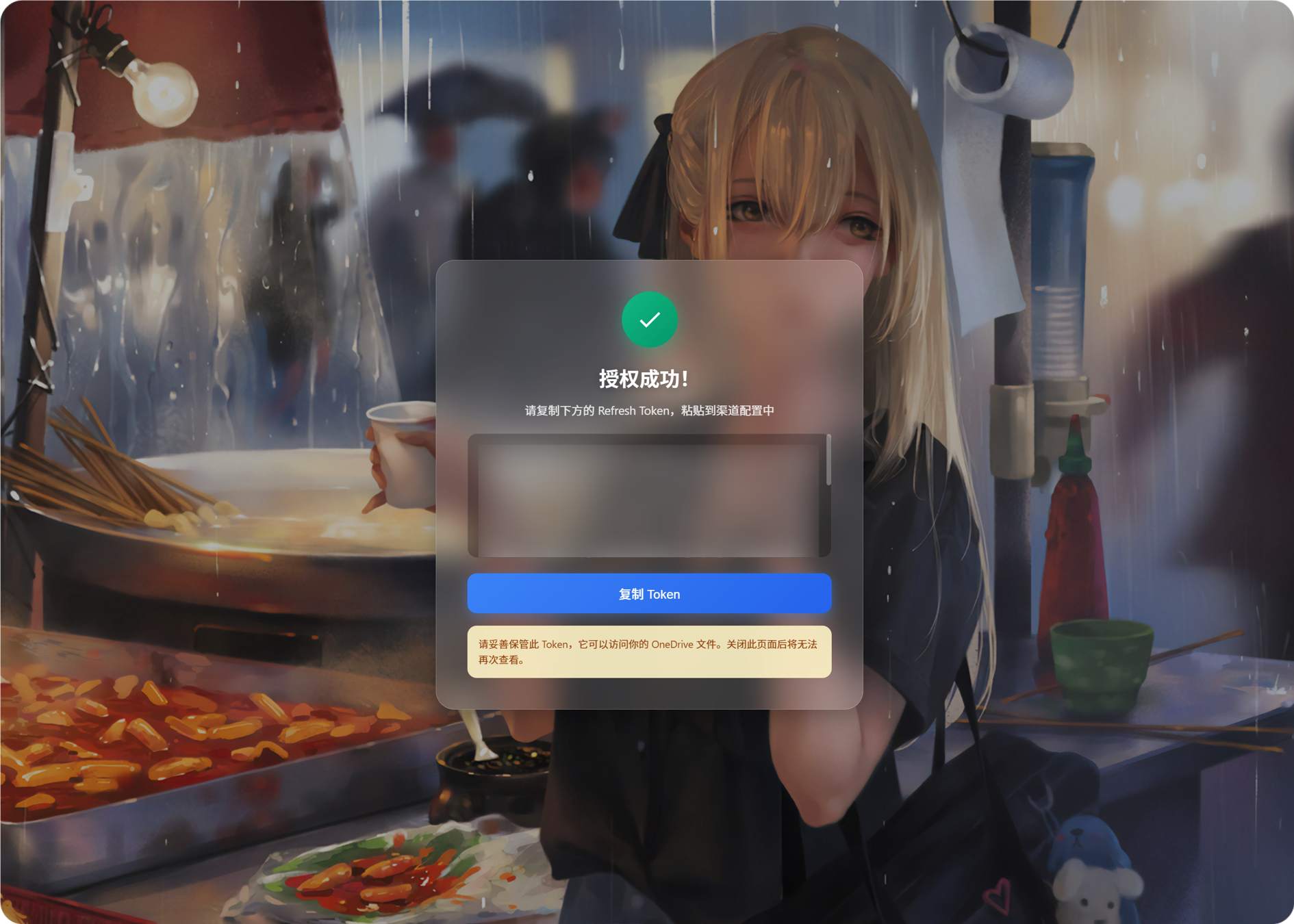
- Callback စာမျက်နှာတွင်
Refresh Tokenကိုပြမည်။ - ၎င်းကိုကူးယူပါ။
- ImgHost သို့ ပြန်သွားပြီး
Refresh Tokenအကွက်ထဲသို့ paste လုပ်ပါ။
အဆင့် 8: Channel ကိုသိမ်းပါ
အကွက် အားလုံးဖြည့်ပြီးပါက channel ကိုသိမ်းပါ။
အမြန် Flow
text
Open portal.azure.com
-> Search for Microsoft Entra ID
-> Open App registrations
-> Register a new app
-> Fill Name / Supported account types / Web redirect URI
-> Register
-> Copy Application (client) ID
-> Check the callback URL in Authentication
-> Create a Client Secret in Certificates & secrets
-> Add permissions in API permissions
-> Fill Client ID / Client Secret / Tenant ID into ImgHost
-> Click Get Token
-> Copy the Refresh Token from the callback page
-> Paste it back into ImgHost and save
ကိုးကားချက်များ
- Microsoft Entra app registration: https://learn.microsoft.com/en-us/entra/identity-platform/quickstart-register-app
- Microsoft identity platform authorization code flow: https://learn.microsoft.com/en-us/entra/identity-platform/v2-oauth2-auth-code-flow
- Microsoft Graph user authentication: https://learn.microsoft.com/en-us/graph/auth-v2-user