OneDrive சேனல் சேர்க்கவும்
தொடங்குவதற்கு முன் தேவையானவை
| தேவை | ஏன் தேவை |
|---|---|
| Microsoft கணக்கு | Microsoft admin pages அணுகவும் OneDrive authorize செய்யவும் |
| உங்கள் ImgHost டொமைன் | OAuth callback URL-க்கு |
| செயலி registration | Client ID மற்றும் Client Secret உருவாக்க |
| OneDrive கணக்கு | உண்மையான கோப்பு சேமிப்பு location ஆக |
அமைப்பு படிகள்
படி 1: Microsoft Entra ID திறக்கவும்
portal.azure.comதிறக்கவும்.- மேலே search-ல்
Microsoft Entra IDதேடவும். - target page dropdown-ல் தெரியவில்லை என்றால்:
text
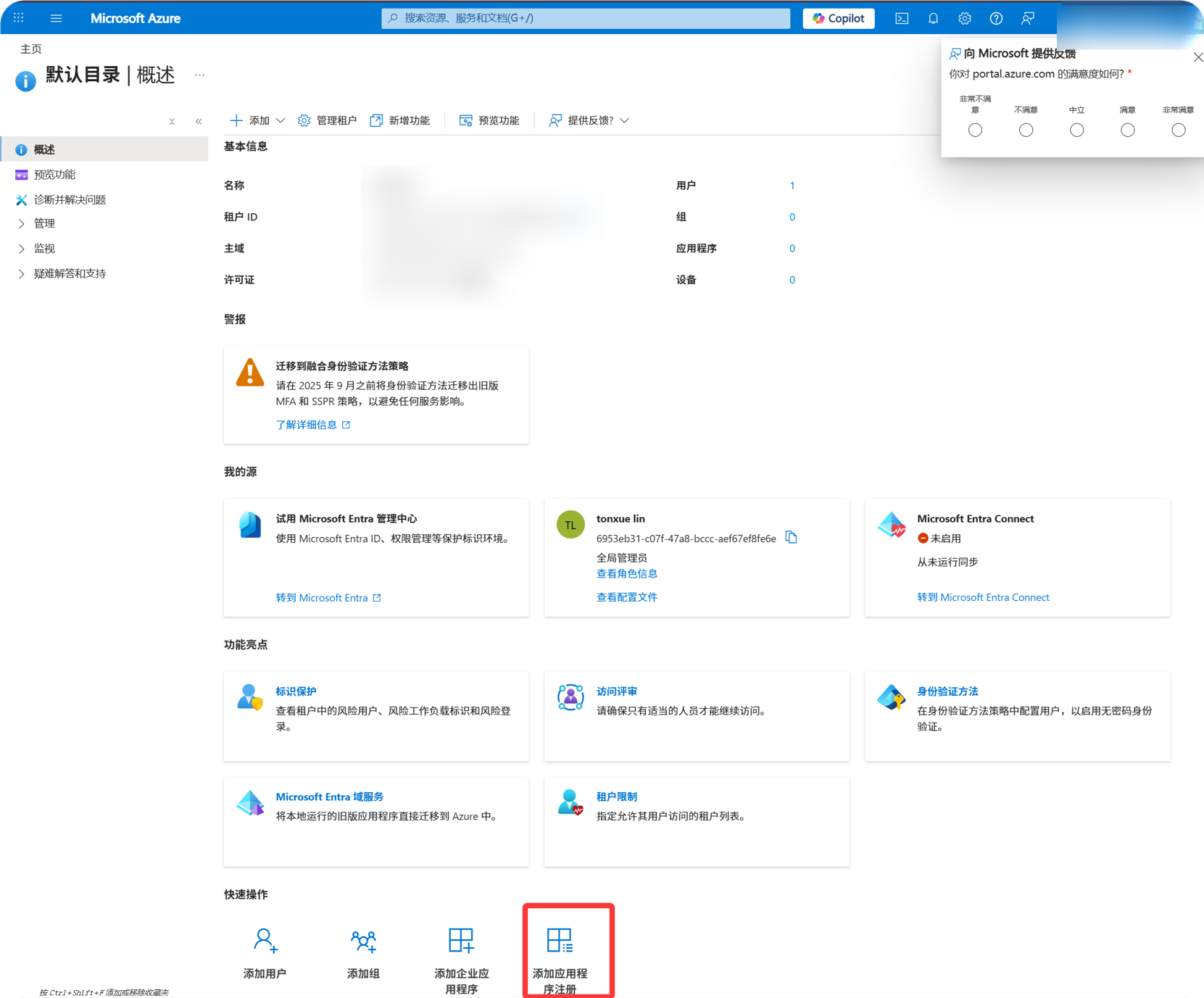
Continue searching in Microsoft Entra IDMicrosoft Entra IDதிறக்கவும்.App registrationsதிறக்கவும்.New registrationகிளிக் செய்யவும்.
படி 2: செயலி Register செய்யவும்
New registration page-ல்:
| புலம் | எதை உள்ளிட வேண்டும் |
|---|---|
| Name | அறியக்கூடிய பெயர், உதா. imgbed-onedrive |
| Supported கணக்கு types | கீழே உள்ள table படி தேர்வு செய்யவும் |
| Redirect URI type | Web |
| Redirect URI | https://your-domain.com/api/oauth/onedrive/callback |
கணக்கு type வழிகாட்டி:
| உங்கள் Scenario | Supported கணக்கு Types |
|---|---|
| Personal OneDrive மட்டும் | personal Microsoft கணக்கு option தேர்வு செய்யவும். |
| தனிப்பட்ட மற்றும் work/school கணக்குகள் இரண்டும் | இரண்டையும் support செய்யும் option-ஐத் தேர்வு செய்யவும். |
| நிறுவனம் அல்லது school OneDrive மட்டும் | organizational கணக்கு option-ஐத் தேர்வு செய்யவும். |
form நிரப்பிய பிறகு register என்பதைக் கிளிக் செய்யவும்.
படி 3: செயலி தகவலை நகலெடுக்கவும்
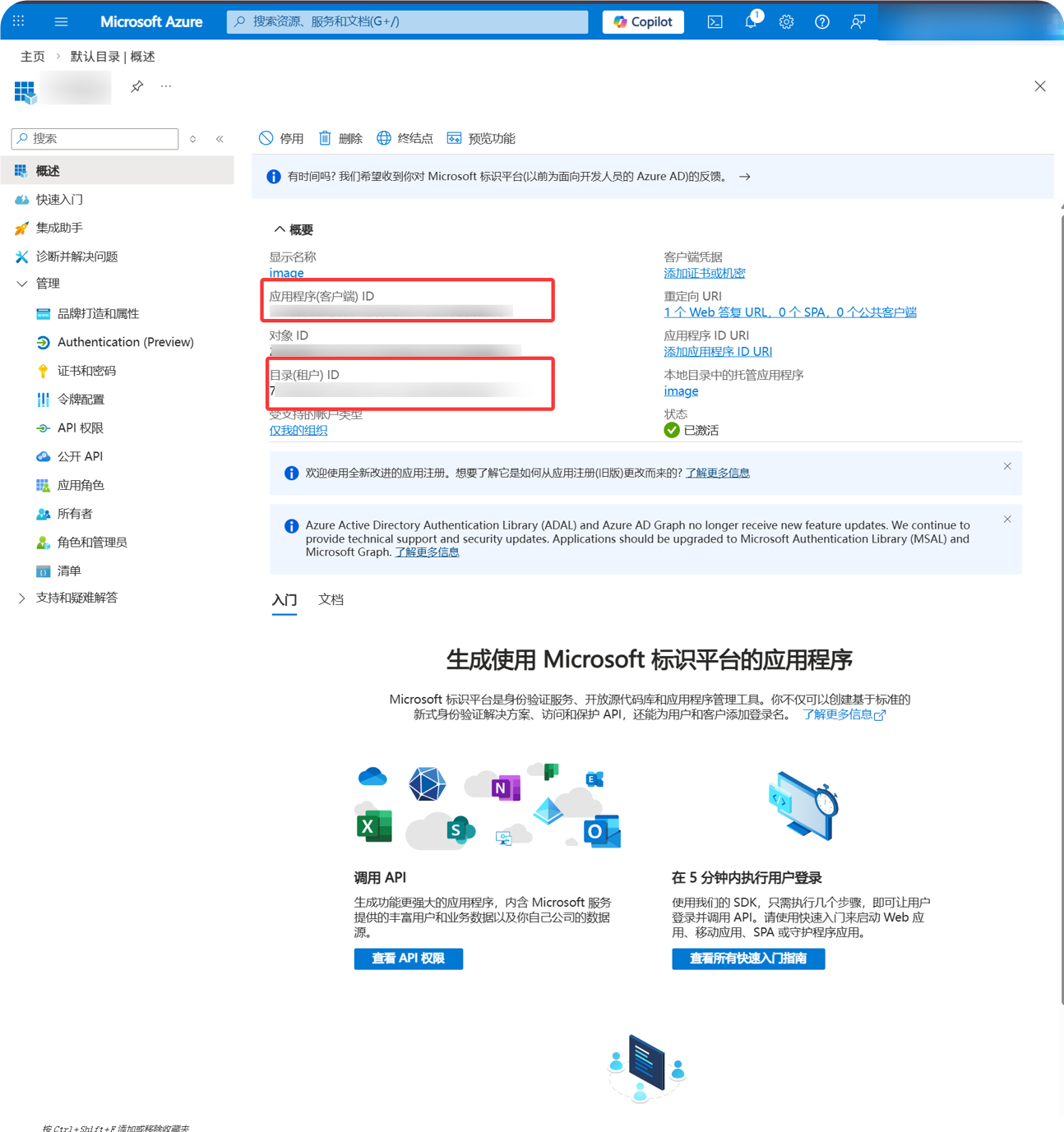
செயலி உருவான பிறகு overview page-ல் இருந்து:
| Microsoft புலம் | ImgHost புலம் |
|---|---|
Application (client) ID | Client ID |
Directory (tenant) ID | organizational கணக்குகளுக்கான Tenant ID |
படி 4: Client Secret உருவாக்கவும்
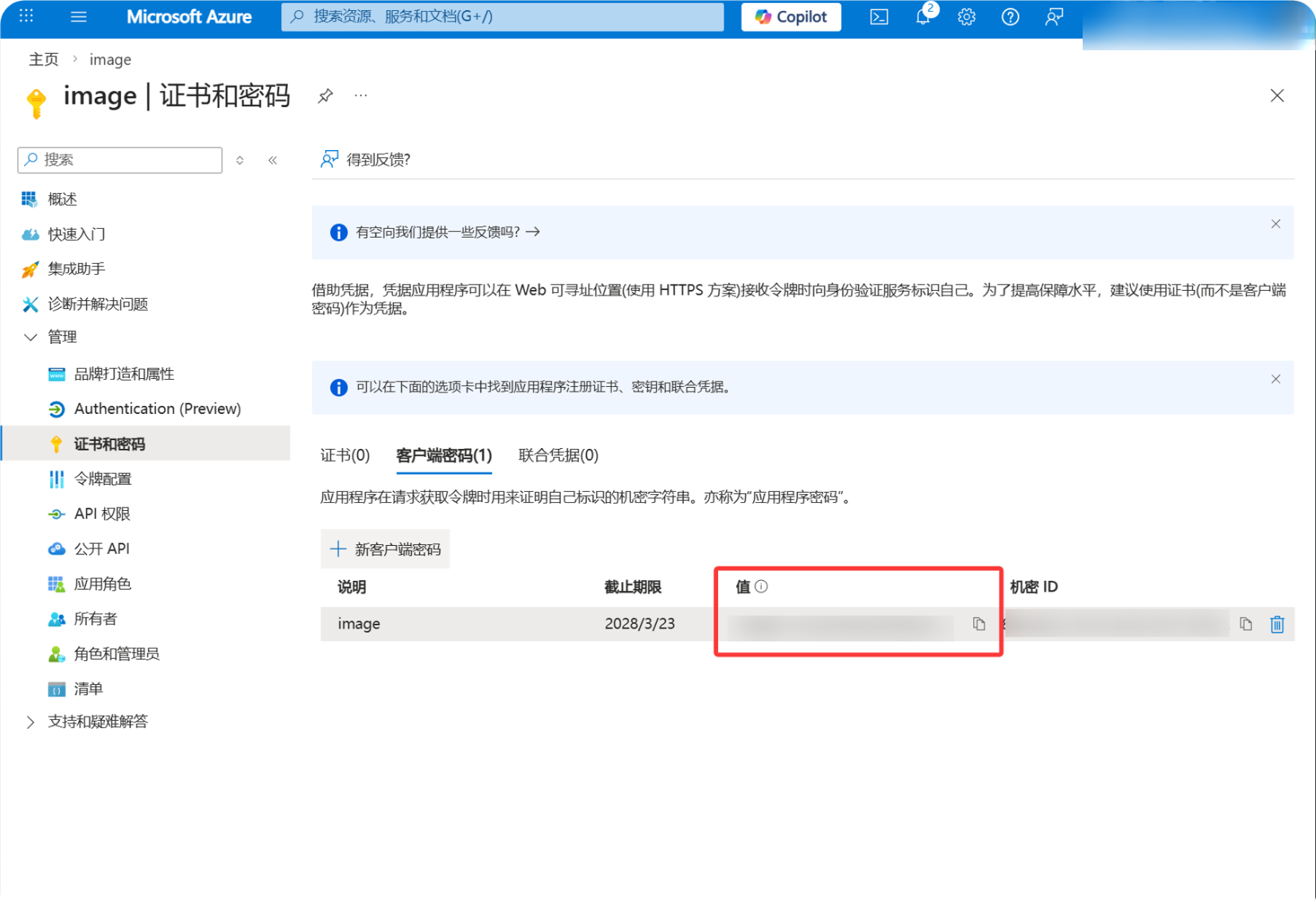
Certificates & secretsதிறக்கவும்.New client secretகிளிக் செய்யவும்.- விரும்பிய விளக்கத்தை உள்ளிடவும்.
- காலாவதி காலத்தைத் தேர்வு செய்யவும்.
- உருவானதும்
Value-ஐ உடனே நகலெடுக்கவும்.
படி 5: API அனுமதிகளைச் சேர்க்கவும்
API permissionsதிறக்கவும்.Add a permissionகிளிக் செய்யவும்.Microsoft Graphதேர்வு செய்யவும்.Delegated permissionsதேர்வு செய்யவும்.- இந்த permissions-ஐச் சேர்க்கவும்:
| அனுமதி | நோக்கம் |
|---|---|
Files.ReadWrite.All | கோப்புகளைப் பதிவேற்ற, folders உருவாக்க, கோப்புகளை நீக்க |
offline_access | ImgHost Refresh Token பெற அனுமதிக்கிறது |
User.Read | கணக்கு மற்றும் quota தகவலைப் படிக்கிறது |
படி 6: ImgHost-ல் OneDrive சேனல் நிரப்பவும்
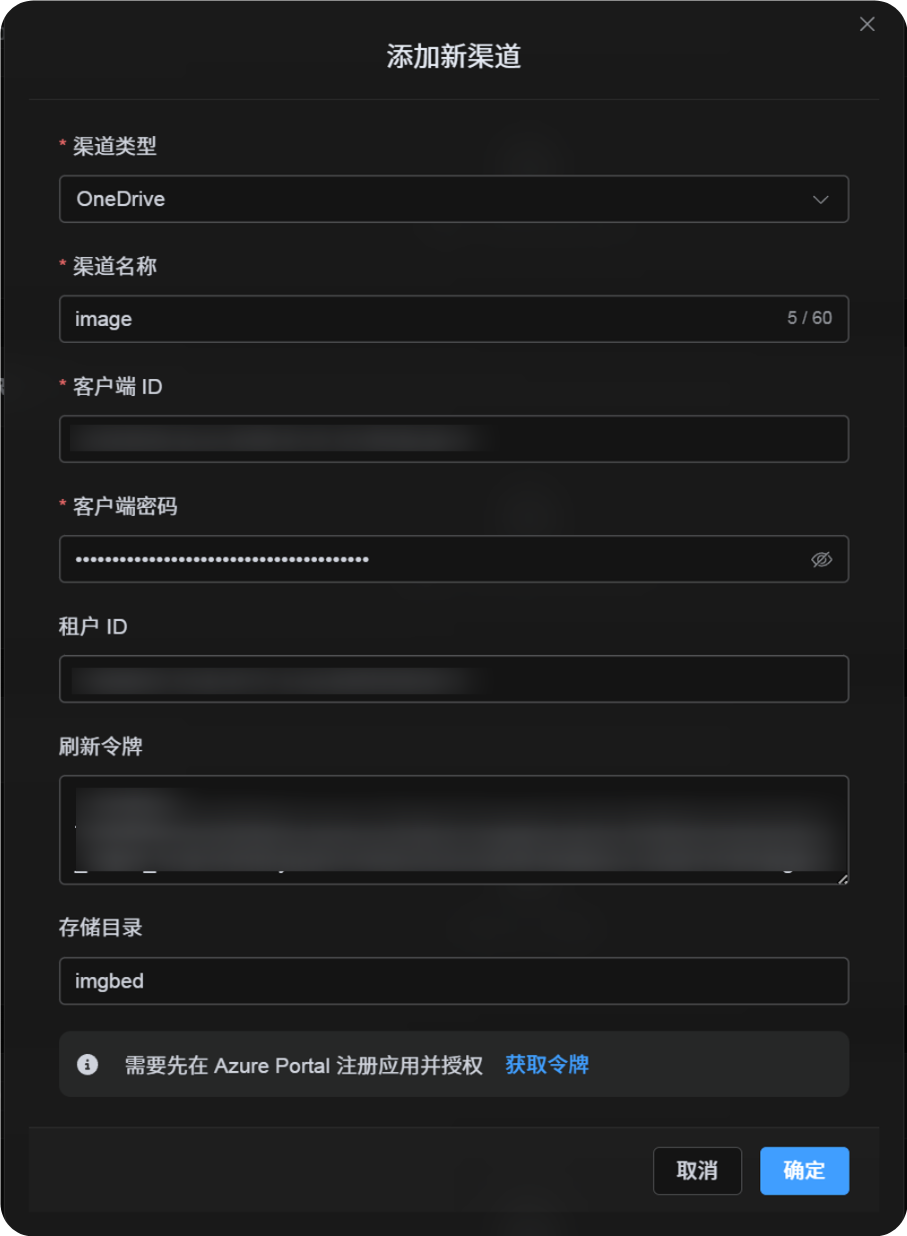
பதிவேற்ற அமைப்புகள்-ல் OneDrive தேர்வு செய்து:
| ImgHost புலம் | எதை உள்ளிட வேண்டும் |
|---|---|
| சேனல் பெயர் | அறியக்கூடிய பெயர், உதா. Main OneDrive |
| Client ID | Microsoft Application (client) ID |
| Client Secret | நகலெடு செய்த Client Secret Value |
| Tenant ID | கீழே உள்ள table படி |
| Refresh டோக்கன் | இப்போது காலியாக விடவும் |
| வேர் அடைவு | விருப்பத்தேர்வு. இயல்புநிலை imgbed. |
| குறிப்பு | விருப்பத்தேர்வு |
Tenant ID நிரப்புவது:
| நீங்கள் தேர்வு செய்த கணக்கு வகை | ImgHost Tenant ID |
|---|---|
| தனிப்பட்ட கணக்குகள் | consumers |
| தனிப்பட்ட + நிறுவனம் சார்ந்த கணக்குகள் | common |
| தற்போதைய நிறுவனம் மட்டும் | Directory (tenant) ID |
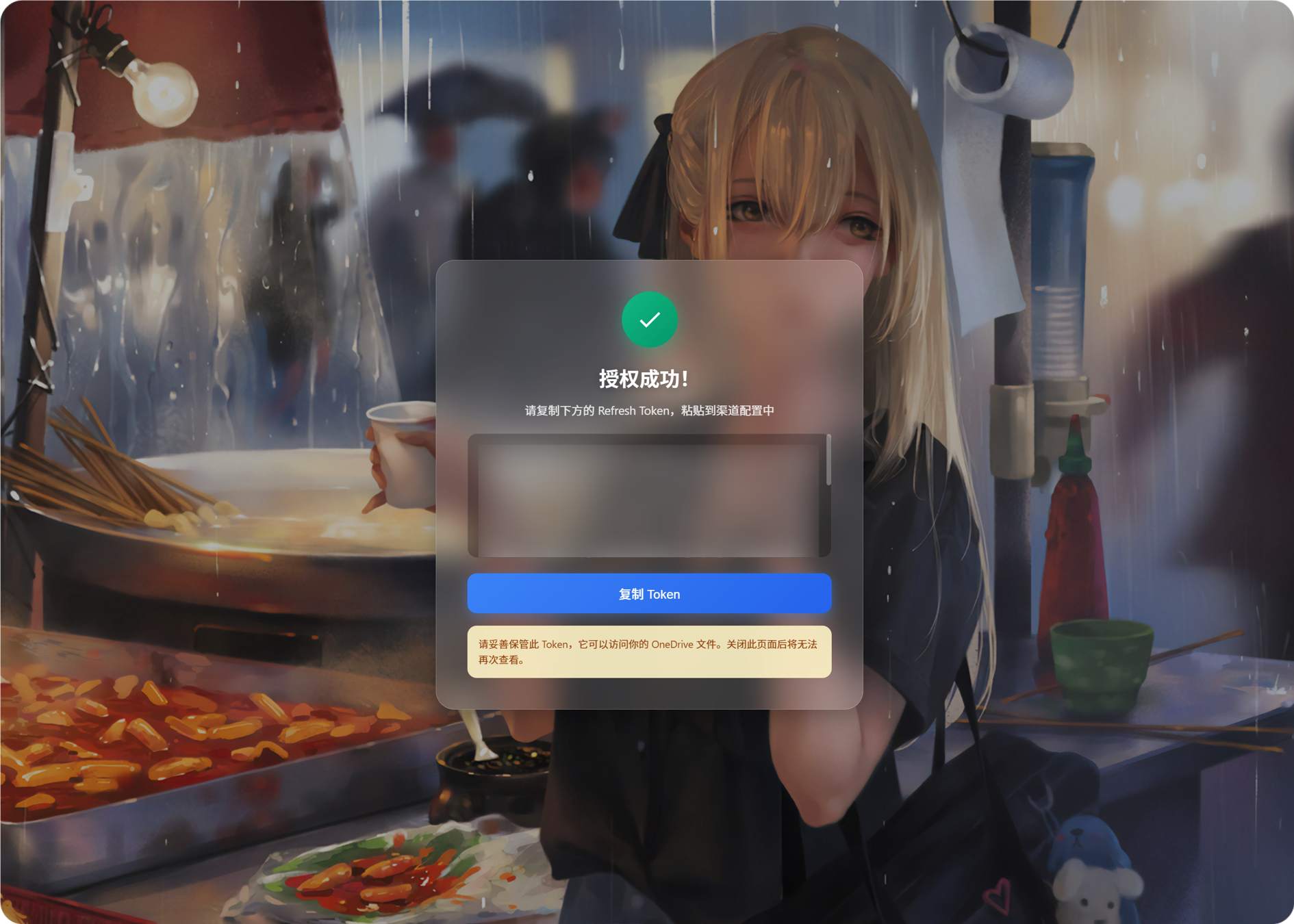
படி 7: Refresh டோக்கன் பெறவும்
- ImgHost-ல்
Get Tokenகிளிக் செய்யவும். - இணைக்க வேண்டிய Microsoft கணக்கில் உள்நுழையவும்.
- authorization prompt-ஐ அனுமதிக்கவும்.
- callback page
Refresh Tokenகாட்டும். - அதை நகலெடுக்கவும்.
- ImgHost-க்கு திரும்பி, அதை
Refresh Tokenபுலத்தில் ஒட்டவும்.
படி 8: சேனல் சேமி செய்யவும்
அனைத்து புலங்களையும் நிரப்பிய பிறகு சேனலை சேமிக்கவும்.
விரைவு ஓட்டம்
text
Open portal.azure.com
-> Search for Microsoft Entra ID
-> Open App registrations
-> Register a new app
-> Fill Name / Supported account types / Web redirect URI
-> Register
-> Copy Application (client) ID
-> Check the callback URL in Authentication
-> Create a Client Secret in Certificates & secrets
-> Add permissions in API permissions
-> Fill Client ID / Client Secret / Tenant ID into ImgHost
-> Click Get Token
-> Copy the Refresh Token from the callback page
-> Paste it back into ImgHost and save
மேற்கோள்கள்
- Microsoft Entra செயலி registration: https://learn.microsoft.com/en-us/entra/identity-platform/quickstart-register-app
- Microsoft identity platform authorization code flow: https://learn.microsoft.com/en-us/entra/identity-platform/v2-oauth2-auth-code-flow
- Microsoft Graph user authentication: https://learn.microsoft.com/en-us/graph/auth-v2-user