WebDAV தள அணுகல்
பாதுகாப்பு அமைப்புகளில் உள்ள WebDAV அமைப்பு, உங்கள் ImgHost தளத்தை WebDAV முனையமாக வெளியிடும்.
இது இயக்கப்பட்ட பிறகு, Windows, macOS, மொபைல் கோப்பு மேலாளர்கள் அல்லது WebDAV-க்கு இணங்கும் எந்த கிளையன்டையும் பயன்படுத்தி ImgHost கோப்புகளை தொலை கோப்புறையைப் போல உலாவலாம், பதிவேற்றலாம், நீக்கலாம் மற்றும் நிர்வகிக்கலாம்.
இது தளத்திற்கான WebDAV அணுகல் நுழைவு. பதிவேற்ற அமைப்புகளில் உள்ள WebDAV சேமிப்பு சேனலிலிருந்து இது வேறுபடும். பதிவேற்ற சேனல் மூன்றாம் தரப்பு WebDAV சேவையில் கோப்புகளைச் சேமிக்கும். இந்த அமைப்பு உங்கள் ImgHost தளம் கிளையன்ட்களுக்கு WebDAV அணுகலை வழங்க அனுமதிக்கும்.
எங்கே அமைப்பது
நிர்வாகப் பலகையைத் திறந்து இங்கே செல்லவும்:
text
System Settings -> Security Settings -> WebDAVகிடைக்கும் அமைப்புகள்:
- இயக்கு
- பயனர்பெயர்
- கடவுச்சொல்
- படம் ஏற்றும் முறை
- இயல்புநிலை சேனல்
இந்த அம்சம் என்ன செய்கிறது
WebDAV இயக்கப்பட்ட பிறகு, ImgHost ஒரு நிலையான அணுகல் URL வழங்கும்:
text
https://your-domain.com/davஉங்கள் ImgHost கோப்பு அடைவுடன் இணைக்க இந்த URL-ஐ பயன்படுத்தவும்.
பயனுள்ள பயன்பாடுகள்:
- உங்கள் கணினியின் கோப்பு மேலாளரிலிருந்து ImgHost கோப்புகளை நேரடியாக உலாவலாம்.
- படங்களை WebDAV கோப்புறைக்குள் இழுத்து விடுவதன் மூலம் பதிவேற்றலாம்.
- உள்ளூர் கோப்பு மேலாளரிலிருந்து ImgHost கோப்புறைகளை ஒழுங்குபடுத்தலாம்.
- படங்களை ஒத்திசைக்க அல்லது நிர்வகிக்க WebDAV-க்கு இணங்கும் மென்பொருளைப் பயன்படுத்தலாம்.
- நிர்வாகப் பலகையைத் திறக்காமல் ImgHost உள்ளடக்கத்தை அணுகலாம்.
அமைப்புகள்
இயக்கு
WebDAV முனையத்தை இயக்கும்.
இது அணைக்கப்பட்டால், கிளையன்ட்கள் WebDAV வழியாக இணைக்க முடியாது.
பயனர்பெயரும் கடவுச்சொல்லும்
இணைக்கும் போது WebDAV கிளையன்ட்கள் இந்த சான்றுகளைப் பயன்படுத்தும்.
WebDAV-க்காக தனியான பயனர்பெயர் மற்றும் கடவுச்சொல்லைப் பயன்படுத்தவும். நிர்வாகி கடவுச்சொல்லையோ பதிவேற்ற கடவுச்சொல்லையோ மீண்டும் பயன்படுத்த வேண்டாம்.
பயனர்பெயர் அல்லது கடவுச்சொல் காலியாக இருந்தால், WebDAV கிளையன்ட்கள் சரியாக இணைக்க முடியாது.
படம் ஏற்றும் முறை
படங்களைப் படிக்கும் போது WebDAV கிளையன்ட்கள் எந்த பட URL-ஐ முன்னுரிமை அளிக்க வேண்டும் என்பதை படம் ஏற்றும் முறை தீர்மானிக்கும்.
பொதுவான தேர்வுகள்:
| முறை | விளக்கம் |
|---|---|
| நுண்ணறிவு ஏற்றம் | ImgHost சூழலை அடிப்படையாகக் கொண்டு தேர்வு செய்யும். வழக்கமான பயன்பாட்டுக்கு பரிந்துரைக்கப்படுகிறது. |
| அசல் | அசல் படங்களுக்கு முன்னுரிமை கொடு. |
| சிறுபடம் | சிறுபடங்களுக்கு முன்னுரிமை கொடு. விரைவான முன்னோட்டத்திற்கு பயனுள்ளது. |
சந்தேகம் இருந்தால், நுண்ணறிவு ஏற்றம் வைத்திருக்கவும்.
இயல்புநிலை சேனல்
இயல்புநிலை சேனல் WebDAV பதிவேற்றங்களுக்கு பயன்படுத்தப்படும்.
Windows அல்லது வேறு கிளையன்டிலிருந்து WebDAV அடைவுக்குள் கோப்புகளை நகலெடுத்தால், ImgHost அவற்றைத் தேர்ந்தெடுக்கப்பட்ட இயல்புநிலை பதிவேற்ற சேனல் வழியாக பதிவேற்றும்.
இயல்புநிலை சேனல் தேர்ந்தெடுக்கப்படவில்லை என்றால், உலாவல் வேலை செய்யலாம்; ஆனால் பதிவேற்றம் தோல்வியடையலாம்.
Windows 11-இல் WebDAV அணுகுதல்
Windows 11 WebDAV-ஐ பிணைய இருப்பிடமாகச் சேர்க்க முடியும்.
இந்த கணினிதிறக்கவும்.பிணைய இருப்பிடத்தைச் சேர்க்கவும்தேர்வு செய்யவும்.https://your-domain.com/davஉள்ளிடவும்.- கேட்கப்பட்டால் WebDAV பயனர்பெயர் மற்றும் கடவுச்சொல்லை உள்ளிடவும்.
- வழிகாட்டியை முடிக்கவும். அதன் பிறகு WebDAV அடைவை கோப்பு எக்ஸ்ப்ளோரரில் திறக்கலாம்.
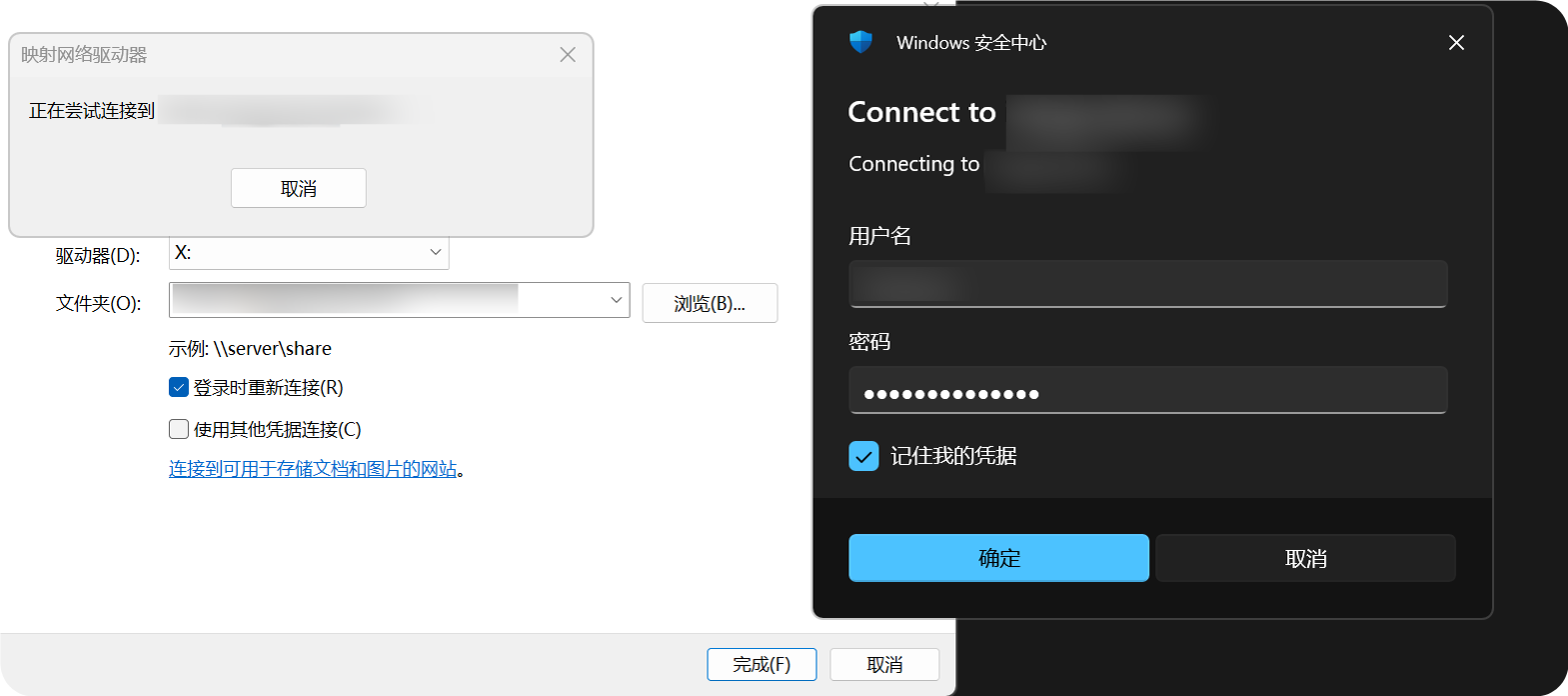
சேர்த்த பிறகு, WebDAV அடைவு Windows கோப்பு எக்ஸ்ப்ளோரரில் தோன்றும். வழக்கமான கோப்புறையைப் போல அதைத் திறக்கவும், நகலெடுக்கவும், கோப்புகளை நிர்வகிக்கவும் முடியும்.
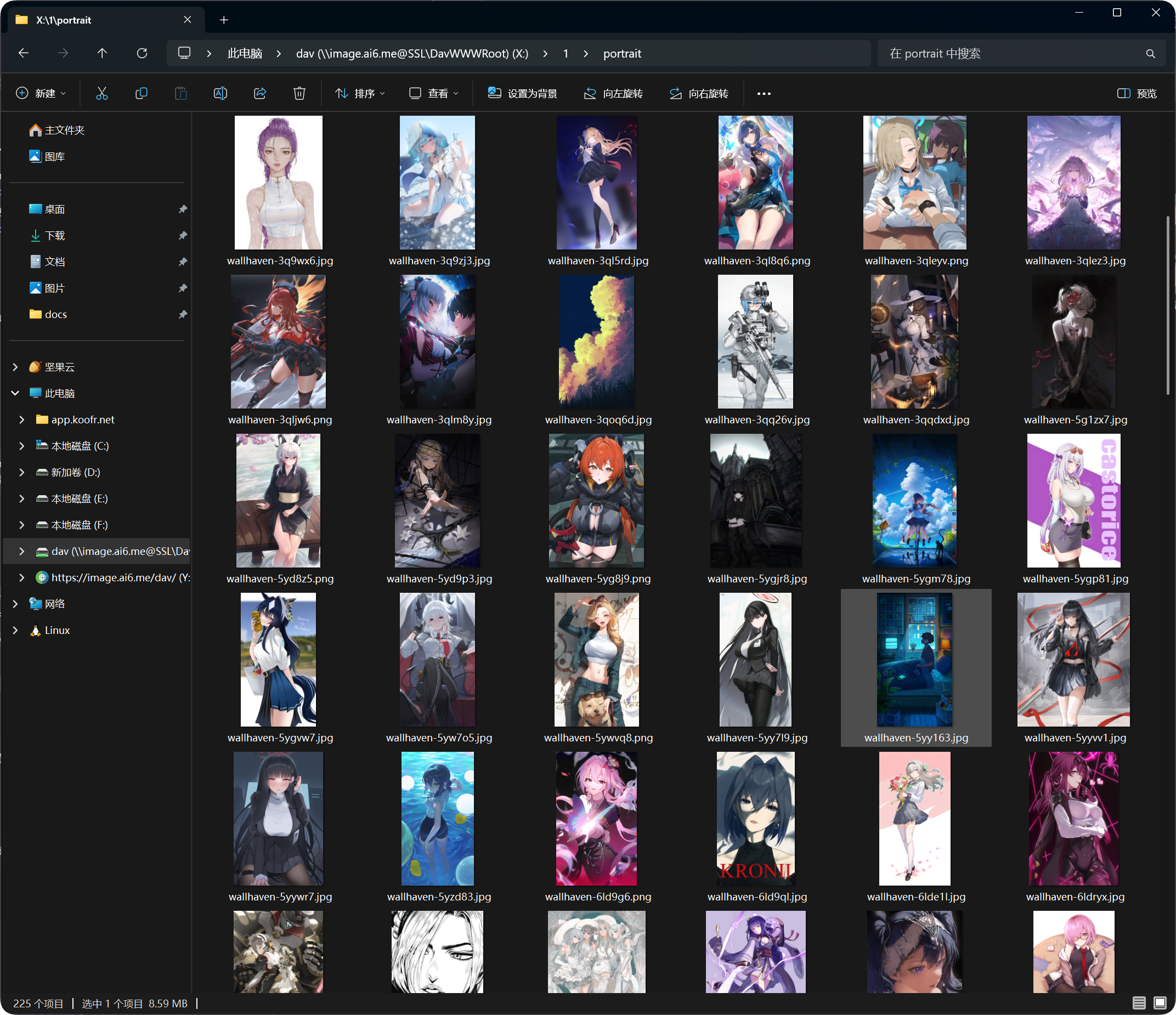
ஆதரிக்கப்படும் செயல்கள்
WebDAV இணைப்பு வெற்றியாகிய பிறகு, பொதுவாக பின்வருவன செய்யலாம்:
- கோப்புகள் மற்றும் கோப்புறைகளைப் பார்க்கலாம்.
- கோப்புகளை பதிவேற்றலாம்.
- கோப்புறைகளை உருவாக்கலாம்.
- கோப்புகள் அல்லது கோப்புறைகளின் பெயரை மாற்றலாம்.
- கோப்புகளை நகர்த்தலாம்.
- கோப்புகளை நீக்கலாம்.
WebDAV அன்றாட அணுகலுக்கும் சிறிய அளவிலான கோப்பு மேலாண்மைக்கும் சிறந்தது. பெரிய நகர்த்தல்கள், மொத்த நீக்கங்கள் அல்லது சிக்கலான ஒழுங்குபடுத்தல்களுக்கு நிர்வாகப் பலகையைப் பயன்படுத்தவும்.
உள்நுழைவு சாதன மேலாண்மை
வெற்றிகரமான WebDAV இணைப்புகளும் உள்நுழைவு சாதன மேலாண்மையில் உள்ள WebDAV தாவலில் தோன்றும்.
அங்கு WebDAV கிளையன்ட்களைப் பார்வையிடலாம்; தேவையானபோது பழைய சாதனங்களை கட்டாயமாக ஆஃப்லைனாக்கலாம்.
WebDAV பயனர்பெயர் அல்லது கடவுச்சொல்லை மாற்றினால், பழைய கிளையன்ட்கள் மீண்டும் உள்நுழைய வேண்டும்.
FAQ
Windows மீண்டும் மீண்டும் பயனர்பெயரும் கடவுச்சொல்லும் கேட்கிறது
சரிபார்க்கவும்:
- URL
https://your-domain.com/davஆக இருக்க வேண்டும். - பயனர்பெயரும் கடவுச்சொல்லும் WebDAV அமைப்புகளுடன் பொருந்த வேண்டும்.
- WebDAV இயக்கப்பட்டிருக்க வேண்டும்.
- தளத்தை HTTPS வழியாக அணுக முடிகிறதா பார்க்கவும்.
உலாவல் வேலை செய்கிறது, ஆனால் பதிவேற்றம் தோல்வியடைகிறது
இயல்புநிலை சேனல்-ஐ சரிபார்க்கவும்.
WebDAV பதிவேற்றங்களுக்கு இயல்புநிலை பதிவேற்ற சேனல் தேவை. அது இல்லையெனில், அணைக்கப்பட்டிருந்தால் அல்லது தவறாக அமைக்கப்பட்டிருந்தால், பதிவேற்றங்கள் தோல்வியடையலாம்.
அணுகல் வேகம் நிலையாக இல்லை
WebDAV செயல்திறன் கிளையன்ட், பிணையம், கோப்பு எண்ணிக்கை மற்றும் இயல்புநிலை பதிவேற்ற சேனலைப் பொறுத்தது.
ஒரு அடைவில் பல கோப்புகள் இருந்தால், மிக அதிக கோப்புகளை ஒரே அடைவில் வைத்திருப்பதற்குப் பதிலாக அவற்றை கோப்புறைகளில் ஒழுங்குபடுத்தவும்.
பாதுகாப்பு பரிந்துரைகள்
- WebDAV அணுகலுக்கு HTTPS பயன்படுத்தவும்.
- வலுவான கடவுச்சொல் அமைக்கவும்.
- WebDAV கடவுச்சொல்லை நம்பகமற்றவர்களுடன் பகிர வேண்டாம்.
- பயன்படுத்தாதபோது WebDAV-ஐ அணைக்கவும்.
- உள்நுழைவு சாதன மேலாண்மையில் பயன்படுத்தப்படாத WebDAV சாதனங்களை அவ்வப்போது சுத்தம் செய்யவும்.
WebDAV பதிவேற்ற கோப்பு அளவு
WebDAV கிளையன்ட்கள் உலாவி பதிவேற்றப் பக்கத்தின் பெரிய கோப்பு துண்டாக்கும் ஓட்டத்தைப் பயன்படுத்தாது. கீழே பரிந்துரைக்கப்பட்ட வரம்புகளை விட பெரிய கோப்புகளுக்கு, அதற்கு பதிலாக வலைப் பதிவேற்றப் பக்கத்தைப் பயன்படுத்தவும்.
| இயல்புநிலை பதிவேற்ற சேனல் | WebDAV-க்கான பரிந்துரைக்கப்பட்ட ஒற்றை கோப்பு வரம்பு |
|---|---|
| Telegram | 20 MB |
| Discord | 10 MB |
| Cloudflare R2 | 30 MB |
| S3 | 30 MB |
| GitHub Releases | 64 MB |
| GitLab Packages | 64 MB |
| Hugging Face | 20 MB |
| OneDrive | 30 MB |
| Google Drive | 30 MB |
| Dropbox | 30 MB |
| Yandex Disk | 30 MB |
| pCloud | 30 MB |
| WebDAV | 64 MB |