WebDAV سائٹ رسائی
سیکیورٹی ترتیبات میں WebDAV ترتیب آپ کی ImgHost سائٹ کو WebDAV رسائی نقطے کے طور پر ظاہر کرتی ہے۔
فعال ہونے کے بعد آپ Windows، macOS، موبائل فائل مینیجرز، یا WebDAV سے مطابقت رکھنے والے کسی بھی کلائنٹ کے ذریعے ImgHost فائلوں کو ریموٹ فولڈر کی طرح دیکھ، اپ لوڈ، حذف، اور منظم کر سکتے ہیں۔
یہ سائٹ کی WebDAV رسائی کا داخلہ ہے۔ یہ اپ لوڈ ترتیبات میں موجود WebDAV ذخیرہ چینل سے مختلف ہے۔ اپ لوڈ چینل فائلیں کسی فریق ثالث WebDAV سروس میں محفوظ کرتا ہے۔ یہ ترتیب آپ کی ImgHost سائٹ کو کلائنٹس کے لیے WebDAV رسائی فراہم کرنے دیتی ہے۔
کہاں ترتیب دیں
ایڈمن پینل کھولیں، پھر یہاں جائیں:
text
System Settings -> Security Settings -> WebDAVدستیاب ترتیبات:
- فعال کریں
- صارف نام
- پاس ورڈ
- تصویر لوڈنگ موڈ
- طے شدہ چینل
یہ خصوصیت کیا کرتی ہے
WebDAV فعال ہونے کے بعد ImgHost ایک مقررہ رسائی URL فراہم کرتا ہے:
text
https://your-domain.com/davاپنی ImgHost فائل ڈائریکٹری سے جڑنے کے لیے یہ URL استعمال کریں۔
مناسب استعمال کی صورتیں:
- اپنے کمپیوٹر کے فائل مینیجر سے ImgHost فائلیں براہ راست دیکھیں۔
- تصاویر WebDAV فولڈر میں گھسیٹ کر اپ لوڈ کریں۔
- مقامی فائل مینیجر سے ImgHost فولڈرز منظم کریں۔
- WebDAV سے مطابقت رکھنے والے سافٹ ویئر سے تصاویر ہم وقت یا منظم کریں۔
- ایڈمن پینل کھولے بغیر ImgHost مواد تک رسائی کریں۔
ترتیبات
فعال کریں
WebDAV رسائی نقطے کو آن کرتا ہے۔
غیر فعال ہونے پر کلائنٹس WebDAV کے ذریعے جڑ نہیں سکتے۔
صارف نام اور پاس ورڈ
یہ اسناد WebDAV کلائنٹس کنکشن بناتے وقت استعمال کرتے ہیں۔
ایک مخصوص WebDAV صارف نام اور پاس ورڈ استعمال کریں۔ ایڈمن پاس ورڈ یا اپ لوڈ پاس ورڈ دوبارہ استعمال نہ کریں۔
اگر صارف نام یا پاس ورڈ میں سے کوئی بھی خالی ہو تو WebDAV کلائنٹس درست طور پر جڑ نہیں سکیں گے۔
تصویر لوڈنگ موڈ
تصویر لوڈنگ موڈ طے کرتا ہے کہ تصاویر پڑھتے وقت WebDAV کلائنٹس کس تصویری URL کو ترجیح دیں۔
عام اختیارات:
| موڈ | وضاحت |
|---|---|
| ذہین لوڈنگ | ImgHost سیاق و سباق کے مطابق انتخاب کرتا ہے۔ معمول کے استعمال کے لیے تجویز کردہ۔ |
| اصل | اصل تصاویر کو ترجیح دیں۔ |
| تھمب نیل | تھمب نیلز کو ترجیح دیں۔ تیز پیش منظر کے لیے مفید۔ |
اگر یقین نہ ہو تو ذہین لوڈنگ برقرار رکھیں۔
طے شدہ چینل
طے شدہ چینل WebDAV اپ لوڈز کے لیے استعمال ہوتا ہے۔
جب آپ Windows یا کسی دوسرے کلائنٹ سے فائلیں WebDAV ڈائریکٹری میں کاپی کرتے ہیں تو ImgHost انہیں منتخب طے شدہ اپ لوڈ چینل کے ذریعے اپ لوڈ کرتا ہے۔
اگر کوئی طے شدہ چینل منتخب نہ ہو تو براؤزنگ کام کر سکتی ہے، لیکن اپ لوڈ ناکام ہو سکتے ہیں۔
Windows 11 میں WebDAV تک رسائی
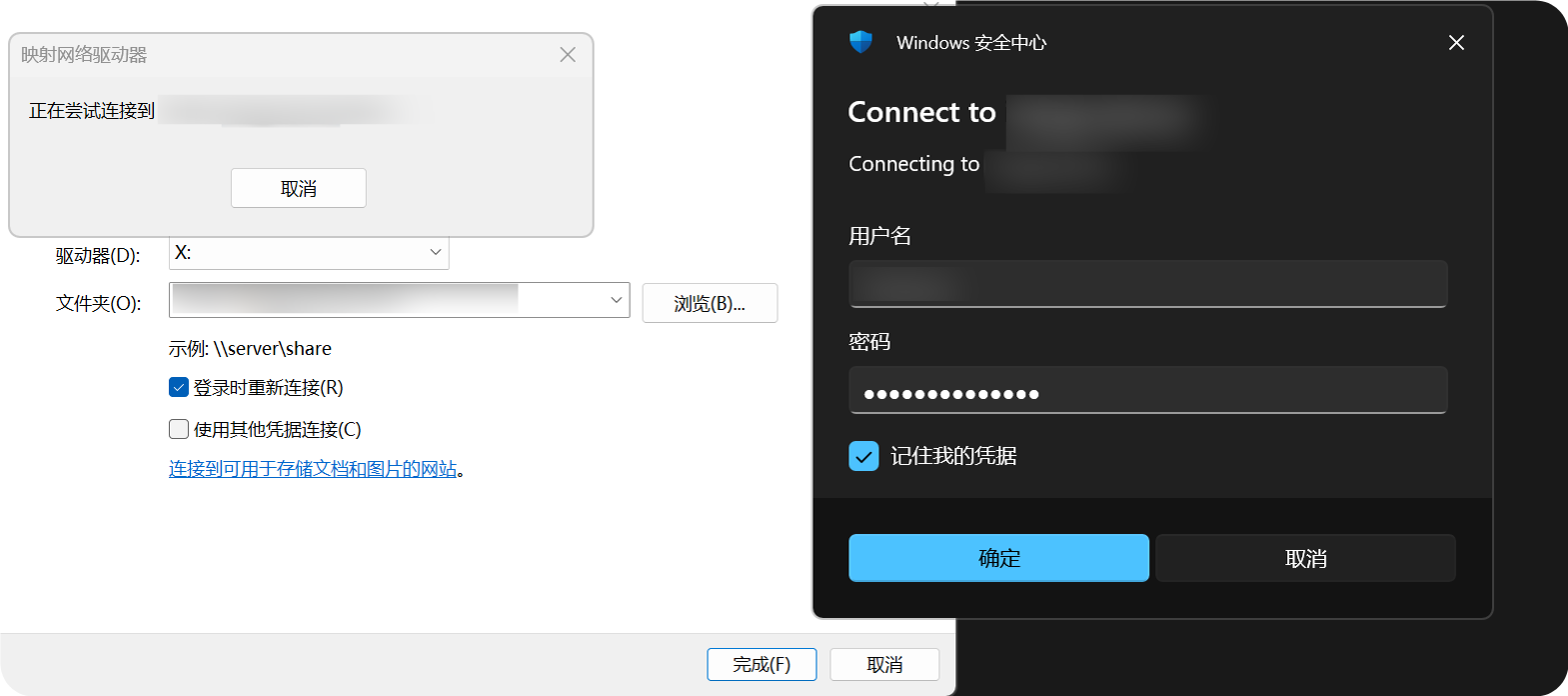
Windows 11 WebDAV کو نیٹ ورک مقام کے طور پر شامل کر سکتا ہے۔
یہ کمپیوٹرکھولیں۔نیٹ ورک مقام شامل کریںمنتخب کریں۔https://your-domain.com/davدرج کریں۔- پوچھے جانے پر اپنا WebDAV صارف نام اور پاس ورڈ درج کریں۔
- رہنما عمل مکمل کریں۔ پھر WebDAV ڈائریکٹری فائل ایکسپلورر میں کھولی جا سکتی ہے۔
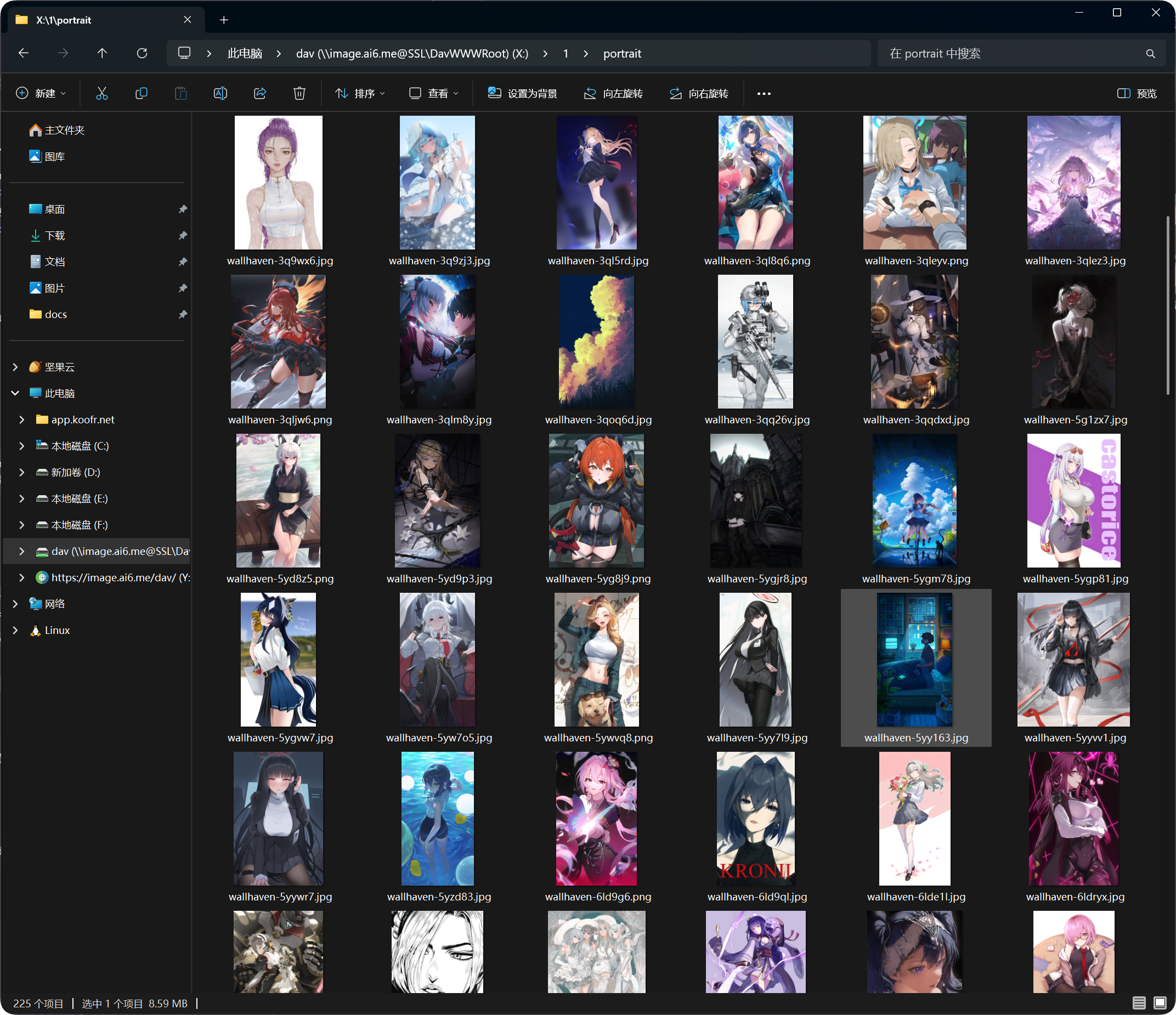
شامل ہونے کے بعد WebDAV ڈائریکٹری Windows فائل ایکسپلورر میں ظاہر ہوتی ہے۔ آپ عام فولڈر کی طرح فائلیں کھول، کاپی، اور منظم کر سکتے ہیں۔
معاونت یافتہ کارروائیاں
کامیاب WebDAV کنکشن کے بعد عموماً آپ یہ کام کر سکتے ہیں:
- فائلیں اور فولڈرز دیکھنا۔
- فائلیں اپ لوڈ کرنا۔
- فولڈرز بنانا۔
- فائلوں یا فولڈرز کے نام تبدیل کرنا۔
- فائلیں منتقل کرنا۔
- فائلیں حذف کرنا۔
WebDAV روزمرہ رسائی اور چھوٹے پیمانے کے فائل انتظام کے لیے بہتر ہے۔ بڑی منتقلیوں، مجموعی حذف کاری، یا پیچیدہ تنظیم کے لیے ایڈمن پینل استعمال کریں۔
لاگ اِن ڈیوائسز کا انتظام
کامیاب WebDAV کنکشنز لاگ اِن ڈیوائسز کے انتظام میں WebDAV ٹیب کے تحت بھی ظاہر ہوتے ہیں۔
آپ وہاں WebDAV کلائنٹس کا جائزہ لے سکتے ہیں اور ضرورت پڑنے پر پرانی ڈیوائسز زبردستی آف لائن کر سکتے ہیں۔
اگر آپ WebDAV صارف نام یا پاس ورڈ تبدیل کریں تو پرانے کلائنٹس کو دوبارہ سائن اِن کرنا ہوگا۔
عمومی سوالات
Windows بار بار صارف نام اور پاس ورڈ کیوں پوچھتا ہے؟
جانچیں:
- URL
https://your-domain.com/davہے۔ - صارف نام اور پاس ورڈ WebDAV ترتیبات سے مطابقت رکھتے ہیں۔
- WebDAV فعال ہے۔
- سائٹ HTTPS پر قابل رسائی ہے۔
براؤزنگ کام کرتی ہے، لیکن اپ لوڈ ناکام ہوتا ہے
طے شدہ چینل جانچیں۔
WebDAV اپ لوڈز کے لیے طے شدہ اپ لوڈ چینل ضروری ہے۔ اگر وہ موجود نہ ہو، غیر فعال ہو، یا غلط ترتیب دیا گیا ہو تو اپ لوڈ ناکام ہو سکتے ہیں۔
رسائی کی رفتار غیر مستحکم ہے
WebDAV کارکردگی کلائنٹ، نیٹ ورک، فائل تعداد، اور طے شدہ اپ لوڈ چینل پر منحصر ہے۔
اگر کسی ڈائریکٹری میں بہت زیادہ فائلیں ہوں تو ایک ہی ڈائریکٹری میں بہت سی فائلیں رکھنے کے بجائے انہیں فولڈرز میں منظم کریں۔
سیکیورٹی سفارشات
- WebDAV رسائی کے لیے HTTPS استعمال کریں۔
- مضبوط پاس ورڈ مقرر کریں۔
- WebDAV پاس ورڈ غیر معتبر لوگوں کے ساتھ شیئر نہ کریں۔
- استعمال نہ ہونے پر WebDAV بند کر دیں۔
- لاگ اِن ڈیوائسز کے انتظام میں غیر استعمال شدہ WebDAV ڈیوائسز وقتاً فوقتاً صاف کریں۔
WebDAV اپ لوڈ فائل حجم
WebDAV کلائنٹس براؤزر اپ لوڈ صفحے کا بڑی فائلوں والا chunked بہاؤ استعمال نہیں کرتے۔ نیچے دی گئی تجویز کردہ حدود سے بڑی فائلوں کے لیے ویب اپ لوڈ صفحہ استعمال کریں۔
| طے شدہ اپ لوڈ چینل | WebDAV کے لیے تجویز کردہ ایک فائل حد |
|---|---|
| Telegram | 20 MB |
| Discord | 10 MB |
| Cloudflare R2 | 30 MB |
| S3 | 30 MB |
| GitHub Releases | 64 MB |
| GitLab Packages | 64 MB |
| Hugging Face | 20 MB |
| OneDrive | 30 MB |
| Google Drive | 30 MB |
| Dropbox | 30 MB |
| Yandex Disk | 30 MB |
| pCloud | 30 MB |
| WebDAV | 64 MB |