د WebDAV له لارې د سایټ لاسرسی
په امنیتي تنظیماتو کې د WebDAV تنظیم ستاسو ImgHost سایټ د WebDAV پای ټکي په توګه وړاندې کوي.
له فعالېدو وروسته، Windows، macOS، د موبایل فایل مدیران یا هر WebDAV-سم کلاینټ کارولای شئ، څو د ImgHost فایلونه د لرې پوښۍ په څېر وګورئ، پورته کړئ، حذف کړئ او مدیریت یې کړئ.
دا د سایټ د WebDAV لاسرسي ننوتنه ده. دا د پورته کولو تنظیماتو کې د WebDAV زېرمه کولو له چینل څخه بېله ده. د پورته کولو چینل فایلونه د درېيمې ډلې WebDAV خدمت کې ساتي. دا تنظیم ستاسو ImgHost سایټ ته اجازه ورکوي چې کلاینټونو ته WebDAV لاسرسی برابر کړي.
چېرته یې تنظیم کړئ
د ادارې پینل پرانیزئ، بیا دې ځای ته لاړ شئ:
text
System Settings -> Security Settings -> WebDAVشته تنظیمات:
- فعالول
- کارننوم
- پاسورډ
- د انځور د لوستلو حالت
- اصلي چینل
دا ځانګړنه څه کوي
له WebDAV فعالېدو وروسته، ImgHost یو ثابت د لاسرسي URL برابروي:
text
https://your-domain.com/davدا URL د خپل ImgHost د فایل ډایرېکټري سره د نښلېدو لپاره وکاروئ.
ښه د کارونې حالتونه:
- د خپل کمپیوټر له فایل مدیر څخه د ImgHost فایلونه مستقیم وګورئ.
- انځورونه WebDAV پوښۍ ته راکاږئ، څو پورته شي.
- د ImgHost پوښۍ د خپل ځایي فایل مدیر له لارې منظمې کړئ.
- د WebDAV-سم سافټویر له لارې انځورونه همغږي یا مدیریت کړئ.
- د ادارې پینل له خلاصولو پرته د ImgHost منځپانګې ته لاسرسی ومومئ.
تنظیمات
فعالول
د WebDAV پای ټکی فعالوي.
کله چې غیرفعال وي، کلاینټونه د WebDAV له لارې نښلولای نه شي.
کارننوم او پاسورډ
WebDAV کلاینټونه د نښلېدو پر مهال دا معلومات کاروي.
د WebDAV لپاره ځانګړی کارننوم او پاسورډ وکاروئ. د مدیر پاسورډ یا د پورته کولو پاسورډ بیا مه کاروئ.
که کارننوم یا پاسورډ تش وي، WebDAV کلاینټونه سم نه شي نښلېدای.
د انځور د لوستلو حالت
د انځور د لوستلو حالت ټاکي چې WebDAV کلاینټونه د انځورونو د لوستلو پر مهال کوم انځور URL ته لومړیتوب ورکوي.
عام انتخابونه:
| حالت | تشریح |
|---|---|
| هوښیار لوستل | ImgHost د حالت له مخې ټاکنه کوي. د عادي کارونې لپاره سپارښتنه کېږي. |
| اصلي | اصلي انځورونو ته لومړیتوب ورکوي. |
| کوچنی انځور | کوچنیو انځورونو ته لومړیتوب ورکوي. د چټک مخکتنې لپاره ګټور دی. |
که ډاډه نه یاست، هوښیار لوستل پرېږدئ.
اصلي چینل
اصلي چینل د WebDAV پورته کولو لپاره کارېږي.
کله چې له Windows یا بل کلاینټ څخه فایلونه WebDAV ډایرېکټري ته کاپي کوئ، ImgHost یې د ټاکلي اصلي پورته کولو چینل له لارې پورته کوي.
که اصلي چینل نه وي ټاکل شوی، کتنه ښايي کار وکړي، خو پورته کول ښايي ناکام شي.
په Windows 11 کې WebDAV ته لاسرسی
Windows 11 WebDAV د شبکې ځای په توګه زیاتولای شي.
دا کمپیوټرپرانیزئ.د شبکې ځای زیاتولوټاکئ.https://your-domain.com/davولیکئ.- کله چې غوښتنه وشي، خپل WebDAV کارننوم او پاسورډ ولیکئ.
- لارښود پای ته ورسوئ. WebDAV ډایرېکټري بیا د فایلونو په سپړونکي کې پرانیستل کېدای شي.
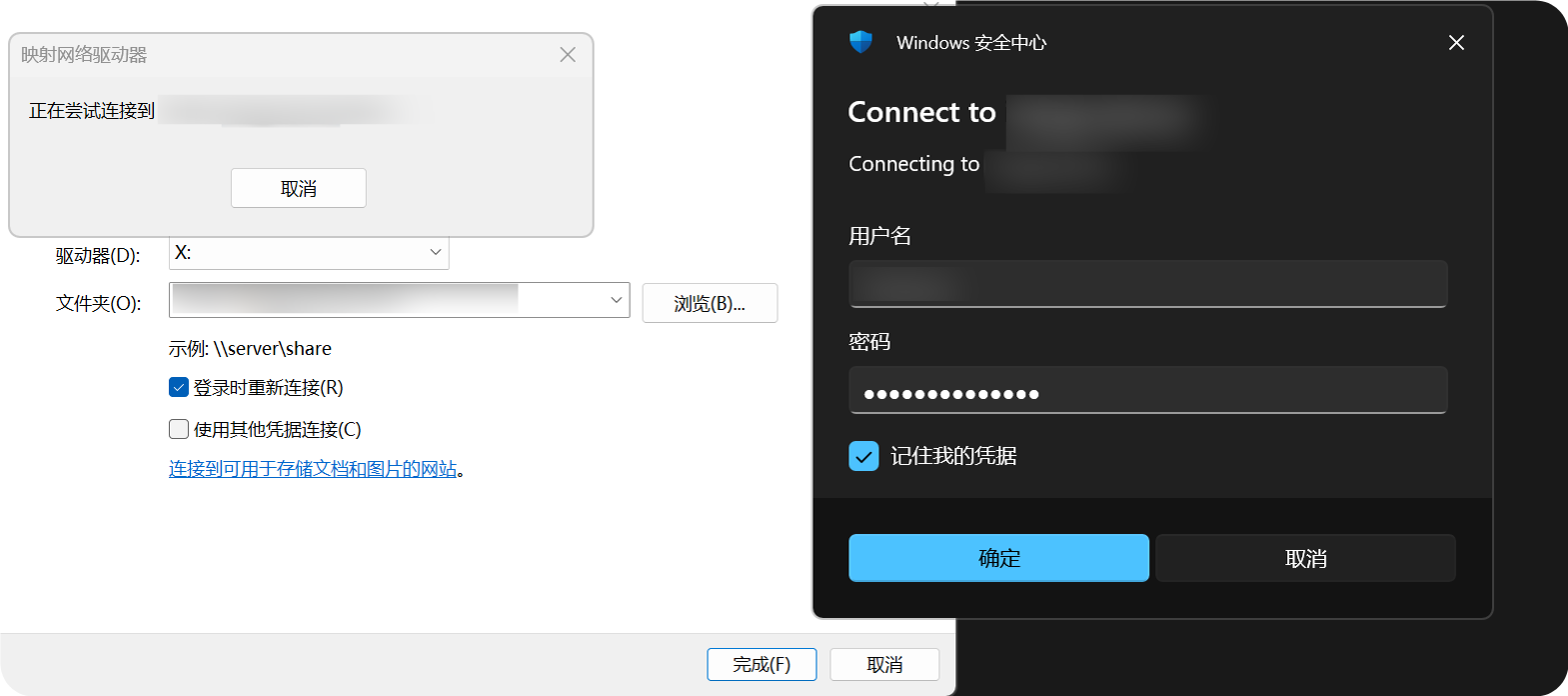
له زیاتېدو وروسته، WebDAV ډایرېکټري د Windows د فایلونو په سپړونکي کې ښکاري. فایلونه د عادي پوښۍ په څېر پرانیستل، کاپي کول او مدیریت کولای شئ.
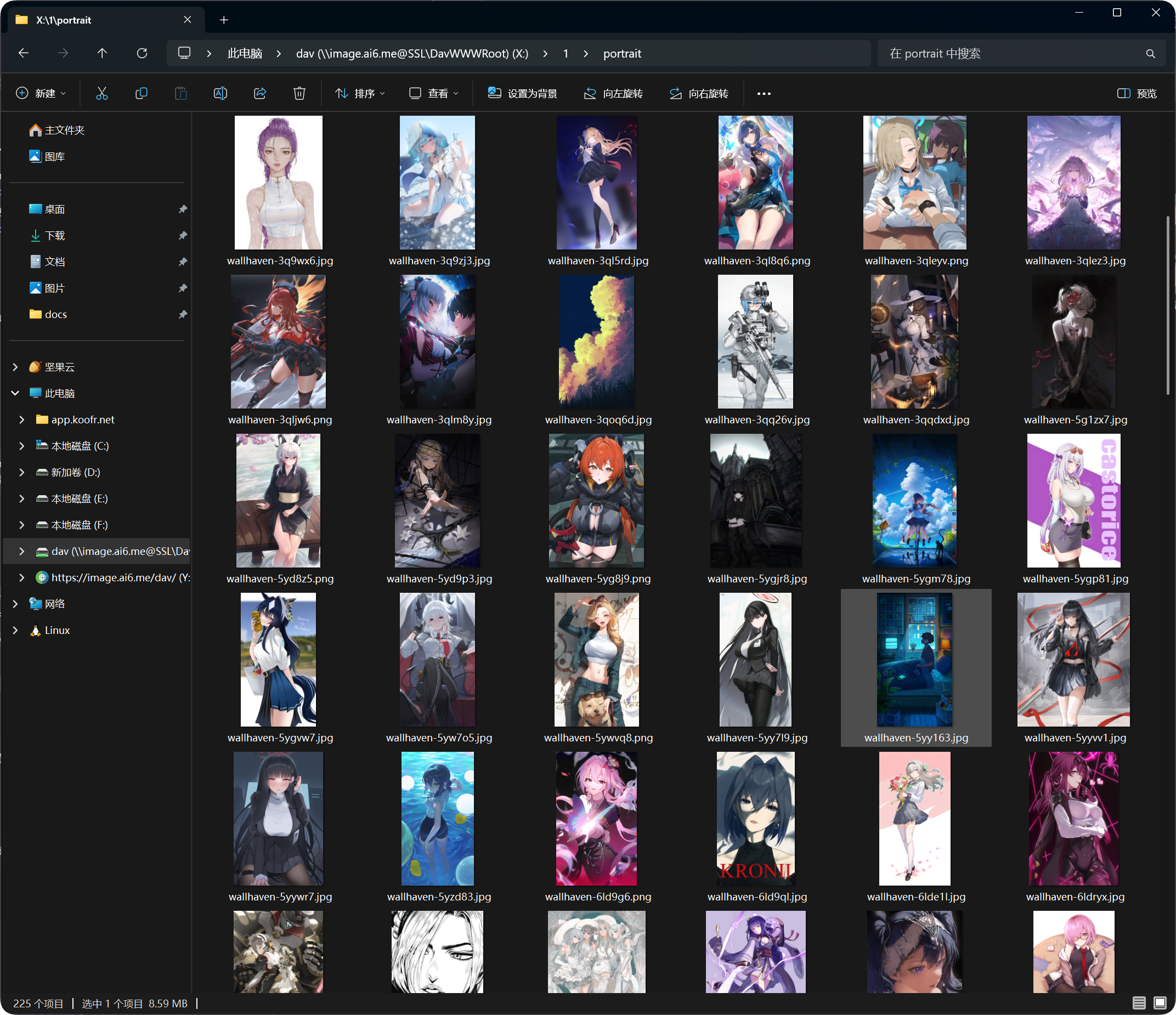
ملاتړ شوې کړنې
له بریالۍ WebDAV نښلونې وروسته، عموما دا کارونه کولای شئ:
- فایلونه او پوښۍ کتل.
- فایلونه پورته کول.
- پوښۍ جوړول.
- د فایلونو یا پوښیو نوم بدلول.
- فایلونه لېږدول.
- فایلونه حذفول.
WebDAV د ورځني لاسرسي او وړې کچې فایل مدیریت لپاره غوره دی. د لویو لېږدونو، ډلهییزو حذفونو یا پېچلي تنظیم لپاره د ادارې پینل وکاروئ.
د ننوتلو وسایلو مدیریت
بریالۍ WebDAV نښلونې د WebDAV ټب لاندې د ننوتلو وسایلو مدیریت کې هم ښکاري.
هلته WebDAV کلاینټونه کتلای شئ او د اړتیا پر مهال زاړه وسایل جبري نالاین کولای شئ.
که د WebDAV کارننوم یا پاسورډ بدل کړئ، زاړه کلاینټونه باید بیا ننوتل وکړي.
FAQ
Windows بیا بیا کارننوم او پاسورډ غواړي
وګورئ:
- URL
https://your-domain.com/davدی. - کارننوم او پاسورډ د WebDAV له تنظیماتو سره برابر دي.
- WebDAV فعال دی.
- سایټ د HTTPS له لارې لاسرسی لري.
کتنه کار کوي، خو پورته کول ناکامېږي
اصلي چینل وګورئ.
د WebDAV پورته کول اصلي پورته کولو چینل ته اړتیا لري. که دا ورک وي، غیرفعال وي یا ناسم تنظیم شوی وي، پورته کول ناکامېدای شي.
د لاسرسي سرعت ناپایدار دی
د WebDAV کارکردګي پر کلاینټ، شبکه، د فایلونو شمېر او اصلي پورته کولو چینل پورې تړلې ده.
که یوه ډایرېکټري ډېر فایلونه ولري، فایلونه په پوښیو کې منظم کړئ؛ په یوه ډایرېکټري کې ډېر فایلونه مه ساتئ.
امنیتي سپارښتنې
- د WebDAV لاسرسي لپاره HTTPS وکاروئ.
- پیاوړی پاسورډ وټاکئ.
- د WebDAV پاسورډ له بېباوره خلکو سره مه شریکوئ.
- WebDAV هغه وخت بند کړئ چې نه یې کاروئ.
- ناآشنا یا نه کارېدونکي WebDAV وسایل په منظم ډول د ننوتلو وسایلو مدیریت کې پاک کړئ.
د WebDAV پورته کولو د فایل اندازه
WebDAV کلاینټونه د براوزر د پورته کولو پاڼې د لویو فایلونو ټوټه کولو جریان نه کاروي. د لاندې سپارښتل شوو حدونو څخه د لویو فایلونو لپاره د ویب پورته کولو پاڼه وکاروئ.
| اصلي پورته کولو چینل | د WebDAV لپاره د یوه فایل سپارښتل شوی حد |
|---|---|
| Telegram | 20 MB |
| Discord | 10 MB |
| Cloudflare R2 | 30 MB |
| S3 | 30 MB |
| GitHub Releases | 64 MB |
| GitLab Packages | 64 MB |
| Hugging Face | 20 MB |
| OneDrive | 30 MB |
| Google Drive | 30 MB |
| Dropbox | 30 MB |
| Yandex Disk | 30 MB |
| pCloud | 30 MB |
| WebDAV | 64 MB |