การเข้าถึงไซต์ผ่าน WebDAV
การตั้งค่า WebDAV ในการตั้งค่าความปลอดภัยจะเปิดเผยไซต์ ImgHost ของคุณเป็นจุดปลาย WebDAV
หลังจากเปิดใช้แล้ว คุณสามารถใช้ Windows, macOS, ตัวจัดการไฟล์บนมือถือ หรือไคลเอนต์ที่รองรับ WebDAV เพื่อเรียกดู อัปโหลด ลบ และจัดการไฟล์ ImgHost ได้เหมือนโฟลเดอร์ระยะไกล
นี่คือทางเข้าการเข้าถึง WebDAV ของตัวไซต์เอง ซึ่งต่างจากช่องทางจัดเก็บ WebDAV ในการตั้งค่าอัปโหลด ช่องทางอัปโหลดจะเก็บไฟล์ไว้ในบริการ WebDAV ของบุคคลที่สาม ส่วนการตั้งค่านี้ทำให้ไซต์ ImgHost ของคุณให้บริการ WebDAV แก่ไคลเอนต์ได้
ตั้งค่าที่ไหน
เปิดแผงผู้ดูแลระบบ แล้วไปที่:
text
System Settings -> Security Settings -> WebDAVการตั้งค่าที่ใช้ได้:
- เปิดใช้
- ชื่อผู้ใช้
- รหัสผ่าน
- โหมดการโหลดรูปภาพ
- ช่องทางเริ่มต้น
ฟีเจอร์นี้ทำอะไร
หลังจากเปิดใช้ WebDAV แล้ว ImgHost จะให้ URL เข้าถึงแบบคงที่:
text
https://your-domain.com/davใช้ URL นี้เพื่อเชื่อมต่อกับไดเรกทอรีไฟล์ ImgHost ของคุณ
กรณีใช้งานที่เหมาะสม:
- เรียกดูไฟล์ ImgHost โดยตรงจากตัวจัดการไฟล์บนคอมพิวเตอร์
- ลากรูปภาพลงในโฟลเดอร์ WebDAV เพื่ออัปโหลด
- จัดระเบียบโฟลเดอร์ ImgHost จากตัวจัดการไฟล์ในเครื่อง
- ใช้ซอฟต์แวร์ที่รองรับ WebDAV เพื่อซิงก์หรือจัดการรูปภาพ
- เข้าถึงเนื้อหา ImgHost โดยไม่ต้องเปิดแผงผู้ดูแลระบบ
การตั้งค่า
เปิดใช้
เปิดจุดปลาย WebDAV
เมื่อปิดอยู่ ไคลเอนต์จะเชื่อมต่อผ่าน WebDAV ไม่ได้
ชื่อผู้ใช้และรหัสผ่าน
ไคลเอนต์ WebDAV ใช้ข้อมูลรับรองเหล่านี้เมื่อเชื่อมต่อ
ใช้ชื่อผู้ใช้และรหัสผ่านเฉพาะสำหรับ WebDAV อย่าใช้รหัสผ่านผู้ดูแลระบบหรือรหัสผ่านอัปโหลดซ้ำ
หากชื่อผู้ใช้หรือรหัสผ่านว่าง ไคลเอนต์ WebDAV จะเชื่อมต่อได้ไม่ถูกต้อง
โหมดการโหลดรูปภาพ
โหมดการโหลดรูปภาพกำหนดว่าไคลเอนต์ WebDAV ควรเลือก URL รูปภาพใดเมื่ออ่านรูปภาพ
ตัวเลือกที่พบบ่อย:
| โหมด | คำอธิบาย |
|---|---|
| โหลดแบบอัจฉริยะ | ImgHost เลือกตามบริบท แนะนำสำหรับการใช้งานทั่วไป |
| ต้นฉบับ | เลือกรูปภาพต้นฉบับก่อน |
| ภาพขนาดย่อ | เลือกภาพขนาดย่อก่อน มีประโยชน์สำหรับการแสดงตัวอย่างอย่างรวดเร็ว |
หากไม่แน่ใจ ให้คง โหลดแบบอัจฉริยะ ไว้
ช่องทางเริ่มต้น
ช่องทางเริ่มต้นใช้สำหรับการอัปโหลดผ่าน WebDAV
เมื่อคุณคัดลอกไฟล์ลงในไดเรกทอรี WebDAV จาก Windows หรือไคลเอนต์อื่น ImgHost จะอัปโหลดไฟล์ผ่านช่องทางอัปโหลดเริ่มต้นที่เลือกไว้
หากไม่ได้เลือกช่องทางเริ่มต้น การเรียกดูอาจทำงานได้ แต่การอัปโหลดอาจล้มเหลว
การเข้าถึง WebDAV ใน Windows 11
Windows 11 สามารถเพิ่ม WebDAV เป็นตำแหน่งเครือข่ายได้
- เปิด
พีซีเครื่องนี้ - เลือก
เพิ่มตำแหน่งเครือข่าย - ป้อน
https://your-domain.com/dav - เมื่อระบบถาม ให้ป้อนชื่อผู้ใช้และรหัสผ่าน WebDAV
- ทำตามตัวช่วยให้เสร็จ จากนั้นสามารถเปิดไดเรกทอรี WebDAV ในตัวสำรวจไฟล์ได้
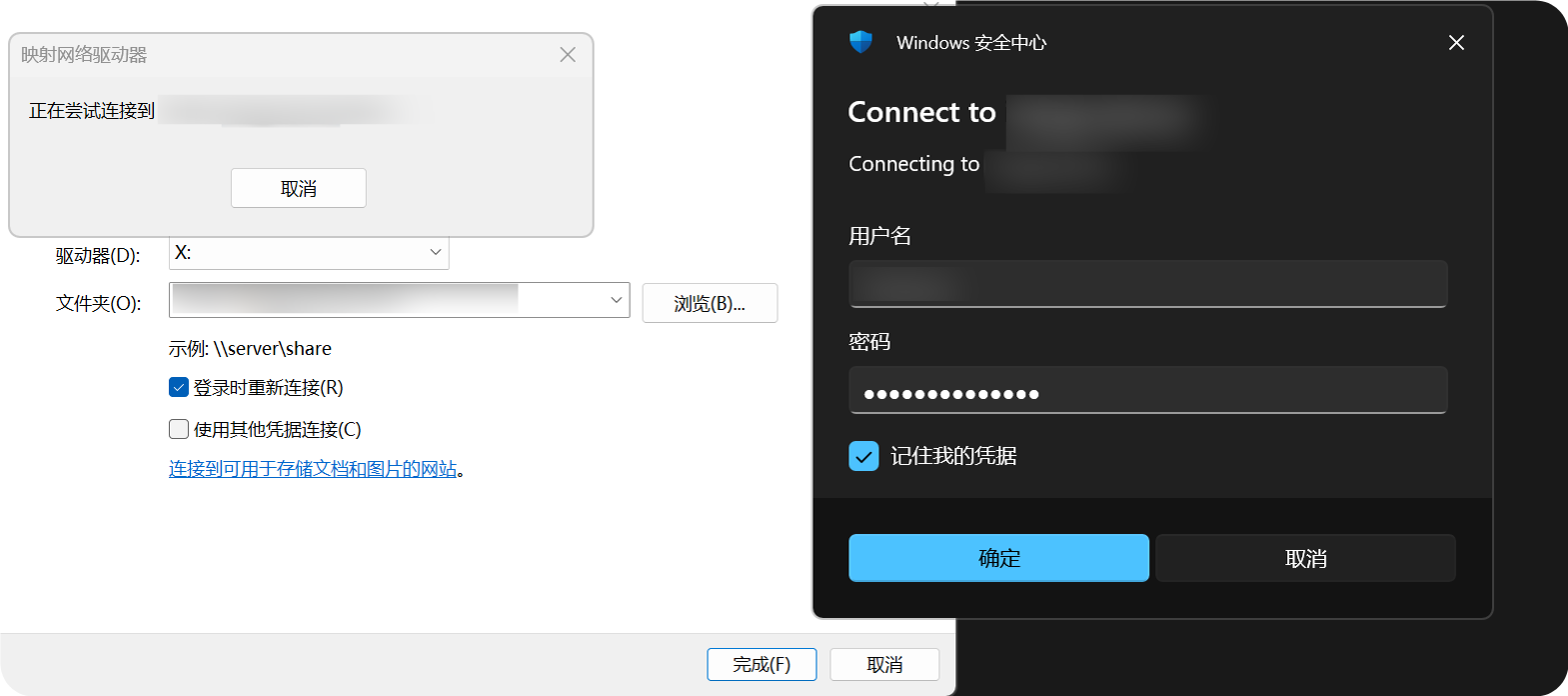
หลังจากเพิ่มแล้ว ไดเรกทอรี WebDAV จะปรากฏในตัวสำรวจไฟล์ของ Windows คุณสามารถเปิด คัดลอก และจัดการไฟล์ได้เหมือนโฟลเดอร์ปกติ
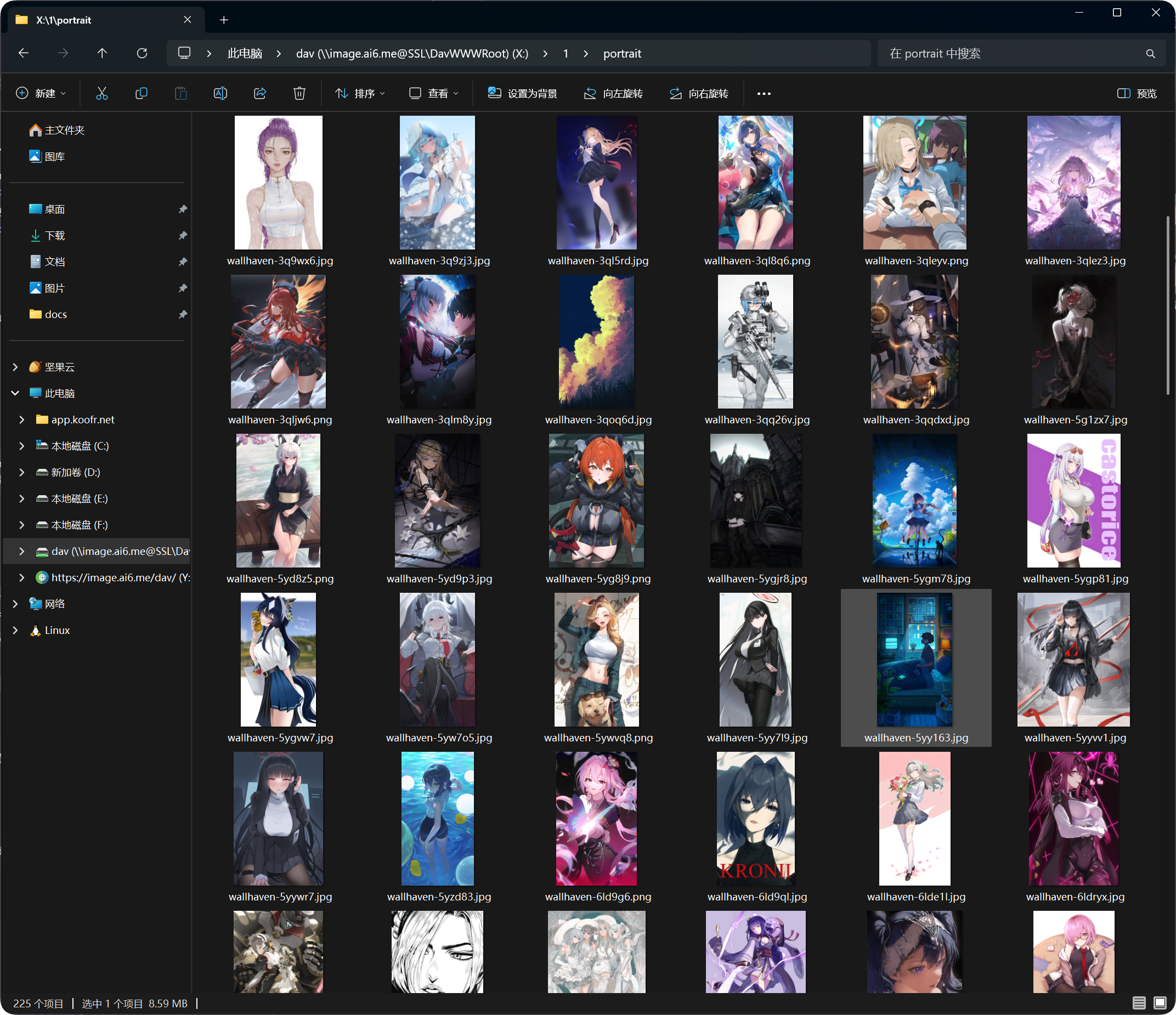
การดำเนินการที่รองรับ
หลังจากเชื่อมต่อ WebDAV สำเร็จ โดยทั่วไปคุณสามารถ:
- ดูไฟล์และโฟลเดอร์
- อัปโหลดไฟล์
- สร้างโฟลเดอร์
- เปลี่ยนชื่อไฟล์หรือโฟลเดอร์
- ย้ายไฟล์
- ลบไฟล์
WebDAV เหมาะสำหรับการเข้าถึงประจำวันและการจัดการไฟล์ขนาดเล็ก สำหรับการย้ายจำนวนมาก การลบเป็นชุด หรือการจัดระเบียบที่ซับซ้อน ให้ใช้แผงผู้ดูแลระบบ
การจัดการอุปกรณ์เข้าสู่ระบบ
การเชื่อมต่อ WebDAV ที่สำเร็จจะแสดงในแท็บ WebDAV ภายในการจัดการอุปกรณ์เข้าสู่ระบบด้วย
คุณสามารถตรวจสอบไคลเอนต์ WebDAV ที่นั่น และบังคับให้อุปกรณ์เก่าออฟไลน์เมื่อจำเป็น
หากเปลี่ยนชื่อผู้ใช้หรือรหัสผ่าน WebDAV ไคลเอนต์เก่าต้องเข้าสู่ระบบใหม่
FAQ
Windows ถามชื่อผู้ใช้และรหัสผ่านซ้ำ ๆ
ตรวจสอบ:
- URL ต้องเป็น
https://your-domain.com/dav - ชื่อผู้ใช้และรหัสผ่านตรงกับการตั้งค่า WebDAV
- เปิดใช้ WebDAV แล้ว
- ไซต์สามารถเข้าถึงผ่าน HTTPS ได้
เรียกดูได้ แต่อัปโหลดไม่ได้
ตรวจสอบ ช่องทางเริ่มต้น
การอัปโหลดผ่าน WebDAV ต้องมีช่องทางอัปโหลดเริ่มต้น หากไม่มี ถูกปิด หรือกำหนดค่าผิด การอัปโหลดอาจล้มเหลว
ความเร็วการเข้าถึงไม่เสถียร
ประสิทธิภาพของ WebDAV ขึ้นอยู่กับไคลเอนต์ เครือข่าย จำนวนไฟล์ และช่องทางอัปโหลดเริ่มต้น
หากไดเรกทอรีมีไฟล์จำนวนมาก ให้จัดลงโฟลเดอร์แทนการเก็บไฟล์มากเกินไปในไดเรกทอรีเดียว
คำแนะนำด้านความปลอดภัย
- ใช้ HTTPS สำหรับการเข้าถึง WebDAV
- ตั้งรหัสผ่านที่แข็งแรง
- อย่าแชร์รหัสผ่าน WebDAV กับคนที่ไม่น่าเชื่อถือ
- ปิด WebDAV เมื่อไม่ได้ใช้งาน
- ล้างอุปกรณ์ WebDAV ที่ไม่ได้ใช้งานในส่วนการจัดการอุปกรณ์เข้าสู่ระบบเป็นระยะ
ขนาดไฟล์สำหรับการอัปโหลดผ่าน WebDAV
ไคลเอนต์ WebDAV ไม่ใช้กระบวนการแบ่งไฟล์ขนาดใหญ่ของหน้าอัปโหลดในเบราว์เซอร์ สำหรับไฟล์ที่ใหญ่กว่าขีดจำกัดที่แนะนำด้านล่าง ให้ใช้หน้าอัปโหลดบนเว็บแทน
| ช่องทางอัปโหลดเริ่มต้น | ขีดจำกัดไฟล์เดี่ยวที่แนะนำสำหรับ WebDAV |
|---|---|
| Telegram | 20 MB |
| Discord | 10 MB |
| Cloudflare R2 | 30 MB |
| S3 | 30 MB |
| GitHub Releases | 64 MB |
| GitLab Packages | 64 MB |
| Hugging Face | 20 MB |
| OneDrive | 30 MB |
| Google Drive | 30 MB |
| Dropbox | 30 MB |
| Yandex Disk | 30 MB |
| pCloud | 30 MB |
| WebDAV | 64 MB |