เพิ่มช่องทาง WebDAV
เหมาะกับกรณีไหน
ใช้ช่องทาง WebDAV เมื่อ:
- คุณมี NAS, cloud drive หรือ object storage service ที่มี WebDAV endpoint
- ต้องการให้รูปภาพที่อัปโหลดถูกเก็บใน WebDAV directory ของคุณเอง
- ต้องการให้ credentials ถูกบันทึกใน D1
upload_channelstable แทนการ expose ระยะยาวใน frontend
สิ่งที่ต้องเตรียมก่อนเริ่ม
| ข้อกำหนด | วัตถุประสงค์ |
|---|---|
| WebDAV Endpoint | Server-side WebDAV URL เช่น https://nas.example.com/dav |
| Username | ใช้เข้าสู่ระบบ WebDAV service |
| Password | ใช้เข้าสู่ระบบ WebDAV service |
| Authentication mode | ค่าเริ่มต้นคือ Basic ใช้ Digest หรือ auto negotiation เฉพาะเมื่อ server ต้องการ |
| Storage directory | Directory สำหรับเก็บไฟล์ ค่าเริ่มต้นคือ imgbed |
เพิ่มได้จากที่ไหน
- เปิดการตั้งค่าระบบ
- ไปที่การตั้งค่าการอัปโหลด
- คลิกเพิ่มช่องทางที่มุมขวาบน
- เลือก
WebDAV
รายละเอียดฟิลด์
| ฟิลด์ | ใช้ทำอะไร | จำเป็น |
|---|---|---|
| Channel name | ชื่อที่จำง่ายสำหรับช่องทาง WebDAV เช่น koofr หรือ nas | ใช่ |
| Endpoint | WebDAV endpoint แบบเต็ม รวม https:// | ใช่ |
| Username | username สำหรับเข้าสู่ระบบ WebDAV | ใช่ |
| Password | password สำหรับเข้าสู่ระบบ WebDAV | ใช่ |
| Authentication mode | โดยปกติใช้ Basic; ใช้ Digest หาก server ต้องการ digest authentication | ใช่ |
| Storage directory | Directory สำหรับเก็บไฟล์ ค่าเริ่มต้นคือ imgbed | ไม่ |
ตัวอย่าง: fie.nl.tab.digital
1. สร้าง App Password
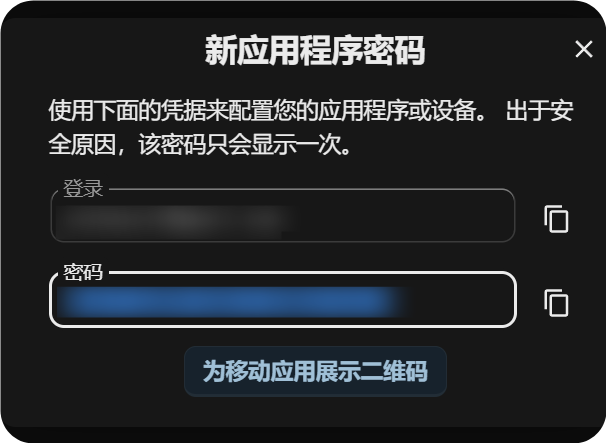
เปิด account security settings หา application passwords แล้วสร้าง app password ใหม่
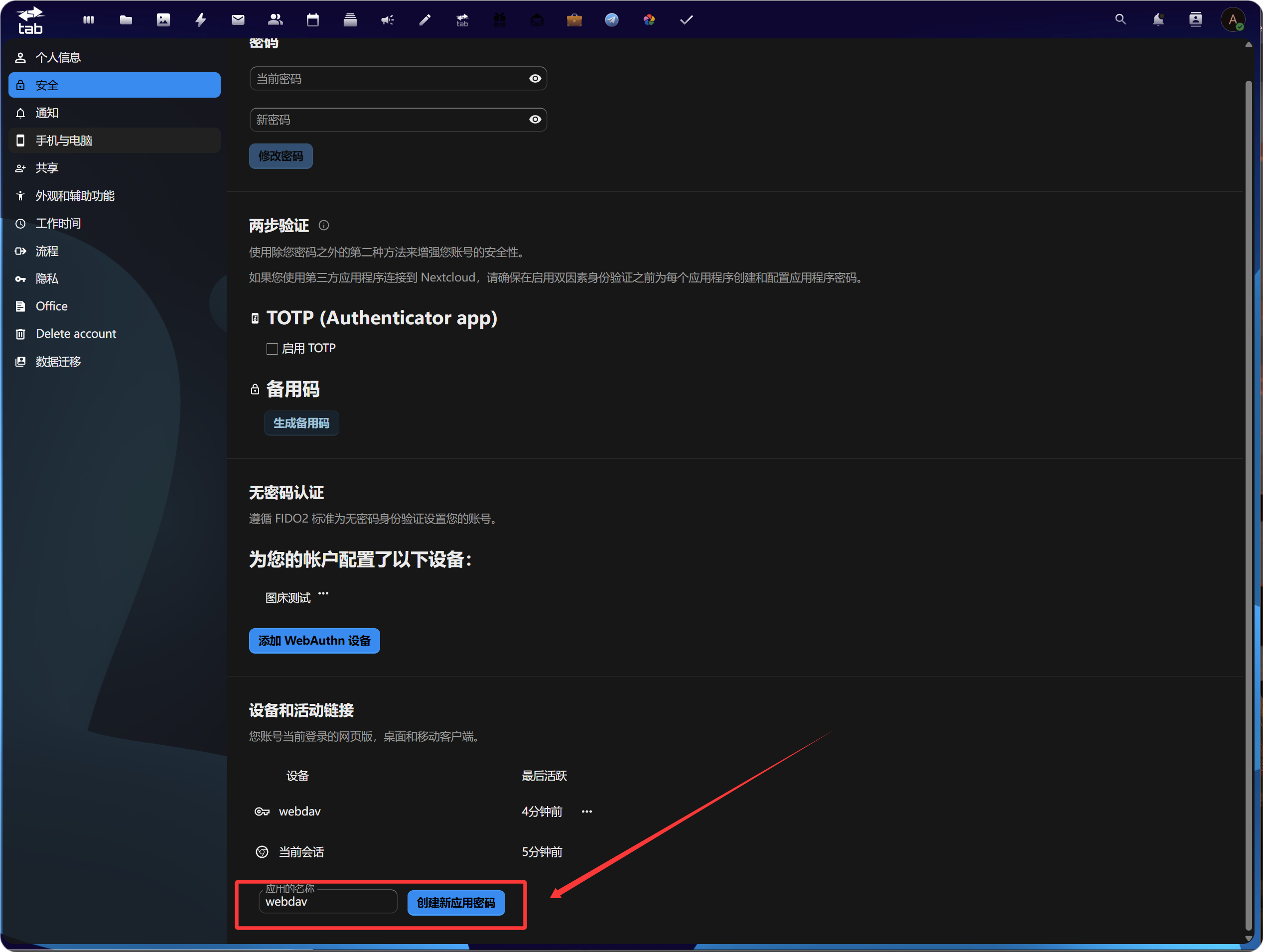
หลังสร้างแล้วให้คัดลอกและบันทึก app password ใหม่ไว้ โดยปกติจะแสดงเพียงครั้งเดียว
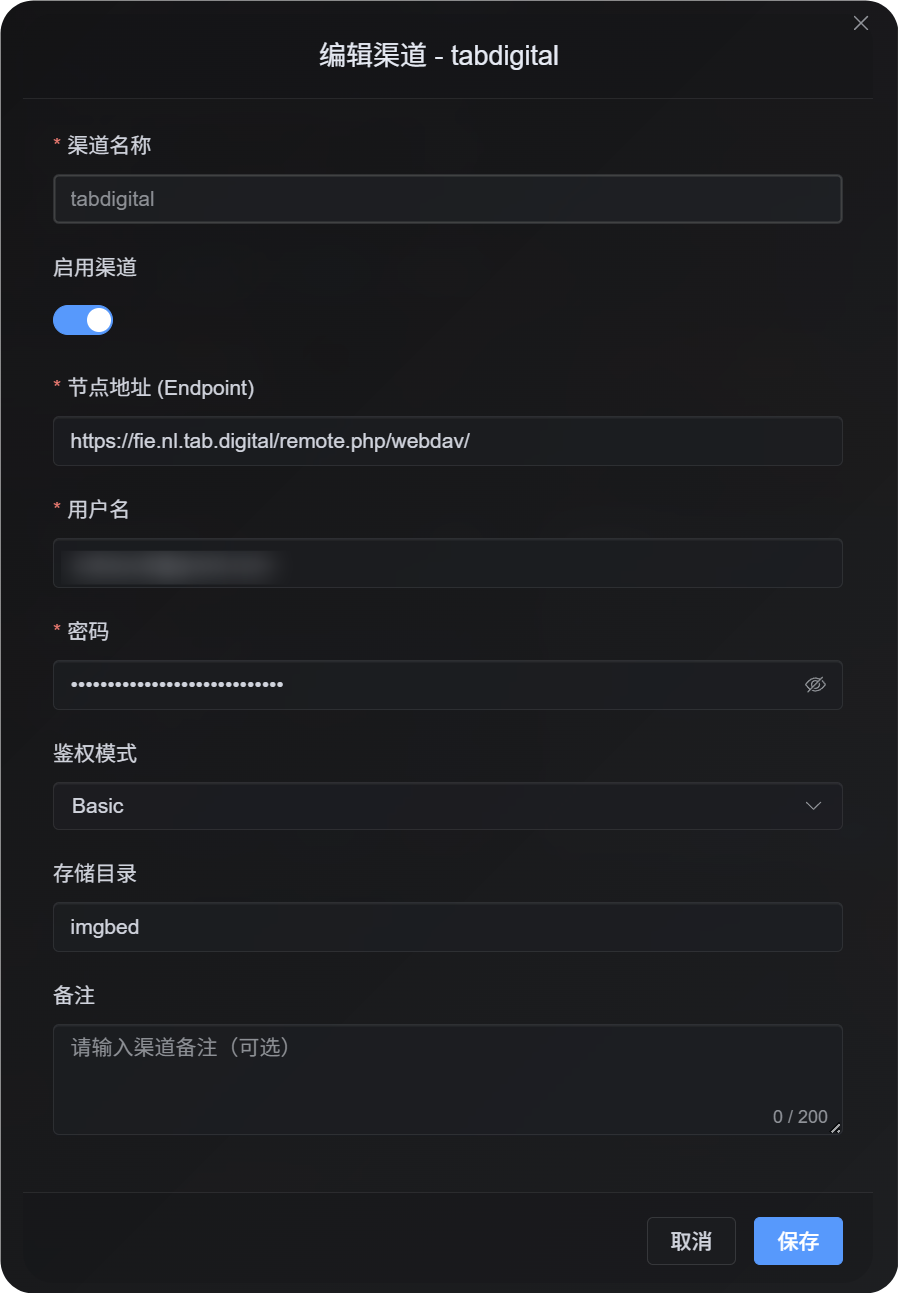
2. ใส่การกำหนดค่า WebDAV ใน ImgHost
กลับไปที่ ImgHost แล้วเพิ่มช่องทาง WebDAV:
| ฟิลด์ UI | ค่า |
|---|---|
| Endpoint | WebDAV URL ที่ได้จาก https://fie.nl.tab.digital/ |
| Username | WebDAV username ของคุณ |
| Password | App password ที่เพิ่งสร้าง |
| Authentication mode | ส่วนใหญ่เริ่มด้วย Basic |
| Storage directory | ค่าเริ่มต้นคือ imgbed; หรือใช้ custom directory ได้ |
พฤติกรรมการอัปโหลดไฟล์ขนาดใหญ่
ช่องทาง WebDAV ตอนนี้ใช้ real session-based chunked upload
ไฟล์ขนาดเล็กจะถูกอัปโหลดเป็น complete file ไฟล์เดียว ไฟล์ที่ใหญ่กว่า 64 MiB จะถูกแบ่งเป็น chunks ประมาณ 10 MiB อัตโนมัติ แล้วอัปโหลดไปยัง remote chunk directory
WebDAV service ไม่จำเป็นต้องรองรับ partial update หรือ offset-based writes ImgHost จะไม่ merge chunks เป็นไฟล์ขนาดใหญ่ไฟล์เดียวบน remote server แต่จะเก็บ chunk manifest และอ่าน chunks ตามลำดับเมื่อมี request file
ในทางปฏิบัติ:
| ขนาดไฟล์ | วิธีอัปโหลด | รูปแบบการจัดเก็บบน remote |
|---|---|---|
| 64 MiB หรือน้อยกว่า | Normal upload | Complete file ไฟล์เดียว |
| มากกว่า 64 MiB | Real session chunked upload | Chunk directory ที่มีหลาย chunk files |
Chunk directory มีผลเฉพาะ remote storage layout ไม่เปลี่ยน file URL ใน ImgHost ผู้ใช้ยังเข้าถึงไฟล์ผ่านลิงก์ /file/... เดิมได้เหมือนเดิม
ขั้นตอนตั้งค่า
- เปิด Upload Settings
- คลิกเพิ่มช่องทาง
- เลือก
WebDAV - ใส่ channel name ที่จำได้ เช่น
koofr - ใส่ WebDAV endpoint เช่น
https://app.koofr.net/dav/Koofr - ใส่ username และ password
- ปล่อย authentication mode เป็น
Basicเป็นค่าเริ่มต้น - ปล่อย storage directory เป็น
imgbedหรือเปลี่ยนเป็น directory ของคุณเอง - คลิก Save
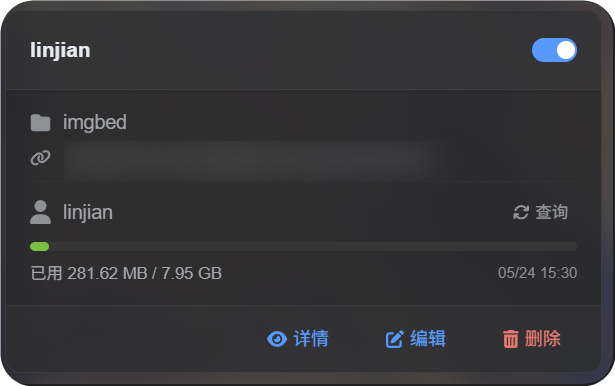
- หลังบันทึก ให้ตรวจการ์ดช่องทาง, query capacity ถ้ามี และอัปโหลดไฟล์ทดสอบ
วิธีตรวจสอบ
| รายการตรวจสอบ | วิธีตรวจสอบ |
|---|---|
| เห็นการ์ดช่องทาง | หลังบันทึก หน้า Upload Settings ควรแสดงการ์ดช่องทาง WebDAV |
| ช่องทางเปิดใช้งานอยู่ | สวิตช์มุมขวาบนของการ์ดควรอยู่ on |
| บันทึก credentials แล้ว | Detail view ควรแสดง Endpoint, username, authentication mode และ storage directory |
| อัปโหลดไฟล์ขนาดเล็กใช้งานได้ | อัปโหลดรูปทดสอบแล้วตรวจว่าไฟล์อยู่ใน WebDAV directory |
| กฎไฟล์ขนาดใหญ่ใช้งานได้ | ไฟล์ที่ใหญ่กว่า 64 MiB ใช้ chunked upload และสร้าง remote chunk directory |
| Capacity query ใช้งานได้ | ถ้า server รองรับ capacity information query จะแสดง used และ total capacity |
FAQ
ทำไมไฟล์ WebDAV ขนาดใหญ่จึงสร้าง chunk directory?
นี่คือ storage method ปัจจุบันสำหรับไฟล์ขนาดใหญ่
ไฟล์ที่ใหญ่กว่า 64 MiB จะไม่ถูก merge เป็น remote file ขนาดใหญ่ไฟล์เดียว แต่จะเก็บเป็น chunk directory ImgHost บันทึก chunk manifest และคืน content ที่สมบูรณ์โดยอ่าน chunks ตามลำดับ
อัปโหลดไฟล์ขนาดใหญ่ล้มเหลว ควรตรวจอะไรก่อน?
ตรวจ Endpoint, username, password และ storage directory ก่อน จากนั้นยืนยันว่า WebDAV service อนุญาตการสร้าง directory, การเขียนไฟล์ และการอ่านไฟล์
ถ้า capacity query ล้มเหลวแต่การอัปโหลดไฟล์ขนาดเล็กใช้งานได้ server อาจไม่รองรับหรือจำกัด capacity reporting ไม่ได้แปลว่าการอัปโหลดใช้งานไม่ได้
ควรใช้ authentication mode ไหน?
เริ่มจาก Basic
ถ้า server ระบุว่าต้องใช้ digest authentication ให้ใช้ Digest
ถ้าไม่แน่ใจ ใช้ automatic negotiation
รายการตรวจสอบด่วน
text
Prepare WebDAV endpoint, username, and password
-> Open Upload Settings
-> Add Channel
-> Select WebDAV
-> Enter Endpoint / username / password
-> Keep authentication mode as Basic by default
-> Keep storage directory as imgbed by default
-> Save
-> Query capacity
-> Upload a test file