WebDAV சேனல் சேர்க்கவும்
எப்போது பயன்படுத்துவது
WebDAV சேனல் பயன்படுத்தலாம், நீங்கள்:
- NAS, cloud drive, அல்லது WebDAV endpoint வழங்கும் object சேமிப்பு சேவை வைத்திருந்தால்.
- பதிவேற்றப்பட்ட படங்கள் உங்கள் சொந்த WebDAV directory-ல் சேமிக்க வேண்டும் என்றால்.
- சான்றுகள்-ஐ frontend-ல் நீண்ட நேரம் expose செய்யாமல் D1
upload_channelstable-ல் சேமிக்க விரும்பினால்.
தொடங்குவதற்கு முன் தேவையானவை
| தேவை | பயன்பாடு |
|---|---|
| WebDAV Endpoint | சேவையகம்-side WebDAV URL, உதா. https://nas.example.com/dav. |
| பயனர்பெயர் | WebDAV சேவை-க்கு உள்நுழைய செய்ய. |
| கடவுச்சொல் | WebDAV சேவை-க்கு உள்நுழைய செய்ய. |
| அங்கீகார முறை | இயல்புநிலை Basic. சேவையகம் கேட்கும் போது மட்டும் Digest அல்லது auto negotiation. |
| சேமிப்பு அடைவு | கோப்புகள் சேமிக்கப்படும் directory. இயல்புநிலை imgbed. |
எங்கு சேர்ப்பது
- அமைப்பு அமைப்புகள் திறக்கவும்.
- பதிவேற்ற அமைப்புகள்-க்கு செல்லவும்.
- மேல் வலது மூலையில் சேனல் சேர்க்கவும் கிளிக் செய்யவும்.
WebDAVதேர்வு செய்யவும்.
புல விவரம்
| புலம் | பயன்பாடு | அவசியம் |
|---|---|---|
| சேனல் பெயர் | இந்த WebDAV சேனலுக்கான பெயர், உதா. koofr அல்லது nas. | ஆம் |
| Endpoint | முழு WebDAV endpoint, https:// உடன். | ஆம் |
| பயனர்பெயர் | WebDAV உள்நுழைவு பயனர்பெயர். | ஆம் |
| கடவுச்சொல் | WebDAV உள்நுழைவு கடவுச்சொல். | ஆம் |
| அங்கீகார முறை | பொதுவாக Basic; சேவையகம் digest authentication கேட்கும் போது Digest. | ஆம் |
| சேமிப்பு அடைவு | கோப்புகள் சேமிக்கப்படும் directory. இயல்புநிலை imgbed. | இல்லை |
உதாரணம்: fie.nl.tab.digital
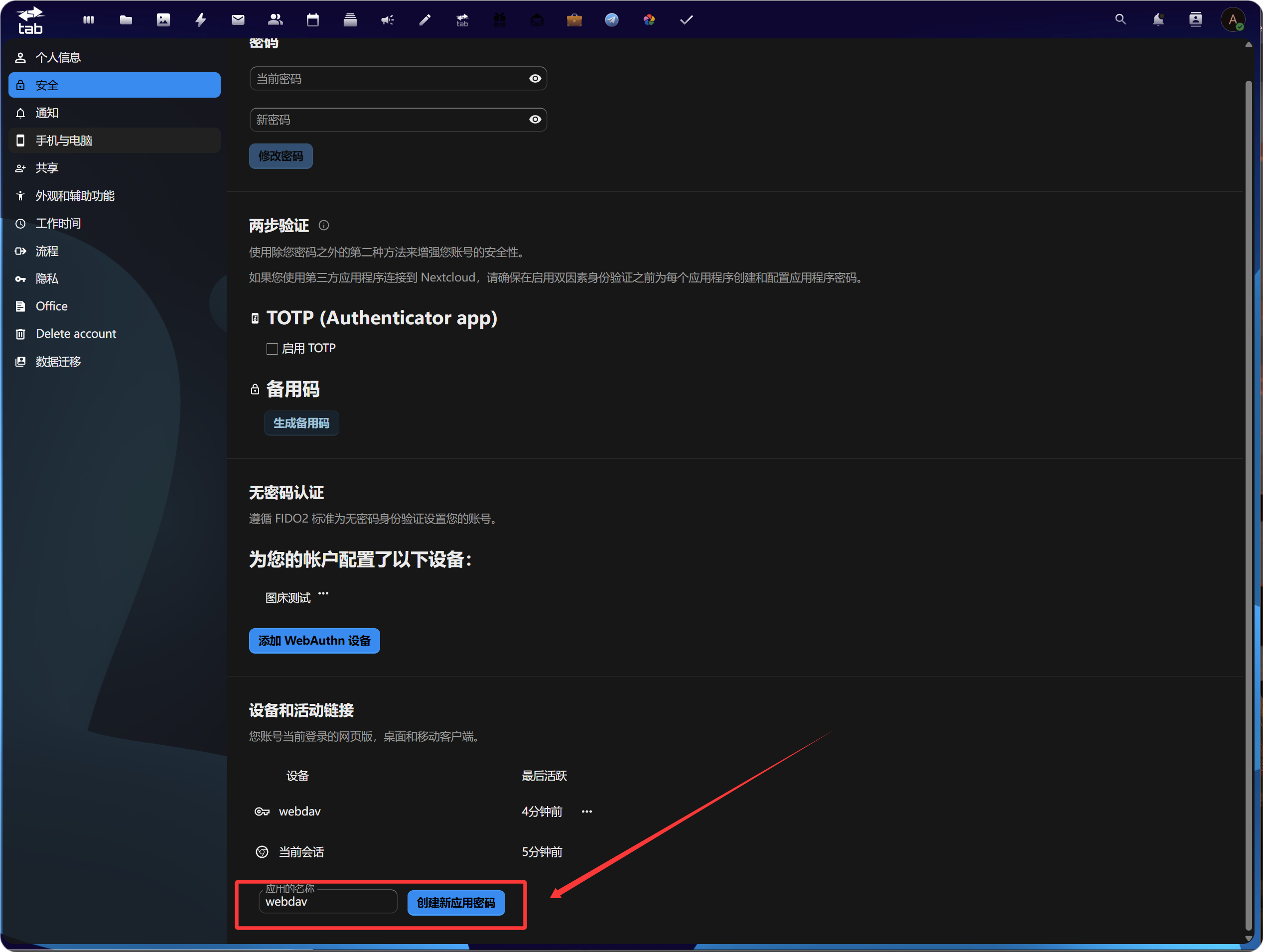
1. செயலி கடவுச்சொல் உருவாக்கவும்
கணக்கு security settings திறந்து application passwords பகுதியைத் தேடி புதிய செயலி கடவுச்சொல் உருவாக்கவும்.
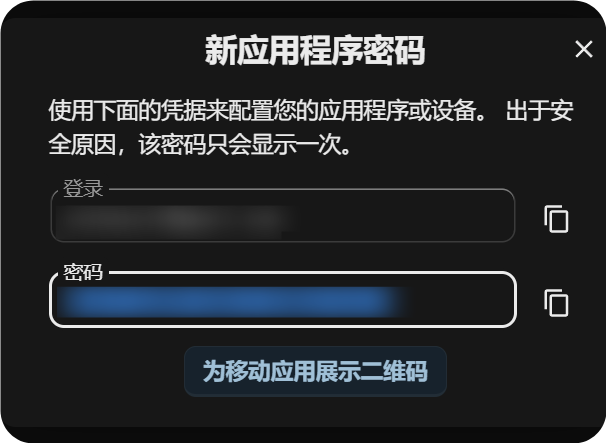
உருவானதும் செயலி கடவுச்சொல்லை நகலெடுத்து சேமிக்கவும். இது பொதுவாக ஒருமுறை மட்டுமே காட்டப்படும்.
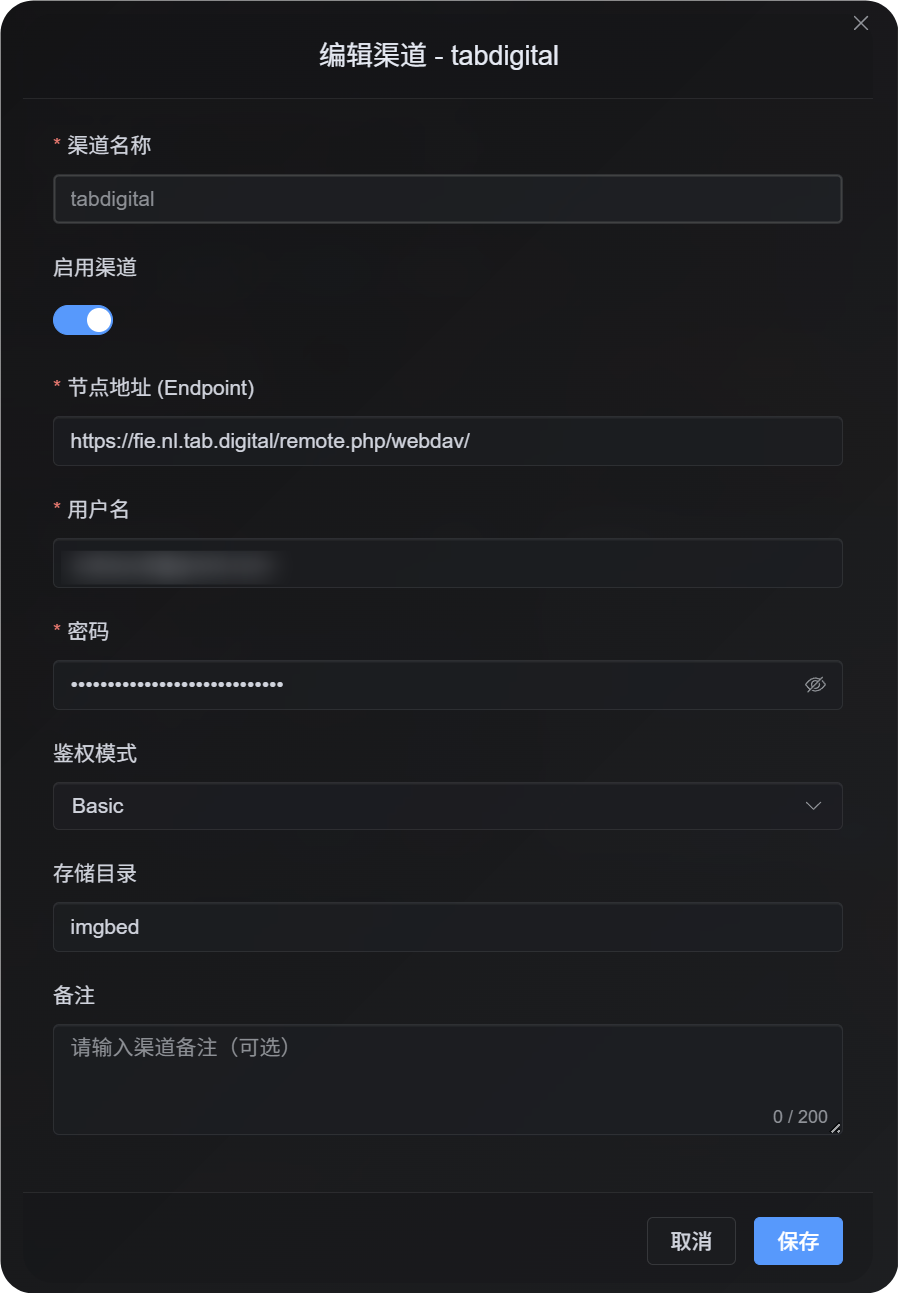
2. ImgHost-ல் WebDAV கட்டமைப்பு நிரப்பவும்
ImgHost-க்கு திரும்பி WebDAV சேனல் சேர்க்கவும்:
| UI புலம் | மதிப்பு |
|---|---|
| Endpoint | https://fie.nl.tab.digital/ வழங்கும் WebDAV URL. |
| பயனர்பெயர் | உங்கள் WebDAV பயனர்பெயர். |
| கடவுச்சொல் | நீங்கள் இப்போது உருவாக்கிய செயலி கடவுச்சொல். |
| அங்கீகார முறை | அதிகப்படியான சந்தர்ப்பங்களில் Basic-இல் தொடங்கவும். |
| சேமிப்பு அடைவு | இயல்புநிலை imgbed; தேவையெனில் custom directory. |
பெரிய கோப்பு பதிவேற்ற நடத்தை
WebDAV சேனல் இப்போது real session-based chunked பதிவேற்றம் பயன்படுத்துகிறது.
சிறிய கோப்புகள் ஒரே complete கோப்பு ஆக பதிவேற்றம் ஆகும். 64 MiB-ஐ விட பெரிய கோப்புகள் தானாக சுமார் 10 MiB chunks ஆகப் பிரிந்து remote chunk directory-ல் பதிவேற்றம் ஆகும்.
WebDAV சேவை partial update அல்லது offset-based writes support செய்ய வேண்டியதில்லை. ImgHost remote சேவையகம்-ல் chunks-ஐ ஒரு பெரிய கோப்பு ஆக merge செய்யாது. அதற்கு பதில் chunk manifest சேமித்து, கோப்பு request வரும் போது chunks-ஐ வரிசையாக படிக்கும்.
| கோப்பு Size | பதிவேற்றம் Method | Remote சேமிப்பு Layout |
|---|---|---|
| 64 MiB அல்லது குறைவு | Normal பதிவேற்றம் | ஒரு complete கோப்பு |
| 64 MiB-ஐ விட பெரியது | Real session chunked பதிவேற்றம் | பல chunk கோப்புகள் உள்ள chunk directory |
chunk directory remote சேமிப்பு layout-ஐ மட்டும் பாதிக்கும். ImgHost கோப்பு URL மாறாது. users original /file/... link மூலமே கோப்பு அணுகல் செய்வார்கள்.
அமைப்பு படிகள்
- பதிவேற்ற அமைப்புகள் திறக்கவும்.
- சேனல் சேர்க்கவும் கிளிக் செய்யவும்.
WebDAVதேர்வு செய்யவும்.- அறியக்கூடிய சேனல் name உள்ளிடவும், உதா.
koofr. - WebDAV endpoint உள்ளிடவும், உதா.
https://app.koofr.net/dav/Koofr. - username மற்றும் password உள்ளிடவும்.
- authentication mode-ஐ இயல்புநிலை
Basicஆக வைத்திருக்கவும். - சேமிப்பு directory-ஐ
imgbedஆக வைத்திருக்கலாம்; இல்லையெனில் உங்கள் directory கொடுக்கலாம். - சேமி கிளிக் செய்யவும்.
- பிறகு சேனல் card, capacity query, test கோப்பு பதிவேற்றம் ஆகியவற்றைச் சரிபார்க்கவும்.
Verify செய்வது
| சரிபார்ப்பு | சரிபார்ப்பு |
|---|---|
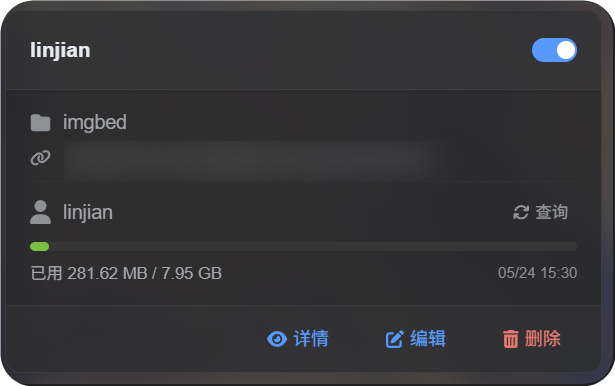
| சேனல் card தெரிகிறது | சேமித்த பிறகு பதிவேற்ற அமைப்புகளில் WebDAV சேனல் card தெரியும். |
| சேனல் இயக்கத்தில் உள்ளது | card switch on ஆகவே இருக்கும். |
| சான்றுகள் சேமிக்கப்பட்டுள்ளன | detail view-ல் Endpoint, username, authentication mode, சேமிப்பு directory தெரியும். |
| சிறிய கோப்பு பதிவேற்றம் செயல்படுகிறது | test image பதிவேற்றி WebDAV directory-ல் கோப்பு வந்ததா பார்க்கவும். |
| பெரிய கோப்பு விதி செயல்படுகிறது | 64 MiB-ஐ விட பெரிய கோப்புகள் chunked பதிவேற்றம் பயன்படுத்தி remote chunk directory உருவாக்கும். |
| Capacity query செயல்படுகிறது | சேவையகம் capacity information-ஐ support செய்தால் used/total capacity தெரியும். |
FAQ
பெரிய WebDAV கோப்புகள் chunk directory-ஐ ஏன் உருவாக்குகின்றன?
இது பெரிய கோப்புகளுக்கான தற்போதைய சேமிப்பு முறை.
64 MiB-ஐ விட பெரிய கோப்புகள் தொலைபுறத்தில் ஒரு பெரிய கோப்பாக இணைக்கப்படாது. அவை chunk directory ஆக சேமிக்கப்படும். ImgHost chunk manifest-ஐ பதிவு செய்து, முழு உள்ளடக்கத்தை chunks-ஐ வரிசையாக படித்து வழங்கும்.
பெரிய கோப்பு பதிவேற்றம் தோல்வியடைந்தால் முதலில் என்ன பார்க்க வேண்டும்?
Endpoint, username, password, சேமிப்பு directory சரியா பார்க்கவும். WebDAV சேவை directory creation, கோப்பு writing, கோப்பு reading allow செய்கிறதா உறுதிசெய்யவும்.
capacity query தோல்வியடைந்தாலும் சிறிய கோப்பு பதிவேற்றம் வேலை செய்கிறது என்றால், சேவையகம் capacity reporting-ஐ support செய்யாமல் இருக்கலாம். அதனால் பதிவேற்றம் unavailable என்று அர்த்தமில்லை.
எந்த authentication mode பயன்படுத்துவது?
Basic-இல் தொடங்கவும்.
சேவையகம் தெளிவாக digest authentication கேட்கின் Digest பயன்படுத்தவும்.
நிச்சயமில்லையெனில் automatic negotiation பயன்படுத்தவும்.
விரைவு சரிபார்ப்பு பட்டியல்
text
Prepare WebDAV endpoint, username, and password
-> Open Upload Settings
-> Add Channel
-> Select WebDAV
-> Enter Endpoint / username / password
-> Keep authentication mode as Basic by default
-> Keep storage directory as imgbed by default
-> Save
-> Query capacity
-> Upload a test file