Telegram சேனல் சேர்க்கவும்
தொடங்குவதற்கு முன் தேவையானவை
| தேவை | பயன்பாடு |
|---|---|
| Telegram கணக்கு | போட் மற்றும் சேமிப்பு சேனல் உருவாக்க |
@BotFather | Telegram போட் உருவாக்க |
| Telegram சேனல் | கோப்புகள் சேமிக்கப்படும் இறுதி இடம் |
@userinfobot | சேனல் Chat ID அறிய |
எங்கு சேர்ப்பது
- அமைப்பு அமைப்புகள் திறக்கவும்.
- பதிவேற்ற அமைப்புகள்-க்கு செல்லவும்.
- மேல் வலது மூலையில் சேனல் சேர்க்கவும் கிளிக் செய்யவும்.
Telegramதேர்வு செய்யவும்.
புல விவரம்
| புலம் | பயன்பாடு | அவசியம் |
|---|---|---|
| சேனல் பெயர் | இந்த சேனல்-க்கு எளிதாக அறியக்கூடிய பெயர், உதா. Telegram Primary. | அவசியம் |
| Active | சேனல்-ஐ enable அல்லது disable செய்கிறது. | பரிந்துரைக்கப்படுகிறது |
| போட் டோக்கன் | Telegram போட் டோக்கன். | அவசியம் |
| Session ID (Chat ID) | Telegram சேனல் ID. | அவசியம் |
| Relay Proxy URL (விருப்பத்தேர்வு) | Telegram அணுகல் நிலையாக இல்லாதபோது மட்டும் பயன்படுத்தவும். https:// உடன் முழு proxy URL கொடுக்கவும். | விருப்பத்தேர்வு |
| குறிப்பு | பின்னர் maintenance-க்கு குறிப்புகள். | விருப்பத்தேர்வு |
அமைப்பு படிகள்
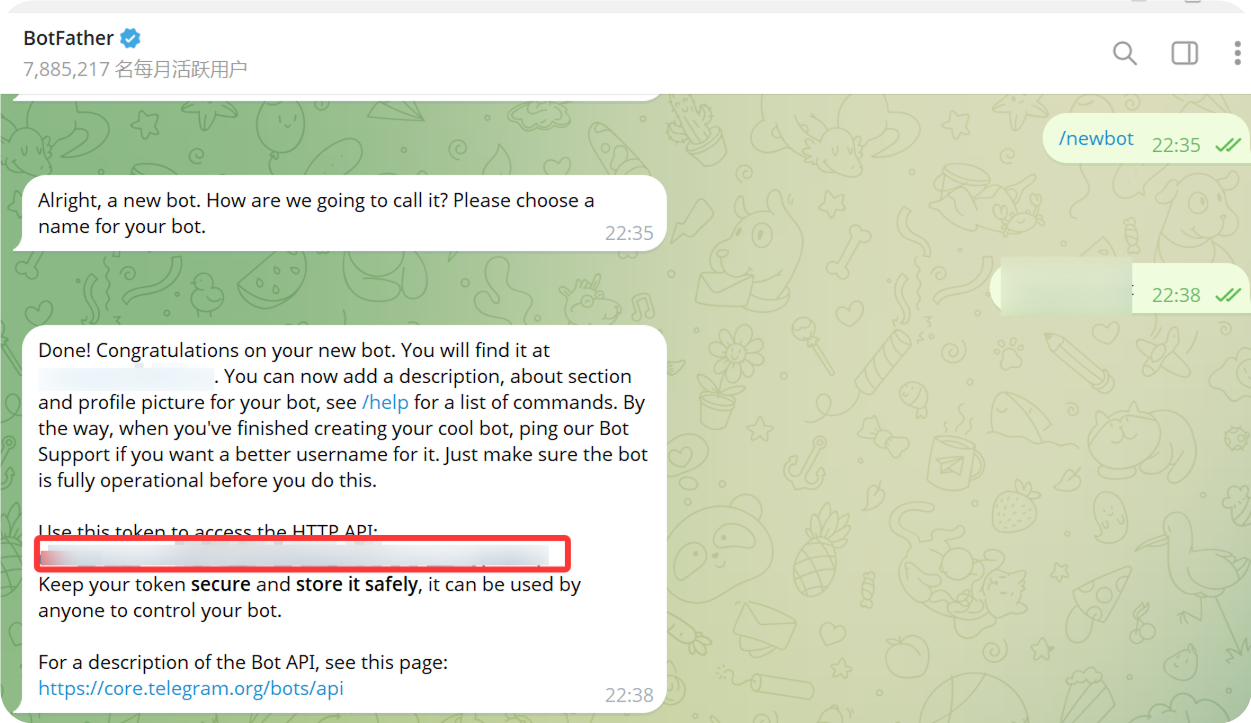
1. Telegram போட் உருவாக்கவும்
- Telegram திறந்து
@BotFatherதேடவும். - chat திறந்து
Startகிளிக் செய்யவும். /newbotஅனுப்பவும்.- போட் display name கேட்கும்போது உள்ளிடவும்.
- போட் username உள்ளிடவும். பொதுவாக username
botஎன முடிவது வேண்டும். - போட் உருவானதும்
@BotFatherபோட் டோக்கன் தரும்.
அந்த டோக்கன்-ஐ ImgHost-ல் Bot Token ஆக நிரப்ப வேண்டும்.
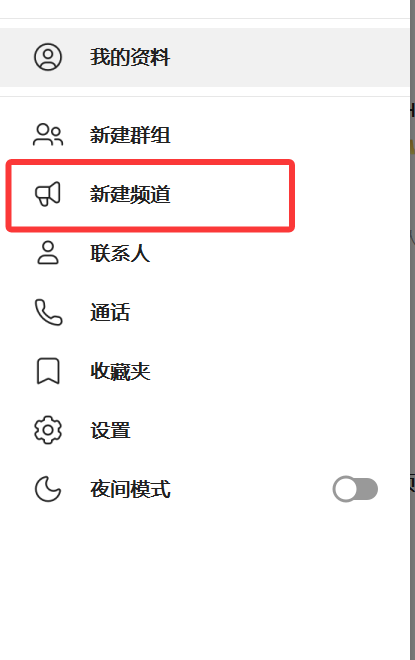
2. சேனல் உருவாக்கவும்
- Telegram-ல் New சேனல் கிளிக் செய்யவும்.
- சேனல் பெயரை உள்ளிடவும்.
- சேனல் உருவாக்கத்தை முடிக்கவும்.
Public மற்றும் private சேனல்கள் இரண்டும் பயன்படுத்தலாம்.
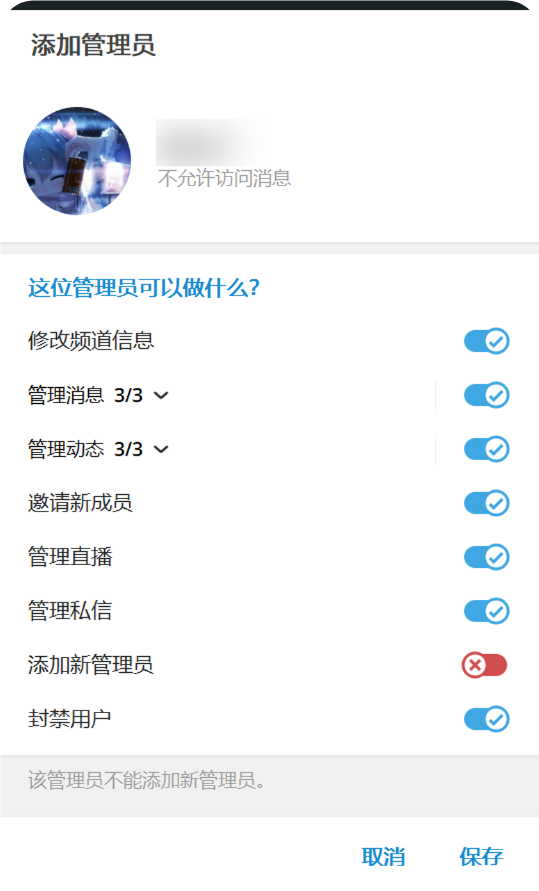
3. போட்-ஐ சேனல்-ல் சேர்க்கவும்
- உருவாக்கிய சேனல் திறக்கவும்.
- சேனல் settings திறக்கவும்.
- member அல்லது administrator சேர்க்கும் இடத்தைத் திறக்கவும்.
- உருவாக்கிய போட் username தேடவும்.
- போட்-ஐ சேனல்-ல் சேர்க்கவும்.
பதிவேற்றம் நம்பகமாக இயங்க போட்-க்கு administrator permissions கொடுப்பது நல்லது.
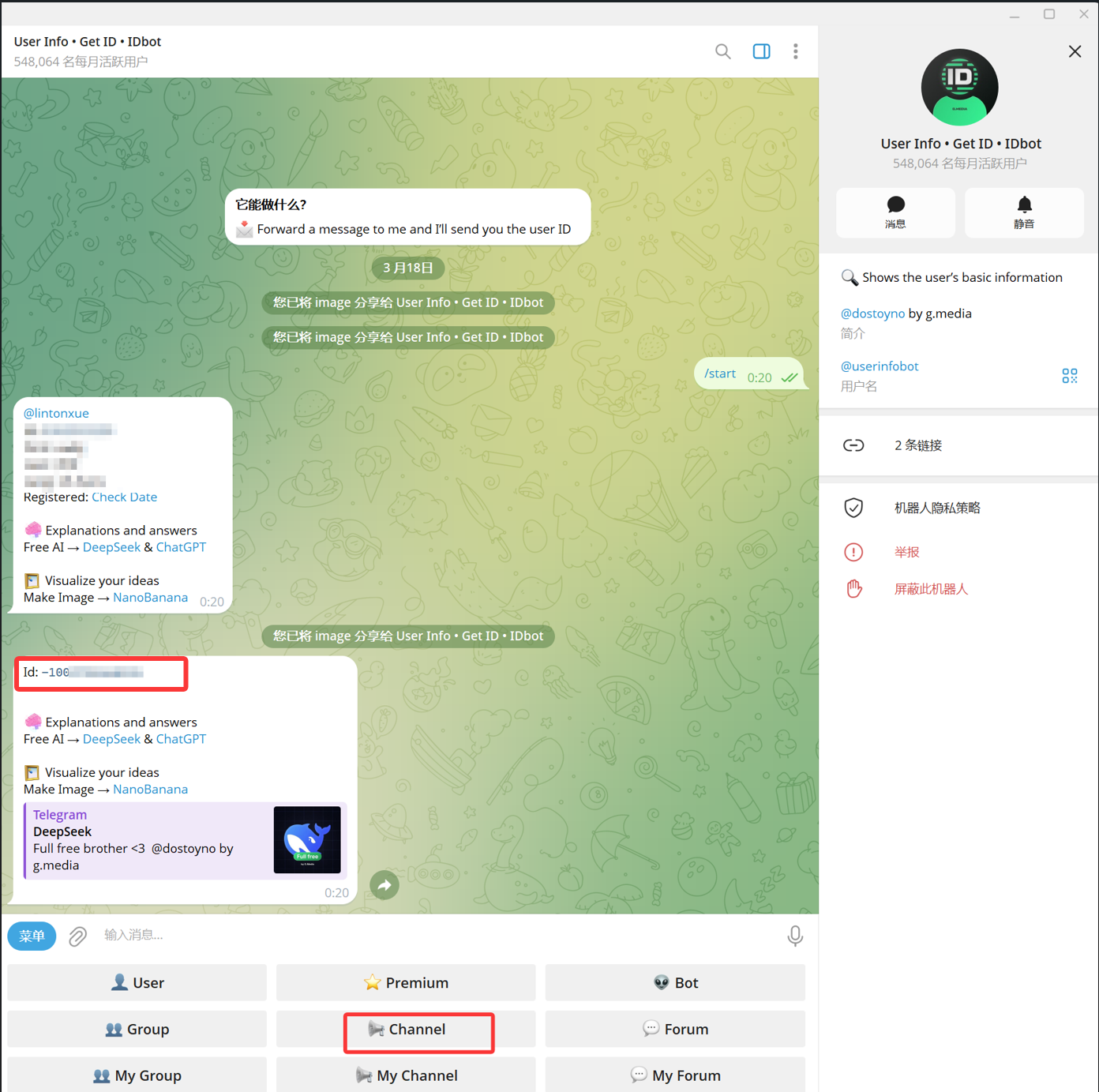
4. சேனல் ID பெறவும்
- Telegram-ல்
@userinfobotதேடவும். display name பொதுவாகUser Info - Get ID - IDbot. - chat திறந்து
Startகிளிக் செய்யவும். - போட் options-ல்
Channelதேர்வு செய்யவும். - message picker-ல் target சேனல் தேர்வு செய்து
@userinfobot-க்கு அனுப்பவும். - result வந்ததும்
Id: -100...என தொடங்கும் எண்ணை நகலெடுக்கவும்.
-100 என தொடங்கும் எண் தான் ImgHost-க்கு தேவையான Session ID (Chat ID).
5. ImgHost-ல் Telegram சேனல் நிரப்பவும்
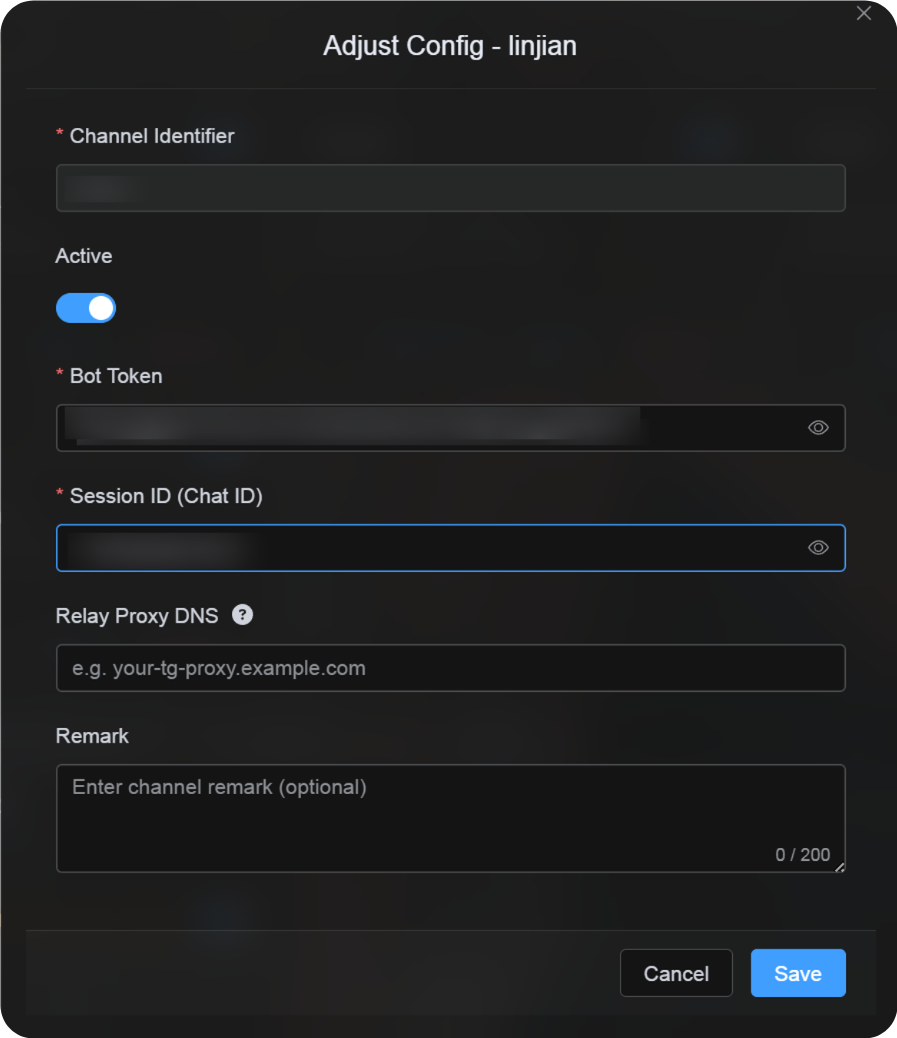
கட்டமைப்பு dialog-க்கு திரும்பி புலங்களை இவ்வாறு நிரப்பவும்:
| UI புலம் | மதிப்பு |
|---|---|
| சேனல் Identifier | custom சேனல் பெயர், உதா. TelegramPrimary. |
| Active | பரிந்துரைக்கப்படுகிறது. |
| போட் டோக்கன் | @BotFather கொடுத்த போட் டோக்கன். |
| Session ID (Chat ID) | @userinfobot கொடுத்த -100... எண். |
| Relay Proxy URL (விருப்பத்தேர்வு) | தேவைப்பட்டால் மட்டும், உதா. https://your-tg-proxy.example.com. |
| குறிப்பு | விருப்பமான குறிப்புகள். |
முடிந்ததும் சேமி என்பதைக் கிளிக் செய்யவும்.
எப்படி சரிபார்ப்பது
| சரிபார்ப்பு | சரிபார்ப்பு |
|---|---|
| சேனல் card தெரிகிறது | சேமித்த பிறகு பதிவேற்ற அமைப்புகளில் Telegram சேனல் card காணப்பட வேண்டும். |
| சேனலை இயக்க முடியும் | Active switch on ஆகவே இருக்க வேண்டும். |
| கட்டமைப்பு சேமிக்கப்பட்டுள்ளது | detail view-ல் போட் டோக்கன் மற்றும் Chat ID சேமிக்கப்பட்டுள்ளன என காண வேண்டும். |
| பதிவேற்றம் செயல்படுகிறது | test image பதிவேற்றி இலக்கு Telegram சேனலில் வந்ததா பார்க்கவும். |
விரைவு சரிபார்ப்பு பட்டியல்
text
Create a bot with @BotFather
-> Save the Bot Token
-> Create a Telegram channel
-> Add the bot to the channel and grant administrator permissions
-> Search for @userinfobot and choose Channel
-> Forward any message from the channel to @userinfobot
-> Copy the returned Id: -100...
-> Enter the Bot Token and Chat ID in ImgHost
-> Save and upload a test image
மேற்கோள்கள்
- Telegram போட்s: https://core.telegram.org/bots
- Telegram போட் API: https://core.telegram.org/bots/api