Discord சேனல் சேர்க்கவும்
தொடங்குவதற்கு முன் தேவையானவை
| தேவை | பயன்பாடு |
|---|---|
| Discord கணக்கு | சேவையகம், சேனல், developer செயலிlication உருவாக்க |
| Discord சேவையகம் | போட் சேனல் அணுகுவதற்கு முன் சேவையகம்-ல் join ஆக வேண்டும் |
| Text சேனல் | படங்கள் மற்றும் கோப்புகள் இந்த சேனல்-க்கு அனுப்பப்படும் |
| Discord Developer Portal | செயலிlication, போட் உருவாக்கி Bot Token பெற |
எங்கு சேர்ப்பது
- அமைப்பு அமைப்புகள் திறக்கவும்.
- பதிவேற்ற அமைப்புகள்-க்கு செல்லவும்.
- மேல் வலது மூலையில் சேனல் சேர்க்கவும் கிளிக் செய்யவும்.
Discordதேர்வு செய்யவும்.
புல விவரம்
| புலம் | பயன்பாடு | அவசியம் |
|---|---|---|
| சேனல் பெயர் | இந்த சேனல்-க்கு பெயர், உதா. Discord Primary. | அவசியம் |
| போட் டோக்கன் | Discord போட் டோக்கன். | அவசியம் |
| சேனல் ID | target text சேனல் ID. | அவசியம் |
| Proxy URL (விருப்பத்தேர்வு) | Discord CDN அணுகல் unstable என்றால் மட்டும். https:// உடன் full URL. | விருப்பத்தேர்வு |
அமைப்பு படிகள்
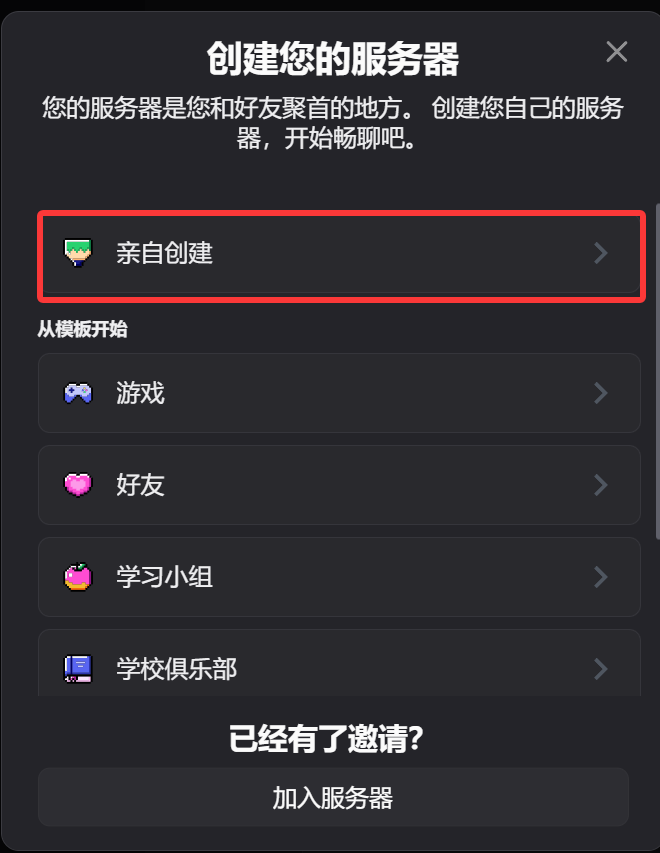
1. Discord சேவையகம் மற்றும் Text சேனல் உருவாக்கவும்
- Discord திறக்கவும்.
- புதிய சேவையகம் உருவாக்கவும், அல்லது உங்களிடம் ஏற்கனவே உள்ள சேவையகத்தை பயன்படுத்தவும்.
- அந்த சேவையகத்தில் text சேனல் உருவாக்கவும்.
2. Discord Developer Portal-ல் போட் உருவாக்கவும்
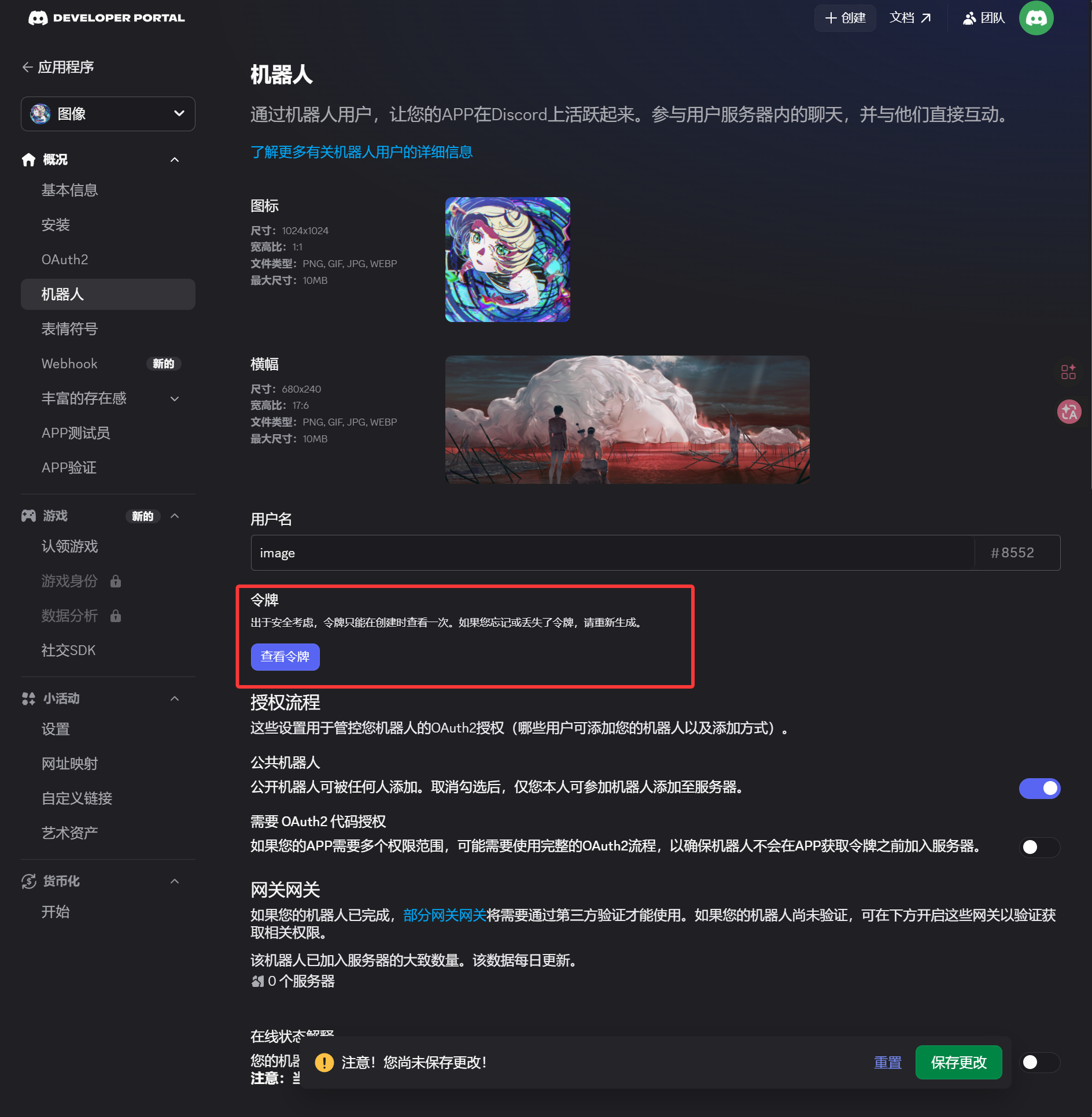
- Discord Developer Portal திறக்கவும்:
https://discord.com/developers/applications New Applicationகிளிக் செய்யவும்.- application name-ஐ உள்ளிட்டு உருவாக்கவும்.
- இடது பக்கப்பட்டியில்
Botpage திறக்கவும். Botpage-ல் டோக்கனை generate அல்லது reset செய்யவும்.- டோக்கன் சேமிக்கவும்.
இந்த டோக்கன் தான் ImgHost-ல் Bot Token.
3. OAuth2 Invite Link உருவாக்கி போட் Install செய்யவும்
- இடது பக்கப்பட்டி-ல்
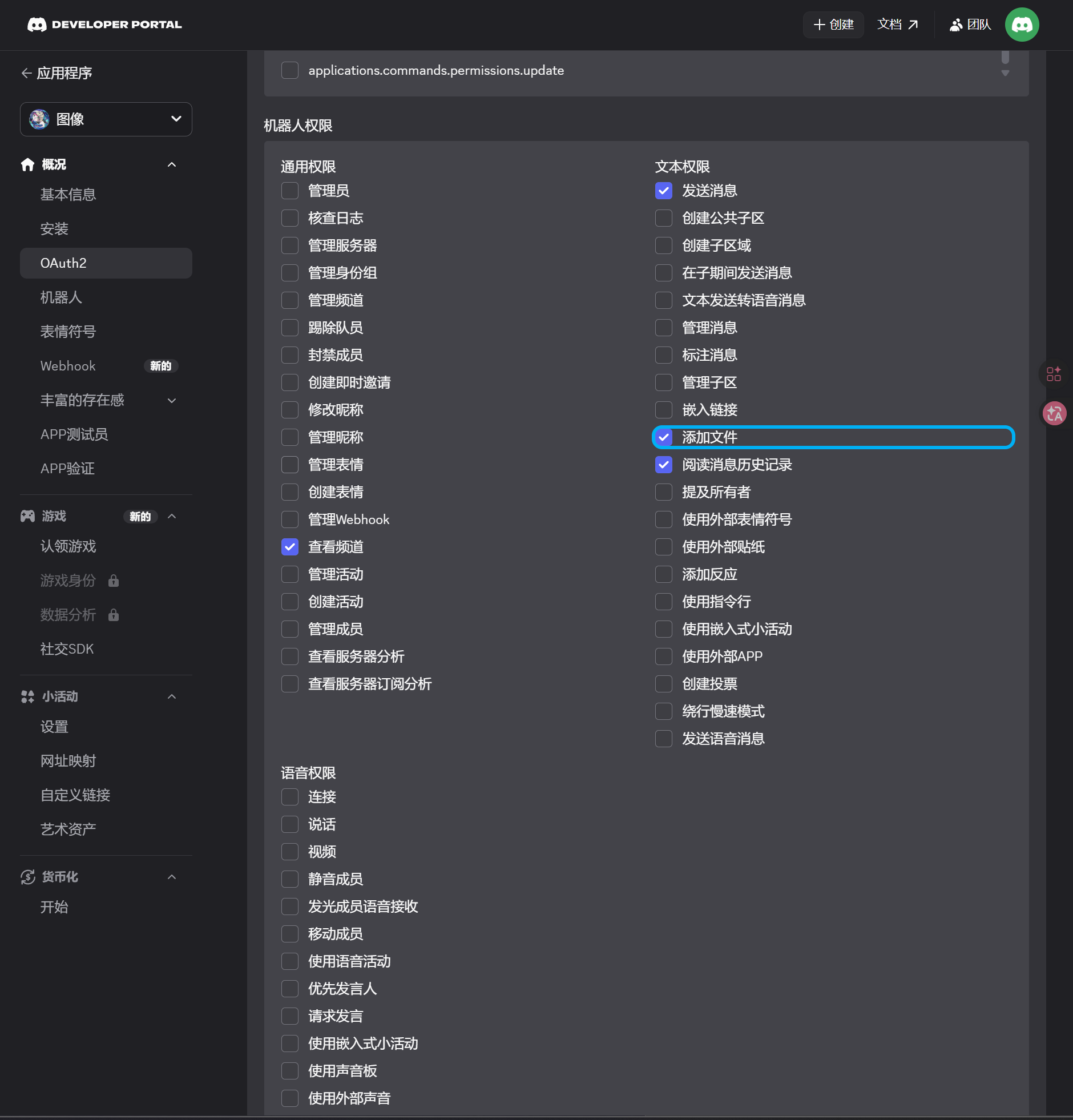
OAuth2page திறக்கவும். - scopes பகுதியில்
botதேர்வு செய்யவும். - permission பகுதியில் இவற்றை enable செய்யவும்:
| அனுமதி | அவசியம் |
|---|---|
| சேனல்களைப் பார்க்குதல் | ஆம் |
| செய்திகளை அனுப்புதல் | ஆம் |
| கோப்புகளை இணைத்தல் | ஆம் |
| செய்தி வரலாற்றைப் படித்தல் | ஆம் |
- page கீழே integration type
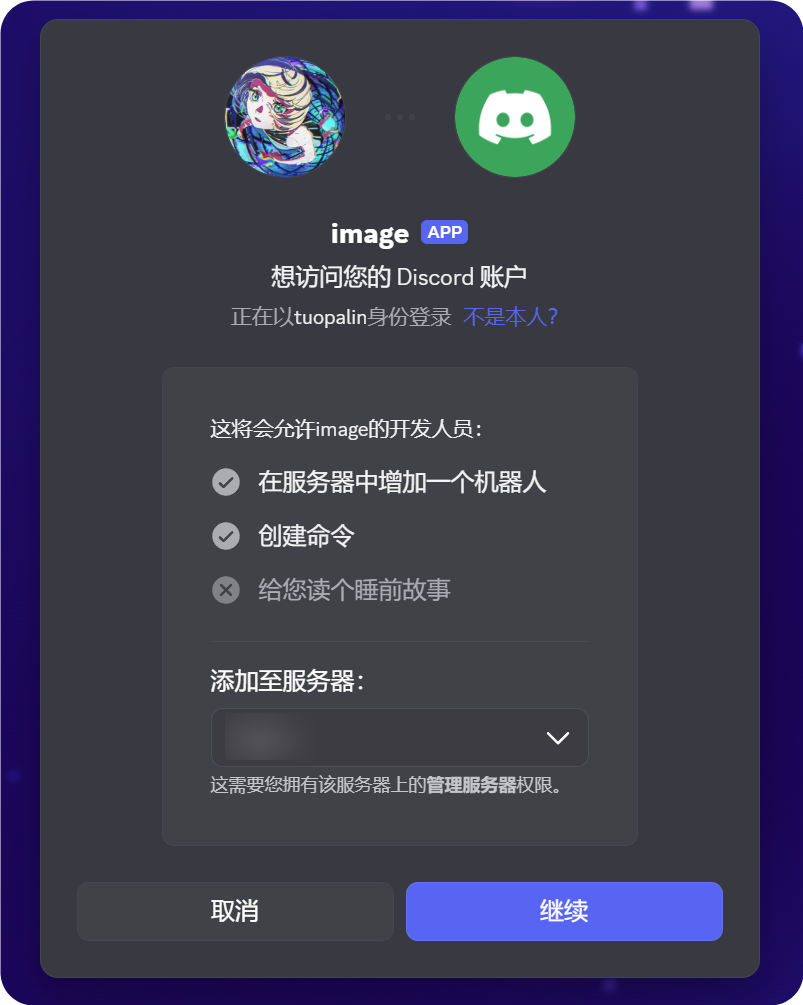
Guild Installஎன்பதை உறுதிப்படுத்தவும். - உருவாக்கப்பட்ட URL-ஐ நகலெடுக்கவும்.
- browser-ல் அந்த URL-ஐ திறக்கவும்.
- இலக்கு சேவையகத்தைத் தேர்வு செய்யவும்.
- authorization flow-ஐ முடிக்கவும்.
4. Developer Mode Enable செய்து சேனல் ID நகலெடு செய்யவும்
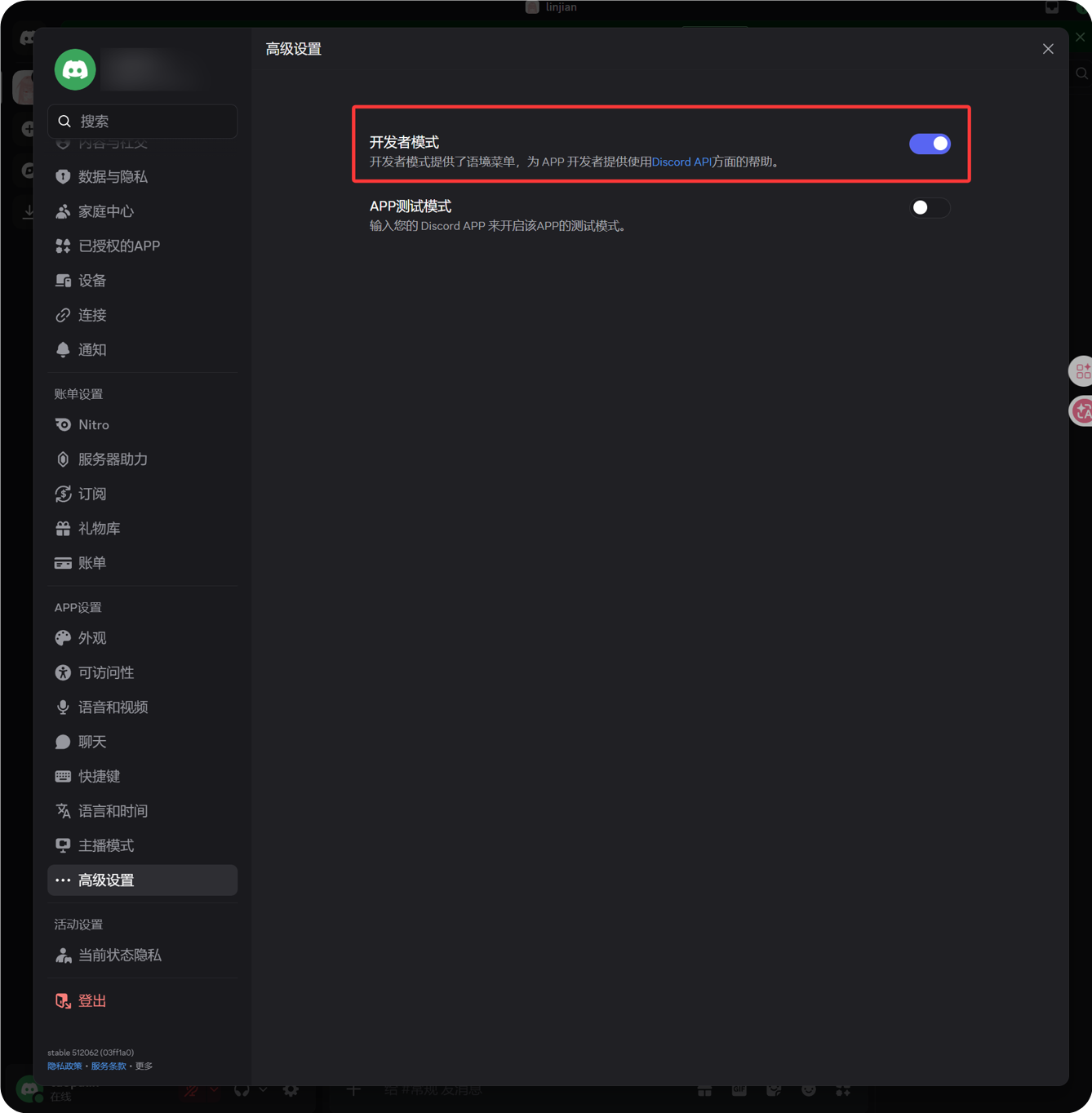
- Discord கீழ் இடது பகுதியில் avatar அருகிலுள்ள gear icon-ஐ கிளிக் செய்யவும்.
- இடது பக்கப்பட்டியில் Advanced திறக்கவும்.
- Developer Mode-ஐ enable செய்யவும்.
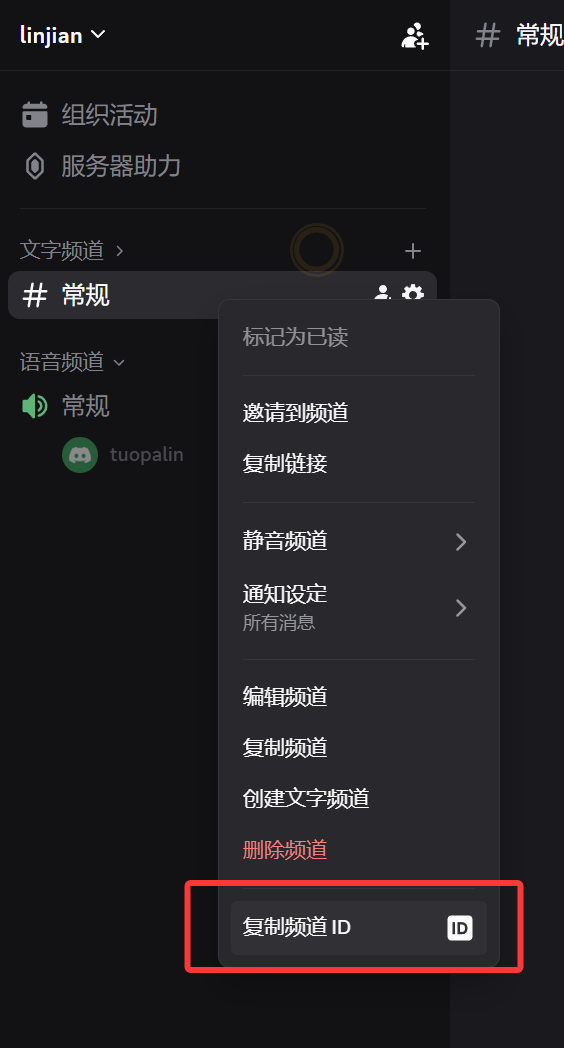
- இலக்கு text சேனலுக்கு திரும்பவும்.
- சேனல் பெயர் மீது right-click செய்யவும்.
- சேனல் ID-ஐ நகலெடுக்கவும் என்பதைக் கிளிக் செய்யவும்.
நகலெடுக்கப்பட்ட எண் தான் ImgHost-க்கு தேவையான Channel ID.
5. ImgHost-ல் Discord சேனல் நிரப்பவும்
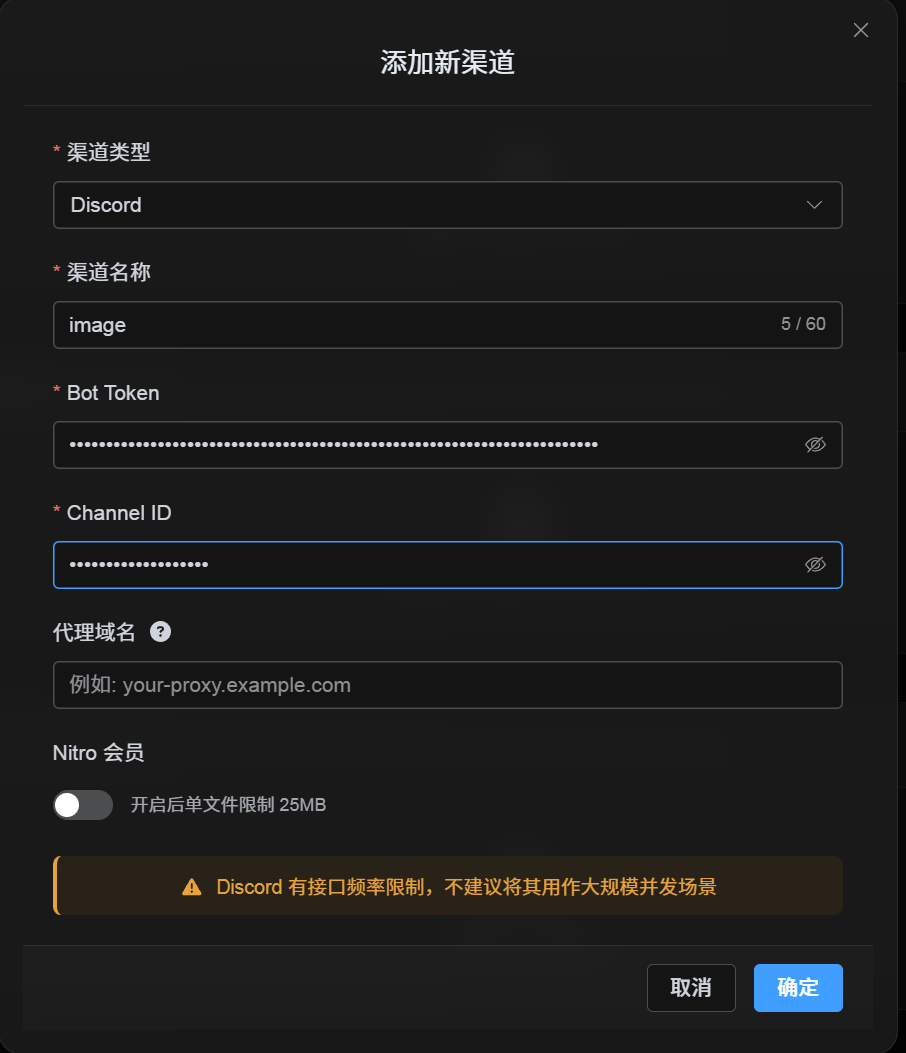
கட்டமைப்பு dialog-க்கு திரும்பி:
| UI புலம் | மதிப்பு |
|---|---|
| சேனல் பெயர் | custom சேனல் பெயர், உதா. DiscordPrimary. |
| போட் டோக்கன் | Discord Developer Portal Bot page-ல் சேமித்த டோக்கன். |
| சேனல் ID | Discord-ல் நகலெடுத்த சேனல் ID. |
| Proxy URL (விருப்பத்தேர்வு) | தேவைப்பட்டால் மட்டும், உதா. https://your-proxy.example.com. |
முடிந்ததும் சேமி என்பதைக் கிளிக் செய்யவும்.
சரிபார்ப்பது
| சரிபார்ப்பு | சரிபார்ப்பு |
|---|---|
| சேனல் card தெரிகிறது | சேமித்த பிறகு Discord சேனல் card தெரியும். |
| சேனலை இயக்க முடியும் | Active switch on ஆக இருக்கும். |
| கட்டமைப்பு சேமிக்கப்பட்டுள்ளது | detail view-ல் போட் டோக்கன் மற்றும் சேனல் ID சேமிக்கப்பட்டுள்ளன என தெரியும். |
| பதிவேற்றம் செயல்படுகிறது | test image பதிவேற்றி இலக்கு Discord text சேனலில் வந்ததா பார்க்கவும். |
விரைவு சரிபார்ப்பு பட்டியல்
text
Create a Discord server
-> Create a text channel
-> Create a bot in the Discord Developer Portal
-> Save the Bot Token from the Bot page
-> In OAuth2, select bot, View Channels, Send Messages, Attach Files, and Read Message History
-> Copy the generated URL and authorize the bot for the target server
-> Make sure the target text channel grants the same permissions
-> Enable Developer Mode
-> Right-click the target text channel and copy the Channel ID
-> Enter the Bot Token and Channel ID in ImgHost
-> Save and upload a test image
மேற்கோள்கள்
- Discord Developers Getting Started: https://docs.discord.com/developers/quick-start/getting-started
- Discord Help - Where can I find my User/சேவையகம்/Message ID: https://support.discord.com/hc/en-us/articles/206346498-Where-can-I-find-my-User-Server-Message-ID