Thêm Discord Channel
Cần chuẩn bị gì trước khi bắt đầu
| Yêu cầu | Mục đích |
|---|---|
| Discord account | Dùng để tạo server, channel và developer application. |
| Một Discord server | Bot phải join server trước khi access channel. |
| Một text channel | Images và files sẽ được gửi vào channel này. |
| Discord Developer Portal | Dùng để tạo application, tạo bot và lấy Bot Token. |
Thêm ở đâu
- Mở Cài đặt hệ thống.
- Vào Cài đặt tải lên.
- Nhấn Thêm kênh ở góc trên bên phải.
- Chọn
Discord.
Tham chiếu trường
| Trường | Tác dụng | Bắt buộc |
|---|---|---|
| Channel name | Tên dễ nhận biết cho channel này, ví dụ "Discord Primary". | Bắt buộc |
| Bot Token | Discord bot token. | Bắt buộc |
| Channel ID | ID của target text channel. | Bắt buộc |
| Proxy URL (không bắt buộc) | Chỉ dùng nếu Discord CDN access không ổn định. Nhập full URL, bao gồm https://. | Không bắt buộc |
Các bước thiết lập
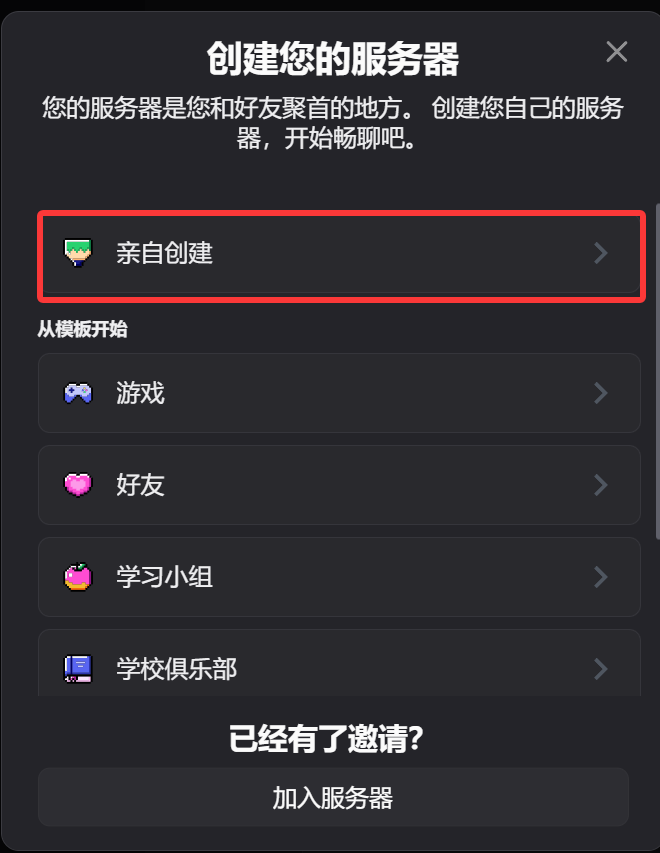
1. Tạo Discord Server và Text Channel
- Mở Discord.
- Tạo server mới, hoặc dùng hiện có server bạn sở hữu.
- Tạo một text channel trong server đó.
2. Tạo Bot trong Discord Developer Portal
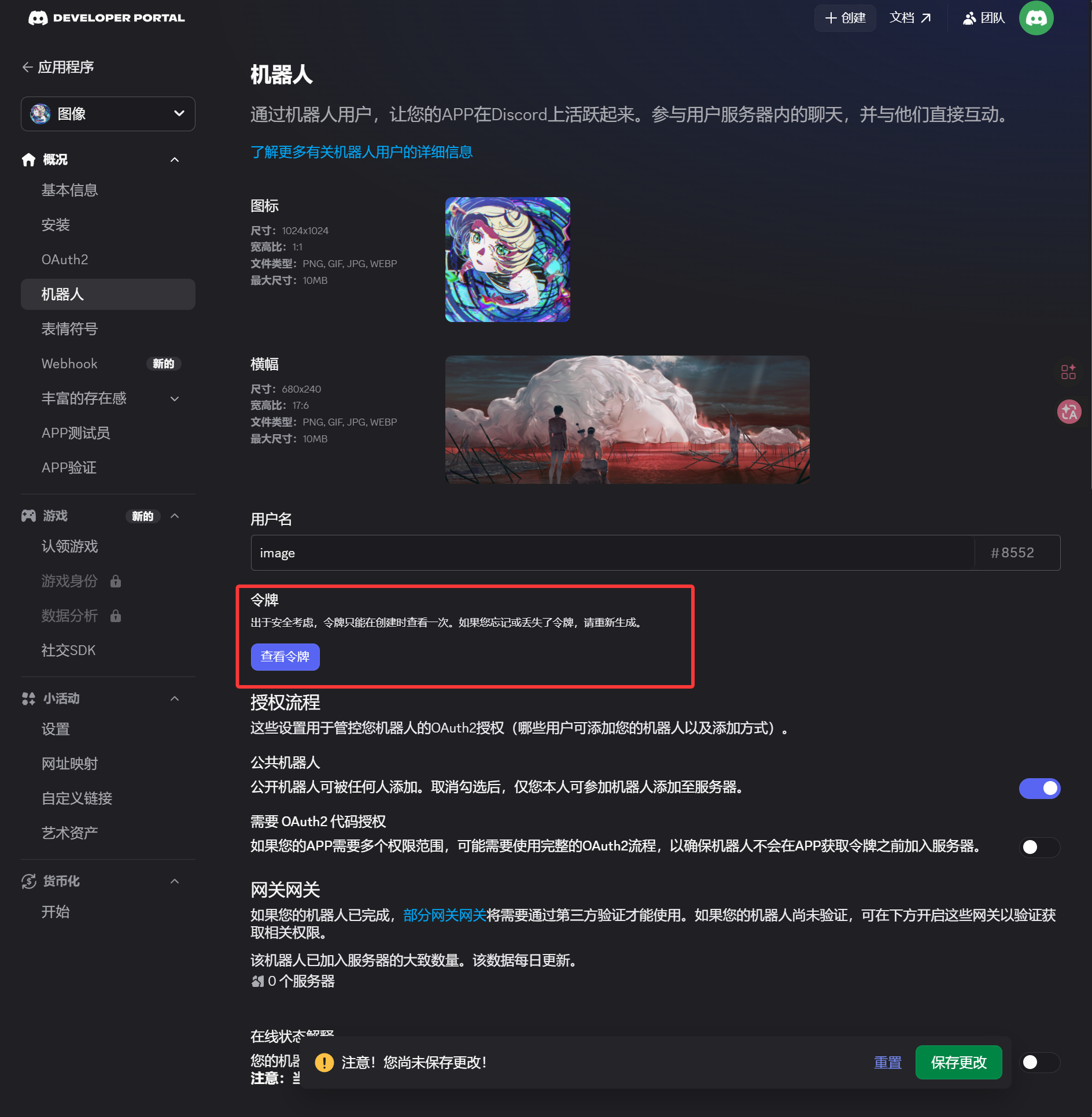
- Mở Discord Developer Portal:
https://discord.com/developers/applications - Nhấn
New Application. - Nhập application name và tạo.
- Mở trang
Bottừ left sidebar. - Generate hoặc reset token trong trang
Bot. - Lưu token.
Token này chính là Bot Token cần nhập trong ImgHost.
3. Tạo OAuth2 Invite Link và Install Bot
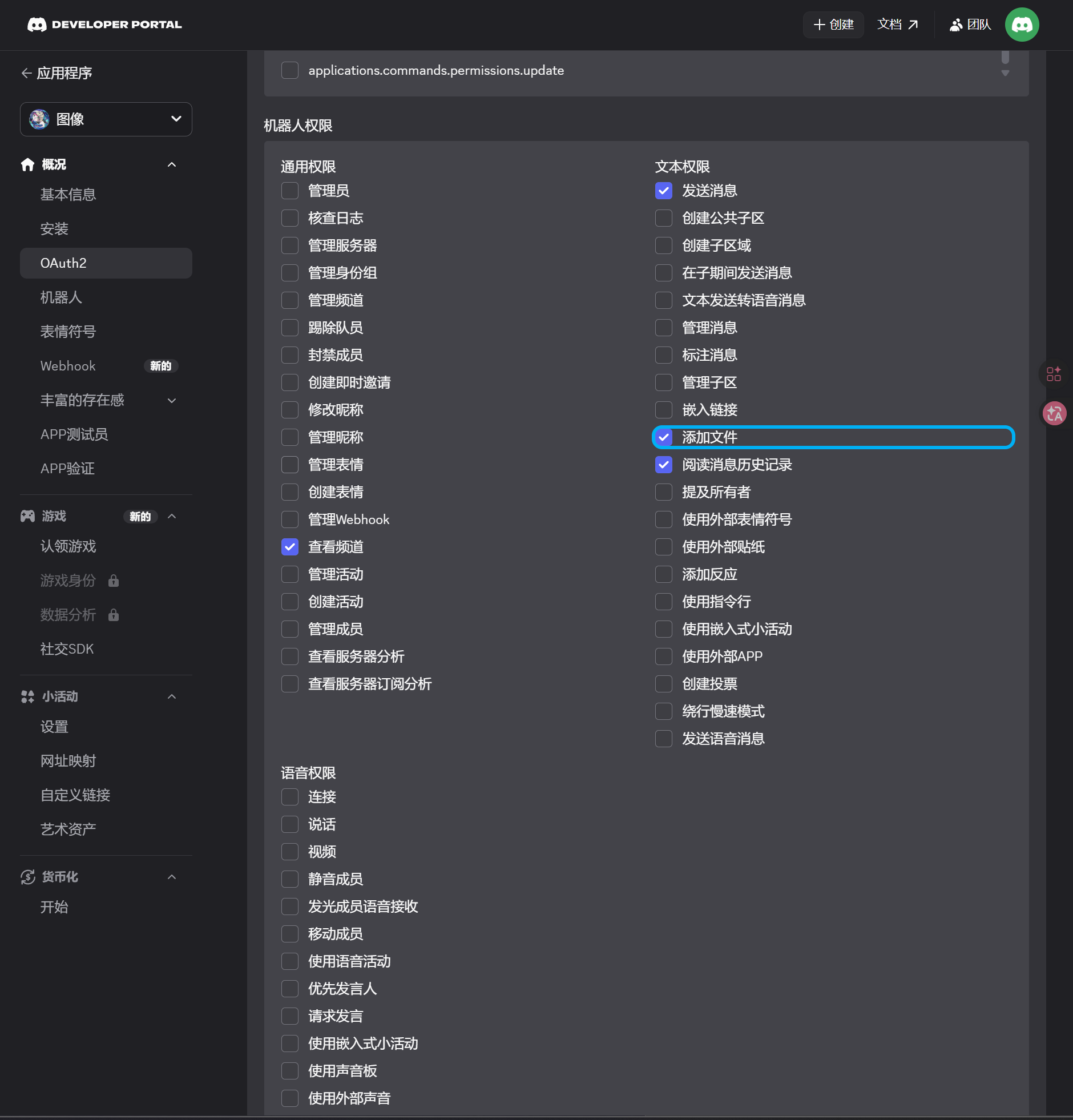
- Mở trang
OAuth2từ left sidebar. - Trong scopes, chọn
bot. - Trong permission area, bật các permissions này:
| Quyền | Bắt buộc |
|---|---|
| View Channels | Có |
| Send Messages | Có |
| Attach Files | Có |
| Read Message History | Có |
- Ở cuối page, xác nhận integration type là
Guild Install. - Sao chép đã tạo URL.
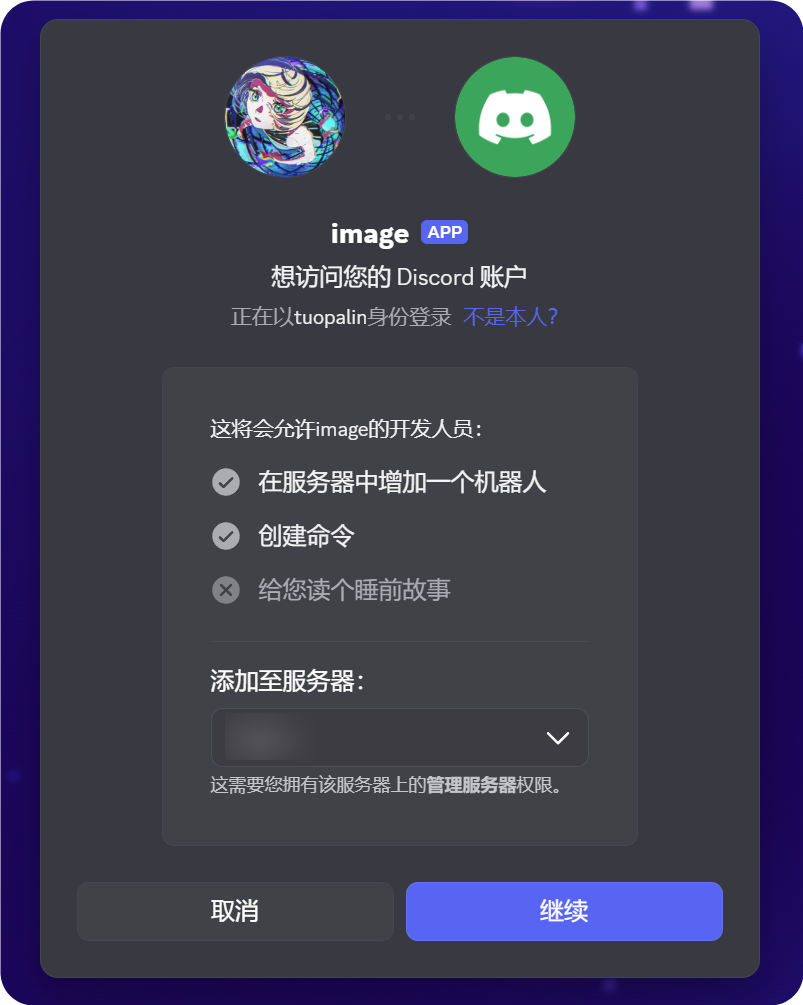
- Mở URL đó trong browser.
- Chọn target server.
- Hoàn tất authorization flow.
4. Enable Developer Mode và Sao chép Channel ID
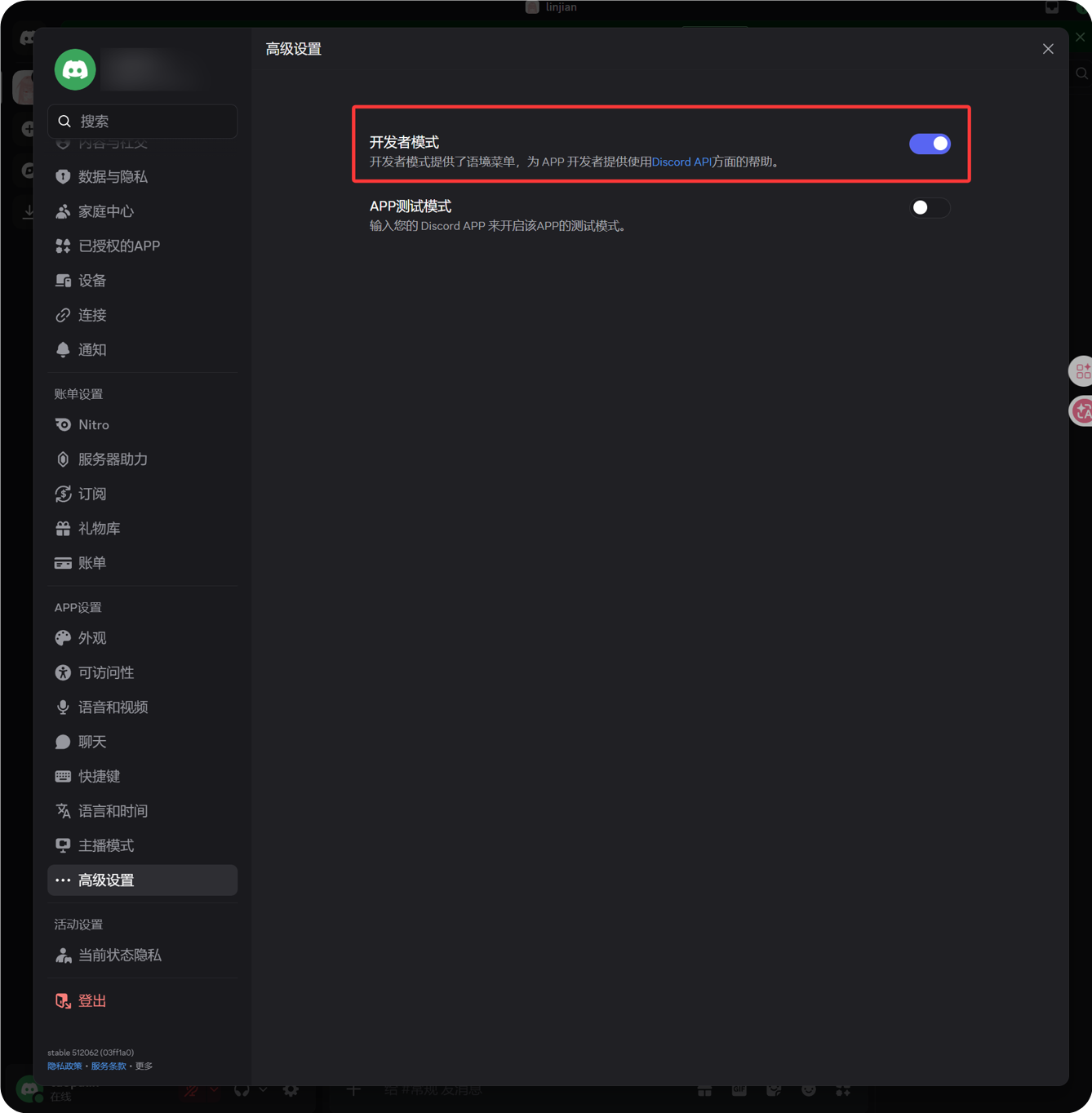
- Nhấn biểu tượng gear cạnh avatar ở góc dưới bên trái Discord.
- Mở Advanced từ left sidebar.
- Enable Developer Mode.
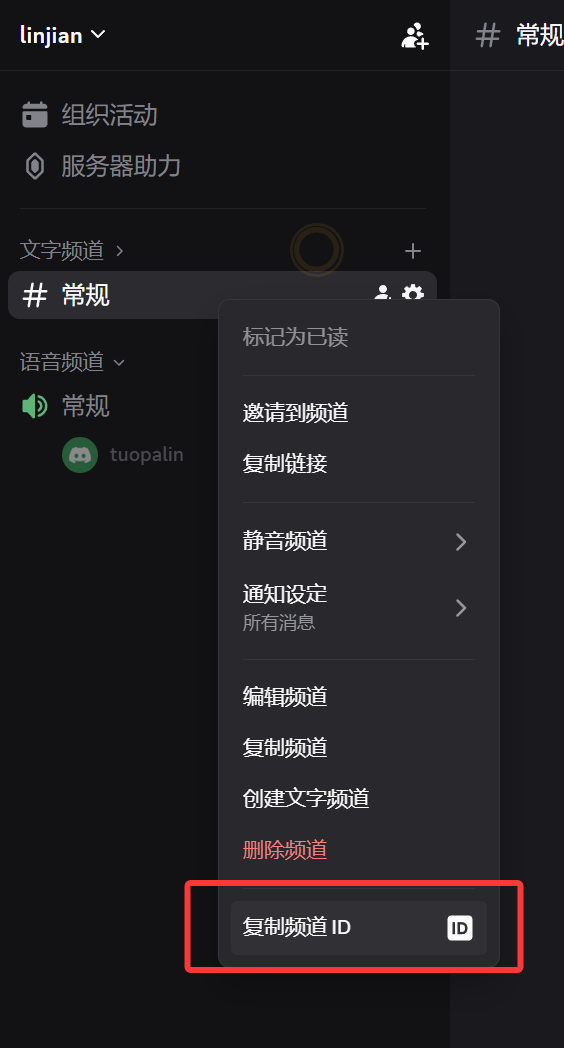
- Quay lại target text channel.
- Right-click tên channel.
- Nhấn Sao chép Channel ID.
Số được sao chép là Channel ID mà ImgHost cần.
5. Điền Discord Channel trong ImgHost
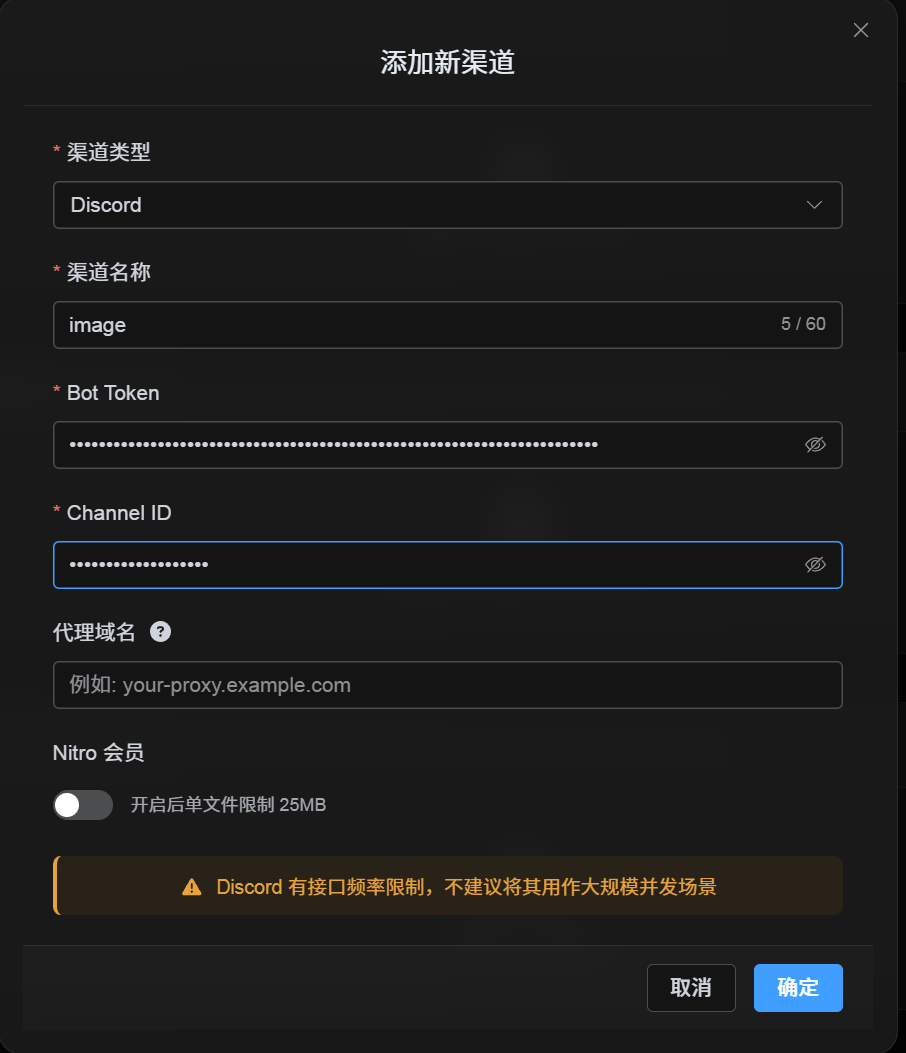
Quay lại channel configuration dialog và điền như sau:
| Trường UI | Giá trị |
|---|---|
| Channel name | Tên channel tùy chọn, ví dụ DiscordPrimary. |
| Bot Token | Token đã lưu từ trang Bot trong Discord Developer Portal. |
| Channel ID | Channel ID đã sao chép từ Discord. |
| Proxy URL (không bắt buộc) | Chỉ nhập nếu cần, ví dụ https://your-proxy.example.com. |
Điền xong thì nhấn Save.
Cách kiểm tra
| Kiểm tra | Cách kiểm tra |
|---|---|
| Channel card xuất hiện | Sau khi save, trang Cài đặt tải lên cần hiển thị Discord channel card. |
| Channel bật được | Active switch nên giữ trạng thái on. |
| Configuration đã lưu | Detail view cần cho thấy Bot Token và Channel ID đã được lưu. |
| Upload hoạt động | Upload một test image và xác nhận nó xuất hiện trong target Discord text channel. |
Danh sách kiểm tra nhanh
text
Create a Discord server
-> Create a text channel
-> Create a bot in the Discord Developer Portal
-> Save the Bot Token from the Bot page
-> In OAuth2, select bot, View Channels, Send Messages, Attach Files, and Read Message History
-> Copy the generated URL and authorize the bot for the target server
-> Make sure the target text channel grants the same permissions
-> Enable Developer Mode
-> Right-click the target text channel and copy the Channel ID
-> Enter the Bot Token and Channel ID in ImgHost
-> Save and upload a test image
Tài liệu tham khảo
- Discord Developers Getting Started: https://docs.discord.com/developers/quick-start/getting-started
- Discord Help - Where can I find my User/Server/Message ID: https://support.discord.com/hc/en-us/articles/206346498-Where-can-I-find-my-User-Server-Message-ID