Tambah Saluran Discord
Perkara Yang Diperlukan Sebelum Bermula
| Keperluan | Tujuan |
|---|---|
| Akaun Discord | Digunakan untuk membuat server, saluran dan aplikasi pembangun. |
| Server Discord | Bot mesti menyertai server sebelum boleh mengakses saluran. |
| Saluran teks | Imej dan fail akan dihantar ke saluran ini. |
| Discord Developer Portal | Digunakan untuk membuat aplikasi, membuat bot dan mendapatkan Bot Token. |
Tempat Menambahkannya
- Buka Tetapan Sistem.
- Pergi ke Tetapan Muat Naik.
- Klik Tambah Saluran di penjuru kanan atas.
- Pilih
Discord.
Rujukan Medan
| Medan | Fungsi | Wajib |
|---|---|---|
| Nama saluran | Nama mesra untuk saluran ini, seperti "Discord Utama". | Wajib |
| Bot Token | Token bot Discord. | Wajib |
| Channel ID | ID saluran teks sasaran. | Wajib |
| URL proksi (pilihan) | Gunakan hanya jika akses CDN Discord tidak stabil. Masukkan URL penuh, termasuk https://. | Pilihan |
Langkah Persediaan
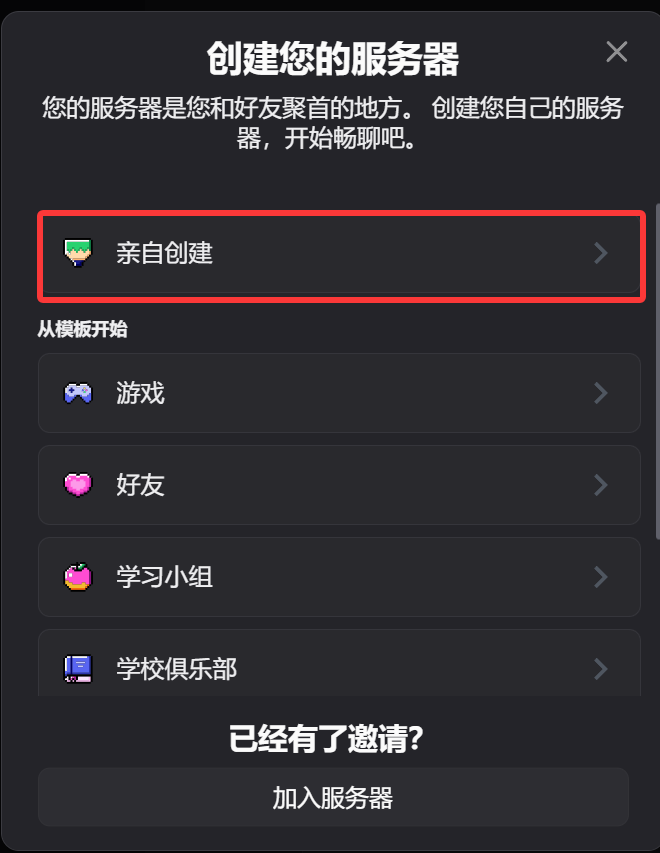
1. Buat Server Discord dan Saluran Teks
- Buka Discord.
- Buat server baharu, atau gunakan server sedia ada yang anda miliki.
- Buat saluran teks dalam server tersebut.
2. Buat Bot Dalam Discord Developer Portal
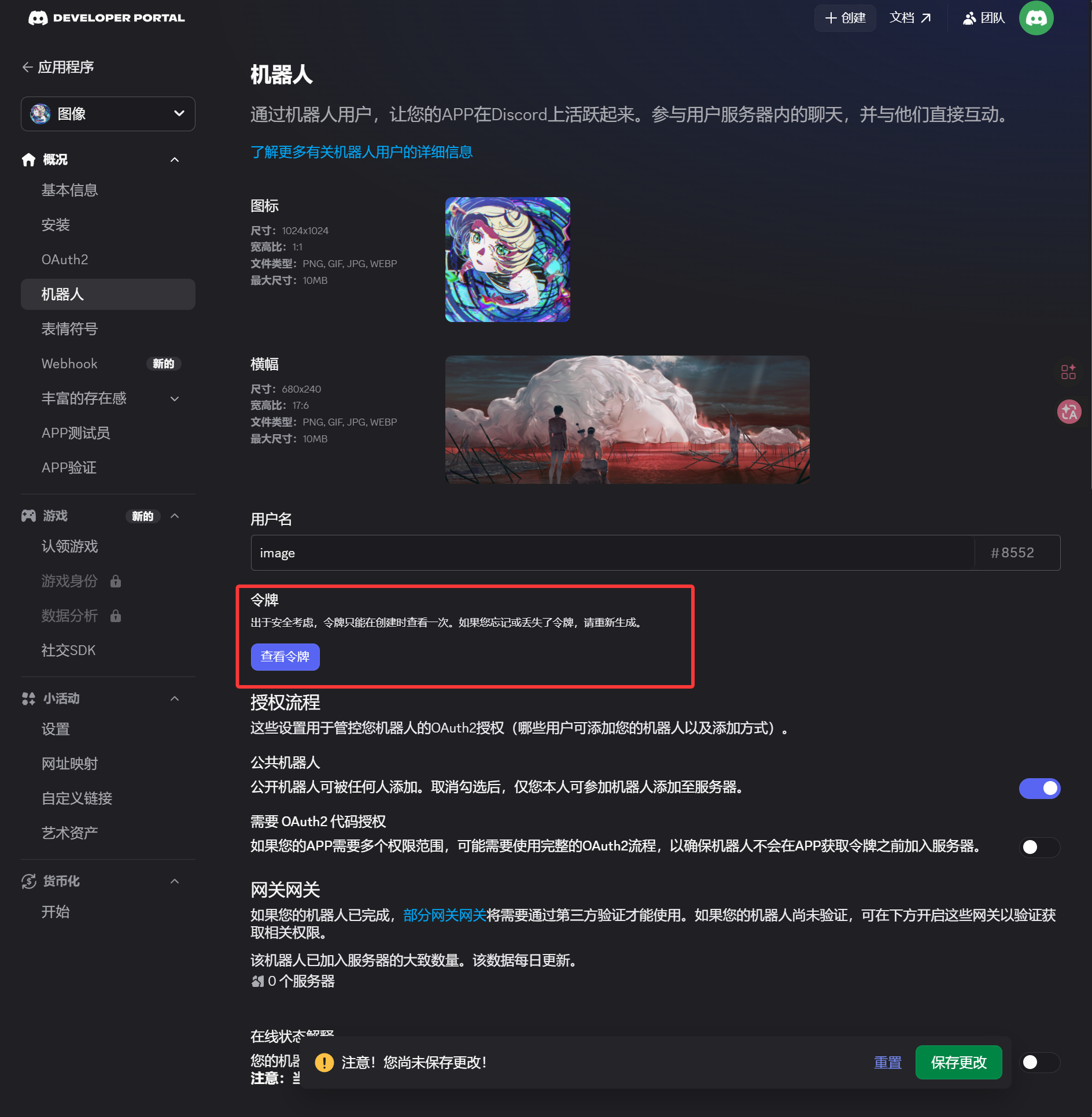
- Buka Discord Developer Portal:
https://discord.com/developers/applications - Klik
New Application. - Masukkan nama aplikasi dan buat aplikasi tersebut.
- Buka halaman
Botdaripada sidebar kiri. - Jana atau reset token pada halaman
Bot. - Simpan token tersebut.
Token ini ialah Bot Token yang perlu anda masukkan dalam ImgHost.
3. Jana Pautan Jemputan OAuth2 dan Pasang Bot
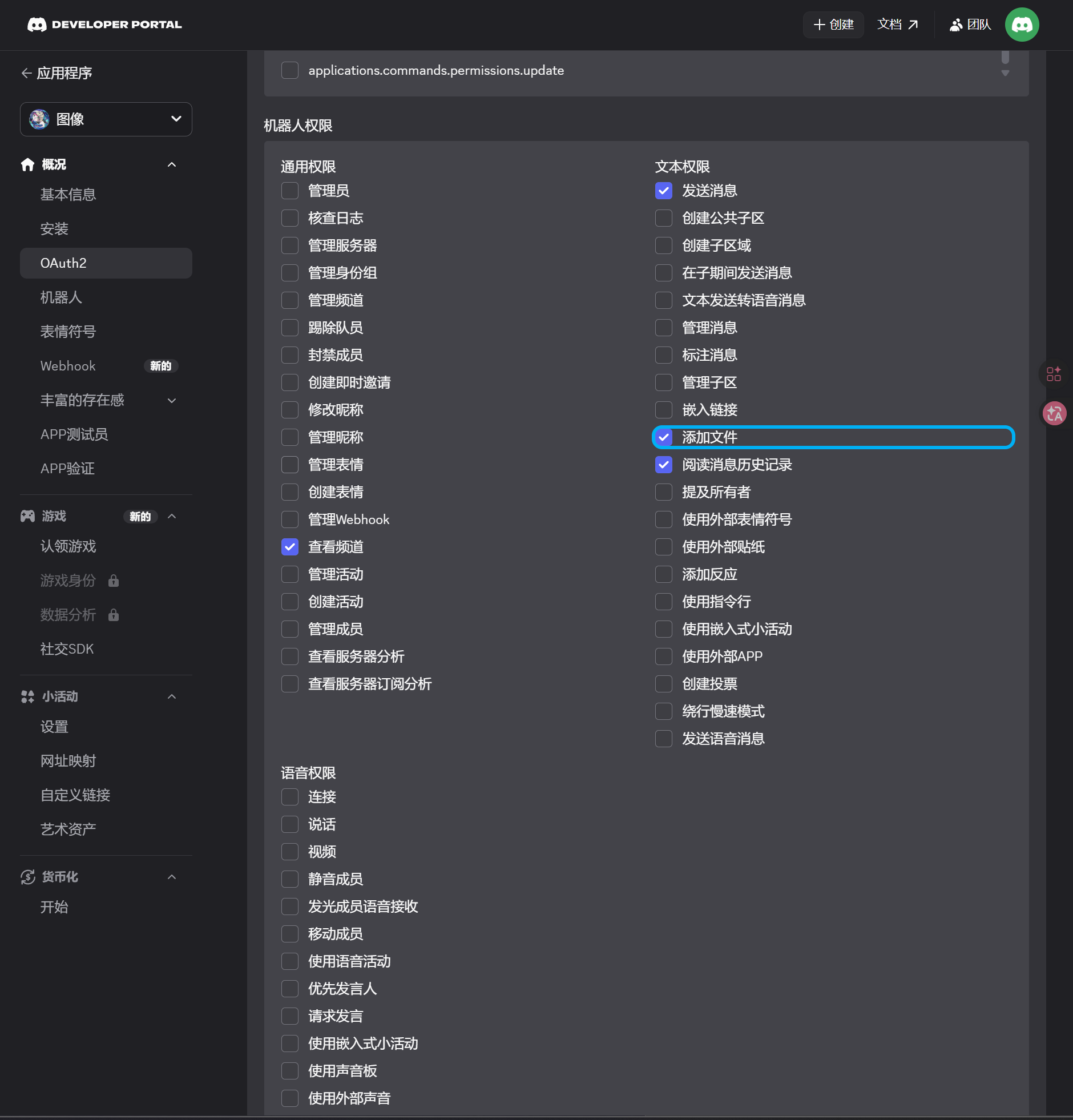
- Buka halaman
OAuth2daripada sidebar kiri. - Di bawah scopes, pilih
bot. - Dalam kawasan kebenaran, dayakan kebenaran berikut:
| Kebenaran | Wajib |
|---|---|
| View Channels | Ya |
| Send Messages | Ya |
| Attach Files | Ya |
| Read Message History | Ya |
- Di bahagian bawah halaman, sahkan bahawa jenis integrasi ialah
Guild Install. - Salin URL yang dijana.
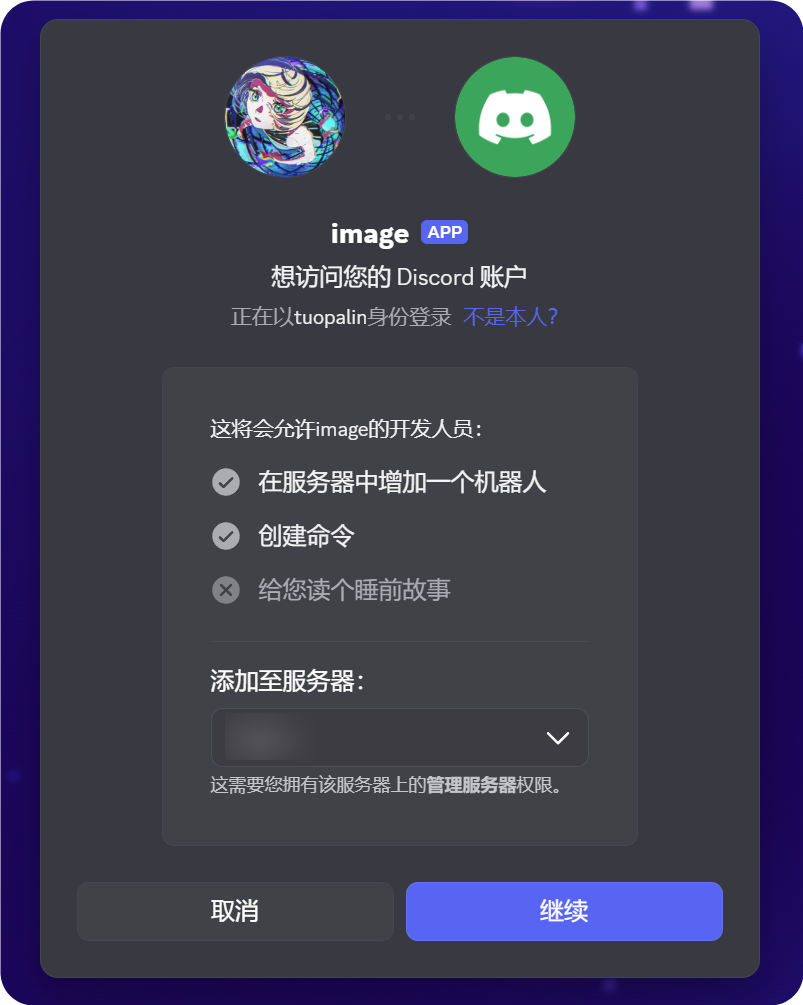
- Buka URL tersebut dalam pelayar.
- Pilih server sasaran.
- Lengkapkan aliran kebenaran.
4. Dayakan Developer Mode dan Salin Channel ID
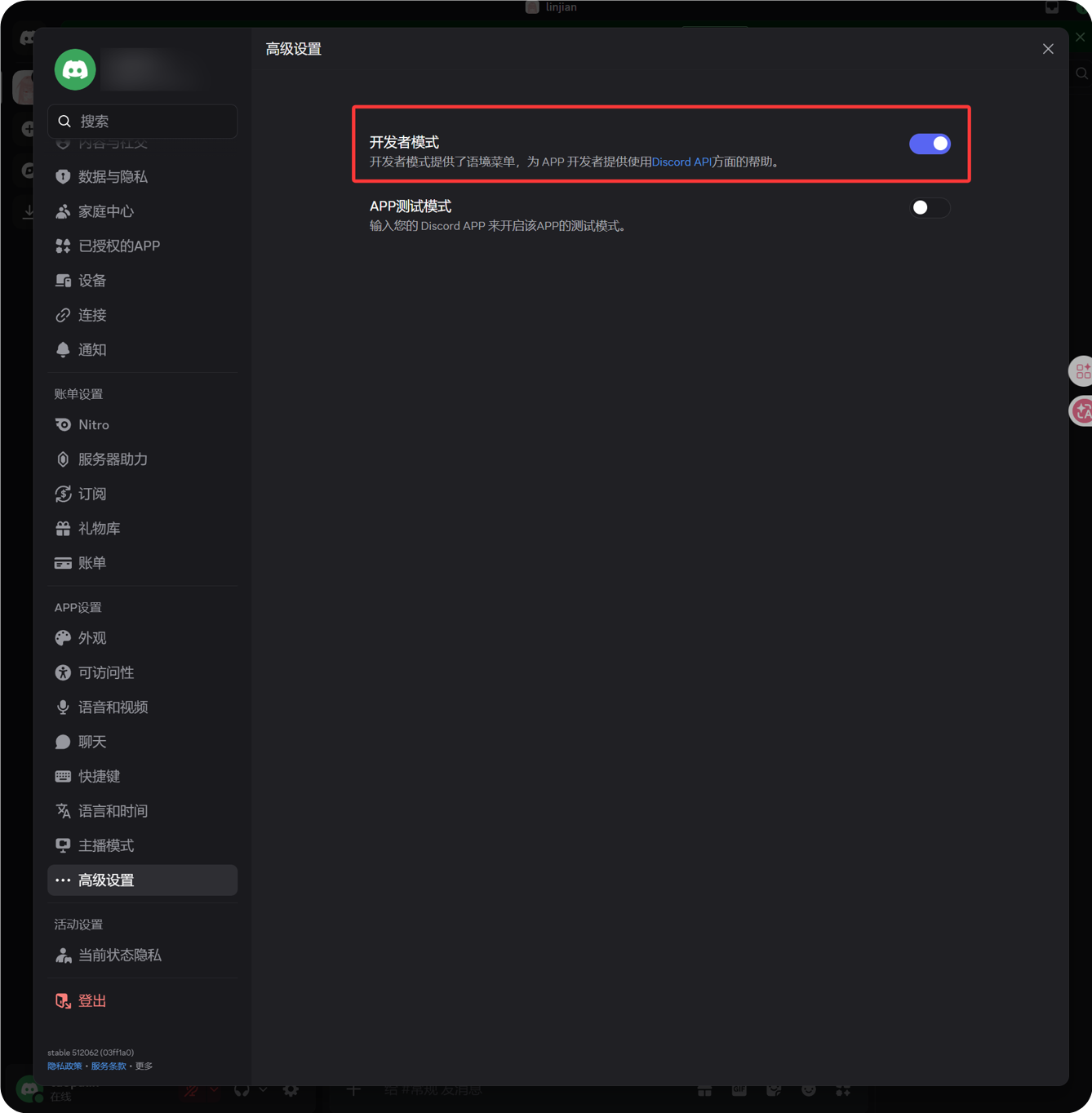
- Klik ikon gear di sebelah avatar anda di penjuru kiri bawah Discord.
- Buka
Advanceddaripada sidebar kiri. - Dayakan
Developer Mode. - Kembali ke saluran teks sasaran.
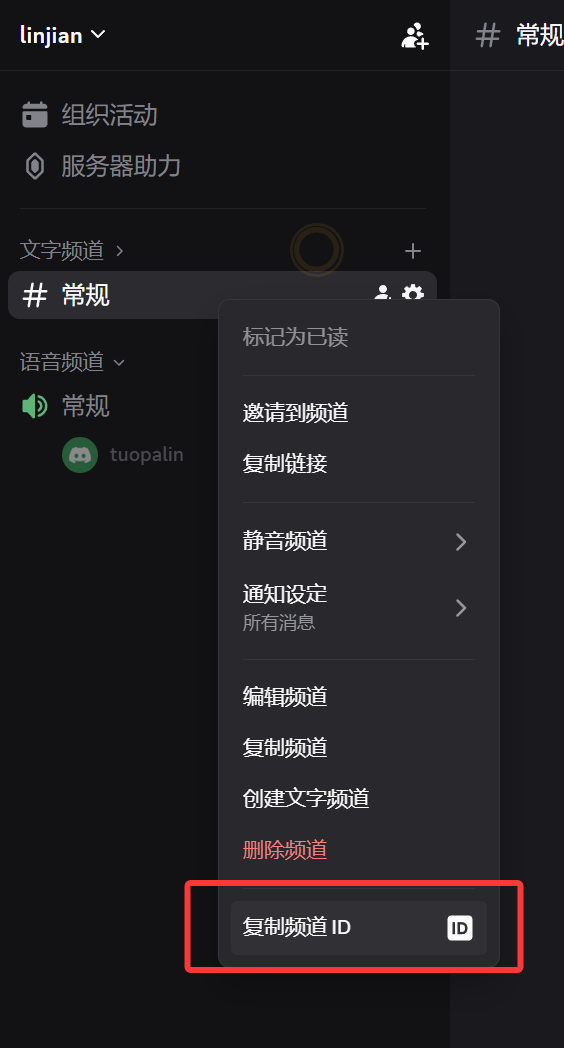
- Klik kanan nama saluran.
- Klik
Copy Channel ID.
Nombor yang disalin ialah Channel ID yang diperlukan oleh ImgHost.
5. Isi Saluran Discord Dalam ImgHost
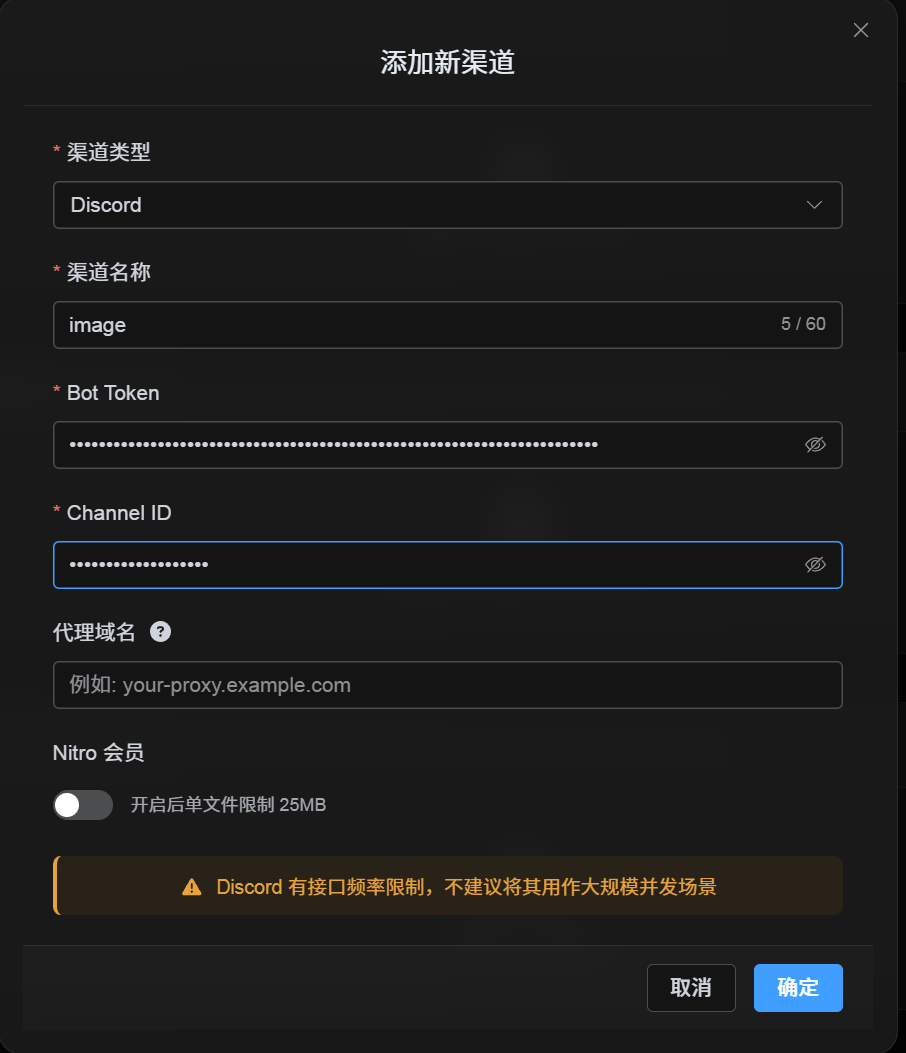
Kembali ke dialog konfigurasi saluran dan isi medan seperti berikut:
| Medan UI | Nilai |
|---|---|
| Nama saluran | Nama saluran tersuai, contohnya DiscordPrimary. |
| Bot Token | Token yang disimpan daripada halaman Bot dalam Discord Developer Portal. |
| Channel ID | Channel ID yang anda salin daripada Discord. |
| URL proksi (pilihan) | Hanya jika diperlukan, contohnya https://your-proxy.example.com. |
Klik Simpan apabila selesai.
Cara Mengesahkan
| Semakan | Cara Mengesahkan |
|---|---|
| Kad saluran muncul | Selepas menyimpan, halaman Tetapan Muat Naik sepatutnya memaparkan kad saluran Discord. |
| Saluran boleh didayakan | Suis aktif sepatutnya kekal hidup. |
| Konfigurasi disimpan | Paparan butiran sepatutnya menunjukkan bahawa Bot Token dan Channel ID telah disimpan. |
| Muat naik berfungsi | Muat naik imej ujian dan sahkan imej itu muncul dalam saluran teks Discord sasaran. |
Senarai Semak Pantas
text
Create a Discord server
-> Create a text channel
-> Create a bot in the Discord Developer Portal
-> Save the Bot Token from the Bot page
-> In OAuth2, select bot, View Channels, Send Messages, Attach Files, and Read Message History
-> Copy the generated URL and authorize the bot for the target server
-> Make sure the target text channel grants the same permissions
-> Enable Developer Mode
-> Right-click the target text channel and copy the Channel ID
-> Enter the Bot Token and Channel ID in ImgHost
-> Save and upload a test image
Rujukan
- Panduan mula Discord Developers: https://docs.discord.com/developers/quick-start/getting-started
- Bantuan Discord - tempat mencari User/Server/Message ID: https://support.discord.com/hc/en-us/articles/206346498-Where-can-I-find-my-User-Server-Message-ID