Tambah Saluran Google Drive
Perkara Yang Diperlukan Dahulu
Sebelum bermula, sediakan perkara berikut:
| Keperluan | Sebab Diperlukan |
|---|---|
| Akaun Google | Digunakan untuk mengakses Google Cloud dan mengizinkan Google Drive |
| Projek Google Cloud | Digunakan untuk mendayakan Drive API dan membuat kelayakan OAuth |
| Client OAuth 2.0 | Digunakan oleh ImgHost untuk mendapatkan Client ID, Client Secret dan Refresh Token |
| Domain ImgHost anda | Digunakan untuk URI redirect OAuth. Ia mesti sepadan dengan domain sebenar yang anda gunakan. |
Langkah Persediaan
Langkah 1: Dayakan Google Drive API
- Buka Google Cloud Console.
- Buat projek baharu atau pilih projek sedia ada.
- Pergi ke
APIs & Services. - Klik
Enable APIs and Services. - Cari
Google Drive API. - Buka dan dayakannya.
Langkah 2: Konfigurasikan OAuth Consent Screen
- Dalam Google Cloud, buka
Google Auth Platform. - Lengkapkan maklumat asas
Branding, seperti nama app, e-mel sokongan dan e-mel hubungan pembangun. - Buka
Audience. - Untuk kebanyakan deployment peribadi self-hosted, pilih
External. - Jika anda memilih
External, tambah akaun Google yang mahu diizinkan di bawahTest users. - Buka
Data Access. - Tambah kebenaran Google Drive yang diperlukan.
Langkah 3: Buat Client OAuth 2.0
- Dalam
Google Auth Platform, bukaClients. - Buat client baharu.
- Tetapkan jenis aplikasi kepada
Web application. - Berikan nama yang mudah dikenal pasti kepada client.
- Untuk authorized JavaScript origins, masukkan URL ImgHost anda, contohnya:
text
https://img.example.com- Untuk authorized redirect URIs, masukkan:
text
https://img.example.com/api/oauth/google/callback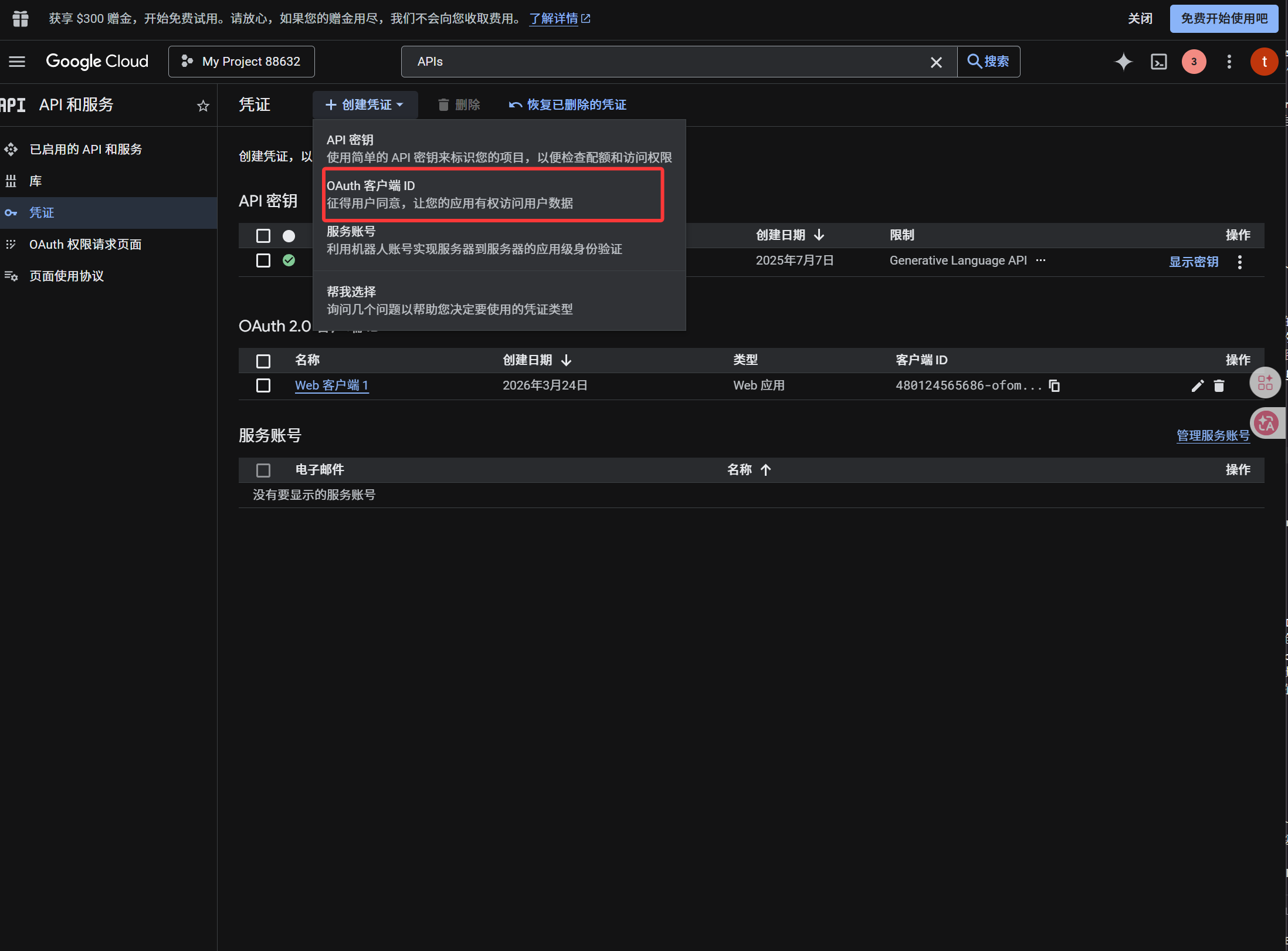
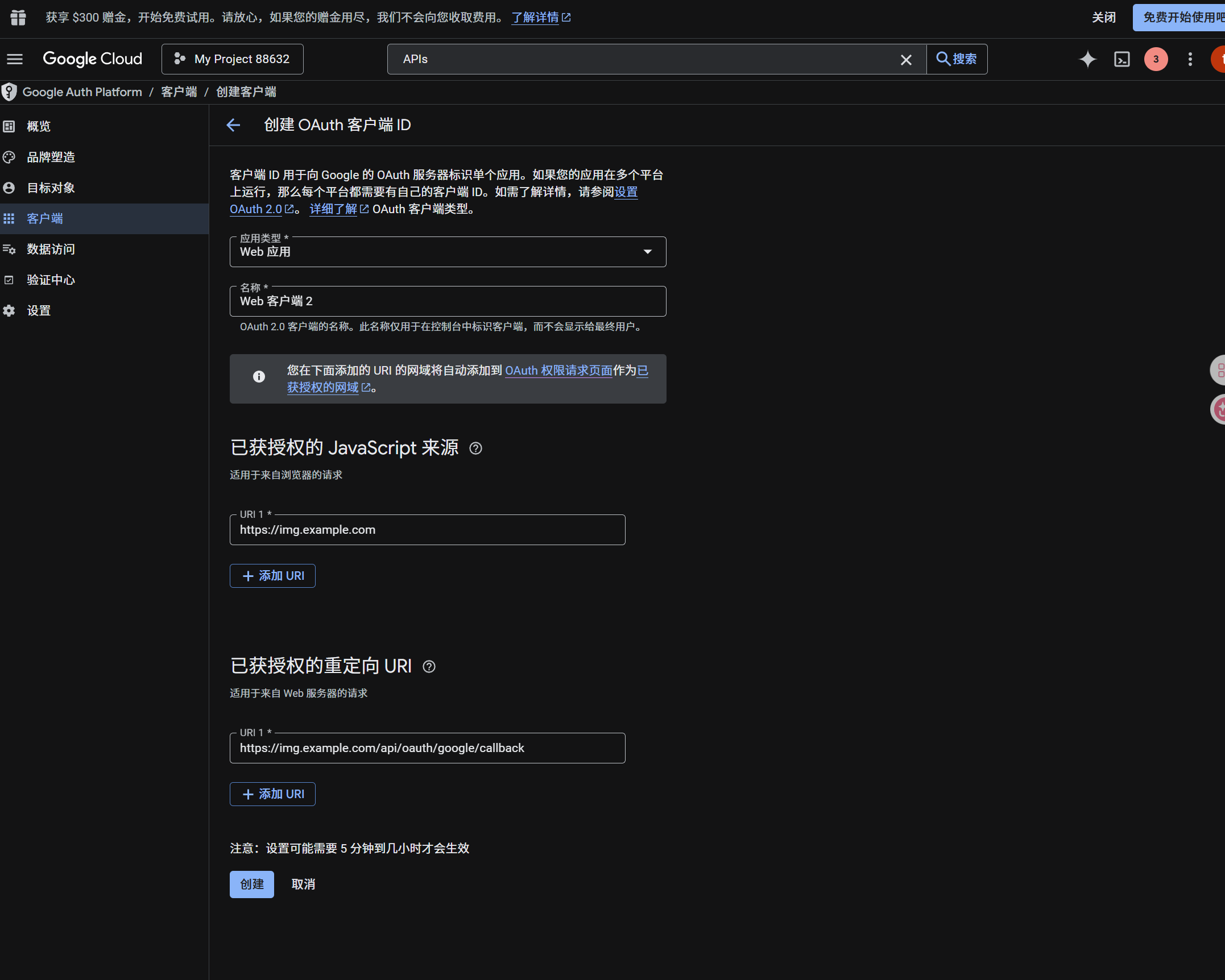
Selepas client dibuat, salin nilai berikut:
| Nilai Dijana | Medan ImgHost |
|---|---|
| Client ID | Client ID |
| Client Secret | Client Secret |
Langkah 4: Isi Saluran Google Drive
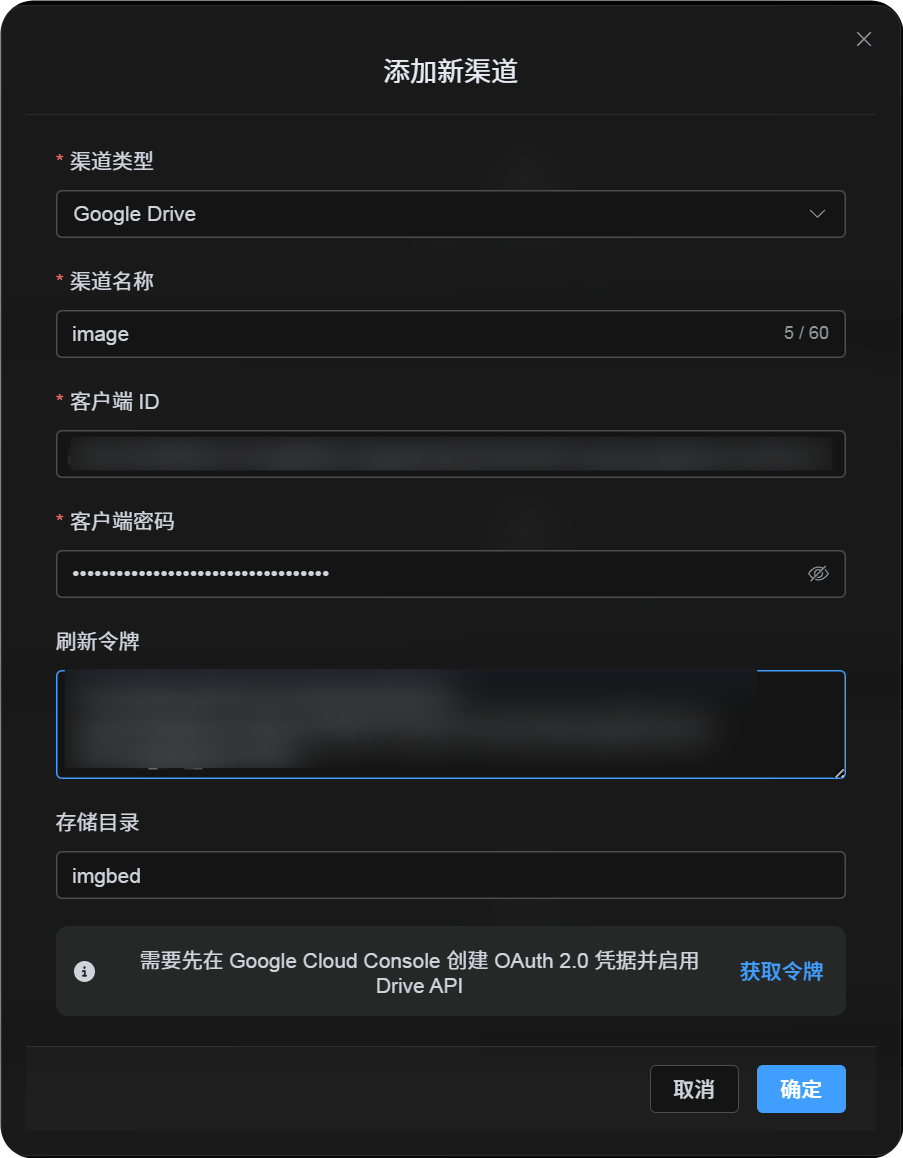
Dalam Tetapan Muat Naik, pilih Google Drive dan isi:
| Medan ImgHost | Perkara Yang Perlu Dimasukkan |
|---|---|
| Nama saluran | Nama yang mudah dikenal pasti, seperti Main Google Drive |
| Client ID | Client ID daripada Google Cloud |
| Client Secret | Client Secret daripada Google Cloud |
| Refresh Token | Biarkan kosong buat masa ini. Dapatkannya dalam langkah seterusnya. |
| Direktori akar | Pilihan. Lalai ialah imgbed. |
Langkah 5: Dapatkan Refresh Token
- Klik
Get Token. - Pilih akaun Google yang mahu disambungkan.
- Lengkapkan permintaan kebenaran.
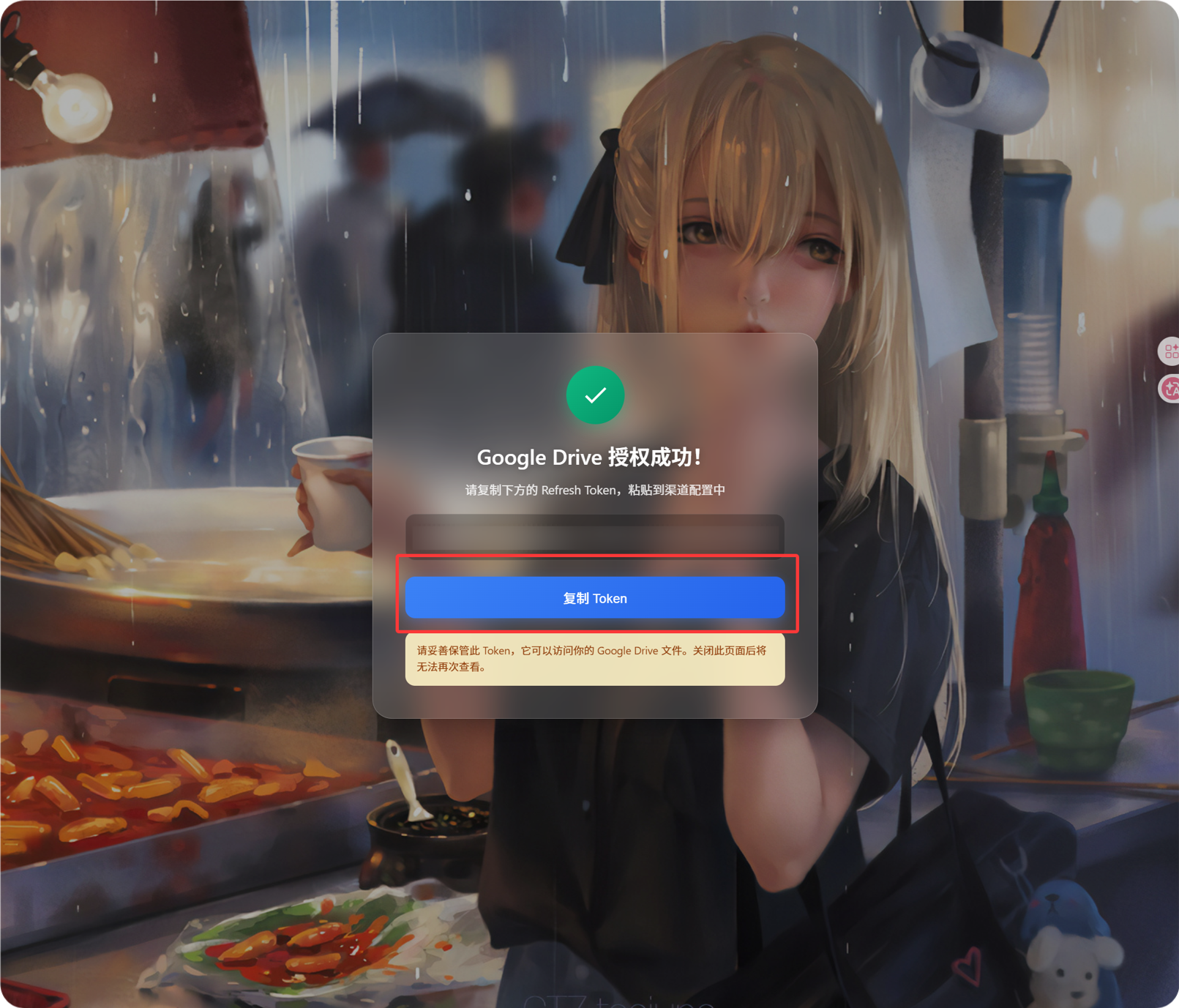
- Halaman callback akan menunjukkan
Refresh Token. - Salin token tersebut.
- Kembali ke ImgHost dan tampalkannya dalam medan
Refresh Token.
Jika anda menukar akaun Google kemudian, menukar client OAuth atau kebenaran lama tamat tempoh, anda tidak perlu memadam saluran. Buka halaman edit dan klik Reauthorize.
Langkah 6: Simpan Saluran
Selepas semua medan diisi, simpan saluran.
Aliran Pantas
text
Open Google Cloud
-> Create or select a project
-> Enable Google Drive API
-> Configure Google Auth Platform
-> If Audience is External, add your Google account to Test users
-> Create a Web application OAuth client
-> Use https://your-domain.com/api/oauth/google/callback as the redirect URI
-> Fill Client ID and Client Secret into ImgHost
-> Click Get Token
-> Sign in with Google and authorize
-> Copy the Refresh Token from the callback page
-> Paste it back into ImgHost and save
-> Upload a test image
Rujukan
- Aplikasi pelayan web Google OAuth: https://developers.google.com/identity/protocols/oauth2/web-server
- Konfigurasi persetujuan OAuth Google Workspace: https://developers.google.com/workspace/guides/configure-oauth-consent
- Skop auth Google Drive API: https://developers.google.com/workspace/drive/api/guides/api-specific-auth