Menambahkan Kanal Google Drive
Yang Diperlukan Terlebih Dahulu
Sebelum memulai, siapkan hal berikut:
| Kebutuhan | Alasan diperlukan |
|---|---|
| Akun Google | Digunakan untuk mengakses Google Cloud dan mengotorisasi Google Drive |
| Proyek Google Cloud | Digunakan untuk mengaktifkan Drive API dan membuat kredensial OAuth |
| Klien OAuth 2.0 | ImgHost menggunakannya untuk memperoleh Client ID, Client Secret, dan Refresh Token |
| Domain ImgHost Anda | Digunakan sebagai OAuth redirect URI. Harus cocok dengan domain yang benar-benar Anda gunakan. |
Langkah Konfigurasi
Langkah 1: Mengaktifkan Google Drive API
- Buka Google Cloud Console.
- Buat proyek baru atau pilih proyek yang sudah ada.
- Masuk ke
APIs & Services. - Klik
Enable APIs and Services. - Cari
Google Drive API. - Buka dan klik Aktifkan.
Langkah 2: Mengonfigurasi OAuth Consent Screen
- Di Google Cloud, buka
Google Auth Platform. - Lengkapi informasi dasar
Branding, seperti nama aplikasi, email dukungan, dan email kontak developer. - Buka
Audience. - Untuk sebagian besar deployment pribadi yang dikelola sendiri, pilih
External. - Jika memilih
External, tambahkan akun Google yang ingin diotorisasi keTest users. - Buka
Data Access. - Tambahkan izin Google Drive yang diperlukan.
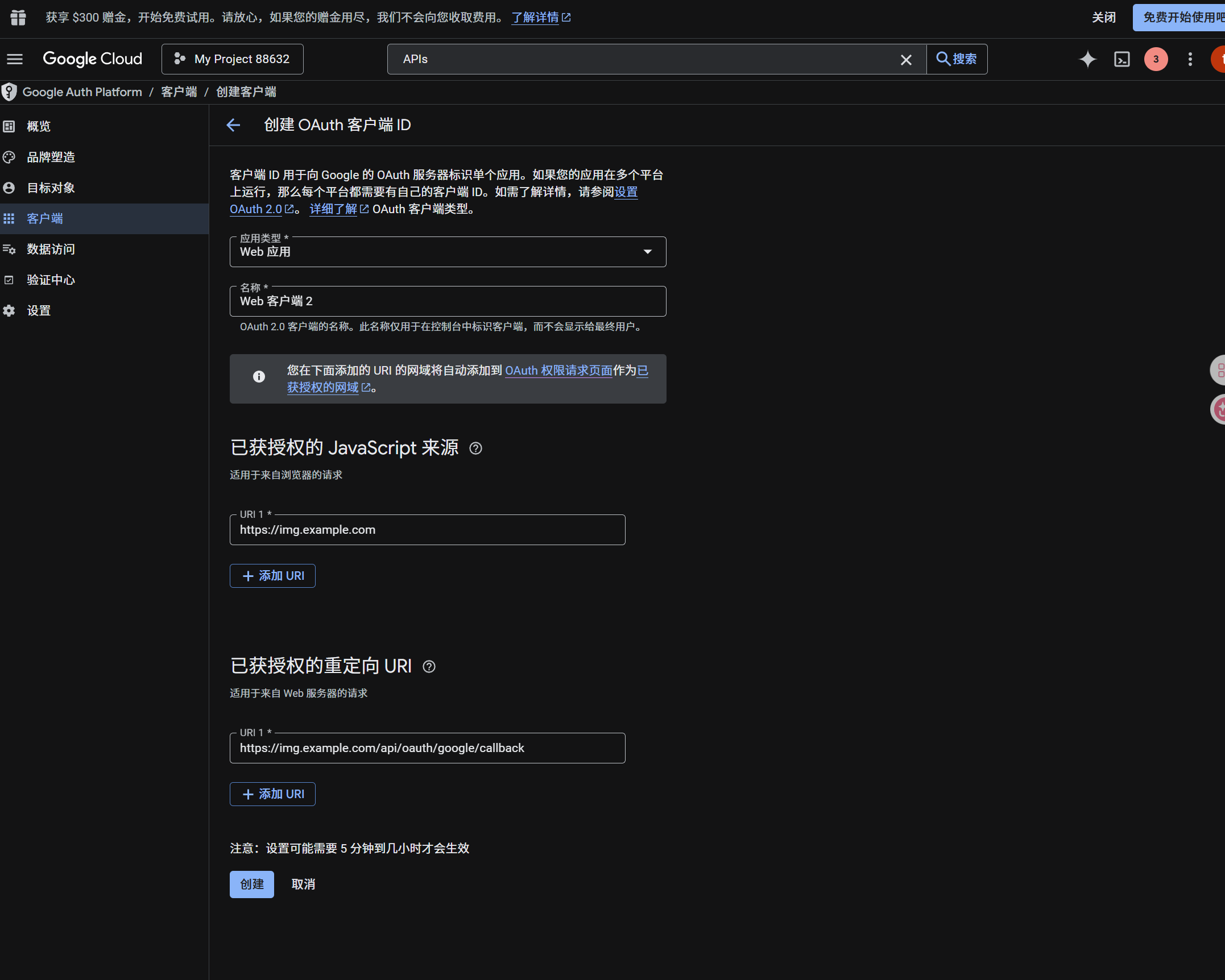
Langkah 3: Membuat Klien OAuth 2.0
- Di
Google Auth Platform, bukaClients. - Buat klien baru.
- Atur jenis aplikasi menjadi
Web application. - Beri klien nama yang mudah dikenali.
- Pada authorized JavaScript origins, masukkan URL ImgHost, misalnya:
text
https://img.example.com- Pada authorized redirect URIs, masukkan:
text
https://img.example.com/api/oauth/google/callback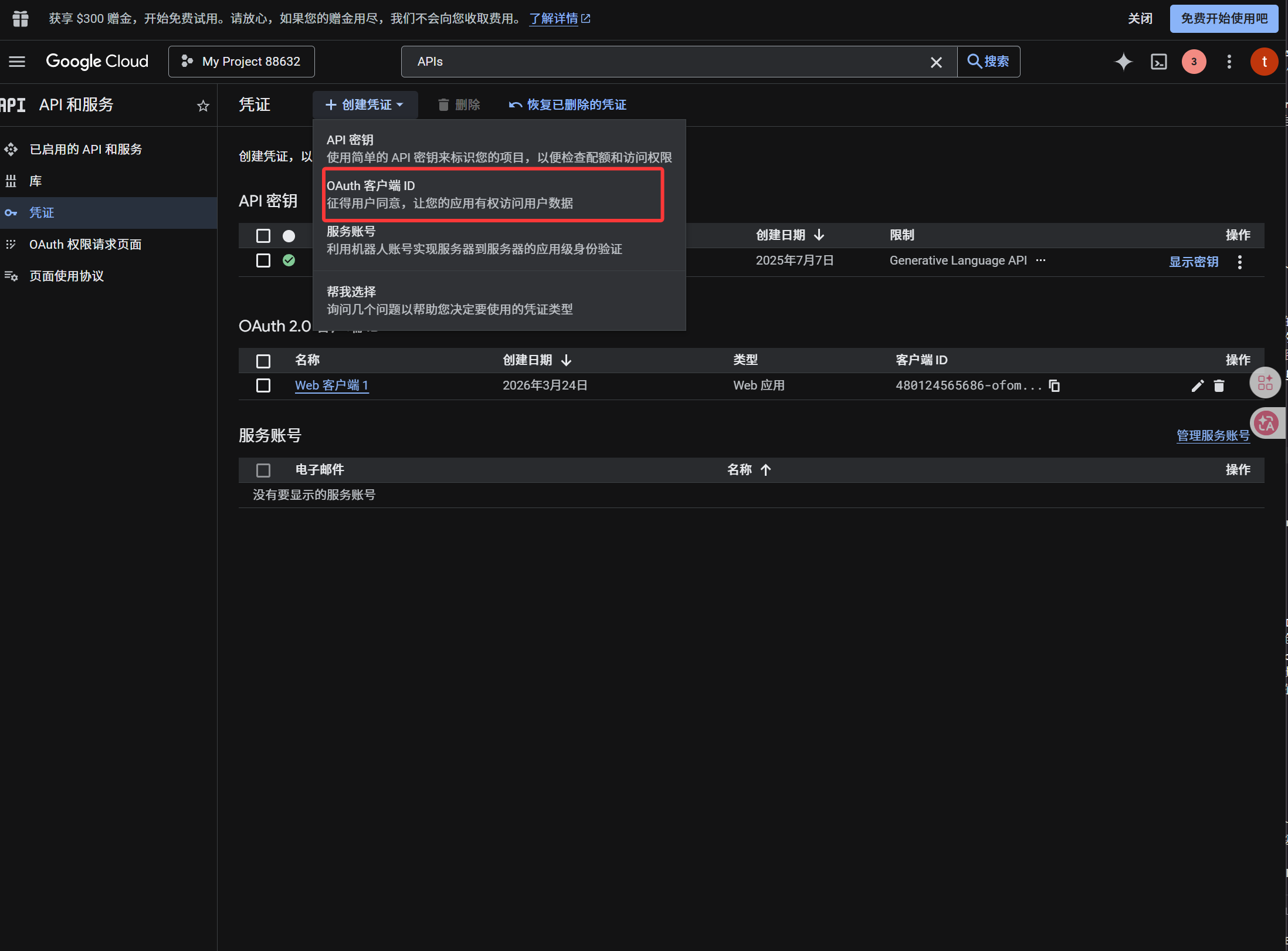
Setelah klien dibuat, salin nilai berikut:
| Nilai yang dibuat | Kolom ImgHost |
|---|---|
| Client ID | Client ID |
| Client Secret | Client Secret |
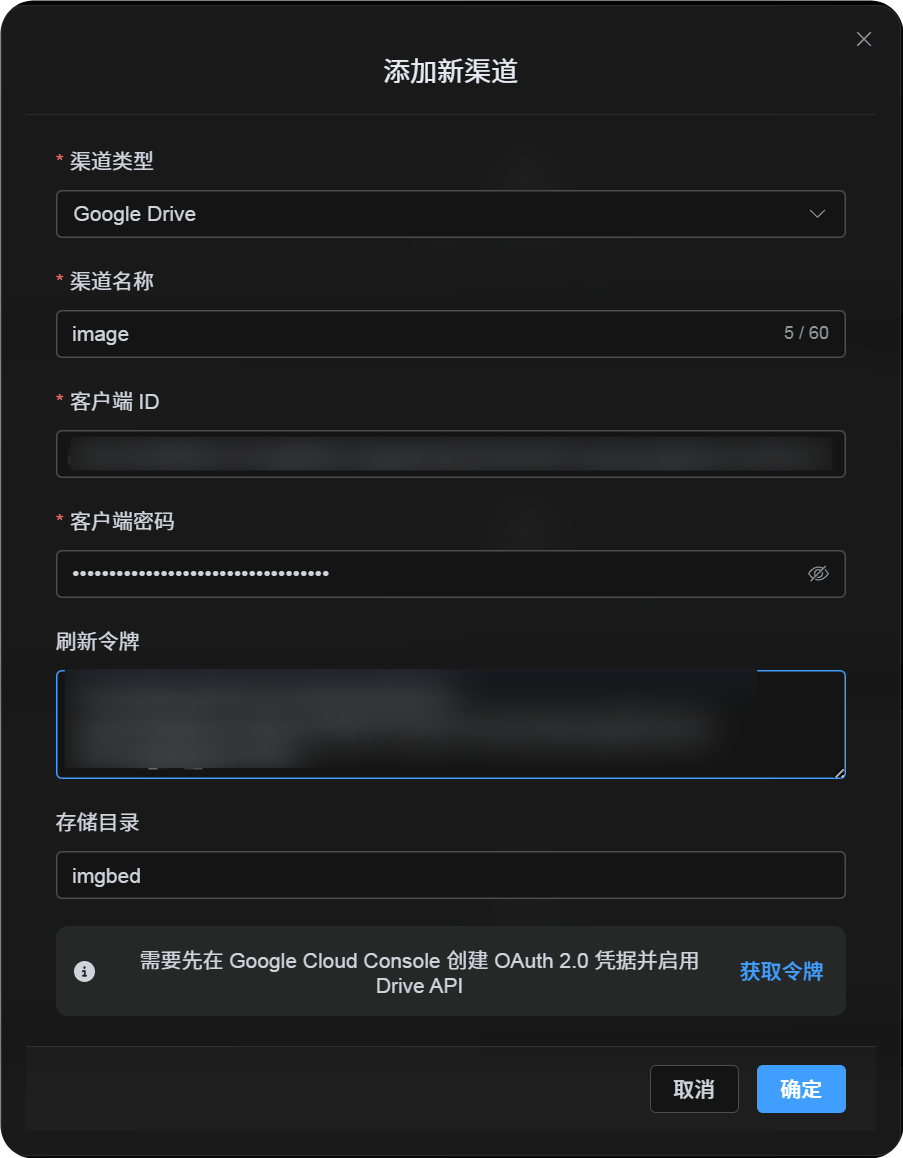
Langkah 4: Mengisi Kanal Google Drive
Di pengaturan unggah, pilih Google Drive lalu isi:
| Kolom ImgHost | Nilai yang diisi |
|---|---|
| Nama kanal | Nama yang mudah dikenali, misalnya Main Google Drive |
| Client ID | Client ID dari Google Cloud |
| Client Secret | Client Secret dari Google Cloud |
| Refresh Token | Biarkan kosong terlebih dahulu. Anda akan mengambilnya pada langkah berikutnya. |
| Direktori root | Opsional. Default adalah imgbed. |
Langkah 5: Mendapatkan Refresh Token
- Klik
Get Token. - Pilih akun Google yang ingin dihubungkan.
- Selesaikan permintaan otorisasi.
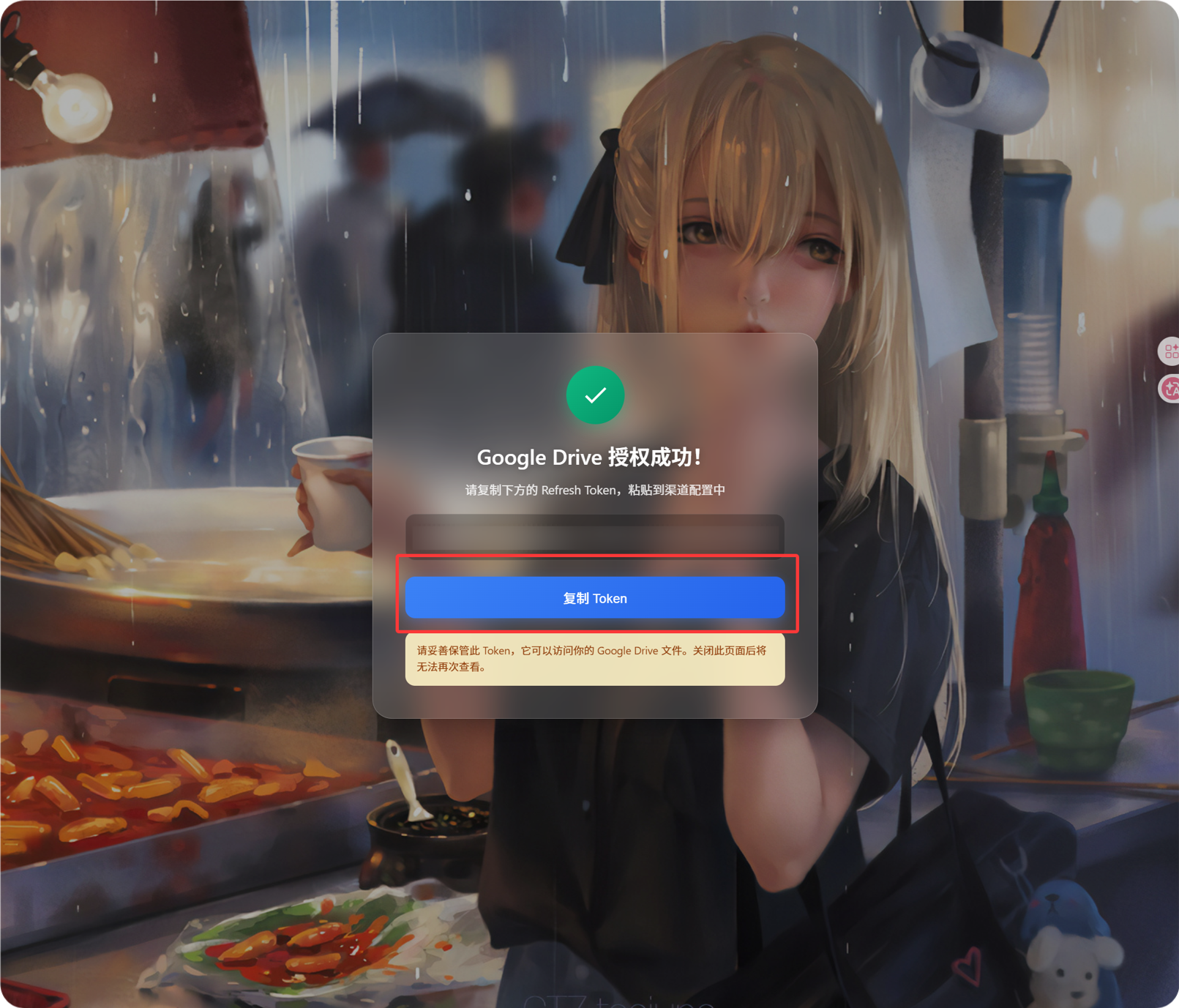
- Halaman callback akan menampilkan
Refresh Token. - Salin token tersebut.
- Kembali ke ImgHost dan tempelkan ke kolom
Refresh Token.
Jika nanti Anda mengganti akun Google, mengganti klien OAuth, atau otorisasi lama kedaluwarsa, Anda tidak perlu menghapus kanal. Buka halaman edit dan klik Reauthorize.
Langkah 6: Menyimpan Kanal
Setelah semua kolom terisi, simpan kanal.
Alur Cepat
text
Open Google Cloud
-> Create or select a project
-> Enable Google Drive API
-> Configure Google Auth Platform
-> If Audience is External, add your Google account to Test users
-> Create a Web application OAuth client
-> Use https://your-domain.com/api/oauth/google/callback as the redirect URI
-> Fill Client ID and Client Secret into ImgHost
-> Click Get Token
-> Sign in with Google and authorize
-> Copy the Refresh Token from the callback page
-> Paste it back into ImgHost and save
-> Upload a test image
Referensi
- Aplikasi server web Google OAuth: https://developers.google.com/identity/protocols/oauth2/web-server
- Konfigurasi consent OAuth Google Workspace: https://developers.google.com/workspace/guides/configure-oauth-consent
- Cakupan autentikasi Google Drive API: https://developers.google.com/workspace/drive/api/guides/api-specific-auth