Google Drive 渠道新增說明
新增前要準備什麼
在開始之前,你只需要準備這 4 樣:
| 需要準備 | 用途 |
|---|---|
| 一個 Google 帳號 | 用來登入 Google Cloud,并授權你的 Google Drive |
| 一個 Google Cloud 專案 | 用來啟用 Drive API,并建立 OAuth 2.0 憑據 |
| OAuth 2.0 客戶端 | 系統通過它獲取 Client ID、Client Secret 和 Refresh Token |
| 當前圖床訪問域名 | 用來設定授權回調地址,必須和系統實際訪問域名一致 |
新增步驟
第一步:登入 Google Cloud 并啟用 Google Drive API
操作順序如下:
- 打開 Google Cloud Console。
- 新建一個專案,或者直接選擇你現有的專案。
- 進入
APIs & Services。 - 點擊
Enable APIs and Services。 - 搜索
Google Drive API。 - 點進去後點擊啟用。
第二步:設定 OAuth 同意頁面
操作順序如下:
- 在 Google Cloud 里進入
Google Auth Platform。 - 先完成
Branding里的基礎資訊,例如應用名稱、支援郵箱、開發者聯系郵箱。 - 進入
Audience。 - 大多數個人部署場景,直接選
External就行。 - 如果你選的是
External,再把你自己要授權的 Google 帳號加到Test users。 - 進入
Data Access。 - 新增 Google Drive 權限。
第三步:建立 OAuth 2.0 客戶端
操作順序如下:
- 進入
Google Auth Platform的Clients。 - 點擊建立客戶端。
- 應用類型選擇
Web application。 - 給這套客戶端起一個你自己能認出來的名字。
- 已獲授權的 JavaScript 來源填寫你的圖床地址,例如:
text
https://img.example.com- 已獲授權的重定向 URI 來源填寫你的圖床回調:
text
https://img.example.com/api/oauth/google/callback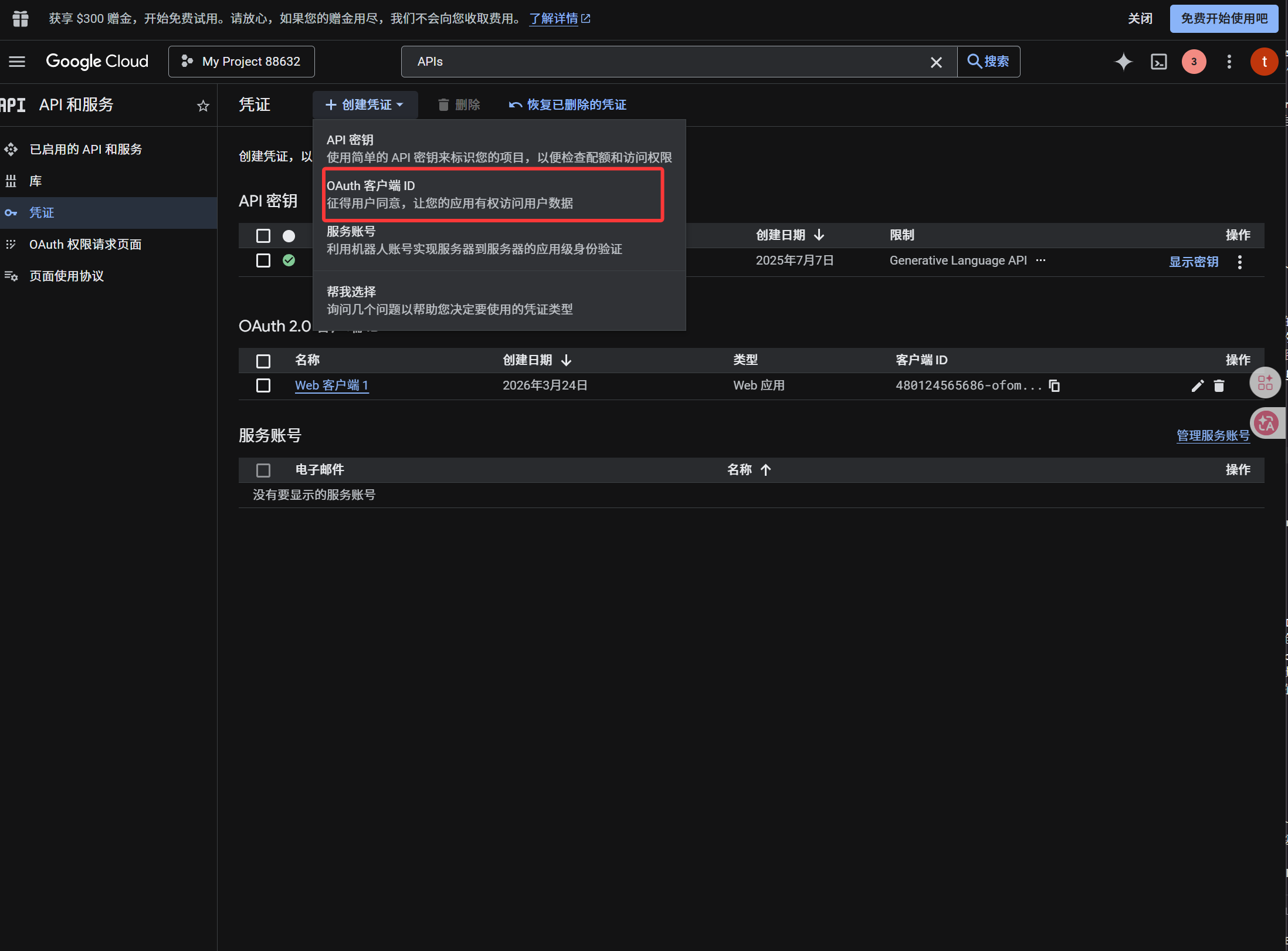
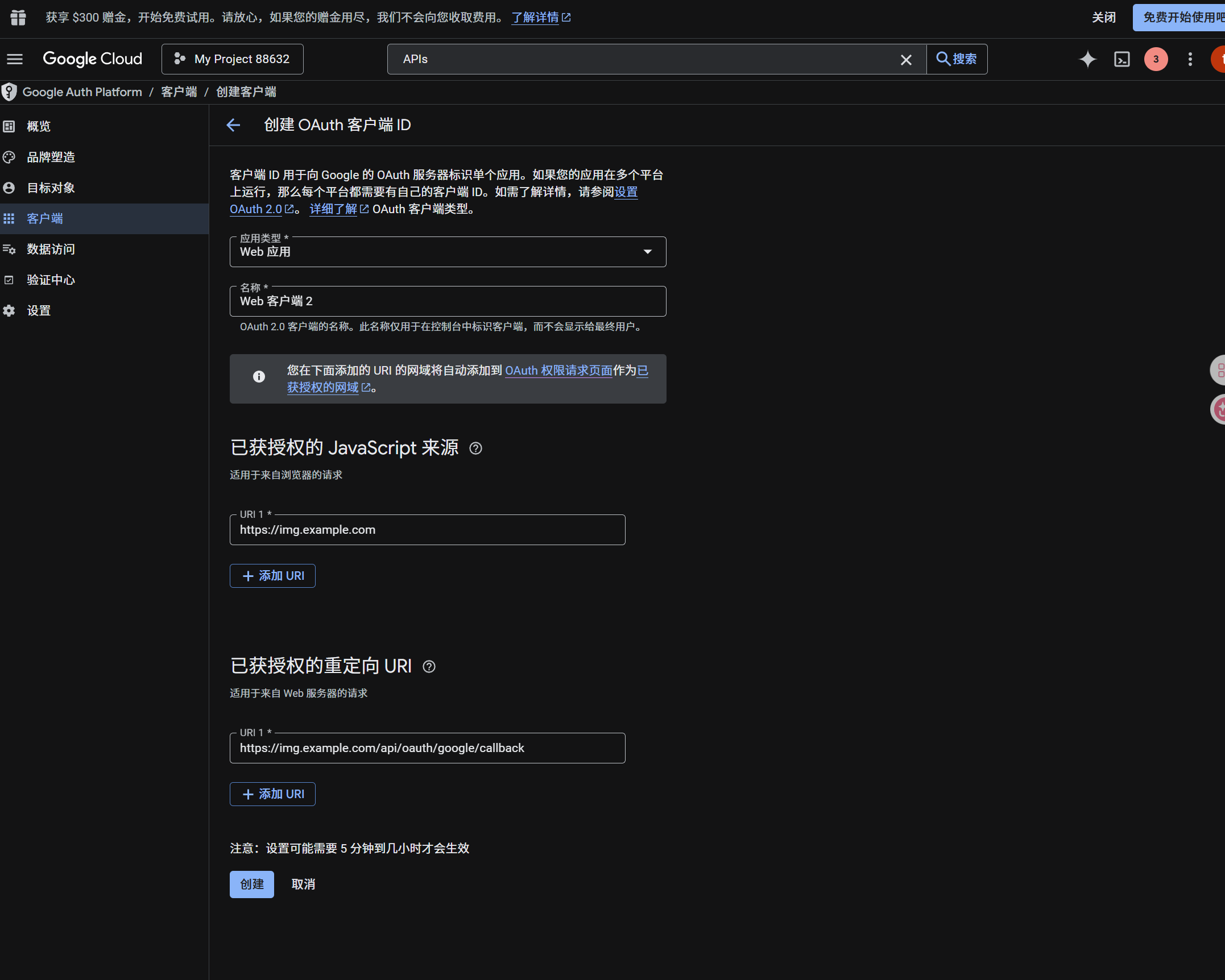
建立完成以後,複製保存這兩個值:
| 生成結果 | 後面填到哪里 |
|---|---|
| Client ID | 系統里的 Client ID |
| Client Secret | 系統里的 Client Secret |
第四步:回到系統里填寫 Google Drive 渠道
在上傳設定里選擇 Google Drive 後,按下面這套填:
| 頁面欄位 | 你該填什麼 |
|---|---|
| 渠道名稱 | 你自己起,比如 GoogleDrive主账号 |
| Client ID | 剛才在 Google Cloud 建立出來的 Client ID |
| Client Secret | 剛才在 Google Cloud 建立出來的 Client Secret |
| Refresh Token | 先可以留空,下一步通過系統按鈕獲取 |
| 根目錄 | 可選,預設是 imgbed |
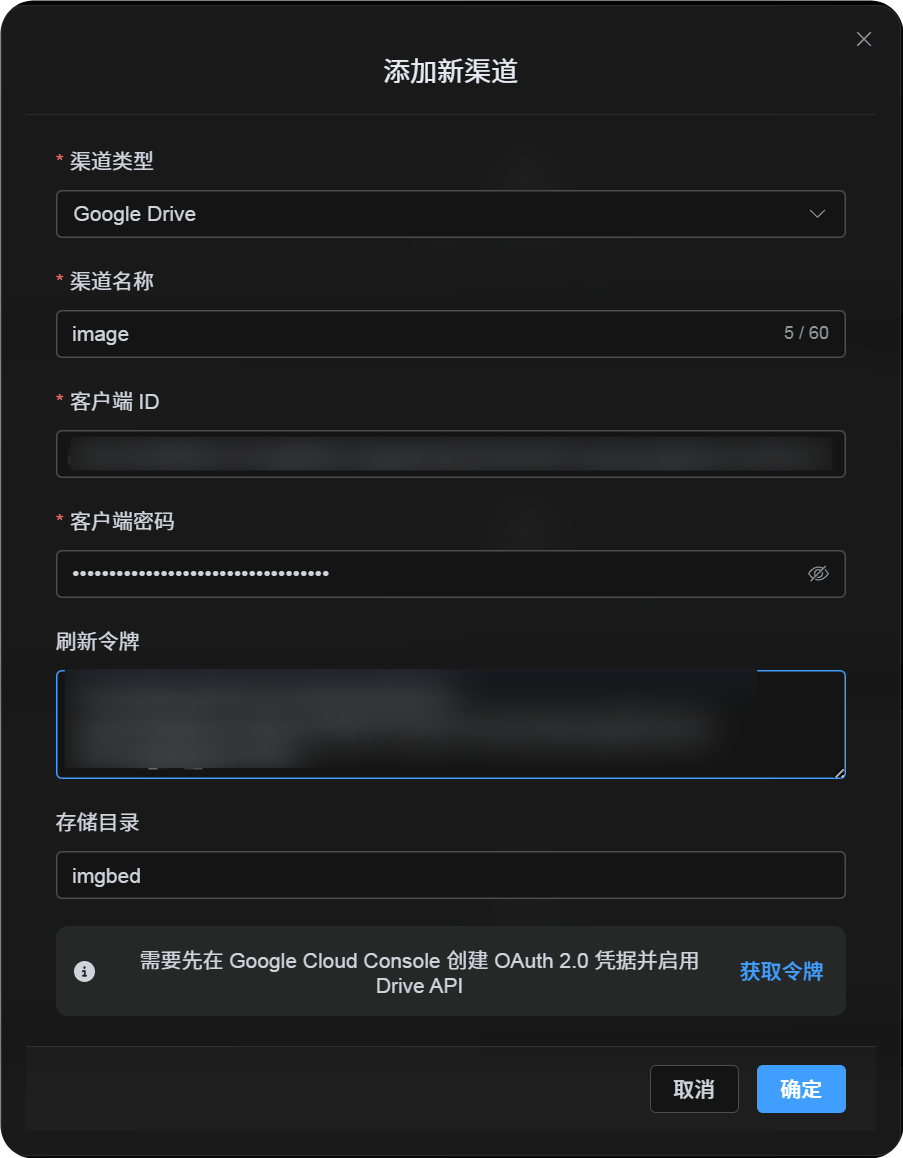
第五步:在系統里獲取 Refresh Token
- 點擊
获取令牌。 - 選擇你要綁定的 Google 帳號。
- 按頁面提示完成授權。
- 成功後,回調頁會顯示一串
Refresh Token。 - 複製它。
- 回到系統,把它貼上到
Refresh Token輸入框里。
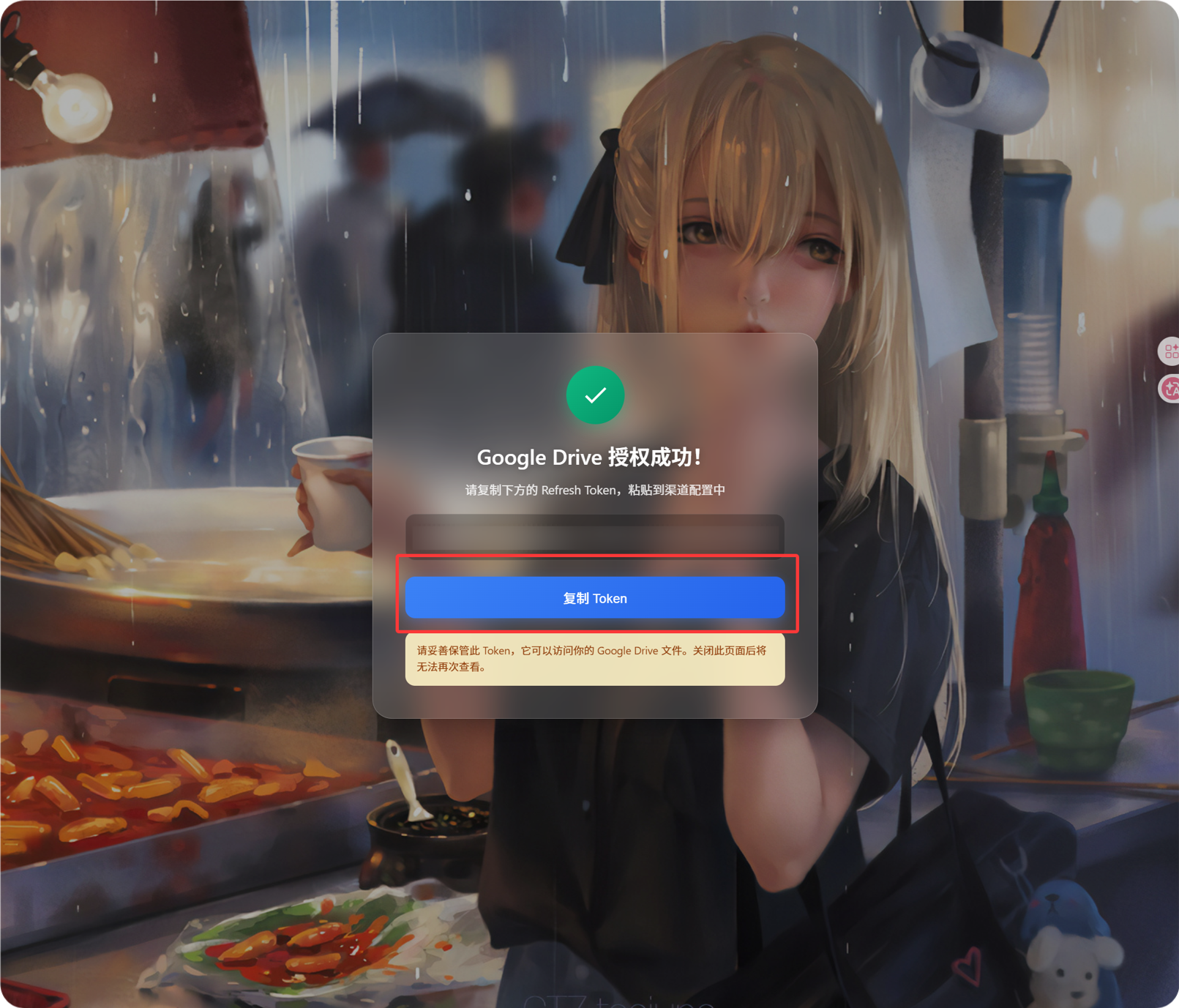
如果你後面換了 Google 帳號、改了客戶端、或者舊授權失效了,也不用刪渠道,直接點編輯頁里的 重新授权 就行。
第六步:保存渠道設定
欄位填好以後,直接點擊保存。
渠道的操作流程總結
text
Open Google Cloud
-> Create or select a project
-> Enable Google Drive API
-> Configure Google Auth Platform
-> If Audience is External, add your Google account to Test users
-> Create a Web application OAuth client
-> Use https://your-domain.com/api/oauth/google/callback as the redirect URI
-> Fill Client ID and Client Secret into ImgHost
-> Click Get Token
-> Sign in with Google and authorize
-> Copy the Refresh Token from the callback page
-> Paste it back into ImgHost and save
-> Upload a test image
參考資料
- Google OAuth Web Server Applications:https://developers.google.com/identity/protocols/oauth2/web-server
- Google Workspace OAuth Consent Configuration:https://developers.google.com/workspace/guides/configure-oauth-consent
- Google Drive API Auth Scope 說明:https://developers.google.com/workspace/drive/api/guides/api-specific-auth