Google Drive চ্যানেল যোগ করা
আগে যা লাগবে
শুরু করার আগে এগুলো প্রস্তুত রাখুন:
| প্রয়োজনীয় তথ্য | কেন লাগবে |
|---|---|
| Google অ্যাকাউন্ট | Google Cloud-এ প্রবেশ এবং Google Drive অনুমোদনের জন্য। |
| Google Cloud প্রকল্প | Drive API চালু করা এবং OAuth পরিচয়পত্র তৈরি করতে। |
| OAuth 2.0 client | ImgHost Client ID, Client Secret এবং Refresh Token পেতে এটি ব্যবহার করে। |
| আপনার ImgHost ডোমেইন | OAuth redirect URI হিসেবে ব্যবহার করতে। আপনি যে ডোমেইন ব্যবহার করেন, সেটির সঙ্গে মিলতে হবে। |
সেটআপ ধাপ
ধাপ 1: Google Drive API চালু করুন
- Google Cloud Console খুলুন।
- নতুন প্রকল্প তৈরি করুন অথবা বিদ্যমান প্রকল্প নির্বাচন করুন।
APIs & Services-এ যান।Enable APIs and Servicesক্লিক করুন।Google Drive APIখুঁজুন।- সেটি খুলে চালু ক্লিক করুন।
ধাপ 2: OAuth Consent Screen কনফিগার করুন
- Google Cloud-এ
Google Auth Platformখুলুন। - অ্যাপের নাম, support email এবং developer contact email-এর মতো basic
Brandinginformation পূরণ করুন। Audienceখুলুন।- বেশিরভাগ self-hosted personal deployment-এর জন্য
Externalনির্বাচন করুন। Externalনির্বাচন করলে যে Google অ্যাকাউন্ট authorize করতে চান, সেটিTest users-এ যোগ করুন।Data Accessখুলুন।- প্রয়োজনীয় Google Drive অনুমতি যোগ করুন।
ধাপ 3: OAuth 2.0 Client তৈরি করুন
Google Auth Platform-এClientsখুলুন।- নতুন client তৈরি করুন।
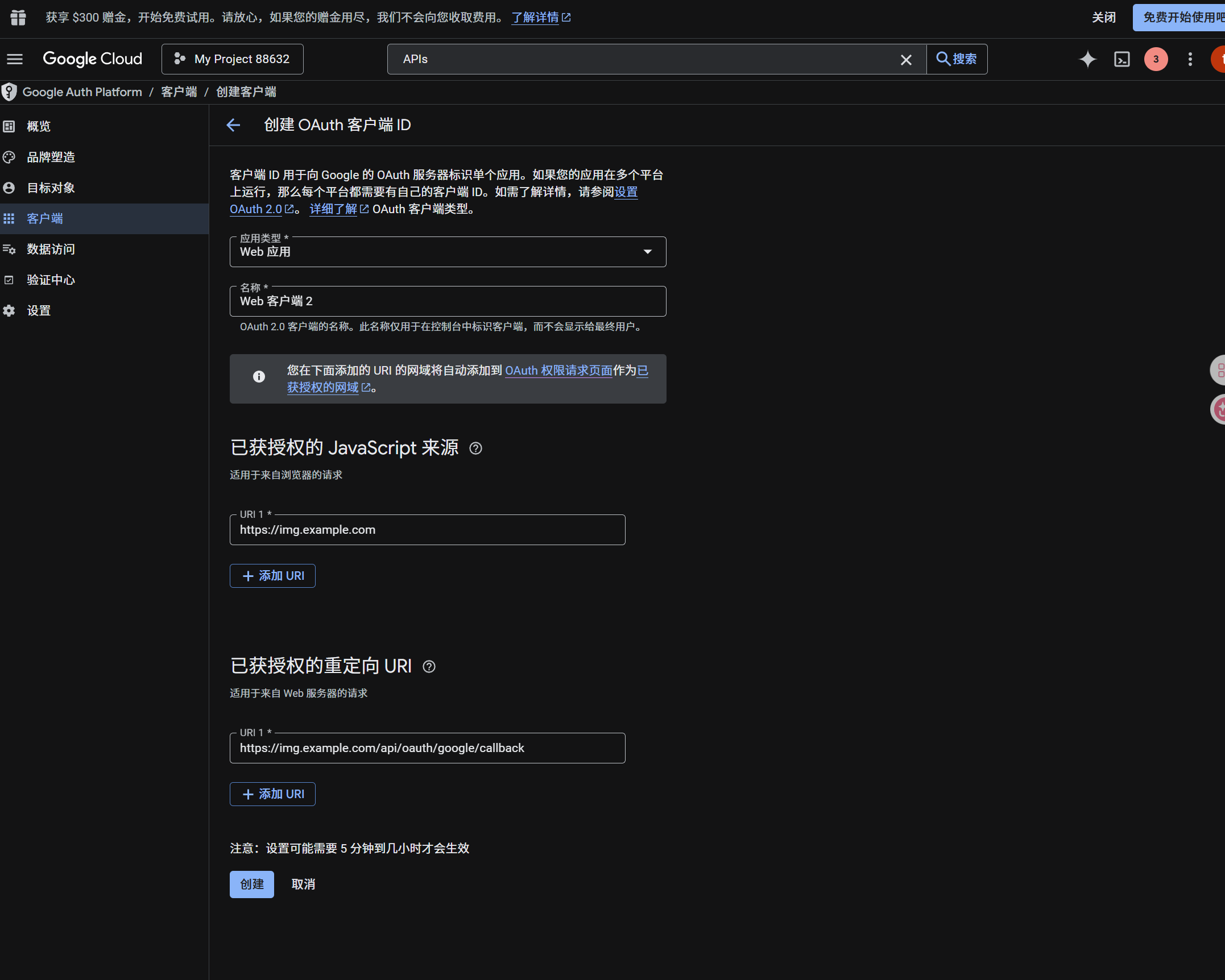
- অ্যাপ্লিকেশন ধরন
Web applicationসেট করুন। - client-এর সহজে চেনা যায় এমন নাম দিন।
- authorized JavaScript origins-এ আপনার ImgHost URL দিন, যেমন:
text
https://img.example.com- authorized redirect URIs-এ দিন:
text
https://img.example.com/api/oauth/google/callback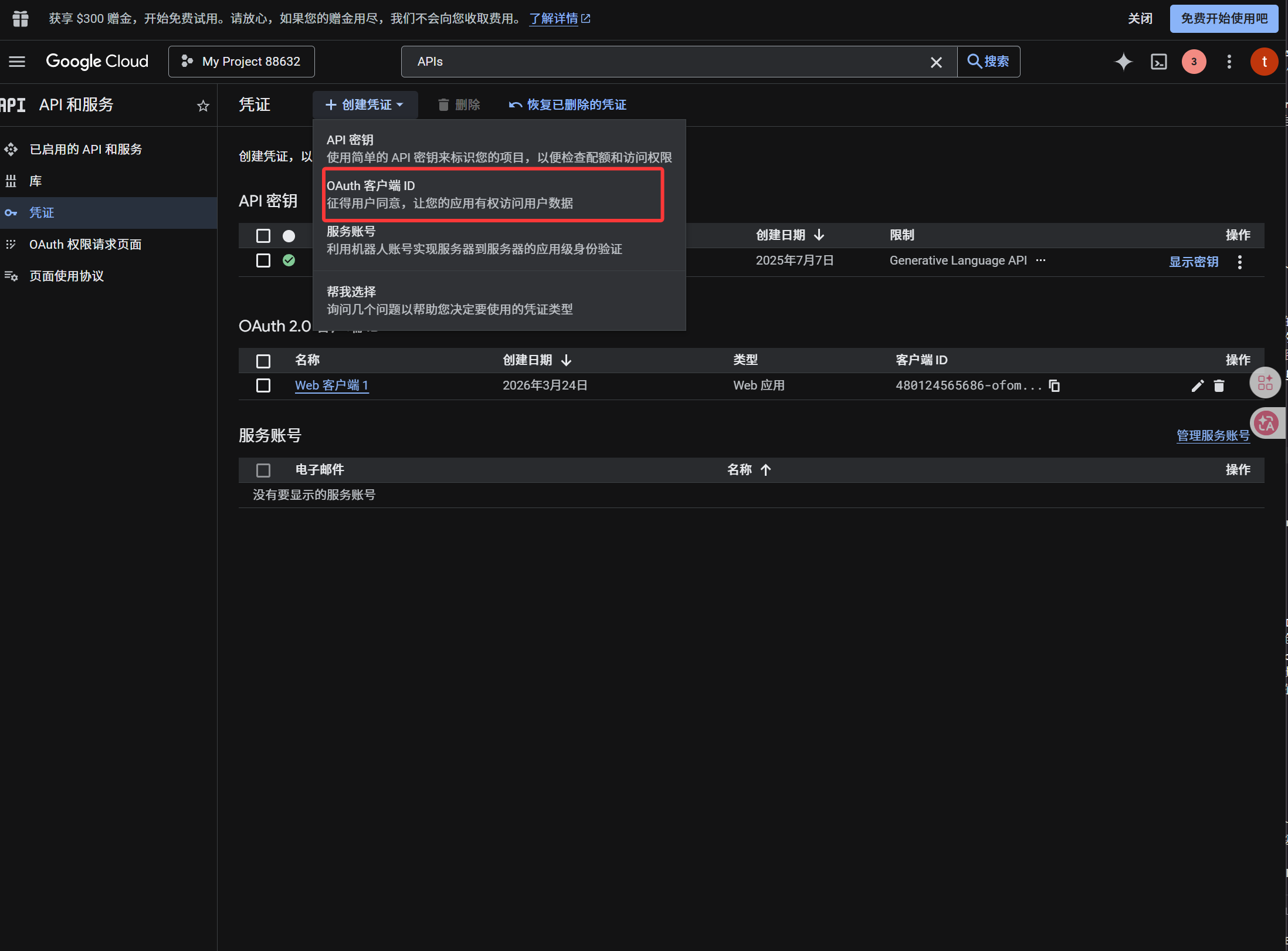
client তৈরি হলে নিচের মানগুলো কপি করুন:
| তৈরি হওয়া মান | ImgHost ক্ষেত্র |
|---|---|
| Client ID | Client ID |
| Client Secret | Client Secret |
ধাপ 4: Google Drive চ্যানেল পূরণ করুন
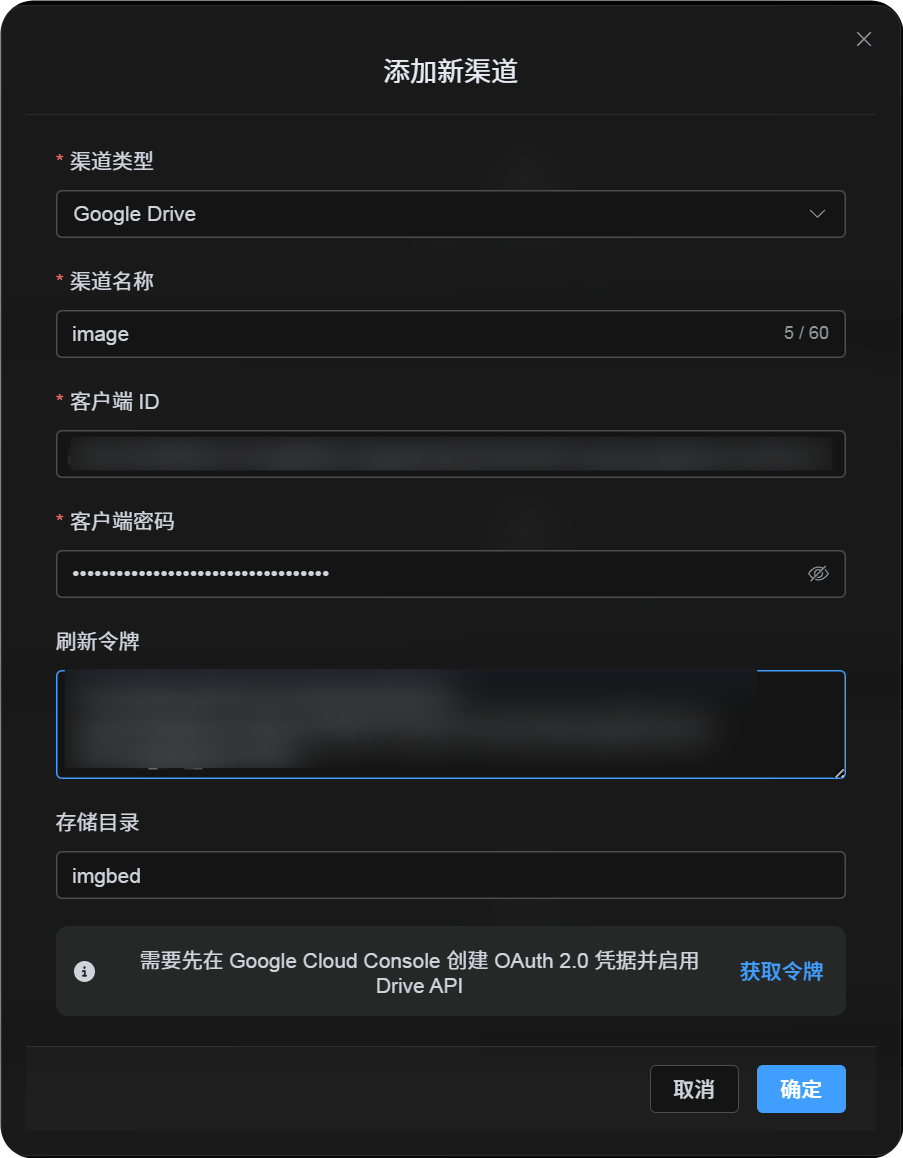
আপলোড সেটিংস-এ Google Drive নির্বাচন করে পূরণ করুন:
| ImgHost ক্ষেত্র | কী দেবেন |
|---|---|
| চ্যানেল নাম | সহজে চেনা যায় এমন নাম, যেমন Main Google Drive। |
| Client ID | Google Cloud থেকে পাওয়া Client ID। |
| Client Secret | Google Cloud থেকে পাওয়া Client Secret। |
| Refresh Token | আপাতত খালি রাখুন। পরের ধাপে নেবেন। |
| Root directory | ঐচ্ছিক। ডিফল্ট imgbed। |
ধাপ 5: Refresh Token নিন
Get Tokenক্লিক করুন।- যে Google অ্যাকাউন্ট যুক্ত করতে চান, সেটি নির্বাচন করুন।
- অনুমোদন বার্তা সম্পন্ন করুন।
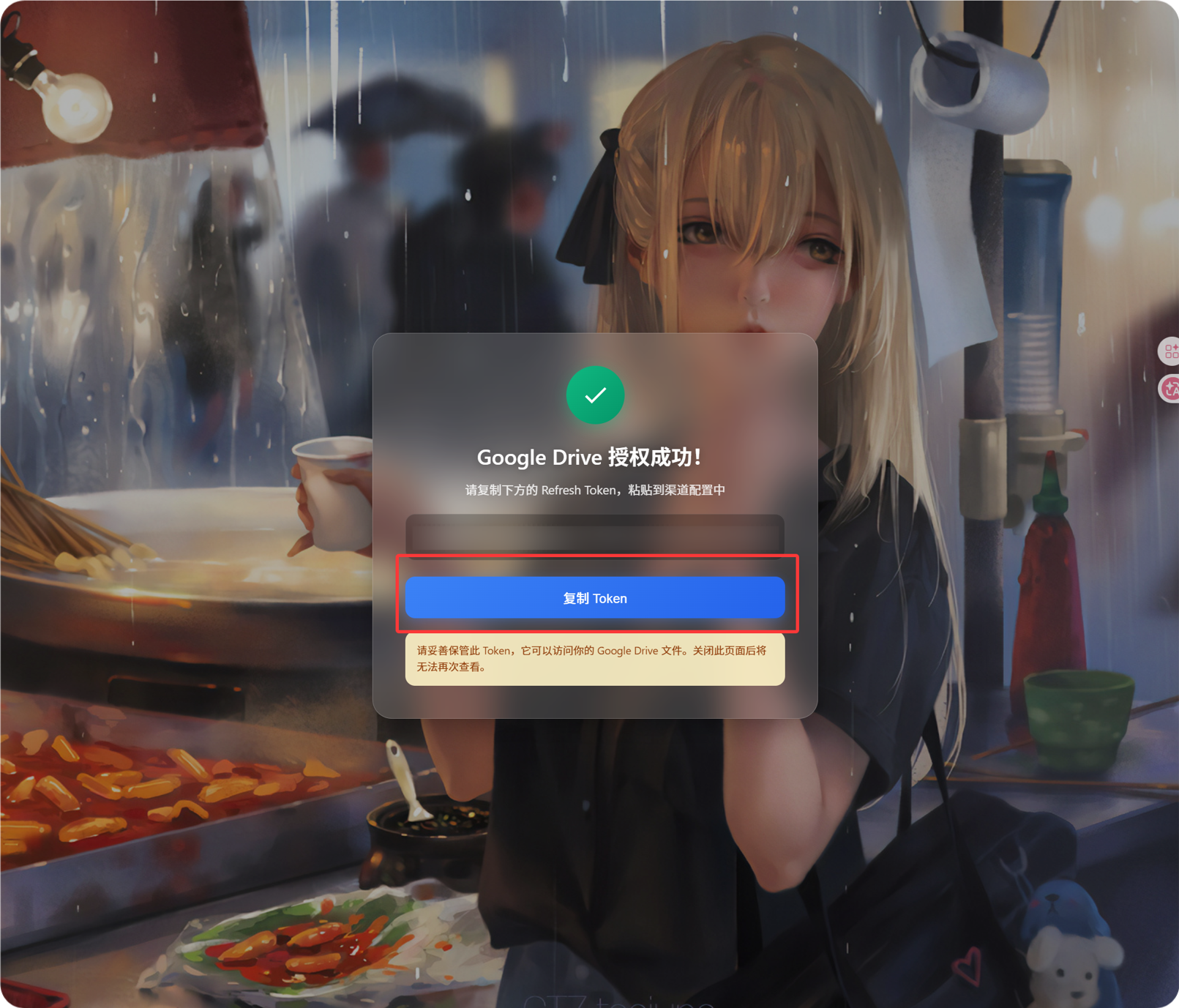
- কলব্যাক পৃষ্ঠা একটি
Refresh Tokenদেখাবে। - সেটি কপি করুন।
- ImgHost-এ ফিরে
Refresh Tokenক্ষেত্র-এ paste করুন।
পরে Google অ্যাকাউন্ট বদলালে, OAuth client বদলালে অথবা পুরোনো অনুমোদন expire হলে চ্যানেল মুছতে হবে না। edit পৃষ্ঠা খুলে Reauthorize ক্লিক করুন।
ধাপ 6: চ্যানেল সংরক্ষণ করুন
সব ক্ষেত্রগুলো পূরণ হলে চ্যানেল সংরক্ষণ করুন।
দ্রুত প্রবাহ
text
Open Google Cloud
-> Create or select a project
-> Enable Google Drive API
-> Configure Google Auth Platform
-> If Audience is External, add your Google account to Test users
-> Create a Web application OAuth client
-> Use https://your-domain.com/api/oauth/google/callback as the redirect URI
-> Fill Client ID and Client Secret into ImgHost
-> Click Get Token
-> Sign in with Google and authorize
-> Copy the Refresh Token from the callback page
-> Paste it back into ImgHost and save
-> Upload a test image
তথ্যসূত্র
- Google OAuth Web Server Applications: https://developers.google.com/identity/protocols/oauth2/web-server
- Google Workspace OAuth Consent কনফিগারেশন: https://developers.google.com/workspace/guides/configure-oauth-consent
- Google Drive API Auth Scopes: https://developers.google.com/workspace/drive/api/guides/api-specific-auth