OCR
OCR ছবি, স্ক্যান এবং ডকুমেন্টের স্ক্রিনশট থেকে লেখা বের করে।
শনাক্তকরণের পর আপনি ফলাফল কপি করতে পারেন, Markdown, PDF বা Word হিসেবে রপ্তানি করতে পারেন, অথবা একাধিক ফরম্যাট একসঙ্গে প্যাকেজ করে ডাউনলোড করতে পারেন।
OCR কী করতে পারে
| বৈশিষ্ট্য | বিবরণ |
|---|---|
| ছবির লেখা শনাক্তকরণ | ছবি, স্ক্রিনশট এবং স্ক্যান থেকে লেখা বের করে। |
| ডকুমেন্ট লেআউট শনাক্তকরণ | টেবিল, সূত্র, সিলমোহর এবং লেখা-ছবি মিশ্রিত লেআউটের জন্য বেশি উপযোগী। |
| একাধিক পরিষেবা | Baidu PaddleOCR, Microsoft Azure Vision এবং Google Vision সমর্থন করে। |
| ফলাফল কপি | প্রক্রিয়াকরণের পর শনাক্ত করা লেখা কপি করুন। |
| ফাইল রপ্তানি | Markdown, PDF এবং Word রপ্তানি করুন। |
| ব্যাচ প্যাকেজিং | একাধিক ফাইল শনাক্ত করার পর ফলাফল প্যাকেজ হিসেবে ডাউনলোড করুন। |
আগে OCR পরিষেবা কনফিগার করুন
খুলুন:
text
System Settings -> Other Settings -> OCR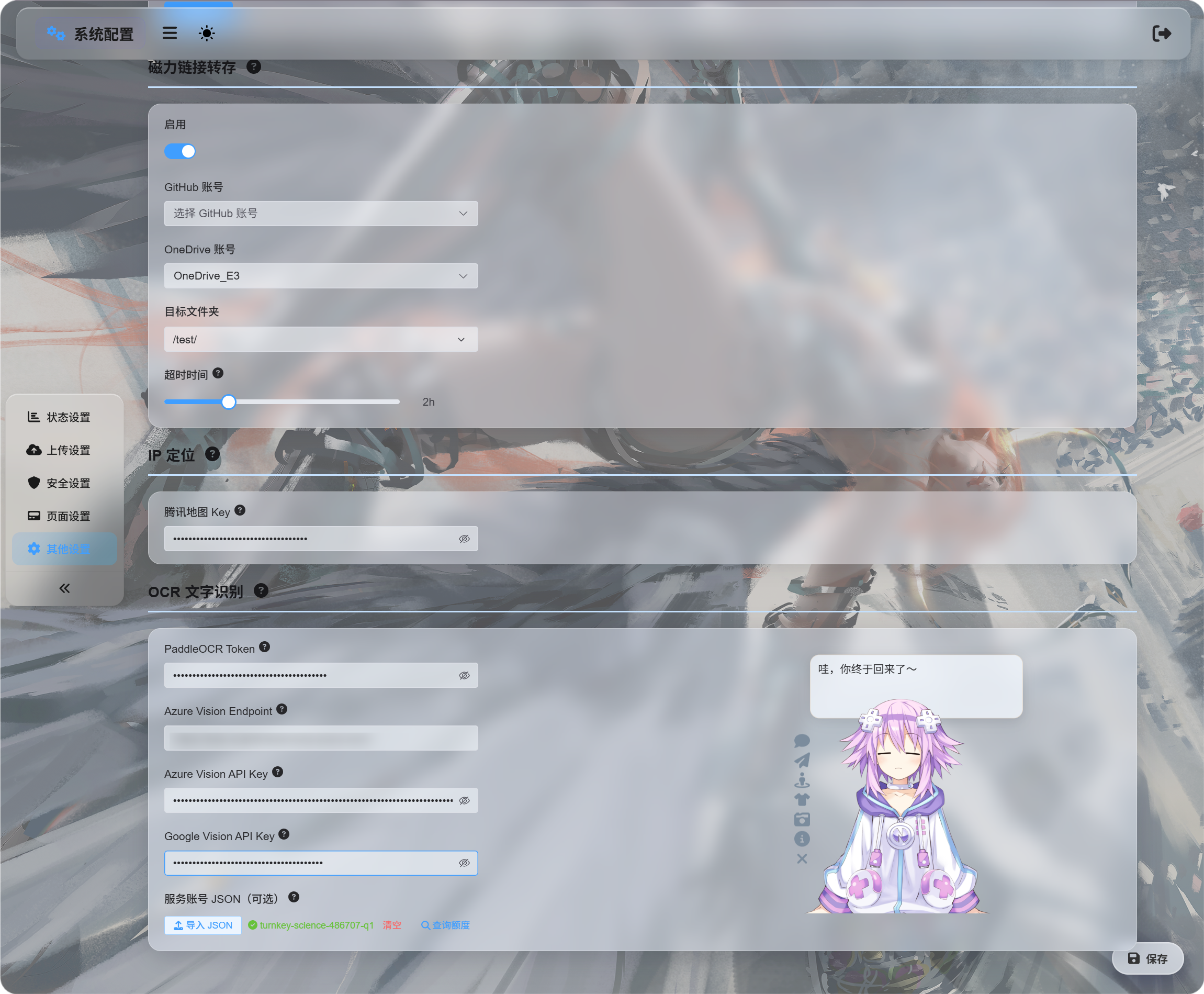
যে পরিষেবাগুলো ব্যবহার করতে চান, সেগুলোর পরিচয়পত্র পূরণ করুন:
| পরিষেবা | কী লিখবেন | কোন ক্ষেত্রে সেরা |
|---|---|---|
| Baidu PaddleOCR | PaddleOCR Token | প্রস্তাবিত প্রথম পছন্দ। ডকুমেন্ট, ছবি, টেবিল এবং মিশ্র লেআউটের জন্য ভালো। |
| Microsoft Azure Vision | Azure Vision Endpoint এবং Azure Vision API Key | আপনি আগে থেকেই Microsoft ক্লাউড পরিষেবা ব্যবহার করলে উপযোগী। |
| Google Vision | Google Vision API Key। পরিষেবা অ্যাকাউন্টের JSON শুধু কোটা অনুসন্ধানের জন্য ব্যবহৃত হয়। | আপনি Google Cloud পরিষেবা ব্যবহার করলে উপযোগী। |
পরিচয়পত্র পূরণ করার পর সংরক্ষণ করুন।
প্রাথমিক পরীক্ষার জন্য শুধু একটি পরিষেবা কনফিগার করলেই হয়। তিনটিই দরকার নেই।
Google Vision সেটআপ
Google সেটআপের দুটি অংশ আছে:
| লক্ষ্য | প্রয়োজনীয়তা |
|---|---|
| OCR ব্যবহার | Cloud Vision API চালু করুন, তারপর একটি API Key তৈরি করুন। |
| ব্যবহারের হিসাব দেখা | একটি পরিষেবা অ্যাকাউন্ট তৈরি করুন, তাকে Monitoring Viewer দিন, তারপর পরিষেবা অ্যাকাউন্টের JSON ডাউনলোড করুন। |
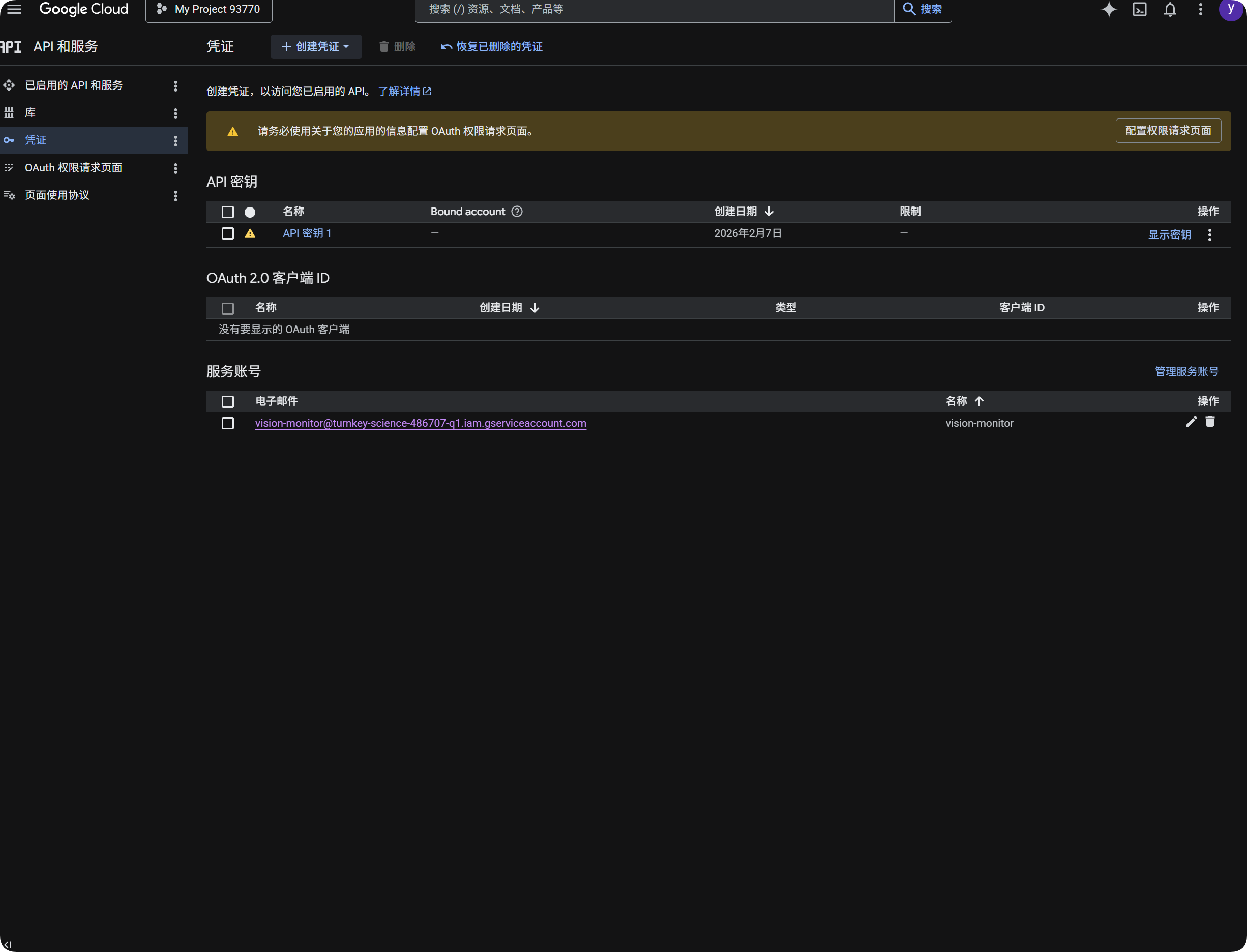
OCR-এর জন্য Google ব্যবহার
- Google Cloud Console খুলুন।
APIs & Services-এ যান।Libraryখুলুন,Cloud Vision APIখুঁজুন এবং চালু করুন।Credentials-এ ফিরে যান।- একটি
API Keyতৈরি করুন। - API Key খুলে কপি করুন।
- ImgHost-এর
Google Vision API Key-এ পেস্ট করুন। - সংরক্ষণ করুন।
এরপর OCR ডায়ালগে Google Vision নির্বাচন করতে পারবেন।
Google ব্যবহারের হিসাব দেখা
কোটা অনুসন্ধান শনাক্তকরণের জন্য প্রয়োজন নয়।
এটি শুধু গত 30 দিনে কতটি Google Vision কল ব্যবহার হয়েছে তার আনুমানিক সংখ্যা দেখায়।
- Google Cloud Console-এ
IAM & Adminখুলুন। Service Accountsখুলুন।- একটি পরিষেবা অ্যাকাউন্ট তৈরি করুন, যেমন
vision-monitor। - সেটিকে
Monitoring Viewerভূমিকা দিন। - পরিষেবা অ্যাকাউন্টের বিবরণ খুলে একটি কী তৈরি করুন।
JSONনির্বাচন করুন।- তৈরি হওয়া JSON ফাইল ডাউনলোড করুন।
- ImgHost-এ ফিরে পরিষেবা অ্যাকাউন্ট
JSON-এর অধীনে এটি আমদানি করুন (ঐচ্ছিক)। - আমদানি সফল হলে কোটা অনুসন্ধানে ক্লিক করুন।
আমদানির পর ImgHost পরিষেবা অ্যাকাউন্টের প্রকল্পের নাম দেখায়। ব্যবহারের হিসাব দেখার সময় ImgHost Google পর্যবেক্ষণ ডেটা পড়ে এবং এই মাসের কল সংখ্যা দেখায়।
সংক্ষেপে:
| আইটেম | উদ্দেশ্য |
|---|---|
Google Vision API Key | OCR শনাক্তকরণ চালায়। |
পরিষেবা অ্যাকাউন্ট JSON | কতটি Google Vision কল ব্যবহার হয়েছে তা অনুসন্ধান করে। |
Monitoring Viewer ভূমিকা | পরিষেবা অ্যাকাউন্টকে ব্যবহার ডেটা পড়তে দেয়। |
Baidu PaddleOCR Token নেওয়া
Baidu PaddleOCR একটি অ্যাক্সেস টোকেন চায়।
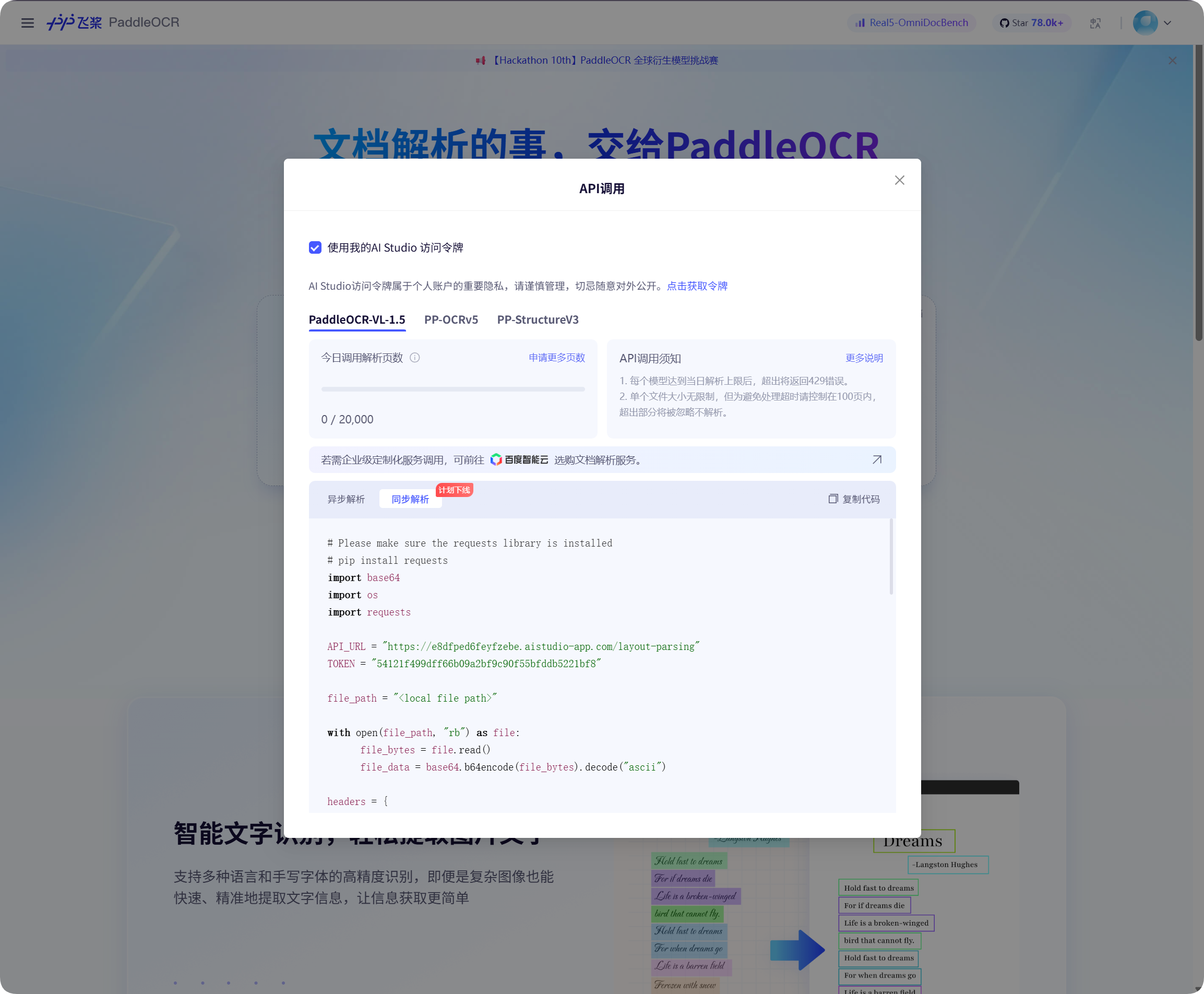
Baidu PaddleOCR পেজে API কল উইন্ডো খুলুন, টোকেন নেওয়ার জন্য ক্লিক করুন, তারপর সেটি কপি করুন।
ImgHost-এ ফিরে PaddleOCR Token-এ পেস্ট করুন এবং সংরক্ষণ করুন।
শনাক্তকরণ শুরু করা
ফাইল ব্যবস্থাপনায় একটি ছবি বা ডকুমেন্ট স্ক্রিনশট নির্বাচন করে OCR-এ ক্লিক করুন।
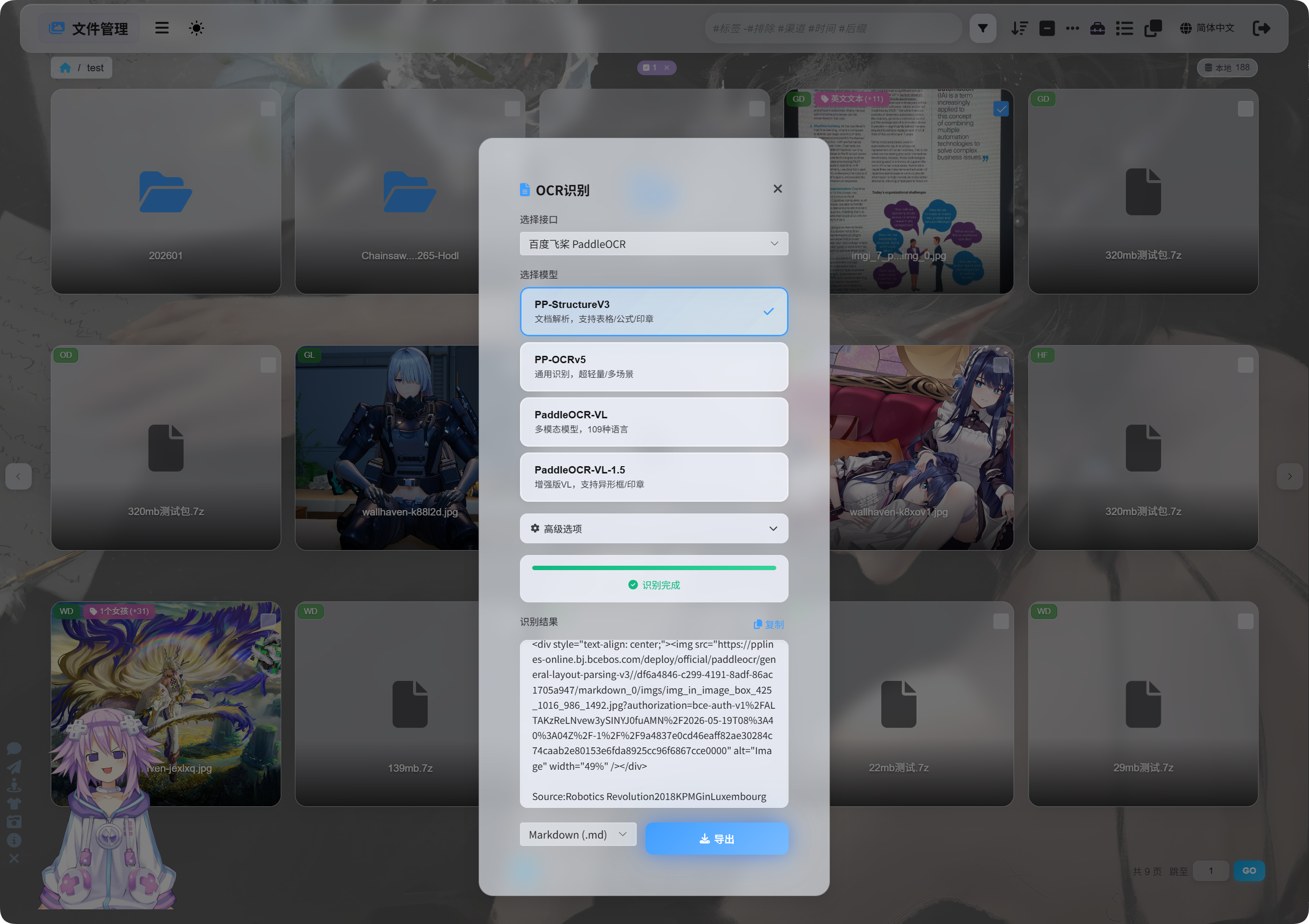
ডায়ালগে শনাক্তকরণ পরিষেবা এবং মডেল নির্বাচন করুন।
সাধারণ PaddleOCR মডেল নির্বাচন:
| মডেল | কোন ক্ষেত্রে সেরা |
|---|---|
PP-StructureV3 | প্রস্তাবিত ডিফল্ট। ডকুমেন্ট, টেবিল, সূত্র, সিলমোহর এবং মিশ্র লেআউটের জন্য ভালো। |
PP-OCRv5 | সাধারণ ছবি, সাধারণ লেখা এবং হালকা শনাক্তকরণ। |
PaddleOCR-VL | বহু-ভাষিক, জটিল ছবি এবং চার্ট-ধরনের কনটেন্ট। |
PaddleOCR-VL-1.5 | আরও জটিল ডকুমেন্ট পেজ এবং লেআউট পুনরুদ্ধার। |
নিশ্চিত না হলে PP-StructureV3 দিয়ে শুরু করুন।
উন্নত বিকল্প
| বিকল্প | বিবরণ |
|---|---|
| দিকনির্দেশ সংশোধন | ছবি ঘোরানো বা কাত হলে ব্যবহার করুন। |
| ডকুমেন্ট সমতলকরণ | বাঁক বা ঢাল থাকা ছবি তোলা ডকুমেন্টের জন্য ব্যবহার করুন। |
| লেআউট শনাক্তকরণ | শিরোনাম, অনুচ্ছেদ, টেবিল এবং ছবির গঠন সংরক্ষণ করতে চাইলে ব্যবহার করুন। |
| চার্ট শনাক্তকরণ | ছবিতে চার্ট বা জটিল গঠন থাকলে ব্যবহার করুন। |
Markdown সুন্দর করা | রপ্তানি করা Markdown পড়া সহজ করে। |
সাধারণ স্ক্রিনশটের জন্য বিকল্প কম রাখুন। ডকুমেন্ট স্ক্যানের জন্য ডকুমেন্ট-সম্পর্কিত আরও বিকল্প চালু করুন।
ফলাফল দেখা
শনাক্তকরণ শেষ হলে ডায়ালগে ফলাফল দেখা যায়।
আপনি সরাসরি কপি করতে পারেন অথবা রপ্তানি ফরম্যাট নির্বাচন করতে পারেন।
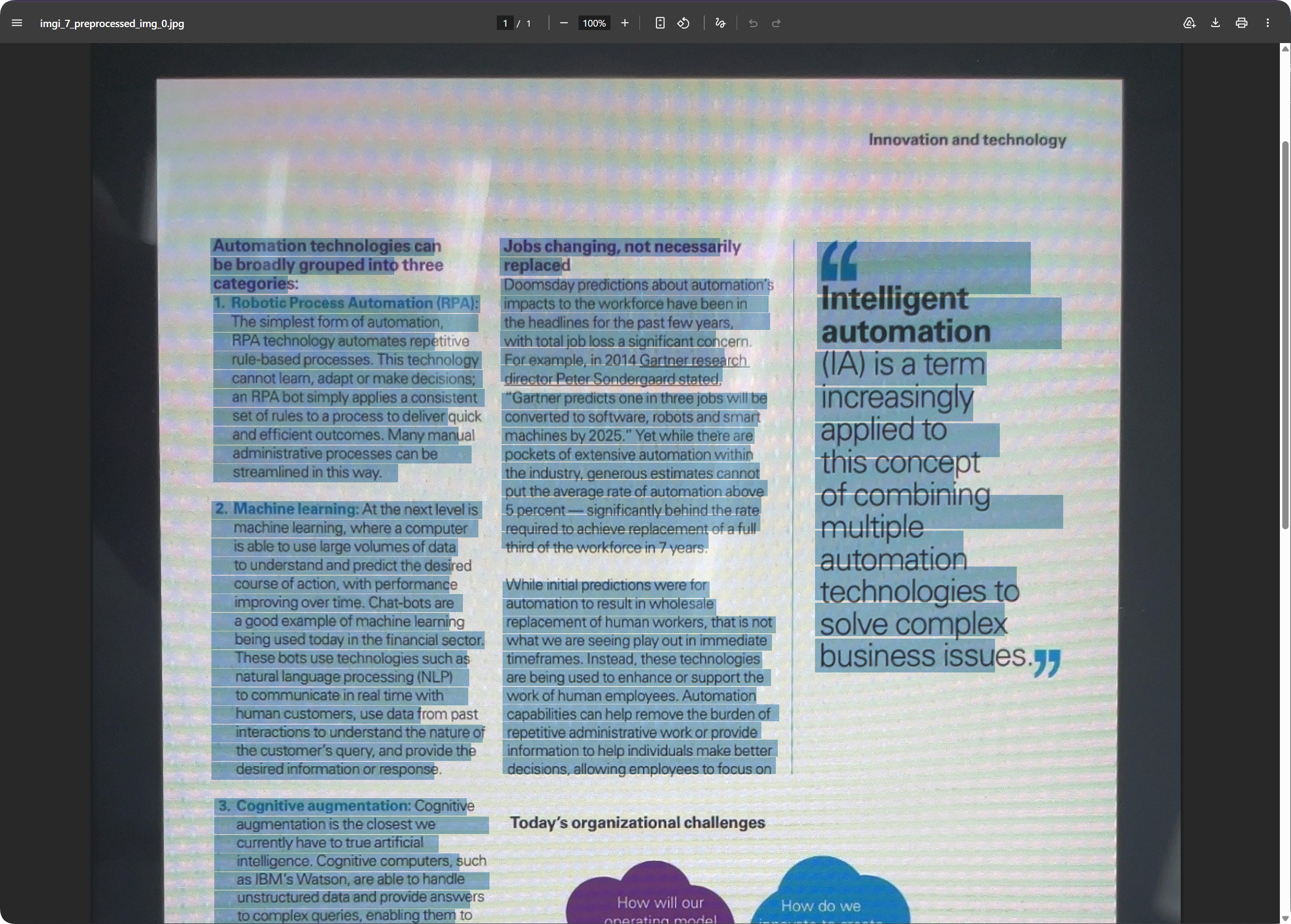
ডকুমেন্ট পেজের ক্ষেত্রে রপ্তানি করা PDF পেজের চেহারা বজায় রেখে লেখাকে অনুসন্ধানযোগ্য রাখতে পারে। স্ক্যান আর্কাইভ করা এবং পরে কনটেন্ট খুঁজে পাওয়ার জন্য এটি উপযোগী।
রপ্তানি ফরম্যাট নির্বাচন
| ফরম্যাট | কোন ক্ষেত্রে সেরা |
|---|---|
Markdown (.md) | নোট, ডকুমেন্টেশন সিস্টেম এবং পরবর্তী সম্পাদনা। |
PDF (.pdf) | পেজের চেহারা এবং স্ক্যান করা ডকুমেন্টের ফলাফল সংরক্ষণ। |
Word (.docx) | লেআউট সম্পাদনা চালিয়ে যাওয়া, লেখা পরিবর্তন এবং অন্যদের কাছে হস্তান্তর। |
| সব রপ্তানি | একাধিক ফরম্যাট ও মূল ছবি সংরক্ষণ করে; গুরুত্বপূর্ণ আর্কাইভের জন্য উপযোগী। |
শুধু লেখা দরকার হলে Markdown রপ্তানি করুন।
পেজের চেহারা দরকার হলে PDF বা Word ব্যবহার করুন।
Word আউটপুট
রপ্তানি করা Word ডকুমেন্ট অফিস সফটওয়্যার দিয়ে খোলা ও সম্পাদনা করা যায়।
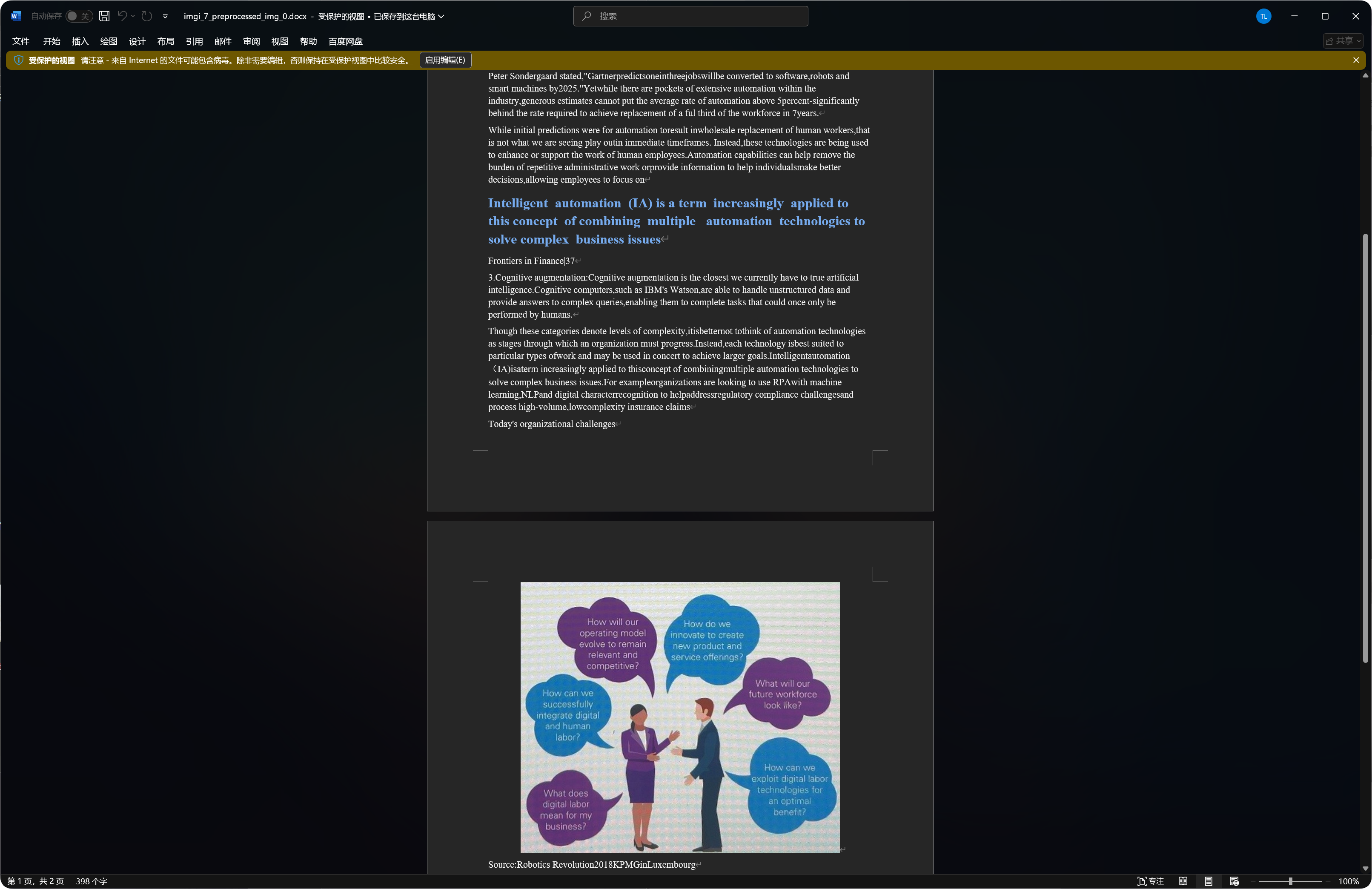
কিছু ডকুমেন্টের Word আউটপুটে শনাক্ত করা ছবি, শিরোনাম এবং অনুচ্ছেদ থাকে।
শনাক্তকরণের মান মূল ছবির স্বচ্ছতা, মডেল নির্বাচন এবং ডকুমেন্টের জটিলতার ওপর নির্ভর করে।
OCR-এর জন্য ভালো ফাইল ধরন
| ফাইলের ধরন | সুপারিশ |
|---|---|
| পরিষ্কার স্ক্রিনশট | সরাসরি শনাক্ত করুন। |
| স্ক্যান | PP-StructureV3 পছন্দ করুন। |
| ছবি তোলা ডকুমেন্ট | দিকনির্দেশ সংশোধন এবং ডকুমেন্ট সমতলকরণ চালু করুন। |
| টেবিল, সূত্র, সিলমোহর | কাঠামোগত মডেল পছন্দ করুন। |
| ছোট সাধারণ লেখার ছবি | PP-OCRv5 সাধারণত যথেষ্ট। |
আরও পরিষ্কার ছবি এবং সোজা লেখা সাধারণত ভালো ফল দেয়।
সাধারণ ঘটনা
| ঘটনা | অর্থ |
|---|---|
| শনাক্তকরণ ব্যর্থ | পরিষেবা টোকেন বা কী সংরক্ষণ করা আছে কি না পরীক্ষা করুন। |
| শনাক্তকরণ ধীর | জটিল ডকুমেন্ট এবং বড় ছবিতে বেশি সময় লাগে। |
| টেবিল অসম্পূর্ণ | একটি কাঠামোগত মডেল চেষ্টা করুন। |
| লেখায় ভুল আছে | ঝাপসা, আলো প্রতিফলন এবং কাত হওয়া শনাক্তকরণ ত্রুটি বাড়ায়। আরও পরিষ্কার ছবি চেষ্টা করুন। |
| Word আউটপুটে অনেক ছবি আছে | কাঠামোগত মডেল কিছু শনাক্ত করা ছবি সংরক্ষণ করতে পারে। এটি স্বাভাবিক। |
Google কোটা অনুসন্ধান ব্যর্থ হলে
পরীক্ষা করুন:
- পরিষেবা অ্যাকাউন্ট
JSONআমদানি করা হয়েছে। - পরিষেবা অ্যাকাউন্টের
Monitoring Viewerভূমিকা আছে। - প্রকল্পে
Cloud Vision APIচালু আছে।
আপনার যদি শুধু OCR দরকার হয় এবং ব্যবহারের হিসাব দেখা দরকার না হয়, পরিষেবা অ্যাকাউন্ট JSON উপেক্ষা করে শুধু Google Vision API Key পূরণ করতে পারেন।
দ্রুত ধাপ
text
Open System Settings
-> Open Other Settings
-> Fill OCR service credentials
-> Save
-> Return to File Management
-> Select a file and click OCR
-> Choose a model
-> Wait for recognition
-> Copy results or export Markdown / PDF / Word