OCR
OCR trích xuất văn bản từ hình ảnh, bản quét và ảnh chụp màn hình tài liệu.
Sau khi nhận dạng, bạn có thể sao chép kết quả, xuất dưới dạng Markdown, PDF hoặc Word, hoặc đóng gói nhiều định dạng để tải xuống.
OCR Có Thể Làm Gì
| Tính năng | Mô tả |
|---|---|
| Nhận dạng văn bản trong ảnh | Trích xuất văn bản từ hình ảnh, ảnh chụp màn hình và bản quét. |
| Nhận dạng bố cục tài liệu | Phù hợp hơn với bảng, công thức, con dấu và bố cục trộn văn bản-hình ảnh. |
| Nhiều dịch vụ | Hỗ trợ Baidu PaddleOCR, Microsoft Azure Vision và Google Vision. |
| Sao chép kết quả | Sao chép văn bản đã nhận dạng sau khi xử lý. |
| Xuất tệp | Xuất Markdown, PDF và Word. |
| Đóng gói hàng loạt | Sau khi nhận dạng nhiều tệp, tải kết quả xuống dưới dạng gói. |
Cấu Hình Dịch Vụ OCR Trước
Mở:
text
System Settings -> Other Settings -> OCR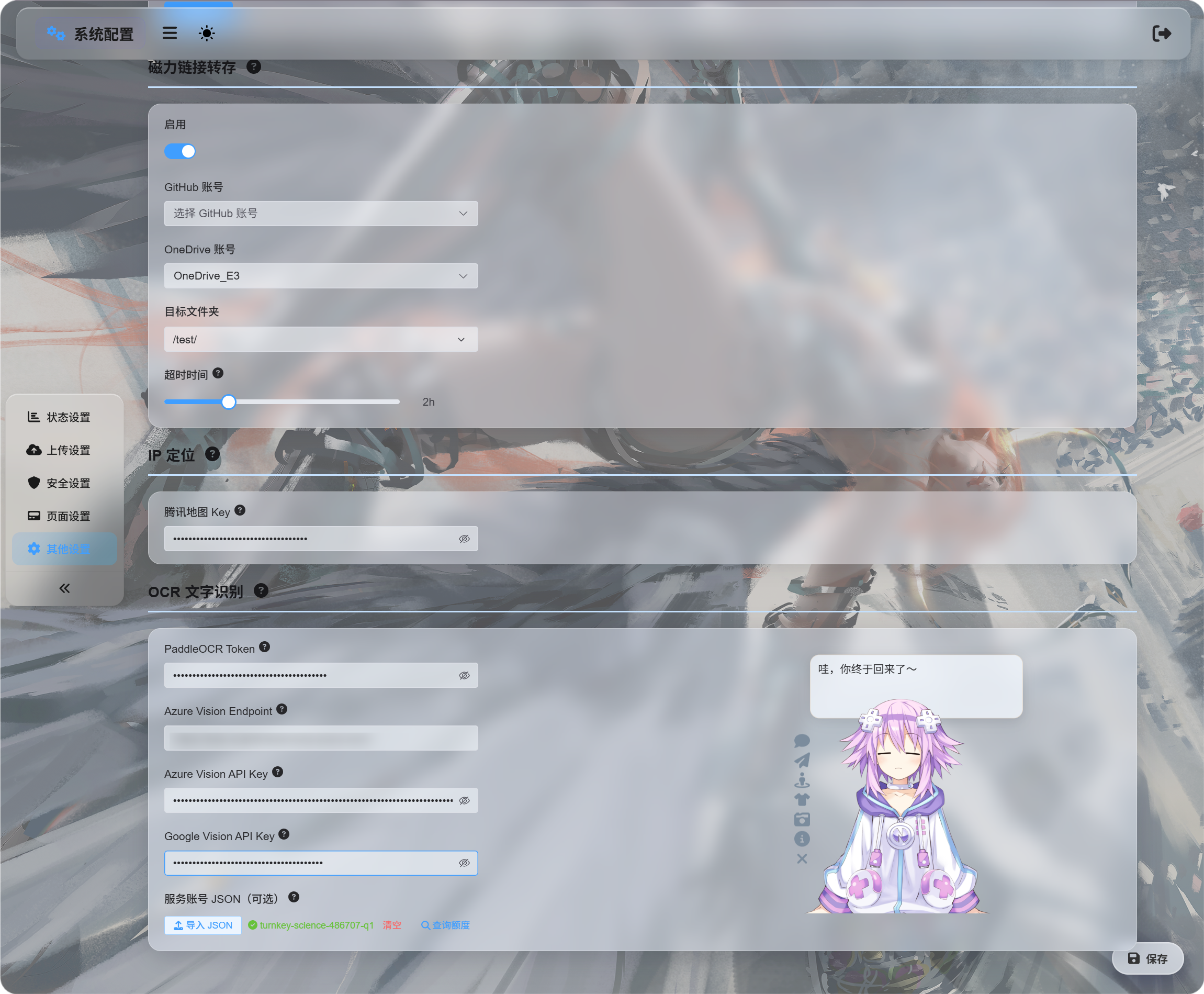
Điền thông tin xác thực cho các dịch vụ bạn muốn dùng:
| Dịch vụ | Cần nhập gì | Phù hợp nhất cho |
|---|---|---|
| Baidu PaddleOCR | PaddleOCR Token | Lựa chọn đầu tiên được khuyến nghị. Tốt cho tài liệu, hình ảnh, bảng và bố cục trộn. |
| Microsoft Azure Vision | Azure Vision Endpoint và Azure Vision API Key | Hữu ích nếu bạn đã dùng dịch vụ đám mây Microsoft. |
| Google Vision | Google Vision API Key. JSON của tài khoản dịch vụ chỉ dùng để truy vấn hạn mức. | Hữu ích nếu bạn dùng dịch vụ Google Cloud. |
Lưu sau khi điền thông tin xác thực.
Bạn có thể chỉ cấu hình một dịch vụ để kiểm thử ban đầu. Không cần cấu hình cả ba.
Thiết Lập Google Vision
Thiết lập Google có hai phần:
| Mục tiêu | Yêu cầu |
|---|---|
| Dùng OCR | Bật Cloud Vision API, rồi tạo API Key. |
| Truy vấn mức dùng | Tạo tài khoản dịch vụ, cấp Monitoring Viewer, rồi tải JSON của tài khoản dịch vụ. |
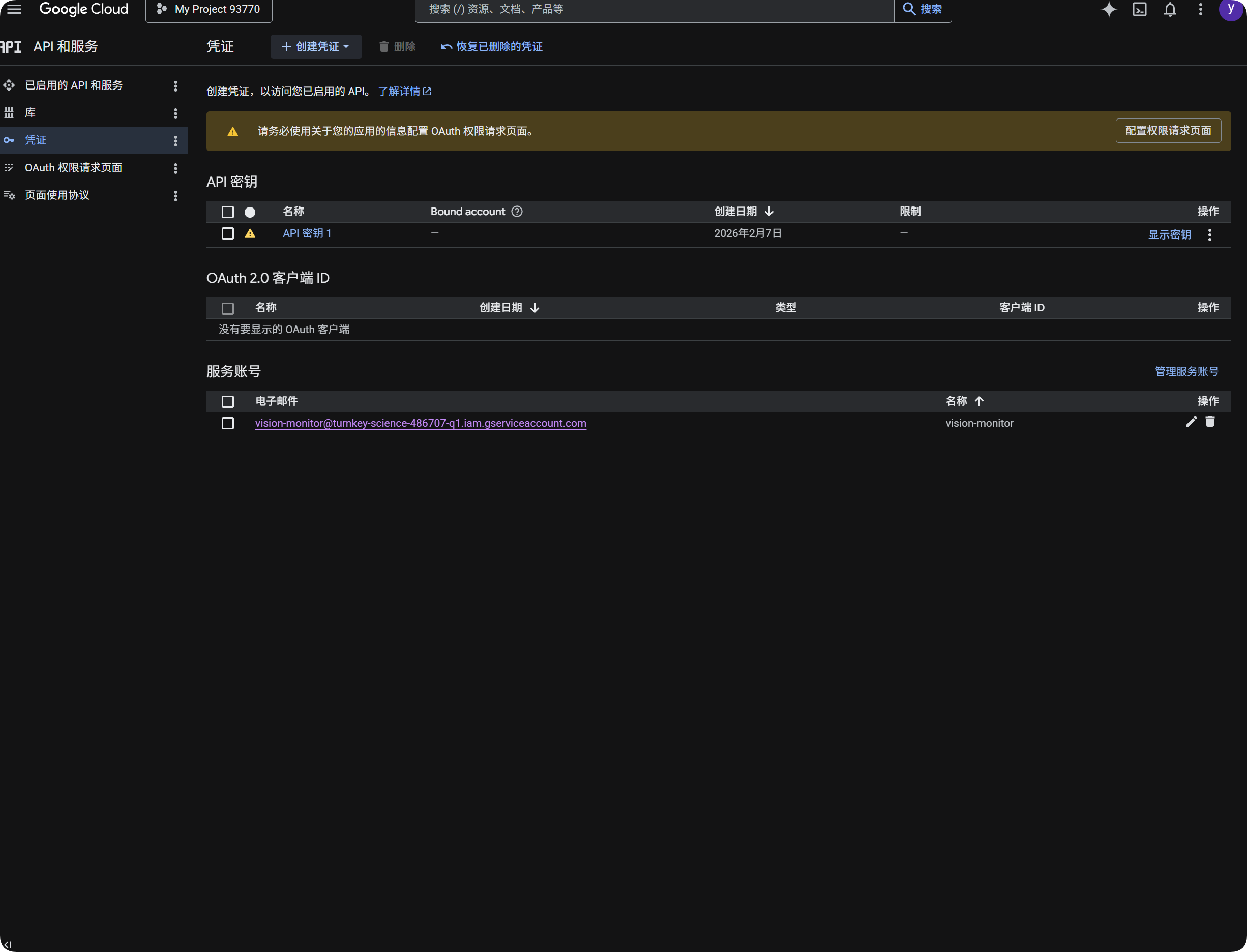
Dùng Google Cho OCR
- Mở Google Cloud Console.
- Vào
APIs & Services. - Mở
Library, tìmCloud Vision APIvà bật. - Quay lại
Credentials. - Tạo
API Key. - Mở khóa API và sao chép.
- Dán vào
Google Vision API Keytrong ImgHost. - Lưu.
Sau đó bạn có thể chọn Google Vision trong hộp thoại OCR.
Truy Vấn Mức Dùng Google
Truy vấn hạn mức không bắt buộc để nhận dạng.
Nó chỉ hiển thị xấp xỉ số lần gọi Google Vision đã dùng trong 30 ngày gần đây.
- Trong Google Cloud Console, mở
IAM & Admin. - Mở
Service Accounts. - Tạo tài khoản dịch vụ, ví dụ
vision-monitor. - Cấp vai trò
Monitoring Viewer. - Mở chi tiết tài khoản dịch vụ và tạo khóa.
- Chọn
JSON. - Tải tệp JSON đã tạo.
- Quay lại ImgHost và nhập tệp đó trong mục
JSONcủa tài khoản dịch vụ (tùy chọn). - Sau khi nhập thành công, nhấp truy vấn hạn mức.
Sau khi nhập, ImgHost hiển thị tên dự án sở hữu tài khoản dịch vụ. Khi truy vấn mức dùng, ImgHost đọc dữ liệu giám sát của Google và hiển thị số lần gọi trong tháng này.
Tóm tắt:
| Mục | Mục đích |
|---|---|
Google Vision API Key | Thực hiện nhận dạng OCR. |
JSON của tài khoản dịch vụ | Truy vấn số lần gọi Google Vision đã dùng. |
Vai trò Monitoring Viewer | Cho phép tài khoản dịch vụ đọc dữ liệu sử dụng. |
Lấy Baidu PaddleOCR Token
Baidu PaddleOCR cần token truy cập.
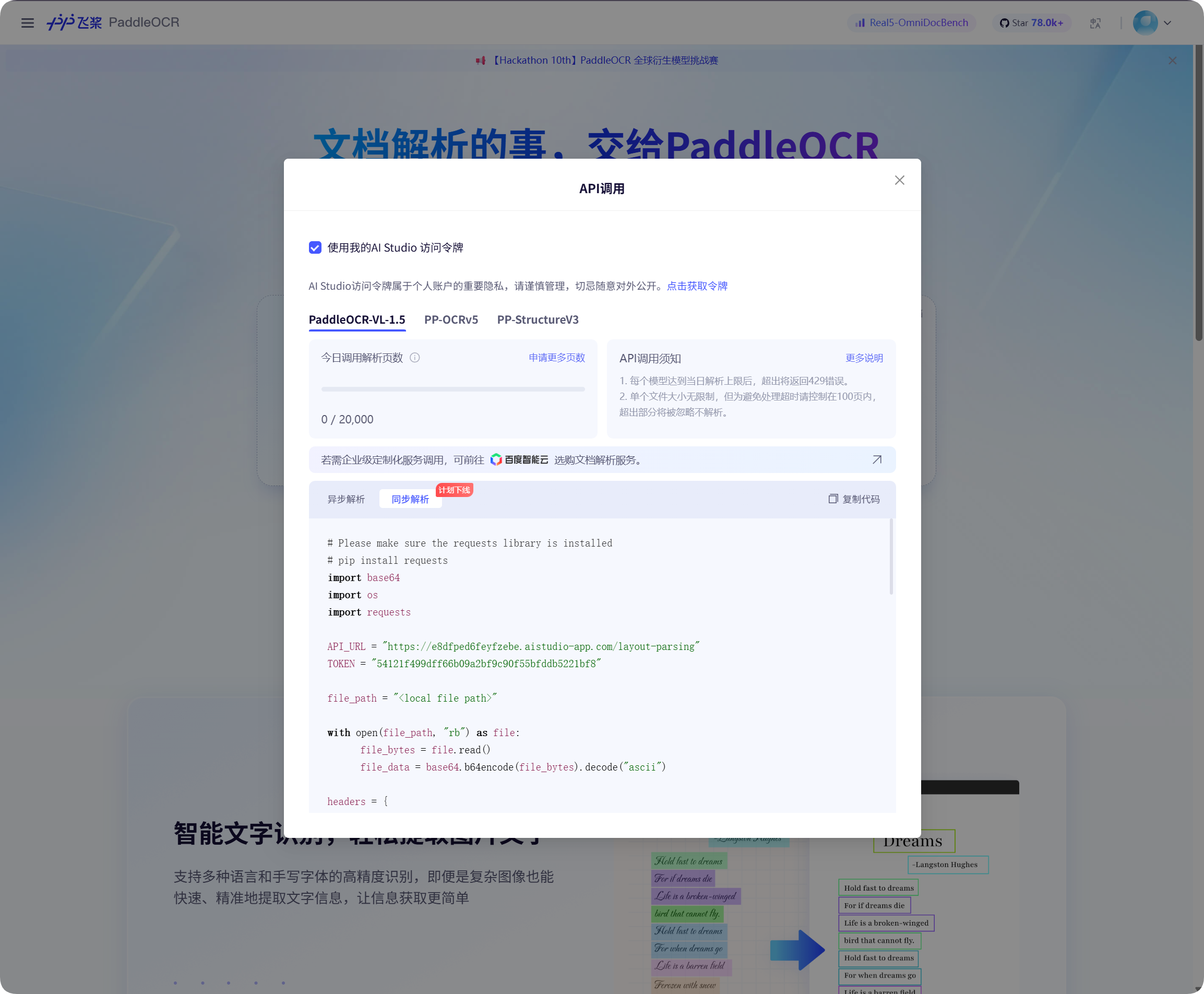
Mở cửa sổ gọi API trên trang Baidu PaddleOCR, nhấp để lấy token, rồi sao chép.
Quay lại ImgHost, dán vào PaddleOCR Token và lưu.
Bắt Đầu Nhận Dạng
Trong Quản lý tệp, chọn một hình ảnh hoặc ảnh chụp màn hình tài liệu rồi nhấp OCR.
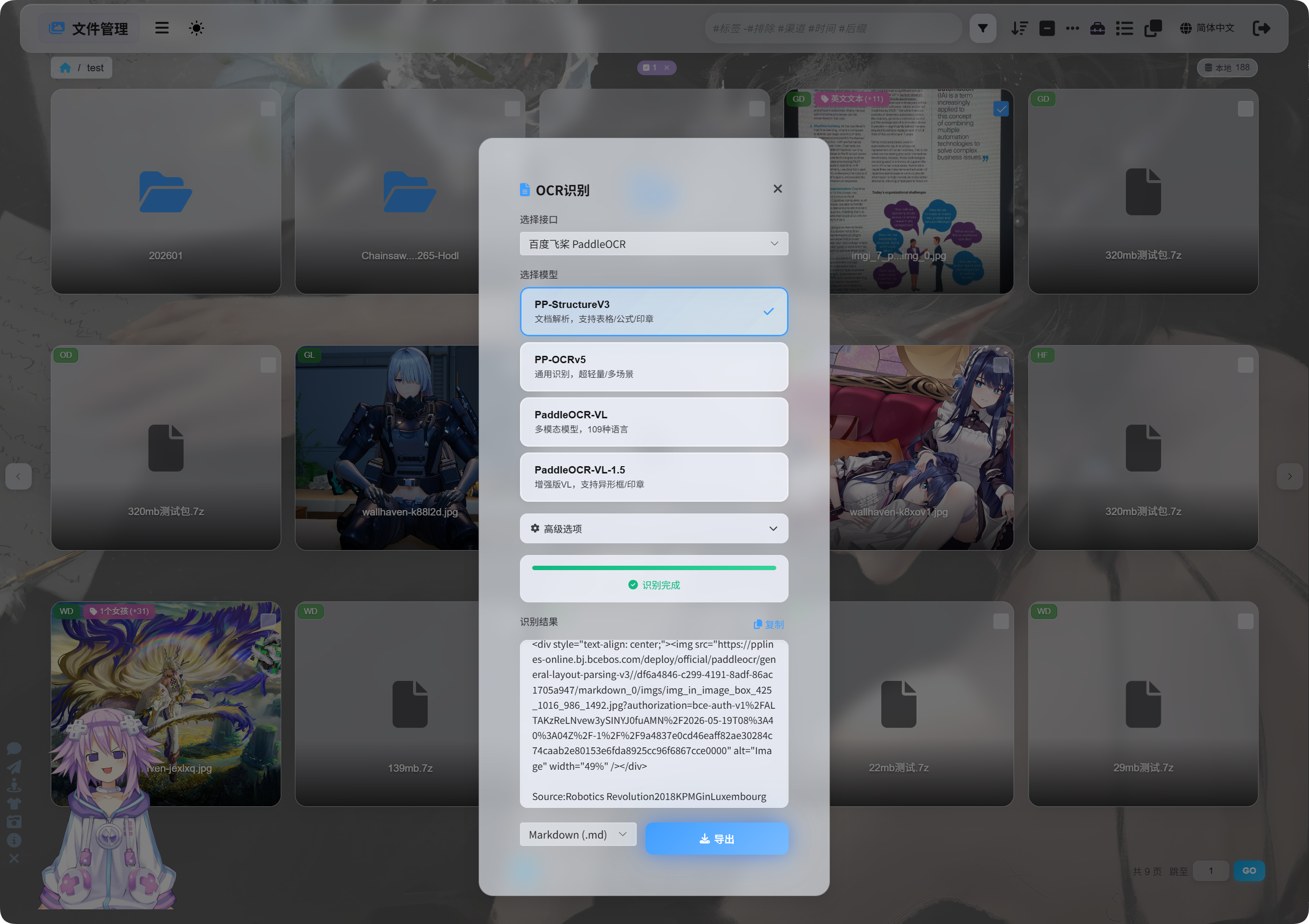
Trong hộp thoại, chọn dịch vụ và mô hình nhận dạng.
Các lựa chọn mô hình PaddleOCR thường dùng:
| Mô hình | Phù hợp nhất cho |
|---|---|
PP-StructureV3 | Mặc định được khuyến nghị. Tốt cho tài liệu, bảng, công thức, con dấu và bố cục trộn. |
PP-OCRv5 | Hình ảnh đơn giản, văn bản thông thường và nhận dạng nhẹ. |
PaddleOCR-VL | Nội dung đa ngôn ngữ, hình ảnh phức tạp và nội dung giống biểu đồ. |
PaddleOCR-VL-1.5 | Trang tài liệu phức tạp hơn và khôi phục bố cục. |
Nếu không chắc, hãy bắt đầu với PP-StructureV3.
Tùy Chọn Nâng Cao
| Tùy chọn | Mô tả |
|---|---|
| Sửa hướng | Dùng khi ảnh bị xoay hoặc lệch. |
| Làm phẳng tài liệu | Dùng cho tài liệu chụp có cong hoặc nghiêng. |
| Phát hiện bố cục | Dùng khi muốn giữ cấu trúc tiêu đề, đoạn văn, bảng và hình ảnh. |
| Nhận dạng biểu đồ | Dùng khi ảnh chứa biểu đồ hoặc cấu trúc phức tạp. |
Làm đẹp Markdown | Giúp Markdown xuất ra dễ đọc hơn. |
Với ảnh chụp màn hình thông thường, giữ tùy chọn ở mức tối thiểu. Với bản quét tài liệu, bật thêm các tùy chọn liên quan đến tài liệu.
Xem Kết Quả
Sau khi nhận dạng xong, hộp thoại hiển thị kết quả.
Bạn có thể sao chép trực tiếp hoặc chọn định dạng xuất.
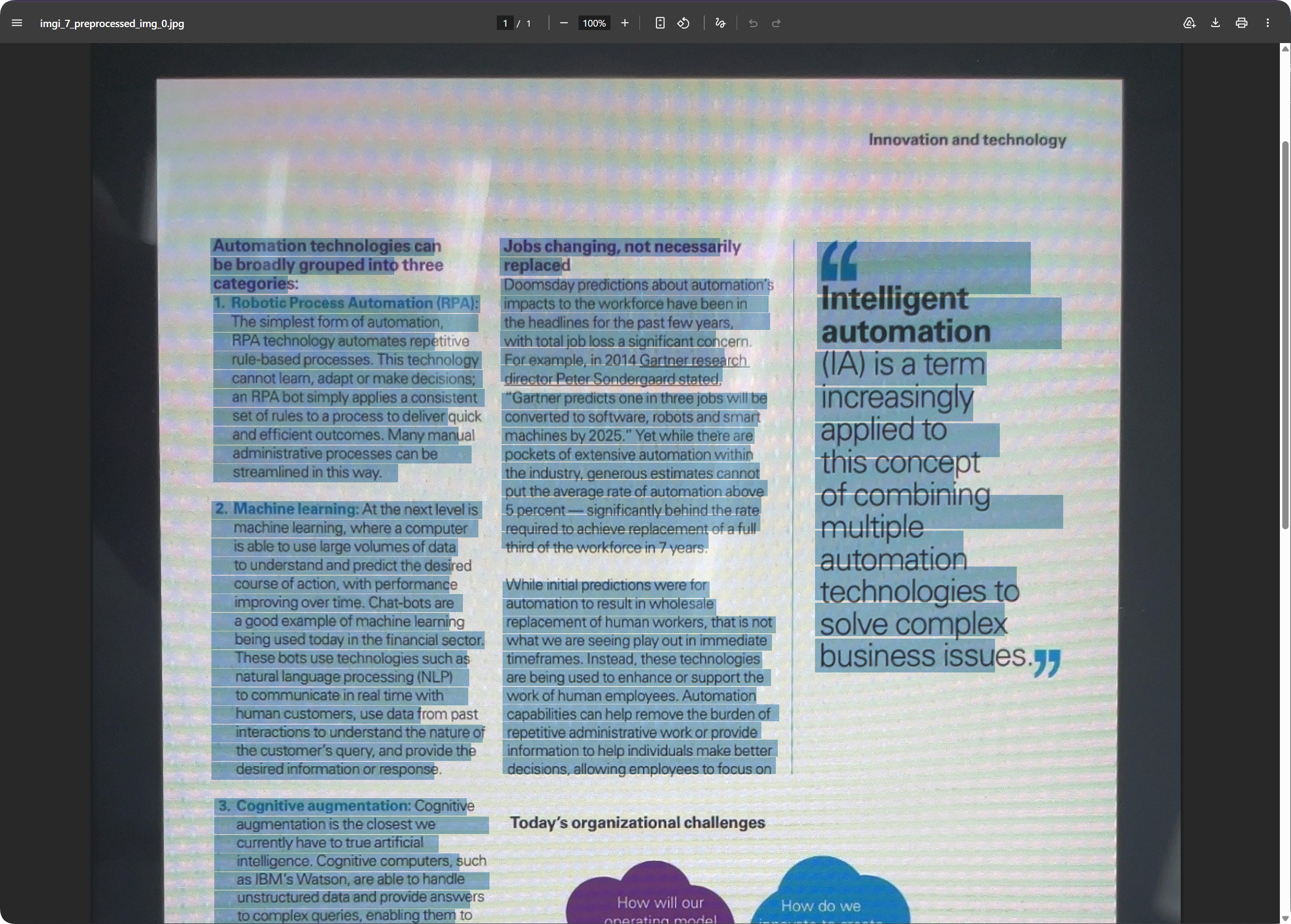
Với trang tài liệu, PDF xuất ra có thể giữ giao diện trang đồng thời giữ văn bản có thể tìm kiếm. Điều này hữu ích để lưu trữ bản quét và tìm nội dung sau này.
Chọn Định Dạng Xuất
| Định dạng | Phù hợp nhất cho |
|---|---|
Markdown (.md) | Ghi chú, hệ thống tài liệu và chỉnh sửa sau này. |
PDF (.pdf) | Giữ giao diện trang và kết quả tài liệu đã quét. |
Word (.docx) | Tiếp tục chỉnh sửa bố cục, sửa văn bản và chuyển giao cho người khác. |
| Xuất tất cả | Lưu nhiều định dạng và ảnh gốc, phù hợp cho lưu trữ quan trọng. |
Nếu bạn chỉ cần văn bản, hãy xuất Markdown.
Nếu cần giữ giao diện trang, dùng PDF hoặc Word.
Đầu Ra Word
Tài liệu Word đã xuất có thể mở và chỉnh sửa bằng phần mềm văn phòng.
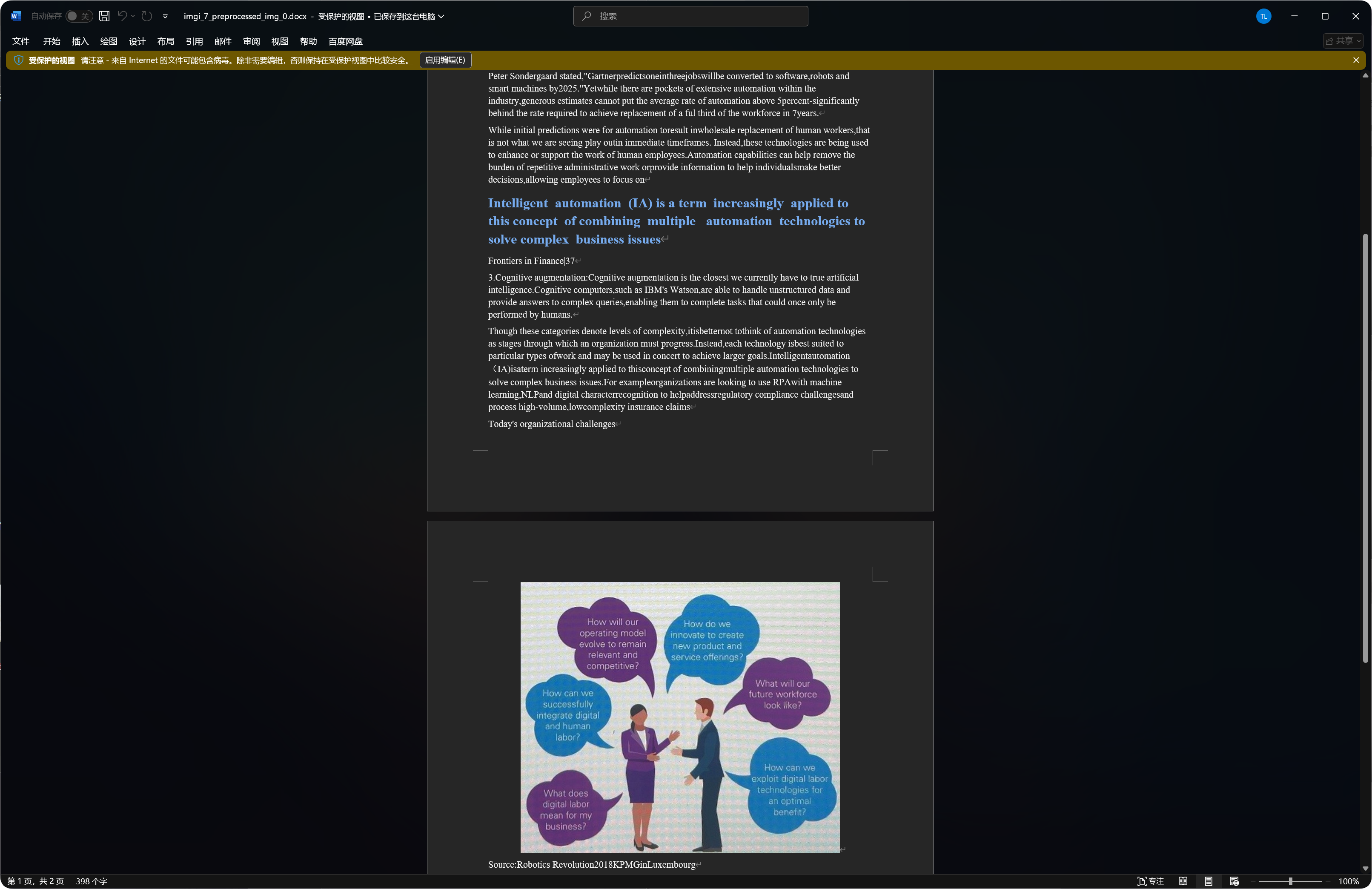
Một số tài liệu có thể đưa hình ảnh đã nhận dạng, tiêu đề và đoạn văn vào đầu ra Word.
Chất lượng nhận dạng phụ thuộc vào độ rõ của ảnh gốc, lựa chọn mô hình và độ phức tạp của tài liệu.
Loại Tệp Phù Hợp Nhất Cho OCR
| Loại tệp | Khuyến nghị |
|---|---|
| Ảnh chụp màn hình rõ | Nhận dạng trực tiếp. |
| Bản quét | Ưu tiên PP-StructureV3. |
| Tài liệu chụp ảnh | Bật sửa hướng và làm phẳng tài liệu. |
| Bảng, công thức, con dấu | Ưu tiên mô hình có cấu trúc. |
| Ảnh văn bản ngắn đơn giản | PP-OCRv5 thường là đủ. |
Ảnh rõ hơn và chữ thẳng hơn thường cho kết quả tốt hơn.
Trường Hợp Thường Gặp
| Trường hợp | Ý nghĩa |
|---|---|
| Nhận dạng thất bại | Kiểm tra token hoặc khóa của dịch vụ đã được lưu chưa. |
| Nhận dạng chậm | Tài liệu phức tạp và ảnh lớn mất nhiều thời gian hơn. |
| Bảng không đầy đủ | Thử mô hình có cấu trúc. |
| Văn bản có lỗi | Mờ, lóa và lệch làm tăng lỗi nhận dạng. Thử ảnh rõ hơn. |
| Đầu ra Word chứa nhiều hình ảnh | Mô hình có cấu trúc có thể giữ một số hình ảnh đã nhận dạng. Đây là bình thường. |
Truy Vấn Hạn Mức Google Thất Bại
Kiểm tra:
JSONcủa tài khoản dịch vụ đã được nhập.- Tài khoản dịch vụ có vai trò
Monitoring Viewer. Cloud Vision APIđã bật cho dự án.
Nếu bạn chỉ cần OCR và không cần truy vấn mức dùng, có thể bỏ qua JSON của tài khoản dịch vụ và chỉ điền Google Vision API Key.
Luồng Nhanh
text
Open System Settings
-> Open Other Settings
-> Fill OCR service credentials
-> Save
-> Return to File Management
-> Select a file and click OCR
-> Choose a model
-> Wait for recognition
-> Copy results or export Markdown / PDF / Word