Thêm Google Drive Channel
Cần chuẩn bị trước
Trước khi bắt đầu, chuẩn bị các mục sau:
| Yêu cầu | Vì sao cần |
|---|---|
| Google account | Dùng để access Google Cloud và authorize Google Drive |
| Google Cloud project | Dùng để bật Drive API và tạo OAuth credentials |
| OAuth 2.0 client | ImgHost dùng để lấy Client ID, Client Secret và Refresh Token |
| ImgHost domain của bạn | Dùng cho OAuth redirect URI. Phải khớp với domain bạn thực sự dùng. |
Các bước thiết lập
Bước 1: Enable Google Drive API
- Mở Google Cloud Console.
- Tạo project mới hoặc chọn project có sẵn.
- Vào
APIs & Services. - Nhấn
Enable APIs and Services. - Tìm
Google Drive API. - Mở và nhấn bật.
Bước 2: Configure OAuth Consent Screen
- Trong Google Cloud, mở
Google Auth Platform. - Hoàn tất thông tin
Brandingcơ bản, như app name, support email và developer contact email. - Mở
Audience. - Với hầu hết self-hosted personal deployments, chọn
External. - Nếu chọn
External, thêm Google account bạn muốn authorize vàoTest users. - Mở
Data Access. - Thêm Google Drive permissions cần thiết.
Bước 3: Tạo OAuth 2.0 Client
- Trong
Google Auth Platform, mởClients. - Tạo client mới.
- Đặt application type là
Web application. - Đặt tên client dễ nhận biết.
- Với authorized JavaScript origins, nhập ImgHost URL, ví dụ:
text
https://img.example.com- Với authorized redirect URIs, nhập:
text
https://img.example.com/api/oauth/google/callback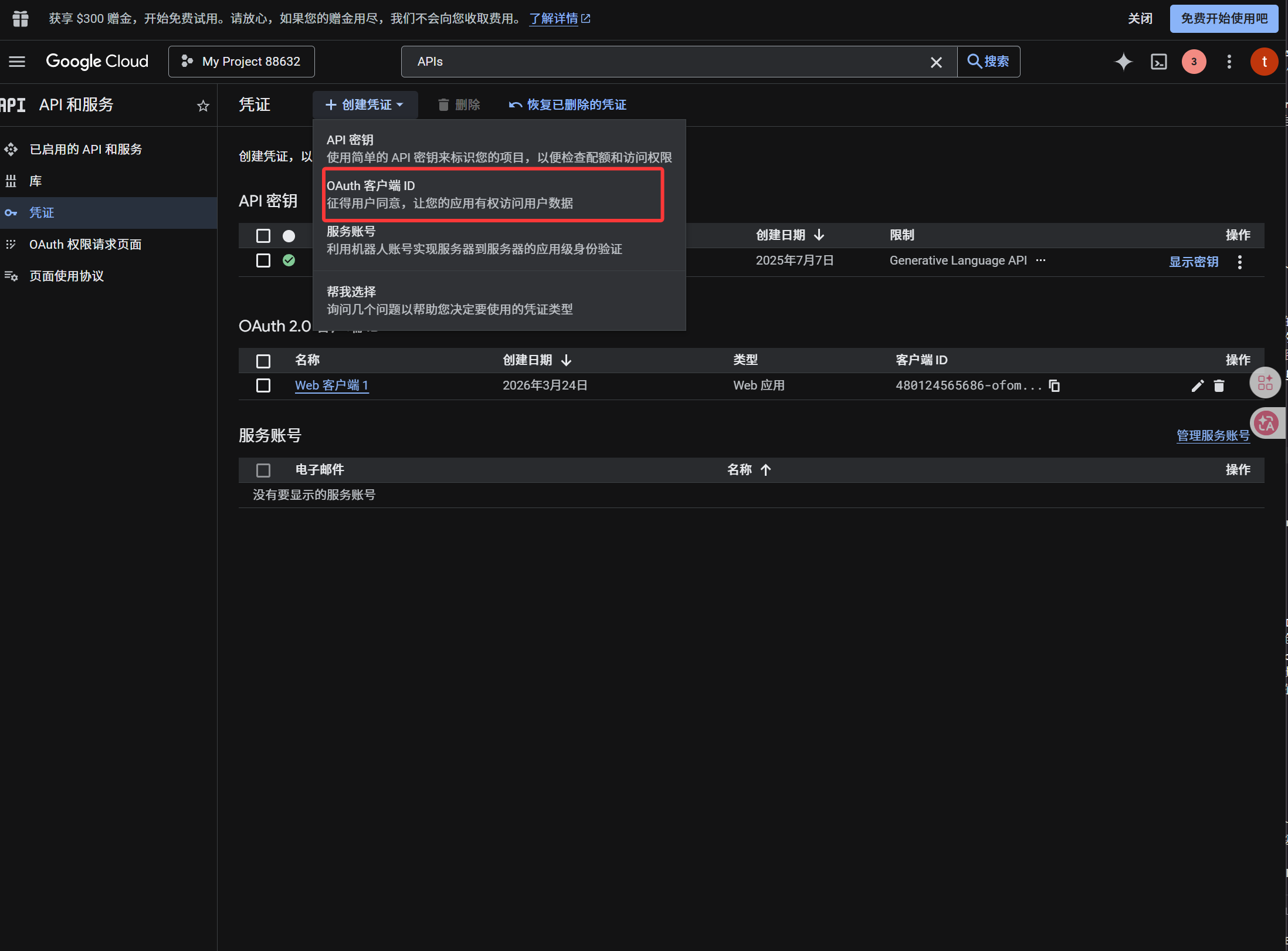
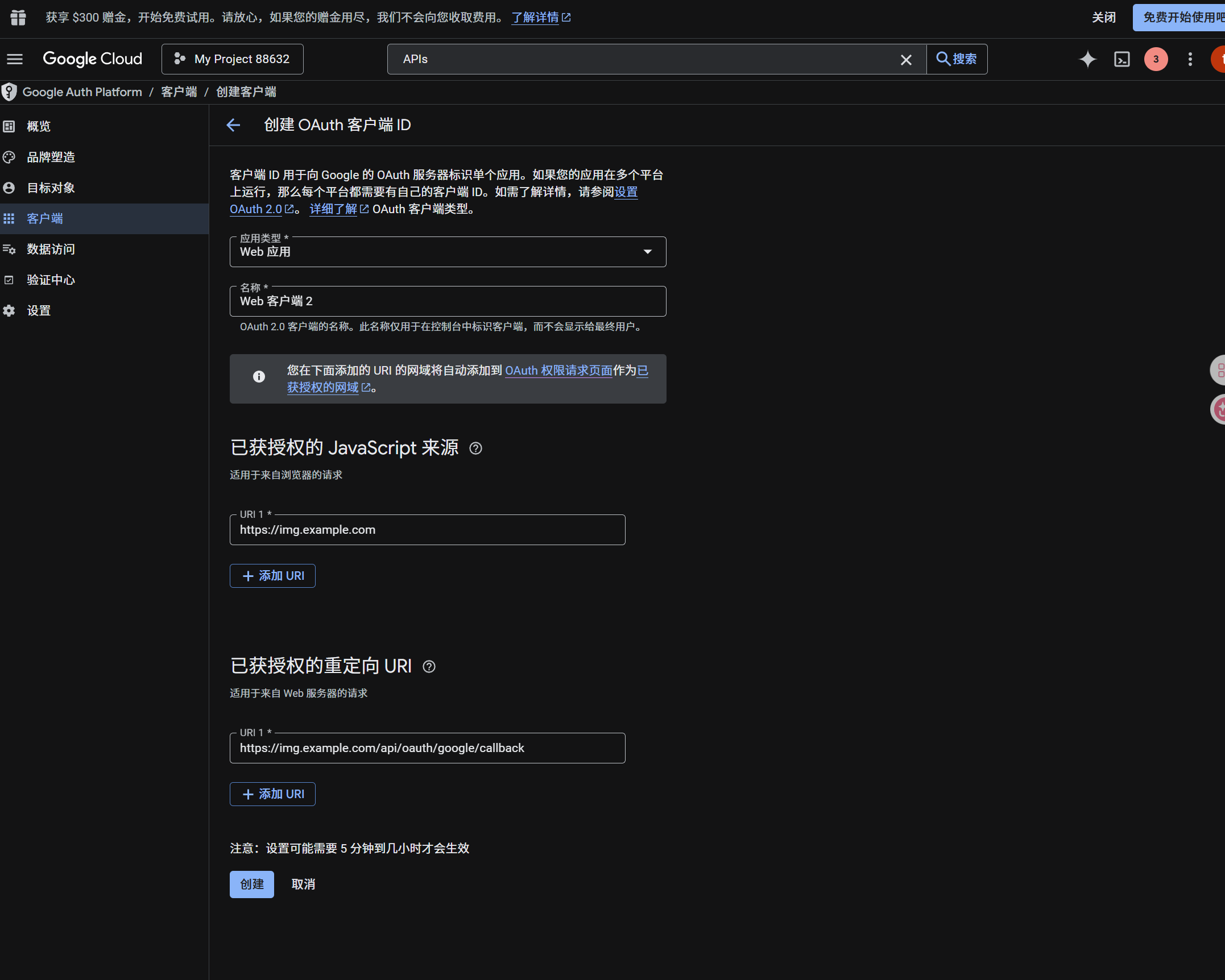
Sau khi client được tạo, sao chép các giá trị này:
| Giá trị đã tạo | Trường ImgHost |
|---|---|
| Client ID | Client ID |
| Client Secret | Client Secret |
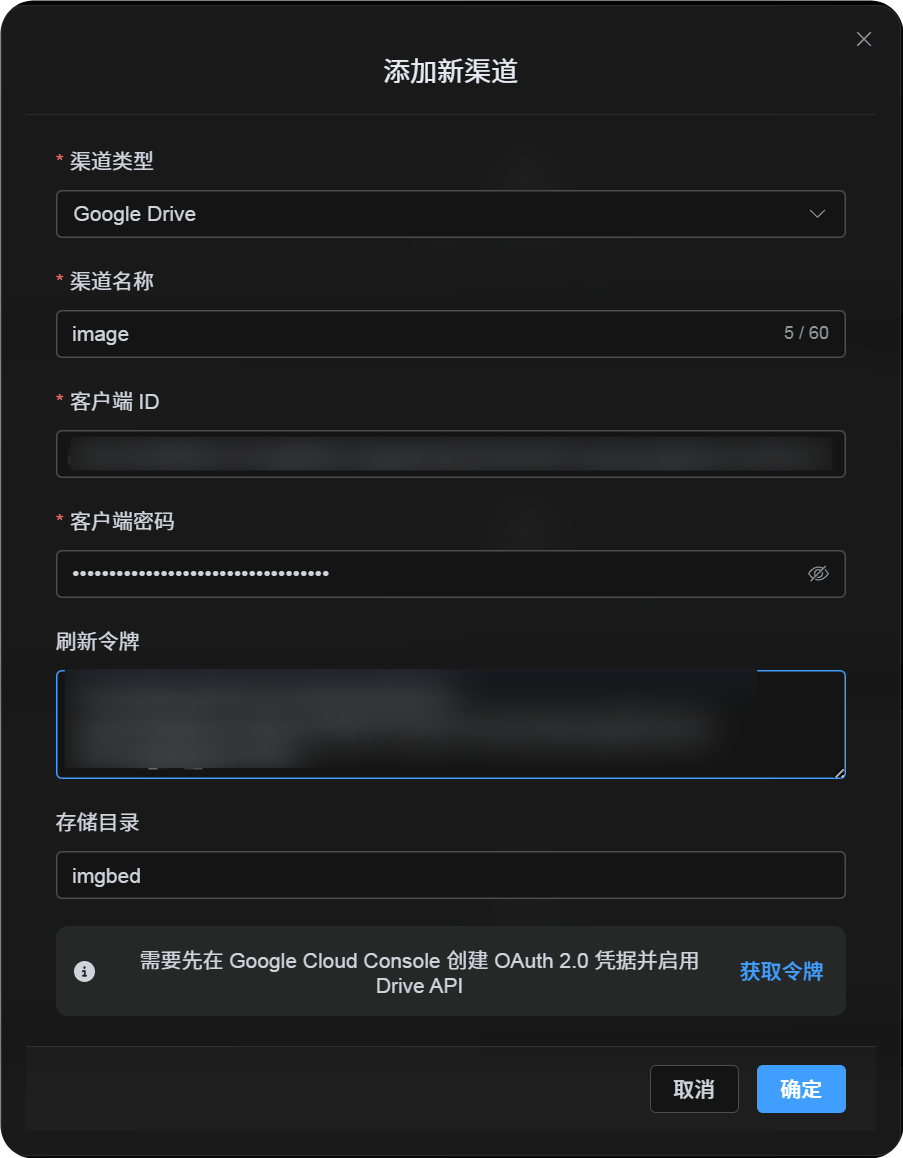
Bước 4: Điền Google Drive Channel
Trong Cài đặt tải lên, chọn Google Drive và điền:
| Trường ImgHost | Nhập gì |
|---|---|
| Channel name | Tên dễ nhận biết, ví dụ Main Google Drive |
| Client ID | Client ID từ Google Cloud |
| Client Secret | Client Secret từ Google Cloud |
| Refresh Token | Tạm thời để trống. Lấy ở bước tiếp theo. |
| Root directory | Không bắt buộc. Mặc định là imgbed. |
Bước 5: Lấy Refresh Token
- Nhấn
Get Token. - Chọn Google account bạn muốn kết nối.
- Hoàn tất authorization prompts.
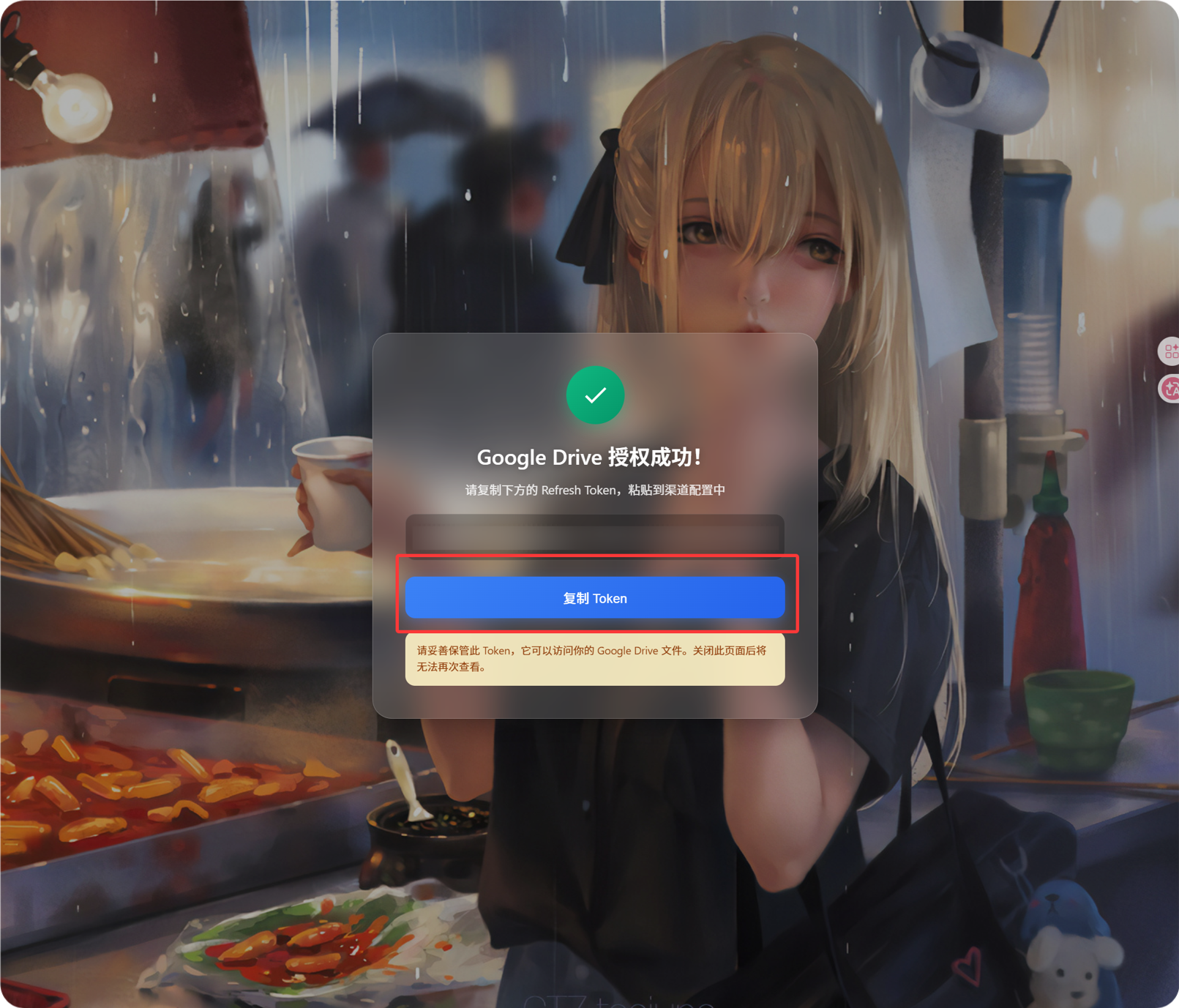
- Callback page sẽ hiển thị
Refresh Token. - Sao chép token đó.
- Quay lại ImgHost và dán vào trường
Refresh Token.
Nếu sau này đổi Google account, đổi OAuth client hoặc authorization cũ hết hạn, bạn không cần xóa kênh. Mở trang chỉnh sửa và nhấn Reauthorize.
Bước 6: Save Channel
Sau khi điền đủ trường, save channel.
Luồng nhanh
text
Open Google Cloud
-> Create or select a project
-> Enable Google Drive API
-> Configure Google Auth Platform
-> If Audience is External, add your Google account to Test users
-> Create a Web application OAuth client
-> Use https://your-domain.com/api/oauth/google/callback as the redirect URI
-> Fill Client ID and Client Secret into ImgHost
-> Click Get Token
-> Sign in with Google and authorize
-> Copy the Refresh Token from the callback page
-> Paste it back into ImgHost and save
-> Upload a test image
Tài liệu tham khảo
- Google OAuth Web Server Applications: https://developers.google.com/identity/protocols/oauth2/web-server
- Google Workspace OAuth Consent Configuration: https://developers.google.com/workspace/guides/configure-oauth-consent
- Google Drive API Auth Scopes: https://developers.google.com/workspace/drive/api/guides/api-specific-auth