Truy cập trang qua WebDAV
Cài đặt WebDAV trong Security Settings hiển thị trang ImgHost của bạn như một điểm cuối WebDAV.
Sau khi bật, bạn có thể dùng Windows, macOS, trình quản lý tệp trên thiết bị di động hoặc bất kỳ máy khách tương thích WebDAV nào để duyệt, tải lên, xóa và quản lý tệp ImgHost như một thư mục từ xa.
Đây là lối vào truy cập WebDAV của trang. Nó khác với kênh lưu trữ WebDAV trong Upload Settings. Kênh tải lên lưu tệp vào một dịch vụ WebDAV của bên thứ ba. Cài đặt này cho phép trang ImgHost của bạn cung cấp quyền truy cập WebDAV cho máy khách.
Nơi cấu hình
Mở bảng quản trị, rồi đi tới:
text
System Settings -> Security Settings -> WebDAVCác cài đặt có sẵn:
- Bật
- Tên người dùng
- Mật khẩu
- Chế độ tải hình ảnh
- Kênh mặc định
Tính năng này làm gì
Sau khi bật WebDAV, ImgHost cung cấp một URL truy cập cố định:
text
https://your-domain.com/davDùng URL này để kết nối tới thư mục tệp ImgHost của bạn.
Trường hợp sử dụng phù hợp:
- Duyệt tệp ImgHost trực tiếp từ trình quản lý tệp trên máy tính.
- Kéo hình ảnh vào thư mục WebDAV để tải lên.
- Sắp xếp thư mục ImgHost từ trình quản lý tệp cục bộ.
- Dùng phần mềm tương thích WebDAV để đồng bộ hoặc quản lý hình ảnh.
- Truy cập nội dung ImgHost mà không mở bảng quản trị.
Cài đặt
Bật
Bật điểm cuối WebDAV.
Khi tắt, máy khách không thể kết nối qua WebDAV.
Tên người dùng và mật khẩu
Các thông tin xác thực này được máy khách WebDAV dùng khi kết nối.
Hãy dùng tên người dùng và mật khẩu WebDAV riêng. Không dùng lại mật khẩu quản trị viên hoặc mật khẩu tải lên.
Nếu tên người dùng hoặc mật khẩu bị trống, máy khách WebDAV sẽ không thể kết nối đúng cách.
Chế độ tải hình ảnh
Chế độ tải hình ảnh quyết định URL hình ảnh nào mà máy khách WebDAV ưu tiên khi đọc hình ảnh.
Các lựa chọn thường gặp:
| Chế độ | Mô tả |
|---|---|
| Tải thông minh | ImgHost chọn theo ngữ cảnh. Khuyến nghị cho sử dụng thông thường. |
| Gốc | Ưu tiên hình ảnh gốc. |
| Hình thu nhỏ | Ưu tiên hình thu nhỏ. Hữu ích cho xem trước nhanh. |
Nếu không chắc, hãy giữ Tải thông minh.
Kênh mặc định
Kênh mặc định được dùng cho lượt tải lên qua WebDAV.
Khi bạn sao chép tệp vào thư mục WebDAV từ Windows hoặc máy khách khác, ImgHost tải chúng lên qua kênh tải lên mặc định đã chọn.
Nếu chưa chọn kênh mặc định, việc duyệt có thể hoạt động, nhưng tải lên có thể thất bại.
Truy cập WebDAV trong Windows 11
Windows 11 có thể thêm WebDAV dưới dạng vị trí mạng.
- Mở
PC này. - Chọn
Thêm vị trí mạng. - Nhập
https://your-domain.com/dav. - Nhập tên người dùng và mật khẩu WebDAV khi được yêu cầu.
- Hoàn tất trình hướng dẫn. Sau đó có thể mở thư mục WebDAV trong Trình khám phá tệp.
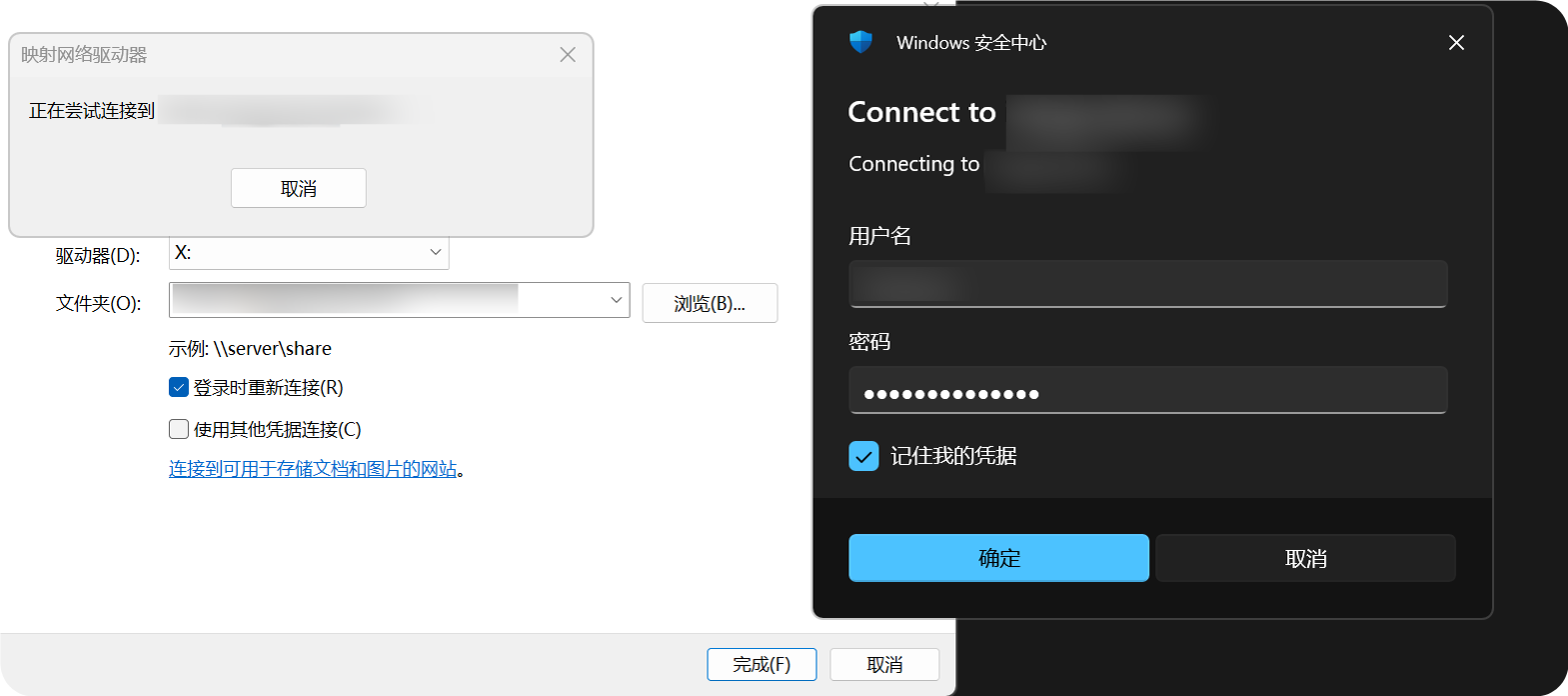
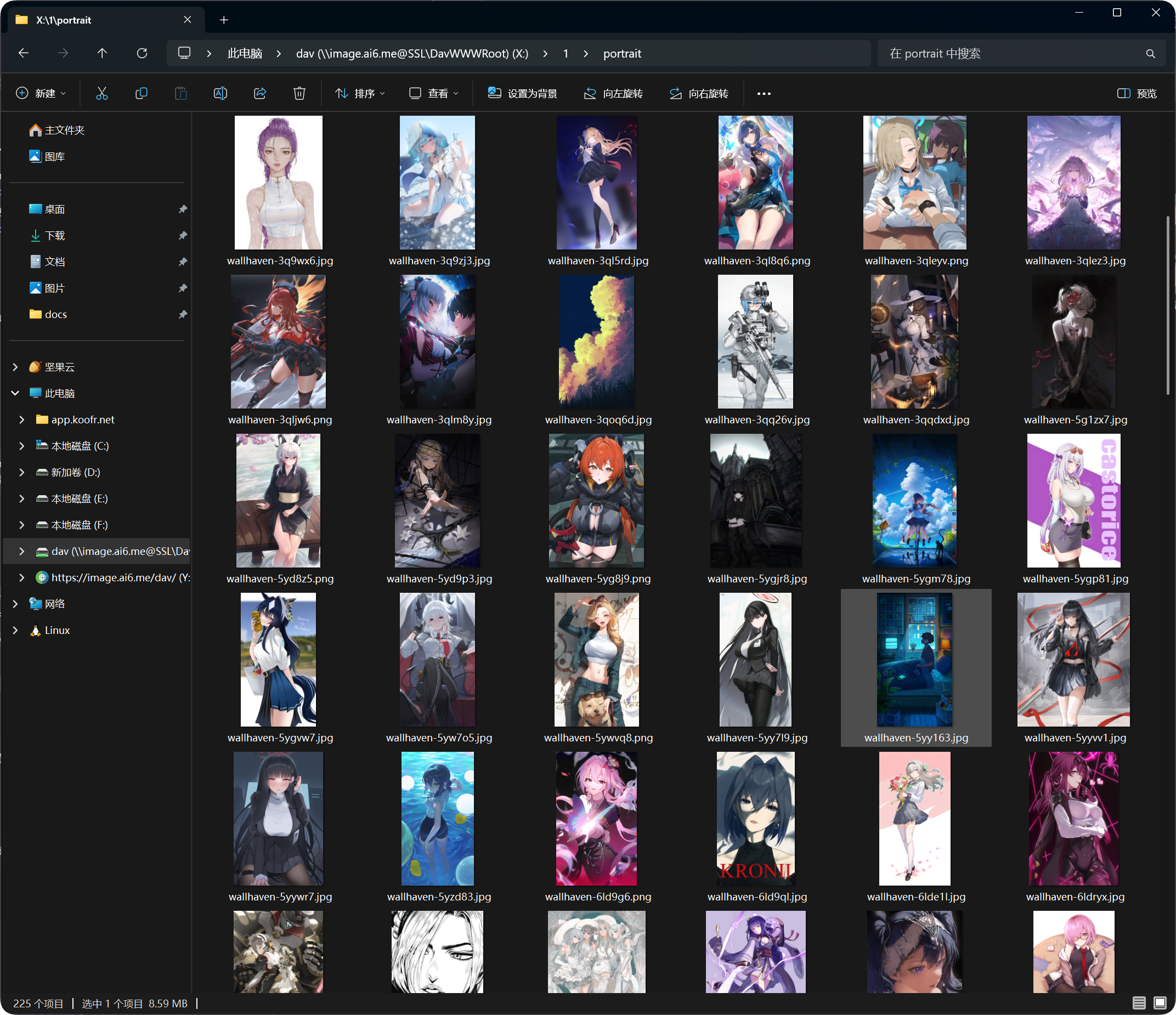
Sau khi được thêm, thư mục WebDAV xuất hiện trong Trình khám phá tệp của Windows. Bạn có thể mở, sao chép và quản lý tệp như thư mục thông thường.
Thao tác được hỗ trợ
Sau khi kết nối WebDAV thành công, bạn thường có thể:
- Xem tệp và thư mục.
- Tải tệp lên.
- Tạo thư mục.
- Đổi tên tệp hoặc thư mục.
- Di chuyển tệp.
- Xóa tệp.
WebDAV phù hợp nhất cho truy cập hằng ngày và quản lý tệp quy mô nhỏ. Với di chuyển lớn, xóa hàng loạt hoặc tổ chức phức tạp, hãy dùng bảng quản trị.
Quản lý thiết bị đăng nhập
Các kết nối WebDAV thành công cũng xuất hiện trong thẻ WebDAV của Quản lý thiết bị đăng nhập.
Bạn có thể xem máy khách WebDAV tại đó và buộc thiết bị cũ ngoại tuyến khi cần.
Nếu bạn thay đổi tên người dùng hoặc mật khẩu WebDAV, máy khách cũ cần đăng nhập lại.
Câu hỏi thường gặp
Windows liên tục hỏi tên người dùng và mật khẩu
Kiểm tra:
- URL là
https://your-domain.com/dav. - Tên người dùng và mật khẩu khớp với cài đặt WebDAV.
- WebDAV đã được bật.
- Trang có thể truy cập qua HTTPS.
Duyệt được nhưng tải lên thất bại
Kiểm tra Kênh mặc định.
Tải lên qua WebDAV cần kênh tải lên mặc định. Nếu kênh này bị thiếu, bị tắt hoặc cấu hình sai, tải lên có thể thất bại.
Tốc độ truy cập không ổn định
Hiệu năng WebDAV phụ thuộc vào máy khách, mạng, số lượng tệp và kênh tải lên mặc định.
Nếu một thư mục có nhiều tệp, hãy sắp xếp chúng vào các thư mục thay vì để quá nhiều tệp trong một thư mục.
Khuyến nghị bảo mật
- Dùng HTTPS cho truy cập WebDAV.
- Đặt mật khẩu mạnh.
- Không chia sẻ mật khẩu WebDAV với người không đáng tin cậy.
- Tắt WebDAV khi không sử dụng.
- Định kỳ dọn dẹp thiết bị WebDAV không dùng trong Quản lý thiết bị đăng nhập.
Dung lượng tệp tải lên qua WebDAV
Máy khách WebDAV không dùng quy trình tải lên tệp lớn theo từng phần của trang tải lên trên trình duyệt. Với tệp lớn hơn các giới hạn khuyến nghị bên dưới, hãy dùng trang tải lên web.
| Kênh tải lên mặc định | Giới hạn một tệp khuyến nghị cho WebDAV |
|---|---|
| Telegram | 20 MB |
| Discord | 10 MB |
| Cloudflare R2 | 30 MB |
| S3 | 30 MB |
| GitHub Releases | 64 MB |
| GitLab Packages | 64 MB |
| Hugging Face | 20 MB |
| OneDrive | 30 MB |
| Google Drive | 30 MB |
| Dropbox | 30 MB |
| Yandex Disk | 30 MB |
| pCloud | 30 MB |
| WebDAV | 64 MB |