WebDAV साइट पहुँच
सुरक्षा सेटिंग में WebDAV सेटिंग आपकी ImgHost साइट को WebDAV अंतिम बिंदु के रूप में उपलब्ध कराती है।
इसे सक्षम करने के बाद आप Windows, macOS, मोबाइल फ़ाइल मैनेजर या किसी भी WebDAV-संगत क्लाइंट से ImgHost फ़ाइलों को दूरस्थ फ़ोल्डर की तरह ब्राउज़, अपलोड, हटाकर प्रबंधित कर सकते हैं।
यह साइट का WebDAV पहुँच प्रवेश है। यह अपलोड सेटिंग में WebDAV स्टोरेज चैनल से अलग है। अपलोड चैनल फ़ाइलों को किसी तृतीय-पक्ष WebDAV सेवा में रखता है। यह सेटिंग आपकी ImgHost साइट को क्लाइंटों के लिए WebDAV पहुँच प्रदान करने देती है।
कहाँ सेट करें
प्रशासन पैनल खोलें, फिर यहाँ जाएँ:
text
System Settings -> Security Settings -> WebDAVउपलब्ध सेटिंग:
- सक्षम करें
- उपयोगकर्ता नाम
- पासवर्ड
- छवि लोडिंग मोड
- डिफ़ॉल्ट चैनल
यह सुविधा क्या करती है
WebDAV सक्षम होने के बाद ImgHost एक निश्चित पहुँच URL देता है:
text
https://your-domain.com/davइस URL से अपने ImgHost फ़ाइल निर्देशिका से जुड़ें।
उपयुक्त उपयोग:
- कंप्यूटर के फ़ाइल मैनेजर से सीधे ImgHost फ़ाइलें देखना।
- WebDAV फ़ोल्डर में छवियाँ खींचकर अपलोड करना।
- स्थानीय फ़ाइल मैनेजर से ImgHost फ़ोल्डर व्यवस्थित करना।
- WebDAV-संगत सॉफ़्टवेयर से छवियाँ सिंक या प्रबंधित करना।
- प्रशासन पैनल खोले बिना ImgHost सामग्री तक पहुँचना।
सेटिंग
सक्षम करें
WebDAV अंतिम बिंदु चालू करता है।
बंद होने पर क्लाइंट WebDAV से कनेक्ट नहीं कर सकते।
उपयोगकर्ता नाम और पासवर्ड
ये प्रमाण-पत्र WebDAV क्लाइंट कनेक्ट करते समय उपयोग करते हैं।
WebDAV के लिए अलग उपयोगकर्ता नाम और पासवर्ड रखें। व्यवस्थापक पासवर्ड या अपलोड पासवर्ड दोबारा उपयोग न करें।
यदि उपयोगकर्ता नाम या पासवर्ड खाली है, तो WebDAV क्लाइंट सही से कनेक्ट नहीं कर पाएँगे।
छवि लोडिंग मोड
छवि लोडिंग मोड तय करता है कि WebDAV क्लाइंट छवियाँ पढ़ते समय किस छवि URL को प्राथमिकता दें।
सामान्य विकल्प:
| मोड | विवरण |
|---|---|
| स्मार्ट लोडिंग | ImgHost संदर्भ के आधार पर चुनता है। सामान्य उपयोग के लिए अनुशंसित। |
| मूल | मूल छवियों को प्राथमिकता देता है। |
| थंबनेल | थंबनेल को प्राथमिकता देता है। तेज़ पूर्वावलोकन के लिए उपयोगी। |
यदि निश्चित नहीं हैं, तो “स्मार्ट लोडिंग” रखें।
डिफ़ॉल्ट चैनल
डिफ़ॉल्ट चैनल WebDAV अपलोड के लिए उपयोग होता है।
जब आप Windows या किसी अन्य क्लाइंट से WebDAV निर्देशिका में फ़ाइलें कॉपी करते हैं, तो ImgHost उन्हें चुने गए डिफ़ॉल्ट अपलोड चैनल से अपलोड करता है।
यदि कोई डिफ़ॉल्ट चैनल नहीं चुना गया, तो ब्राउज़िंग काम कर सकती है, लेकिन अपलोड विफल हो सकते हैं।
Windows 11 में WebDAV तक पहुँचना
Windows 11 WebDAV को नेटवर्क स्थान के रूप में जोड़ सकता है।
- “यह PC” खोलें।
- “नेटवर्क स्थान जोड़ें” चुनें।
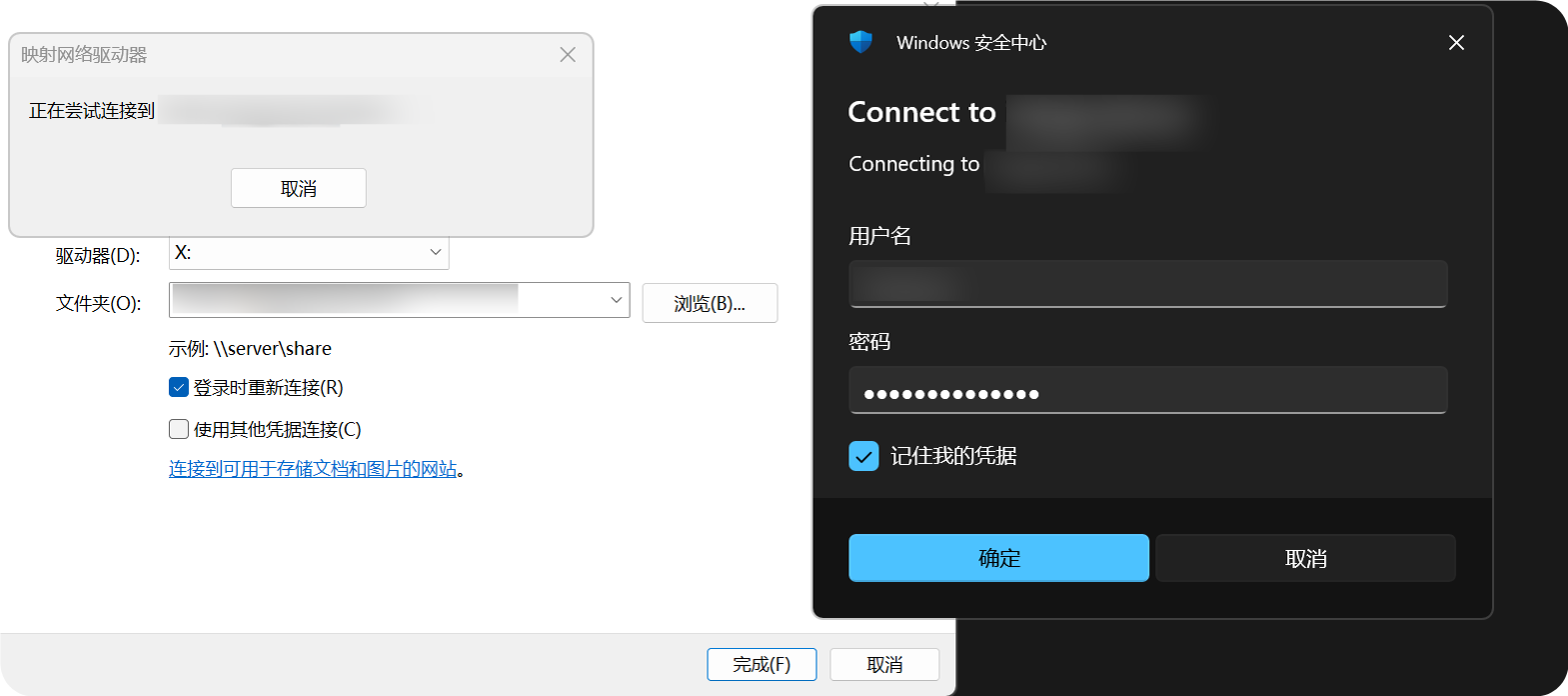
https://your-domain.com/davदर्ज करें।- पूछे जाने पर WebDAV उपयोगकर्ता नाम और पासवर्ड दर्ज करें।
- विज़ार्ड पूरा करें। फिर WebDAV निर्देशिका फ़ाइल एक्सप्लोरर में खोली जा सकती है।
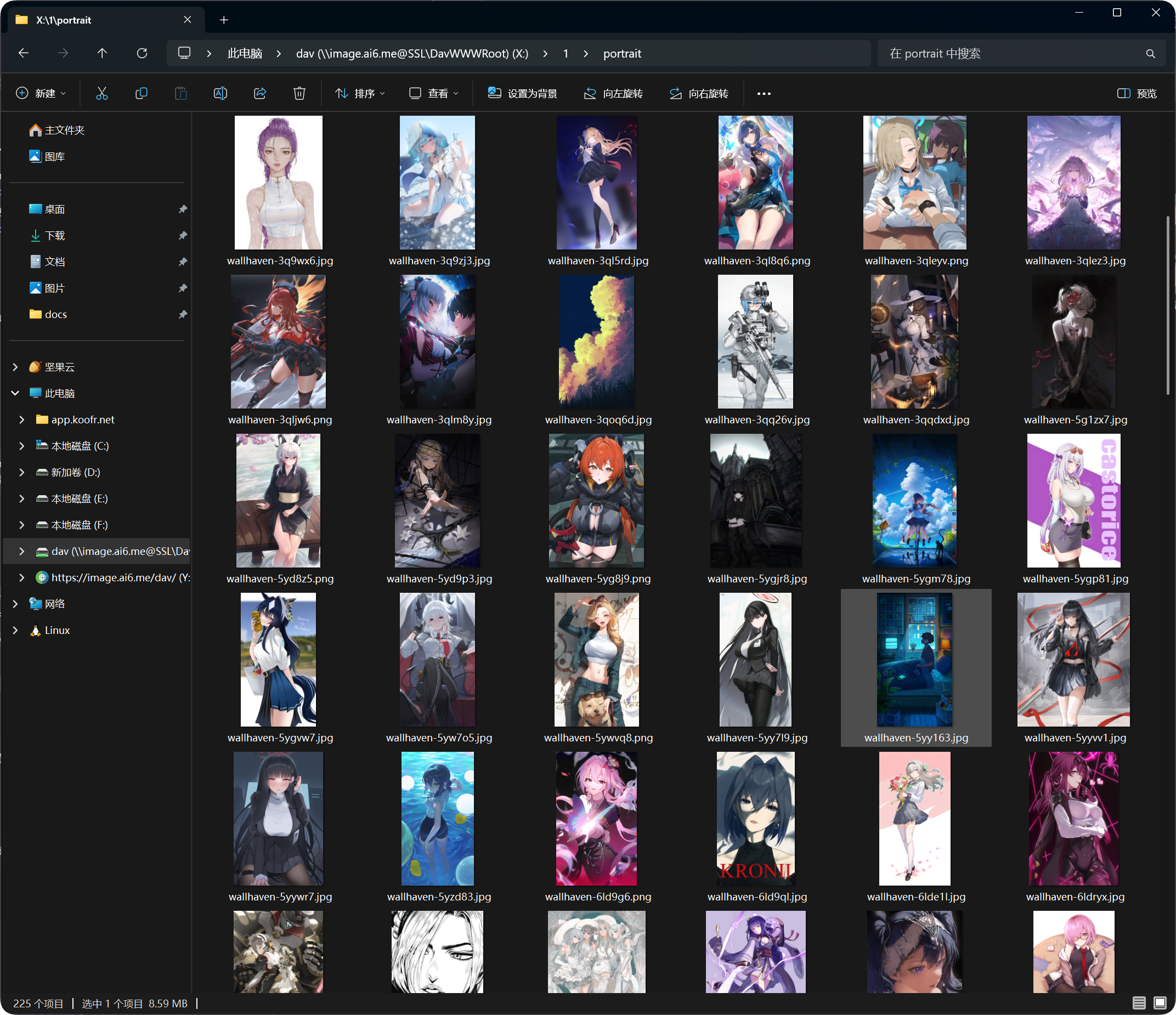
जोड़ने के बाद WebDAV निर्देशिका Windows फ़ाइल एक्सप्लोरर में दिखाई देती है। आप फ़ाइलों को सामान्य फ़ोल्डर की तरह खोल, कॉपी और प्रबंधित कर सकते हैं।
समर्थित क्रियाएँ
सफल WebDAV कनेक्शन के बाद आप सामान्यतः कर सकते हैं:
- फ़ाइलें और फ़ोल्डर देखना।
- फ़ाइलें अपलोड करना।
- फ़ोल्डर बनाना।
- फ़ाइलों या फ़ोल्डरों का नाम बदलना।
- फ़ाइलें स्थानांतरित करना।
- फ़ाइलें हटाना।
WebDAV रोज़मर्रा की पहुँच और छोटे पैमाने के फ़ाइल प्रबंधन के लिए बेहतर है। बड़े स्थानांतरण, सामूहिक हटाने या जटिल व्यवस्था के लिए प्रशासन पैनल उपयोग करें।
लॉगिन डिवाइस प्रबंधन
सफल WebDAV कनेक्शन लॉगिन डिवाइस प्रबंधन के WebDAV टैब में भी दिखते हैं।
आप वहाँ WebDAV क्लाइंटों की समीक्षा कर सकते हैं और ज़रूरत होने पर पुराने डिवाइसों को जबरन ऑफ़लाइन कर सकते हैं।
यदि आप WebDAV उपयोगकर्ता नाम या पासवर्ड बदलते हैं, तो पुराने क्लाइंटों को फिर से लॉगिन करना होगा।
सामान्य प्रश्न
Windows बार-बार उपयोगकर्ता नाम और पासवर्ड माँगता है
जाँचें:
- URL
https://your-domain.com/davहै। - उपयोगकर्ता नाम और पासवर्ड WebDAV सेटिंग से मेल खाते हैं।
- WebDAV सक्षम है।
- साइट HTTPS से पहुँच योग्य है।
ब्राउज़िंग काम करती है, लेकिन अपलोड विफल है
“डिफ़ॉल्ट चैनल” जाँचें।
WebDAV अपलोड के लिए डिफ़ॉल्ट अपलोड चैनल चाहिए। यदि वह गायब, बंद या गलत कॉन्फ़िगर है, तो अपलोड विफल हो सकते हैं।
पहुँच गति अस्थिर है
WebDAV प्रदर्शन क्लाइंट, नेटवर्क, फ़ाइल संख्या और डिफ़ॉल्ट अपलोड चैनल पर निर्भर करता है।
यदि किसी निर्देशिका में बहुत फ़ाइलें हैं, तो उन्हें एक ही निर्देशिका में रखने के बजाय फ़ोल्डरों में व्यवस्थित करें।
सुरक्षा सुझाव
- WebDAV पहुँच के लिए HTTPS उपयोग करें।
- मज़बूत पासवर्ड सेट करें।
- WebDAV पासवर्ड अविश्वसनीय लोगों से साझा न करें।
- उपयोग न होने पर WebDAV बंद रखें।
- लॉगिन डिवाइस प्रबंधन में अनुपयोगी WebDAV डिवाइस नियमित रूप से साफ़ करें।
WebDAV अपलोड फ़ाइल आकार
WebDAV क्लाइंट ब्राउज़र अपलोड पेज के बड़े-फ़ाइल खंडन प्रवाह का उपयोग नहीं करते। नीचे सुझाई गई सीमाओं से बड़े फ़ाइलों के लिए वेब अपलोड पेज उपयोग करें।
| डिफ़ॉल्ट अपलोड चैनल | WebDAV के लिए सुझाई गई एकल-फ़ाइल सीमा |
|---|---|
| Telegram | 20 MB |
| Discord | 10 MB |
| Cloudflare R2 | 30 MB |
| S3 | 30 MB |
| GitHub Releases | 64 MB |
| GitLab Packages | 64 MB |
| Hugging Face | 20 MB |
| OneDrive | 30 MB |
| Google Drive | 30 MB |
| Dropbox | 30 MB |
| Yandex Disk | 30 MB |
| pCloud | 30 MB |
| WebDAV | 64 MB |