स्वचालित टैगिंग
स्वचालित टैगिंग यहाँ कॉन्फ़िगर की जाती है:
text
System Settings -> Other Settings -> Auto Taggingयह छवियों के लिए अपने आप टैग बनाती है। ये टैग खोज, यादृच्छिक छवि फ़िल्टरिंग, सार्वजनिक गैलरी फ़िल्टरिंग और आयु-रेटिंग आधारित पहुँच नियंत्रण में उपयोगी होते हैं।
स्वचालित टैगिंग क्या कर सकती है
| सुविधा | विवरण |
|---|---|
| सामग्री टैग बनाना | लोगों, दृश्यों, वस्तुओं, कला शैली और इसी तरह की दृश्य सामग्री के लिए टैग जोड़ती है। |
| पात्र टैग बनाना | एनीमे छवियों और इलस्ट्रेशन के लिए उपयोगी। |
| अभिविन्यास टैग जोड़ना | landscape, portrait या square जोड़ती है। |
| छवि रेटिंग जोड़ना | सामान्य, संवेदनशील, संदिग्ध या स्पष्ट सामग्री के लिए G/S/Q/E रेटिंग परिणाम सहेजती है। |
| अपलोड के समय स्वचालित टैगिंग | नई अपलोड की गई छवियाँ अपने आप टैगिंग प्रक्रिया में प्रवेश करती हैं। |
| बैच टैगिंग | सभी फ़ोल्डरों या चुने हुए फ़ोल्डरों में मौजूद पुरानी छवियों में टैग जोड़ती है। |
पहले क्या चाहिए
कम से कम एक सुलभ Hugging Face Space URL तैयार रखें।
अनुशंसित तरीका यह है कि SmilingWolf के wd-tagger Space को अपने Hugging Face खाते में डुप्लिकेट करें:
text
https://huggingface.co/spaces/SmilingWolf/wd-taggerआप अस्थायी रूप से सार्वजनिक Space का उपयोग कर सकते हैं, लेकिन सार्वजनिक Spaces कई उपयोगकर्ताओं के बीच साझा होते हैं। इसलिए कतार लग सकती है, गति कम हो सकती है या वे अस्थायी रूप से अनुपलब्ध हो सकते हैं। लंबे समय तक स्वचालित टैगिंग के लिए अपने खाते में डुप्लिकेट किया गया Space अधिक स्थिर रहता है।
SmilingWolf के Space को डुप्लिकेट करना
- Hugging Face में साइन इन करें।
https://huggingface.co/spaces/SmilingWolf/wd-taggerखोलें।
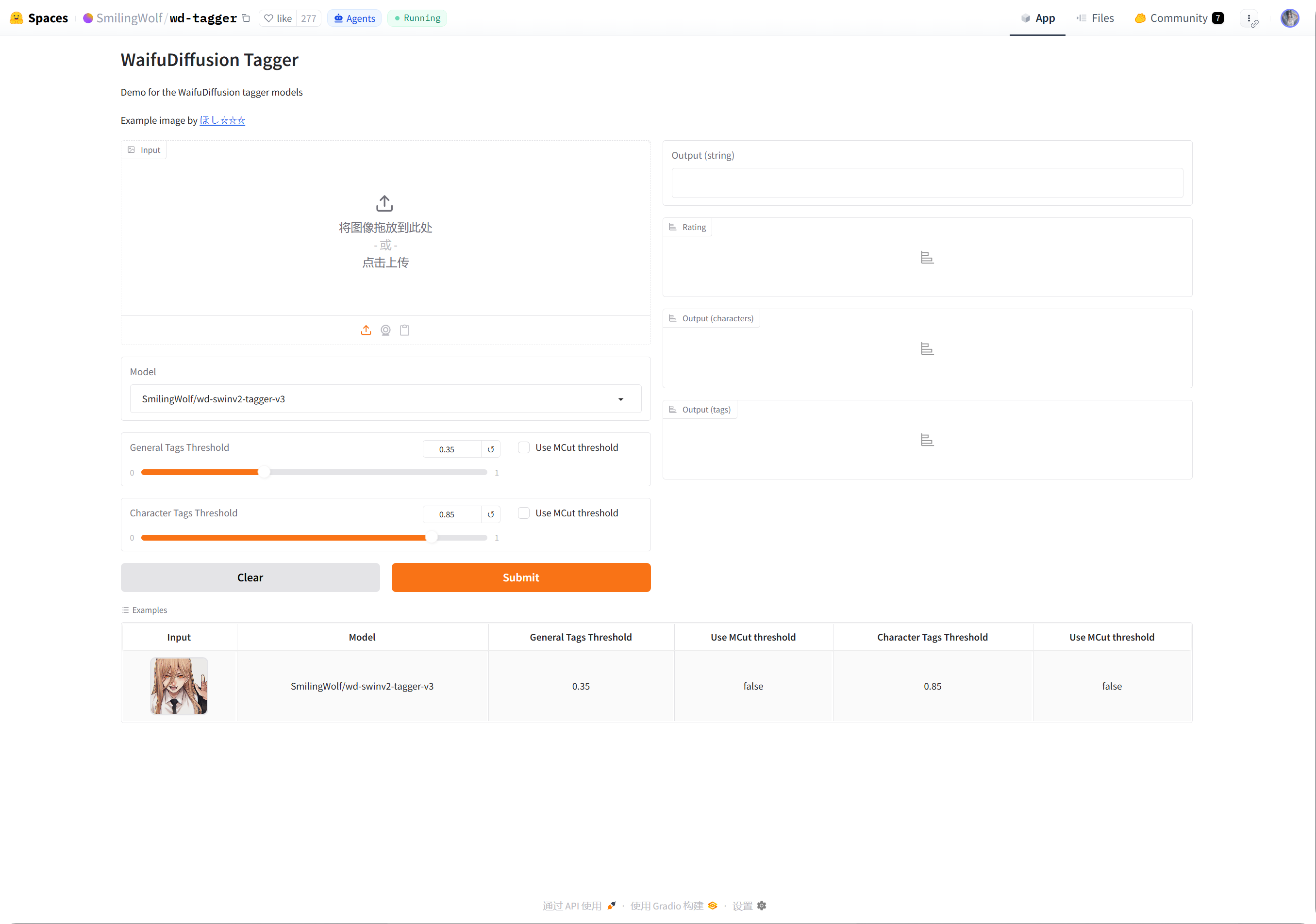
- ऊपर दाएँ कोने में तीन-बिंदु मेनू पर क्लिक करें।
Duplicate this Spaceचुनें।- डिफ़ॉल्ट Space नाम रखें या अपनी पसंद का नाम चुनें, जैसे
wd-tagger। - दृश्यता को
Publicपर सेट करें। सार्वजनिक Spaces को ImgHost से कॉल करना आसान होता है। - शुरुआत में डिफ़ॉल्ट मुफ़्त हार्डवेयर रखें। कतार स्पष्ट रूप से बढ़ने लगे तो बाद में अपग्रेड करें।
- Space बनाएँ और बिल्ड पूरा होने तक प्रतीक्षा करें।
बिल्ड पूरा होने के बाद अपना Space पेज खोलें। URL आमतौर पर ऐसा दिखता है:
text
https://huggingface.co/spaces/your-name/wd-taggerब्राउज़र URL कॉपी करें और उसे ImgHost के Space URLs में पेस्ट करें।
कई Space URLs भरना
हर पंक्ति में एक Space URL दर्ज करें।
उदाहरण:
| मान | विवरण |
|---|---|
https://huggingface.co/spaces/SmilingWolf/wd-tagger | SmilingWolf का सार्वजनिक Space। अस्थायी परीक्षण के लिए उपयुक्त। |
https://huggingface.co/spaces/lintonxue00/wd-tagger | कॉपी किए गए Space पेज का URL। |
https://huggingface.co/spaces/your-name/wd-tagger | आपका अपना डुप्लिकेट किया गया Space पेज URL। |
आप कई URL दर्ज कर सकते हैं। ImgHost कई Spaces को साथ में उपयोग करता है, जिससे गति बेहतर हो सकती है।
यदि कोई Space अस्थायी रूप से अनुपलब्ध हो, तो बाकी Spaces प्रसंस्करण जारी रख सकते हैं।
सेटिंग्स
| विकल्प | अनुशंसा |
|---|---|
Space URLs | आपने जो Space URLs तैयार किए हैं, उन्हें दर्ज करें। कम से कम एक URL आवश्यक है। |
| लक्ष्य फ़ोल्डर | सभी फ़ोल्डरों के लिए खाली छोड़ें। किसी विशेष डायरेक्टरी को संसाधित करना हो तभी फ़ोल्डर चुनें। |
| पहचान मॉडल | डिफ़ॉल्ट रूप से wd-swinv2-tagger-v3 रखें। |
| सामान्य टैग थ्रेशोल्ड | डिफ़ॉल्ट मान अधिकांश छवियों के लिए उपयुक्त है। कम मान अधिक टैग देता है; अधिक मान कम टैग देता है। |
| पात्र टैग थ्रेशोल्ड | डिफ़ॉल्ट मान सतर्क है और गलत पात्र टैग से बचाने में मदद करता है। |
MCut स्वचालित थ्रेशोल्ड | शुरुआत में बंद रखें। जब आप चाहते हों कि मॉडल टैग की संख्या अपने आप तय करे, तब चालू करें। |
| अपलोड के समय स्वचालित टैगिंग | यदि नई अपलोड की गई छवियों को अपने आप टैग चाहिए, तो इसे चालू करें। |
| टैगिंग शुरू करें | पुरानी छवियों को मैन्युअल रूप से बैच में टैग करता है। |
अनुशंसित प्रारंभिक मान
| विकल्प | अनुशंसित मान |
|---|---|
| पहचान मॉडल | wd-swinv2-tagger-v3 |
| सामान्य टैग थ्रेशोल्ड | 0.35 |
| पात्र टैग थ्रेशोल्ड | 0.85 |
MCut | शुरुआत में बंद |
| अपलोड के समय स्वचालित टैगिंग | आवश्यकता होने पर चालू करें |
यदि टैग बहुत अधिक आ रहे हों, तो सामान्य थ्रेशोल्ड को थोड़ा बढ़ाएँ।
यदि टैग बहुत कम आ रहे हों, तो सामान्य थ्रेशोल्ड को थोड़ा घटाएँ।
बैच टैगिंग
Space URLsभरें।- लक्ष्य फ़ोल्डर चुनें।
- टैगिंग शुरू करें पर क्लिक करें।
- प्रगति पूरी होने तक प्रतीक्षा करें।
यदि लक्ष्य फ़ोल्डर खाली है, तो ImgHost सभी फ़ोल्डरों को संसाधित करता है।
बैच टैगिंग पुरानी छवियों के लिए सबसे उपयुक्त है। नई छवियों के लिए अपलोड के समय स्वचालित टैगिंग चालू करें, ताकि हर बार इसे हाथ से चलाने की आवश्यकता न पड़े।
अपलोड के समय स्वचालित टैगिंग
अपलोड के समय स्वचालित टैगिंग चालू होने के बाद, नई अपलोड की गई छवियाँ कॉन्फ़िगर किए गए Space URLs को अपने आप कॉल करती हैं।
यह लंबे समय तक उपयोग के लिए उपयुक्त है।
यदि आपका Space कतार में है, तब भी अपलोड पहले पूरा हो सकता है और टैगिंग बाद में जारी रहती है।
कौन-सी छवियाँ संसाधित होती हैं
स्वचालित टैगिंग मुख्य रूप से छवि फ़ाइलों को संसाधित करती है।
जिन छवियों में पहले से पूरे टैग, अभिविन्यास, रेटिंग, चौड़ाई और ऊँचाई मौजूद हैं, उन्हें अनावश्यक Space कॉल से बचाने के लिए छोड़ दिया जाता है।
जहाँ संभव हो, ImgHost केवल अनुपस्थित जानकारी भरता है। उदाहरण के लिए, यदि केवल अभिविन्यास अनुपस्थित है, तो वह पूरी सामग्री टैगिंग प्रक्रिया चलाए बिना अभिविन्यास जोड़ने की कोशिश करता है।
अक्सर पूछे जाने वाले प्रश्न
अपना Space डुप्लिकेट क्यों करें?
सार्वजनिक Spaces कई उपयोगकर्ताओं के बीच साझा होते हैं। आपका डुप्लिकेट किया गया Space मुख्य रूप से आपकी ImgHost साइट द्वारा उपयोग किया जाता है, इसलिए वह आमतौर पर तेज़ और अधिक भरोसेमंद होता है।
Space बार-बार शुरू हो रहा है
पहली बार बनाने के बाद, या लंबे समय तक निष्क्रिय रहने के बाद, Space को शुरू होने में समय लग सकता है।
पहले अपना Space पेज खोलें। जब वह सामान्य रूप से किसी छवि को पहचान सके, तब ImgHost पर लौटें और टैगिंग शुरू करें।
Space URL कैसे कॉपी करें?
अपना Hugging Face Space पेज खोलें और ब्राउज़र का पता कॉपी करें।
उदाहरण:
text
https://huggingface.co/spaces/lintonxue00/wd-tagger
https://huggingface.co/spaces/SmilingWolf/wd-tagger
क्या कई Spaces जोड़े जा सकते हैं?
हाँ। हर पंक्ति में एक Space URL दर्ज करें।
कई Spaces छवियों को साथ में संसाधित करते हैं और बहुत अधिक छवियाँ होने पर उपयोगी होते हैं।
टैग अंग्रेज़ी में क्यों हैं?
SmilingWolf मॉडल अंग्रेज़ी टैग आउटपुट करते हैं। यह अपेक्षित व्यवहार है।
ये टैग मुख्य रूप से खोज, फ़िल्टरिंग, यादृच्छिक छवि API और सार्वजनिक गैलरी फ़िल्टरों के लिए उपयोग किए जाते हैं।
रेटिंग टैग किस काम आते हैं?
रेटिंग परिणाम Security Settings के पहुँच मोड के साथ काम करते हैं।
उदाहरण के लिए, जब आगंतुक पहुँच आयु-रेटिंग से सीमित होती है, तो सार्वजनिक ब्राउज़िंग और यादृच्छिक छवि सुविधाएँ उन्हीं नियमों के अनुसार छवियों को फ़िल्टर करती हैं।
त्वरित प्रवाह
text
Sign in to Hugging Face
-> Open SmilingWolf/wd-tagger
-> Duplicate this Space
-> Wait for the Space to build
-> Copy your Space URL
-> Fill Space URLs in ImgHost
-> Choose model and thresholds
-> Start tagging or enable auto-tag on upload