Google Drive Channel شامل کریں
شروع کرنے سے پہلے کیا چاہیے
شروع کرنے سے پہلے یہ items تیار کریں:
| ضرورت | وجہ |
|---|---|
| Google account | Google Cloud تک access اور Google Drive authorize کرنے کے لیے |
| Google Cloud project | Drive API فعال کرنے اور OAuth credentials بنانے کے لیے |
| OAuth 2.0 client | ImgHost کے لیے Client ID، Client Secret، اور Refresh Token حاصل کرنے کے لیے |
| آپ کا ImgHost domain | OAuth redirect URI کے لیے۔ یہ اسی domain سے match ہونا چاہیے جو آپ واقعی استعمال کرتے ہیں۔ |
سیٹ اپ کے مراحل
مرحلہ 1: Google Drive API Enable کریں
- Google Cloud Console کھولیں۔
- نیا project بنائیں یا موجودہ project منتخب کریں۔
APIs & Servicesمیں جائیں۔Enable APIs and Servicesپر کلک کریں۔Google Drive APIتلاش کریں۔- اسے کھولیں اور فعال پر کلک کریں۔
مرحلہ 2: OAuth Consent Screen Configure کریں
- Google Cloud میں
Google Auth Platformکھولیں۔ - basic
Brandinginformation مکمل کریں، جیسے app name، support email، اور developer contact email۔ Audienceکھولیں۔- زیادہ تر self-hosted personal deployments کے لیے
Externalمنتخب کریں۔ - اگر
Externalمنتخب کرتے ہیں تو جس Google account کو authorize کرنا ہے اسےTest usersمیں شامل کریں۔ Data Accessکھولیں۔- درکار Google Drive permissions شامل کریں۔
مرحلہ 3: OAuth 2.0 Client بنائیں
Google Auth PlatformمیںClientsکھولیں۔- نیا client بنائیں۔
- application type کو
Web applicationرکھیں۔ - client کو قابل شناخت نام دیں۔
- authorized JavaScript origins میں اپنا ImgHost URL درج کریں، مثلاً:
text
https://img.example.com- authorized redirect URIs میں درج کریں:
text
https://img.example.com/api/oauth/google/callback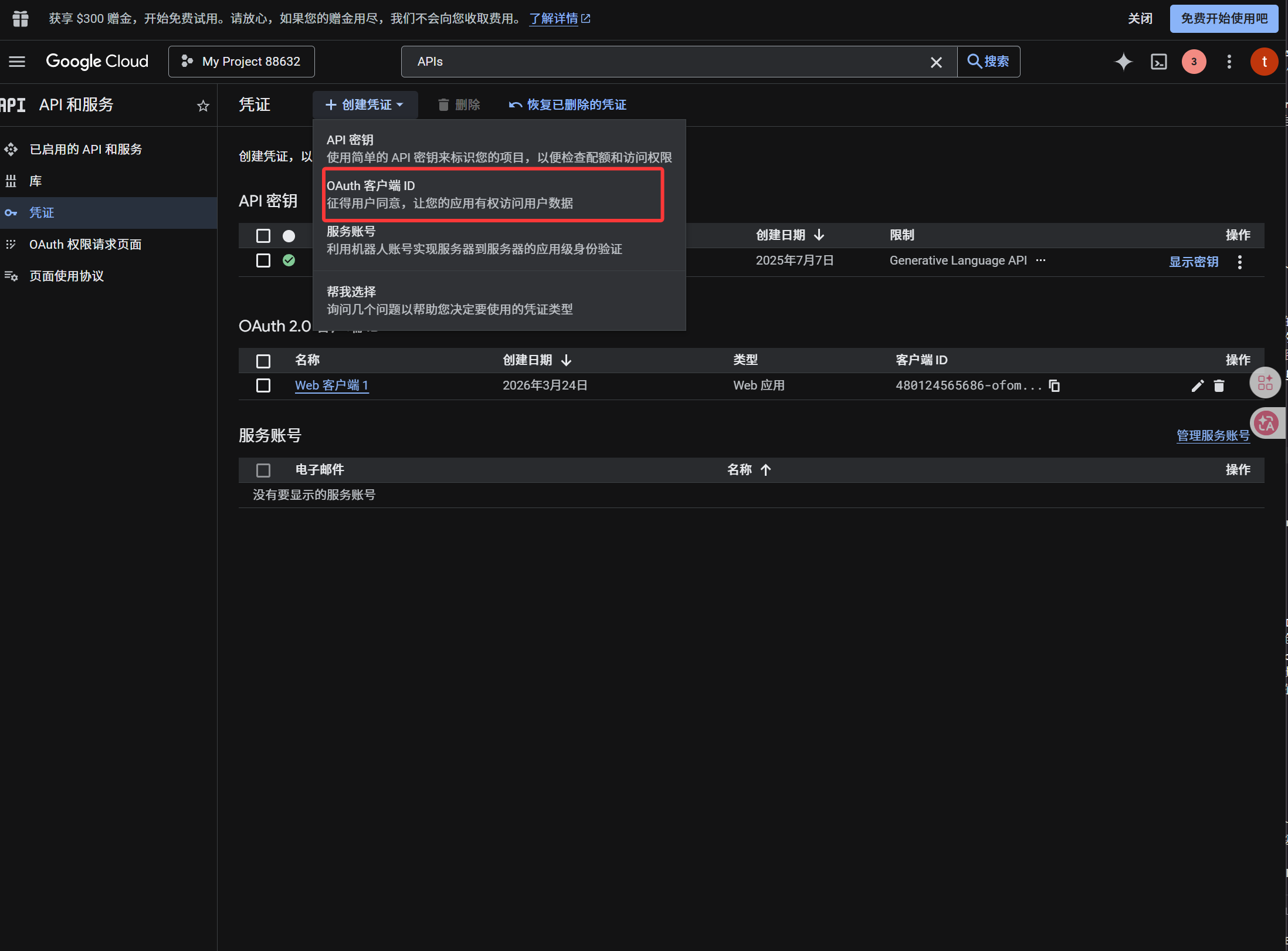
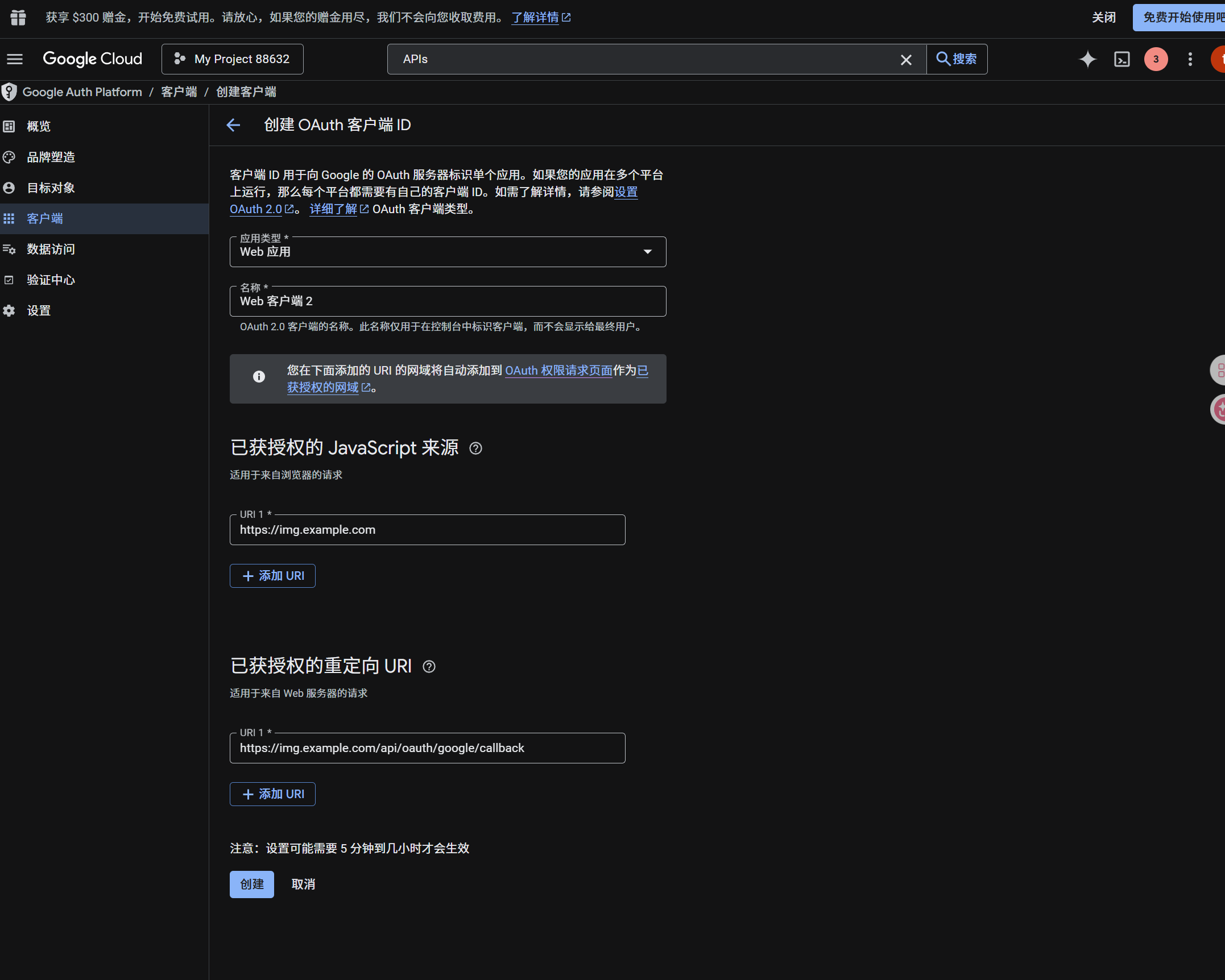
client بننے کے بعد یہ قدرs کاپی کریں:
| تیار کردہ قدر | ImgHost فیلڈ |
|---|---|
| Client ID | Client ID |
| Client Secret | Client Secret |
مرحلہ 4: ImgHost میں Google Drive Channel بھریں
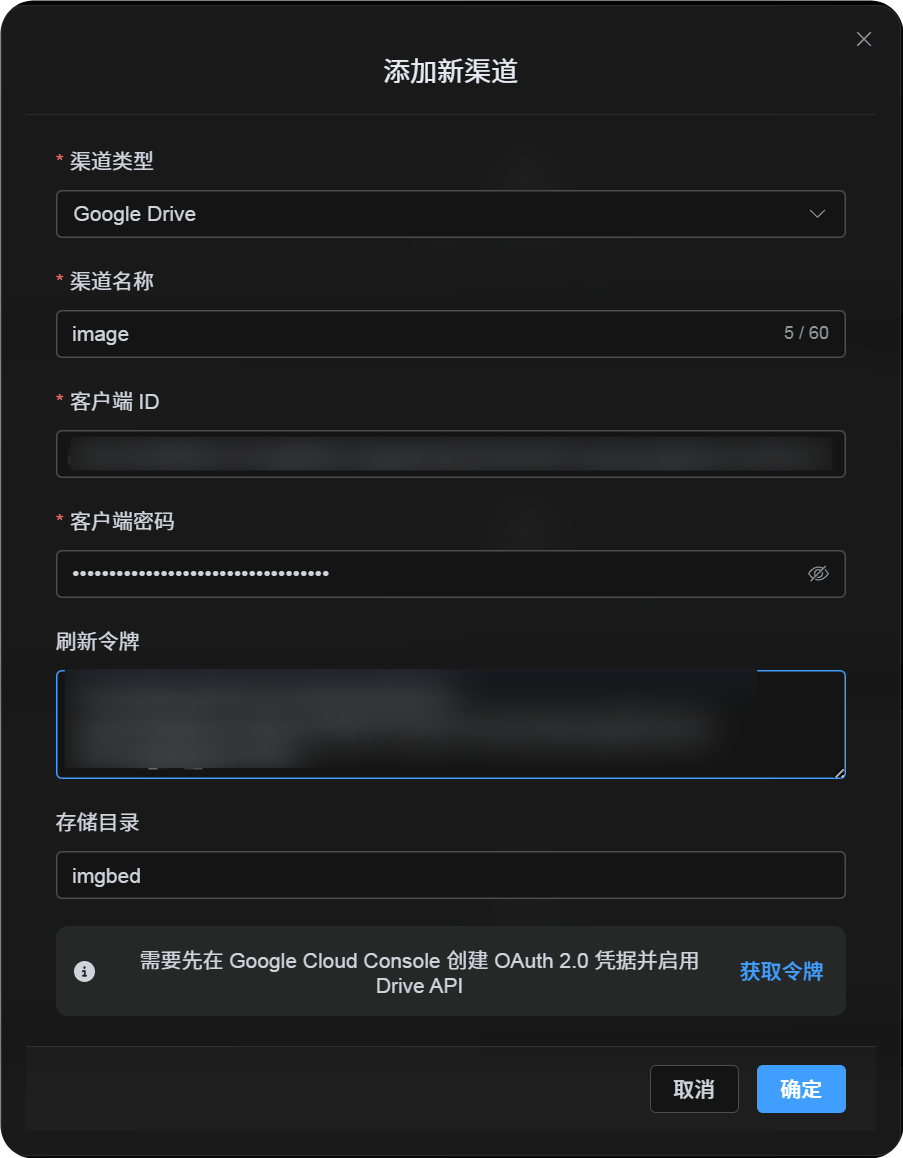
اپ لوڈ سیٹنگز میں Google Drive منتخب کریں اور یہ فیلڈز بھریں:
| ImgHost فیلڈ | کیا درج کریں |
|---|---|
| Channel name | قابل شناخت نام، مثلاً Main Google Drive |
| Client ID | Google Cloud سے لیا ہوا Client ID |
| Client Secret | Google Cloud سے لیا ہوا Client Secret |
| Refresh Token | ابھی خالی چھوڑ دیں۔ اگلے مرحلے میں حاصل کریں۔ |
| Root directory | اختیاری۔ ڈیفالٹ imgbed ہے۔ |
مرحلہ 5: Refresh Token حاصل کریں
Get Tokenپر کلک کریں۔- وہ Google account منتخب کریں جسے منسلک کرنا ہے۔
- authorization prompts مکمل کریں۔
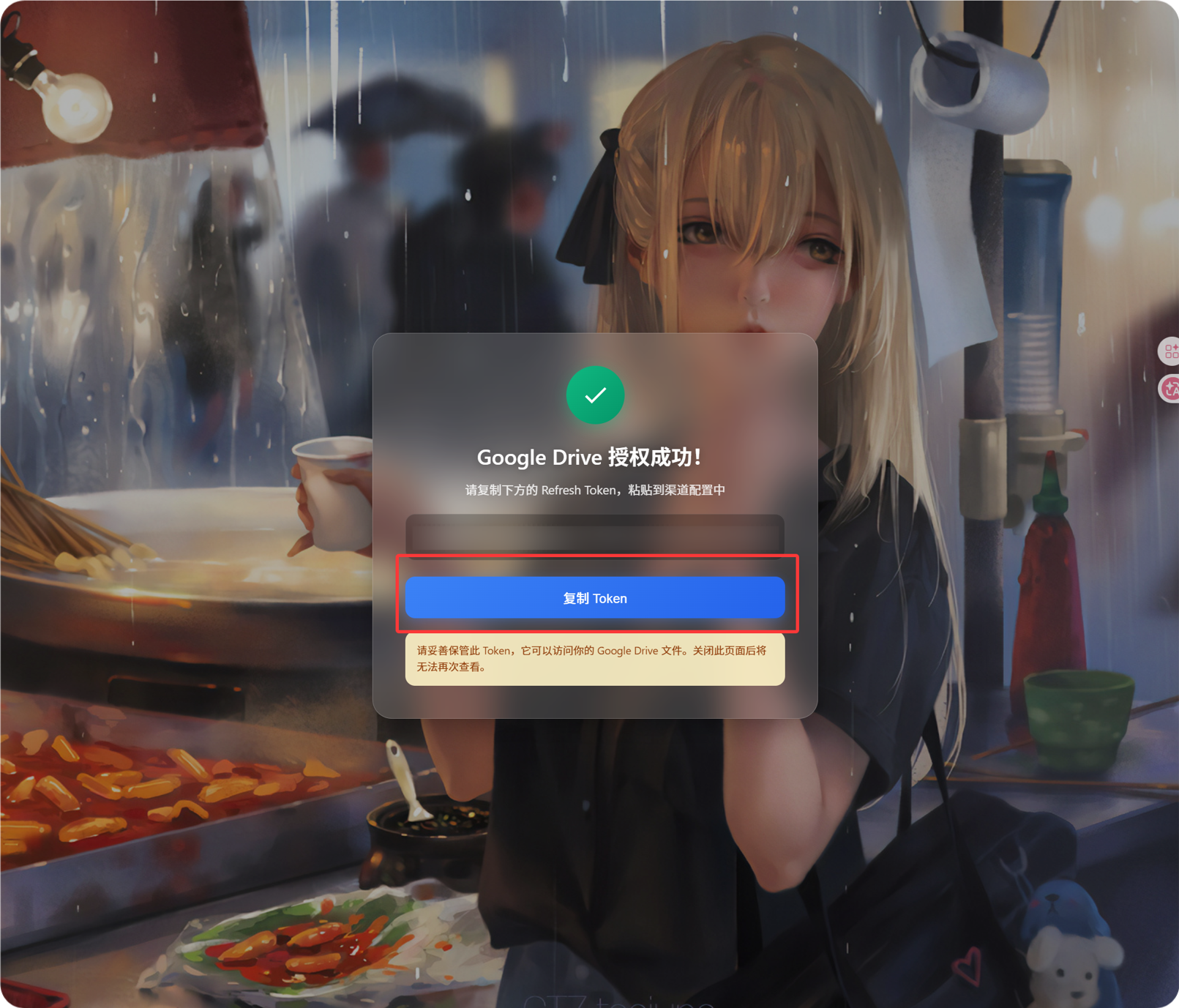
- callback صفحہ ایک
Refresh Tokenدکھائے گا۔ - اسے کاپی کریں۔
- ImgHost پر واپس آ کر
Refresh Tokenفیلڈ میں چسپاں کریں۔
اگر بعد میں Google account بدلیں، OAuth client بدلیں، یا پرانی authorization expire ہو جائے، تو چینل delete کرنے کی ضرورت نہیں۔ ترمیمی صفحہ کھولیں اور Reauthorize پر کلک کریں۔
مرحلہ 6: چینل محفوظ کریں
تمام فیلڈز بھرنے کے بعد channel save کریں۔
فوری بہاؤ
text
Open Google Cloud
-> Create or select a project
-> Enable Google Drive API
-> Configure Google Auth Platform
-> If Audience is External, add your Google account to Test users
-> Create a Web application OAuth client
-> Use https://your-domain.com/api/oauth/google/callback as the redirect URI
-> Fill Client ID and Client Secret into ImgHost
-> Click Get Token
-> Sign in with Google and authorize
-> Copy the Refresh Token from the callback page
-> Paste it back into ImgHost and save
-> Upload a test image
حوالہ جات
- Google OAuth Web Server Applications: https://developers.google.com/identity/protocols/oauth2/web-server
- Google Workspace OAuth Consent Configuration: https://developers.google.com/workspace/guides/configure-oauth-consent
- Google Drive API Auth Scopes: https://developers.google.com/workspace/drive/api/guides/api-specific-auth