Google Drive சேனல் சேர்க்கவும்
முதலில் தேவையானவை
| தேவை | ஏன் தேவை |
|---|---|
| Google கணக்கு | Google Cloud அணுகவும் Google Drive authorize செய்யவும் |
| Google Cloud திட்டம் | Drive API enable செய்து OAuth சான்றுகள் உருவாக்க |
| OAuth 2.0 client | ImgHost Client ID, Client Secret, Refresh Token பெற |
| உங்கள் ImgHost டொமைன் | OAuth redirect URI-க்கு. நீங்கள் பயன்படுத்தும் டொமைன்-க்கு சரியாக match ஆக வேண்டும். |
அமைப்பு படிகள்
படி 1: Google Drive API Enable செய்யவும்
- Google Cloud Console திறக்கவும்.
- புதிய திட்டம் உருவாக்கவும் அல்லது ஏற்கனவே உள்ள திட்டத்தைத் தேர்வு செய்யவும்.
APIs & Servicesசெல்லவும்.Enable APIs and Servicesகிளிக் செய்யவும்.Google Drive APIதேடவும்.- அதைத் திறந்து enable கிளிக் செய்யவும்.
படி 2: OAuth Consent Screen கட்டமை செய்யவும்
- Google Cloud-ல்
Google Auth Platformதிறக்கவும். - செயலி name, support email, developer contact email போன்ற basic
Brandingதகவலை முடிக்கவும். Audienceதிறக்கவும்.- பெரும்பாலான self-hosted personal deployments-க்கு
Externalதேர்வு செய்யவும். Externalதேர்வு செய்தால் authorize செய்ய வேண்டிய Google கணக்கு-ஐTest users-ல் சேர்க்கவும்.Data Accessதிறக்கவும்.- தேவையான Google Drive permissions சேர்க்கவும்.
படி 3: OAuth 2.0 Client உருவாக்கவும்
Google Auth Platform-ல்Clientsதிறக்கவும்.- புதிய client உருவாக்கவும்.
- செயலிlication type-ஐ
Web applicationஆக அமைக்கவும். - அறியக்கூடிய client name கொடுக்கவும்.
- authorized JavaScript origins-ல் உங்கள் ImgHost URL கொடுக்கவும், உதா:
text
https://img.example.com- authorized redirect URIs-ல்:
text
https://img.example.com/api/oauth/google/callback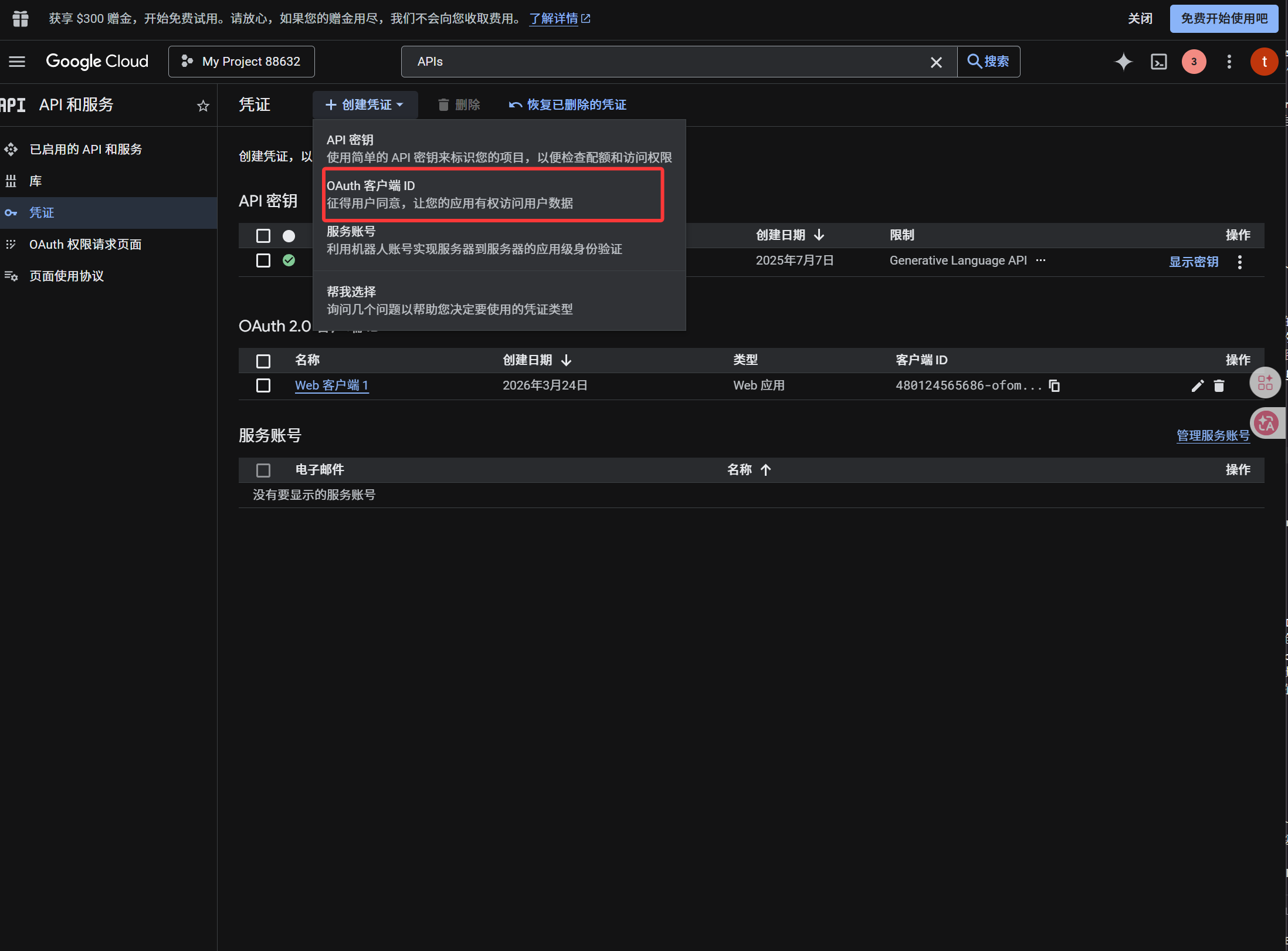
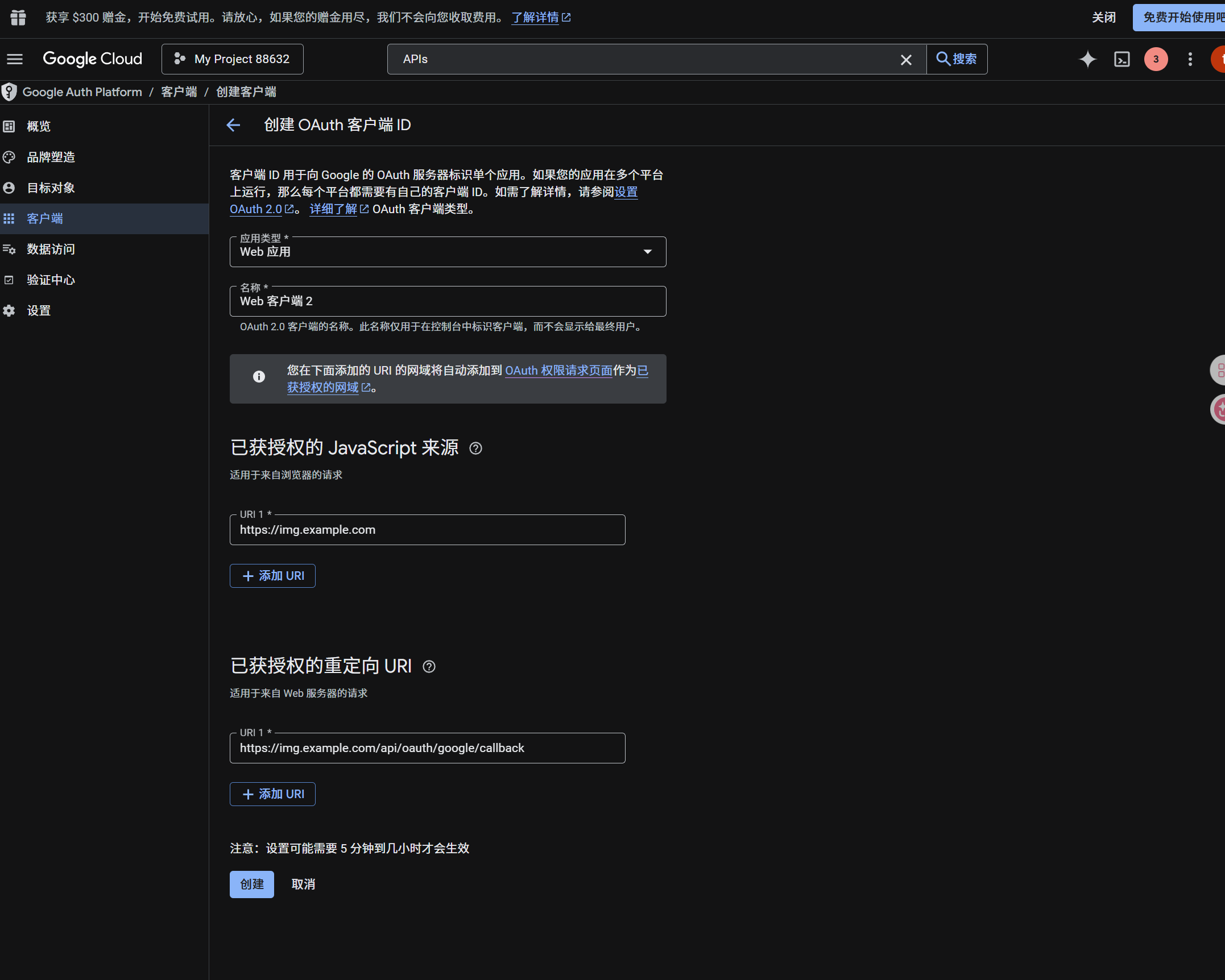
client உருவான பிறகு:
| உருவாக்கப்பட்ட மதிப்பு | ImgHost புலம் |
|---|---|
| Client ID | Client ID |
| Client Secret | Client Secret |
படி 4: ImgHost-ல் Google Drive சேனல் நிரப்பவும்
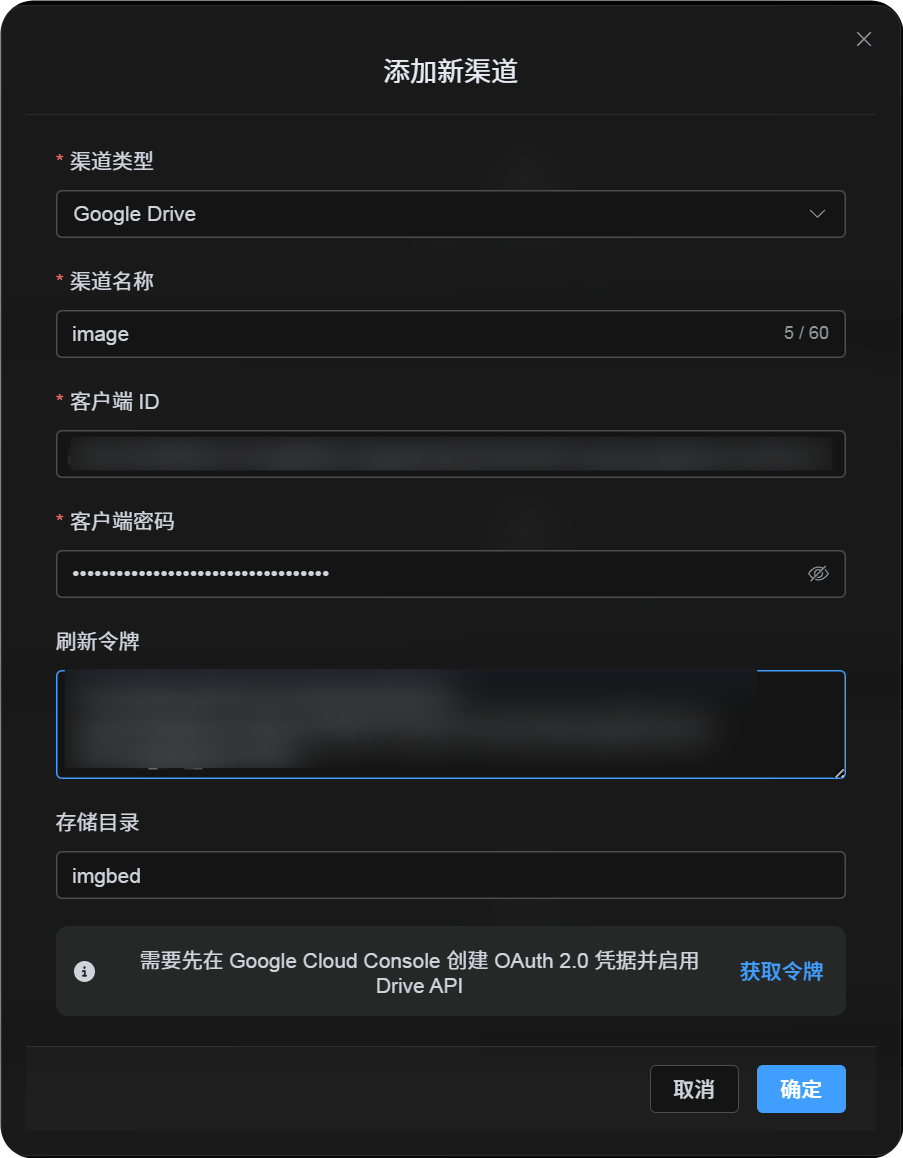
பதிவேற்ற அமைப்புகள்-ல் Google Drive தேர்வு செய்து:
| ImgHost புலம் | எதை உள்ளிட வேண்டும் |
|---|---|
| சேனல் பெயர் | அறியக்கூடிய பெயர், உதா. Main Google Drive |
| Client ID | Google Cloud Client ID |
| Client Secret | Google Cloud Client Secret |
| Refresh டோக்கன் | இப்போது காலியாக விடவும். அடுத்த படியில் பெறவும். |
| வேர் அடைவு | விருப்பத்தேர்வு. இயல்புநிலை imgbed. |
படி 5: Refresh டோக்கன் பெறவும்
Get Tokenகிளிக் செய்யவும்.- இணைக்க வேண்டிய Google கணக்கைத் தேர்வு செய்யவும்.
- authorization prompts-ஐ முடிக்கவும்.
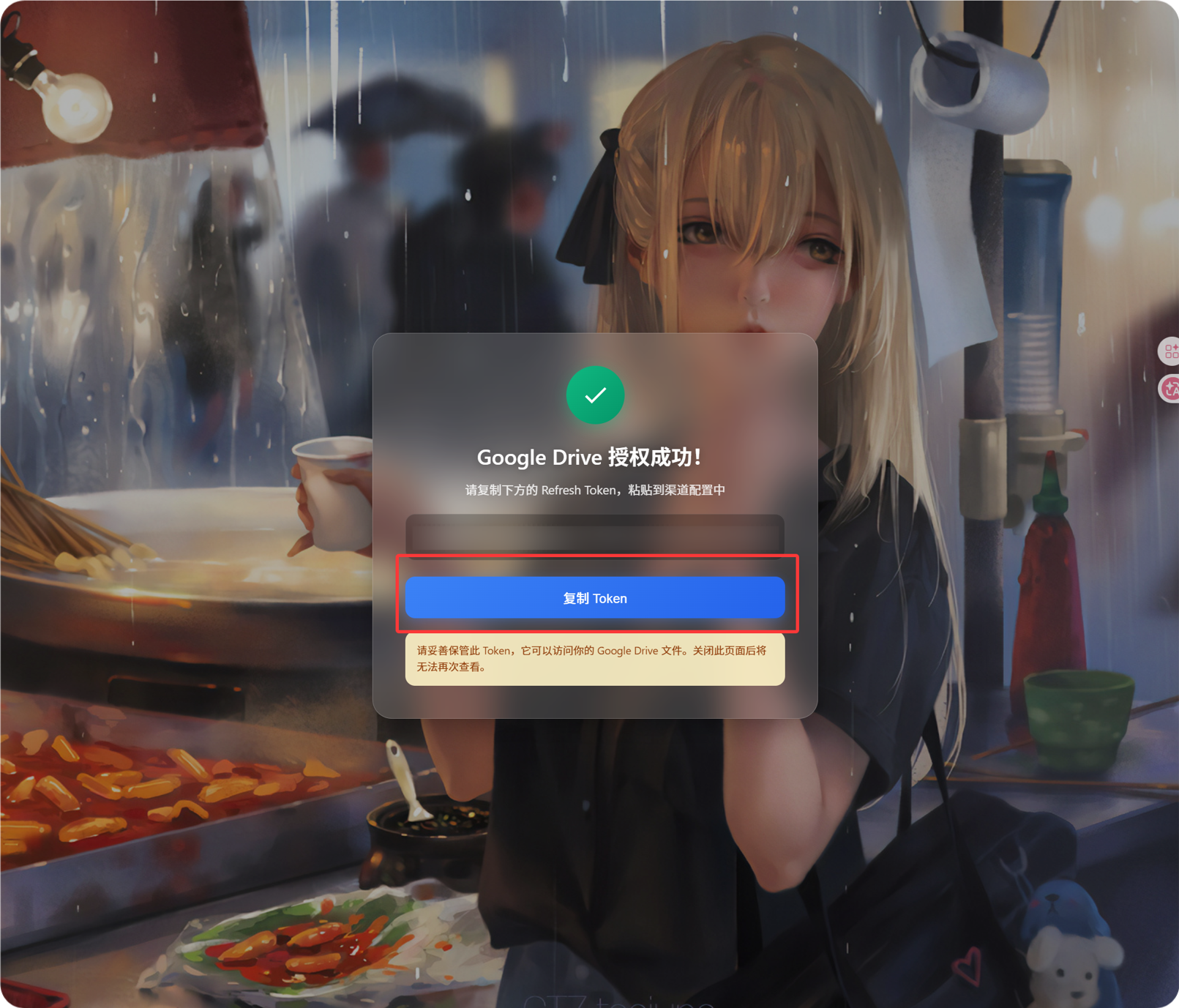
- callback பக்கம்
Refresh Tokenகாட்டும். - அதை நகலெடுக்கவும்.
- ImgHost-க்கு திரும்பி, அதை
Refresh Tokenபுலத்தில் ஒட்டவும்.
பின்னர் Google கணக்கு மாற்றினாலும், OAuth client மாற்றினாலும், பழைய authorization காலாவதியானாலும் சேனலை நீக்க வேண்டியதில்லை. திருத்தப் பக்கத்தைத் திறந்து Reauthorize கிளிக் செய்யவும்.
படி 6: சேனல் சேமி செய்யவும்
அனைத்து புலங்களையும் நிரப்பிய பிறகு சேனலை சேமிக்கவும்.
விரைவு ஓட்டம்
text
Open Google Cloud
-> Create or select a project
-> Enable Google Drive API
-> Configure Google Auth Platform
-> If Audience is External, add your Google account to Test users
-> Create a Web application OAuth client
-> Use https://your-domain.com/api/oauth/google/callback as the redirect URI
-> Fill Client ID and Client Secret into ImgHost
-> Click Get Token
-> Sign in with Google and authorize
-> Copy the Refresh Token from the callback page
-> Paste it back into ImgHost and save
-> Upload a test image
மேற்கோள்கள்
- Google OAuth Web சேவையகம் செயலிlications: https://developers.google.com/identity/protocols/oauth2/web-server
- Google Workspace OAuth Consent கட்டமைப்பு: https://developers.google.com/workspace/guides/configure-oauth-consent
- Google Drive API Auth Scopes: https://developers.google.com/workspace/drive/api/guides/api-specific-auth