د Cloudflare R2 چینل اضافه کول
کله مناسب دی
Cloudflare R2 هغه وخت وکاروئ چې:
- ستاسې ImgHost site لا مخکې په Cloudflare کې deployed وي او فایلونه د هماغه Cloudflare حساب په R2 bucket کې ساتل غواړئ.
- نه غواړئ جلا S3 endpoint، لاسرسی key او secret key تنظیم کړئ.
- غواړئ reads او writes د Worker یا Pages R2 binding له لارې په لږ setup سره ترسره شي.
لنډه خبره:
R2 چینل د ImgHost د اډمین پینل دننه په لاسي ډول نه جوړېږي. لومړی باید R2 bucket د Cloudflare پروژه سره bind کړئ، او binding variable name باید دقیقاً img_r2 وي.
د پیل مخکې اړتیاوې
- Cloudflare حساب.
- یو موجود R2 bucket.
- د هغه Cloudflare پروژه د مدیریت permission چې ImgHost پکې deployed دی.
په Cloudflare کې تنظیم کول
1. R2 Bucket جوړ کړئ
- Cloudflare Dashboard ته log in شئ.
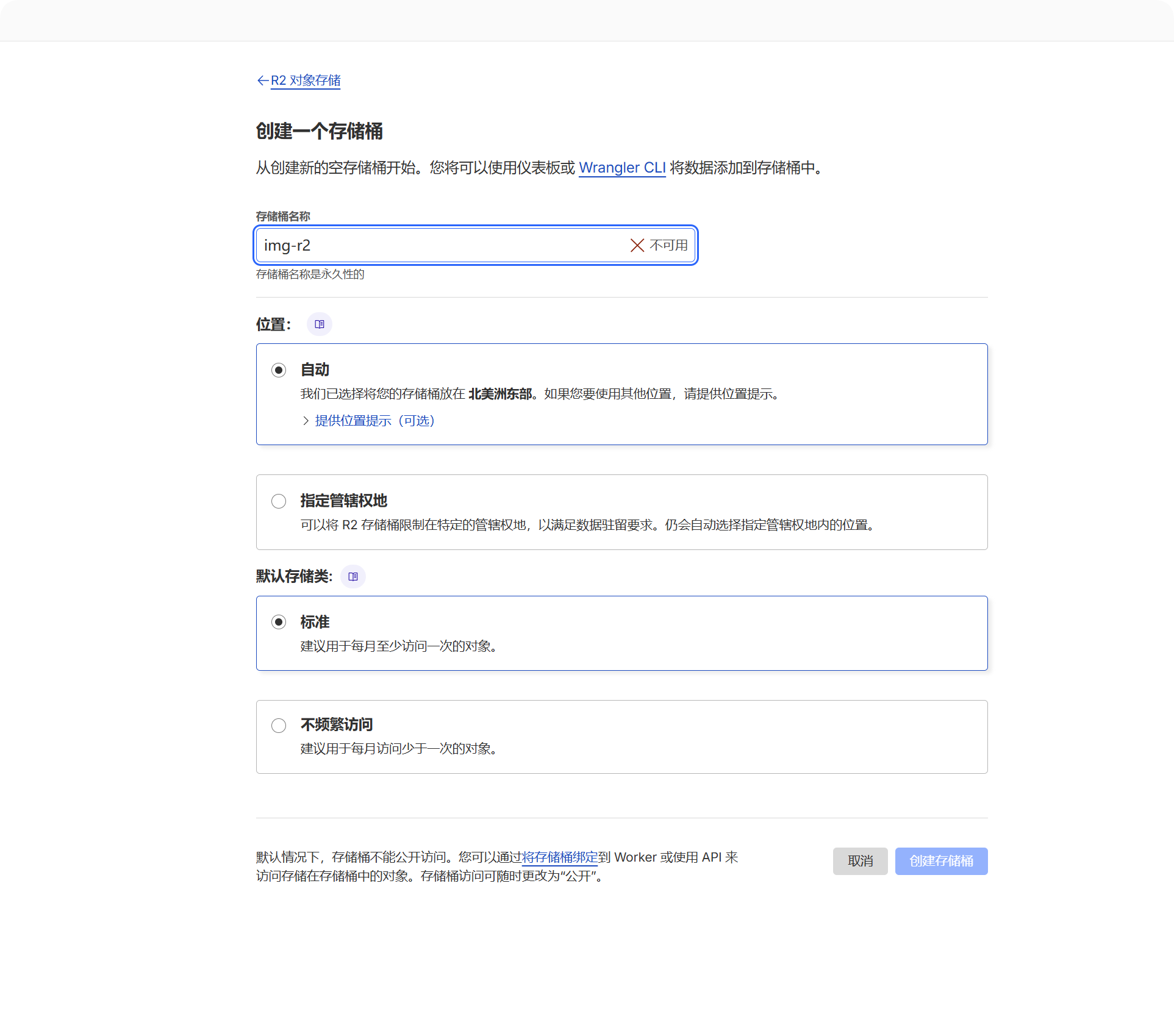
R2 Object Storageپرانیزئ.- Create bucket کلیک کړئ.
- bucket name وټاکئ، لکه
imgbed.
اپلوډ شوي فایلونه به په همدې bucket کې ساتل کېږي.
2. Bucket د ImgHost پروژه سره Bind کړئ
د deployment type له مخې binding location وټاکئ:
| Deployment Type | Binding Location |
|---|---|
| Pages | Current Pages project -> Settings -> Functions -> R2 bucket bindings |
| Worker | Current Worker -> Settings -> Bindings -> R2 bucket bindings |
د binding اضافه کولو پر وخت مهم fields:
| فیلډ | ارزښت |
|---|---|
| Variable name | img_r2 |
| R2 bucket | هغه bucket وټاکئ چې جوړ کړی مو دی. |
Variable name باید دقیقاً img_r2 وي. د R2 فایلونه اپلوډ، read او delete ټول په همدې binding name پورې تړلي دي.
3. پروژه بیا Deploy کړئ
د binding له خوندي وروسته ImgHost redeploy کړئ، څو Worker یا Pages runtime img_r2 ته لاسرسی ولري.
په ImgHost کې به څه ووینئ
کله چې R2 binding available شي، دا پرانیزئ:
- د سیسټم تنظیمات.
- د اپلوډ تنظیمات.
Cloudflare R2چینل.
system په اتومات ډول یو fixed چینل جوړوي:
| فیلډ | حلed ارزښت |
|---|---|
| د چینل نوم | Cloudflare R2 |
| چینل type | cfr2 |
| زېرمه mode | binding |
| تنظیمات source | Environment binding |
دا fixed binding چینل دی. د جوړولو لپاره چینل اضافه کړئ ته اړتیا نشته، او د regular چینل په څېر delete کېدای نه شي.
په Admin Panel کې Editable فیلډs
| فیلډ | څه کوي | اړین |
|---|---|---|
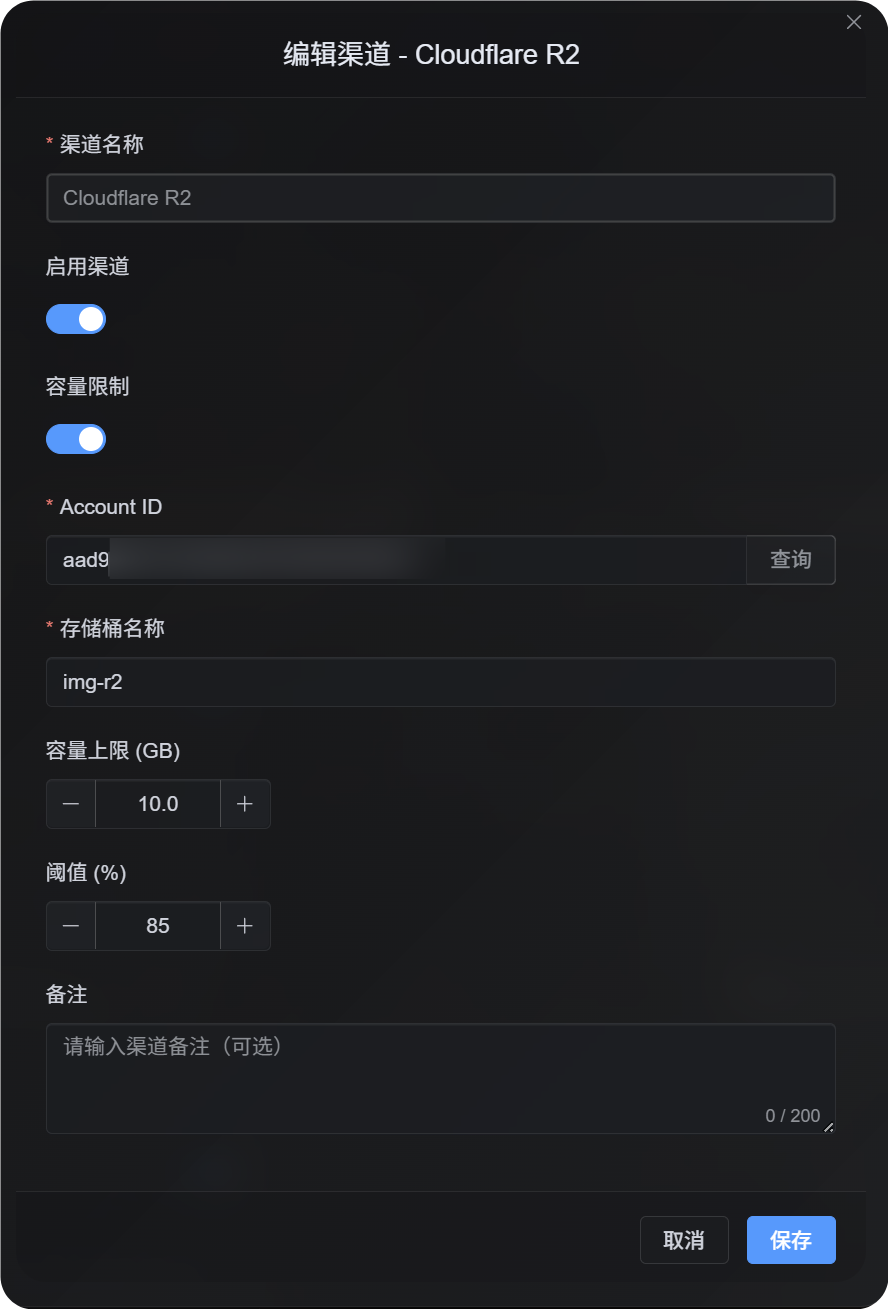
| Enable چینل | کنټرولوي چې R2 په اپلوډ selection کې ګډون وکړي که نه. | Yes |
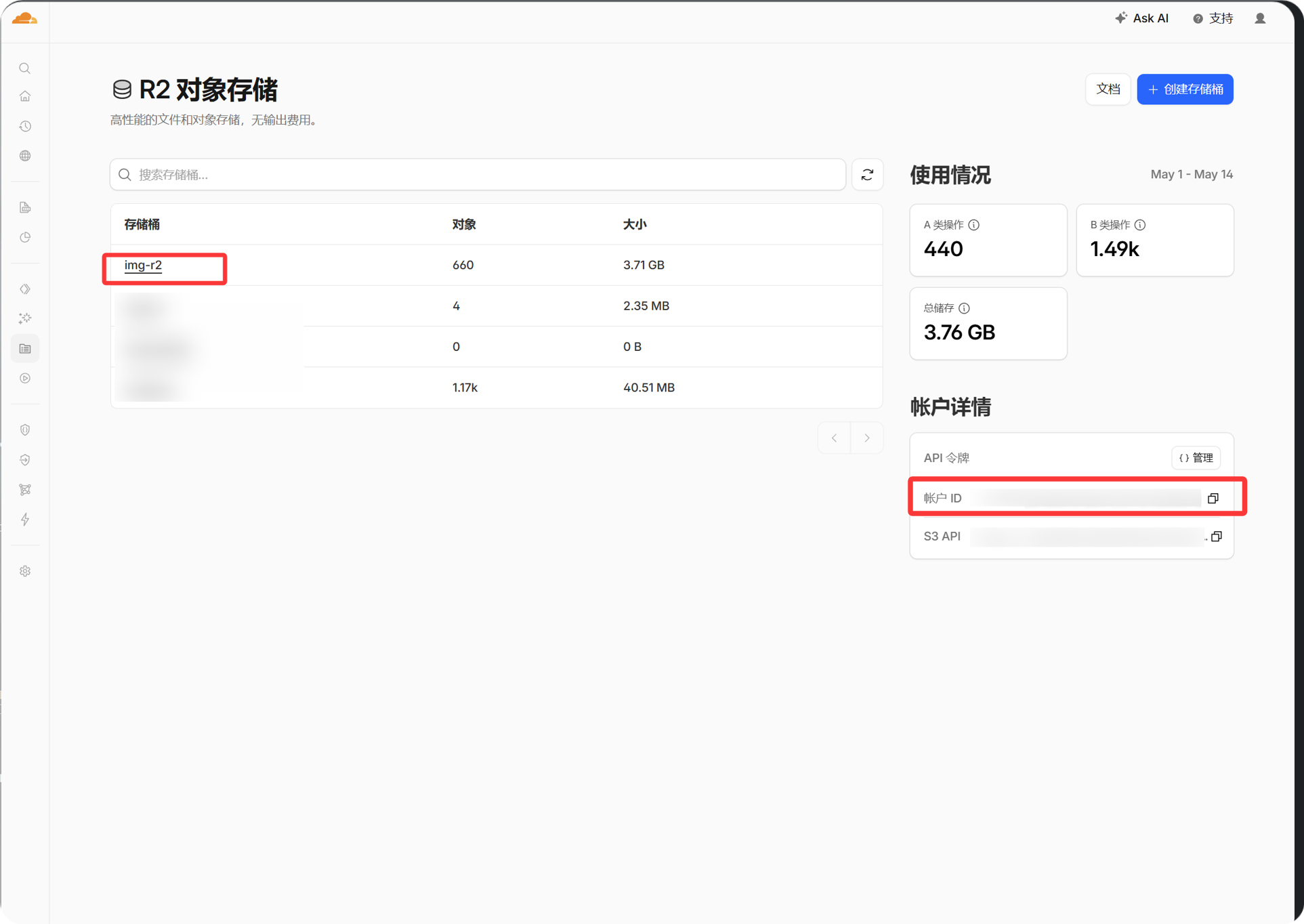
| حساب ID | یوازې هغه وخت کارېږي چې کوټه limits enabled وي او official R2 usage query پکار وي. | سپارښتنه کېږي when کوټه limits are enabled |
| Bucket name | یوازې هغه وخت کارېږي چې کوټه limits enabled وي او official R2 usage query پکار وي. | سپارښتنه کېږي when کوټه limits are enabled |
| Quota limit | کنټرولوي چې دا R2 چینل د capacity له مخې په اپلوډ selection کې ګډون وکړي که نه. | No |
| Threshold | کله چې usage ټاکلي percentage ته ورسېږي، په دې چینل کې write بندوي. | اړین دی کله چې د کوټې محدودیتونه فعال وي |
حساب ID د Cloudflare dashboard د حساب information panel څخه کاپي کولی شئ. یوازې هغه وخت یې ډک کړئ چې غواړئ ImgHost R2 کوټه usage query او enforce کړي.
د تنظیم ګامونه
- په Cloudflare کې R2 bucket جوړ کړئ.
- د ImgHost پروژه لپاره Cloudflare settings پرانیزئ.
- R2 bucket binding اضافه کړئ.
Variable nameتهimg_r2ورکړئ.- هغه R2 bucket وټاکئ چې جوړ کړی مو دی.
- binding خوندي کړئ او ImgHost redeploy کړئ.
- ImgHost -> د سیسټم تنظیمات -> د اپلوډ تنظیمات ته بېرته ولاړ شئ.
- وګورئ چې
Cloudflare R2چینل ښکاري او enabled دی.
که غواړئ R2 د capacity له مخې اپلوډ selection کې ګډون وکړي، کوټه limit enable کړئ، بیا حساب ID، bucket name، کوټه limit او threshold ولیکئ او خوندي یې کړئ.
څنګه یې Verify کړو
- fixed
Cloudflare R2چینل په د اپلوډ تنظیمات کې ښکاري. - چینل card ښيي چې enabled دی.
- یو کوچنی test فایل اپلوډ شي او returned link عادي پرانستل شي.
- که د فایل پرانیستلو پر وخت
R2 database binding is not configuredراشي، runtime تهimg_r2binding نه دی رسېدلی. په Cloudflare کې binding name وګورئ او پروژه redeploy کړئ.