အထောက်အထားစစ်ဆေးခြင်းနှင့် လော့ဂ်အင်ကိရိယာ စီမံခန့်ခွဲမှု
အထောက်အထားစစ်ဆေးခြင်း စီမံခန့်ခွဲမှု နှင့် လော့ဂ်အင်ကိရိယာ စီမံခန့်ခွဲမှု သည် ImgHost ၏ စီမံခန့်ခွဲမှု ပန်နယ်၊ အများပြည်သူ အပ်လုဒ် ဝင်ပေါက်နှင့် WebDAV ဝင်ရောက်မှုကို ကာကွယ်ပေးသည်။
ဤစာမျက်နှာကို အသုံးပြု၍ ဝင်ရောက်ခွင့် အထောက်အထားများ သတ်မှတ်ခြင်း၊ လော့ဂ်အင်ဝင်ထားသော ကိရိယာများကို စစ်ဆေးခြင်းနှင့် လိုအပ်ပါက ဆက်ရှင်ဟောင်းများကို ပယ်ဖျက်ခြင်းတို့ ပြုလုပ်နိုင်သည်။
သတ်မှတ်ရာနေရာ
စီမံခန့်ခွဲမှု ပန်နယ်ကို ဖွင့်ပြီး အောက်ပါနေရာသို့ သွားပါ။
text
System Settings -> Security Settingsဤစာမျက်နှာတွင် အဓိက အပိုင်းနှစ်ခုရှိသည်။
- အထောက်အထားစစ်ဆေးခြင်း စီမံခန့်ခွဲမှု
- လော့ဂ်အင်ကိရိယာ စီမံခန့်ခွဲမှု
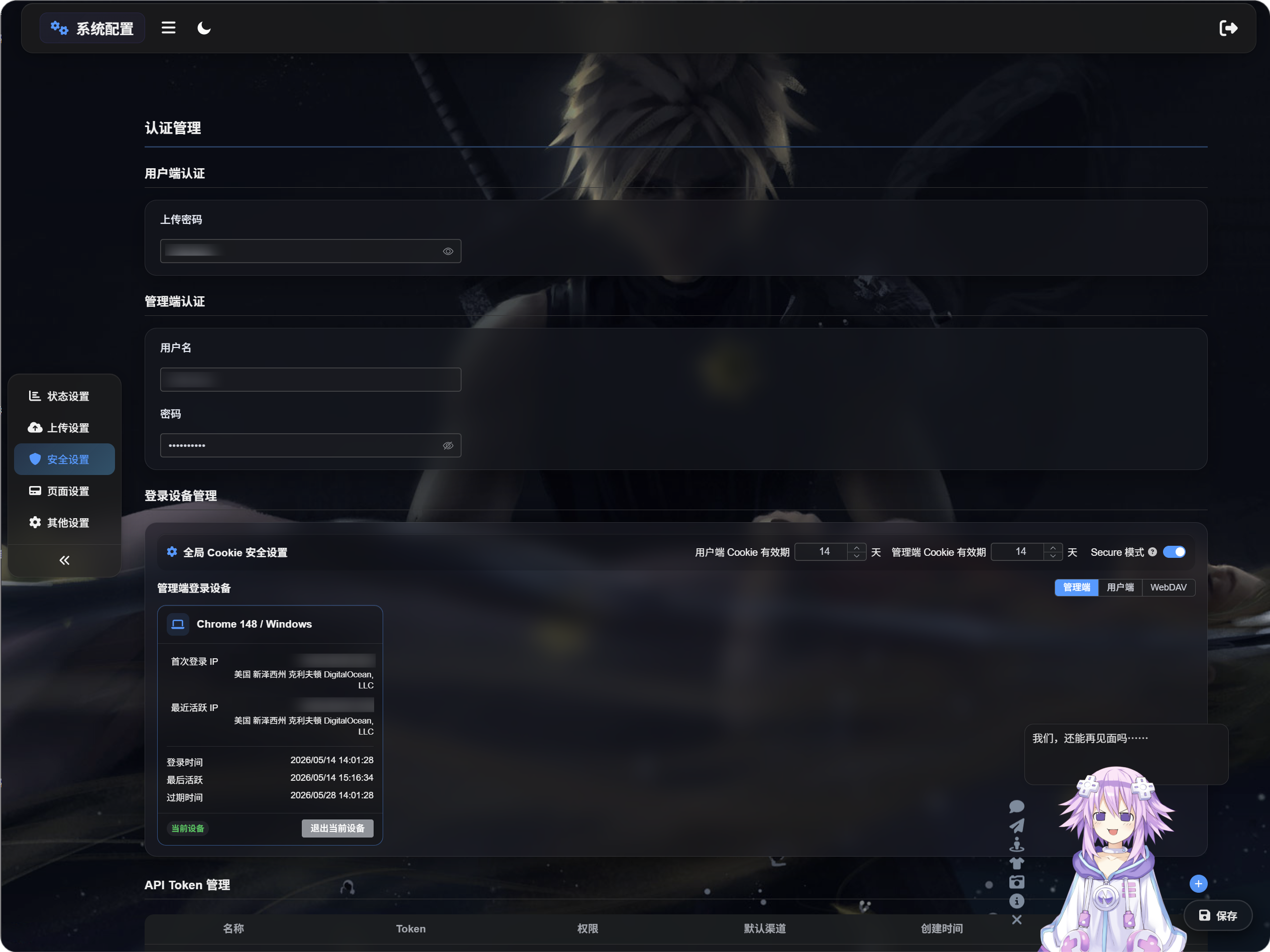
အထောက်အထားစစ်ဆေးခြင်း စီမံခန့်ခွဲမှု၏ လုပ်ဆောင်ချက်
အထောက်အထားစစ်ဆေးခြင်း စီမံခန့်ခွဲမှုသည် ဝင်ရောက်ခွင့် အထောက်အထားများကို သိမ်းဆည်းသည်။
အမျိုးအစား နှစ်မျိုးရှိသည်။
- အသုံးပြုသူဘက် အထောက်အထားစစ်ဆေးခြင်း
- စီမံခန့်ခွဲသူဘက် အထောက်အထားစစ်ဆေးခြင်း
အသုံးပြုသူဘက် အထောက်အထားစစ်ဆေးခြင်း
အသုံးပြုသူဘက် အထောက်အထားစစ်ဆေးခြင်းသည် အပ်လုဒ် စကားဝှက်ဖြစ်သည်။
အပ်လုဒ် စကားဝှက် သတ်မှတ်ပြီးပါက ပုံမှန် ဧည့်သည်များသည် အပ်လုဒ် စာမျက်နှာကို အသုံးမပြုမီ ၎င်းကို ထည့်သွင်းရမည်။ အများပြည်သူ အပ်လုဒ် စာမျက်နှာကို လူတိုင်းအား ဖွင့်မထားလိုသည့်အခါ အသုံးဝင်သည်။
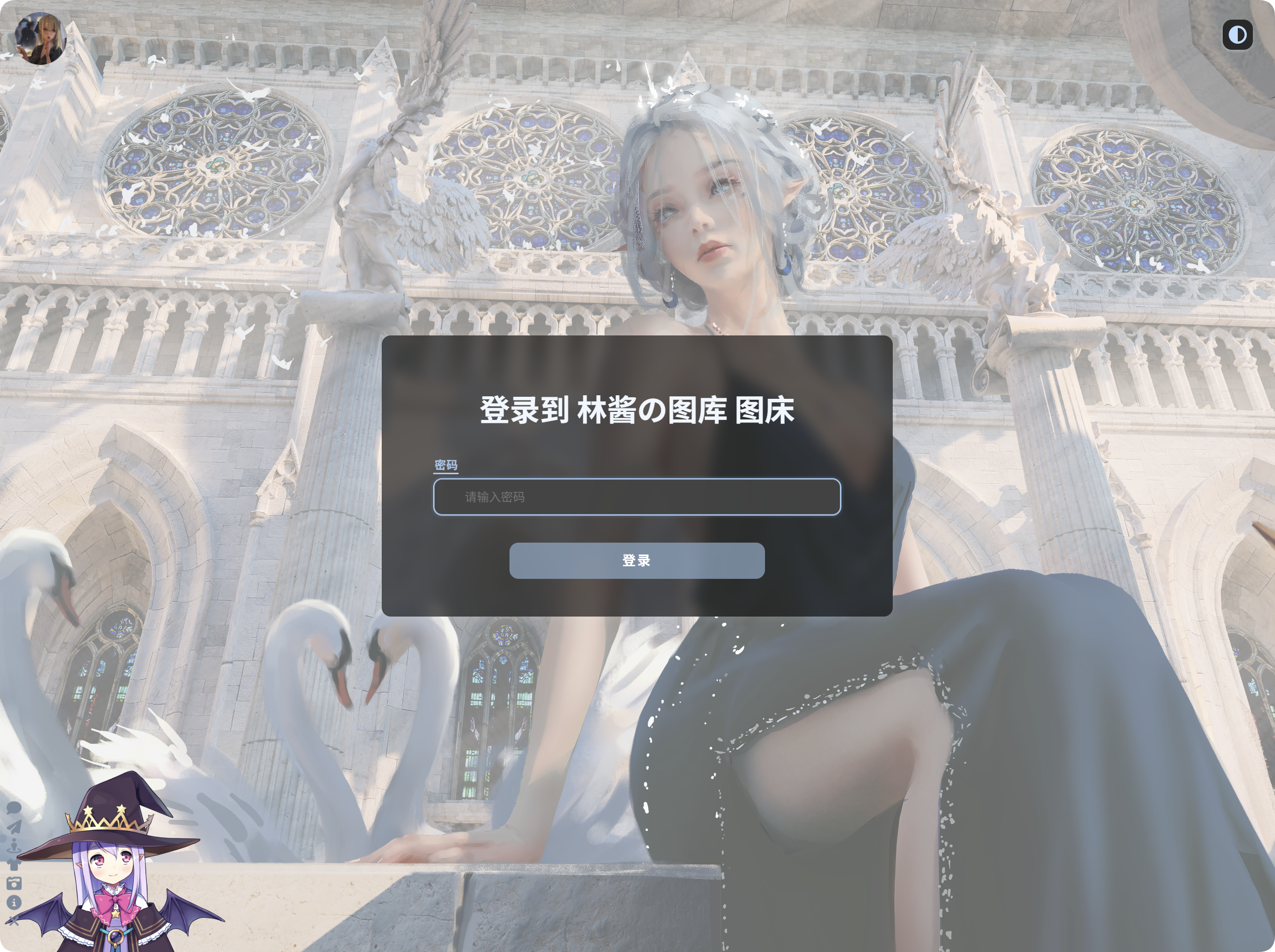
အပ်လုဒ် စကားဝှက် သတ်မှတ်ခြင်း
အပ်လုဒ် စကားဝှက် သတ်မှတ်ထားပါက:
- ဧည့်သည်များသည် အပ်လုဒ် စာမျက်နှာကို အသုံးမပြုမီ စကားဝှက် ထည့်သွင်းရမည်။
- စကားဝှက် လက်ခံပြီးမှသာ အပ်လုဒ် လုပ်နိုင်သည်။
- အသုံးပြုသူဘက် ကိရိယာ ဆက်ရှင်များ ဖွင့်ထားပါက ImgHost သည် ထိုအသုံးပြုသူဘက် ကိရိယာကို မှတ်တမ်းတင်သည်။
အပ်လုဒ် စကားဝှက်ကို ပြောင်းလဲပါက အသုံးပြုသူဘက် ဆက်ရှင်ဟောင်းများ မမှန်ကန်တော့ပါ။ ဧည့်သည်များသည် စကားဝှက်အသစ်ကို ထပ်မံ ထည့်သွင်းရမည်။
စီမံခန့်ခွဲသူဘက် အထောက်အထားစစ်ဆေးခြင်း
စီမံခန့်ခွဲသူဘက် အထောက်အထားစစ်ဆေးခြင်းသည် စီမံခန့်ခွဲသူ အသုံးပြုသူအမည်နှင့် စကားဝှက်ကို အသုံးပြုသည်။
၎င်းသည် စီမံခန့်ခွဲမှု ပန်နယ်ကို ကာကွယ်သည်။ ထုတ်လုပ်မှု အသုံးပြုမှုအတွက် အမြဲတမ်း သတ်မှတ်ထားသင့်သည်။
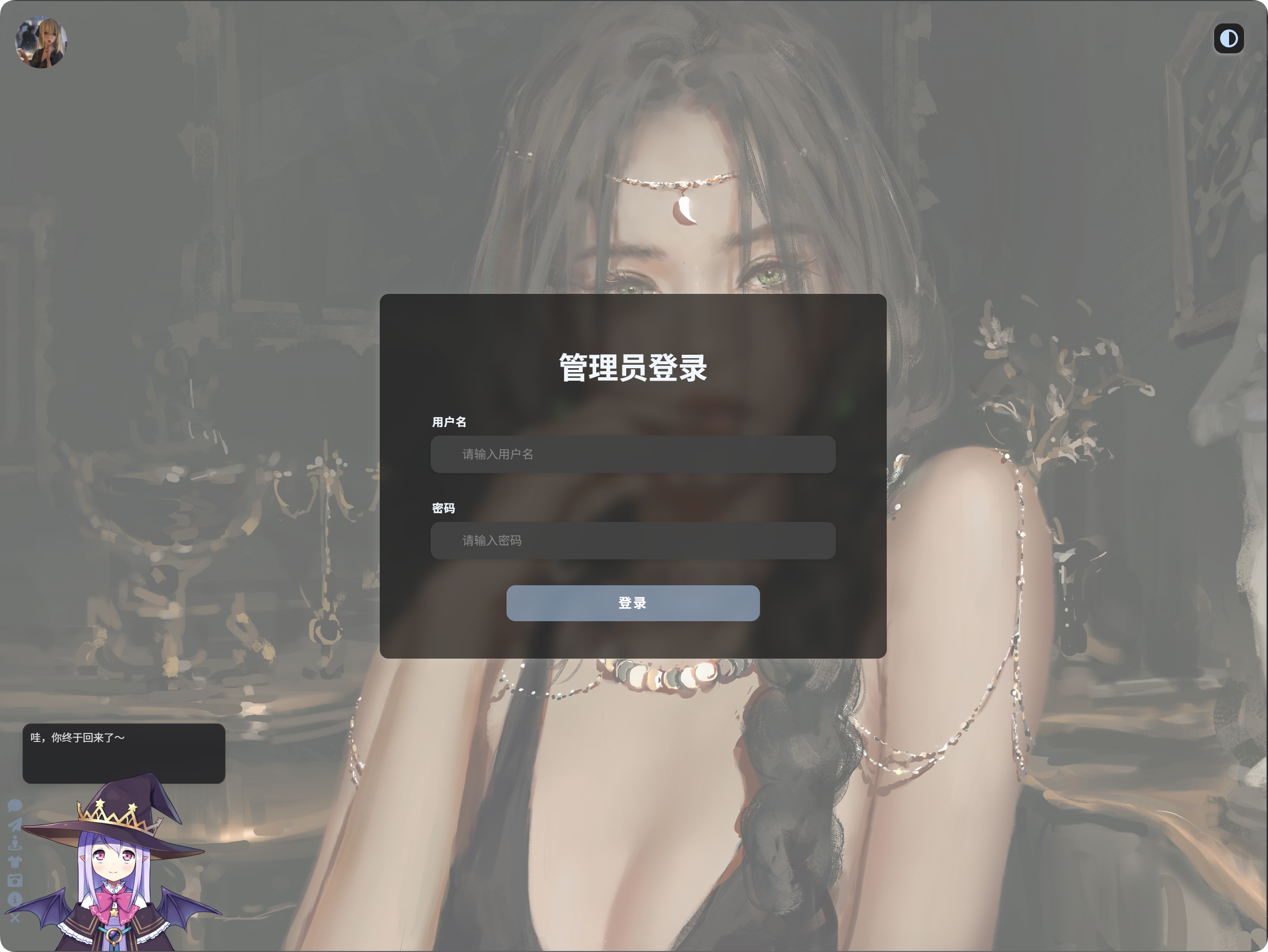
စီမံခန့်ခွဲသူ အထောက်အထားများ သတ်မှတ်ခြင်း
စီမံခန့်ခွဲသူ အသုံးပြုသူအမည်နှင့် စကားဝှက် သတ်မှတ်ထားပါက:
- စီမံခန့်ခွဲမှု ပန်နယ်ကို ဖွင့်ရာတွင် လော့ဂ်အင် လိုအပ်သည်။
- လော့ဂ်အင် အောင်မြင်ပါက စီမံခန့်ခွဲသူ ကိရိယာ မှတ်တမ်းတစ်ခု ဖန်တီးသည်။
- လော့ဂ်အင်ကိရိယာ စီမံခန့်ခွဲမှုတွင် ကိရိယာများကို စစ်ဆေး၊ ရှင်းလင်း သို့မဟုတ် အော့ဖ်လိုင်း အတင်းလုပ်နိုင်သည်။
စီမံခန့်ခွဲသူ အသုံးပြုသူအမည် သို့မဟုတ် စကားဝှက်ကို ပြောင်းလဲပါက စီမံခန့်ခွဲသူ ဆက်ရှင်ဟောင်းများ မမှန်ကန်တော့ပါ။ ထပ်မံ လော့ဂ်အင် ဝင်ရမည်။
လော့ဂ်အင်ကိရိယာ စီမံခန့်ခွဲမှု၏ လုပ်ဆောင်ချက်
လော့ဂ်အင်ကိရိယာ စီမံခန့်ခွဲမှုသည် လော့ဂ်အင် ဝင်ထားသော ကိရိယာများကို ပြသသည်။
၎င်းက အောက်ပါတို့ကို စစ်ဆေးရန် ကူညီသည်။
- မည်သည့်ကိရိယာများက စီမံခန့်ခွဲမှု ပန်နယ်ကို ဝင်ရောက်ခဲ့သည်။
- မည်သည့်ကိရိယာများက အသုံးပြုသူဘက် အပ်လုဒ် စာမျက်နှာကို ဝင်ရောက်ခဲ့သည်။
- မည်သည့် WebDAV client များ ချိတ်ဆက်ခဲ့သည်။
- ကိရိယာ ဆက်ရှင် မမှန်သေးခြင်း ရှိမရှိ။
- ကိရိယာဟောင်းများကို အော့ဖ်လိုင်း အတင်းလုပ်ရန် လိုအပ်မရှိ။
ဤစာမျက်နှာတွင် tab သုံးခုရှိသည်။
- စီမံခန့်ခွဲသူ
- အသုံးပြုသူ
- WebDAV
Global Cookie လုံခြုံရေး
လော့ဂ်အင်ကိရိယာ စီမံခန့်ခွဲမှု၏ အပေါ်ပိုင်းတွင် global cookie အပြုအမူကို သတ်မှတ်နိုင်သည်။
အသုံးပြုသူ Cookie သက်တမ်း
အသုံးပြုသူဘက် လော့ဂ်အင် မည်မျှရက်ကြာ ဆက်လက် အသက်ဝင်မည်ကို ထိန်းချုပ်သည်။
ဥပမာ 14 ရက် သတ်မှတ်ပါက ဧည့်သည်များသည် ပုံမှန်အားဖြင့် 14 ရက်အတွင်း အပ်လုဒ် စကားဝှက်ကို ပြန်ထည့်ရန် မလိုအပ်ပါ။
စီမံခန့်ခွဲသူ Cookie သက်တမ်း
စီမံခန့်ခွဲသူ လော့ဂ်အင် မည်မျှရက်ကြာ ဆက်လက် အသက်ဝင်မည်ကို ထိန်းချုပ်သည်။
ဥပမာ 14 ရက် သတ်မှတ်ပါက စီမံခန့်ခွဲသူများသည် ပုံမှန်အားဖြင့် 14 ရက်အတွင်း ပြန်လော့ဂ်အင် ဝင်ရန် မလိုအပ်ပါ။
လုံခြုံမုဒ်
လုံခြုံမုဒ် ဖွင့်ထားပါက ဘရောက်ဇာများသည် လော့ဂ်အင် cookie များကို HTTPS မှတစ်ဆင့်သာ ပေးပို့သည်။
ထုတ်လုပ်မှု HTTPS site များတွင် ဖွင့်ပါ။ local HTTP စမ်းသပ်မှုအတွက် မဖွင့်ပါနှင့်၊ မဟုတ်ပါက "လော့ဂ်အင် အောင်မြင်သော်လည်း refresh လုပ်လျှင် logout ဖြစ်သည်" ဆိုသည့် အပြုအမူကို မြင်နိုင်သည်။
စီမံခန့်ခွဲသူ လော့ဂ်အင် ကိရိယာများ
စီမံခန့်ခွဲသူ tab သည် စီမံခန့်ခွဲမှု ပန်နယ်သို့ လော့ဂ်အင် ဝင်ထားသော ကိရိယာများကို ပြသသည်။
ကိရိယာ မှတ်တမ်းများသည် စီမံခန့်ခွဲသူ အထောက်အထားများ သတ်မှတ်ပြီး၊ လော့ဂ်အင်မှတစ်ဆင့် စီမံခန့်ခွဲမှု ပန်နယ်ကို ဝင်ရောက်ပြီးနောက်မှသာ ပေါ်လာသည်။
ကိရိယာ ကတ်တိုင်းတွင် အောက်ပါတို့ကို ပြသနိုင်သည်။
- ကိရိယာနှင့် ဘရောက်ဇာ အချက်အလက်
- ပထမဆုံး လော့ဂ်အင် IP
- နောက်ဆုံး အသက်ဝင် IP
- လော့ဂ်အင် အချိန်
- နောက်ဆုံး အသက်ဝင် အချိန်
- သက်တမ်းကုန် အချိန်
- လက်ရှိ အခြေအနေ
မသိသော ကိရိယာကို တွေ့ပါက အော့ဖ်လိုင်း အတင်းလုပ်ရန် ကို အသုံးပြု၍ မမှန်ကန်အောင် လုပ်ပါ။
ကိရိယာဟောင်းများကို ရှင်းလင်းခြင်း
ကိရိယာဟောင်းများကို ရှင်းလင်းရန် သည် လက်ရှိ tab ရှိ လော့ဂ်အင် မှတ်တမ်းဟောင်းများကို အစုလိုက် ဖယ်ရှားသည်။
ဆက်ရှင်ဟောင်းများသည် အခြားကိရိယာများပေါ်တွင် အသက်ဝင်နေဆဲ ဖြစ်နိုင်သည်ဟု သံသယရှိသောအခါ အသုံးပြုပါ။
အော့ဖ်လိုင်း အတင်းလုပ်ခြင်း
အော့ဖ်လိုင်း အတင်းလုပ်ရန် သည် ကိရိယာ ဆက်ရှင်တစ်ခုကို မမှန်ကန်အောင် လုပ်သည်။
ကိရိယာကို အော့ဖ်လိုင်း အတင်းလုပ်ပြီးနောက်:
- စီမံခန့်ခွဲသူ ကိရိယာများသည် ပြန်လော့ဂ်အင် ဝင်ရမည်။
- အသုံးပြုသူဘက် ကိရိယာများသည် အပ်လုဒ် စကားဝှက်ကို ပြန်ထည့်ရမည်။
- WebDAV client များသည် ပြန်လည် အထောက်အထားစစ်ဆေးရမည်။
သက်တမ်းကုန် သို့မဟုတ် မမှန်ကန်သော ကိရိယာများကိုလည်း ဖယ်ရှားနိုင်သည်။
လက်ရှိကိရိယာမှ ထွက်ခြင်း
လက်ရှိကိရိယာ ကတ်ကို လက်ရှိကိရိယာ ဟု သတ်မှတ်ထားသည်။
လက်ရှိကိရိယာမှ ထွက်ပြီးနောက်:
- လက်ရှိ စီမံခန့်ခွဲသူ ဆက်ရှင် ထွက်သွားမည်။
- လက်ရှိ အသုံးပြုသူဘက် ဆက်ရှင် ထွက်သွားမည်။
ထိုအပိုင်းကို ဆက်အသုံးမပြုမီ ပြန်လော့ဂ်အင် ဝင်ရမည်။