Adding a Dropbox Channel
What You Need First
| Requirement | Why You Need It |
|---|---|
| A Dropbox account | Used to sign in and authorize the app |
| A Dropbox app | Used to generate the App Key and App Secret |
| Your ImgBed domain | Used for the OAuth redirect URI |
| Available Dropbox storage | Used as the actual file storage location |
Setup Steps
Step 1: Create a Dropbox App
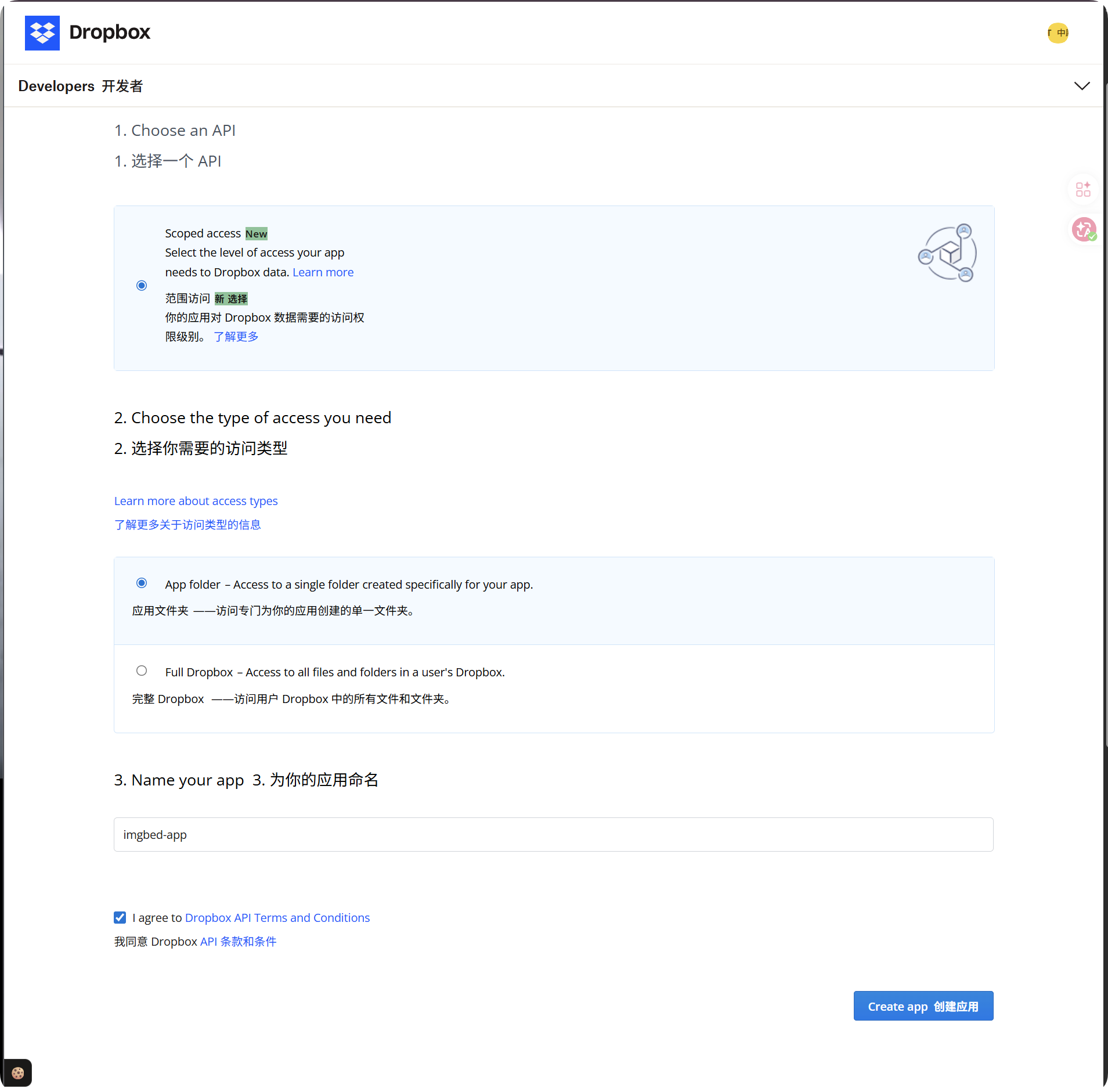
- Open the Dropbox App Console:
text
https://www.dropbox.com/developers/apps- Create a new app.
- For access type, choose:
text
App folder- Give the app a name you can recognize, such as
imgbed-app. - Open the app details page after it is created.
Recommended access type:
| Access Type | Recommendation |
|---|---|
App folder | Recommended. It matches how ImgBed stores files. |
Full Dropbox | Not recommended. ImgBed does not need full-account access. |
Step 2: Add the Redirect URI
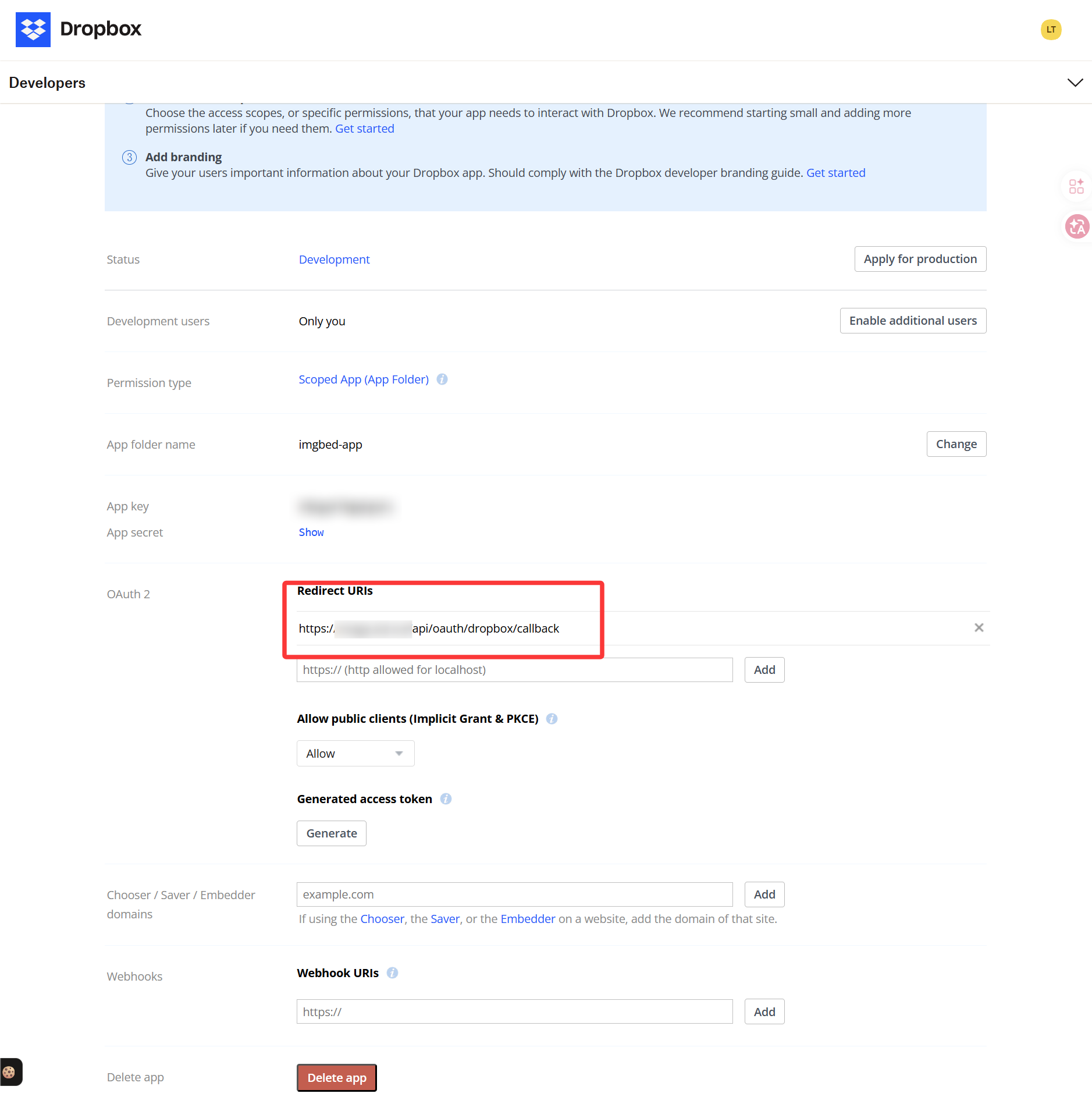
In the Dropbox app details page, find the OAuth or Redirect URI settings and add:
text
https://your-domain.com/api/oauth/dropbox/callbackIf you use the admin panel from more than one domain, add each matching callback URL.
Step 3: Configure App Permissions
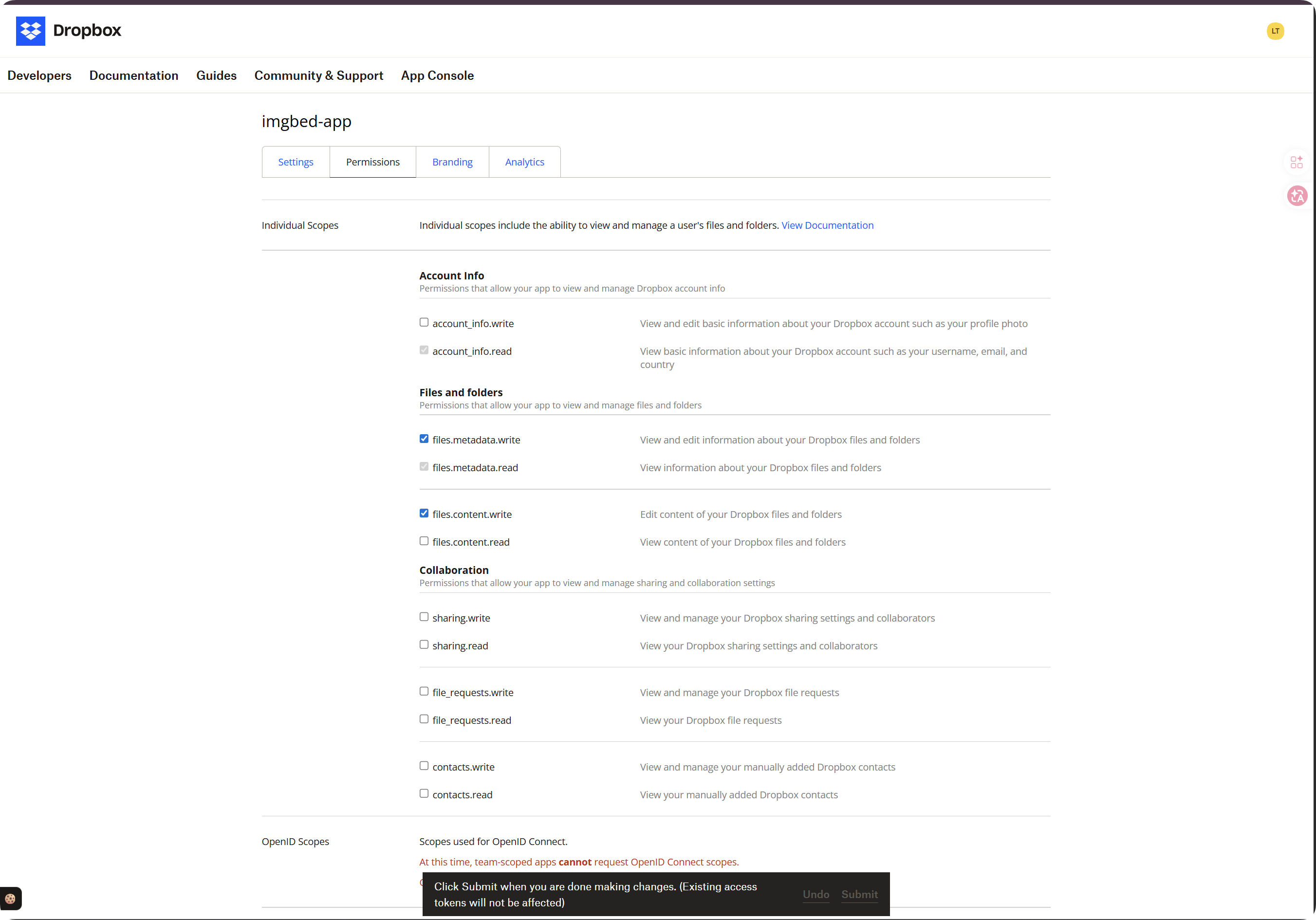
Open the Permissions tab and enable at least these scopes:
| Scope | Required | Purpose |
|---|---|---|
account_info.read | Required | Reads account and quota information |
files.metadata.read | Required | Reads file and folder metadata for path checks |
files.metadata.write | Required | Creates folders and writes metadata |
files.content.write | Required | Uploads files. Missing this scope causes required scope 'files.content.write'. |
files.content.read | Recommended | Allows download, preview, and temporary file links |
After selecting the scopes, click Submit at the bottom of the page.
Important:
| Situation | What To Do |
|---|---|
| You changed scopes | Run the token authorization flow again and get a new Refresh Token. |
| You did not reauthorize | The old token will not gain the new permissions, so uploads may still fail. |
Step 4: Copy the App Credentials
Save these two values from the Dropbox app page:
| Dropbox Field | ImgBed Field |
|---|---|
App key | App Key |
App secret | App Secret |
Step 5: Fill in the Dropbox Channel
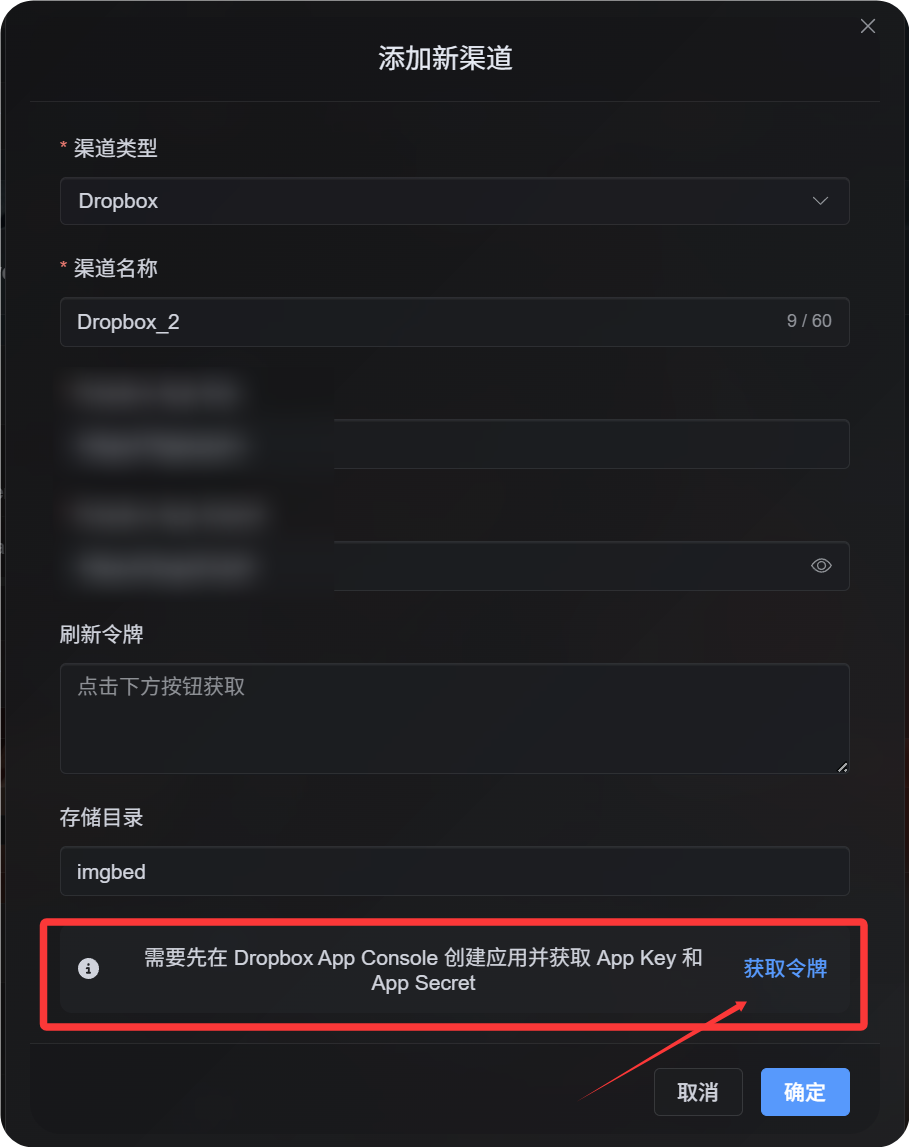
In Upload Settings, choose Dropbox and fill in:
| ImgBed Field | What To Enter |
|---|---|
| Channel name | A name you can recognize, such as Main Dropbox |
| App Key | The Dropbox App key |
| App Secret | The Dropbox App secret |
| Refresh Token | Leave it empty for now |
| Root directory | Optional. Defaults to imgbed. |
| Note | Optional |
Step 6: Get the Refresh Token
- In ImgBed, click
Get Token. - Sign in to the Dropbox account you want to connect.
- Approve the authorization prompt.
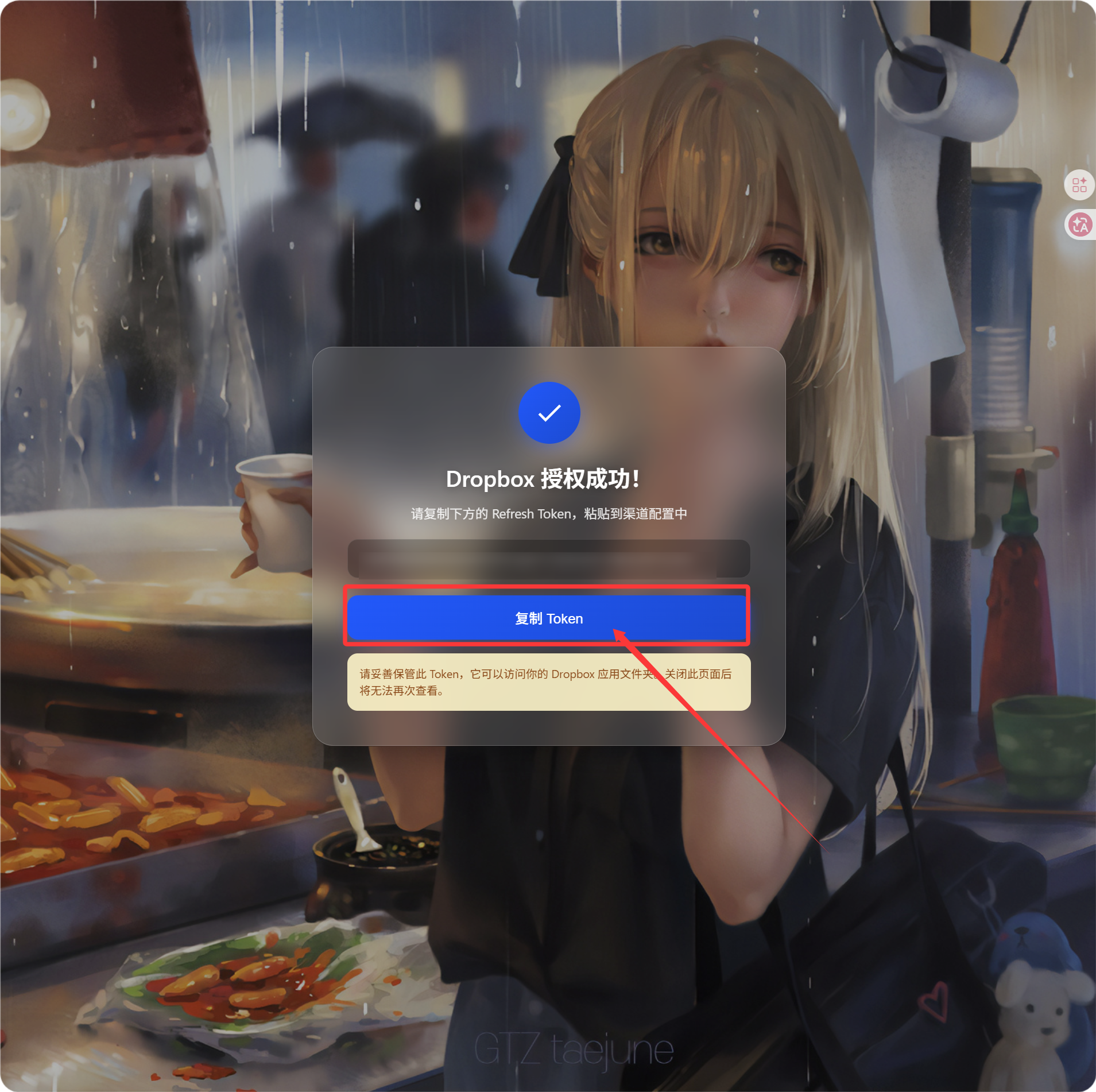
- The callback page will show a
Refresh Token. - Copy it.
- Return to ImgBed and paste it into the
Refresh Tokenfield.
How To Verify It
| Check | Expected Result |
|---|---|
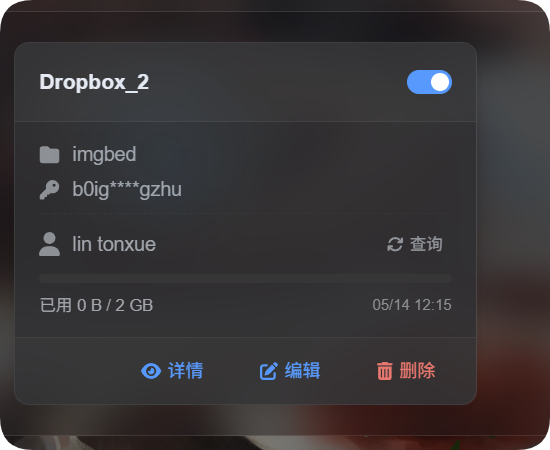
| Channel card | The Dropbox channel appears after saving. |
| Channel switch | The channel can be enabled. |
| Token saved | The detail page shows that the Refresh Token has been saved. |
| Upload test | A test image appears in the Dropbox app folder. |
If quota limits are enabled, click quota query. After a successful query, the channel card shows used space, total space, and the last update time.
Troubleshooting
| Problem | Fix |
|---|---|
| ImgBed says the configuration is incomplete | Check that App Key, App Secret, and Refresh Token are all filled in. |
Authorization succeeds but no Refresh Token appears | Click Get Token again and make sure the offline authorization flow is used. |
Upload fails with required scope 'files.content.write' | Enable files.content.write, click Submit, then get a new Refresh Token. |
| Callback fails | Confirm the redirect URI is https://your-domain.com/api/oauth/dropbox/callback. |
| Files cannot be found | Confirm the Dropbox app was created in App folder mode. |
Quick Flow
text
Open Dropbox App Console
-> Create an app
-> Choose App folder access
-> Add https://your-domain.com/api/oauth/dropbox/callback
-> Enable account_info.read / files.metadata.read / files.metadata.write / files.content.write
-> Optionally enable files.content.read
-> Click Submit
-> Copy App Key and App Secret
-> Fill them into ImgBed
-> Click Get Token
-> Copy the Refresh Token from the callback page
-> Paste it back into ImgBed and save
References
- Dropbox App Console: https://www.dropbox.com/developers/apps
- Dropbox OAuth Guide: https://developers.dropbox.com/oauth-guide
- Dropbox Developer Guide: https://www.dropbox.com/developers/reference/developer-guide