Adding a pCloud Channel
Best For
- You have a pCloud account and want ImgBed to store images in pCloud.
- You are comfortable using your pCloud account email and password as channel credentials.
What You Need First
| Requirement | Why You Need It |
|---|---|
| pCloud account email | Used to sign in to the pCloud API |
| pCloud password | Used to sign in to the pCloud API |
| API host | Defaults to api.pcloud.com. EU accounts can use eapi.pcloud.com. |
| Storage directory | Where files are stored. Defaults to imgbed. |
Where To Add It
- Open System Settings.
- Open Upload Settings.
- Click
Add Channelin the upper-right corner. - Choose
pCloud.
Field Reference
| Field | Purpose | Required |
|---|---|---|
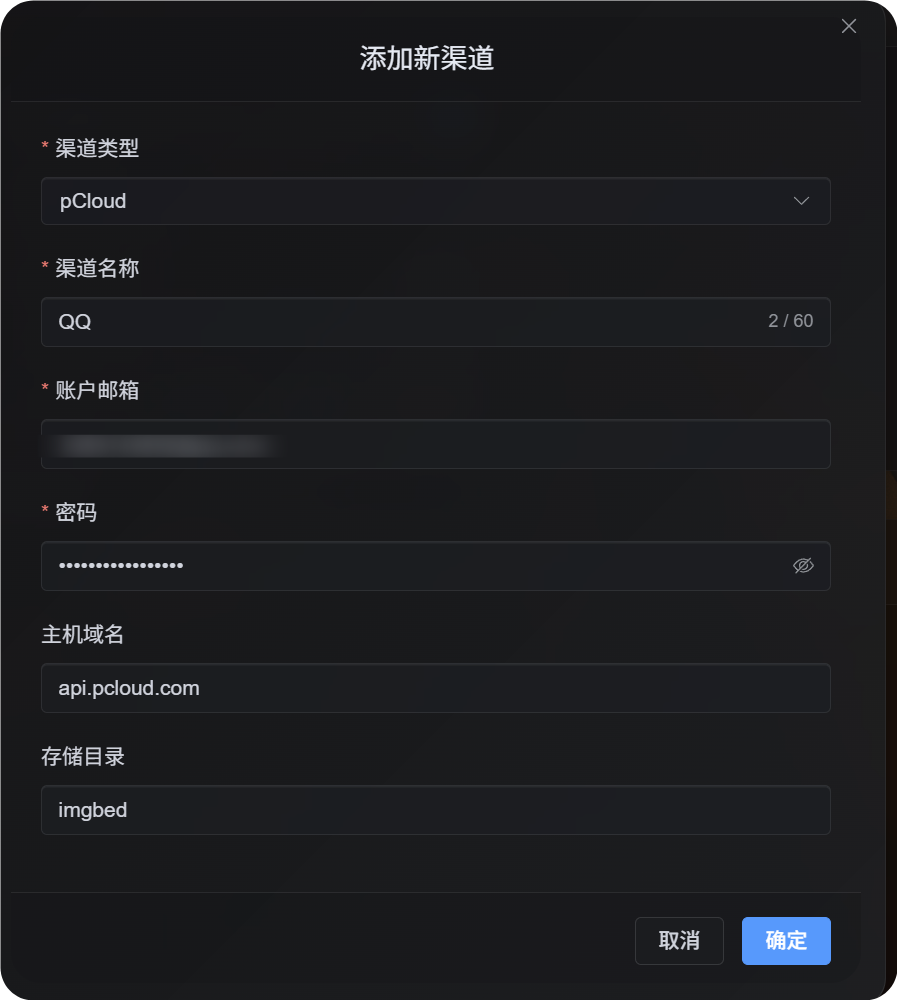
| Channel name | Identifies this pCloud channel, for example Personal pCloud | Yes |
| Account email | Your pCloud login email | Yes |
| Password | Your pCloud password | Yes |
| API host | pCloud API host. Defaults to api.pcloud.com. | No |
| Storage directory | Directory used to store files. Defaults to imgbed. | No |
Choose the API host based on your account region:
| Account Region | API Host |
|---|---|
| Default / US | api.pcloud.com |
| Europe | eapi.pcloud.com |
Setup Steps
- Open Upload Settings.
- Click
Add Channel. - Choose
pCloud. - Enter a channel name you can recognize.
- Enter your pCloud account email.
- Enter your pCloud password.
- Keep the API host as
api.pcloud.com, or useeapi.pcloud.comfor EU accounts. - Keep the storage directory as
imgbed, or change it to your preferred folder. - Save the channel.
How To Verify It
| Check | Expected Result |
|---|---|
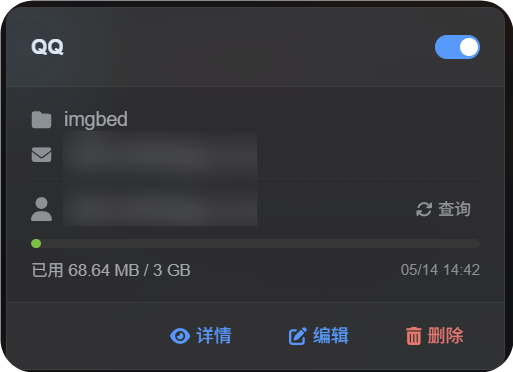
| Channel card | The pCloud channel card appears after saving. |
| Channel switch | The switch on the card stays enabled. |
| Email display | The card shows the connected pCloud email. |
| Quota query | After a successful query, used and total capacity are displayed. |
| Upload test | A test image appears in the configured pCloud storage directory. |
Troubleshooting
Why Not OAuth2?
pCloud OAuth2 is not self-service by default. You need to email pCloud and ask them to enable it.
The current pCloud OAuth2 flow also does not support the short-lived upload link workflow that ImgBed needs, so this channel uses account email and password login instead.
Which API Host Should I Use?
Default:
text
api.pcloud.comFor EU accounts:
text
eapi.pcloud.comQuick Flow
text
Prepare your pCloud email and password
-> Open Upload Settings
-> Add Channel
-> Choose pCloud
-> Fill channel name / email / password
-> Keep API host as api.pcloud.com unless your account is in Europe
-> Keep storage directory as imgbed unless you need another folder
-> Save
-> Query quota
-> Upload a test image