Authentication and Login Device Management
Authentication Management and Login Device Management protect your ImgBed admin panel, public upload entry, and WebDAV access.
Use this page to set access credentials, review signed-in devices, and revoke old sessions when needed.
Where To Configure It
Open the admin panel, then go to:
text
System Settings -> Security SettingsThe page contains two main areas:
- Authentication Management
- Login Device Management
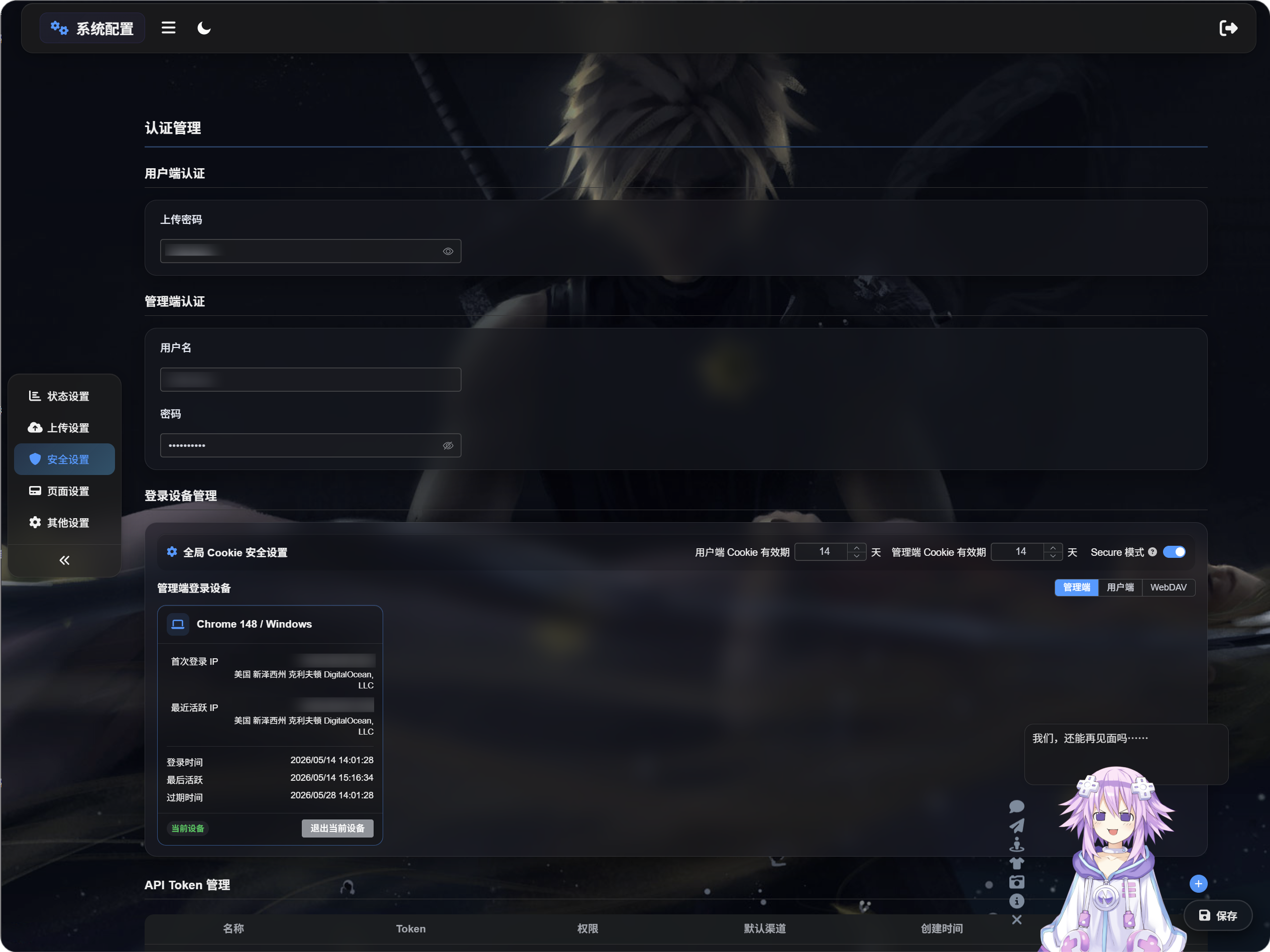
What Authentication Management Does
Authentication Management stores access credentials.
There are two types:
- User-side authentication
- Admin-side authentication
User-Side Authentication
User-side authentication is the upload password.
After an upload password is set, regular visitors must enter it before using the upload page. This is useful when you do not want the public upload page to be open to everyone.

Setting the Upload Password
When an upload password is configured:
- Visitors must enter the password before using the upload page.
- Uploading is available only after the password is accepted.
- If user-side device sessions are enabled, ImgBed records that user-side device.
Changing the upload password invalidates old user-side sessions. Visitors need to enter the new password again.
Admin-Side Authentication
Admin-side authentication uses an admin username and password.
This protects the admin panel. For production use, you should always configure it.

Setting Admin Credentials
When an admin username and password are configured:
- Opening the admin panel requires login.
- Successful login creates an admin device record.
- You can review, clean up, or force devices offline in Login Device Management.
Changing the admin username or password invalidates old admin sessions. You need to sign in again.
What Login Device Management Does
Login Device Management shows devices that have signed in.
It helps you check:
- Which devices have accessed the admin panel.
- Which devices have accessed the user-side upload page.
- Which WebDAV clients have connected.
- Whether a device session is still valid.
- Whether old devices should be forced offline.
The page has three tabs:
- Admin
- User
- WebDAV
Global Cookie Security
At the top of Login Device Management, you can configure global cookie behavior.
User Cookie Lifetime
Controls how many days a user-side login can stay active.
For example, if you set it to 14 days, visitors usually do not need to enter the upload password again within 14 days.
Admin Cookie Lifetime
Controls how many days an admin login can stay active.
For example, if you set it to 14 days, administrators usually do not need to sign in again within 14 days.
Secure Mode
When Secure mode is enabled, browsers only send login cookies over HTTPS.
Enable it for production HTTPS sites. Do not enable it for local HTTP testing, or you may see "login succeeded, but refresh logs me out" behavior.
Admin Login Devices
The Admin tab shows devices that signed in to the admin panel.
Device records appear only after admin credentials are configured and the admin panel is accessed through login.
Each device card can show:
- Device and browser information
- First login IP
- Last active IP
- Login time
- Last active time
- Expiration time
- Current status
If you see an unfamiliar device, use Force Offline to invalidate it.
Clean Up Old Devices
Clean Up Old Devices removes old login records in the current tab in bulk.
Use it when you suspect old sessions may still be active on other devices.
Force Offline
Force Offline invalidates one device session.
After a device is forced offline:
- Admin devices must sign in again.
- User-side devices must enter the upload password again.
- WebDAV clients must authenticate again.
Expired or invalid devices can also be removed.
Sign Out Current Device
The current device card is marked as Current Device.
After signing out the current device:
- The current admin session is signed out.
- The current user-side session is signed out.
You need to sign in again before continuing to use that area.