WebDAV Site Access (Beta)
The WebDAV setting in Security Settings exposes your ImgBed site as a WebDAV endpoint.
After it is enabled, you can use Windows, macOS, mobile file managers, or any WebDAV-compatible client to browse, upload, delete, and manage ImgBed files like a remote folder.
This is the site's WebDAV access entry. It is different from the WebDAV storage channel in Upload Settings. The upload channel stores files in a third-party WebDAV service. This setting lets your ImgBed site provide WebDAV access to clients.
Where To Configure It
Open the admin panel, then go to:
text
System Settings -> Security Settings -> WebDAVAvailable settings:
- Enable
- Username
- Password
- Image loading mode
- Default channel
What This Feature Does
After WebDAV is enabled, ImgBed provides a fixed access URL:
text
https://your-domain.com/davUse this URL to connect to your ImgBed file directory.
Good use cases:
- Browse ImgBed files directly from your computer file manager.
- Drag images into the WebDAV folder to upload them.
- Organize ImgBed folders from your local file manager.
- Use WebDAV-compatible software to sync or manage images.
- Access ImgBed content without opening the admin panel.
Settings
Enable
Turns the WebDAV endpoint on.
When disabled, clients cannot connect through WebDAV.
Username and Password
These credentials are used by WebDAV clients when connecting.
Use a dedicated WebDAV username and password. Do not reuse the admin password or upload password.
If either username or password is empty, WebDAV clients cannot connect properly.
Image Loading Mode
Image loading mode decides which image URL WebDAV clients prefer when reading images.
Common choices:
| Mode | Description |
|---|---|
| Smart loading | ImgBed chooses based on context. Recommended for normal use. |
| Original | Prefer original images. |
| Thumbnail | Prefer thumbnails. Useful for fast preview. |
If you are unsure, keep Smart loading.
Default Channel
The default channel is used for WebDAV uploads.
When you copy files into the WebDAV directory from Windows or another client, ImgBed uploads them through the selected default upload channel.
If no default channel is selected, browsing may work, but uploads may fail.
Accessing WebDAV in Windows 11
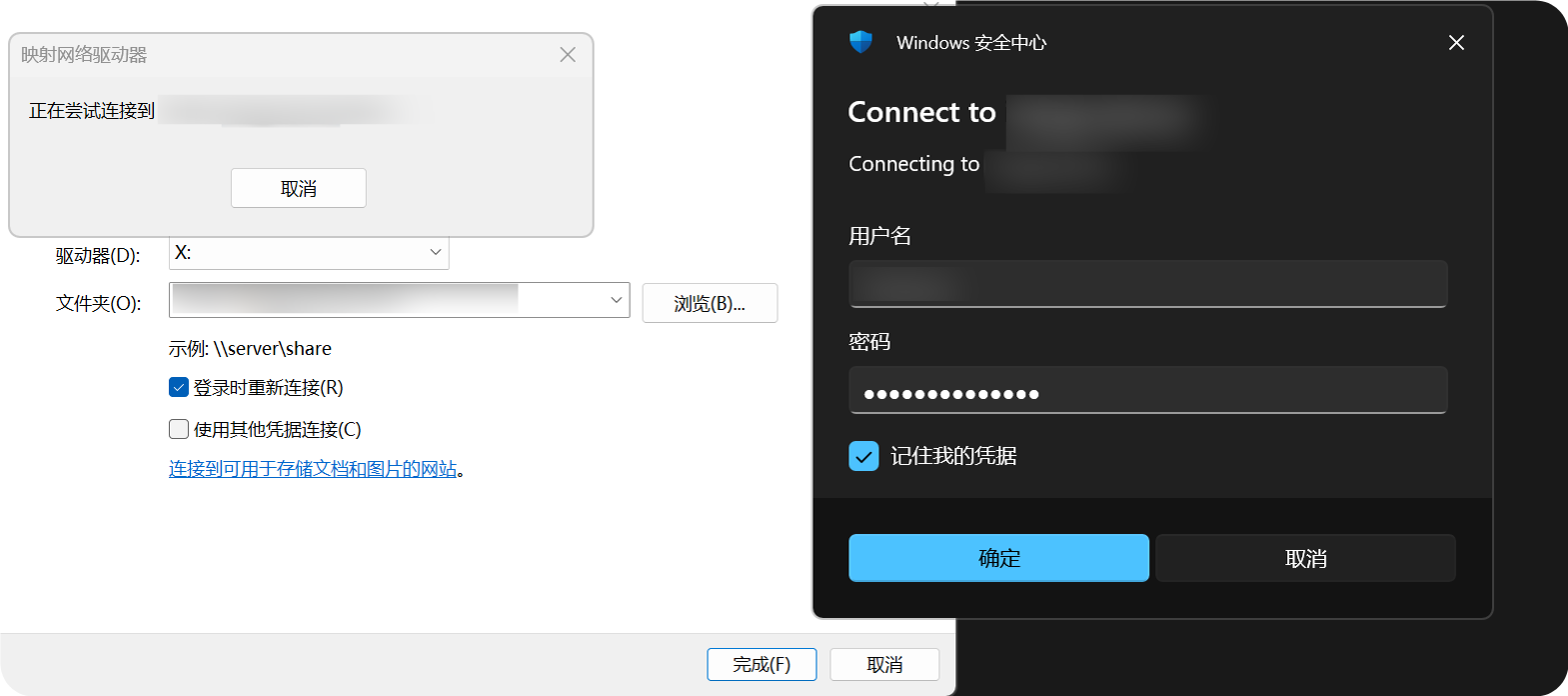
Windows 11 can add WebDAV as a network location.
- Open
This PC. - Choose
Add a network location. - Enter
https://your-domain.com/dav. - Enter your WebDAV username and password when prompted.
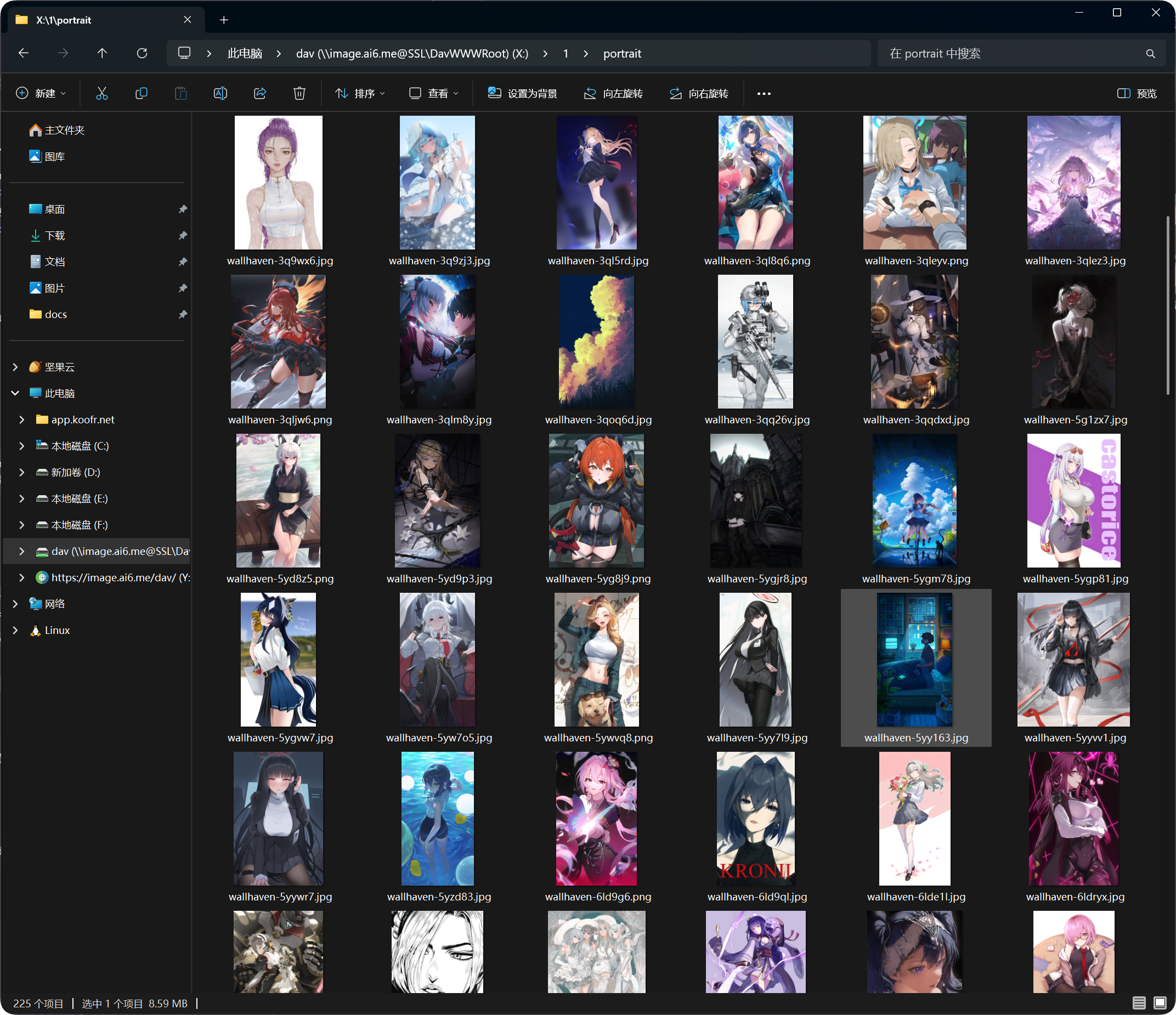
- Finish the wizard. The WebDAV directory can then be opened in File Explorer.
After it is added, the WebDAV directory appears in Windows File Explorer. You can open, copy, and manage files like a normal folder.
Supported Operations
After a successful WebDAV connection, you can usually:
- View files and folders.
- Upload files.
- Create folders.
- Rename files or folders.
- Move files.
- Delete files.
WebDAV is best for everyday access and small-scale file management. For large moves, bulk deletes, or complex organization, use the admin panel.
Login Device Management
Successful WebDAV connections also appear under the WebDAV tab in Login Device Management.
You can review WebDAV clients there and force old devices offline when needed.
If you change the WebDAV username or password, old clients need to sign in again.
FAQ
Windows Keeps Asking for Username and Password
Check:
- The URL is
https://your-domain.com/dav. - The username and password match the WebDAV settings.
- WebDAV is enabled.
- The site can be accessed over HTTPS.
Browsing Works, but Uploading Fails
Check the Default channel.
WebDAV uploads need a default upload channel. If it is missing, disabled, or misconfigured, uploads may fail.
Access Speed Is Unstable
WebDAV performance depends on the client, network, file count, and default upload channel.
If a directory has many files, organize them into folders instead of keeping too many files in one directory.
Security Recommendations
- Use HTTPS for WebDAV access.
- Set a strong password.
- Do not share the WebDAV password with untrusted people.
- Turn WebDAV off when you do not use it.
- Periodically clean up unused WebDAV devices in Login Device Management.
WebDAV Upload File Size
WebDAV clients do not use the browser upload page's large-file chunking flow. For files above the suggested limits below, use the web upload page instead.
| Default Upload Channel | Suggested Single-File Limit for WebDAV |
|---|---|
| Telegram | 20 MB |
| Discord | 10 MB |
| Cloudflare R2 | 30 MB |
| S3 | 30 MB |
| GitHub Releases | 64 MB |
| GitLab Packages | 64 MB |
| Hugging Face | 20 MB |
| OneDrive | 30 MB |
| Google Drive | 30 MB |
| Dropbox | 30 MB |
| Yandex Disk | 30 MB |
| pCloud | 30 MB |
| WebDAV | 64 MB |