IP Geolocation and User Management
IP geolocation turns IP addresses in uploader records, login devices, and similar logs into approximate locations.
After it is configured, the admin panel can show upload and access origins more clearly. User Management also lets you block or restore upload access for suspicious IP addresses.
Where To Configure It
Open:
text
System Settings -> Other Settings -> IP Geolocation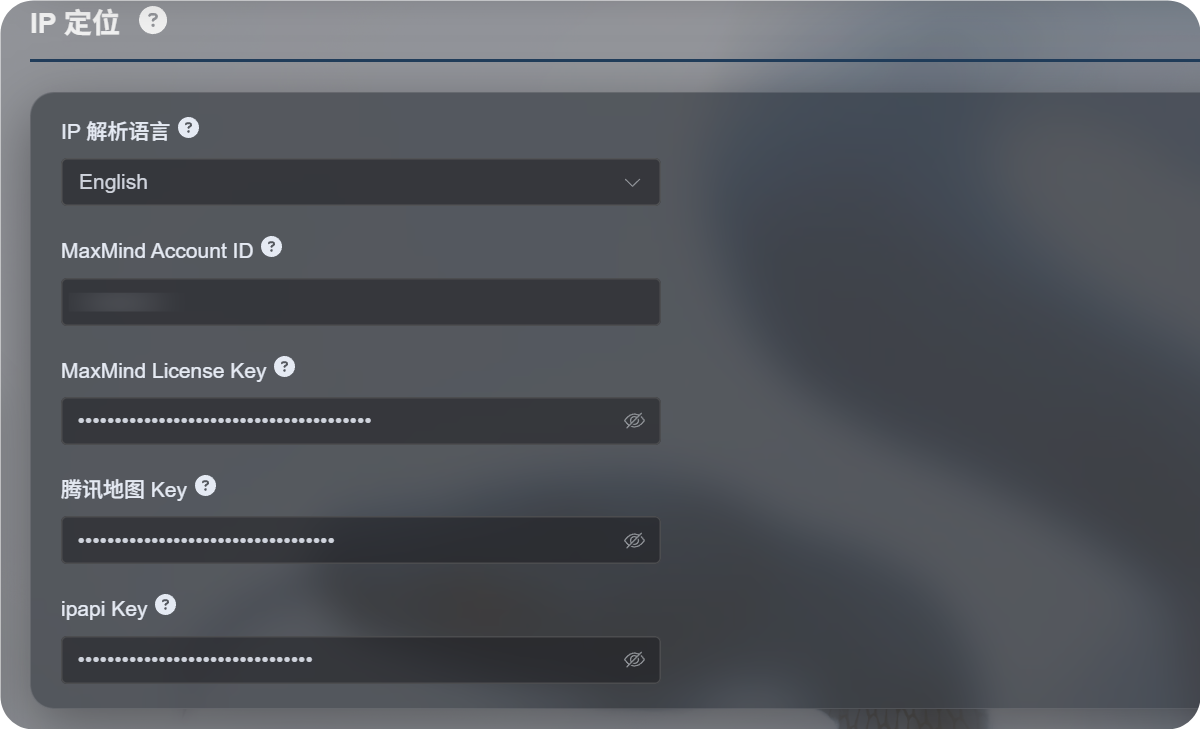
Available Settings
The newer IP geolocation flow supports multiple sources instead of relying on one map service.
| Setting | Purpose |
|---|---|
| IP geolocation language | Chooses the display language, such as English, Simplified Chinese, Japanese, French, and others. |
| MaxMind Account ID | MaxMind account ID for MaxMind GeoLite Web Service. |
| MaxMind License Key | MaxMind License Key. |
| Tencent Map Key | Tencent Location Service key. Useful for Chinese addresses and mainland China IPs. |
| ipapi Key | APILayer ipapi key. Supports multilingual IP geolocation. |
Fill in only the services you need. You do not have to configure every field.
If no key is provided, ImgBed still tries built-in free sources, but stability, language support, and precision may be lower than a service you configure yourself.
Recommended Choices
If you mainly need Chinese addresses:
- Set IP geolocation language to Simplified Chinese.
- Configure Tencent Map Key.
- Optionally add MaxMind or ipapi as fallback sources.
If you mainly need English or multilingual addresses:
- Choose the language you need.
- Configure MaxMind Account ID and License Key.
- Add an ipapi Key if you need better multilingual results.
MaxMind Setup
MaxMind needs:
text
MaxMind Account ID
MaxMind License Key
Find the account ID in the MaxMind dashboard and generate a License Key from the License Keys page.
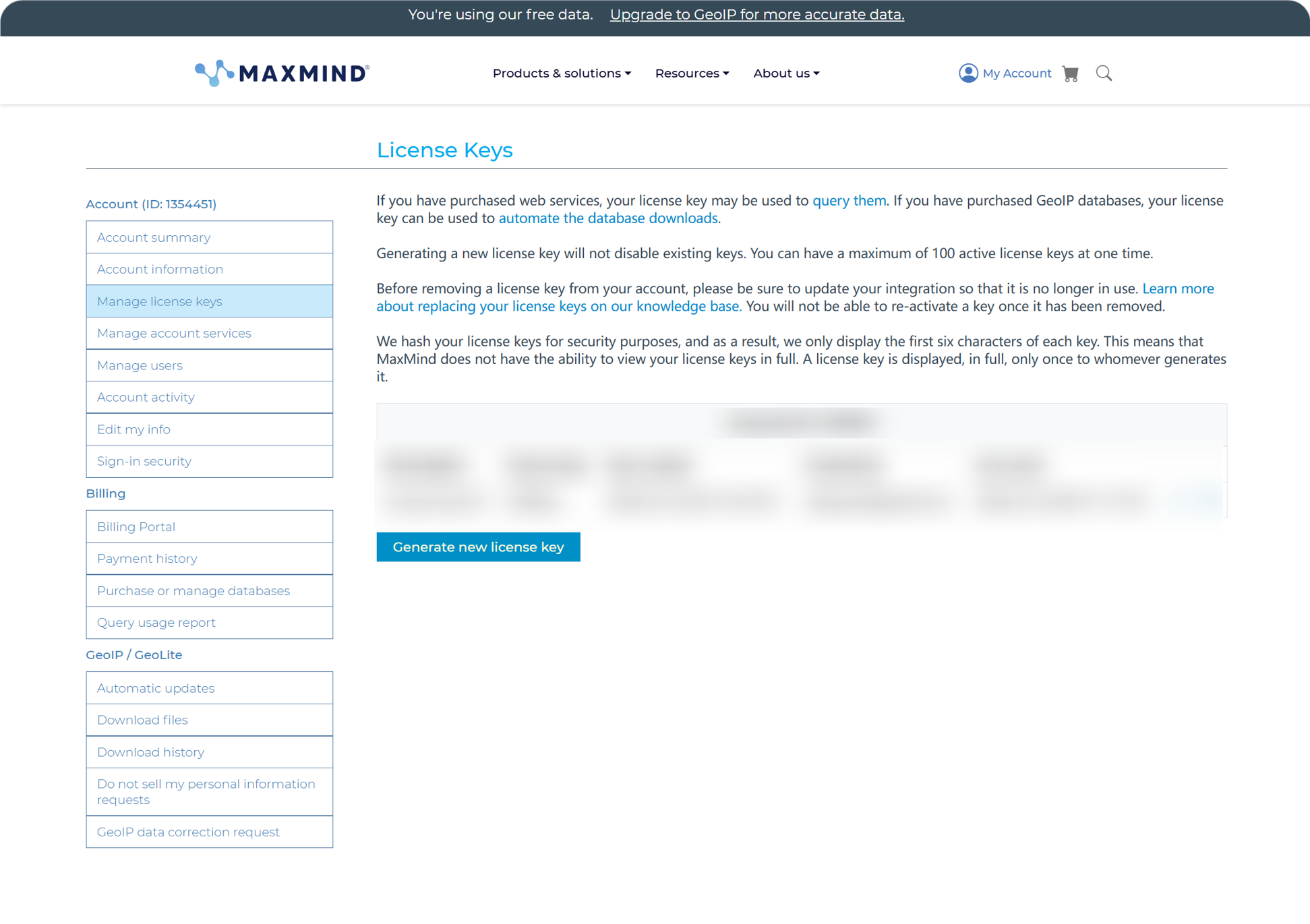
After generation, paste the Account ID and License Key into ImgBed and save.
MaxMind's free plan is suitable for everyday use, but it has request limits. If the quota is exceeded, ImgBed continues trying other available sources.
ipapi Setup
ipapi uses an APILayer API Key.
Open the ipapi console and copy the API Key shown there.
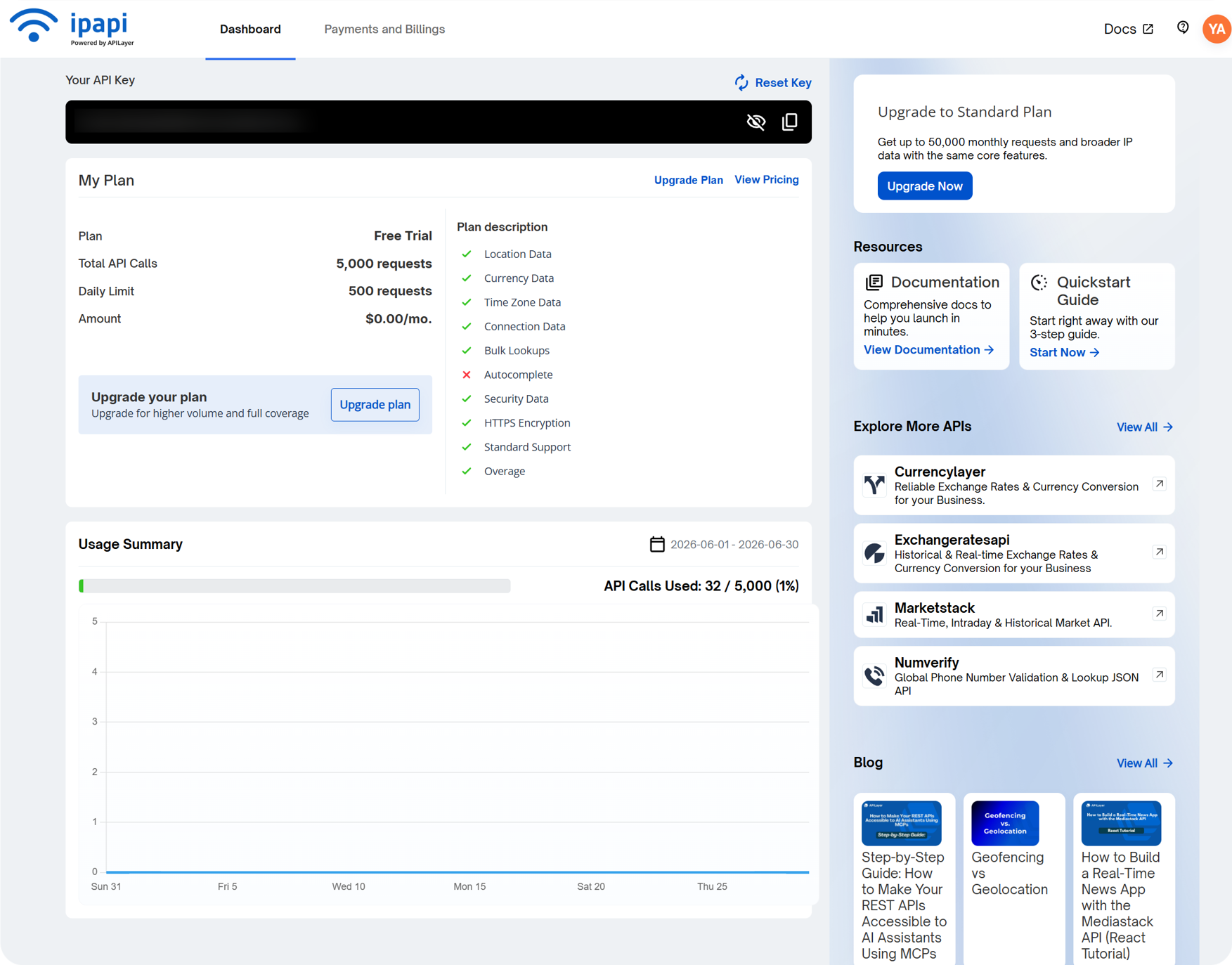
Paste it into the ipapi Key field in ImgBed and save.
ipapi supports multilingual IP geolocation and is useful when you want addresses shown in a selected language. Its free plan also has request limits. If quota runs out, ImgBed continues trying other available sources.
Tencent Map Key Setup
Tencent Map Key is useful for Chinese addresses, especially mainland China IPs.
When creating a key in Tencent Location Service, enable:
text
WebServiceAPIAfter creation, paste the key into Tencent Map Key and save.
If you only need basic Chinese IP geolocation, Tencent Map Key is enough to get started.
What To Check in User Management
User Management is available from the top of the admin panel.
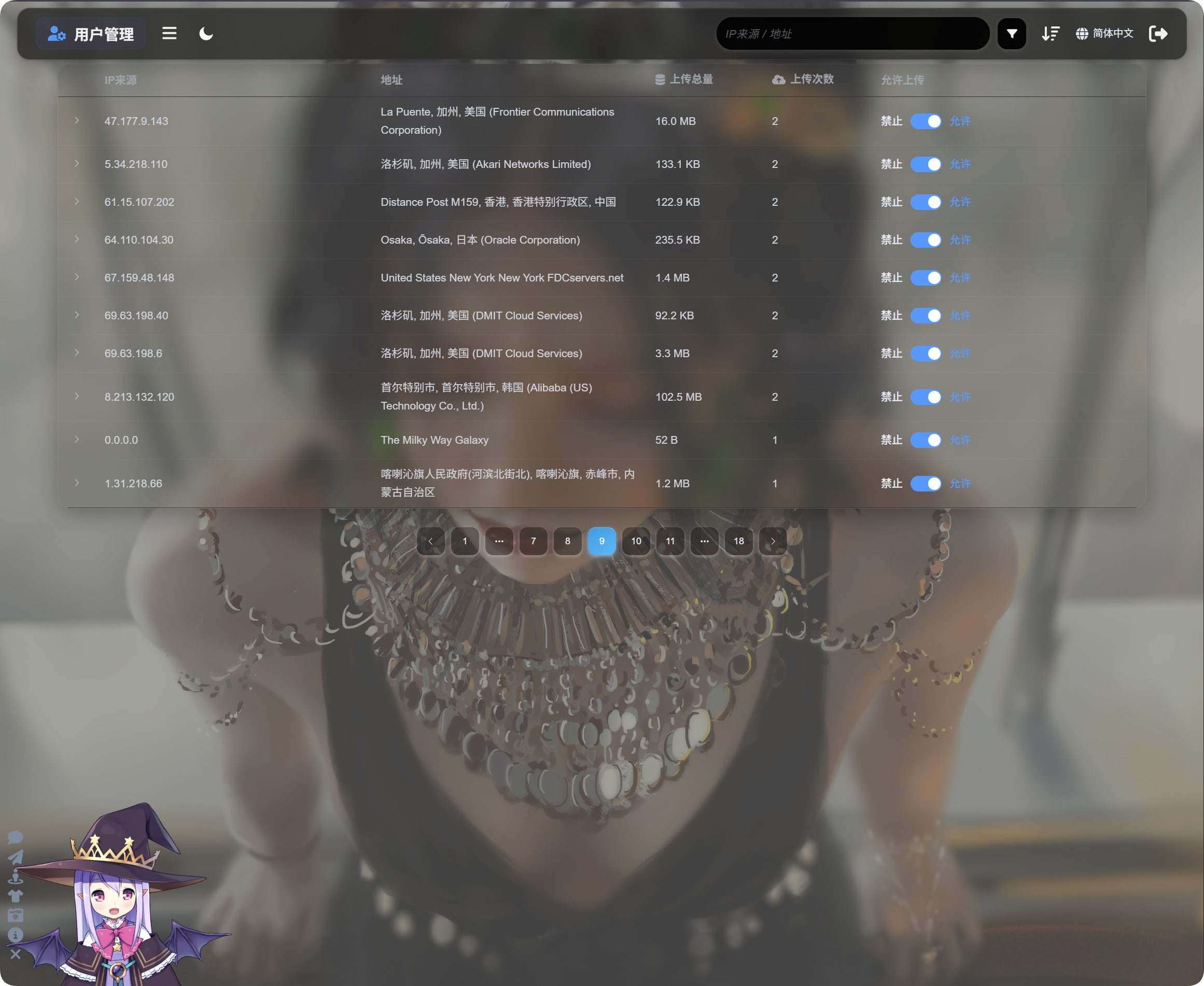
User Management shows upload activity by IP:
| Field | Description |
|---|---|
| IP source | Uploader source IP. |
| Address | Approximate location resolved from the IP. |
| Total upload size | Total file size uploaded by this IP. |
| Upload count | Number of uploads from this IP. |
| Upload allowed | On means uploads are allowed. Off means uploads are blocked. |
Click the arrow on the left to expand the list of files uploaded by that IP.
The file list shows file name, preview, file size, moderation result, file status, and upload time. When uploads look suspicious, expand the IP first, review the files, then decide whether to block further uploads.
If an IP is suspicious, turn off Upload allowed. Future uploads from that IP will be blocked.
Search, Sort, and Advanced Filters
At the top of User Management, search by IP source or address.
Sort by time, upload count, or total upload size to find recent uploaders, high-frequency uploaders, or high-usage IPs.
For deeper investigation, open advanced filters.
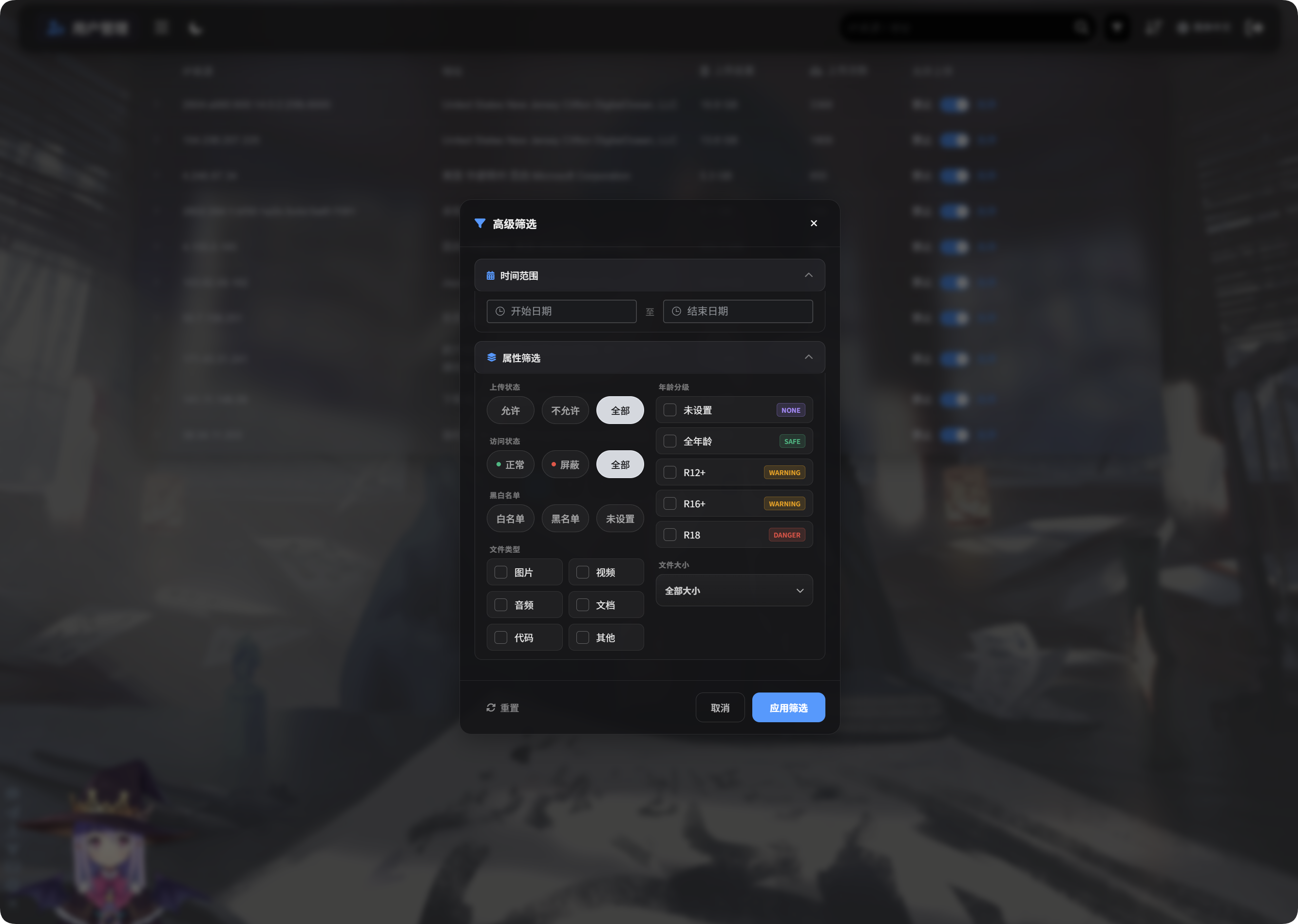
Advanced filters support:
| Filter | Usage |
|---|---|
| Time range | Show IPs that uploaded files during a selected period. |
| Access status | Filter by normal, blocked, and similar states. |
| Allow/block list | Filter by allowlist, blocklist, or unset. |
| File type | Show IPs that uploaded images, videos, audio, documents, code, or other files. |
| File size | Filter by uploaded file size range. |
| Age rating | Filter by unset, General, R12+, R16+, R18, and similar ratings. |
| File status | Filter by current file status to investigate abnormal files. |
Click Apply Filters to apply. Use Reset to return to all data.
Mobile View
On mobile, User Management switches to card layout.
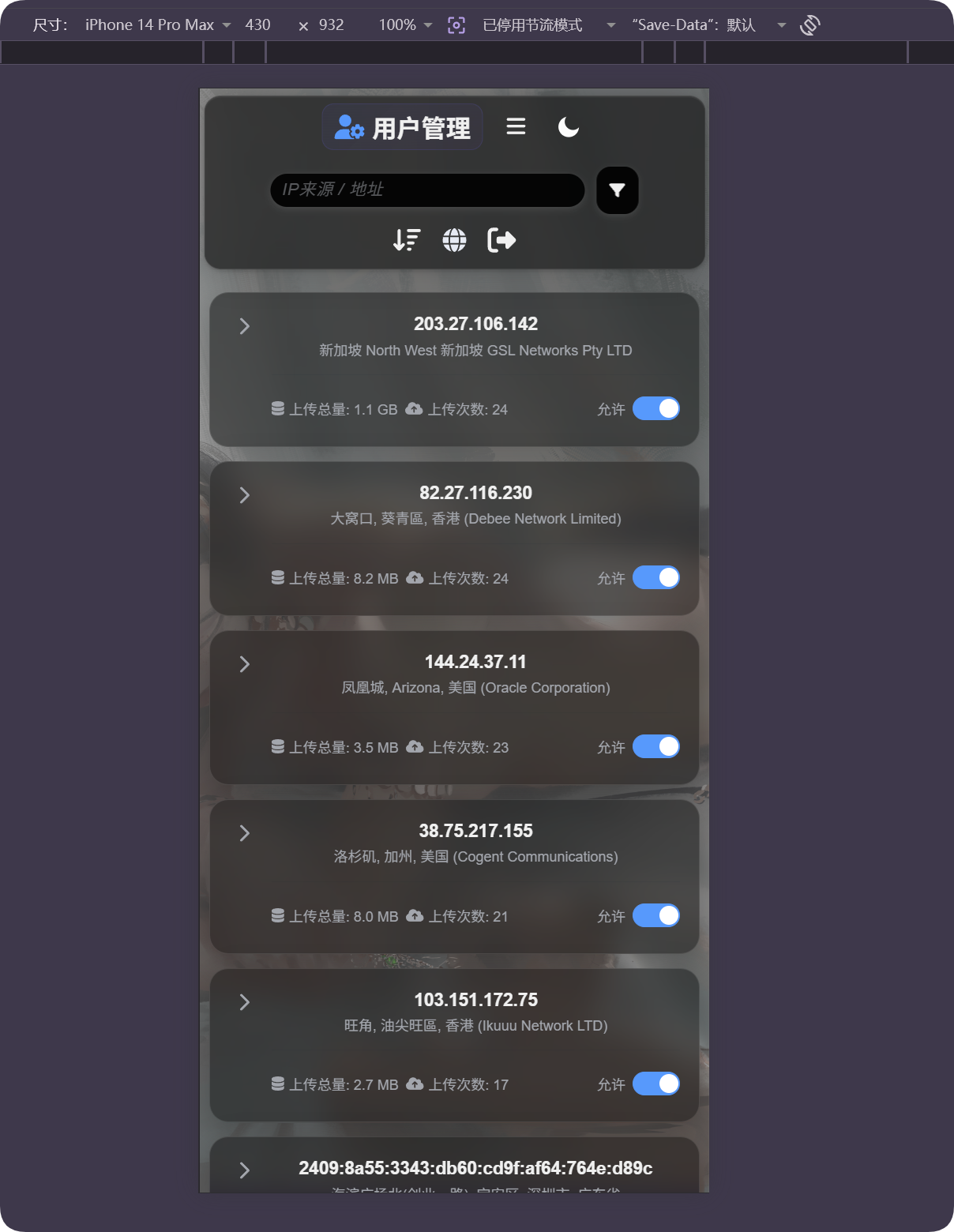
Each card shows IP, address, total upload size, upload count, and the upload allowed switch. You can manage users without horizontal table scrolling.
If the Location Looks Wrong
IP geolocation is approximate. It is not a precise street address.
If the user is behind a proxy, data center, cloud server, or cross-border network, the displayed location may differ from the real location.
Use this feature to understand rough origin, find abnormal uploads, and assist blocking decisions. Do not treat it as precise tracking.
Common Cases
| Case | Meaning |
|---|---|
| Address is empty | The IP may not have resolved yet, or the current source is temporarily unavailable. |
| Address language is wrong | Check IP geolocation language and whether a source supporting that language is configured. |
| Address shows a data center | Many proxies, cloud servers, and crawlers appear as data center or ISP addresses. |
| Upload count is high | Review this IP carefully and block uploads if needed. |
| Total upload size is large | Sort or filter, expand the IP, and inspect specific files. |
| Need to restore after blocking | Turn Upload allowed back on. |
Quick Flow
text
Open IP Geolocation in Other Settings
-> Choose IP geolocation language
-> Fill MaxMind, Tencent Map, or ipapi credentials as needed
-> Save settings
-> Open User Management
-> Review IP source, address, total upload size, and upload count
-> Use search, sort, or advanced filters to find abnormal IPs
-> Allow or block uploads as needed