Adding a Yandex Channel
What You Need First
| Requirement | Why You Need It |
|---|---|
| A Yandex account | Used to sign in and authorize Yandex Disk |
| A Yandex OAuth app | Used to generate the Client ID and Client Secret |
| Your ImgBed domain | Used for the OAuth redirect URI |
| Available Yandex Disk storage | Used as the actual file storage location |
Setup Steps
Step 1: Create a Yandex OAuth App
- Open the Yandex OAuth app creation page:
text
https://oauth.yandex.com/client/new- If you are redirected to sign in, sign in with your Yandex account first.
- Create a new app.
- Give the app a recognizable name, such as
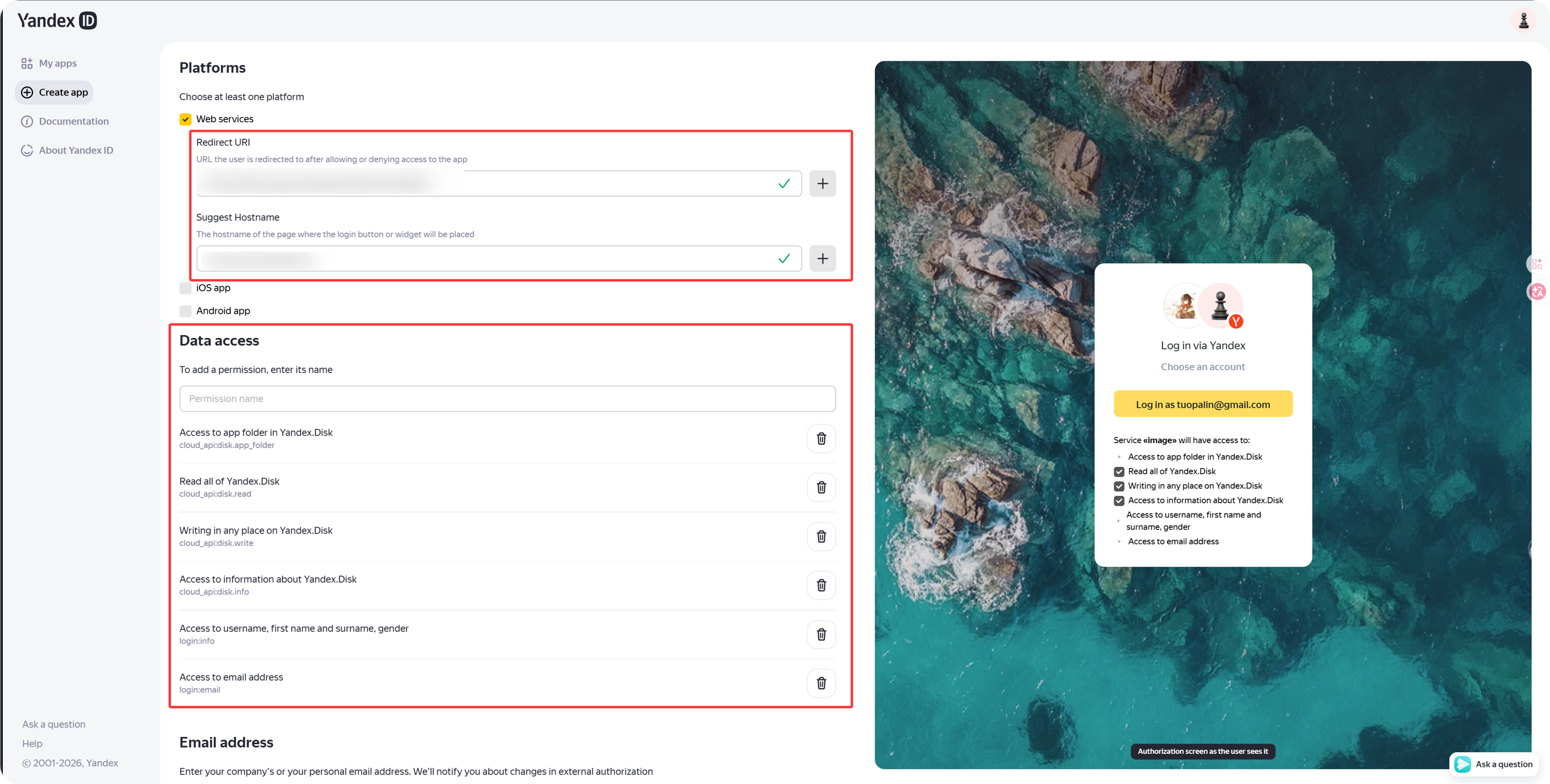
imgbed-yandex. - Find the callback or redirect URL settings.
- Enter:
text
https://your-domain.com/api/oauth/yandex/callbackStep 2: Confirm Permissions
For the current ImgBed Yandex integration, keep these four permissions under Yandex.Disk REST API:
| Permission | Purpose |
|---|---|
cloud_api:disk.app_folder | Allows ImgBed to store files in the app folder |
cloud_api:disk.read | Reads files and download links |
cloud_api:disk.write | Uploads files, creates folders, and deletes files |
Access to information about Yandex.Disk | Reads disk quota and used space |
If you also see these permissions under Yandex ID API, they are optional:
| Permission Text | Recommendation |
|---|---|
Access to username, first name and surname, gender | Optional |
Access to email address | Optional |
Core upload, download, deletion, and quota features mainly depend on the four Yandex.Disk REST API permissions above.
Step 3: Copy App Credentials
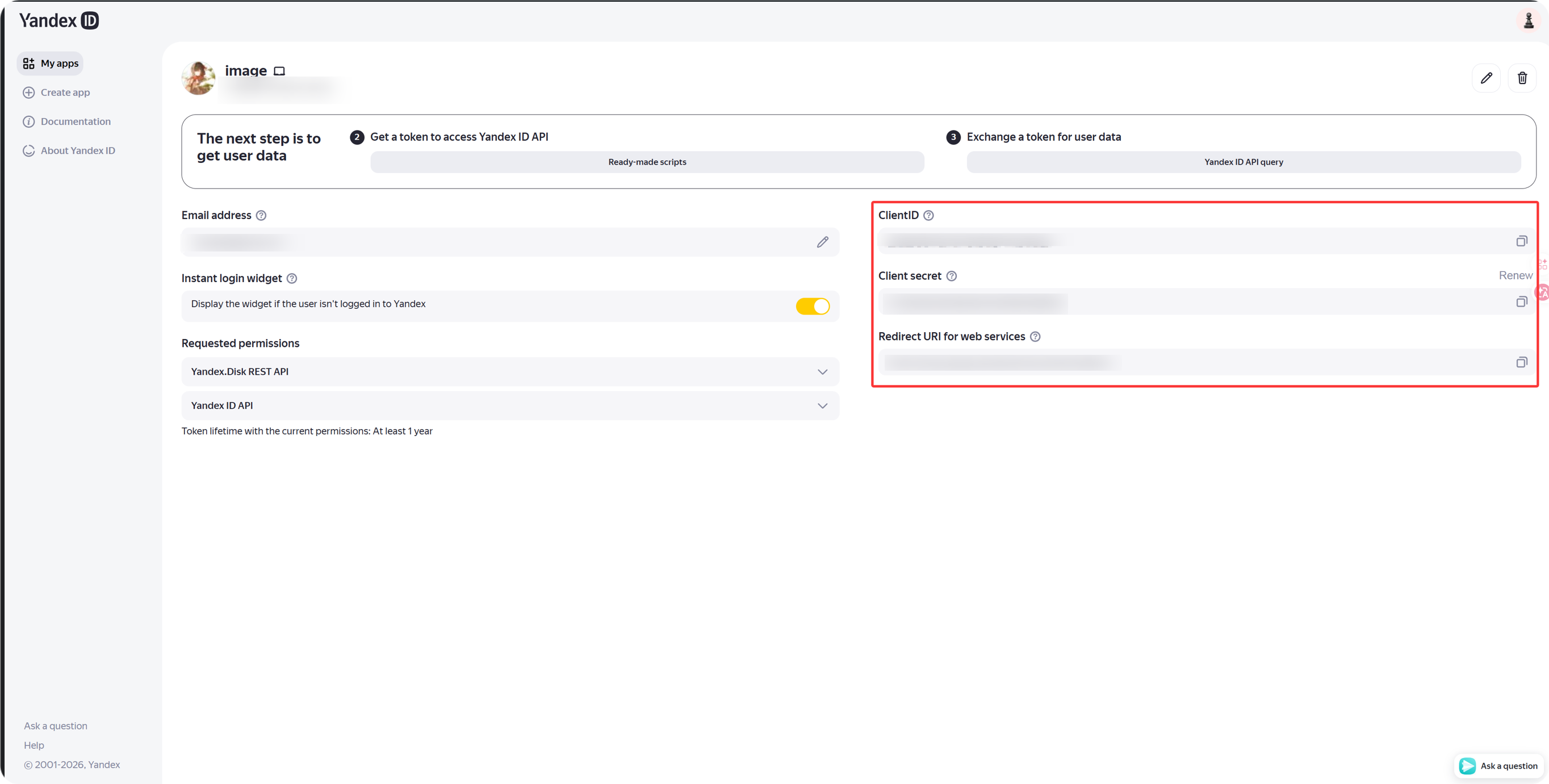
After the app is created, copy:
| Yandex Field | ImgBed Field |
|---|---|
Client ID | Client ID |
Client Secret | Client Secret |
Step 4: Fill in the Yandex Channel
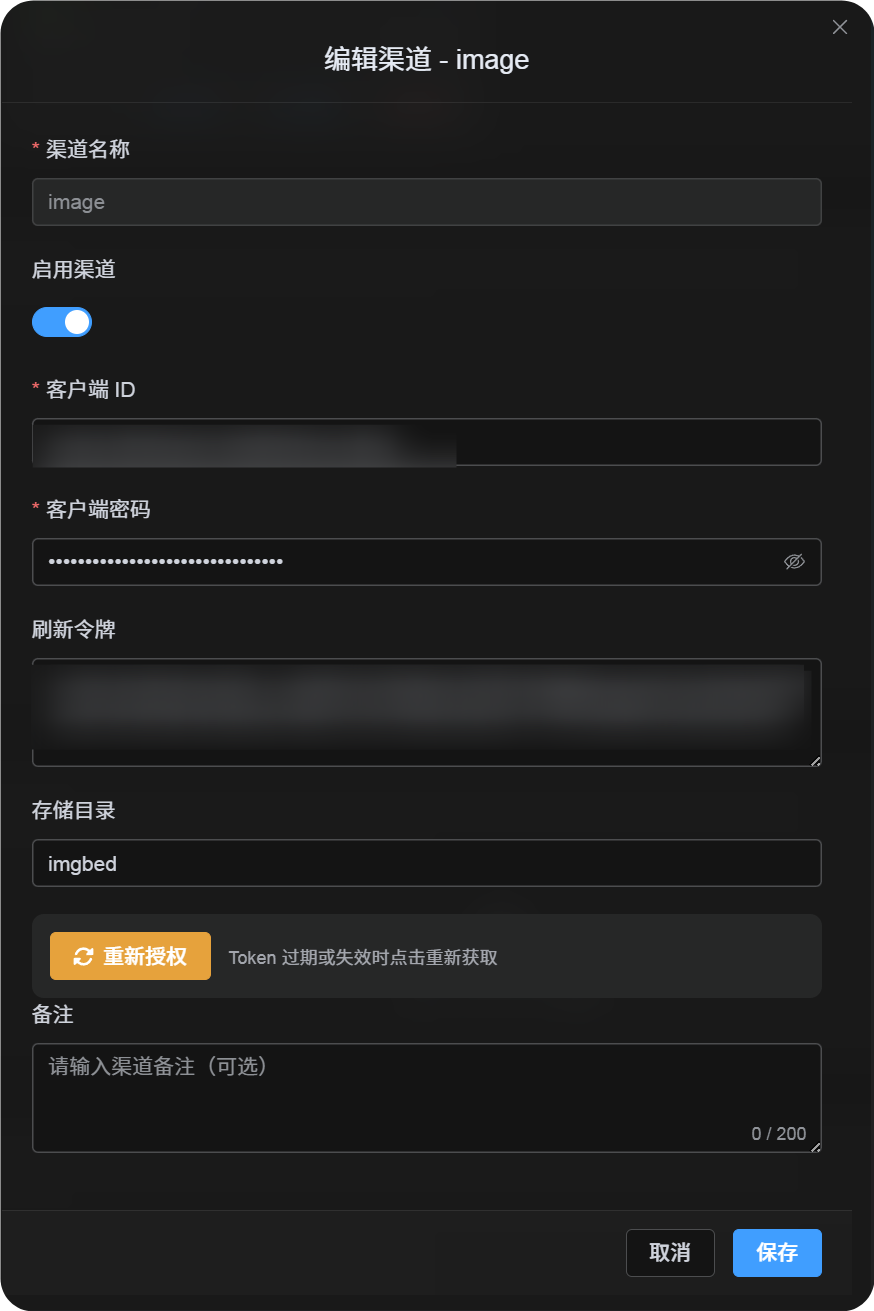
In Upload Settings, choose Yandex and fill in:
| ImgBed Field | What To Enter |
|---|---|
| Channel name | A recognizable name, such as Main Yandex |
| Client ID | The Yandex app Client ID |
| Client Secret | The Yandex app Client Secret |
| Refresh Token | Leave it empty for now |
| Root directory | Optional. Defaults to imgbed. |
Step 5: Get the Refresh Token
- In ImgBed, click
Get Token. - Sign in to the Yandex account you want to connect.
- Approve the authorization prompt.
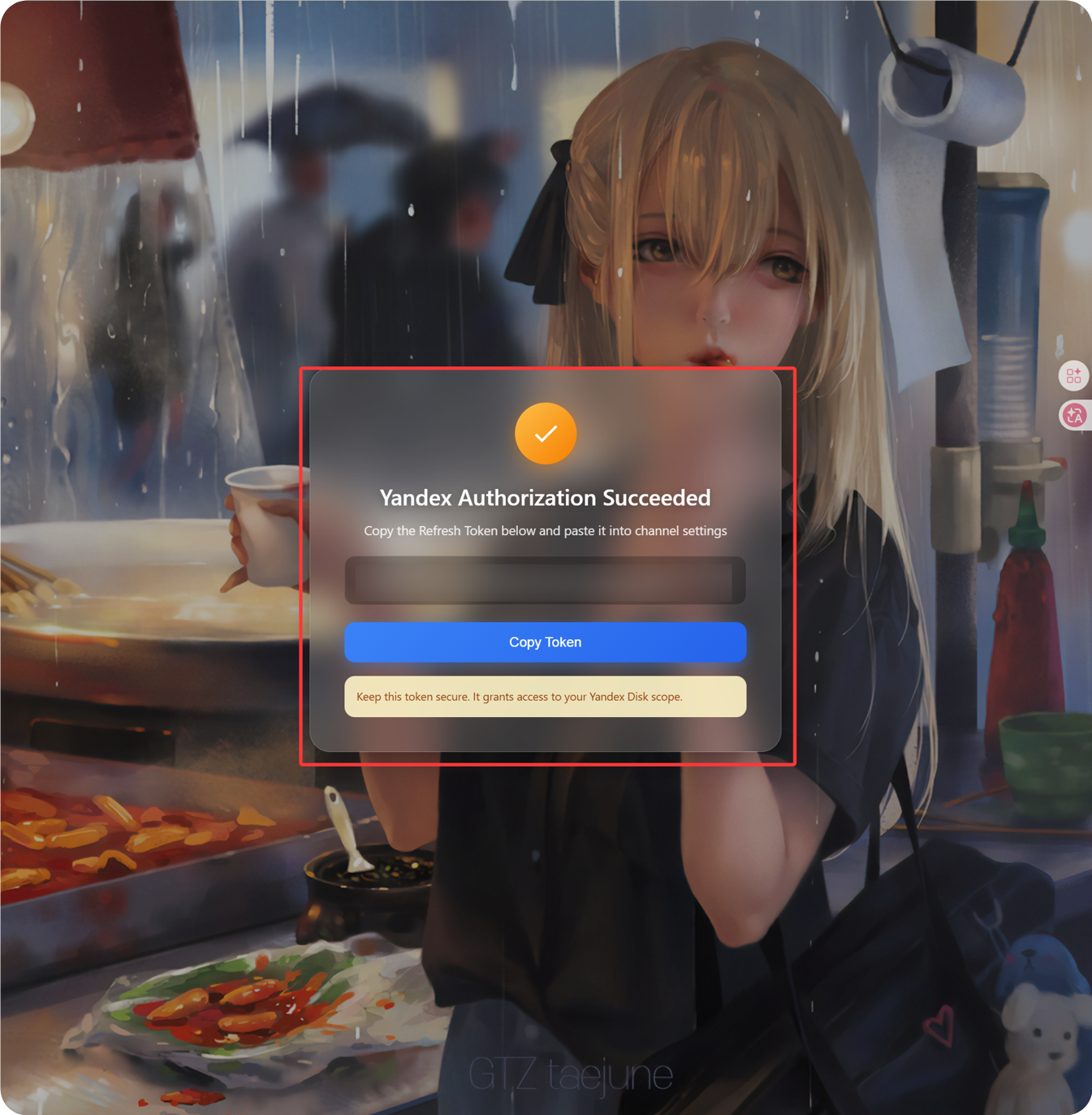
- The callback page will show a
Refresh Token. - Copy it.
- Return to ImgBed and paste it into the
Refresh Tokenfield.
Step 6: Save the Channel
After all fields are filled in, save the channel.
Quick Flow
text
Open Yandex OAuth Console
-> Create an app
-> Add https://your-domain.com/api/oauth/yandex/callback
-> Confirm Yandex Disk permissions
-> Copy Client ID and Client Secret
-> Fill Client ID / Client Secret into ImgBed
-> Click Get Token
-> Copy the Refresh Token from the callback page
-> Paste it back into ImgBed and save
References
- Register a Yandex app: https://yandex.com/dev/id/doc/en/register-client
- Get an authorization code through URL: https://yandex.com/dev/id/doc/en/codes/code-url
- Yandex OAuth token endpoint: https://yandex.com/dev/id/doc/en/tokens/token